Table of Contents
- Introduction: The Hidden Problem Behind Faster Wi-Fi
- What Is 160MHz Channel Width and How Does It Work?
- 7 Critical Reasons Why 160MHz Causes IoT Device Instability
- Real-World Scenarios: When 160MHz Breaks Your Smart Home
- Which IoT Devices Are Most Affected?
- Step-by-Step Guide: How to Fix IoT Instability Caused by 160MHz
- Best Router Settings for IoT and High-Speed Devices Together
- Should You Ever Use 160MHz? When It Actually Makes Sense
- FAQ: 160MHz Channel Width and IoT Problems
- Final Thoughts
Introduction: The Hidden Problem Behind Faster Wi-Fi
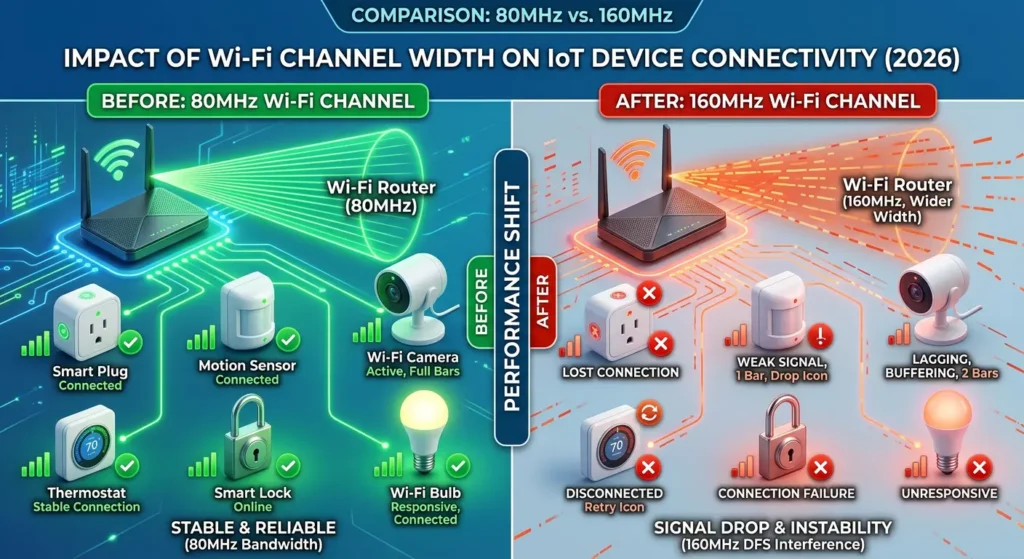
You finally upgraded to a Wi-Fi 6 router and enabled 160MHz channel width chasing those promised blazing speeds only to watch your smart home quietly fall apart. Your thermostat stopped responding. Your security camera went offline in the middle of the night. Your smart plugs became hit or miss. You restarted everything, checked every setting, and still got nowhere.
If that sounds familiar, you are not alone. After years of troubleshooting wireless networks and covering home networking technology, I can say confidently that 160MHz channel width IoT instability is one of the most widespread yet underreported problems in smart homes today.
Here is the hard truth: that same setting delivering blazing download speeds to your laptop is silently undermining the reliability of your IoT devices and most homeowners never connect the two.
In this article, I will break down exactly why 160MHz channel width IoT instability happens, back it up with real user experiences, and walk you through practical, tested solutions. No filler. No guesswork. Just clear answers you can act on right now.
What Is 160MHz Channel Width and How Does It Work?
Before diving into the problems, let us understand what 160MHz channel width actually means.
Understanding Channel Width Basics
Think of your Wi-Fi signal as a highway. The channel width determines how many lanes that highway has.
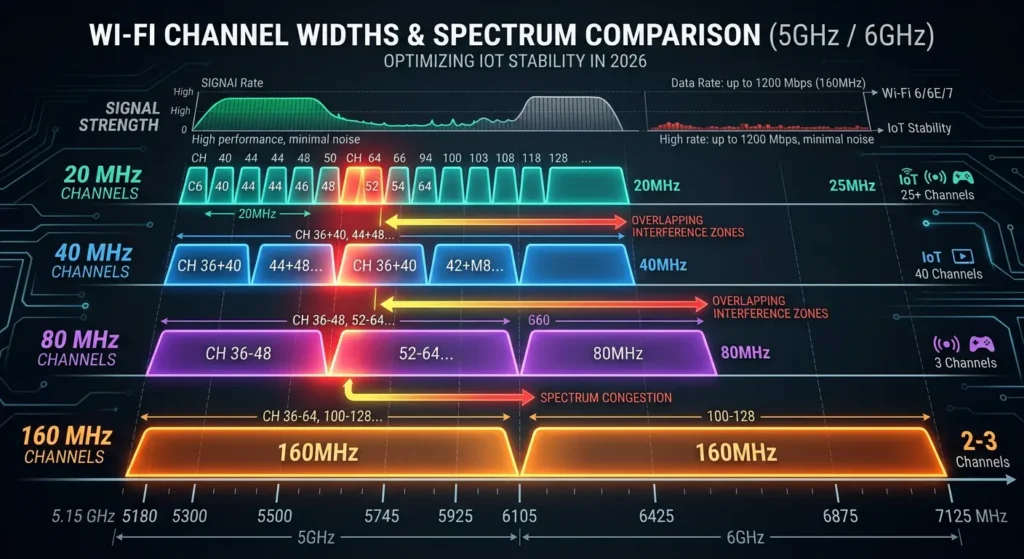
| Channel Width | Highway Analogy | Typical Use Case | Maximum Theoretical Speed (Wi-Fi 6) |
|---|---|---|---|
| 20 MHz | 2-lane road | IoT devices, basic browsing | ~143 Mbps |
| 40 MHz | 4-lane road | General home use | ~286 Mbps |
| 80 MHz | 8-lane highway | Streaming, gaming | ~600 Mbps |
| 160 MHz | 16-lane superhighway | Heavy file transfers, VR | ~1200 Mbps |
A 160MHz channel width essentially doubles the bandwidth compared to 80MHz. It combines a massive chunk of the radio spectrum to deliver faster throughput. This sounds great on paper, and for devices like laptops and phones, it genuinely can be.
But here is the catch. IoT devices were never designed to use or even coexist well with 160MHz channels.
How 160MHz Channels Are Created
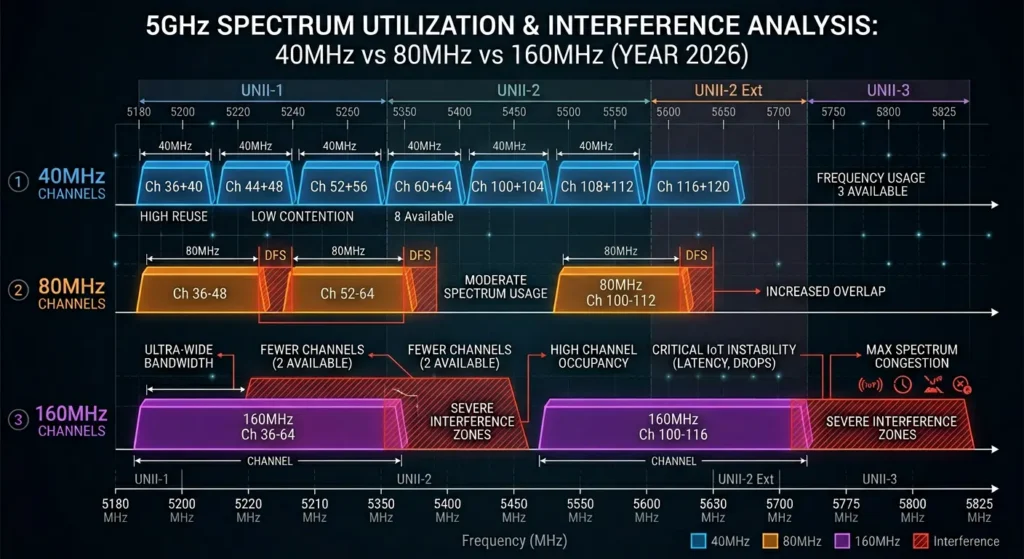
In the 5 GHz band, there are a limited number of channels available. A 160MHz channel consumes eight 20MHz channels simultaneously. In the UNII-1 and UNII-2 bands, this means you are essentially using almost all available spectrum in a single block.
Some routers use contiguous 160MHz (one continuous block), while others use 80+80MHz (two separate 80MHz blocks bonded together). Both approaches create problems for simpler devices on your network.
For a deeper technical explanation, you can refer to the Wi-Fi Alliance’s official documentation on Wi-Fi 6 channel widths.
7 Critical Reasons Why 160MHz Causes IoT Device Instability
Now let us get to the core of the problem. Here are the seven main reasons why enabling 160MHz channel width wreaks havoc on your IoT devices.
Reason 1: IoT Devices Use Narrow Channel Widths
Most IoT devices, including smart plugs, sensors, door locks, and basic cameras, are built with low-cost, low-power Wi-Fi chips. These chips typically support only 20MHz channel widths on the 2.4 GHz band. Some newer IoT devices support 5 GHz but rarely go beyond 40MHz.
When your router broadcasts at 160MHz, the communication negotiation between the router and these simple devices becomes problematic. The router expects clients to understand wide-channel signaling, and many IoT chips simply cannot process it correctly.
Reason 2: DFS Channel Conflicts and Radar Detection
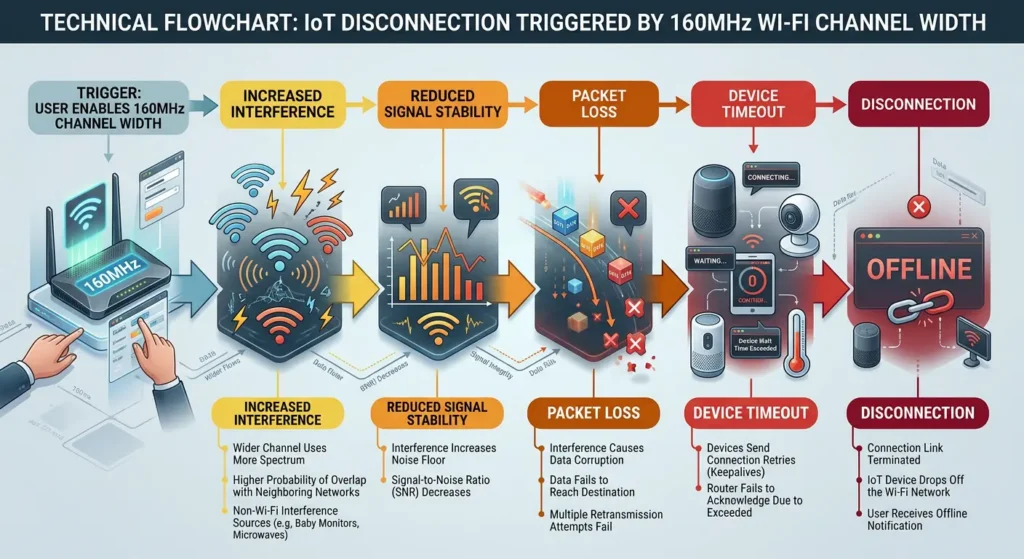
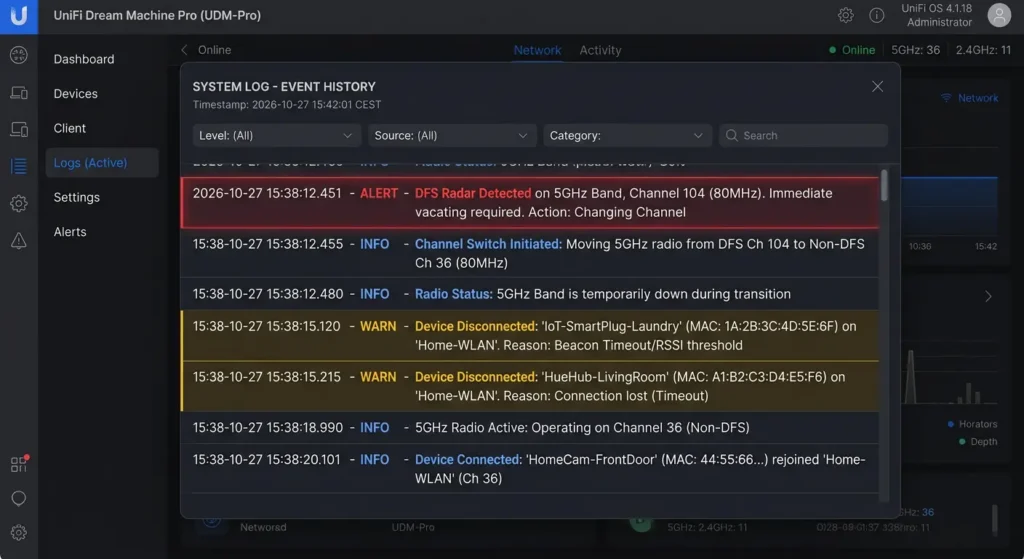
This is one of the biggest hidden culprits. To create a 160MHz channel in the 5 GHz band, routers almost always need to use DFS (Dynamic Frequency Selection) channels. These are channels shared with radar systems, including weather radar and military radar.
When the router detects radar on any part of its 160MHz block, it is legally required to vacate those channels immediately. This triggers one of two things:
- The router drops all clients and switches to a completely different channel
- The router falls back from 160MHz to 80MHz temporarily
Either way, every connected device experiences a brief disconnection. Your laptop recovers in seconds. Your IoT thermostat might not reconnect for minutes or might need a manual restart.
I personally experienced this when living near a small regional airport. My Nest cameras would drop offline every evening around the same time. It took me weeks to realize that DFS radar events were causing my router to constantly switch channels.
For more information about DFS requirements, check out the FCC’s guidelines on Dynamic Frequency Selection.
Reason 3: Increased Co-Channel Interference
A 160MHz channel is a massive spectrum hog. In most residential environments, your neighbors’ routers are also broadcasting on the 5 GHz band. When you use 160MHz, you are overlapping with far more neighboring networks than you would at 80MHz or below.
This increased interference causes:
- Higher packet error rates
- More frequent retransmissions
- Increased latency for all devices
- Dropped connections for devices with weak antennas
IoT devices, with their tiny built-in antennas and low transmit power, are the first casualties of this interference war.
Reason 4: Client Steering and Band Steering Confusion
Modern routers with 160MHz enabled often use aggressive client steering algorithms. These algorithms try to push devices to the “best” band or channel. When 160MHz is active, the router might:
- Force an IoT device to the 5 GHz band when it works better on 2.4 GHz
- Disconnect a device to “steer” it to a different band
- Fail to properly fall back to narrower channel widths for simpler clients
Many users on forums like Reddit’s r/HomeNetworking have reported that disabling band steering alongside reverting to 80MHz immediately fixed their IoT problems.
Reason 5: Reduced Signal Range and Penetration
This is basic physics. Wider channel widths mean more noise per channel and reduced sensitivity at the receiver. A 160MHz channel has a 3 dB sensitivity penalty compared to 80MHz.
In practical terms, this means your router’s effective range shrinks when using 160MHz. Devices that were at the edge of reliable connectivity at 80MHz will drop off entirely at 160MHz.
IoT devices are often placed in locations that are not ideal for Wi-Fi reception. Your smart garage door opener, your basement water leak sensor, your outdoor smart plug. These devices are already struggling with signal strength. Adding the 160MHz penalty pushes them over the edge.
Reason 6: Firmware and Driver Incompatibilities
Not all routers handle 160MHz gracefully. Many popular consumer routers have known firmware bugs related to 160MHz operation. These bugs can cause:
- Memory leaks that build up over days
- DHCP assignment failures
- ARP table corruption
- Random reboots
When the router misbehaves, IoT devices suffer the most because they lack sophisticated reconnection logic. A laptop or phone has robust Wi-Fi stack management. A $15 smart plug does not.
Reason 7: Power Save Mode Conflicts
IoT devices rely heavily on power-saving Wi-Fi modes like WMM Power Save and Target Wake Time (TWT) in Wi-Fi 6. These modes allow devices to sleep and wake up at specific intervals to conserve energy.
When 160MHz is enabled, the timing and beacon synchronization can become unreliable, especially during DFS events or channel width fallbacks. Devices wake up, find the channel has changed, and cannot locate the access point. They either stay disconnected or drain their batteries trying to reconnect.
Real-World Scenarios: When 160MHz Breaks Your Smart Home
Let me share some real situations that illustrate this problem perfectly.
Scenario 1: The Smart Lock That Stopped Working at Night
A homeowner upgraded to an ASUS RT-AX86U and enabled 160MHz for maximum performance. Everything seemed fine during the day. But every night between 10 PM and midnight, their Yale smart lock became unresponsive through the app.
The reason? A nearby weather radar station was more active during evening hours, triggering DFS channel switches. The smart lock, connected to the 5 GHz network, could not handle the frequent channel changes and would go offline for 5 to 15 minutes each time.
The fix was simple. Disable 160MHz and set the 5 GHz band to a non-DFS channel (channels 36 to 48).
Scenario 2: The Security Camera That Missed Critical Footage
A small business owner installed four Wyze cameras and a TP-Link Archer AX6000 router with 160MHz enabled. The cameras worked perfectly for streaming but would randomly produce 10 to 30 second gaps in recorded footage.
Investigation revealed that 160MHz was causing micro-disconnections that the cameras handled silently. They would reconnect quickly, but the footage during the disconnection was lost. Reverting to 80MHz eliminated the gaps entirely.
Scenario 3: The Entire Smart Home That Fell Apart
This is my own experience. After setting up a new Netgear Nighthawk with 160MHz enabled, I noticed a cascade of problems over two weeks:
- Philips Hue bridge became unreachable twice a day
- Ring doorbell had delayed notifications (30+ seconds)
- Google Home speakers randomly said “something went wrong”
- Smart plugs controlling aquarium equipment turned off unexpectedly
The moment I switched from 160MHz to 80MHz, every single issue disappeared within 24 hours.
Which IoT Devices Are Most Affected?
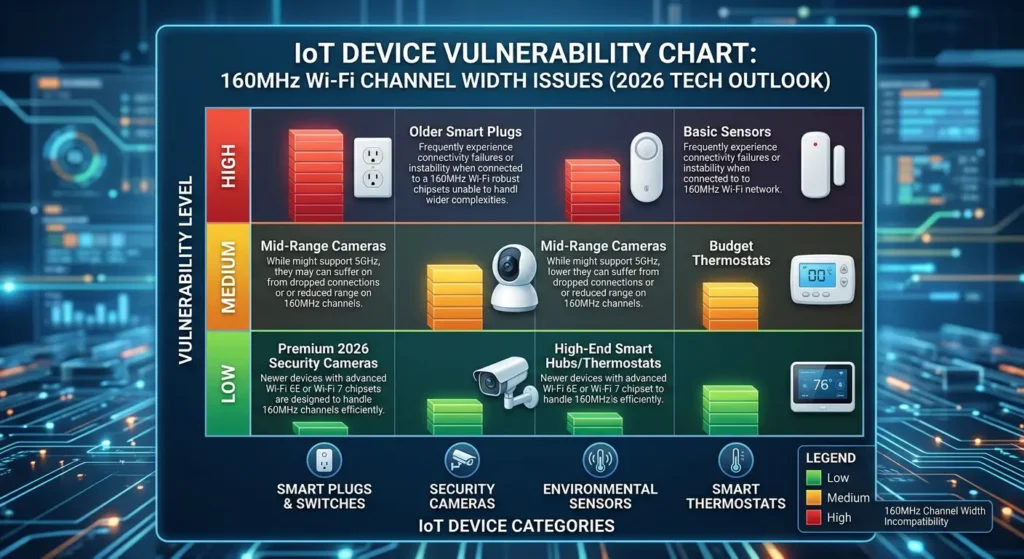
Not all IoT devices are equally vulnerable. Here is a breakdown based on real-world observations and community reports.
High Risk (Very Likely to Have Problems)
- Smart plugs and switches (TP-Link Kasa, Wemo, Tuya-based devices)
- Smart locks (Yale, August, Schlage Wi-Fi models)
- Water leak sensors and environmental monitors
- Older smart thermostats (early Nest and Ecobee models)
- Budget security cameras (Wyze, Blink indoor cameras)
Medium Risk (May Experience Intermittent Issues)
- Smart speakers (Google Home, Amazon Echo Dot)
- Robot vacuums (Roborock, iRobot Roomba)
- Smart doorbells (Ring, Eufy)
- Smart displays
Lower Risk (Usually Handle It Better)
- Apple HomePod (has a more robust Wi-Fi stack)
- High-end security cameras (Ubiquiti, Reolink PoE with Wi-Fi backup)
- Smart TVs with premium Wi-Fi chips
- Gaming consoles
The pattern is clear. The cheaper and simpler the Wi-Fi chip inside the device, the more likely it is to fail when 160MHz is enabled.
Step-by-Step Guide: How to Fix IoT Instability Caused by 160MHz
Here is a practical, step-by-step guide to resolve IoT instability while still getting good network performance.
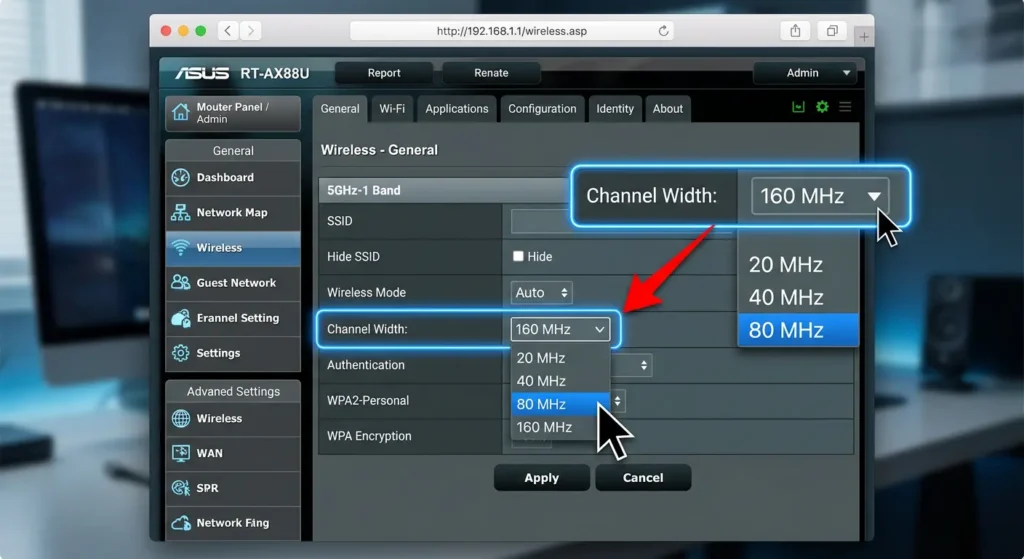
Step 1: Confirm 160MHz Is the Culprit
Before changing anything, verify that 160MHz is actually causing your problems.
- Log into your router’s admin panel
- Navigate to the wireless settings for the 5 GHz band
- Check if 160MHz channel width is currently enabled
- Temporarily change it to 80MHz
- Save settings and wait 24 to 48 hours
- Monitor your IoT devices for stability improvements
If your problems disappear, you have found your answer.
Step 2: Choose the Right Channel Width
For most home networks with IoT devices, here is the optimal configuration:
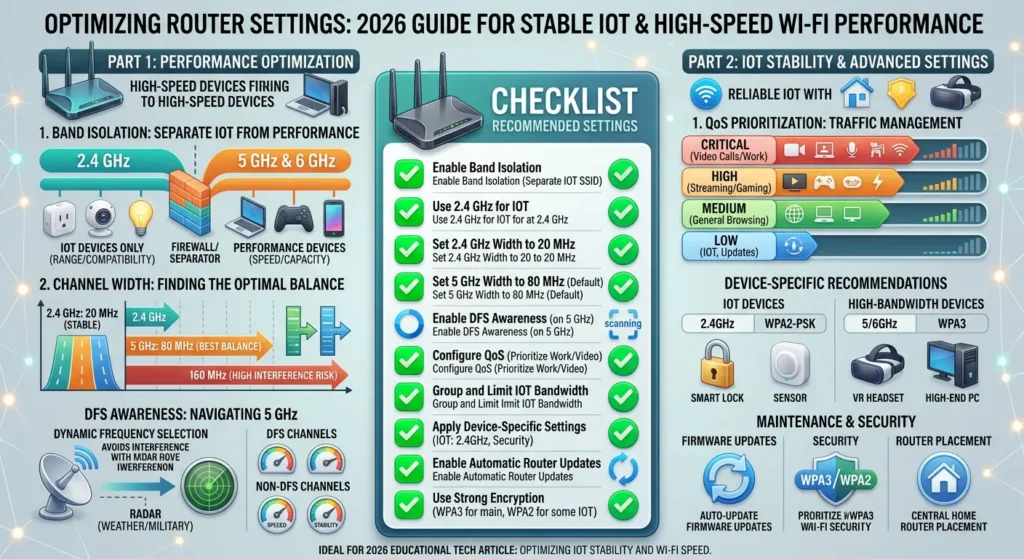
| Band | Recommended Width | Reason |
|---|---|---|
| 2.4 GHz | 20 MHz | Maximum compatibility and range for IoT |
| 5 GHz | 80 MHz | Best balance of speed and stability |
| 6 GHz (Wi-Fi 6E) | 160 MHz | No DFS, no legacy device conflicts |
Step 3: Separate Your Networks
This is one of the most effective strategies. Create separate SSIDs for different device categories.
- Create a 2.4 GHz only SSID for IoT devices (example: “HomeNetwork-IoT”)
- Create a 5 GHz SSID for phones, laptops, and streaming devices (example: “HomeNetwork-Fast”)
- Disable band steering if your router supports SSID separation
- Connect each IoT device to the dedicated IoT SSID
- Keep 80MHz on the 5 GHz network for stability
Step 4: Select Non-DFS Channels
If you must use the 5 GHz band for some IoT devices:
- Go to your router’s wireless channel settings
- For the 5 GHz band, manually select channels 36, 40, 44, or 48
- These are UNII-1 channels that do not require DFS
- Avoid channels 52 through 144 as they are DFS channels
- Channel 149 through 165 (UNII-3) are also non-DFS and can be used
Step 5: Update Router Firmware
Outdated firmware is a common amplifier of 160MHz problems.
- Check your router manufacturer’s website for the latest firmware
- Download and install the update
- After updating, reset your wireless settings and reconfigure
- Test IoT device connectivity for 48 hours
Step 6: Optimize IoT Device Placement
Since 160MHz (or even 80MHz) reduces effective range:
- Ensure IoT devices are within 30 feet of the router or access point
- Avoid placing IoT devices behind large metal objects or thick concrete walls
- Consider adding a dedicated access point for distant IoT devices
- Use a mesh system that properly handles IoT device handoffs
Step 7: Monitor and Maintain
Set up basic monitoring to catch future issues early:
- Use your router’s app or admin panel to check connected devices weekly
- Note any devices that frequently disconnect and reconnect
- Consider tools like Fing to monitor network device uptime
- Keep a log of firmware updates and setting changes
Best Router Settings for IoT and High-Speed Devices Together
The goal is to maximize speed for your performance devices while keeping IoT devices rock solid. Here are the recommended settings for popular router brands.
Universal Recommended Settings
text2.4 GHz Band:
- Channel Width: 20 MHz
- Channel: 1, 6, or 11 (whichever has least interference)
- Security: WPA2-PSK (some IoT devices don't support WPA3)
- Band Steering: Disabled
- Airtime Fairness: Disabled

5 GHz Band:
- Channel Width: 80 MHz
- Channel: 36-48 (non-DFS) preferred
- Security: WPA2/WPA3 mixed mode
- MU-MIMO: Enabled
- OFDMA: Enabled

General:
- Smart Connect / Band Steering: Disabled (use separate SSIDs)
- QoS: Enabled with IoT devices given consistent priority
- IPv6: Enabled
- UPnP: Enabled (required by many IoT devices)
What About Wi-Fi 6E and Wi-Fi 7?
If you have a Wi-Fi 6E or Wi-Fi 7 router with the 6 GHz band, the situation changes dramatically. The 6 GHz band has no DFS requirements, no legacy device conflicts, and plenty of spectrum for 160MHz or even 320MHz channels.
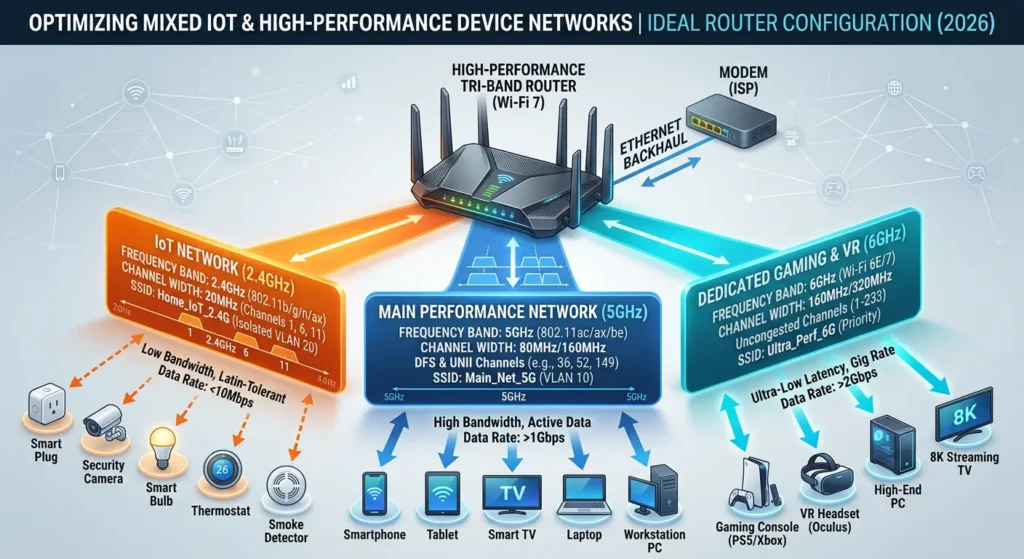
The smart strategy is:
- 2.4 GHz at 20MHz for IoT devices
- 5 GHz at 80MHz for general use
- 6 GHz at 160MHz for high-performance devices
This gives you the best of all worlds. For more details on Wi-Fi 6E benefits, see Intel’s Wi-Fi 6E overview.
Should You Ever Use 160MHz? When It Actually Makes Sense
I do not want to give the impression that 160MHz is always bad. It is not. It is a powerful feature that has legitimate use cases.
When 160MHz Makes Sense
- You have no IoT devices on your network at all
- You are using the 6 GHz band (Wi-Fi 6E/7) where DFS is not required
- You are in a rural area with no neighboring Wi-Fi networks and no nearby radar
- You need maximum throughput for NAS file transfers, local video editing, or VR streaming
- You have enterprise-grade equipment that handles 160MHz gracefully (Ubiquiti, Aruba, Cisco)
When You Should Definitely Avoid 160MHz
- You have more than 5 IoT devices on your network
- You live in an apartment building or dense neighborhood
- You live near an airport, military base, or weather station
- Your router is a consumer-grade model with basic firmware
- You rely on IoT devices for security (cameras, locks, alarms)
FAQ: 160MHz Channel Width and IoT Problems
Does 160MHz affect 2.4 GHz IoT devices?
Not directly, since 160MHz is a 5 GHz and 6 GHz feature. However, routers handling 160MHz channels can experience increased CPU load and memory usage, which can indirectly affect 2.4 GHz performance and DHCP reliability for all connected devices.
Will Wi-Fi 7 fix the 160MHz IoT problem?
Wi-Fi 7 introduces 320MHz channels on the 6 GHz band and improves multi-link operation (MLO). For the 6 GHz band specifically, the DFS problem is eliminated. However, most current IoT devices do not support Wi-Fi 7 or 6 GHz, so the fundamental incompatibility with 5 GHz 160MHz channels remains.
Can I use 160MHz if I put all IoT devices on a separate VLAN?
Separating IoT devices onto a VLAN is excellent for security, but it does not solve the radio-level problems. If both VLANs share the same physical radio and the same 160MHz channel, DFS events and interference will still affect IoT devices. You need separate SSIDs on separate bands, not just separate VLANs.
Is 80MHz fast enough for streaming 4K video?
Absolutely. An 80MHz channel on Wi-Fi 6 can deliver 600+ Mbps of real-world throughput. Netflix 4K requires about 25 Mbps. Even with multiple 4K streams, you will never come close to saturating an 80MHz channel. The speed benefit of 160MHz is only noticeable during large local file transfers.
Why do some IoT devices work fine with 160MHz while others do not?
It comes down to the Wi-Fi chip quality, firmware sophistication, and antenna design. Premium IoT devices from companies like Apple or high-end camera manufacturers use better Wi-Fi modules with more robust roaming and reconnection logic. Budget devices use minimal Wi-Fi stacks that cannot handle the complexity of 160MHz environments.
Does disabling 160MHz slow down my internet speed?
For internet browsing, streaming, and most online activities, you will notice zero difference. The bottleneck is almost always your ISP speed, not your Wi-Fi channel width. If you have a 500 Mbps internet plan, 80MHz Wi-Fi 6 can easily deliver that full speed wirelessly.
How can I tell if DFS radar events are happening on my network?
Most router admin panels have a log or system event section. Look for entries mentioning “radar detected,” “DFS,” or “channel switch.” On ASUS routers, this is found under System Log then Wireless Log. On Ubiquiti, the UniFi controller shows DFS events in the alerts section.
Final Thoughts
The 160MHz channel width is an impressive technology that delivers genuinely faster speeds. But for homes with IoT devices, it creates far more problems than it solves. The combination of DFS radar events, reduced range, increased interference, and compatibility issues with low-cost IoT chips makes 160MHz a poor choice for mixed-device networks.
The good news is that the fix is straightforward. Switch to 80MHz on your 5 GHz band, use 20MHz on your 2.4 GHz band for IoT, and if you want maximum speed, invest in a Wi-Fi 6E or Wi-Fi 7 router and use 160MHz exclusively on the 6 GHz band.
Your smart home should be reliable first and fast second. An IoT device that works every single time at “good enough” speed is infinitely more valuable than one that is blazing fast 90% of the time and completely offline the other 10%.
If you are currently experiencing random IoT disconnections, smart home automation failures, or security camera gaps, try disabling 160MHz today. There is a very good chance it will solve problems you did not even know were connected.