

Table of Contents
- Introduction
- Understanding the Problem: Why VLAN Isolation Breaks MQTT Communication
- How VLANs and MQTT Work Together
- Top Reasons Your IoT Devices Cannot Reach the MQTT Broker
- Real World Scenario: Smart Home IoT Devices Losing MQTT Connection
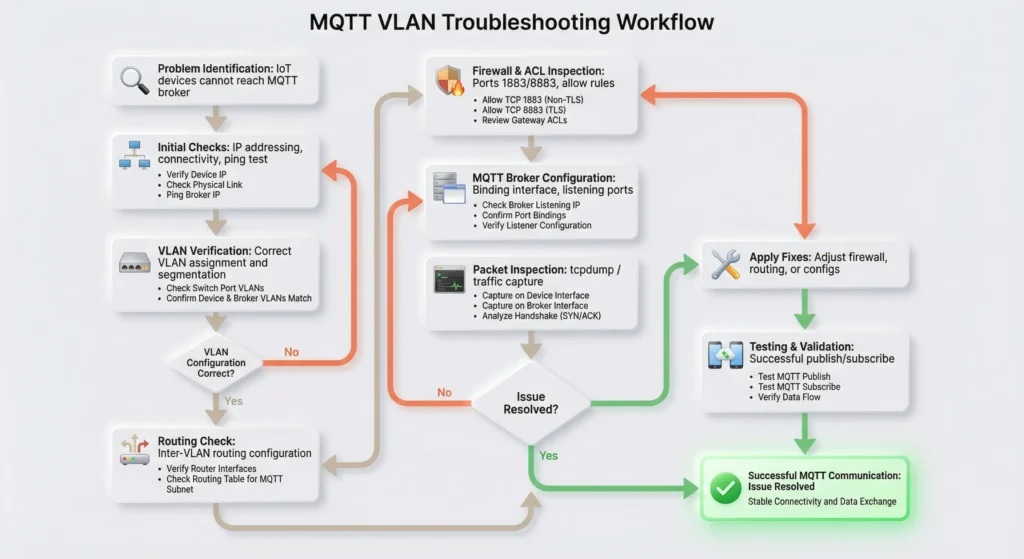
- Step by Step Troubleshooting Guide
- Firewall Rules and Inter VLAN Routing Configuration
- Common Mistakes That Block MQTT Traffic Across VLANs
- How to Securely Allow MQTT Through VLANs Without Compromising Network Security
- Testing and Verifying MQTT Connectivity Across VLANs
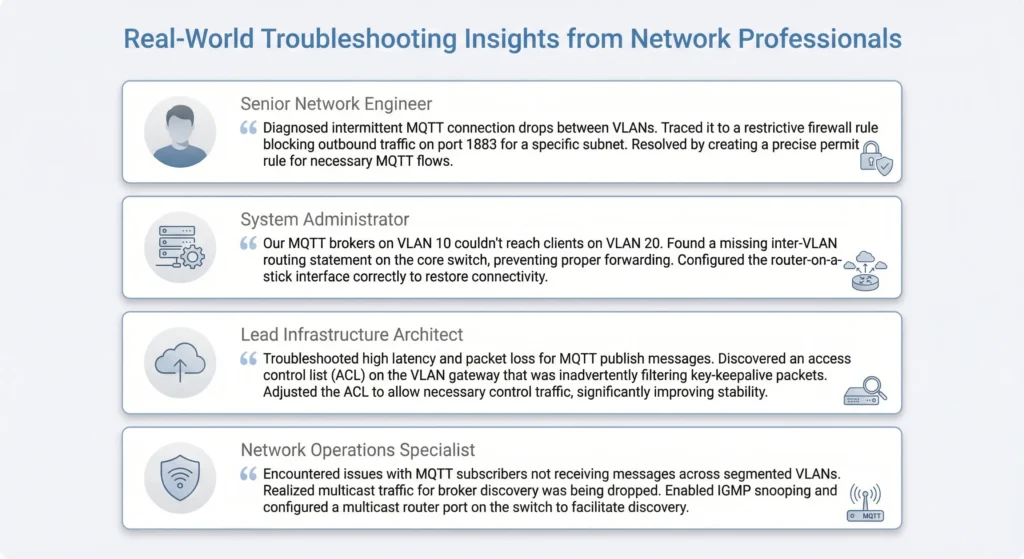
- Real Experiences from Network Administrators
- FAQ
- Final Thoughts
Introduction
You have set up everything by the book. Your network is properly segmented, dedicated VLANs are in place for your IoT devices, and an MQTT broker is ready to manage all device communications. On paper, it is a textbook setup. But in reality, something breaks: your devices just refuse to talk to the broker.
If this sounds familiar, you are definitely not alone.
The problem of VLAN isolated IoT devices unable to reach MQTT broker is far more common than most people think. Network administrators and smart home enthusiasts run into this exact scenario every single day when they try to balance strong network segmentation with seamless IoT communication. The frustrating part is that everything seems correctly configured, yet the connection simply will not go through.
Here is the good news: once you understand what is really going on beneath the surface, this issue is almost always straightforward to resolve.
Throughout this guide, I am going to break down every possible cause behind this connectivity failure, step by step. More importantly, I will give you clear and practical solutions to restore communication between your devices and the broker, all while keeping the security advantages that VLAN isolation was designed to provide in the first place.
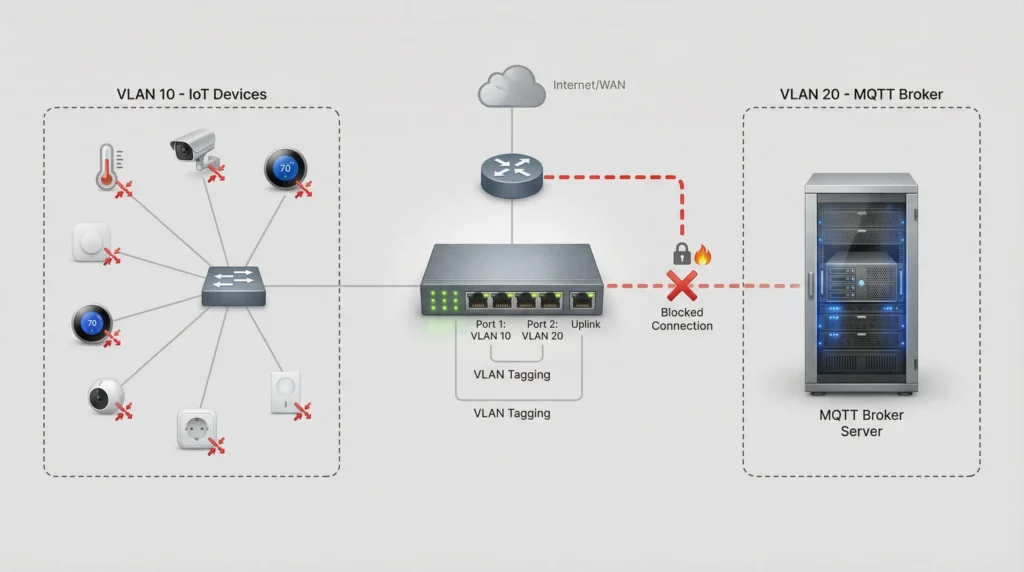
Understanding the Problem: Why VLAN Isolation Breaks MQTT Communication
Before diving into solutions, let us make sure we understand the core issue.
A VLAN (Virtual Local Area Network) is essentially a way to divide a single physical network into multiple isolated logical networks. When you place your IoT devices on VLAN 20 and your MQTT broker on VLAN 10, these two networks cannot talk to each other by default.
That is the entire point of VLANs. They create isolation.
MQTT (Message Queuing Telemetry Transport) relies on TCP/IP communication, typically over port 1883 for unencrypted connections or port 8883 for TLS encrypted connections. Your IoT devices need a clear network path to reach the broker’s IP address on these ports.
When VLANs block that path, the connection simply dies before it even starts.
The Core Conflict
Here is the fundamental tension:
- VLANs exist to isolate traffic and prevent devices from communicating across network segments
- MQTT requires connectivity between publishers, subscribers, and the broker
So you are essentially asking your network to do two contradictory things at once. The solution lies in creating controlled, specific exceptions rather than removing isolation entirely.

How VLANs and MQTT Work Together
To fix this problem effectively, you need to understand how both technologies work and where they intersect.
VLAN Basics
| Component | Purpose |
|---|---|
| VLAN ID | Identifies the virtual network segment |
| Trunk Port | Carries traffic for multiple VLANs between switches and routers |
| Access Port | Connects end devices to a specific VLAN |
| Inter VLAN Routing | Allows controlled communication between VLANs through a Layer 3 device |
| ACL / Firewall Rules | Controls which traffic is permitted between VLANs |
MQTT Communication Flow
- The IoT device (client) initiates a TCP connection to the broker’s IP address
- The connection is established on port 1883 or 8883
- The client sends a CONNECT packet
- The broker responds with a CONNACK packet
- The client can now publish and subscribe to topics
If any step in this flow is blocked by VLAN isolation, the entire MQTT communication fails.
Where Things Break
The breakdown typically happens at step 1. The IoT device tries to reach the broker’s IP address, but because the broker lives on a different VLAN, there is no route available. The TCP SYN packet gets dropped, and the device either times out or reports a connection refused error.

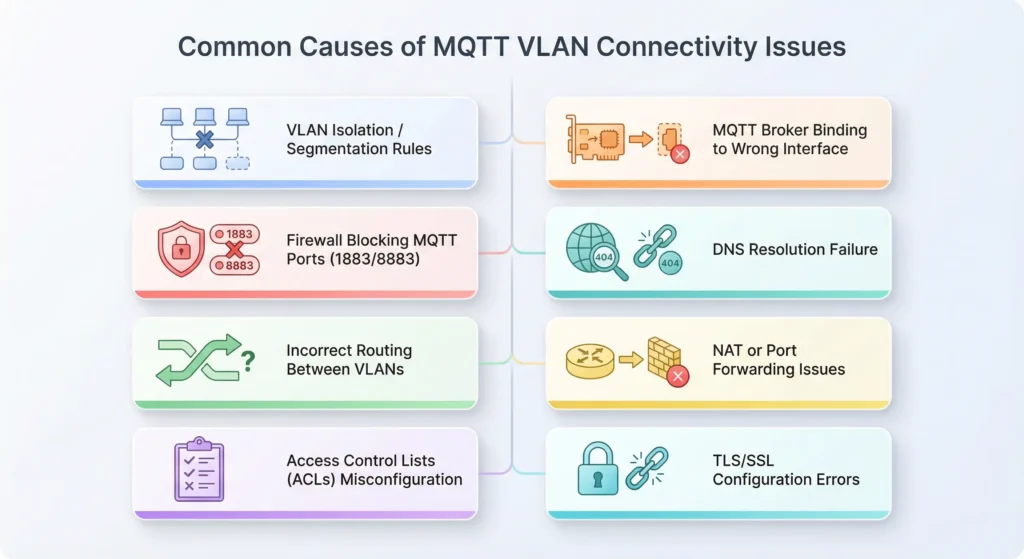
Top Reasons Your IoT Devices Cannot Reach the MQTT Broker
Based on years of troubleshooting this exact issue, here are the most common causes ranked by frequency:
1. No Inter VLAN Routing Configured
This is the number one cause. If you have not configured a Layer 3 device (router or Layer 3 switch) to route traffic between VLANs, there is simply no way for packets to cross from one VLAN to another.
2. Firewall Rules Blocking MQTT Ports
Even if inter VLAN routing is enabled, your firewall might be blocking TCP traffic on port 1883 or 8883. Many firewalls default to denying all inter VLAN traffic.
3. Incorrect Default Gateway on IoT Devices
IoT devices need to know where to send traffic destined for other networks. If the default gateway is wrong or missing, the device has no idea how to reach the broker.
4. MQTT Broker Binding to Wrong Interface
If your MQTT broker (like Mosquitto) is configured to listen only on a specific interface or IP address, it might not be accepting connections from the IoT VLAN’s subnet.
5. DNS Resolution Failure
If your IoT devices use a hostname to connect to the MQTT broker instead of an IP address, DNS resolution might fail across VLANs.
6. Incorrect Subnet Mask Configuration
A misconfigured subnet mask can make devices think the broker is on the same local network when it is actually on a different VLAN, causing ARP requests that will never be answered.
7. Asymmetric Routing Issues
Traffic from the IoT device reaches the broker, but the return traffic takes a different path and gets blocked.
8. MQTT Broker Access Control Lists
The broker itself might have ACL rules that reject connections from IP addresses outside its local subnet.
Real World Scenario: Smart Home IoT Devices Losing MQTT Connection
Let me share a scenario that I personally encountered and that many of you will relate to.
The Setup
A homelab enthusiast named Alex had the following network configuration:
- VLAN 1 (Management): Router, switches, and management interfaces on 192.168.1.0/24
- VLAN 10 (Servers): Home Assistant server running Mosquitto MQTT broker on 192.168.10.0/24
- VLAN 20 (IoT): Zigbee gateway, smart plugs, ESP32 sensors, and IP cameras on 192.168.20.0/24
- VLAN 30 (Guest): Guest WiFi on 192.168.30.0/24
- Router/Firewall: pfSense running on a mini PC
The Problem
After setting up the VLANs, Alex noticed that none of the ESP32 sensors on VLAN 20 could publish temperature data to the Mosquitto broker on VLAN 10. The sensors kept showing “MQTT connection failed” errors in the serial monitor.
The Investigation
Alex initially thought the problem was with the sensors themselves. He flashed new firmware, changed MQTT libraries, and even replaced one of the ESP32 boards. Nothing worked.
After three hours of frustration, he finally ran a ping test from a laptop connected to VLAN 20:
textping 192.168.10.5
The ping failed. That confirmed the issue was not MQTT specific at all. It was a network routing problem.
The Root Cause
Alex had created the VLANs on his managed switch and configured the VLAN interfaces on pfSense, but he never created firewall rules to allow traffic from VLAN 20 to VLAN 10 on port 1883.
By default, pfSense blocks all traffic between VLANs unless you explicitly allow it.
The Fix
Alex created a firewall rule on the VLAN 20 interface:
- Action: Pass
- Protocol: TCP
- Source: VLAN 20 subnet (192.168.20.0/24)
- Destination: 192.168.10.5 (MQTT broker IP)
- Destination Port: 1883
Within seconds of applying the rule, all ESP32 sensors reconnected to the MQTT broker and started publishing data.

Step by Step Troubleshooting Guide
Follow these steps in order. Each step builds on the previous one, and this sequence will help you identify the exact point of failure.
Step 1: Verify Basic Network Connectivity
Before troubleshooting MQTT, confirm that basic IP connectivity exists between the VLANs.
From a device on the IoT VLAN, try to ping the MQTT broker:
Bashping 192.168.10.5
If ping fails: The problem is at the network layer. Move to Step 2.
If ping succeeds: The problem is at the application layer. Skip to Step 5.
Step 2: Check Inter VLAN Routing
Verify that your Layer 3 device has interfaces configured for both VLANs.
On a Cisco router:
textshow ip interface brief
On pfSense, check under Interfaces to confirm that both VLAN interfaces are enabled and have IP addresses assigned.
On a UniFi Security Gateway:
textshow interfaces
Make sure both VLAN interfaces show as “up” with correct IP addresses.
Step 3: Examine Firewall Rules
This is where most people get stuck. Check your firewall rules for the IoT VLAN interface.
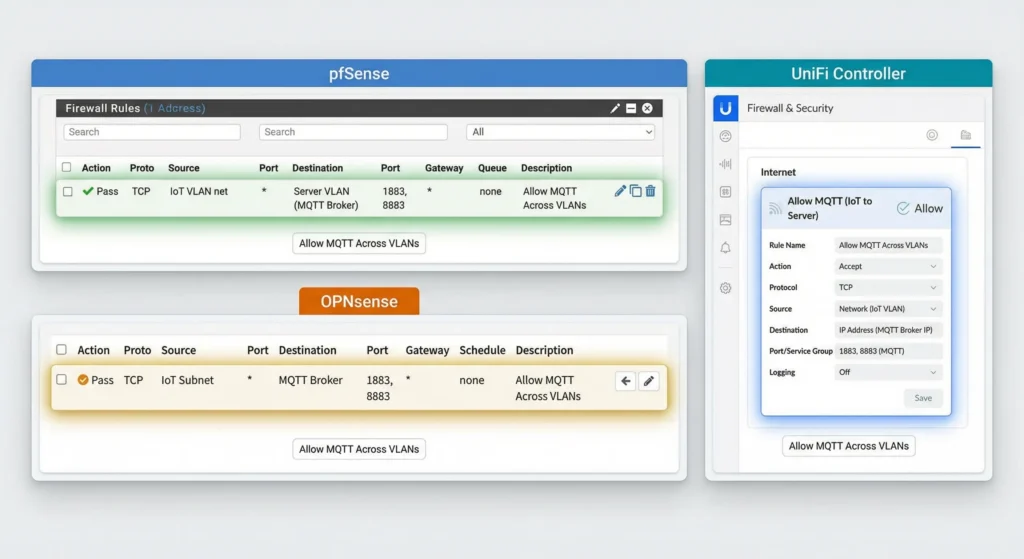
On pfSense:
Navigate to Firewall > Rules > VLAN20 (IoT)
Look for a rule that allows:
- TCP traffic
- From VLAN 20 subnet
- To the MQTT broker IP
- On port 1883 (or 8883 for TLS)
On OPNsense:
Navigate to Firewall > Rules > [IoT VLAN interface]
On UniFi:
Check the Traffic Management or Firewall Rules section in the UniFi Controller.
Step 4: Verify Default Gateway on IoT Devices
Check that your IoT devices have the correct default gateway configured. The gateway should be the IP address of the router’s interface on the IoT VLAN.
For example, if the IoT VLAN interface on your router is 192.168.20.1, then every IoT device on that VLAN should have 192.168.20.1 as its default gateway.
On an ESP32 with static IP:
C++IPAddress gateway(192, 168, 20, 1);
WiFi.config(staticIP, gateway, subnet, dns);
If using DHCP, verify that your DHCP server for the IoT VLAN is distributing the correct gateway address.
Step 5: Test MQTT Port Specifically
If ping works but MQTT does not, test the specific port:
Bashtelnet 192.168.10.5 1883
Or using netcat:
Bashnc -zv 192.168.10.5 1883
If the port is closed or filtered: Check the broker configuration and any host based firewall (like iptables or Windows Firewall) on the broker machine.
Step 6: Check MQTT Broker Configuration
Open your Mosquitto configuration file (usually at /etc/mosquitto/mosquitto.conf):
textlistener 1883 0.0.0.0
allow_anonymous true
The key line is listener 1883 0.0.0.0. This tells Mosquitto to listen on all network interfaces. If it says listener 1883 192.168.10.5, it will only accept connections on that specific interface, which should still work for inter VLAN traffic as long as routing is correct.
If you are using MQTT with authentication, verify that the credentials on your IoT devices match the broker’s password file.
Step 7: Check for DNS Issues
If your IoT devices connect to the broker using a hostname like mqtt.home.local, make sure DNS resolution works from the IoT VLAN.
Bashnslookup mqtt.home.local
If DNS fails, either configure your DNS server to be accessible from the IoT VLAN or use the broker’s IP address directly in your IoT device configuration.
Step 8: Capture and Analyze Traffic
If all the above checks pass but MQTT still fails, use packet capture to see exactly what is happening:
On the broker machine:
Bashsudo tcpdump -i any port 1883 -n
On pfSense, use the built in packet capture tool under Diagnostics > Packet Capture.
Look for:
- SYN packets arriving from the IoT device
- SYN ACK responses from the broker
- Any RST (reset) packets

Firewall Rules and Inter VLAN Routing Configuration
Here are specific configurations for the most popular firewall and router platforms.
pfSense Configuration
Step 1: Create VLAN interfaces under Interfaces > Assignments > VLANs
Step 2: Assign and enable each VLAN interface
Step 3: Configure IP addresses:
- VLAN 10 Interface: 192.168.10.1/24
- VLAN 20 Interface: 192.168.20.1/24
Step 4: Create firewall rule on VLAN 20 interface:
textAction: Pass
Interface: VLAN20_IOT
Address Family: IPv4
Protocol: TCP
Source: VLAN20 net
Destination: Single host - 192.168.10.5
Destination Port: 1883
Description: Allow IoT devices to reach MQTT broker
For a more complete reference, check the official pfSense documentation on VLAN configuration.
OPNsense Configuration
The process is similar to pfSense:
Navigate to Firewall > Rules > [IoT VLAN] and add:
textAction: Pass
Direction: in
TCP/IP Version: IPv4
Protocol: TCP
Source: IoT VLAN network
Destination: MQTT broker IP
Destination port: 1883
UniFi Network Configuration
For Ubiquiti UniFi environments:
- Go to Settings > Networks and ensure both VLANs are created
- Navigate to Settings > Traffic Management > Firewall Rules
- Create a rule:
- Type: LAN In
- Action: Allow
- Source: IoT network
- Destination: Server network (or specific broker IP)
- Port: 1883
Check the UniFi documentation on firewall policies for additional details.
MikroTik RouterOS Configuration
text/ip firewall filter add chain=forward action=accept \
  src-address=192.168.20.0/24 dst-address=192.168.10.5 \
  protocol=tcp dst-port=1883 comment="Allow IoT to MQTT"
Make sure this rule is placed before any drop rules in your filter chain.
Common Mistakes That Block MQTT Traffic Across VLANs
These are the mistakes I see most frequently. Check each one against your own setup.
Mistake 1: Creating Allow Rules on the Wrong Interface
Firewall rules are processed on the inbound direction of an interface. If your IoT devices are on VLAN 20, the allow rule must be created on the VLAN 20 interface, not on the VLAN 10 interface.
This is counterintuitive for many people, but think of it this way: the rule intercepts traffic as it enters the firewall from the source VLAN.
Mistake 2: Forgetting Return Traffic
Some firewall configurations require explicit rules for return traffic. However, most modern firewalls (pfSense, OPNsense, UniFi) are stateful, meaning they automatically allow return traffic for established connections.
If you are using a stateless ACL (common on basic Layer 3 switches), you need to create rules on both VLAN interfaces:
- VLAN 20: Allow TCP to 192.168.10.5 port 1883
- VLAN 10: Allow TCP from 192.168.10.5 port 1883 (established connections)
Mistake 3: MQTT Broker Bound to Localhost
If your Mosquitto config has:
textbind_address 127.0.0.1
Or:
textlistener 1883 localhost
The broker will only accept connections from the local machine. Change it to:
textlistener 1883 0.0.0.0
Then restart Mosquitto:
Bashsudo systemctl restart mosquitto
Mistake 4: Host Firewall Blocking External Connections
Even if your network firewall allows MQTT traffic, the host machine running the broker might have its own firewall blocking incoming connections.
On Ubuntu/Debian:
Bashsudo ufw allow 1883/tcp
On CentOS/RHEL:
Bashsudo firewall-cmd --add-port=1883/tcp --permanent
sudo firewall-cmd --reload
On Windows:
PowerShellNew-NetFirewallRule -DisplayName "MQTT Broker" -Direction Inbound -Protocol TCP -LocalPort 1883 -Action Allow
Mistake 5: DHCP Server Not Configured for IoT VLAN
If you forgot to set up a DHCP server for the IoT VLAN, your devices might be assigning themselves APIPA addresses (169.254.x.x) and will never be able to reach any other network.
Verify that your router or DHCP server has a scope configured for the IoT VLAN subnet.

How to Securely Allow MQTT Through VLANs Without Compromising Network Security
The whole point of creating VLANs was to improve security. You do not want to undo that by creating overly permissive rules. Here are best practices for maintaining security while enabling MQTT communication.
Use Specific Rules, Not Broad Ones
Bad rule:
textAllow ALL traffic from VLAN 20 to VLAN 10
Good rule:
textAllow TCP from VLAN 20 to 192.168.10.5 port 1883 ONLY
The good rule allows only MQTT traffic to the specific broker IP. Nothing else from the IoT VLAN can reach the server VLAN.
Enable MQTT over TLS (Port 8883)
Instead of using unencrypted MQTT on port 1883, configure your broker and devices to use TLS encryption on port 8883. This prevents anyone on the network from sniffing MQTT messages.
Mosquitto TLS configuration:
textlistener 8883
certfile /etc/mosquitto/certs/server.crt
keyfile /etc/mosquitto/certs/server.key
cafile /etc/mosquitto/certs/ca.crt
For detailed TLS setup instructions, refer to the Eclipse Mosquitto TLS documentation.
Use MQTT Authentication
Always require username and password authentication:
textallow_anonymous false
password_file /etc/mosquitto/passwd
Create passwords with:
Bashsudo mosquitto_passwd -c /etc/mosquitto/passwd iot_device1
Implement MQTT Topic ACLs
Restrict which devices can publish or subscribe to specific topics:
text# /etc/mosquitto/acl
user sensor_livingroom
topic read homeassistant/sensor/livingroom/#
topic write homeassistant/sensor/livingroom/#

user sensor_kitchen
topic read homeassistant/sensor/kitchen/#
topic write homeassistant/sensor/kitchen/#
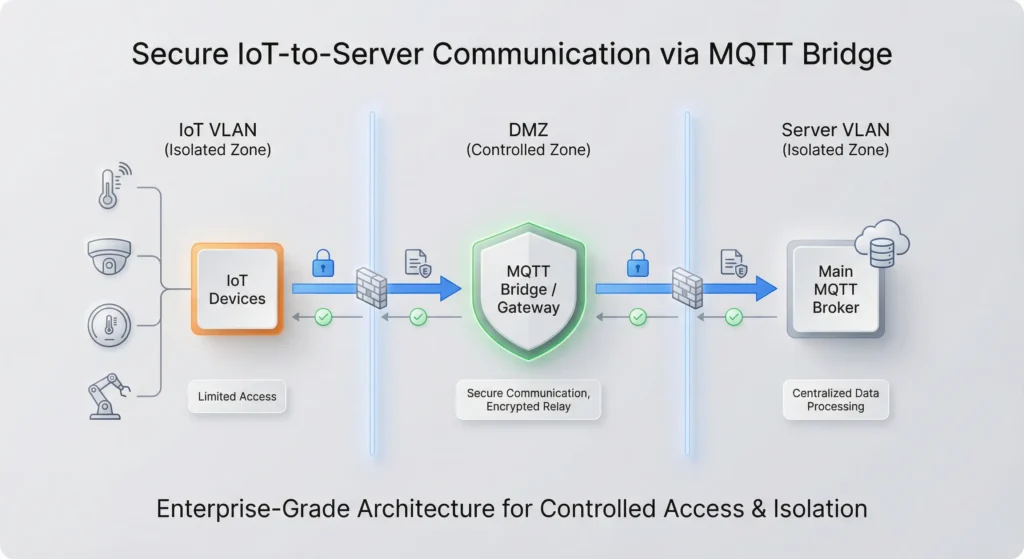
Consider an MQTT Broker on the IoT VLAN
If your security policy is very strict, consider placing a dedicated MQTT broker directly on the IoT VLAN. Then use an MQTT bridge to forward selected messages to your main network. This way, IoT devices never need to cross VLAN boundaries at all.
text# Bridge configuration in mosquitto.conf
connection bridge-to-main
address 192.168.10.5:1883
topic # out 0
topic # in 0
Testing and Verifying MQTT Connectivity Across VLANs
After making configuration changes, you need to verify everything works correctly. Here is a systematic testing approach.
Test 1: Layer 3 Connectivity
Bashping 192.168.10.5
Expected result: Replies received with low latency.
Test 2: Port Accessibility
Bashnc -zv 192.168.10.5 1883
Expected result: Connection succeeded.
Test 3: MQTT Connection Test
Using the mosquitto client tools:
Bash# Subscribe on one terminal
mosquitto_sub -h 192.168.10.5 -t "test/vlan" -u username -P password

# Publish on another terminal (from IoT VLAN)
mosquitto_pub -h 192.168.10.5 -t "test/vlan" -m "Hello from IoT VLAN" -u username -P password
Expected result: The subscriber receives the message.
Test 4: Verify TLS Connection (If Using Port 8883)
Bashopenssl s_client -connect 192.168.10.5:8883 -CAfile ca.crt
Expected result: SSL handshake completes successfully.
Test 5: Monitor Broker Logs
Watch the Mosquitto log file in real time:
Bashtail -f /var/log/mosquitto/mosquitto.log
You should see connection attempts, successful authentications, and subscription/publication events.

Real Experiences from Network Administrators
Experience 1: The Missing VLAN Interface
“I spent an entire weekend trying to figure out why my Zigbee2MQTT devices could not reach my Mosquitto broker. I had the firewall rules, I had the VLANs configured on my switch, but I had completely forgotten to create the VLAN interface on my pfSense router. Without the interface, pfSense had no way to route between the VLANs. Five minutes of configuration fixed a two day problem.” – Marcus, IT Administrator
Experience 2: The Docker Network Trap
“My MQTT broker was running in a Docker container on my server. Even though the server was on VLAN 10, Docker creates its own bridge network. I had to map port 1883 to the host using -p 1883:1883 in my Docker run command. Before that, the broker was only accessible from within Docker’s internal network.” – Sarah, DevOps Engineer
Experience 3: The ESP32 Static IP Misconfiguration
“All my ESP32 sensors had static IPs configured in the Arduino code. When I moved them to a new VLAN, I updated the IP addresses but forgot to change the default gateway. The sensors had IPs on the 192.168.20.x subnet but were still pointing to 192.168.1.1 as the gateway. The packets had nowhere to go.” – James, Smart Home Enthusiast
Experience 4: The Managed Switch Oversight
“I was using an unmanaged switch for my IoT devices. The problem was that unmanaged switches do not understand VLAN tags. My tagged VLAN traffic was being dropped at the switch. Once I replaced it with a managed switch and configured the ports as access ports for VLAN 20, everything started working perfectly.” – Priya, Network Engineer
FAQ
Can IoT devices on different VLANs communicate with each other through MQTT?
Yes, they can, as long as all devices can reach the MQTT broker. The broker acts as a central hub. Device A on VLAN 20 publishes a message to the broker on VLAN 10, and Device B on VLAN 30 subscribes to that topic through the same broker. You need firewall rules allowing MQTT traffic from both VLANs to the broker.
What port does MQTT use, and should I open both 1883 and 8883?
MQTT uses port 1883 for unencrypted connections and port 8883 for TLS encrypted connections. You should only open the port you are actually using. If you have configured TLS (which is recommended), open only port 8883 and keep 1883 closed.
Is it safe to allow IoT devices to access other VLANs?
You should never allow IoT devices unrestricted access to other VLANs. Instead, create specific firewall rules that only allow traffic to the MQTT broker’s IP address on the required port. This follows the principle of least privilege.
Can I use MQTT over WebSockets across VLANs?
Yes, MQTT over WebSockets works the same way as standard MQTT across VLANs. You just need to open the WebSocket port (commonly 9001) instead of or in addition to the standard MQTT ports. Make sure your Mosquitto configuration includes a WebSocket listener.
Why does MQTT work on the same VLAN but not across VLANs?
When devices are on the same VLAN, they communicate directly at Layer 2 without needing a router. When devices are on different VLANs, traffic must be routed through a Layer 3 device. If inter VLAN routing is not configured or firewall rules block the traffic, MQTT connections will fail.
Should I put my MQTT broker on the IoT VLAN or a separate server VLAN?
Best practice is to keep the MQTT broker on a server VLAN and create specific firewall rules allowing IoT devices to connect. This maintains network segmentation and prevents compromised IoT devices from having direct access to your servers. Alternatively, you can use an MQTT bridge architecture.
How do I troubleshoot MQTT connection timeouts across VLANs?
Start with basic connectivity tests (ping, traceroute), then test port accessibility (telnet or netcat), check firewall logs for blocked traffic, verify the broker is listening on the correct interface, and finally examine MQTT broker logs for connection attempts and errors.
Does MQTT QoS affect connectivity across VLANs?
MQTT QoS (Quality of Service) levels do not affect the initial TCP connection. However, higher QoS levels (1 and 2) require more back and forth communication between client and broker, which means more packets crossing the VLAN boundary. If your network has intermittent connectivity issues, you might notice more message delivery failures with higher QoS settings.
Final Thoughts
Troubleshooting MQTT connectivity across VLANs can feel overwhelming at first, but the root cause almost always falls into one of the categories we covered in this guide. In my experience, about 80% of cases come down to either missing inter VLAN routing or firewall rules that silently block MQTT traffic.
The key takeaway is this: VLANs are supposed to block traffic. That is their job. When your IoT devices cannot reach the MQTT broker, the VLAN is doing exactly what it was designed to do. Your task is to create precise, narrow exceptions that allow only the traffic you need while keeping everything else locked down.
Start with the step by step troubleshooting guide above. Work through each step methodically. Do not skip the basics. And remember that packet captures are your best friend when things do not make sense.
Your VLAN isolated IoT network can absolutely coexist with a reliable MQTT infrastructure. It just takes the right configuration.
If this guide helped you solve your MQTT connectivity issue, consider bookmarking it for future reference. Network configurations change, new devices get added, and having a systematic troubleshooting approach will save you hours of frustration down the road.
routing issues, but physical wireless stability is just as important. If your smart devices continue to drop offline even after fixing your VLAN configurations, check out our guide onBand Steering and IoT Devices: 7 Reasons Why Your 2.4GHz Smart Gadgets Keep Disconnecting to ensure a rock-solid wireless connection.”