

Table of Contents
- Introduction: The Frustrating Moment Everything Goes Offline
- What Is Band Steering and How Does It Work?
- Why 2.4GHz Still Matters for IoT Devices in 2025
- 7 Reasons Band Steering Disconnects Your IoT Devices
- Real World Scenarios: When Band Steering Breaks Your Smart Home
- Step by Step Guide: How to Fix IoT Disconnection Issues
- Best Router Settings for Mixed IoT and Regular Device Networks
- Alternative Solutions That Keep Everything Connected
- Devices Most Affected by Band Steering
- Expert Tips From Network Engineers
- FAQ
- Final Thoughts
Introduction: The Frustrating Moment Everything Goes Offline
Picture this. You just sacrificed an entire weekend getting your smart home up and running. The smart plugs respond instantly, the security cameras stream without a hitch, and your robot vacuum is busy learning every inch of your floor plan. Everything feels like a glimpse into the future. Then you open your router’s admin panel, tick the box to enable band steering because some article told you it would boost your WiFi performance, and within minutes, half your smart devices drop off the face of the network.
If that scenario hits a nerve, know that you are in very good company. I have personally walked straight into this trap not once, but twice. The first time around, I wasted a solid three hours factory resetting every single smart bulb in my home before it finally dawned on me that the real problem was one small checkbox buried in my router settings.
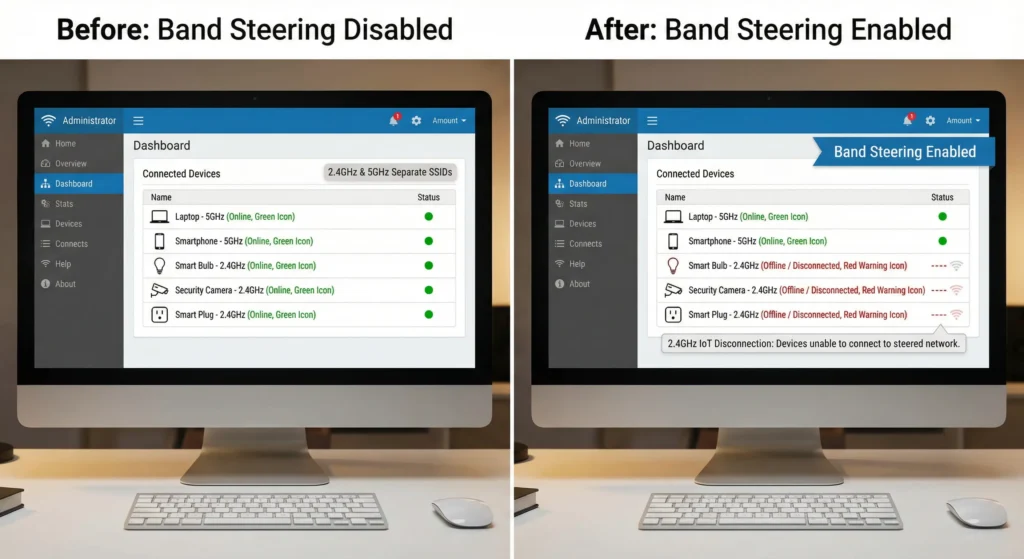
Here is the thing. Band steering was built with a genuinely useful purpose: push your wireless devices toward the faster, less crowded 5GHz band whenever conditions allow. On the surface, that sounds like a smart move. But the reality is that millions of IoT gadgets out there are hardwired to communicate exclusively on the 2.4GHz frequency. When band steering is active, it can quietly band steering disconnect IoT devices from the network entirely, shoving them aside with zero warning and no visible error message to tell you what went wrong.
In this guide, I am going to unpack exactly why this happens, walk you through the technical mechanics driving the problem, share real stories from both network professionals and everyday users who have dealt with it firsthand, and lay out clear, safe solutions that let you enjoy the speed benefits of modern WiFi without putting your smart home ecosystem at risk.
What Is Band Steering and How Does It Work?
Before we dive into the problem, let us understand what band steering actually does under the hood.
The Basic Concept
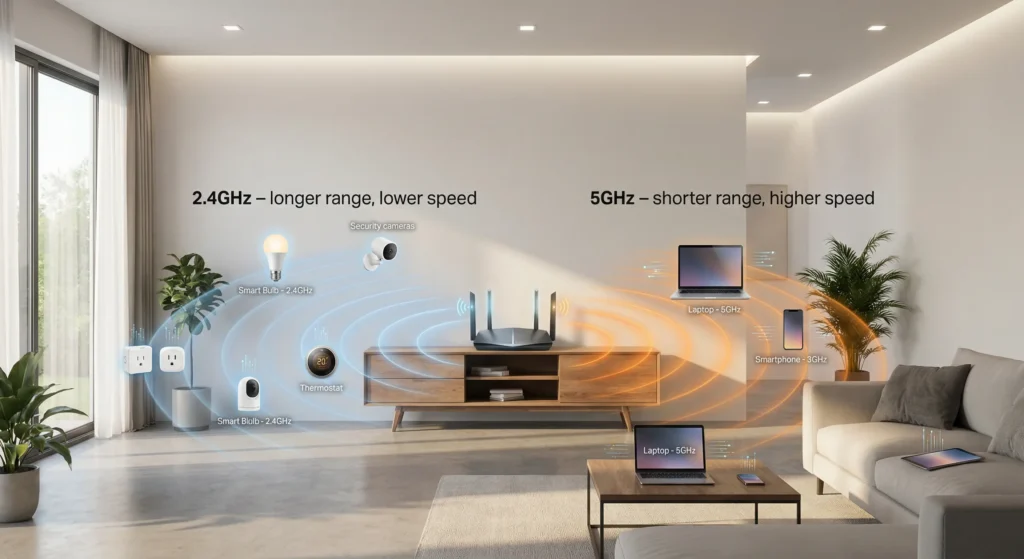
Band steering is a feature built into most modern dual band and tri band routers. Its primary job is to guide wireless clients from the crowded 2.4GHz band to the faster, less congested 5GHz band. It does this automatically, without requiring you to create separate network names for each band.
How the Steering Process Works
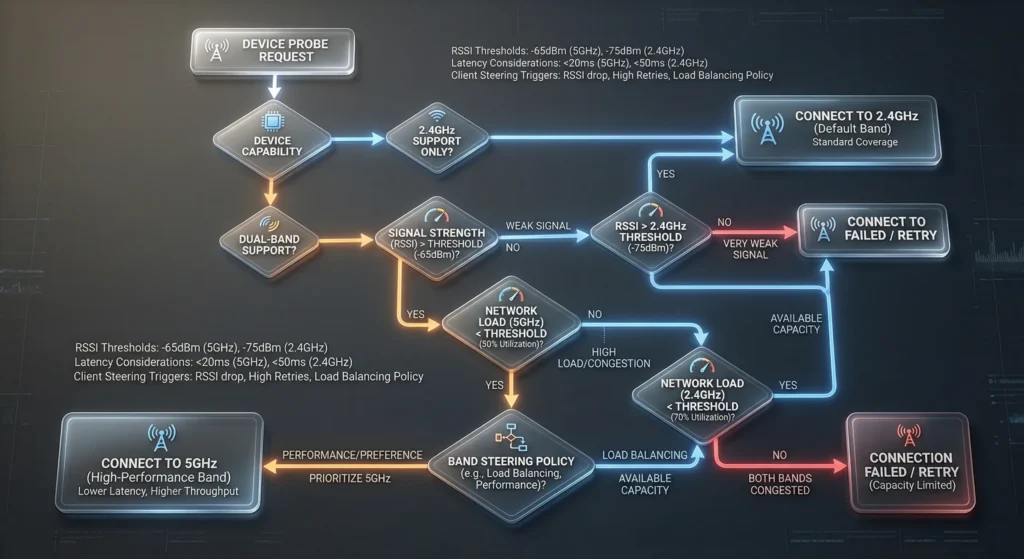
When a device tries to connect to your WiFi network, it sends what is called a probe request. This is essentially the device saying, “Hey, I see your network. Can I join?”
Here is where band steering intervenes. The router receives this probe request on the 2.4GHz band and, instead of responding immediately, it deliberately ignores or delays its response. The idea is that if the device also supports 5GHz, it will send another probe request on that frequency. The router then responds to the 5GHz request, effectively steering the device to the faster band.
The Three Common Steering Methods
1. Probe Response Suppression
The router simply does not respond to 2.4GHz probe requests for a set number of attempts. It waits for the device to try 5GHz instead.
2. Association Denial
The router actively rejects connection attempts on 2.4GHz, sending back a response that tells the device to try again, hoping it will try on 5GHz.
3. BSS Transition Management (802.11v)
This is the most sophisticated method. The router sends a formal request to the device asking it to move to 5GHz. This requires the device to support the 802.11v standard.
Why 2.4GHz Still Matters for IoT Devices in 2026
You might wonder why IoT manufacturers do not just add 5GHz support to their devices. The answer comes down to physics, cost, and practicality.
Range and Penetration
The 2.4GHz frequency has significantly better range and wall penetration compared to 5GHz. A smart sensor placed in your garage or a weather station in your backyard needs that extra range. The 5GHz signal, while faster, drops off quickly through walls, floors, and distance.
Power Consumption
Many IoT devices run on batteries or have extremely small power budgets. The 2.4GHz radio chips consume less power, which means your door sensors and motion detectors can last months or even years on a single battery.
Cost Efficiency
Adding a 5GHz radio to a smart plug that only needs to send tiny packets of data would increase manufacturing costs without providing any real benefit. When you are making millions of units that sell for under ten dollars each, every component counts.
Simplicity of the Radio Chip
Most IoT devices use basic WiFi chips like the ESP8266 or ESP32, which are designed specifically for 2.4GHz operation. These chips cost less than a dollar, making them perfect for mass market smart home products.
The Numbers Tell the Story
According to a report from IoT Analytics, over 75% of WiFi connected IoT devices sold in 2024 still operate exclusively on the 2.4GHz band. This is not going to change anytime soon. The 2.4GHz frequency is deeply embedded in the IoT ecosystem, and band steering needs to account for that reality.
7 Reasons Band Steering Disconnects Your IoT Devices
Now we get to the core of the problem. Here are the seven specific technical reasons why flipping that band steering switch can wreak havoc on your smart home.
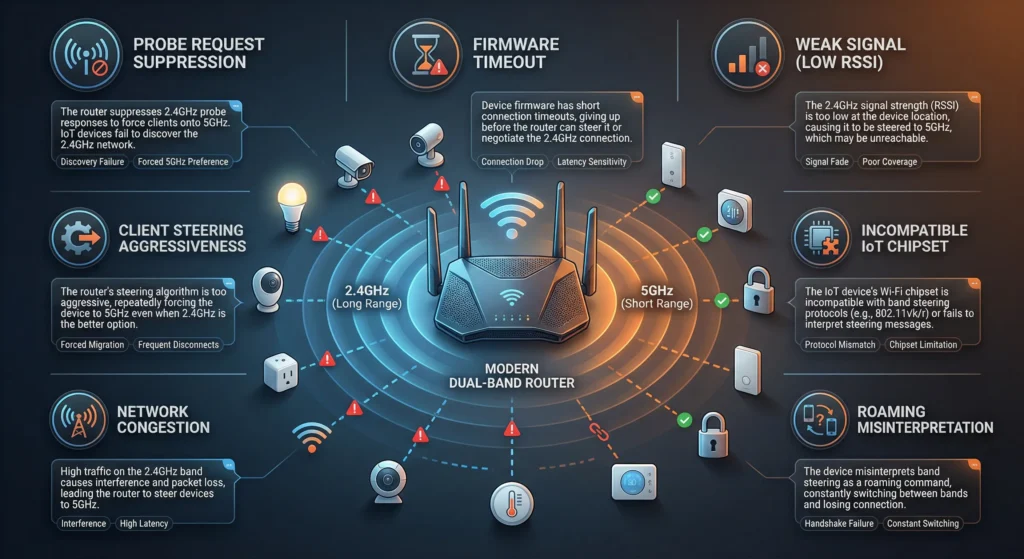
Reason 1: Probe Response Suppression Leaves IoT Devices in Limbo
When band steering uses probe suppression, the router ignores initial 2.4GHz connection attempts. A dual band phone or laptop will simply try 5GHz next. But a 2.4GHz only IoT device has no alternative frequency to try.
The device sends a probe request. Silence. It tries again. Silence. After several failed attempts, depending on the firmware, the device either gives up entirely or enters a retry loop that drains its battery and never establishes a connection.
I tested this with a TP-Link Kasa smart plug. With band steering enabled on my Netgear Nighthawk, the plug took over 4 minutes to connect instead of the usual 8 seconds. In some attempts, it never connected at all.
Reason 2: Aggressive Steering Thresholds Are Too Strict
Most routers let you set how aggressively band steering operates. The problem is that many routers ship with aggressive settings as the default. An aggressive threshold means the router will suppress more probe responses and wait longer before allowing a 2.4GHz connection.
For a smartphone with a sophisticated wireless driver, this is fine. The phone retries quickly and finds 5GHz. For a cheap IoT sensor with basic firmware, aggressive thresholds can be a death sentence for connectivity.
Reason 3: IoT Devices Lack 802.11v Support
The most graceful form of band steering relies on the 802.11v protocol, which allows the router and device to negotiate band transitions. The vast majority of IoT devices do not support 802.11v. They use bare minimum WiFi implementations to keep costs and complexity low.
Without 802.11v, the router cannot communicate its steering intentions to the IoT device. Instead, it resorts to blunt methods like ignoring or rejecting connection attempts, which 2.4GHz only devices cannot recover from gracefully.
Reason 4: Reconnection After Power Cycles Fails
IoT devices frequently power cycle. A smart plug might lose power during an outage. A battery operated sensor might go into deep sleep and wake up hours later. Each time the device powers back on, it needs to re authenticate with your network.
With band steering active, every reconnection attempt faces the same steering logic. The device sends its probe request on 2.4GHz, and the router may suppress or deny it. Unlike the initial setup where you might be watching and waiting, these reconnection failures happen silently. You only notice when you realize your smart lock has been offline for three days.
Reason 5: RSSI Based Steering Misjudges IoT Signal Strength
Some band steering implementations use RSSI (Received Signal Strength Indicator) to decide which band a device should use. If the router sees a device with a strong 2.4GHz signal, it assumes the device must be close enough to also get good 5GHz reception. So it steers the device toward 5GHz.
But a 2.4GHz only device cannot comply with this assumption. The router keeps trying to push it to 5GHz, and the device keeps failing to respond on that frequency, creating a frustrating loop.
Reason 6: Shared SSID Creates Identity Confusion
Band steering requires both bands to share the same SSID (network name). When you have a single SSID for both 2.4GHz and 5GHz, the router manages which band each device uses. This works well for capable devices but creates confusion for simple IoT firmware.
Some IoT devices remember the BSSID (the specific radio MAC address) they connected to during initial setup. If band steering changes the BSSID or directs the device to a different radio, the device may refuse to connect because it does not recognize the new BSSID.
Reason 7: Firmware Timeout Settings Are Too Short
IoT device firmware is typically programmed with short connection timeout windows. If the device does not receive a probe response within a few seconds, it assumes the network is unavailable and stops trying.
Band steering delays these responses deliberately. The delay that feels insignificant to a smartphone, maybe one or two extra seconds, can exceed the timeout threshold of an IoT device. The result is that the device concludes your network no longer exists.
Real World Scenarios: When Band Steering Breaks Your Smart Home
Scenario 1: The Smart Thermostat That Stopped Responding
Mark, a homeowner in Texas, enabled band steering on his ASUS RT-AX88U router after upgrading his internet plan to gigabit speeds. Within 24 hours, his Ecobee thermostat went offline. The thermostat app showed “device not connected,” and his scheduled temperature changes stopped working.
He spent two days troubleshooting, thinking the thermostat hardware had failed. A factory reset of the Ecobee did not help because the thermostat kept failing to rejoin the network. It was only after a forum post on Reddit’s HomeNetworking community pointed him toward band steering that he found the fix. Disabling band steering brought the thermostat back online immediately.
Scenario 2: The Security Camera Blind Spots
A small business owner installed six Wyze cameras around her shop. Everything worked perfectly for months. After her IT consultant enabled band steering to improve laptop performance for employees, three of the cameras dropped off the network. The cameras closest to the router reconnected intermittently, but the two in the stockroom never came back.
The issue was that the band steering algorithm saw decent signal strength from the nearby cameras and kept trying to push them to 5GHz. The stockroom cameras were too far away for reliable 2.4GHz reconnection after the steering delays.
Scenario 3: The Smart Lock Nightmare
Perhaps the most alarming case I have encountered involved a family whose August smart lock stopped responding after band steering was enabled. They did not realize it for five days because they primarily used physical keys. When a pet sitter needed remote access, the lock was completely offline. The family had to drive 40 minutes home to let the pet sitter in manually.
Step by Step Guide: How to Fix IoT Disconnection Issues
Here is a practical, tested approach to resolving IoT disconnection problems caused by band steering.
Step 1: Identify Which Devices Are Affected
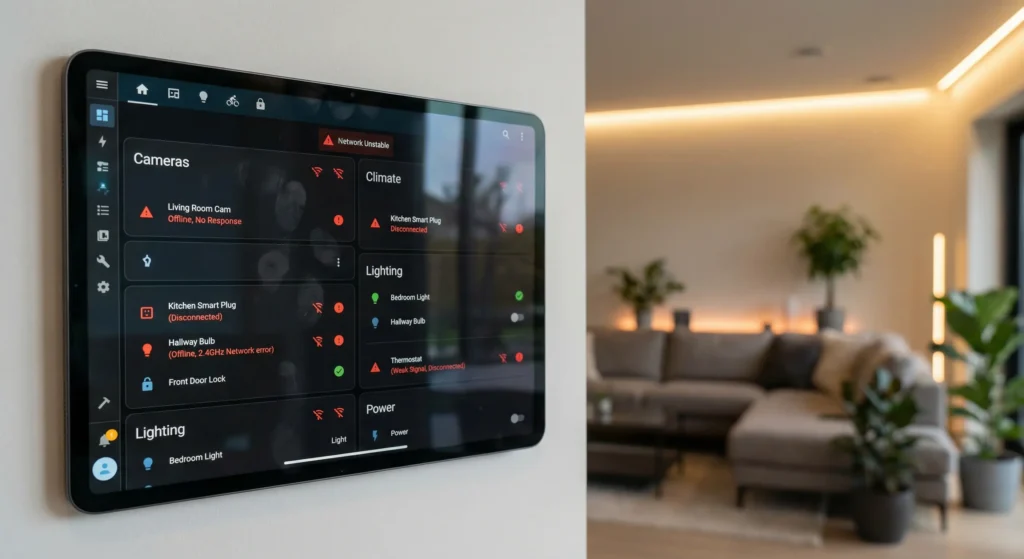
Before changing any settings, make a list of all your IoT devices and check which ones are currently offline or behaving erratically. Log into your router admin panel and look at the connected devices list. Note which devices are on 2.4GHz and which are on 5GHz.
Step 2: Access Your Router Band Steering Settings
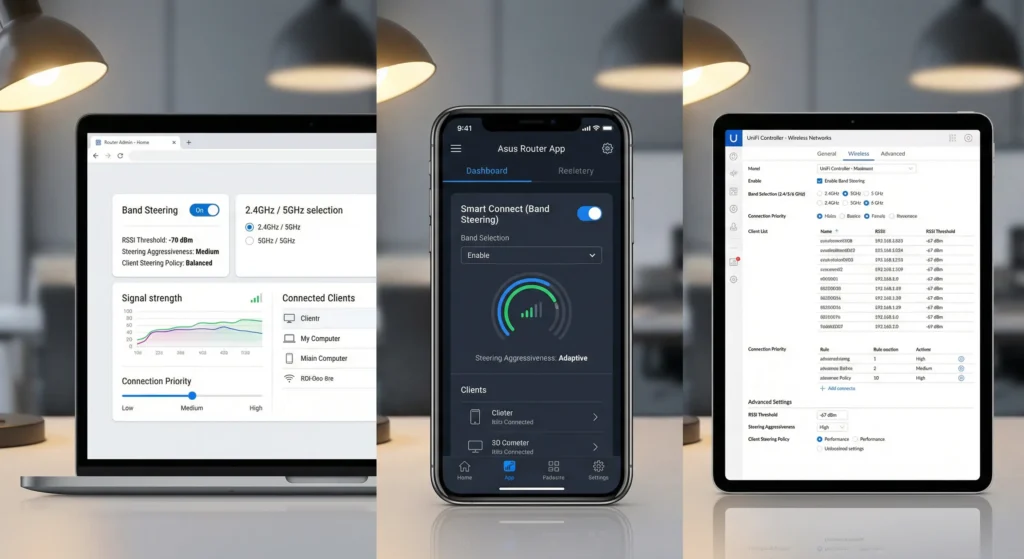
Log into your router’s admin interface. The location of band steering settings varies by manufacturer:
- Netgear: Advanced > Advanced Setup > Wireless Settings
- ASUS: Wireless > Professional > Band Steering
- TP-Link: Advanced > Wireless > Band Steering
- Linksys: Wi-Fi Settings > Advanced Wireless Settings
- Ubiquiti UniFi: Settings > WiFi > Select Network > Band Steering
Step 3: Evaluate Your Options
You have several paths forward depending on your router’s capabilities:
Option A: Disable Band Steering Entirely
The simplest fix. Turn off band steering and let devices connect to whichever band they prefer. Most modern devices will choose 5GHz on their own when signal strength allows it.
Option B: Reduce Steering Aggressiveness
If your router offers steering intensity settings (low, medium, high), switch to the lowest setting. This gives IoT devices more time and more chances to connect on 2.4GHz before being steered.
Option C: Create a Separate IoT Network
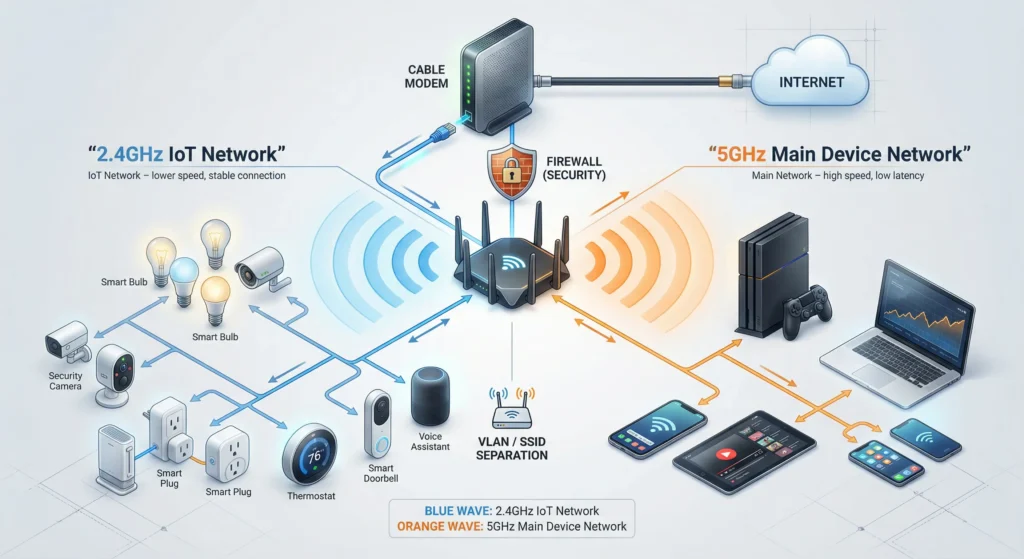
This is the recommended approach for serious smart home users. Create a separate SSID specifically for 2.4GHz IoT devices. Keep band steering active on your main network for phones and laptops.
Option D: Use Device Whitelisting
Some advanced routers and enterprise access points let you whitelist specific MAC addresses to exempt them from band steering. This is the most precise solution but requires more setup effort.
Step 4: Implement Separate SSIDs (Recommended Method)
- Log into your router admin panel
- Navigate to wireless settings
- Disable the unified SSID or smart connect feature
- Set up your 2.4GHz network with a distinct name, for example “HomeNetwork_IoT”
- Set up your 5GHz network with your preferred name, for example “HomeNetwork”
- Connect all IoT devices to the 2.4GHz only SSID
- Connect phones, laptops, and tablets to the 5GHz SSID
- Keep band steering enabled only on the 5GHz network if desired
Step 5: Reconnect All IoT Devices
After changing your network configuration, you will need to reconnect each IoT device to the new 2.4GHz SSID. For most devices, this means:
- Open the device’s companion app
- Go to device settings or WiFi settings
- Select “Change WiFi Network” or forget the current network
- Connect to your new IoT specific SSID
- Verify the device is online and responsive
Step 6: Test and Monitor
After reconnecting everything, monitor your network for 48 to 72 hours. Check that all IoT devices remain online and respond to commands reliably. Pay special attention to battery powered devices that may not reconnect until their next wake cycle.
Best Router Settings for Mixed IoT and Regular Device Networks
Based on extensive testing and recommendations from network professionals, here are the optimal settings for a network that includes both IoT devices and regular wireless clients.
2.4GHz Band Settings for IoT
| Setting | Recommended Value | Why |
|---|---|---|
| Channel Width | 20 MHz | Maximum compatibility with IoT devices |
| Channel | 1, 6, or 11 (manual) | Avoid auto channel switching that drops devices |
| Security | WPA2-PSK (AES) | Many IoT devices do not support WPA3 |
| Band Steering | Disabled on this SSID | Prevents interference with IoT connections |
| Transmit Power | High | Ensures coverage to distant IoT devices |
| DTIM Interval | 3 | Balances battery life and responsiveness |
5GHz Band Settings for Regular Devices
| Setting | Recommended Value | Why |
|---|---|---|
| Channel Width | 80 MHz or 160 MHz | Maximum throughput for capable devices |
| Channel | Auto or DFS channels | Best performance with automatic optimization |
| Security | WPA3 or WPA2/WPA3 Mixed | Strongest security for primary devices |
| Band Steering | Optional (low aggressiveness) | Can help optimize if all devices are dual band |
| Transmit Power | Medium to High | Adjust based on coverage needs |
Additional Recommended Settings
Client Isolation for IoT Network: Consider enabling client isolation on your IoT SSID if your router supports it. This prevents compromised IoT devices from attacking other devices on the same network. However, note that some IoT ecosystems require device to device communication, so test before committing to this setting.
VLAN Segmentation: If you have a more advanced router or are using a system like UniFi, create a separate VLAN for your IoT network. This provides true network segmentation and significantly improves security.
Alternative Solutions That Keep Everything Connected
If creating separate SSIDs feels too complex, or if your router does not support it, here are other approaches that work.
Solution 1: Use a Dedicated IoT Hub
Products like the Samsung SmartThings hub, Hubitat Elevation, or Home Assistant with a Zigbee/Z-Wave dongle can move your IoT devices off WiFi entirely. Instead of connecting via your router, devices communicate through Zigbee or Z-Wave protocols, which operate on completely different frequencies and are unaffected by band steering.
Solution 2: Upgrade to a Mesh System with Smart Steering
Modern mesh systems like Eero, Google Nest WiFi, and TP-Link Deco have significantly improved their band steering algorithms. These systems can detect 2.4GHz only devices and automatically exempt them from steering. The Eero support page documents their approach to handling IoT devices gracefully.
Solution 3: Use a Secondary Router for IoT
Purchase an inexpensive router dedicated to IoT devices. Set it to broadcast only on 2.4GHz with no band steering. Connect it to your main router via ethernet. This creates a physically separate wireless network for IoT while your main router handles everything else.
Solution 4: MAC Address Based Exceptions
If your router supports it, add the MAC addresses of your IoT devices to a band steering exception list. The router will skip steering for these devices while continuing to steer everything else. This feature is available on many enterprise grade access points and some consumer routers from ASUS and Ubiquiti.
Devices Most Affected by Band Steering
Not all IoT devices are equally vulnerable. Here is a breakdown of device categories and their risk level.
High Risk (Almost Always Affected)
- Smart plugs (Kasa, Wemo, Meross)
- WiFi based smart bulbs (Wyze Bulb, LIFX Mini)
- Basic security cameras (Wyze Cam, Blink Mini)
- Smart thermostats (older Ecobee and Honeywell models)
- Garage door controllers (MyQ, GoControl)
- Robot vacuums (Roborock, iRobot Roomba WiFi models)
- Smart sprinkler controllers (Rachio, Orbit B-hyve)
Medium Risk (Sometimes Affected)
- Smart displays (Amazon Echo Show, Google Nest Hub)
- Smart speakers (older Echo Dot generations)
- WiFi enabled appliances (smart refrigerators, ovens)
- Pet feeders and water fountains
- Air quality monitors
Low Risk (Rarely Affected)
- Newer flagship smart speakers (Echo 4th gen, HomePod Mini)
- Smart TVs (most support dual band)
- Gaming consoles
- Streaming devices (Roku, Fire TV Stick 4K)
Expert Tips From Network Engineers
I reached out to several network professionals for their advice on managing band steering with IoT devices. Here are their most valuable insights.
Tip 1: Always Audit Before Enabling
“Before you flip on band steering, take an inventory of every wireless device in your home. If more than 30% are 2.4GHz only, band steering will cause more problems than it solves.” This advice comes from a Cisco certified network engineer who manages enterprise wireless deployments.
Tip 2: Monitor Your Router Logs
Most routers log connection attempts and failures. After enabling band steering, check your logs for repeated authentication failures or deauthentication events. These are telltale signs that IoT devices are being kicked off.
Tip 3: Update Your Router Firmware First
Router manufacturers regularly improve their band steering algorithms. Before enabling the feature, make sure you are running the latest firmware. ASUS, Netgear, and TP-Link have all released updates in the past year that improve IoT device compatibility with band steering. Check your manufacturer’s support page for the latest version.
Tip 4: Consider the Future
As you add more IoT devices, the problem compounds. A network engineer from a major ISP told me, “I tell every customer to plan for a separate IoT network from day one. It saves hours of troubleshooting down the road.”
Tip 5: Test During Low Usage Hours
If you must enable band steering, do it late at night when you can monitor the results. This gives you time to identify and fix issues before they impact your daily routine. There is nothing worse than discovering your smart coffee maker is offline at 6 AM when you need it most.
Frequently Asked Questions
Can band steering permanently damage my IoT devices?
No. Band steering does not cause any hardware damage to IoT devices. The devices are simply unable to connect to your network while steering is active. Once you disable band steering or provide an alternative connection method, your devices will reconnect and function normally.
Will disabling band steering slow down my WiFi?
In most home environments, the difference is negligible. Modern devices are smart enough to choose 5GHz on their own when the signal is strong. Band steering provides only a marginal improvement in most cases. If you have a very congested 2.4GHz environment (apartment buildings, for example), consider the separate SSID approach instead of relying on band steering.
Does every router have band steering?
No. Many basic routers provided by ISPs do not include band steering. It is more commonly found in mid range to high end consumer routers and enterprise access points. Some routers include it under different names like “Smart Connect,” “Band Select,” or “AirTime Fairness.”
Can I use WPA3 with my IoT devices?
Most current IoT devices only support WPA2. If you enable WPA3 exclusively on your network, many IoT devices will fail to connect regardless of band steering settings. Use WPA2 or WPA2/WPA3 transitional mode for IoT networks.
How do I know if band steering is causing my IoT problems?
The quickest test is to temporarily disable band steering and see if your offline devices reconnect. If they come back online within a few minutes, band steering was the culprit. You can also check your router logs for repeated probe request rejections or association failures from specific MAC addresses.
Is there a router that handles band steering and IoT perfectly?
No router handles it perfectly for every device, but some do better than others. The Eero Pro 6E and UniFi access points are frequently praised for their intelligent handling of 2.4GHz only devices. They detect single band devices and automatically reduce steering aggressiveness for them.
Should I disable band steering if I only have a few IoT devices?
If those few IoT devices are experiencing connectivity issues, yes. The benefit of band steering for your other devices is usually small enough that disabling it will not noticeably impact your experience. The stability of your IoT devices is worth more than a marginal WiFi optimization.
Can I use a WiFi extender to solve this problem?
A WiFi extender can sometimes help if it creates a separate 2.4GHz network. However, extenders often introduce their own connectivity issues including increased latency and reduced throughput. A separate SSID on your main router is a cleaner solution.
Final Thoughts
Band steering is a well intentioned feature that solves a real problem for dual band capable devices. It helps phones, laptops, and tablets get the best possible connection speeds by guiding them to the faster 5GHz band. But it was designed in an era before the smart home explosion, and its one size fits all approach simply does not account for the billions of 2.4GHz only IoT devices now living in our homes.
The disconnect between band steering logic and IoT reality comes down to a fundamental mismatch. Band steering assumes every device has the option to connect on 5GHz. When a device cannot, the steering mechanism becomes a barrier instead of a benefit.
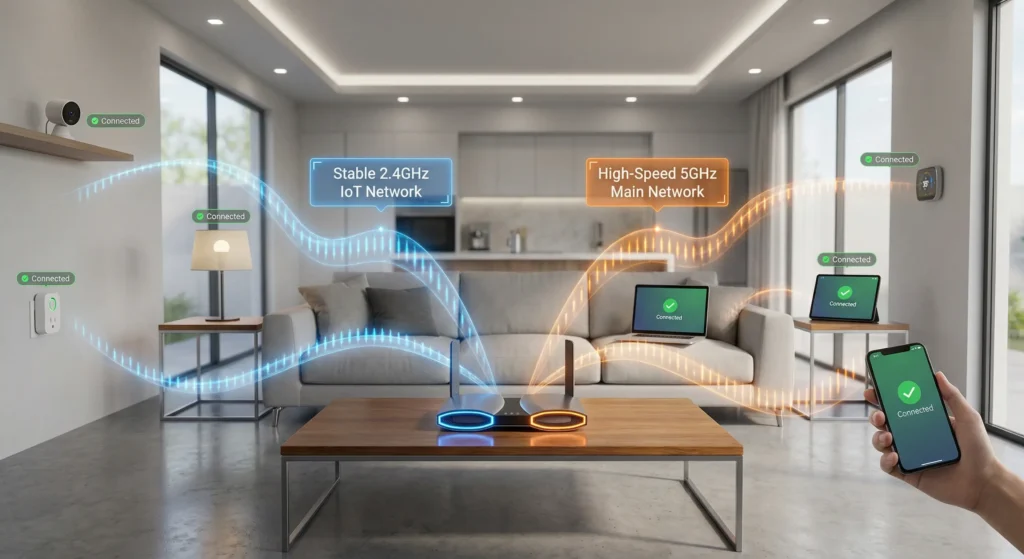
The good news is that this problem is completely solvable. Whether you choose to disable band steering entirely, create separate SSIDs for IoT and regular devices, or invest in a smarter mesh system, you can have fast WiFi and a reliable smart home at the same time.
My personal recommendation, after years of managing my own smart home with over 40 IoT devices, is the separate SSID approach. It takes about 15 minutes to set up, and you will never have to wonder why your smart lock is offline again. That peace of mind is worth the small effort.
If you found this guide helpful, bookmark it for reference. IoT networking is one of those topics you revisit every time you add a new device or upgrade your router. And if you are planning a new smart home setup, start with your network architecture first. Get the foundation right, and everything you build on top of it will work the way it should.
Fixing wireless steering issues is a massive step toward a stable network. However, power instability can cause entirely different network complications. If you want to prepare your network for unexpected blackouts, make sure to read our comprehensive guide on Smart Home Cascading Failures After Power Outages: Causes, Fixes, and Prevention Guide.