Table of Contents
- Introduction: The Silent Failure Nobody Talks About
- What Does “Execution Success” Actually Mean in Automation Logs?
- Top Reasons Your Devices Do Not Respond Despite Successful Logs
- The Communication Gap Between Cloud and Local Devices
- Network Issues That Cause Phantom Success
- Protocol Mismatches: Zigbee, Z-Wave, Wi-Fi, and Matter
- Device Firmware and Hardware Failures
- How to Diagnose the Problem Step by Step
- Real Experiences from Smart Home Users
- Practical Solutions That Actually Work
- How to Prevent This Problem in the Future
- FAQ
- Final Thoughts
Introduction: The Silent Failure Nobody Talks About
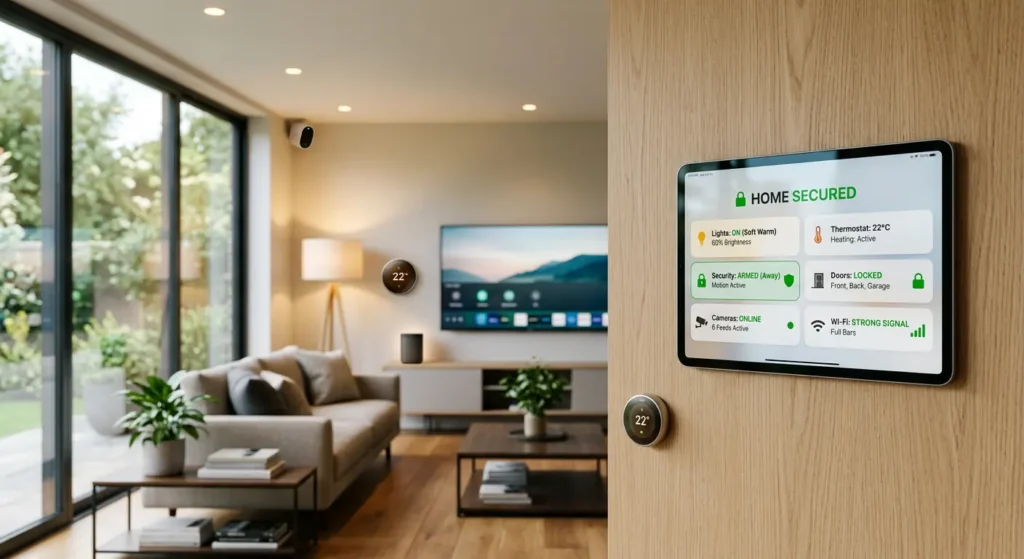
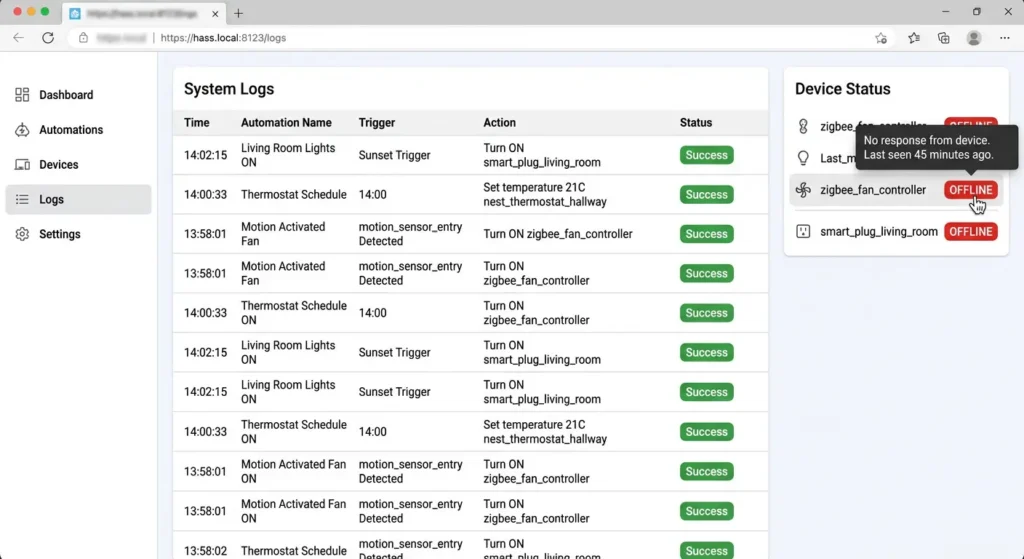
I know exactly how frustrating this feels. You spend hours setting up your smart home automations, everything looks perfect in your dashboard, and the logs clearly say “execution successful.” But when you walk into the room, the lights are still off, the thermostat never adjusted, and the smart lock did not respond.
You are not going crazy. This is one of the most common and confusing problems in home automation, and it affects users across every major platform, from Home Assistant to SmartThings, Hubitat, and even Apple HomeKit.
The worst part? automation logs show execution success but devices do not respond, most people assume the problem is with the device itself. They replace perfectly good hardware, reset their entire setup, or worse, give up on automation altogether. But the real issue is almost always somewhere in between, in that invisible space between the command being sent and the device actually receiving it.
In this article, I will walk you through exactly why this happens, what the logs are really telling you, and how to fix it permanently. Every solution here comes from real troubleshooting scenarios and tested methods.
What Does “Execution Success” Actually Mean in Automation Logs?
Before we jump into fixes, we need to understand what the automation platform actually means when it says “success.”
Here is the key insight that changes everything: most automation platforms log a command as successful the moment the platform sends the instruction, not when the device confirms it received and executed the command.
Think of it like sending a letter through the post office. The post office stamps your receipt the moment you hand them the letter. That receipt says “sent successfully.” But it does not mean the letter arrived at the destination or that the recipient read it.
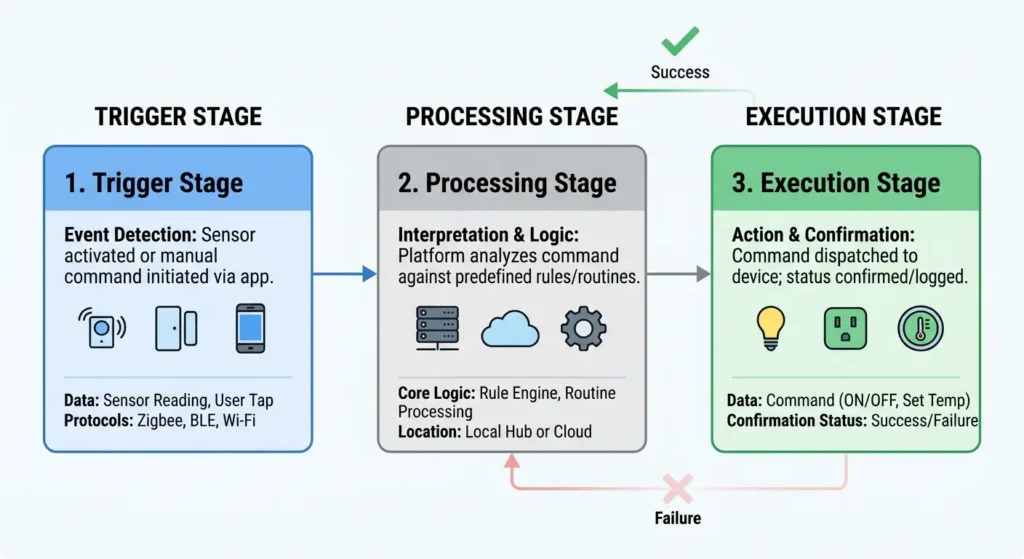
The Three Stages of Command Execution
Stage 1: Trigger Recognition
The automation platform detects that your trigger condition has been met. For example, motion is detected, or a time schedule fires.
Stage 2: Command Dispatch
The platform sends the command to the device or to the cloud service that controls the device. This is usually where “success” gets logged.
Stage 3: Device Acknowledgment
The device receives the command, processes it, and sends back a confirmation. Many platforms do not wait for this step before logging success.
Understanding this distinction is the foundation for solving your problem.
Top Reasons Your Devices Do Not Respond Despite Successful Logs
Based on years of community feedback and real world testing, here are the most common culprits ranked by frequency:
1. One-Way Communication Protocols
Some devices, especially older ones using basic RF protocols, only receive commands. They cannot send back a confirmation. The platform sends the command, assumes it worked, and logs success. But if the signal was weak or interfered with, the device never got the message.
2. Cloud Service Latency or Outage
If your automation relies on a cloud service (like Tuya, eWeLink, or even Alexa routines), the command might reach the cloud successfully but fail between the cloud and your local device.
3. Device Went Offline Between Health Checks
Most platforms check device status at intervals, not continuously. Your device could have gone offline 30 seconds after the last health check. The platform still thinks it is online, sends the command, and logs it as sent.
4. Wi-Fi Network Congestion
Smart home devices, especially budget Wi-Fi devices, often run on the 2.4GHz band. When this band gets crowded, devices start dropping packets silently.
When your router struggles to manage dual bands or hits its device limit, it often drops smart gadgets silently. To understand how your router’s band management affects connectivity, check out our guide on Band Steering and IoT Devices: 7 Reasons Why Your 2.4GHz Smart Gadgets Keep Disconnecting to optimize your network settings.
5. Zigbee or Z-Wave Mesh Weakness
If your mesh network has weak links or missing repeaters, commands can get lost in transit even though the hub successfully dispatched them.
6. Rate Limiting by the Device or Platform
Some devices and cloud APIs limit how many commands they will accept in a given time period. If your automations fire rapidly, later commands might get silently dropped.
The Communication Gap Between Cloud and Local Devices
This is one of the biggest sources of phantom success, and it deserves its own section.
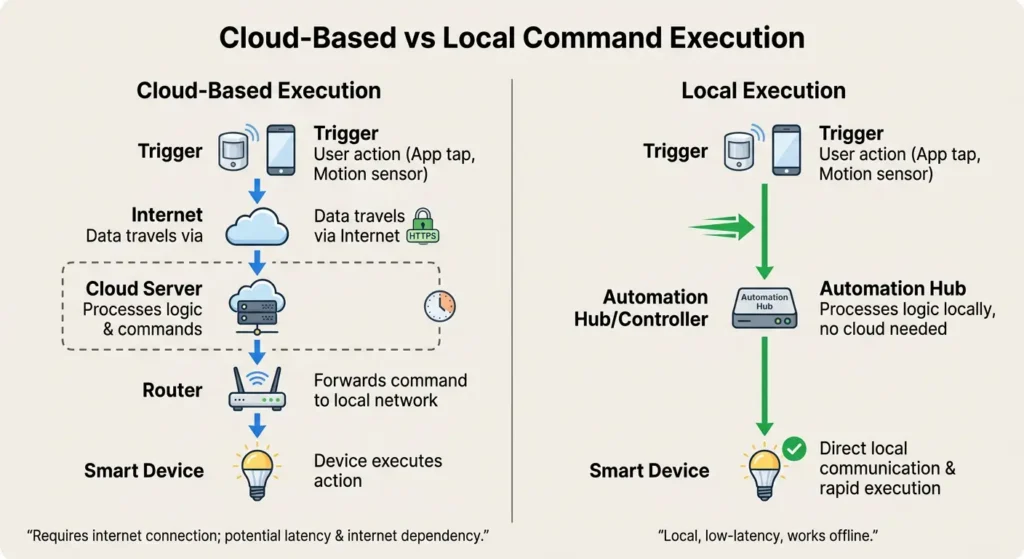
When you use cloud-dependent devices (like many Tuya-based products, TP-Link Kasa, or Wyze devices), the command chain looks like this:
Your Automation Platform → Cloud API → Internet → Cloud Server → Internet → Your Router → Your Device
Each hop in this chain is a potential failure point. But here is the problem: most automation platforms only verify the first hop. They confirm that the command reached the cloud API successfully and then log it as done.
A Real Scenario
Let me paint a picture that might sound familiar. You set up an automation that turns off all your Tuya smart plugs at midnight. Every morning, your logs show all commands executed successfully. But two or three plugs are still on when you wake up.
What is happening? The Tuya cloud received all the commands. But due to minor internet hiccups at midnight (when your ISP might be doing maintenance), some commands never made it from the cloud back to your local network. The cloud server might have even retried once or twice, but ultimately gave up silently.
The Solution Direction
Moving to local control whenever possible eliminates this entire chain. Platforms like Home Assistant support local integrations for many devices, bypassing the cloud entirely.
Network Issues That Cause Phantom Success
Your home network is the backbone of your smart home, and subtle issues can cause the exact symptom you are experiencing.
Wi-Fi Channel Congestion
If you live in an apartment building, dozens of neighboring Wi-Fi networks compete for the same channels. Your smart devices, most of which use 2.4GHz, struggle to maintain stable connections.
How to check: Use a Wi-Fi analyzer app like WiFi Analyzer on Android or the built-in diagnostics on your router to see channel utilization.
IP Address Conflicts
When two devices on your network get assigned the same IP address, both become unreliable. Your automation platform sends the command to the correct IP, the network acknowledges receipt, but the packet goes to the wrong device or gets dropped.
Router Device Limits
Consumer routers typically handle 20 to 30 connected devices comfortably. Smart homes easily exceed this. When the router hits its limit, it starts silently dropping connections for low-priority devices (which are usually your IoT gadgets).
DNS Resolution Failures
Cloud-dependent devices need DNS to communicate. If your router’s DNS is slow or failing intermittently, devices lose their cloud connection without your platform knowing about it.
Practical Network Fixes
| Problem | Solution | Difficulty |
|---|---|---|
| Wi-Fi congestion | Switch to a less crowded channel | Easy |
| IP conflicts | Assign static IPs or DHCP reservations | Medium |
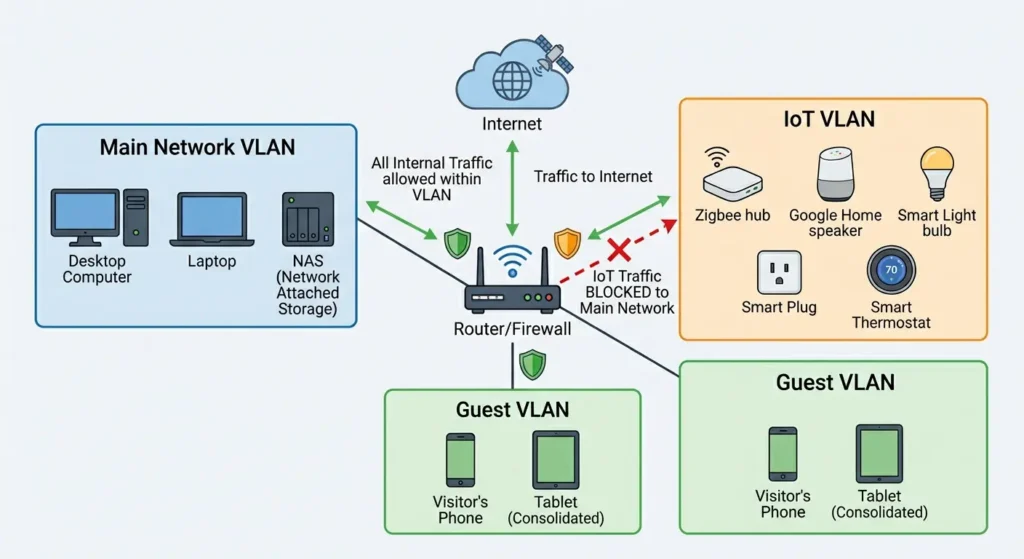
| Too many devices | Add a dedicated IoT access point or VLAN | Medium |
| DNS failures | Use reliable DNS like 1.1.1.1 or 8.8.8.8 | Easy |
| Weak signal | Add Wi-Fi extenders or mesh nodes | Easy |
Protocol Mismatches: Zigbee, Z-Wave, Wi-Fi, and Matter
Different wireless protocols behave very differently when commands fail, and understanding these differences helps you pinpoint the problem faster.
Zigbee Devices
Zigbee uses a mesh network where devices relay messages to each other. When a command fails to reach its destination, the mesh tries alternative routes. However, if the end device is a sleepy device (battery powered sensors and switches), it only wakes up periodically to check for commands. If the timing is off, the command gets lost.
Common Zigbee issue: Too few router devices (mains-powered Zigbee devices) in your mesh, leaving dead zones where commands cannot reach.
Z-Wave Devices
Z-Wave is generally more reliable about confirming command receipt. However, Z-Wave networks can develop routing problems over time, especially after adding or removing devices without running a network repair.
Common Z-Wave issue: The platform uses a stale route to reach the device. The command goes out on a path that no longer works, but the initial dispatch is still logged as successful.
Wi-Fi Devices
Wi-Fi devices do not have mesh routing (unless you use a mesh Wi-Fi system for your network). Each device connects directly to your router, and connection stability depends entirely on signal strength and network health.
Common Wi-Fi issue: Device enters power-saving mode and misses the command packet.
Matter Protocol
Matter is the newest standard designed to solve many of these problems. It supports local communication and requires devices to acknowledge commands. However, Matter is still maturing, and not all implementations are equally robust yet.
Device Firmware and Hardware Failures
Sometimes the problem is not the network or the platform. It is the device itself.
Firmware Bugs
Smart device manufacturers push firmware updates regularly, and sometimes these updates introduce bugs that cause devices to stop responding to commands while still appearing online.
Real example: In early 2024, a Philips Hue firmware update caused certain bulbs to occasionally ignore commands sent through the Hue Bridge API while the bridge still reported them as reachable. The fix came in a subsequent firmware update weeks later.
Hardware Degradation
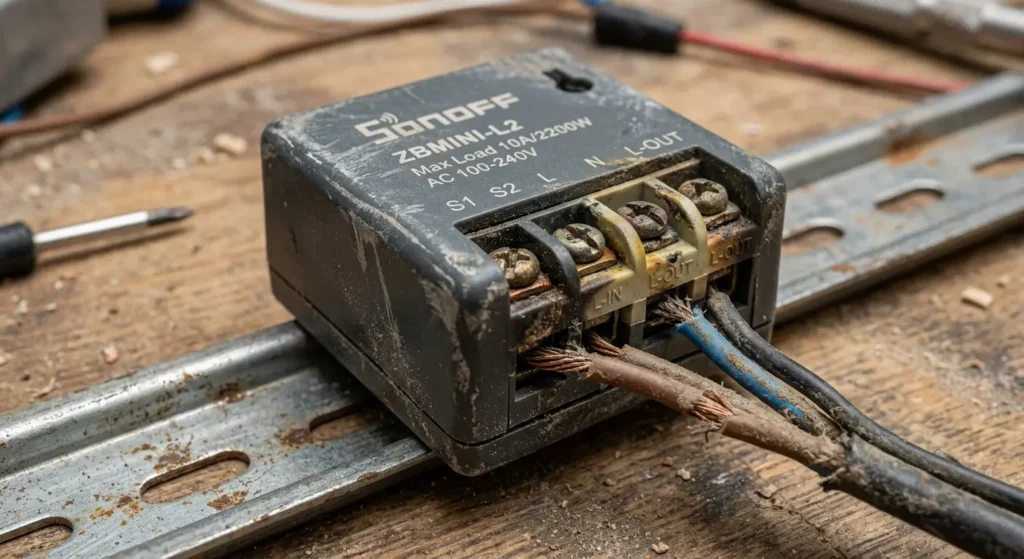
Smart relays and plugs contain physical components (relays, capacitors) that wear out over time. A device might receive the command and attempt to execute it, but the physical relay fails to switch. From the software side, everything looks normal.
Overheating
Devices installed in enclosed spaces without ventilation can overheat and become intermittently unresponsive. They remain connected to the network but fail to execute commands reliably.
How to Diagnose the Problem Step by Step
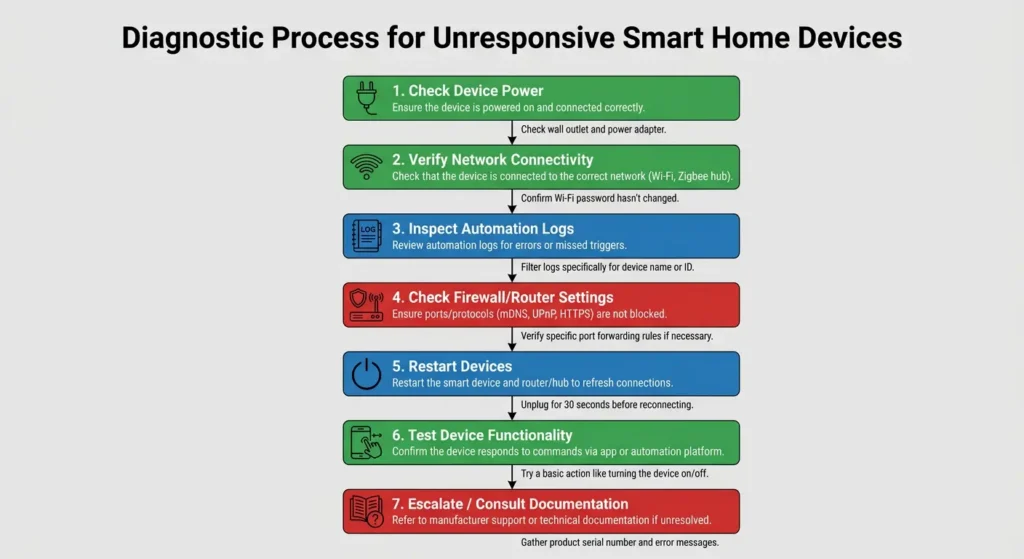
Here is a systematic approach to find out exactly why your devices are not responding.
Step 1: Verify Device Status Independently
Do not trust your automation platform’s status report. Open the device’s own app (if it has one) and check if it shows as online. Better yet, try controlling the device manually through its app. If it does not respond there either, the problem is at the device or network level.
Step 2: Check for Acknowledgment in Detailed Logs
Some platforms offer detailed or debug-level logging. In Home Assistant, you can enable debug logging for specific integrations:
YAMLlogger:
  default: info
  logs:
    homeassistant.components.zwave_js: debug
    homeassistant.components.zha: debug
This will show you whether the device actually acknowledged the command, not just whether the platform sent it.
Step 3: Ping the Device
Open a terminal or command prompt and ping the device’s IP address:
textping 192.168.1.XXX
If you get timeouts or high latency (over 100ms on a local network), you have a connectivity problem.
Step 4: Test at Different Times
If the problem is intermittent, try running the automation at different times of day. If it fails more during peak hours (evenings, weekends), network congestion is likely the cause.
Step 5: Simplify the Automation
Remove all conditions and actions except the one failing device. If it works in isolation but fails when grouped with other commands, you might be hitting rate limits or timing issues.
Step 6: Monitor Device Power
Use a smart plug with energy monitoring to power your suspect device. If the device is drawing zero watts or abnormally low power, it may have crashed and needs a power cycle.
Step 7: Check for Interference
Zigbee operates on the 2.4GHz band, the same as Wi-Fi. If your Zigbee coordinator is near your Wi-Fi router, interference can cause command loss. Move them at least 3 feet (1 meter) apart and ensure they use non-overlapping channels.
Real Experiences from Smart Home Users
Experience 1: The Midnight Light Problem
A Home Assistant user on the Home Assistant Community Forum shared that his bedroom lights automation failed every night around 2 AM. The logs showed success every single time. After weeks of frustration, he discovered that his router was set to automatically restart at 1:55 AM for maintenance. The 5-minute reboot window caused his Wi-Fi bulbs to disconnect, and they took up to 10 minutes to reconnect. His 2 AM automation fired during this reconnection window.
His fix: He changed the router restart time to 4 AM and added a 15-minute buffer before any automations ran.
Experience 2: The Stubborn Smart Lock
A SmartThings user reported that her Z-Wave smart lock showed as locked in the app after an automation triggered, but the physical lock never moved. The cause? The lock’s batteries were at 15%, which was enough to maintain Z-Wave communication but not enough to power the motor that physically turns the lock. The Z-Wave module acknowledged the command (making the log show success), but the motor never engaged.
Her fix: She replaced the batteries and set up a low-battery alert automation to prevent future occurrences.
Experience 3: The Tuya Cloud Lag
A user running automations through Tuya’s cloud service found that commands sent to devices in groups of 10 or more would randomly fail for 2 or 3 devices. The logs always showed success for all 10. The issue was Tuya’s cloud API rate limiting, which silently dropped excess commands.
His fix: He migrated to LocalTuya integration in Home Assistant, eliminating the cloud entirely. The problem disappeared.
Practical Solutions That Actually Work
Now let us get to the fixes. These are organized from simplest to most involved.
Solution 1: Enable Command Verification
If your platform supports it, enable delivery confirmation or optimistic mode off. In Home Assistant, many integrations have an “optimistic” setting. When optimistic is true, the platform assumes the command worked without waiting for confirmation. Turn this off.
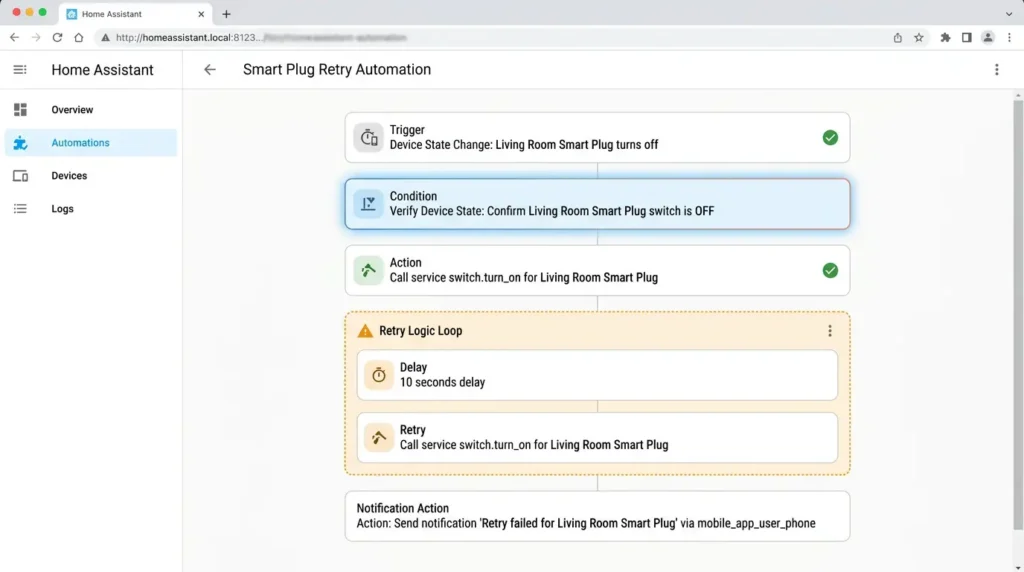
Solution 2: Add Retry Logic to Your Automations
Build retry mechanisms into your automations. Here is an example for Home Assistant:
YAMLautomation:
  - alias: "Turn Off Living Room Light with Retry"
    trigger:
      - platform: time
        at: "23:00:00"
    action:
      - service: light.turn_off
        target:
          entity_id: light.living_room
      - delay: "00:00:05"
      - condition: state
        entity_id: light.living_room
        state: "on"
      - service: light.turn_off
        target:
          entity_id: light.living_room
      - delay: "00:00:05"
      - condition: state
        entity_id: light.living_room
        state: "on"
      - service: notify.mobile_app
        data:
          message: "Living room light failed to turn off after 2 attempts"
This automation tries twice and sends you a notification if the device still has not responded.
Solution 3: Upgrade Your Network Infrastructure
Invest in a proper network setup for your smart home:
- Get a router that supports VLANs and put IoT devices on a separate network
- Use a dedicated 2.4GHz access point for IoT devices
- Assign static IP addresses or DHCP reservations to all smart devices
- Use a reliable DNS service
Solution 4: Strengthen Your Mesh Network
For Zigbee users, add more router devices (smart plugs are great for this since they are always powered). For Z-Wave, run a network repair after any topology changes.
The general recommendation from the Zigbee Alliance is to have at least one router device for every 6 end devices.
Solution 5: Move to Local Control
Wherever possible, replace cloud-dependent integrations with local ones. The fewer hops a command has to make, the more reliable it becomes.
| Platform | Cloud Integration | Local Alternative |
|---|---|---|
| Tuya | Tuya Cloud | LocalTuya |
| Shelly | Shelly Cloud | Local HTTP/MQTT |
| TP-Link | Kasa Cloud | python-kasa local |
| IKEA | IKEA Cloud | Direct Zigbee via ZHA |
| Philips Hue | Hue Cloud | Local Hue Bridge API |
Solution 6: Implement Monitoring and Alerts
Do not rely solely on automation logs. Set up monitoring that checks actual device states:
YAMLautomation:
  - alias: "Alert on Device Unavailable"
    trigger:
      - platform: state
        entity_id:
          - switch.kitchen_plug
          - light.bedroom
          - lock.front_door
        to: "unavailable"
        for: "00:05:00"
    action:
      - service: notify.mobile_app
        data:
          message: "{{ trigger.to_state.name }} has been unavailable for 5 minutes"
How to Prevent This Problem in the Future
Prevention is always better than troubleshooting. Here are habits that will keep your smart home running reliably.
Choose Devices with Local API Support
Before buying any smart device, check if it supports local control. Devices with local APIs (like Shelly, ESP-based devices, and Zigbee/Z-Wave devices) are inherently more reliable than cloud-only products.
Keep Firmware Updated (But Not Immediately)
Update your device firmware, but wait a week or two after a new version releases. Let other users discover bugs first. Follow forums and subreddits like r/homeassistant to catch reports of problematic updates.
Document Your Setup
Keep a simple spreadsheet of all your devices, their IP addresses, protocols, firmware versions, and when they were last verified working. This makes troubleshooting dramatically faster.
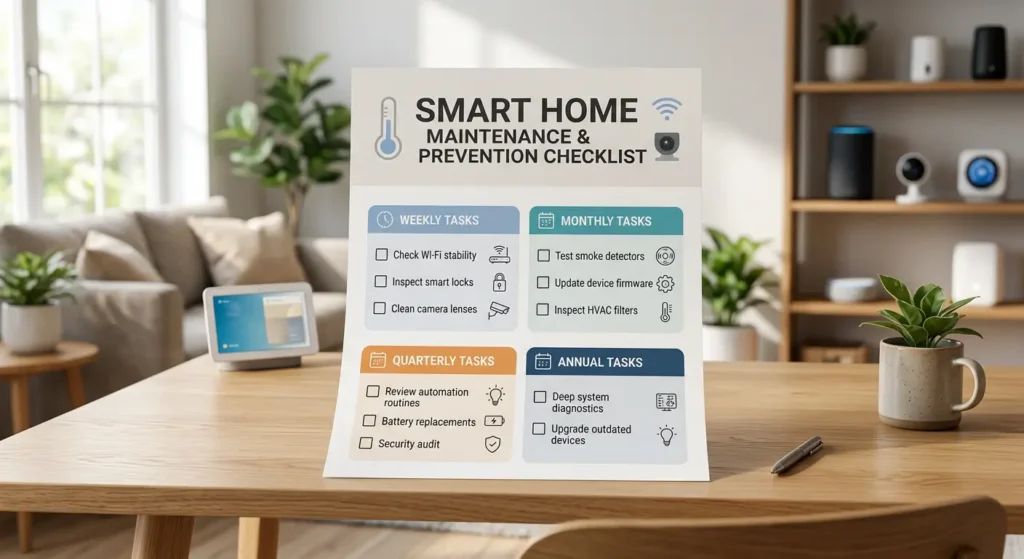
Run Monthly Health Checks
Set a reminder to manually test all your critical automations once a month. Verify that devices actually respond, not just that logs show success.
Use UPS for Critical Network Equipment
A small uninterruptible power supply (UPS) for your router, smart home hub, and Zigbee/Z-Wave coordinator prevents power blips from causing device disconnections.
FAQ
Why do my smart lights show as “on” in the app but are actually off?
This happens because your automation platform is showing the last known state or the assumed state after sending a command. If the device did not actually execute the command, the displayed state becomes inaccurate. Enabling state polling or using devices that actively report their status solves this.
Can a slow internet connection cause automation failures?
Yes, if your automations rely on cloud services. A slow or unstable internet connection can cause commands to timeout between the cloud server and your devices. Switching to local control eliminates internet dependency for device commands.
How do I know if my Zigbee mesh network is healthy?
In Home Assistant with ZHA, you can view your Zigbee network map under Settings, then Devices and Services, then ZHA, then Network Visualization. Look for devices with low LQI (Link Quality Index) values or devices that route through only one path. In Zigbee2MQTT, use the network map feature to visualize your mesh.
Should I use cloud or local automations for reliability?
Local automations are almost always more reliable because they eliminate internet dependency, reduce latency, and remove cloud server availability as a failure point. Use cloud automations only when you need features that require internet access, like sending notifications or integrating with external services.
Why do my automations work manually but fail when triggered automatically?
This usually indicates a timing or condition problem in your automation logic. When you trigger manually, you are bypassing conditions and timing. Check your automation conditions carefully and review the trace or debug log to see exactly where the automation flow differs between manual and automatic execution.
How often should I restart my smart home hub?
A weekly restart of your hub and router is good practice for most setups. Some users find that a monthly restart is sufficient if their system is stable. If you need to restart more frequently than weekly, there is an underlying issue that should be investigated.
Does the Matter protocol solve this problem?
Matter improves the situation significantly because it requires devices to acknowledge commands and supports local communication natively. However, Matter is still relatively new, and implementation quality varies by manufacturer. It is a step in the right direction but not a complete solution yet.
Final Thoughts
The gap between “automation log says success” and “device actually responded” is one of the most common frustrations in smart home automation. But now you understand why it happens and, more importantly, how to fix it.
The core lesson is simple: do not trust the logs blindly. A successful log entry usually means the command was sent, not that it was received and executed. Build your automations with verification, retries, and monitoring so that you catch failures before they become daily annoyances.
Start with the diagnostic steps outlined above. In most cases, you will find the root cause within the first three steps. And once you identify it, the solutions are straightforward. Whether it is a network issue, a protocol problem, or a device failure, every one of these problems has a proven fix.
Your smart home should make life easier, not add another source of stress. With the right setup and habits, you can get to a point where your automations work reliably, every single time.