

Table of Contents
-
- Introduction: The Frustrating Reality of Smart Home Power Failures
-
- What Are Cascading Failures in Smart Homes?
-
- Why Brief Power Outages Wreck Your Smart Home
-
- The Boot Storm Effect: When Everything Restarts at Once
-
- Common Devices That Trigger Cascading Failures
-
- Real Scenarios: What Actually Happens During a Power Flicker
-
- Step-by-Step Guide to Diagnose Cascading Failures
-
- Proven Solutions to Prevent Smart Home Cascading Failures
-
- Best UPS Systems for Smart Home Hubs in 2026
-
- How to Build a Resilient Smart Home Network
-
- Mistakes to Avoid When Fixing Power Recovery Issues
-
- Real Experiences from Smart Home Users
-
- FAQ: Smart Home Power Outage Problems
-
- Final Thoughts
Introduction: The Frustrating Reality of Smart Home Power Failures
You invested thousands of dollars into your smart home. Everything runs perfectly. Your lights respond to voice commands, your thermostat adjusts automatically, and your security cameras never miss a beat.
Then the power flickers for three seconds.
Suddenly, your Hue lights are unresponsive. Your smart lock shows offline. Your Wi-Fi mesh network is cycling through a painfully slow reboot. Your Zigbee devices lost their hub connection. And your Google Home or Alexa keeps saying “Something went wrong.”
I have been there. Multiple times. After spending the better part of six years building and troubleshooting smart homes for myself and clients, I can tell you this: smart home cascading failures after power outages are one of the most common and least understood problems in home automation.
The good news? This problem is entirely fixable once you understand what is happening behind the scenes.
Let me walk you through exactly why this happens and, more importantly, how to make sure it never ruins your evening again.
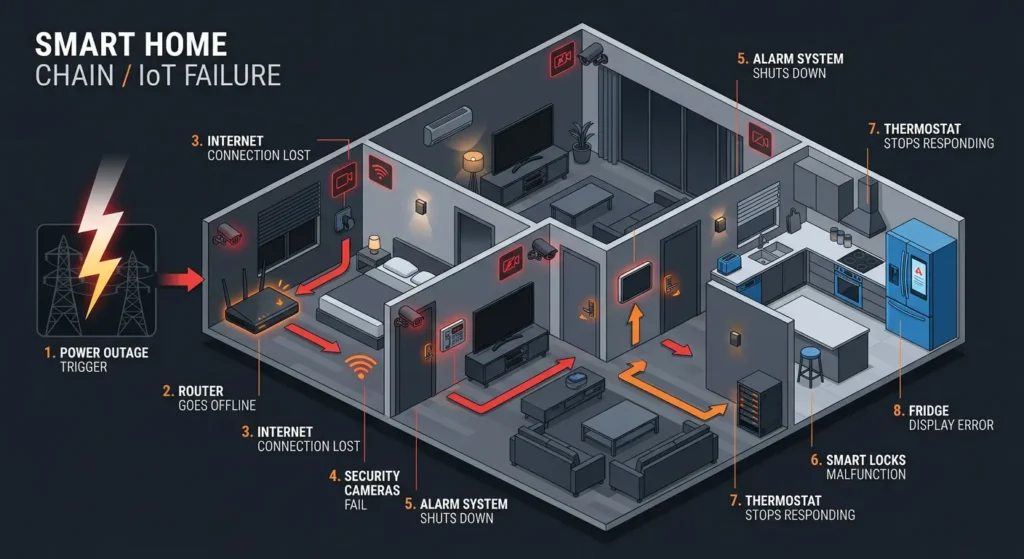
What Are Cascading Failures in Smart Homes?
A cascading failure happens when one device failing triggers a chain reaction that brings down other devices, even ones that technically survived the power outage just fine.
Think of it like dominoes. The power goes out for two seconds. Your router reboots. But your smart hub comes back online before the router does, so it cannot find the network. Your Zigbee coordinator loses its device table. Your smart plugs reconnect to a different Wi-Fi channel. Your automations break because the hub thinks half your devices no longer exist.
The result? You spend 30 minutes manually resetting devices that should have recovered on their own.
The Key Difference Between a Failure and a Cascading Failure
A simple failure is when your smart bulb goes offline after a power outage and you need to toggle it once.
A cascading failure is when that bulb going offline causes your automation to error out, which causes your hub to freeze, which causes your other Zigbee devices to lose their mesh network, which causes your security system to trigger a false alarm.
One problem becomes five problems. That is the cascade.
Why Brief Power Outages Wreck Your Smart Home
This part surprised me the first time I saw it happen, and it still surprises most of my clients: a quick flicker is often worse for your setup than an actual blackout.
Here’s why. In a real outage, everything dies at once and stays dead. When power comes back, every device starts from zero clean slate, predictable boot order. But in a flicker, some devices catch the dip and drop, others don’t. Some half-reboot and get stuck mid-process. A few corrupt whatever was sitting in temporary memory. And now you’ve got a dozen devices all waking up at slightly different times, none of them agreeing on what state the network is in.
It’s chaos, basically just very quiet, very annoying chaos.
During a long outage, everything shuts down completely. When power returns, devices boot up in a relatively clean state. But during a brief flicker lasting one to three seconds, some devices lose power while others do not. Some partially reboot. Some corrupt their temporary memory. And the timing of each device coming back online creates a chaotic mess.
The Four Main Reasons This Happens
1. Boot Sequence Mismatch
Your setup has a pecking order whether you designed it that way or not: modem first, then router, then hub, then everything else. A flicker doesn’t respect that order. I’ve timed this myself more than once my hub was fully awake and searching for a network in 15 seconds, while my router needed a full 90. For over a minute, my hub was knocking on a door nobody was behind.
2. IP Address Conflicts
When your devices reboot, they go asking your router for a fresh IP address. If the router’s still groggy, some devices get nothing, others get handed a different address than before. Your hub, still holding the old address in memory, ends up talking to a device that isn’t there anymore.
3. Zigbee and Z-Wave Mesh Disruption
Zigbee and Z-Wave lean on a mesh devices passing signals to each other like a bucket brigade. Reboot several links in that chain at once and the routing tables scramble. A sensor that used to hop through your hallway plug now has no idea how to find its way back to the hub.
4. Cloud Dependency Timeout
A lot of devices “phone home” to a cloud server the moment they wake up. If your internet isn’t actually back yet modem still booting, router still negotiating those devices hit a wall, fail, and some of them sulk for several minutes before trying again.
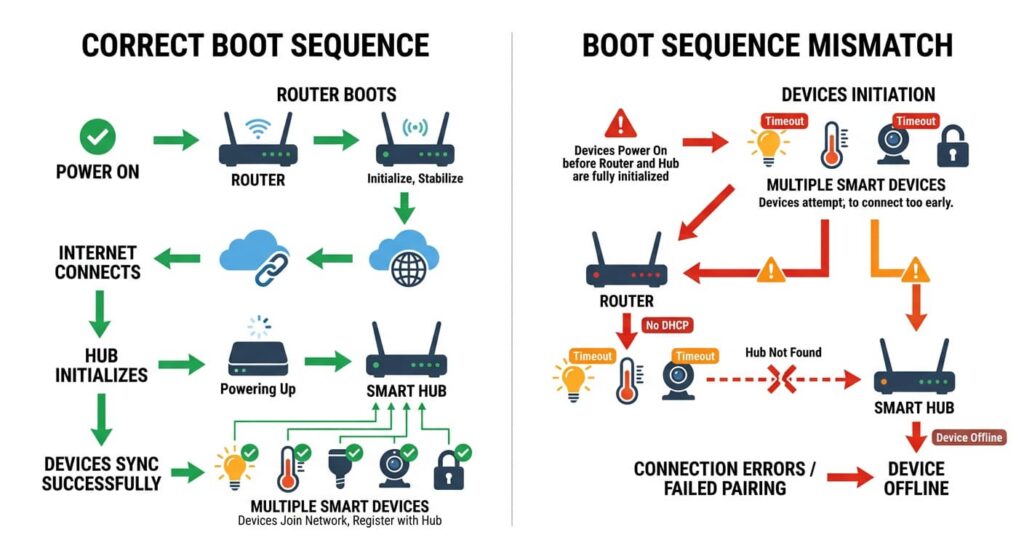
The Boot Storm Effect: When Everything Restarts at Once
Network engineers have a name for this: a boot storm. It’s what happens when a pile of devices all try to wake up and grab bandwidth at the exact same moment. And your smart home with its 30, 40, sometimes 60-plus connected devices is basically a boot storm waiting to happen every time the power blinks.
What a Boot Storm Actually Looks Like
Take a fairly average setup this is close to what I see in most client homes:
- 1 modem
- 1 router or mesh system with 3 nodes
- 1 hub (SmartThings, Hubitat, Home Assistant)
- 8 smart bulbs
- 4 smart plugs
- 6 Zigbee sensors
- 3 smart speakers
- 2 security cameras
- 1 thermostat
- 1 doorbell
- 1 smart lock
The moment power returns, all of that wakes up together pulling power, requesting IPs, pinging cloud servers, all within seconds of each other. Your router has to field 30-plus DHCP requests almost instantly. Your Zigbee coordinator has to rebuild its entire routing table from scratch. And most consumer routers just aren’t built for that kind of simultaneous load they choke, the choke extends the downtime, and the extended downtime causes more timeouts. That’s the cascade, in full swing.
Common Devices That Trigger Cascading Failures
Not all smart home devices are equal when it comes to power recovery. Some bounce back instantly. Others become the weak link that pulls everything else down.
Devices Most Likely to Cause Problems
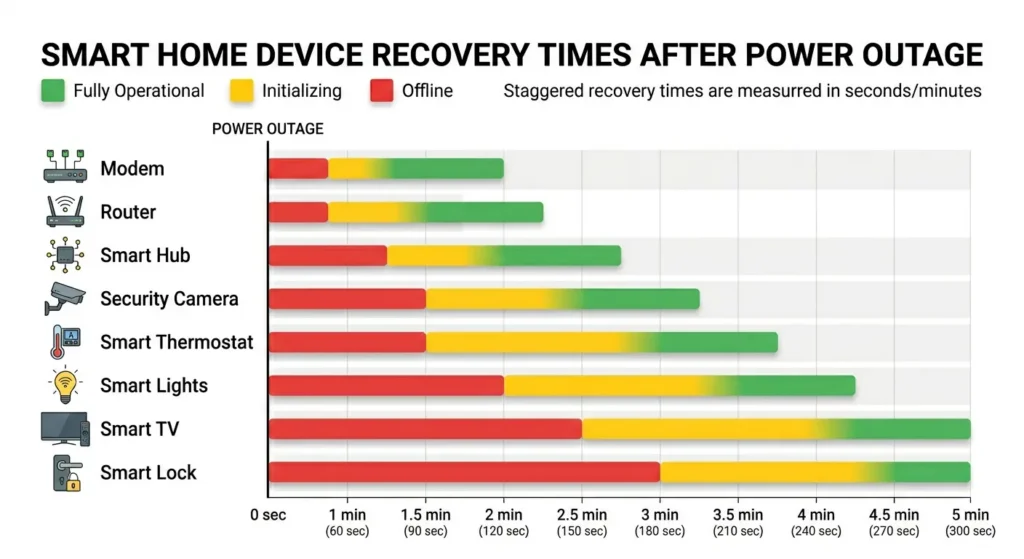
| Device Type | Recovery Time | Cascade Risk | Why It Is Problematic |
|---|---|---|---|
| Mesh Wi-Fi Systems | 2 to 4 minutes | Very High | Everything depends on network availability |
| Smart Home Hubs | 1 to 3 minutes | Very High | Controls all automations and device connections |
| Zigbee Coordinator | 1 to 2 minutes | High | Mesh network collapses without it |
| Smart Bridges (Hue, Lutron) | 1 to 2 minutes | High | All connected devices lose control |
| Cloud-dependent cameras | 2 to 5 minutes | Medium | May miss critical footage during recovery |
| Smart Thermostats | 30 to 90 seconds | Low | Usually recover independently |
| Z-Wave devices | 30 to 60 seconds | Low | Generally more resilient than Zigbee |
The Usual Suspects
From my experience, these three devices cause the most cascading problems:
Wi-Fi Mesh Systems (especially Eero and Google Wifi): These systems take notoriously long to fully reboot. During that time, every Wi-Fi device in your home is offline.
Philips Hue Bridge: When the Hue Bridge loses connection, all Hue bulbs become unresponsive through any app or voice assistant. They revert to their default “on” state, which is why your entire house lights up at 3 AM after a power flicker.
SmartThings or Hubitat Hubs: These coordinate automations. When they come back online before the router, they often mark devices as “unavailable” and require manual intervention to reconnect.
Real Scenarios: What Actually Happens During a Power Flicker
Let me paint a picture based on situations I have personally encountered and heard from dozens of smart home enthusiasts in communities like r/homeautomation and r/smarthome.
Scenario 1: The 2 AM Wake-Up Call
Mark lives in Texas where summer storms cause frequent power flickers. At 2:17 AM, the power cuts out for exactly 4 seconds. Here is what happens in his smart home:
-
- All 22 Philips Hue bulbs turn on at full brightness because they default to “on” after power loss
-
- His Ecobee thermostat reboots and loses its current schedule, defaulting to 72 degrees instead of the 68 he had set for sleeping
-
- His Ring doorbell takes 3 minutes to reconnect, leaving a gap in security footage
-
- His SmartThings hub comes online but cannot reach the cloud for 4 minutes, so all his “Good Night” automations fail
-
- His kids wake up because their bedroom lights turned on
-
- He spends 25 minutes manually resetting everything
This was completely preventable.
Scenario 2: The Work-From-Home Disaster
Sarah runs her home office on a smart home system. A utility crew briefly cuts power to her street at 10:30 AM. Her mesh Wi-Fi takes 4 minutes to fully restore. During that time:
-
- Her VPN drops and she gets locked out of her company system for 15 minutes due to security protocols
-
- Her smart office lights come back on at a random color temperature because they lost their scene settings
-
- Her Nest camera in the baby’s room goes offline and sends her a panic-inducing notification
-
- Her HomeKit automations all show “No Response” and require her to reboot her HomePod mini manually
-
- She loses a full hour of productivity
Step-by-Step Guide to Diagnose Cascading Failures
Before you start buying UPS units and rewiring your house, you need to understand exactly where your cascade begins. Here is how to diagnose the problem systematically.
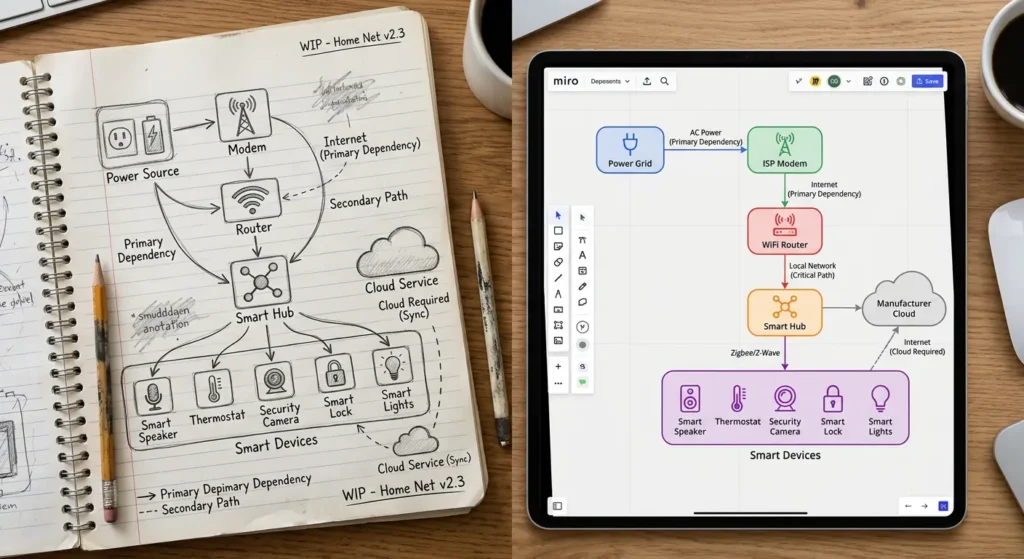
Step 1: Map Your Device Dependency Chain
Write down every smart device in your home and identify what it depends on. For example:
-
- Smart bulb depends on Hue Bridge, which depends on the router, which depends on the modem
-
- Security camera depends on Wi-Fi router, which depends on modem, plus cloud service
-
- Door lock depends on Z-Wave hub, which depends on router for remote access
This map reveals your single points of failure.
Step 2: Time Each Device Boot Sequence
Next time you restart your system intentionally, use a stopwatch to record how long each critical device takes to come online:
-
- Modem: typically 60 to 120 seconds
-
- Router: typically 60 to 180 seconds
-
- Hub: typically 30 to 120 seconds
-
- Bridge: typically 30 to 90 seconds
-
- Individual devices: typically 10 to 30 seconds
Step 3: Identify the First Failure Point
The device with the longest boot time in your critical path is usually where the cascade starts. In most homes, it is the router or mesh Wi-Fi system.
Step 4: Check Your Router Logs
Most routers log reconnection events. After a power outage, check how many devices failed their first DHCP request. This tells you exactly which devices are struggling to reconnect.
Step 5: Test a Simulated Outage
Turn off your main breaker for 5 seconds, then turn it back on. Watch what happens. Take notes. This controlled test reveals your exact vulnerability pattern.
Proven Solutions to Prevent Smart Home Cascading Failures
Now for the part you have been waiting for. Here are the actual fixes, ranked from easiest to most comprehensive.
Solution 1: Put Your Core Network on a UPS (Priority: Critical)
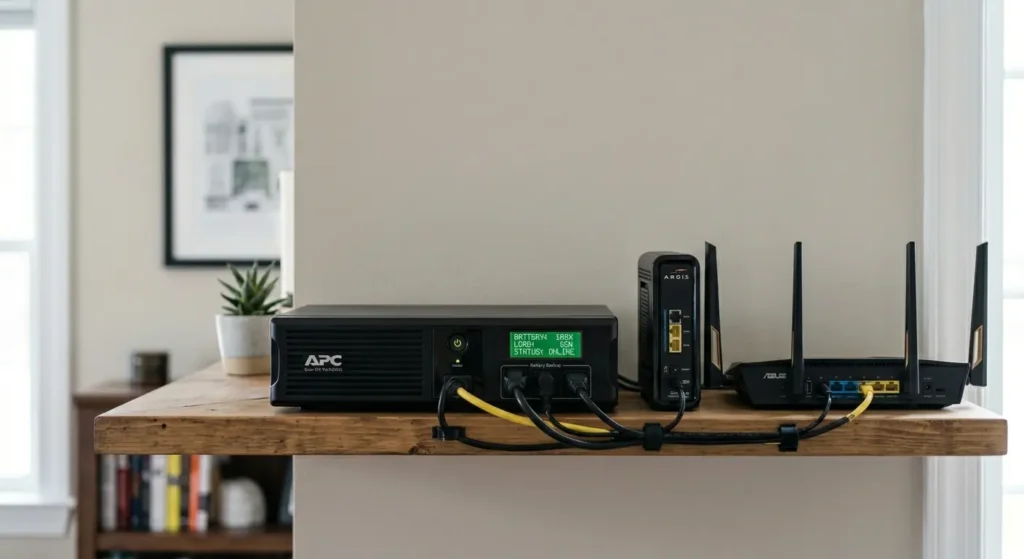
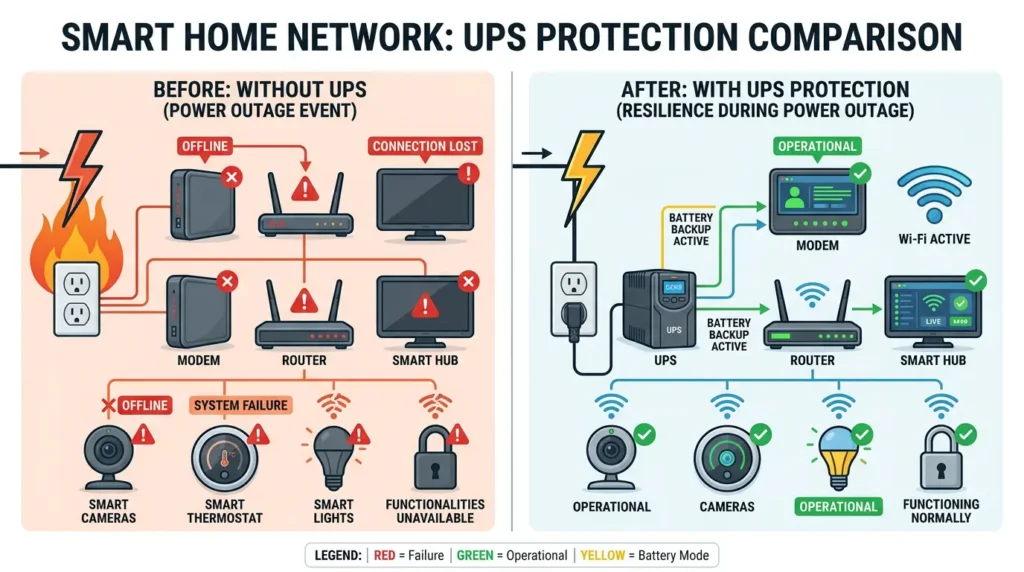
This is the single most impactful thing you can do. Buy a small UPS (Uninterruptible Power Supply) and connect your modem, router, and smart home hub to it.
A basic UPS like the APC BE425M costs around $45 and can keep your modem and router running for 30 to 45 minutes during an outage. This means that during a brief flicker, your network never goes down. Your devices never lose their connection. No cascade happens.
How to set it up:
-
- Place the UPS near your modem and router
-
- Plug modem and router into the battery backup outlets (not the surge-only outlets)
-
- Plug your primary smart home hub into the battery backup outlet
-
- Test it by unplugging the UPS from the wall briefly
Solution 2: Set Static IP Addresses for Critical Devices
DHCP is great for convenience but terrible for reliability. Assign static IP addresses or DHCP reservations for your most important devices:
-
- Smart home hub
-
- Security camera NVR
-
- Smart bridges (Hue, Lutron)
-
- NAS if you have local storage
Most routers let you do this through their admin panel. This way, even after a reboot, every device gets exactly the same address it had before.
Solution 3: Configure Power-On Behavior for Smart Bulbs
Most smart bulbs let you set what happens when power is restored:
-
- Philips Hue: Open the Hue app, go to Settings, then Power-on behavior, and set each bulb to “Power loss recovery” which returns them to their previous state
-
- LIFX: Use the LIFX app to set power recovery to “Last known state”
-
- Wyze Bulbs: Enable “Maintain previous state” in device settings
This alone stops the “all lights blazing at 3 AM” problem.
Solution 4: Implement Delayed Boot Sequences
Some advanced hubs like Home Assistant allow you to create automations that introduce delays when recovering from a power outage. For example:
-
- Wait 120 seconds after hub boot before checking device states
-
- Retry device connections every 30 seconds for 5 minutes
-
- Only send “device offline” notifications if a device has been unreachable for more than 10 minutes
Solution 5: Use Local Control Instead of Cloud
Devices that work locally without needing internet access are inherently more resilient. Consider:
-
- Home Assistant instead of cloud-dependent hubs
-
- Lutron Caseta which works locally through its bridge
-
- Zigbee and Z-Wave devices with local processing
-
- Apple HomeKit which can work on local network without internet
Solution 6: Segment Your Smart Home Network
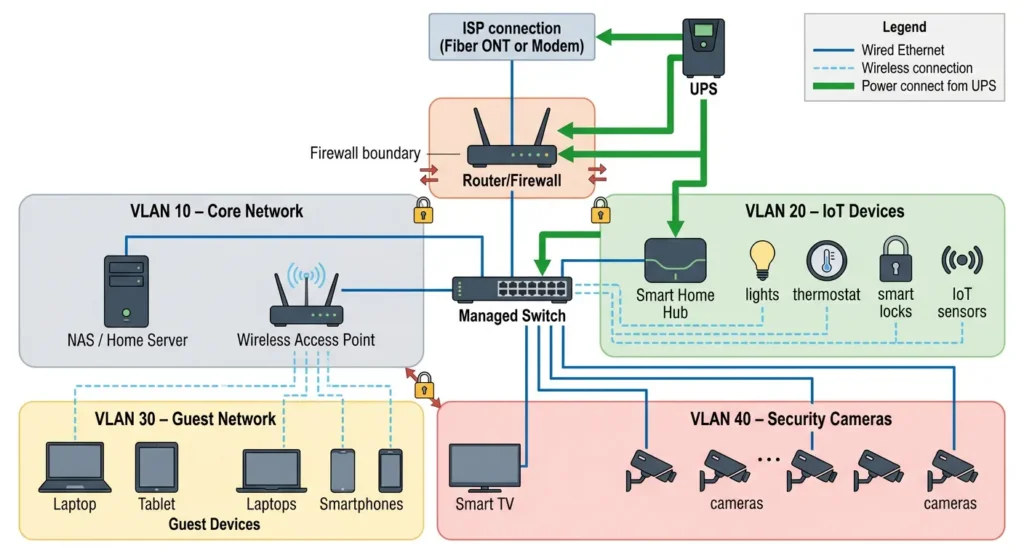
Create a separate VLAN or at minimum a separate SSID for your IoT devices. This way, if your IoT devices create a boot storm, they do not bring down your primary network where your computers and phones live.
Best UPS Systems for Smart Home Hubs in 2026
Choosing the right UPS matters. Here are my tested recommendations:
For Basic Protection (Modem + Router)
APC BE425M Back-UPS
-
- Capacity: 425VA / 255W
-
- Runtime: 30 to 45 minutes for modem and router
-
- Price: Around $45
-
- Best for: Apartments and small homes
For Medium Systems (Modem + Router + Hub + Bridge)
CyberPower CP685AVRG
-
- Capacity: 685VA / 390W
-
- Runtime: 20 to 30 minutes under typical smart home load
-
- Automatic Voltage Regulation built in
-
- Price: Around $75
-
- Best for: Most smart homes
For Comprehensive Protection
APC BE600M1 Back-UPS
-
- Capacity: 600VA / 330W
-
- 7 outlets including 5 battery backup
-
- USB charging port
-
- Price: Around $65
-
- Best for: Homes with multiple hubs and bridges
Pro Tip: Always buy more capacity than you think you need. You will inevitably add more devices to the battery backup over time.
How to Build a Resilient Smart Home Network
Beyond UPS protection, building true resilience means designing your smart home to handle failures gracefully from the start.
Use a Wired Backbone
Connect your most critical devices via Ethernet whenever possible:
-
- Smart home hub
-
- Primary smart speaker
-
- Security camera NVR
-
- Smart bridges
Wired connections recover faster than Wi-Fi after a reboot and are not affected by channel congestion during boot storms.
Choose Protocols with Mesh Healing
Zigbee 3.0 and Z-Wave have built-in mesh healing capabilities. After a disruption, these protocols automatically rebuild their routing tables. However, this process can take anywhere from a few minutes to several hours depending on network size.
To speed up mesh healing:
-
- Keep your Zigbee and Z-Wave networks at a manageable size (under 50 devices per coordinator)
-
- Ensure you have enough powered devices acting as repeaters
-
- Avoid putting your coordinator near sources of interference
Enable Automatic Recovery Automations
In Home Assistant or Hubitat, create recovery automations:
YAMLautomation:
  - alias: "Power Recovery - Reconnect Devices"
    trigger:
      - platform: homeassistant
        event: start
    action:
      - delay: "00:03:00"
      - service: homeassistant.reload_config_entry
This simple automation waits 3 minutes after Home Assistant starts, then attempts to reload all device connections.
Keep Firmware Updated
Manufacturers regularly push updates that improve power recovery behavior. For example, Philips Hue improved their bridge’s recovery mechanism significantly in firmware updates throughout 2024. Check for updates monthly on all your critical devices.
Mistakes to Avoid When Fixing Power Recovery Issues
I have seen people make these mistakes repeatedly. Learn from their pain.
Mistake 1: Putting Everything on One UPS
A single UPS with 12 devices plugged into it will drain fast and may not provide clean power to all of them. Use dedicated UPS units for your critical network equipment and accept that smart bulbs do not need battery backup.
Mistake 2: Ignoring Your ISP Modem
Many people put their router on a UPS but forget the modem. Without the modem, your router has no internet connection, and cloud-dependent devices still fail.
Mistake 3: Using Cheap Power Strips Instead of UPS
Surge protectors protect against voltage spikes, but they do nothing during a power loss. Only a UPS with battery backup keeps devices running during outages.
Mistake 4: Not Testing Your Setup
After implementing your fixes, simulate a power outage by flipping your breaker. Many people assume their UPS is working only to discover the battery is dead or the devices are plugged into the wrong outlets.
Mistake 5: Over-relying on Cloud Services
If 90 percent of your smart home depends on cloud connections, you are inherently vulnerable. Every power outage becomes a problem because your internet recovery is the bottleneck. Move to local control wherever possible.
Real Experiences from Smart Home Users
David’s Story: From Frustration to Reliability
David, a software engineer in Florida, shared his experience on the Home Assistant community forums. He had over 60 smart devices and experienced cascading failures at least twice a month during Florida’s storm season.
His solution was surprisingly simple:
-
- He bought two CyberPower UPS units totaling $130
-
- One protected his modem, router, and Home Assistant server
-
- The other protected his Hue Bridge and Lutron hub
-
- He set static IPs for all 60 devices through his router’s DHCP reservation feature
Result: Zero cascading failures in 8 months since implementation.
“The UPS was the best $130 I ever spent on my smart home,” David wrote. “I used to dread thunderstorms. Now my wife does not even notice when the power flickers because the smart home keeps running perfectly.”
Jennifer’s Lesson: The Cloud Dependency Trap
Jennifer relied entirely on Tuya-based smart devices because they were affordable. After a 5-second power outage, her entire home went dark because every device needed to reach Tuya’s cloud servers to reconnect, and those servers were being hammered by thousands of devices in her area all reconnecting simultaneously.
She gradually migrated to local-control devices running through Home Assistant. “It took me about two months to transition everything, but it was worth it. My smart home now recovers from power outages in under 30 seconds without me touching anything.”
FAQ: Smart Home Power Outage Problems
Why do my smart lights turn on by themselves after a power outage?
Most smart bulbs default to turning on at full brightness when power is restored. This is a safety feature so the bulb works like a normal bulb if someone uses a traditional switch. You can change this behavior in your bulb’s app by setting the power-on behavior to “previous state” or “off.”
Will a UPS protect my smart home from power surges?
Most UPS units include surge protection, so yes, they protect against both power loss and voltage spikes. However, not all outlets on a UPS are battery backed. Some are surge protection only. Make sure your critical devices are on the battery backup outlets.
How long does a UPS need to run during a power outage for my smart home?
For brief outages and flickers, you only need 5 to 10 minutes of runtime. For longer outages, your UPS only needs to keep network equipment and hubs running. Most smart devices will simply go offline gracefully and reconnect once power returns if your network stays up.
Can a whole-house generator prevent cascading failures?
Generators help but they are not a complete solution. Most generators take 10 to 30 seconds to kick in, which is long enough for your devices to begin rebooting. A UPS bridges that gap by providing instant power until the generator starts.
Why does my Zigbee network take so long to recover after a power outage?
Zigbee mesh networks need to rebuild their routing tables after a disruption. Each device needs to rediscover its neighbors and find the best path to the coordinator. In large networks with 30 plus devices, this can take 15 to 30 minutes. Having more powered devices (repeaters) in your mesh speeds up this process.
Is Thread protocol better than Zigbee for power recovery?
Thread, used by Matter-compatible devices, is designed to be more resilient. It can operate without a single point of failure because any Thread border router can take over coordination. However, the Thread ecosystem is still maturing in 2025, and real-world recovery performance varies by manufacturer.
Should I reboot all my smart devices after a power outage?
Not immediately. Give your system 5 to 10 minutes to recover on its own first. Many devices have built-in retry mechanisms that will reconnect automatically. If a device is still offline after 10 minutes, then try a manual reboot starting with your hub, then individual devices.
Do smart home hubs have built-in power failure protection?
Some do. The Hubitat Elevation hub, for example, has a fairly robust power recovery process. Home Assistant running on a device with a proper file system (like an SSD) also recovers well. However, hubs running on SD cards, like early Raspberry Pi setups, can suffer SD card corruption from sudden power loss.
Final Thoughts
Cascading failures after brief power outages are not a flaw in the concept of smart homes. They are a design challenge that has well-known, affordable solutions.
The core strategy is simple: protect your network backbone with a UPS, assign static IPs to critical devices, configure proper power-on behaviors, and favor local control over cloud dependency.
A $50 UPS and an hour of configuration can transform your smart home from a fragile house of cards into a resilient system that handles power flickers without breaking a sweat.
If I could leave you with one piece of advice, it would be this: start with the UPS. Today. It solves 80 percent of cascading failure problems instantly, and everything else becomes easier to troubleshoot once your network stays stable.
Your smart home should make your life easier, not give you a new problem to solve every time the power blinks. With the right preparation, it absolutely can.
Helpful External Resources
Table of Contents
-
- Introduction: The Frustrating Reality of Smart Home Power Failures
-
- What Are Cascading Failures in Smart Homes?
-
- Why Brief Power Outages Wreck Your Smart Home
-
- The Boot Storm Effect: When Everything Restarts at Once
-
- Common Devices That Trigger Cascading Failures
-
- Real Scenarios: What Actually Happens During a Power Flicker
-
- Step-by-Step Guide to Diagnose Cascading Failures
-
- Proven Solutions to Prevent Smart Home Cascading Failures
-
- Best UPS Systems for Smart Home Hubs in 2026
-
- How to Build a Resilient Smart Home Network
-
- Mistakes to Avoid When Fixing Power Recovery Issues
-
- Real Experiences from Smart Home Users
-
- FAQ: Smart Home Power Outage Problems
-
- Final Thoughts
Introduction: The Frustrating Reality of Smart Home Power Failures
You invested thousands of dollars into your smart home. Everything runs perfectly. Your lights respond to voice commands, your thermostat adjusts automatically, and your security cameras never miss a beat.
Then the power flickers for three seconds.
Suddenly, your Hue lights are unresponsive. Your smart lock shows offline. Your Wi-Fi mesh network is cycling through a painfully slow reboot. Your Zigbee devices lost their hub connection. And your Google Home or Alexa keeps saying “Something went wrong.”
I have been there. Multiple times. After spending the better part of six years building and troubleshooting smart homes for myself and clients, I can tell you this: smart home cascading failures after power outages are one of the most common and least understood problems in home automation.
The good news? This problem is entirely fixable once you understand what is happening behind the scenes.
Let me walk you through exactly why this happens and, more importantly, how to make sure it never ruins your evening again.
What Are Cascading Failures in Smart Homes?
A cascading failure happens when one device failing triggers a chain reaction that brings down other devices, even ones that technically survived the power outage just fine.
Think of it like dominoes. The power goes out for two seconds. Your router reboots. But your smart hub comes back online before the router does, so it cannot find the network. Your Zigbee coordinator loses its device table. Your smart plugs reconnect to a different Wi-Fi channel. Your automations break because the hub thinks half your devices no longer exist.
The result? You spend 30 minutes manually resetting devices that should have recovered on their own.
The Key Difference Between a Failure and a Cascading Failure
A simple failure is when your smart bulb goes offline after a power outage and you need to toggle it once.
A cascading failure is when that bulb going offline causes your automation to error out, which causes your hub to freeze, which causes your other Zigbee devices to lose their mesh network, which causes your security system to trigger a false alarm.
One problem becomes five problems. That is the cascade.
Why Brief Power Outages Wreck Your Smart Home
This part surprised me the first time I saw it happen, and it still surprises most of my clients: a quick flicker is often worse for your setup than an actual blackout.
Here’s why. In a real outage, everything dies at once and stays dead. When power comes back, every device starts from zero clean slate, predictable boot order. But in a flicker, some devices catch the dip and drop, others don’t. Some half-reboot and get stuck mid-process. A few corrupt whatever was sitting in temporary memory. And now you’ve got a dozen devices all waking up at slightly different times, none of them agreeing on what state the network is in.
It’s chaos, basically just very quiet, very annoying chaos.
During a long outage, everything shuts down completely. When power returns, devices boot up in a relatively clean state. But during a brief flicker lasting one to three seconds, some devices lose power while others do not. Some partially reboot. Some corrupt their temporary memory. And the timing of each device coming back online creates a chaotic mess.
The Four Main Reasons This Happens
1. Boot Sequence Mismatch
Your smart home has a natural hierarchy. The router needs to come online first, then the hub, then the individual devices. A brief power outage disrupts this sequence. Your hub might boot in 15 seconds, but your router takes 90 seconds. For over a minute, your hub is searching for a network that does not exist yet.
2. IP Address Conflicts
When devices reboot, they request new IP addresses from your router via DHCP. If the router is still restarting, devices either fail to get an address or grab a different one than they had before. If your smart home app or hub had those old addresses saved, it suddenly cannot communicate with anything.
3. Zigbee and Z-Wave Mesh Disruption
Zigbee and Z-Wave devices rely on a mesh network where devices relay signals to each other. When multiple devices in the mesh reboot simultaneously, the routing tables get scrambled. Devices that used to communicate through a specific repeater now cannot find their path back to the hub.
4. Cloud Dependency Timeout
Many smart home devices phone home to a cloud server during startup. If your internet connection is not ready yet because your modem and router are still booting, these devices enter a failure state and sometimes refuse to retry for several minutes.
The Boot Storm Effect: When Everything Restarts at Once
There is a technical term that network engineers use called a “boot storm.” It describes what happens when dozens or hundreds of devices all try to start up at the same time after a power restoration.
In a smart home context, this is exactly what destroys your setup after a flicker.
What Happens During a Boot Storm
Consider a typical smart home with 40 connected devices:
-
- 1 modem
-
- 1 router or mesh system with 3 nodes
-
- 1 smart home hub (SmartThings, Hubitat, Home Assistant)
-
- 8 smart bulbs
-
- 4 smart plugs
-
- 6 Zigbee sensors
-
- 3 smart speakers
-
- 2 security cameras
-
- 1 smart thermostat
-
- 1 video doorbell
-
- 1 smart lock
-
- Multiple other accessories
When power returns, all 40 devices simultaneously draw power, request network access, and try to authenticate with various cloud services. Your router has to handle 30 plus DHCP requests in seconds. Your Zigbee coordinator has to rebuild routing tables. Your cloud services get hammered with reconnection attempts.
Most consumer grade routers simply cannot handle this gracefully. They choke under the load, which extends the downtime, which causes more devices to time out, which creates more reconnection attempts. That is the cascade in full effect.
Common Devices That Trigger Cascading Failures
Not all smart home devices are equal when it comes to power recovery. Some bounce back instantly. Others become the weak link that pulls everything else down.
Devices Most Likely to Cause Problems
| Device Type | Recovery Time | Cascade Risk | Why It Is Problematic |
|---|---|---|---|
| Mesh Wi-Fi Systems | 2 to 4 minutes | Very High | Everything depends on network availability |
| Smart Home Hubs | 1 to 3 minutes | Very High | Controls all automations and device connections |
| Zigbee Coordinator | 1 to 2 minutes | High | Mesh network collapses without it |
| Smart Bridges (Hue, Lutron) | 1 to 2 minutes | High | All connected devices lose control |
| Cloud-dependent cameras | 2 to 5 minutes | Medium | May miss critical footage during recovery |
| Smart Thermostats | 30 to 90 seconds | Low | Usually recover independently |
| Z-Wave devices | 30 to 60 seconds | Low | Generally more resilient than Zigbee |
The Usual Suspects
From my experience, these three devices cause the most cascading problems:
Wi-Fi Mesh Systems (especially Eero and Google Wifi): These systems take notoriously long to fully reboot. During that time, every Wi-Fi device in your home is offline.
Philips Hue Bridge: When the Hue Bridge loses connection, all Hue bulbs become unresponsive through any app or voice assistant. They revert to their default “on” state, which is why your entire house lights up at 3 AM after a power flicker.
SmartThings or Hubitat Hubs: These coordinate automations. When they come back online before the router, they often mark devices as “unavailable” and require manual intervention to reconnect.
Real Scenarios: What Actually Happens During a Power Flicker
Let me paint a picture based on situations I have personally encountered and heard from dozens of smart home enthusiasts in communities like r/homeautomation and r/smarthome.
Scenario 1: The 2 AM Wake-Up Call
Mark lives in Texas where summer storms cause frequent power flickers. At 2:17 AM, the power cuts out for exactly 4 seconds. Here is what happens in his smart home:
-
- All 22 Philips Hue bulbs turn on at full brightness because they default to “on” after power loss
-
- His Ecobee thermostat reboots and loses its current schedule, defaulting to 72 degrees instead of the 68 he had set for sleeping
-
- His Ring doorbell takes 3 minutes to reconnect, leaving a gap in security footage
-
- His SmartThings hub comes online but cannot reach the cloud for 4 minutes, so all his “Good Night” automations fail
-
- His kids wake up because their bedroom lights turned on
-
- He spends 25 minutes manually resetting everything
This was completely preventable.
Scenario 2: The Work-From-Home Disaster
Sarah runs her home office on a smart home system. A utility crew briefly cuts power to her street at 10:30 AM. Her mesh Wi-Fi takes 4 minutes to fully restore. During that time:
-
- Her VPN drops and she gets locked out of her company system for 15 minutes due to security protocols
-
- Her smart office lights come back on at a random color temperature because they lost their scene settings
-
- Her Nest camera in the baby’s room goes offline and sends her a panic-inducing notification
-
- Her HomeKit automations all show “No Response” and require her to reboot her HomePod mini manually
-
- She loses a full hour of productivity
Step-by-Step Guide to Diagnose Cascading Failures
Before you start buying UPS units and rewiring your house, you need to understand exactly where your cascade begins. Here is how to diagnose the problem systematically.
Step 1: Map Your Device Dependency Chain
Write down every smart device in your home and identify what it depends on. For example:
-
- Smart bulb depends on Hue Bridge, which depends on the router, which depends on the modem
-
- Security camera depends on Wi-Fi router, which depends on modem, plus cloud service
-
- Door lock depends on Z-Wave hub, which depends on router for remote access
This map reveals your single points of failure.
Step 2: Time Each Device Boot Sequence
Next time you restart your system intentionally, use a stopwatch to record how long each critical device takes to come online:
-
- Modem: typically 60 to 120 seconds
-
- Router: typically 60 to 180 seconds
-
- Hub: typically 30 to 120 seconds
-
- Bridge: typically 30 to 90 seconds
-
- Individual devices: typically 10 to 30 seconds
Step 3: Identify the First Failure Point
The device with the longest boot time in your critical path is usually where the cascade starts. In most homes, it is the router or mesh Wi-Fi system.
Step 4: Check Your Router Logs
Most routers log reconnection events. After a power outage, check how many devices failed their first DHCP request. This tells you exactly which devices are struggling to reconnect.
Step 5: Test a Simulated Outage
Turn off your main breaker for 5 seconds, then turn it back on. Watch what happens. Take notes. This controlled test reveals your exact vulnerability pattern.
Proven Solutions to Prevent Smart Home Cascading Failures
Now for the part you have been waiting for. Here are the actual fixes, ranked from easiest to most comprehensive.
Solution 1: Put Your Core Network on a UPS (Priority: Critical)
This is the single most impactful thing you can do. Buy a small UPS (Uninterruptible Power Supply) and connect your modem, router, and smart home hub to it.
A basic UPS like the APC BE425M costs around $45 and can keep your modem and router running for 30 to 45 minutes during an outage. This means that during a brief flicker, your network never goes down. Your devices never lose their connection. No cascade happens.
How to set it up:
-
- Place the UPS near your modem and router
-
- Plug modem and router into the battery backup outlets (not the surge-only outlets)
-
- Plug your primary smart home hub into the battery backup outlet
-
- Test it by unplugging the UPS from the wall briefly
Solution 2: Set Static IP Addresses for Critical Devices
DHCP is great for convenience but terrible for reliability. Assign static IP addresses or DHCP reservations for your most important devices:
-
- Smart home hub
-
- Security camera NVR
-
- Smart bridges (Hue, Lutron)
-
- NAS if you have local storage
Most routers let you do this through their admin panel. This way, even after a reboot, every device gets exactly the same address it had before.
Solution 3: Configure Power-On Behavior for Smart Bulbs
Most smart bulbs let you set what happens when power is restored:
-
- Philips Hue: Open the Hue app, go to Settings, then Power-on behavior, and set each bulb to “Power loss recovery” which returns them to their previous state
-
- LIFX: Use the LIFX app to set power recovery to “Last known state”
-
- Wyze Bulbs: Enable “Maintain previous state” in device settings
This alone stops the “all lights blazing at 3 AM” problem.
Solution 4: Implement Delayed Boot Sequences
Some advanced hubs like Home Assistant allow you to create automations that introduce delays when recovering from a power outage. For example:
-
- Wait 120 seconds after hub boot before checking device states
-
- Retry device connections every 30 seconds for 5 minutes
-
- Only send “device offline” notifications if a device has been unreachable for more than 10 minutes
Solution 5: Use Local Control Instead of Cloud
Devices that work locally without needing internet access are inherently more resilient. Consider:
-
- Home Assistant instead of cloud-dependent hubs
-
- Lutron Caseta which works locally through its bridge
-
- Zigbee and Z-Wave devices with local processing
-
- Apple HomeKit which can work on local network without internet
Solution 6: Segment Your Smart Home Network
Create a separate VLAN or at minimum a separate SSID for your IoT devices. This way, if your IoT devices create a boot storm, they do not bring down your primary network where your computers and phones live.
Best UPS Systems for Smart Home Hubs in 2026
Choosing the right UPS matters. Here are my tested recommendations:
For Basic Protection (Modem + Router)
APC BE425M Back-UPS
-
- Capacity: 425VA / 255W
-
- Runtime: 30 to 45 minutes for modem and router
-
- Price: Around $45
-
- Best for: Apartments and small homes
For Medium Systems (Modem + Router + Hub + Bridge)
CyberPower CP685AVRG
-
- Capacity: 685VA / 390W
-
- Runtime: 20 to 30 minutes under typical smart home load
-
- Automatic Voltage Regulation built in
-
- Price: Around $75
-
- Best for: Most smart homes
For Comprehensive Protection
APC BE600M1 Back-UPS
-
- Capacity: 600VA / 330W
-
- 7 outlets including 5 battery backup
-
- USB charging port
-
- Price: Around $65
-
- Best for: Homes with multiple hubs and bridges
Pro Tip: Always buy more capacity than you think you need. You will inevitably add more devices to the battery backup over time.
How to Build a Resilient Smart Home Network
Beyond UPS protection, building true resilience means designing your smart home to handle failures gracefully from the start.
Use a Wired Backbone
Connect your most critical devices via Ethernet whenever possible:
-
- Smart home hub
-
- Primary smart speaker
-
- Security camera NVR
-
- Smart bridges
Wired connections recover faster than Wi-Fi after a reboot and are not affected by channel congestion during boot storms.
Choose Protocols with Mesh Healing
Zigbee 3.0 and Z-Wave have built-in mesh healing capabilities. After a disruption, these protocols automatically rebuild their routing tables. However, this process can take anywhere from a few minutes to several hours depending on network size.
To speed up mesh healing:
-
- Keep your Zigbee and Z-Wave networks at a manageable size (under 50 devices per coordinator)
-
- Ensure you have enough powered devices acting as repeaters
-
- Avoid putting your coordinator near sources of interference
Enable Automatic Recovery Automations
In Home Assistant or Hubitat, create recovery automations:
YAMLautomation:
  - alias: "Power Recovery - Reconnect Devices"
    trigger:
      - platform: homeassistant
        event: start
    action:
      - delay: "00:03:00"
      - service: homeassistant.reload_config_entry
This simple automation waits 3 minutes after Home Assistant starts, then attempts to reload all device connections.
Keep Firmware Updated
Manufacturers regularly push updates that improve power recovery behavior. For example, Philips Hue improved their bridge’s recovery mechanism significantly in firmware updates throughout 2024. Check for updates monthly on all your critical devices.
Mistakes to Avoid When Fixing Power Recovery Issues
I have seen people make these mistakes repeatedly. Learn from their pain.
Mistake 1: Putting Everything on One UPS
A single UPS with 12 devices plugged into it will drain fast and may not provide clean power to all of them. Use dedicated UPS units for your critical network equipment and accept that smart bulbs do not need battery backup.
Mistake 2: Ignoring Your ISP Modem
Many people put their router on a UPS but forget the modem. Without the modem, your router has no internet connection, and cloud-dependent devices still fail.
Mistake 3: Using Cheap Power Strips Instead of UPS
Surge protectors protect against voltage spikes, but they do nothing during a power loss. Only a UPS with battery backup keeps devices running during outages.
Mistake 4: Not Testing Your Setup
After implementing your fixes, simulate a power outage by flipping your breaker. Many people assume their UPS is working only to discover the battery is dead or the devices are plugged into the wrong outlets.
Mistake 5: Over-relying on Cloud Services
If 90 percent of your smart home depends on cloud connections, you are inherently vulnerable. Every power outage becomes a problem because your internet recovery is the bottleneck. Move to local control wherever possible.
Real Experiences from Smart Home Users
David’s Story: From Frustration to Reliability
David, a software engineer in Florida, shared his experience on the Home Assistant community forums. He had over 60 smart devices and experienced cascading failures at least twice a month during Florida’s storm season.
His solution was surprisingly simple:
-
- He bought two CyberPower UPS units totaling $130
-
- One protected his modem, router, and Home Assistant server
-
- The other protected his Hue Bridge and Lutron hub
-
- He set static IPs for all 60 devices through his router’s DHCP reservation feature
Result: Zero cascading failures in 8 months since implementation.
“The UPS was the best $130 I ever spent on my smart home,” David wrote. “I used to dread thunderstorms. Now my wife does not even notice when the power flickers because the smart home keeps running perfectly.”
Jennifer’s Lesson: The Cloud Dependency Trap
Jennifer relied entirely on Tuya-based smart devices because they were affordable. After a 5-second power outage, her entire home went dark because every device needed to reach Tuya’s cloud servers to reconnect, and those servers were being hammered by thousands of devices in her area all reconnecting simultaneously.
She gradually migrated to local-control devices running through Home Assistant. “It took me about two months to transition everything, but it was worth it. My smart home now recovers from power outages in under 30 seconds without me touching anything.”
FAQ: Smart Home Power Outage Problems
Why do my smart lights turn on by themselves after a power outage?
Most smart bulbs default to turning on at full brightness when power is restored. This is a safety feature so the bulb works like a normal bulb if someone uses a traditional switch. You can change this behavior in your bulb’s app by setting the power-on behavior to “previous state” or “off.”
Will a UPS protect my smart home from power surges?
Most UPS units include surge protection, so yes, they protect against both power loss and voltage spikes. However, not all outlets on a UPS are battery backed. Some are surge protection only. Make sure your critical devices are on the battery backup outlets.
How long does a UPS need to run during a power outage for my smart home?
For brief outages and flickers, you only need 5 to 10 minutes of runtime. For longer outages, your UPS only needs to keep network equipment and hubs running. Most smart devices will simply go offline gracefully and reconnect once power returns if your network stays up.
Can a whole-house generator prevent cascading failures?
Generators help but they are not a complete solution. Most generators take 10 to 30 seconds to kick in, which is long enough for your devices to begin rebooting. A UPS bridges that gap by providing instant power until the generator starts.
Why does my Zigbee network take so long to recover after a power outage?
Zigbee mesh networks need to rebuild their routing tables after a disruption. Each device needs to rediscover its neighbors and find the best path to the coordinator. In large networks with 30 plus devices, this can take 15 to 30 minutes. Having more powered devices (repeaters) in your mesh speeds up this process.
Is Thread protocol better than Zigbee for power recovery?
Thread, used by Matter-compatible devices, is designed to be more resilient. It can operate without a single point of failure because any Thread border router can take over coordination. However, the Thread ecosystem is still maturing in 2025, and real-world recovery performance varies by manufacturer.
Should I reboot all my smart devices after a power outage?
Not immediately. Give your system 5 to 10 minutes to recover on its own first. Many devices have built-in retry mechanisms that will reconnect automatically. If a device is still offline after 10 minutes, then try a manual reboot starting with your hub, then individual devices.
Do smart home hubs have built-in power failure protection?
Some do. The Hubitat Elevation hub, for example, has a fairly robust power recovery process. Home Assistant running on a device with a proper file system (like an SSD) also recovers well. However, hubs running on SD cards, like early Raspberry Pi setups, can suffer SD card corruption from sudden power loss.
Final Thoughts
Cascading failures after brief power outages are not a flaw in the concept of smart homes. They are a design challenge that has well-known, affordable solutions.
The core strategy is simple: protect your network backbone with a UPS, assign static IPs to critical devices, configure proper power-on behaviors, and favor local control over cloud dependency.
A $50 UPS and an hour of configuration can transform your smart home from a fragile house of cards into a resilient system that handles power flickers without breaking a sweat.
If I could leave you with one piece of advice, it would be this: start with the UPS. Today. It solves 80 percent of cascading failure problems instantly, and everything else becomes easier to troubleshoot once your network stays stable.
Your smart home should make your life easier, not give you a new problem to solve every time the power blinks. With the right preparation, it absolutely can.
Helpful External Resources