

Table of Contents
- Introduction
- How Google Home Communicates on Your Network
- What Happens When You Enable Strict Firewall Rules
- Common Protocols and Ports Google Home Depends On
- Real Scenarios Where Firewalls Broke Google Home
- Step by Step Guide to Fix Google Home Firewall Issues
- Safe Firewall Configuration for Google Home
- How to Test If Your Firewall Is Blocking Google Home
- Advanced Tips for Network Segmentation Without Breaking Smart Home
- Frequently Asked Questions
- Final Thoughts
Introduction
You finally decided to lock down your home network. You enabled strict firewall rules on your router, feeling proud that your family’s data is now more secure than ever. Then you walked into the living room, said “Hey Google, turn off the lights,” and nothing happened. Your Google Home just sat there, glowing but completely unresponsive to your smart home commands.
If this sounds familiar, you are not alone. Thousands of users every month run into the exact same frustration. They tighten their network security only to discover that their Google Home devices stop working, fail to cast media, or lose connection to smart home accessories entirely.
I have spent over a decade working with network configurations and smart home ecosystems. And I can tell you this problem is not a bug. It is actually a predictable outcome of how Google Home communicates behind the scenes. The good news is that you do not have to choose between security and convenience. You can have both if you understand what is really going on.
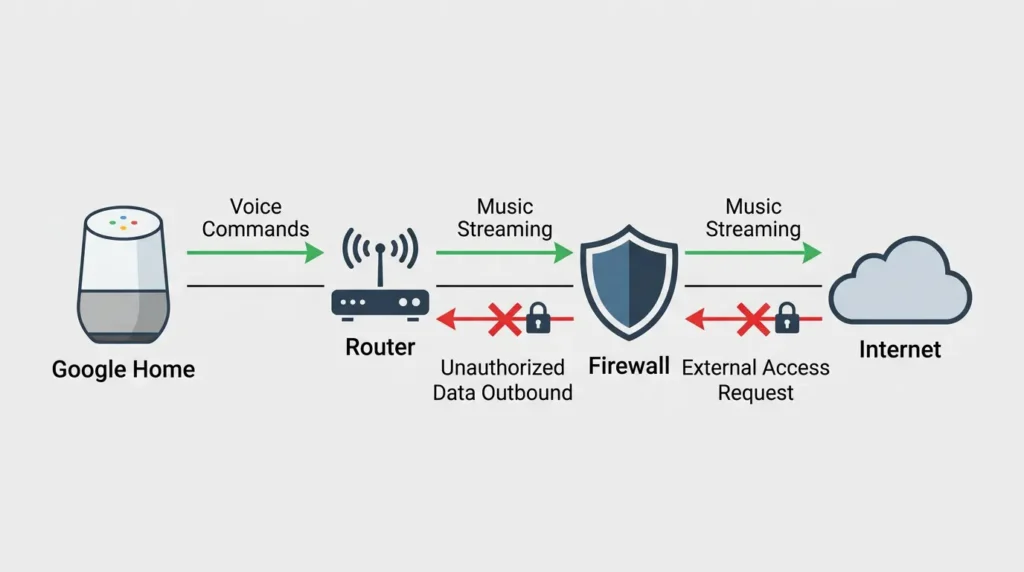
In this article, I will explain exactly why strict firewall rules break Google Home integration, which ports and protocols are involved, and how to configure your firewall safely without leaving your network exposed.
How Google Home Communicates on Your Network
Before we talk about what goes wrong, you need to understand how Google Home actually works on your local network.
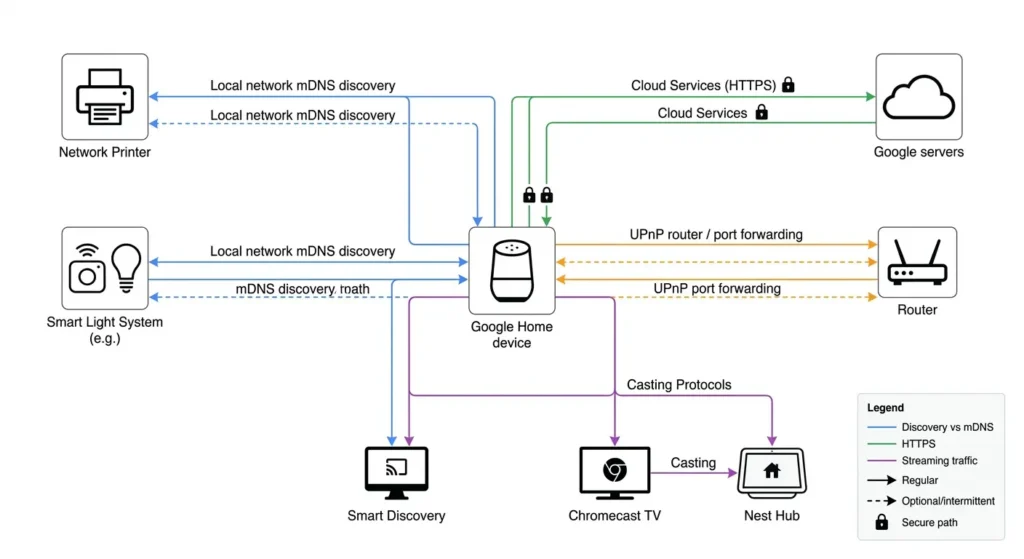
Google Home devices do not simply send voice commands to the cloud and wait for answers. They rely on a complex mix of local network communication and cloud connectivity. Here is what happens every time you interact with a Google Home device:
Local Network Discovery
Google Home uses mDNS (Multicast DNS) on port 5353 to discover other devices on the same network. This is how it finds your Chromecast, smart lights, and other compatible devices. Without mDNS, your Google Home literally cannot see anything else on your network.
Cloud Communication
Voice processing, routines, and third party integrations all require a stable connection to Google’s cloud servers. This happens over HTTPS (port 443) and HTTP (port 80), but Google also uses several other ports for specific functions.
Device Control Protocols
When you tell Google Home to control a smart device, it often uses UPnP (Universal Plug and Play) or SSDP (Simple Service Discovery Protocol) on port 1900 to communicate with local devices. Some devices also rely on CoAP (Constrained Application Protocol) or custom TCP connections.
Casting and Media Streaming
If you use Google Home to cast music or video to a Chromecast or smart display, it uses ports 8008, 8009, and 8443 for the casting protocol.
What Happens When You Enable Strict Firewall Rules
Now here is where things break down.
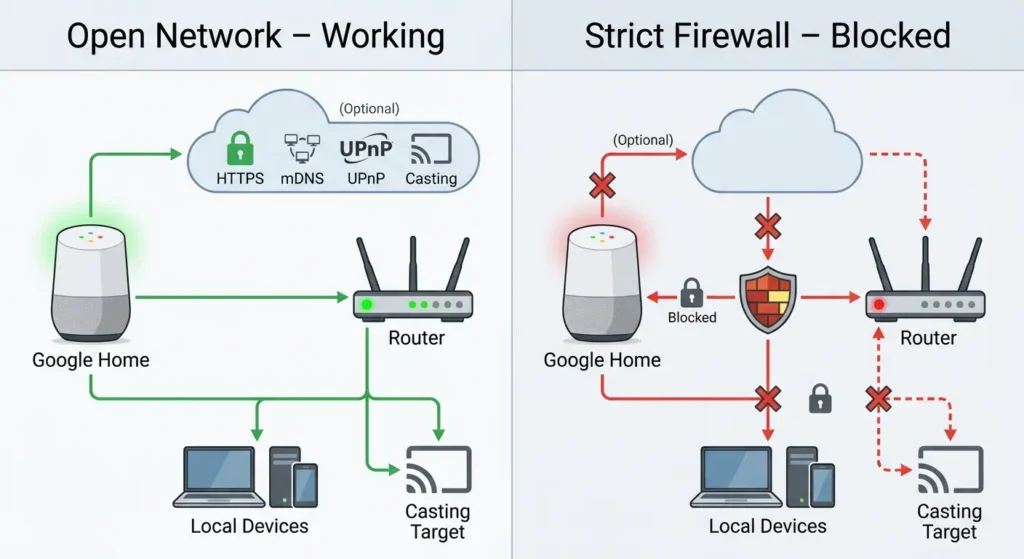
When you enable strict firewall rules, you are essentially telling your router to block all traffic that is not explicitly allowed. This is called a default deny policy, and it is considered best practice in network security. But it creates immediate problems for smart home devices.
Multicast Traffic Gets Blocked
Most strict firewalls block multicast traffic by default. Since Google Home relies on mDNS (which is multicast), your device can no longer discover or communicate with other devices on the network. This is the single most common reason Google Home stops working after firewall changes.
UPnP Gets Disabled
Security experts often recommend disabling UPnP because it can be exploited by malware. However, Google Home uses UPnP to discover and control smart home devices. Without it, your Google Home might connect to the internet but fail to control local devices.
Outbound Port Restrictions
Strict firewalls often limit outbound connections to only ports 80 and 443. But Google Home needs access to additional ports for DNS (53), NTP time synchronization (123), and casting protocols (8008, 8009, 8443). Blocking these ports causes partial or complete failure.
Inter Device Communication Gets Restricted
Some advanced firewalls and network setups use client isolation or AP isolation, which prevents devices on the same network from talking to each other. This completely breaks Google Home because it cannot reach your smart bulbs, plugs, or displays.
Common Protocols and Ports Google Home Depends On
Here is a comprehensive table of the ports and protocols that Google Home requires to function properly:
| Protocol | Port | Direction | Purpose |
|---|---|---|---|
| DNS | 53 (UDP/TCP) | Outbound | Domain name resolution |
| NTP | 123 (UDP) | Outbound | Time synchronization |
| HTTPS | 443 (TCP) | Outbound | Cloud services and voice processing |
| HTTP | 80 (TCP) | Outbound | Updates and some cloud services |
| mDNS | 5353 (UDP) | Local | Device discovery on local network |
| SSDP/UPnP | 1900 (UDP) | Local | Local device discovery and control |
| Cast Protocol | 8008, 8009 (TCP) | Local | Chromecast and media casting |
| Cast Secure | 8443 (TCP) | Local | Secure casting connections |
| Google Services | 5228-5230 (TCP) | Outbound | Google Cloud Messaging and push notifications |
Important: Blocking even one of these can cause specific features to fail, even if the device appears to be online.
Real Scenarios Where Firewalls Broke Google Home
Scenario 1: The pfSense User Who Lost All Smart Home Control
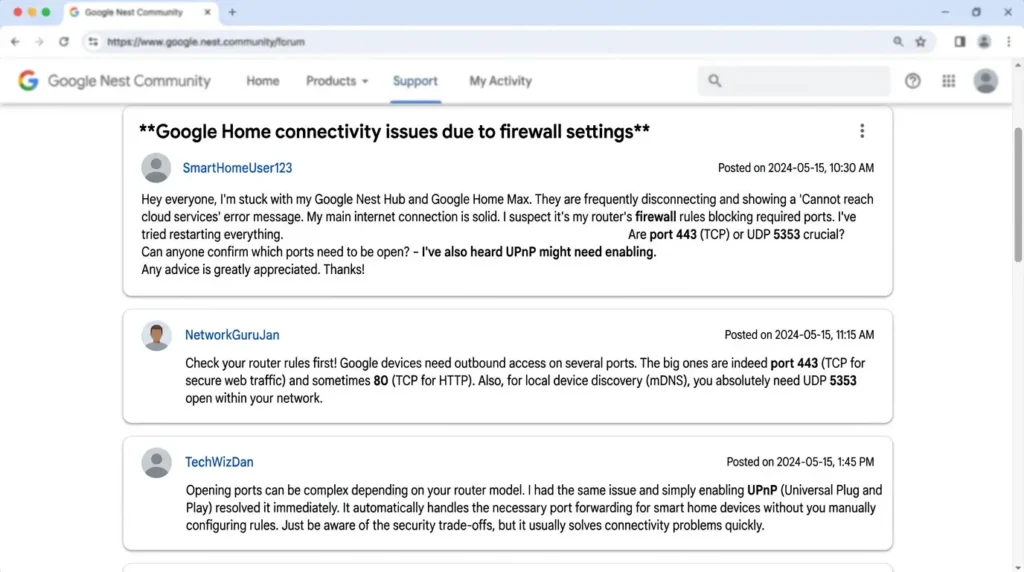
A user on the Google Nest community forums shared that after migrating from a basic ISP router to a pfSense firewall with strict outbound rules, all of his Google Home devices went offline. Voice commands worked intermittently, and casting stopped completely.
The root cause was that pfSense was blocking outbound traffic on ports 5228 to 5230, which Google uses for persistent cloud connections. Once those ports were allowed, everything came back to life.
Scenario 2: The UniFi Dream Machine and VLAN Isolation
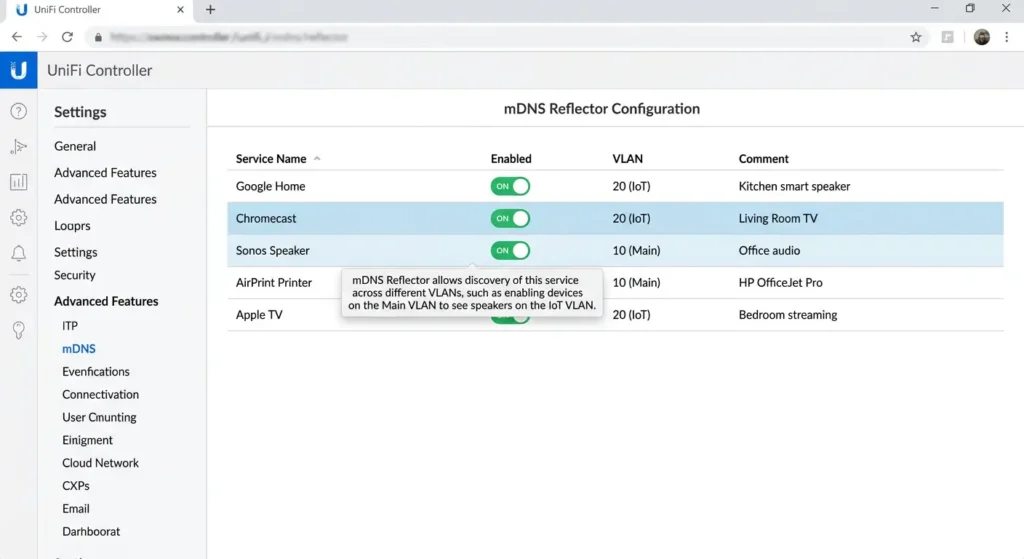
Another common scenario involves users with Ubiquiti UniFi equipment who create separate VLANs for IoT devices. They place Google Home on an IoT VLAN and their phone on a main VLAN, then wonder why the Google Home app cannot find their devices.
The problem is that mDNS does not cross VLAN boundaries by default. Without an mDNS reflector or Avahi daemon configured on the router, the phone and Google Home are invisible to each other.
Scenario 3: The Asus Router with AiProtection
Several users have reported that enabling Asus AiProtection (powered by Trend Micro) on their routers caused Google Home to lose connection to third party smart home devices. The security feature was flagging some of the local network traffic as suspicious and silently dropping packets.
Step by Step Guide to Fix Google Home Firewall Issues
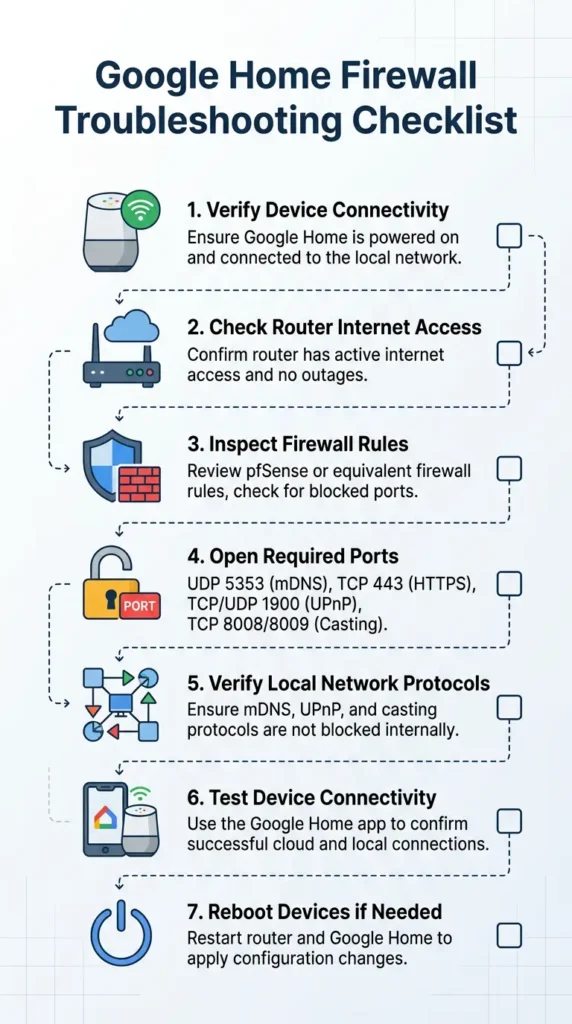
Follow these steps carefully to restore Google Home functionality without compromising your network security.
Step 1: Identify What Is Actually Broken
Before changing any settings, figure out exactly what is not working:
- Can the Google Home app find your devices?
- Do voice commands work but device control fails?
- Is casting broken while other features work?
- Are all Google Home features completely dead?
This tells you whether the issue is local network communication, cloud connectivity, or both.
Step 2: Check Your Firewall Logs
Log into your router or firewall and look at the blocked traffic logs. Filter by the IP address of your Google Home device. You will likely see a list of blocked connections that tells you exactly which ports and protocols are being denied.
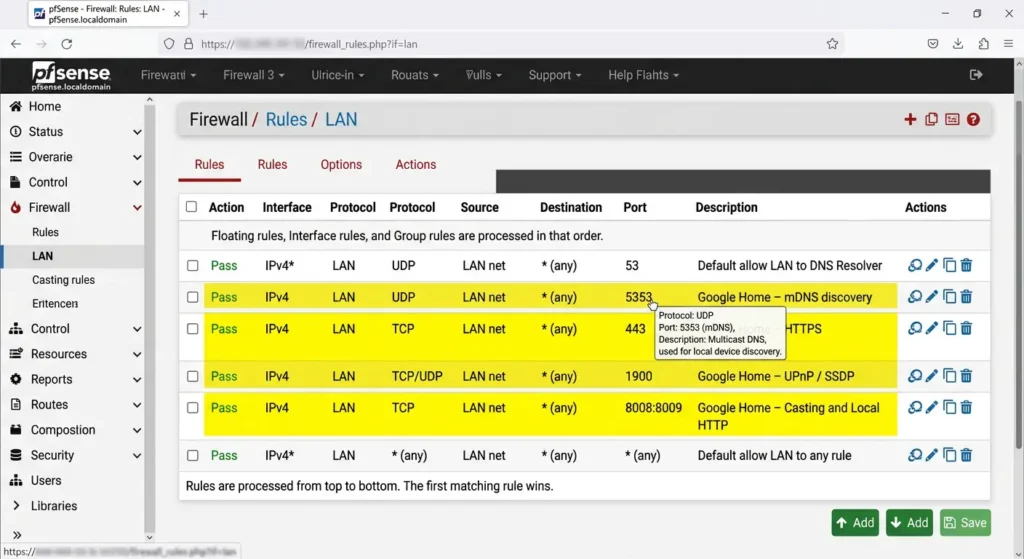
Step 3: Allow Essential Outbound Ports
Create firewall rules that allow your Google Home devices to reach the following outbound destinations:
- Port 443 (TCP) for HTTPS
- Port 80 (TCP) for HTTP
- Port 53 (UDP/TCP) for DNS
- Port 123 (UDP) for NTP
- Port 5228 to 5230 (TCP) for Google Cloud Messaging
Step 4: Enable mDNS on Your Local Network
Make sure multicast traffic is allowed on your local network. If you are using VLANs, configure an mDNS reflector to allow discovery across network segments.
On UniFi devices, you can enable this under Settings then Network then select your network and enable Multicast DNS.
On pfSense, you can install the Avahi package to handle mDNS reflection.
Step 5: Allow Local Device Communication
Ensure that devices on the same subnet can communicate freely with each other. Disable client isolation or AP isolation on your wireless access points. Google Home needs to talk directly to other devices on ports 8008, 8009, 8443, and 1900.
Step 6: Test Each Feature Individually
After making changes, test systematically:
- Ask Google Home a basic question (tests cloud connectivity)
- Ask it to control a smart device (tests local network and cloud)
- Cast a video from your phone (tests casting protocols)
- Use a routine that involves multiple devices (tests everything together)
Safe Firewall Configuration for Google Home
Here is the approach I recommend after years of helping people solve this exact problem. It balances security with smart home functionality.
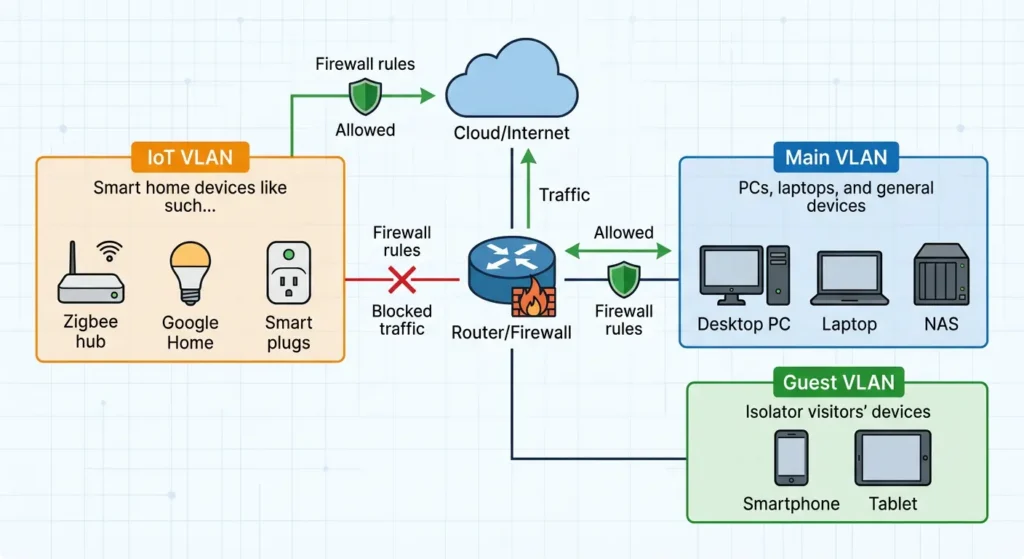
Create a Dedicated IoT Network
Set up a separate VLAN or SSID for your smart home devices. This isolates them from your main computers and phones while still allowing controlled communication.
Use Targeted Allow Rules Instead of Disabling the Firewall
Never disable your firewall entirely. Instead, create specific rules that allow only the traffic Google Home needs. Here is a sample rule set:
Outbound Rules for Google Home VLAN:
- Allow TCP to any destination on ports 80, 443, 5228 to 5230
- Allow UDP to any destination on ports 53, 123
- Allow TCP/UDP to local network on ports 5353, 1900, 8008, 8009, 8443
- Block everything else and log it
Inter VLAN Rules (if applicable):
- Allow mDNS (port 5353 UDP) between IoT VLAN and main VLAN
- Allow established and related connections from IoT VLAN to main VLAN
- Allow TCP on ports 8008, 8009, 8443 from main VLAN to IoT VLAN for casting
- Deny all other inter VLAN traffic
Keep Google Home DNS Pointed to Google
Google Home devices work best when they can reach Google’s DNS servers at 8.8.8.8 and 8.8.4.4. Some firewalls redirect all DNS traffic to a local DNS server like Pi-hole, which can cause issues if not configured correctly. If you use a local DNS server, make sure it does not block Google’s domains.
How to Test If Your Firewall Is Blocking Google Home
If you suspect your firewall is the problem but are not sure, try these diagnostic steps:
Method 1: Temporarily Bypass the Firewall
Connect your Google Home to a network without strict firewall rules temporarily. If it works perfectly, the firewall is definitely the issue. Just remember to move it back afterward.
Method 2: Check Device Connectivity in the Google Home App
Open the Google Home app, tap on your device, and look at the device information. If it shows as offline or unreachable, the problem is likely network related.
Method 3: Use Network Scanning Tools
Use a tool like Fing (available on iOS and Android) to scan your local network. Check if your Google Home device is visible and if other smart home devices appear on the same network.
Method 4: Packet Capture
For advanced users, run a packet capture on your router to see exactly what traffic Google Home is trying to send and what is being blocked. On pfSense, you can use the built in packet capture tool. On other routers, tools like Wireshark can help.
Advanced Tips for Network Segmentation Without Breaking Smart Home
Use an mDNS Reflector
If you have devices on different VLANs, an mDNS reflector is essential. This service listens for mDNS announcements on one VLAN and repeats them on another, allowing device discovery across network boundaries.
Popular options include:
- Avahi (Linux based routers and pfSense)
- UniFi’s built in mDNS reflection
- Multicast relay scripts for custom setups
Implement IGMP Snooping Carefully
IGMP snooping helps manage multicast traffic efficiently, but misconfiguration can block the multicast packets that Google Home depends on. If you enable IGMP snooping, make sure mDNS and SSDP groups are not being filtered out.
Consider Using Google Home’s Cloud Based Control Path
If local network control is too complex to configure securely, you can rely on Google Home’s cloud control path for some devices. Many smart home brands like Philips Hue, TP-Link Kasa, and Wyze support cloud based control through Google Home, which only requires standard HTTPS outbound access.
However, this approach adds latency and depends on internet connectivity, so local control is always preferred when possible.
Frequently Asked Questions
Does Google Home work without UPnP enabled?
Google Home can work without UPnP for basic voice commands and cloud based smart home control. However, local device discovery and Chromecast casting rely heavily on UPnP and SSDP. If you disable UPnP, you will lose some functionality. A safer approach is to keep UPnP enabled only on your IoT VLAN rather than your entire network.
Which firewall ports must be open for Google Home?
At minimum, you need outbound access on ports 80, 443, 53, 123, and 5228 to 5230. For local network functionality, you also need ports 5353, 1900, 8008, 8009, and 8443 open for inter device communication.
Can I use Pi-hole with Google Home?
Yes, but you need to make sure Pi-hole is not blocking Google’s domains. Google Home requires access to domains like clients3.google.com, connectivitycheck.gstatic.com, and various googleusercontent.com subdomains. Whitelist these in Pi-hole to avoid problems.
Why does Google Home keep disconnecting after firewall changes?
This usually happens when the firewall blocks Google Cloud Messaging ports (5228 to 5230). Google Home maintains a persistent connection to Google’s servers through these ports. When the connection drops and cannot be re-established, the device appears to go offline.
Is it safe to put Google Home on a separate VLAN?
Yes, this is actually the recommended approach for security conscious users. Place Google Home and other IoT devices on a dedicated VLAN, then create specific firewall rules to allow only the necessary traffic between VLANs.
Will a VPN on my router affect Google Home?
Yes, running a VPN on your router can break Google Home functionality. Google Home devices may fail to connect if all traffic is routed through a VPN, especially if the VPN blocks or alters DNS requests. Consider excluding your IoT devices from the VPN tunnel using split tunneling.
Real User Experiences
Mark from Reddit (r/googlehome):
“I spent three days pulling my hair out after setting up OPNsense. Turns out I just needed to allow mDNS and open ports 5228 to 5230 outbound. Everything works perfectly now and my network is still locked down.”
Sarah from the Google Nest Community:
“After switching to a UniFi Dream Machine Pro, none of my Nest speakers could control my Hue lights. The fix was enabling the mDNS reflector in the UniFi settings and allowing traffic between my IoT and main VLANs on the casting ports.”
James from a home networking forum:
“I was using Asus AiProtection and it was silently blocking my Google Home from reaching some smart plugs. Turning off the intrusion prevention for IoT devices fixed it, but I kept it on for my computers and phones.”
Helpful External Resources
For more detailed information, check out these resources:
- Google Nest Help: Troubleshoot Wi-Fi issues
- Google Nest Help: Ports and protocols used by Chromecast
- Ubiquiti Community: mDNS Reflector Configuration
- pfSense Documentation: Avahi Package
Final Thoughts
Strict firewall rules and Google Home can coexist peacefully, but only if you understand the specific protocols and ports that Google Home depends on. The most common culprits are blocked mDNS traffic, restricted outbound ports, and disabled UPnP. By creating targeted firewall rules that allow only what is necessary, you keep your network secure while maintaining full smart home functionality.
Remember that every network setup is different. What works on a UniFi system might need adjustment on pfSense or OPNsense. The key is to check your firewall logs, identify what is being blocked, and create precise allow rules rather than opening everything up.
Your smart home should make life easier, not harder. And your firewall should protect you without making your devices useless. With the right configuration, you get the best of both worlds.