Table of Contents
- Introduction: When Your Smart Home Suddenly Stops Working
- What Is Thread and How Does HomePod Use It?
- Why Do Thread Devices Fail After HomePod Firmware Updates?
- Real User Experiences with Thread Failures After Updates
- Step by Step Guide to Fix Thread Devices After a HomePod Update
- How to Check Your Thread Network Health
- Preventing Thread Failures Before Future Updates
- Which Thread Devices Are Most Affected?
- When to Contact Apple Support
- FAQ: Thread Devices and HomePod Updates
- Final Thoughts
Introduction: When Your Smart Home Suddenly Stops Working
You wake up one morning, grab your coffee, and say “Hey Siri, turn on the kitchen lights.” Nothing happens. You check your phone. The Home app shows your Nanoleaf bulbs as “Not Responding.” Your Eve Motion sensor has gone offline. Your smart lock is unreachable. Everything was working perfectly last night.
Then you notice it. Your HomePod mini updated its firmware overnight.
If this scenario sounds painfully familiar, you are not alone. Thousands of smart home users around the world have experienced the exact same frustration. Thread devices that worked flawlessly for months suddenly become unresponsive after a HomePod software update. The worst part? Apple rarely acknowledges these issues publicly, leaving users scrambling for answers on Reddit threads and Apple Community forums.
I have spent years working with smart home ecosystems, testing Thread devices, and troubleshooting these exact problems. In this guide, I will explain exactly why this happens, share real solutions that actually work, and show you how to protect your Thread network from future update disasters.
What Is Thread and How Does HomePod Use It?
Before we dive into the problems, let us make sure we understand how Thread works within the Apple ecosystem.
Understanding Thread Protocol
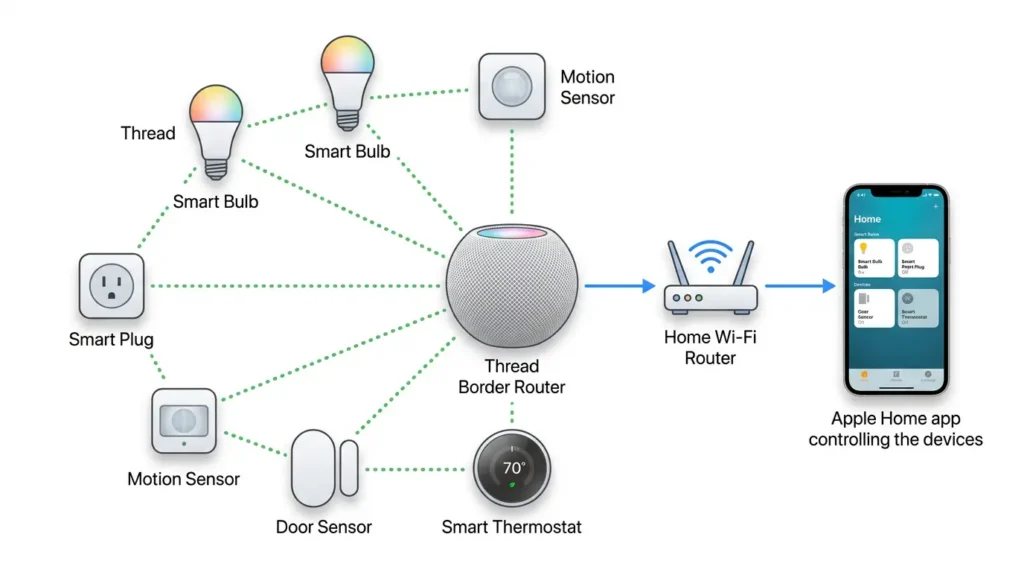
Thread is a low power, mesh networking protocol designed specifically for smart home devices. Unlike Wi-Fi or Bluetooth, Thread creates a self-healing mesh network where each device acts as a node, passing data to nearby devices. This means better range, lower latency, and improved reliability.
HomePod as a Thread Border Router
Here is the critical piece. Your HomePod mini or second generation HomePod does not just play music and respond to Siri commands. It serves as a Thread Border Router (TBR). This is the bridge between your Thread mesh network and your home IP network (Wi-Fi or Ethernet).
Without a functioning Thread Border Router, your Thread devices have no way to communicate with your iPhone, iPad, or Apple Home ecosystem. They become isolated islands with no connection to the outside world.
Why This Matters for Updates
When Apple pushes a firmware update to your HomePod, it is not just updating Siri or audio features. It is also updating the Thread Border Router software stack. Any changes to how the HomePod handles Thread credentials, network parameters, or routing protocols can directly impact every Thread device in your home.
Why Do Thread Devices Fail After HomePod Firmware Updates?
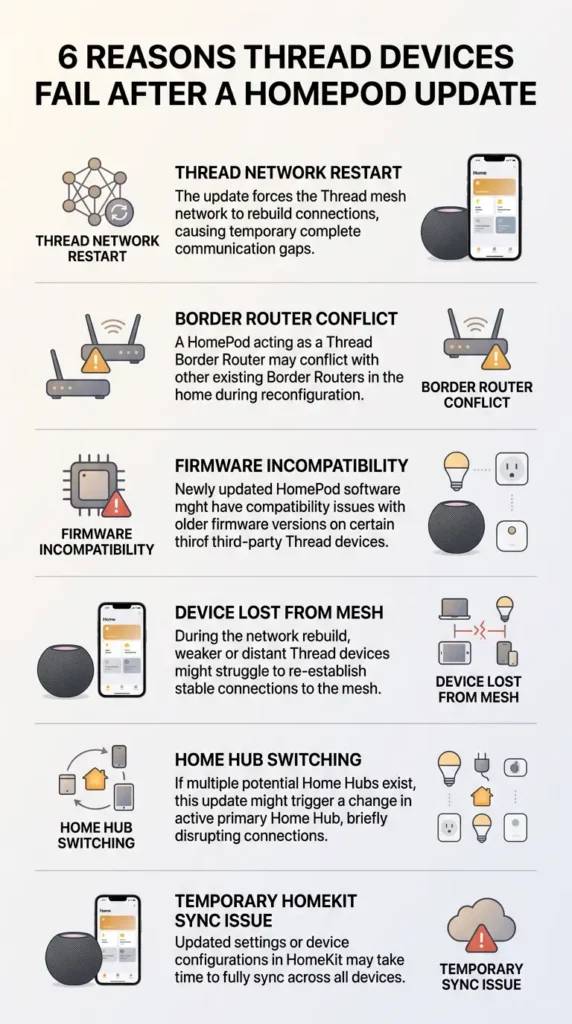
This is the core question, and the answer involves several technical factors working together. Let me break down each cause individually.
1. Thread Network Credential Changes
Every Thread network uses a set of shared credentials, including a Network Key, PAN ID, and Extended PAN ID. When a HomePod firmware update modifies how these credentials are stored or distributed, existing devices may find themselves holding outdated credentials. They are essentially locked out of their own network.
Think of it like changing the password on your Wi-Fi router without telling anyone. Every device that was connected suddenly drops off.
2. Thread Stack Version Incompatibilities
Apple updates its Thread implementation with each firmware release. Sometimes the updated Thread stack on the HomePod introduces changes that are not fully backward compatible with the Thread stack running on third party devices like Eve, Nanoleaf, or Wemo products.
The Thread specification is managed by the Connectivity Standards Alliance (CSA), but manufacturers implement it differently. A new HomePod firmware might expect Thread 1.3 behaviors while some devices still operate on Thread 1.1 or 1.2 implementations.
3. Border Router Role Reassignment
If you have multiple HomePods in your home, they negotiate among themselves to determine which one acts as the primary Thread Border Router, which serves as a backup, and which remains passive. A firmware update forces all HomePods to reboot simultaneously, triggering a complete renegotiation of these roles.
During this renegotiation, the Thread network can fragment. Some devices attach to one HomePod while others attach to another, and if the border routers are not properly synchronized, devices fall through the cracks.
4. mDNS and Service Discovery Disruptions
Thread devices register themselves using multicast DNS (mDNS) service discovery. After a firmware update, the HomePod rebuilds its mDNS cache from scratch. If a Thread device does not respond quickly enough to discovery queries, the HomePod may mark it as unavailable.
Sometimes, the issue isn’t the Thread protocol itself, but how your router manages bands. If your HomePod and controller are struggling to stay on the same frequency, check out our guide on Band Steering and IoT Devices: 7 Reasons Why Your 2.4GHz Smart Gadgets Keep Disconnecting to optimize your router settings
5. HomeKit Accessory Protocol (HAP) Session Resets
HomePod firmware updates reset the HAP sessions between the HomePod and connected accessories. Thread devices need to re-establish these encrypted sessions. If there is any timing issue or authentication mismatch during this process, the device appears as “Not Responding” in the Home app.
6. Power and Timing Issues During Update
HomePod firmware updates involve multiple reboots. During each reboot cycle, the Thread Border Router goes completely offline. Battery powered Thread devices (like sensors and locks) may enter a deep sleep state while the border router is down. When the HomePod comes back online, these sleeping devices might not wake up and reconnect immediately.
Real User Experiences with Thread Failures After Updates
These are not hypothetical scenarios. Real users have documented their experiences extensively across multiple platforms.
Case 1: HomePod 18.3 Update Disaster
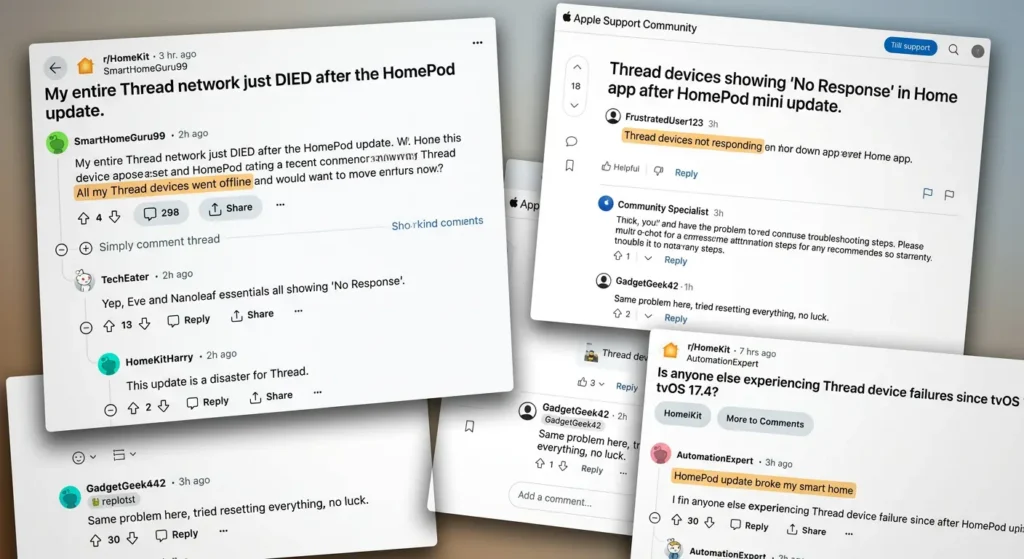
A user on the Apple Community Forums reported that after the HomePod 18.3 update, all 14 of their Eve Thread devices went offline simultaneously. Despite resetting each device individually, only 8 came back online. The remaining 6 required a complete factory reset and re-pairing process that took over three hours.
Case 2: The Nanoleaf Essentials Nightmare
Multiple users on r/HomeKit on Reddit shared that their Nanoleaf Essentials bulbs and light strips became completely unresponsive after HomePod updates. The devices would show as “Updating” in the Home app for hours before eventually timing out. The fix required power cycling each bulb individually by turning the physical switch off and on five times.
Case 3: Smart Lock Security Concern
One particularly alarming report involved a user whose Yale Assure Lock 2 (Thread version) stopped responding after an update. They were locked out of their own home because the smart lock could no longer communicate through the Thread network. This highlights a genuine safety concern with relying solely on Thread connectivity for critical home access devices.
Case 4: The Multi-HomePod Household Problem
A user with five HomePod minis spread across their home noticed that updates caused only some devices to fail, and the pattern was different each time. Devices physically closest to the HomePod that finished updating first would reconnect, while devices near HomePods still rebooting would get stuck in a disconnected state.
Step by Step Guide to Fix Thread Devices After a HomePod Update
If your Thread devices have already failed after an update, follow these steps in order. Start with the simplest solutions and work your way down to more aggressive fixes.
Step 1: Wait 30 Minutes Before Panicking
This might sound overly simple, but it is genuinely important. After a HomePod firmware update, the Thread network needs time to rebuild itself. The mesh network topology has to reform, border router roles need to be reassigned, and devices need to rediscover each other.
Give your entire system at least 30 minutes of uninterrupted time before assuming something is broken. Many devices will reconnect on their own during this window.
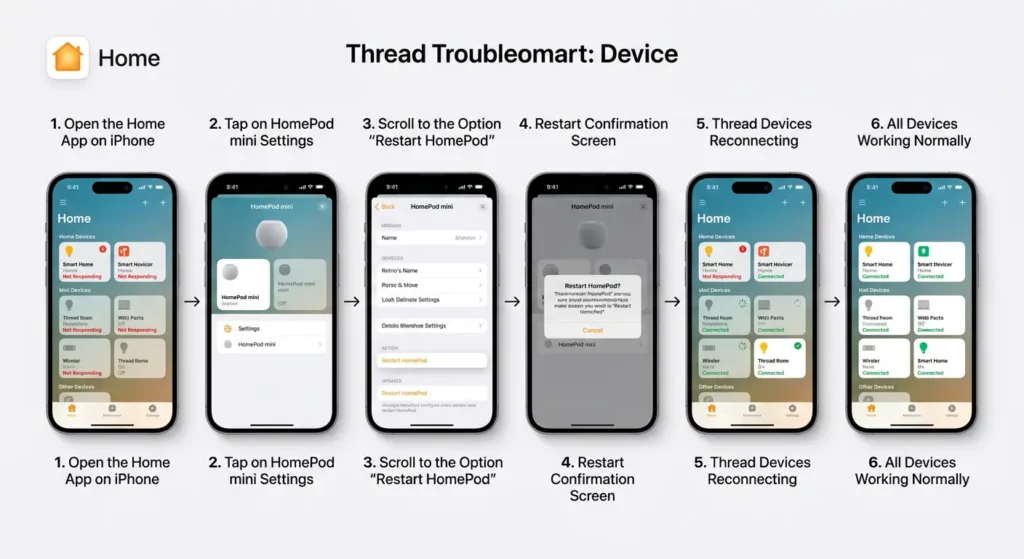
Step 2: Restart Your HomePod (Not Reset)
If devices are still offline after 30 minutes, restart your HomePod.
- Open the Home app on your iPhone or iPad
- Long press on the HomePod tile
- Scroll down and tap the Settings gear icon
- Scroll to the bottom and tap Reset HomePod
- Select Restart HomePod (do NOT select Remove Accessory)
If you have multiple HomePods, restart all of them, but do it one at a time with 2 minute gaps between each restart. This allows the Thread network to stabilize as each border router comes back online.
Step 3: Power Cycle Your Thread Devices
For plug-in devices (smart plugs, bulbs, light strips):
- Unplug the device for 30 seconds
- Plug it back in
- Wait 2 minutes for it to rejoin the Thread network
For battery powered devices (sensors, buttons):
- Remove the battery
- Wait 30 seconds
- Reinsert the battery
- The device should begin searching for the Thread network automatically
Step 4: Check Your Network Infrastructure
Sometimes the issue is not Thread itself but your home network.
- Restart your Wi-Fi router
- Make sure your HomePod is connected to the same network as your iPhone
- If you use a mesh Wi-Fi system, ensure all nodes are online
- Disable any VPN running on your router
Step 5: Reset Network Settings on Your iPhone
Your iPhone acts as the HomeKit controller. Corrupted network settings can prevent it from seeing Thread devices.
- Go to Settings then General then Transfer or Reset iPhone
- Tap Reset
- Select Reset Network Settings
- Enter your passcode and confirm
Note: This will erase saved Wi-Fi passwords, so have them ready.
Step 6: Remove and Re-add Stubborn Devices
If a specific device refuses to come back online:
- Open the Home app
- Long press the unresponsive device
- Tap the Settings gear icon
- Scroll down and tap Remove Accessory
- Factory reset the device (check the manufacturer instructions)
- Re-add the device by tapping the + icon in the Home app
- Scan the HomeKit setup code (usually on the device or in the manual)
Step 7: Reset Your HomePod (Last Resort)
If nothing else works:
- Open the Home app
- Long press your HomePod
- Tap the Settings gear icon
- Scroll down and tap Reset HomePod
- Select Remove Accessory
- Set up the HomePod as a new device
This will rebuild the Thread Border Router from scratch and create a new Thread network that devices can join.
How to Check Your Thread Network Health
Apple does not provide a built-in Thread network diagnostic tool, but there are ways to monitor your Thread network health.
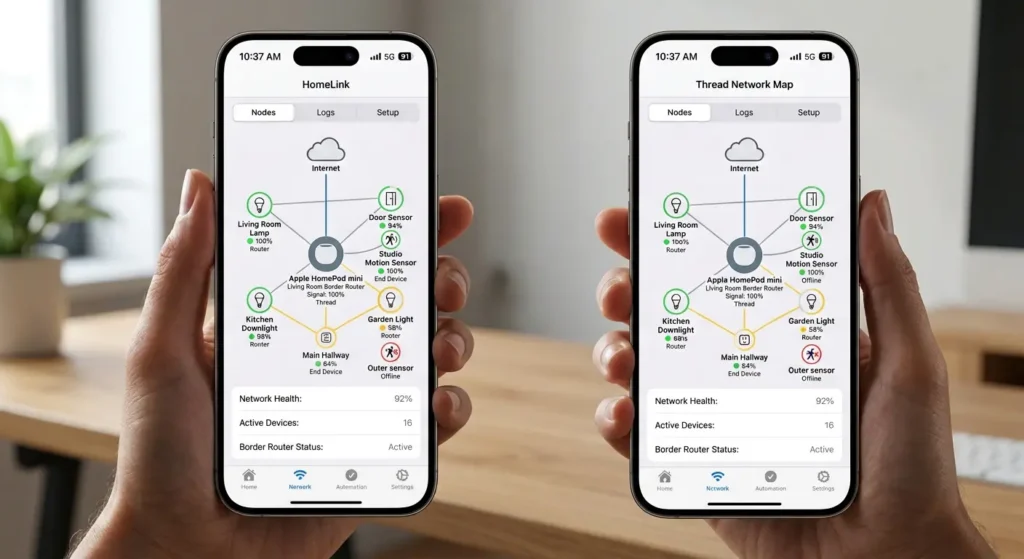
Using the Eve App (Free)
The Eve app from Eve Systems is free and works even if you do not own any Eve products. It includes a Thread network viewer.
- Download the Eve app from the App Store
- Open the app and navigate to Settings
- Tap Thread Network
- You will see a map of your Thread network showing which devices are acting as routers, which are end devices, and which HomePod is the active border router
What to Look For
- All devices showing as “reachable” indicates a healthy network
- Devices showing as “unreachable” need attention
- Multiple border routers is normal and good for redundancy
- Devices stuck as “Detached” means they have lost connection to the mesh
Using the Home App
- Open the Home app
- Tap the three dot menu in the upper right corner
- Select Home Settings
- Tap Home Hubs and Bridges
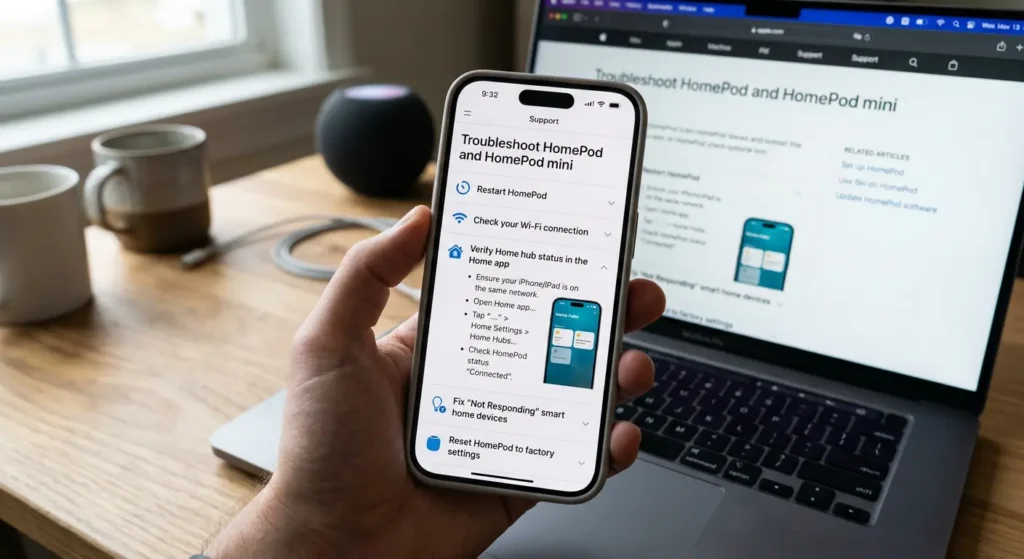
- Check if your HomePod shows as “Connected”
Preventing Thread Failures Before Future Updates
Prevention is always better than troubleshooting. Here are proven strategies to minimize Thread disruptions during future HomePod updates.
1. Disable Automatic Updates
Take control of when your HomePod updates by disabling automatic updates.
- Open the Home app
- Tap the three dot menu
- Select Home Settings
- Tap Software Update
- Toggle off Automatic Updates for HomePod
This lets you choose when to update, giving you time to prepare and schedule updates when you are home to monitor the process.
2. Update One HomePod at a Time
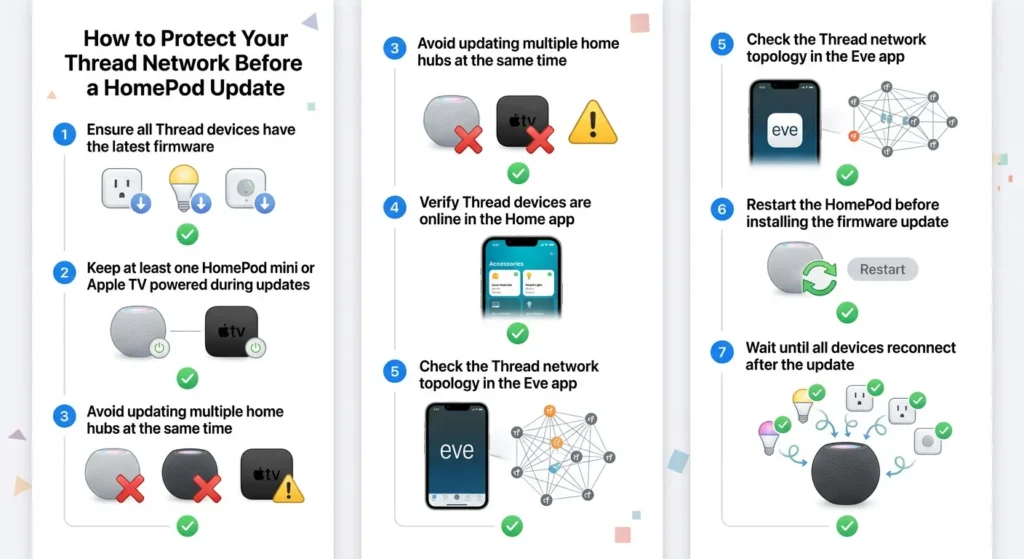
If you have multiple HomePods, update them one at a time rather than all at once. This ensures at least one Thread Border Router remains active during the update process.
- Update the first HomePod
- Wait 15 to 20 minutes for the Thread network to stabilize
- Verify Thread devices are still responsive
- Then update the next HomePod
- Repeat until all HomePods are updated
3. Maintain Multiple Thread Border Routers
Apple recommends having at least one HomePod mini or Apple TV 4K (second generation or later) per major area of your home. Having multiple Thread Border Routers provides redundancy. If one goes offline during an update, others can maintain the Thread network.
The Apple TV 4K also functions as a Thread Border Router and updates independently from HomePod, providing additional failover protection.
4. Keep Third Party Firmware Updated
Before updating your HomePod, make sure all your Thread devices have the latest firmware. Manufacturers like Eve, Nanoleaf, and Wemo regularly release firmware updates that improve Thread compatibility.
- Eve devices update through the Eve app
- Nanoleaf devices update through the Nanoleaf app
- Check each manufacturer app for pending updates
5. Document Your Setup
Keep a record of:
- All Thread devices and their HomeKit pairing codes
- Which rooms and scenes each device belongs to
- Any automation rules that depend on Thread devices
This documentation makes recovery much faster if you need to remove and re-add devices.
6. Create a Backup Thread Border Router
Consider adding an Apple TV 4K to your setup. It updates on a different schedule than HomePod, so you always have at least one Thread Border Router running while the others update.
Which Thread Devices Are Most Affected?
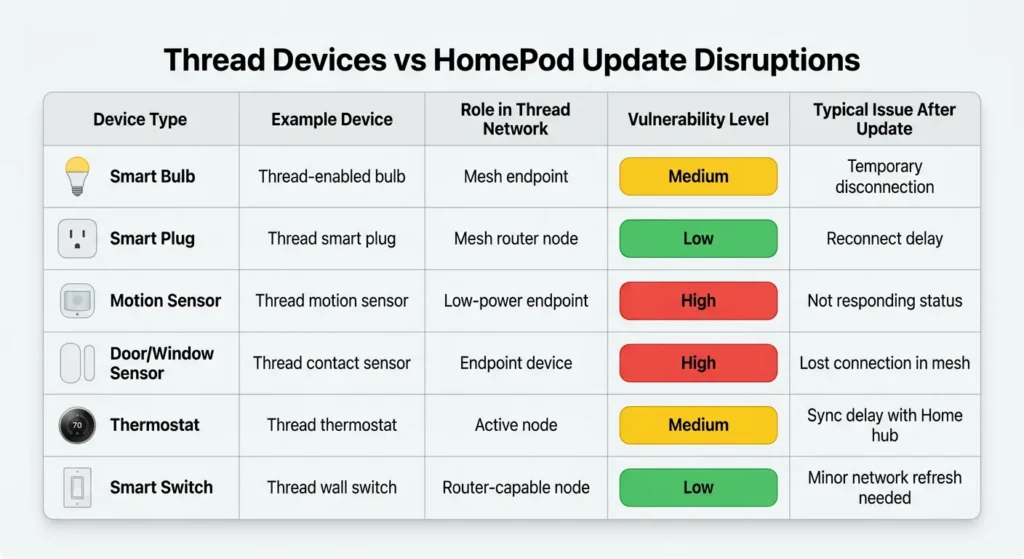
Not all Thread devices are equally vulnerable to HomePod update disruptions. Based on community reports and testing, here is a breakdown.
High Impact (Frequently Affected)
| Device | Type | Common Issue |
|---|---|---|
| Eve Door and Window | Battery Sensor | Goes offline, slow to reconnect |
| Eve Motion | Battery Sensor | Loses connection, requires battery pull |
| Nanoleaf Essentials Bulbs | Mains Powered | Shows “Updating” indefinitely |
| Eve Energy | Smart Plug | Becomes unresponsive |
Moderate Impact (Sometimes Affected)
| Device | Type | Common Issue |
|---|---|---|
| Nanoleaf Essentials Light Strip | Mains Powered | Intermittent disconnections |
| Eve Thermo | Battery Radiator Valve | Delayed reconnection |
| Wemo Stage | Battery Scene Controller | Button presses not registering |
Low Impact (Rarely Affected)
| Device | Type | Notes |
|---|---|---|
| Eve Weather | Battery Outdoor Sensor | Usually reconnects automatically |
| Eve Room | USB Powered | Stable due to constant power |
Why Battery Devices Suffer More
Battery powered Thread devices use a feature called Sleepy End Device (SED) mode. They spend most of their time in deep sleep to conserve battery, only waking periodically to check for messages. When a HomePod update disrupts the Thread network during one of these sleep periods, the device might wake up to find no border router available and go back to sleep. This cycle can repeat for a long time before conditions align for a successful reconnection.
Mains powered devices, on the other hand, act as Thread Routers. They are always awake and actively participate in rebuilding the mesh network. However, they can still be affected by credential changes or protocol incompatibilities.
When to Contact Apple Support
Sometimes the problem goes beyond what you can fix on your own. Here are signs that you should reach out to Apple Support.
Contact Apple Support When:
- All Thread devices remain offline after following every troubleshooting step
- Your HomePod shows errors or unusual behavior after the update
- The HomePod itself appears as “Not Responding” in the Home app
- The firmware update appears to have failed or is stuck
- You see repeated “Accessory Not Found” errors when trying to re-pair devices
How to Contact Apple Support
- Visit Apple Support
- Select HomePod as the product
- Choose Home App and Accessories as the issue category
- Select your preferred contact method (chat, phone, or schedule a call)
What to Tell Apple Support
Be specific about your issue. Provide:
- Your HomePod model (mini, second generation)
- The firmware version before and after the update
- How many Thread devices are affected
- Which specific devices are affected
- What troubleshooting steps you have already tried
- Whether you have multiple HomePods or Apple TVs
Contact Device Manufacturers
If only one specific brand of Thread device is affected, the issue might be on the manufacturer side. Contact:
- Eve Systems: Eve Support
- Nanoleaf: Nanoleaf Support
- Belkin (Wemo): Wemo Support
FAQ: Thread Devices and HomePod Updates
Does every HomePod update break Thread devices?
No. Not every HomePod firmware update causes Thread issues. Major updates that change the Thread stack or border router behavior are more likely to cause problems. Minor security patches and bug fixes usually do not affect Thread connectivity. However, there is no way to predict which updates will cause issues, which is why disabling automatic updates and updating manually is the safest approach.
Can I roll back a HomePod firmware update?
Unfortunately, Apple does not provide any way to downgrade HomePod firmware. Once an update is installed, you cannot go back to a previous version. This is why prevention and preparation are so important.
Will resetting my HomePod delete my Thread network?
Yes. Performing a full reset (Remove Accessory) on your HomePod will destroy the Thread network it managed. All Thread devices will need to be re-paired. However, a simple restart preserves the Thread network configuration.
Do Apple TVs have the same Thread update problems?
Apple TV 4K (second generation and later) also acts as a Thread Border Router, and its updates can theoretically cause similar issues. However, because Apple TV updates happen on a different schedule and the tvOS Thread implementation differs slightly, the problems are less frequently reported.
How many HomePods do I need for a reliable Thread network?
Apple does not specify a minimum, but for a reliable Thread network with redundancy, you should have at least two Thread Border Routers (HomePod mini, HomePod second generation, or Apple TV 4K). For larger homes, one per floor or per major area is recommended.
Why does Apple not fix this problem permanently?
Thread is a relatively new protocol in consumer smart homes, and the interaction between Thread Border Router firmware and diverse third party device implementations is complex. Apple continuously improves its Thread implementation, but the nature of mesh networking means that changes to one component can have unexpected effects on others. The Thread Group is working on better interoperability standards, but full stability takes time.
Can I use a non-Apple Thread Border Router with HomeKit?
Currently, HomeKit only recognizes Apple devices (HomePod mini, HomePod second generation, Apple TV 4K) as Thread Border Routers. Third party Thread Border Routers like the Google Nest Hub Max or Samsung SmartThings Station are not compatible with the Apple Home ecosystem.
Do Thread devices work over Bluetooth when Thread fails?
Some Thread devices have Bluetooth as a fallback communication method. For example, certain Eve devices can communicate via Bluetooth Low Energy (BLE) when Thread is unavailable. However, Bluetooth range is much shorter and performance is significantly slower compared to Thread.
Final Thoughts
Thread technology represents the future of smart home connectivity. Its mesh networking capability, low power consumption, and fast response times make it superior to Bluetooth and even Wi-Fi for many smart home applications. But that future is not quite perfect yet.
The reality is that HomePod firmware updates can and do break Thread devices. This is not a flaw in the Thread protocol itself but rather a consequence of how Apple implements and updates its Thread Border Router software. The tight integration between HomePod firmware, the Thread stack, and the HomeKit framework means that changes in one area can cascade into problems across your entire smart home.
The good news is that these issues are almost always fixable. In most cases, a simple restart of your HomePod and patience for the Thread network to rebuild itself is all you need. For more stubborn problems, the step by step guide in this article will get your devices back online.
Going forward, the smartest thing you can do is disable automatic updates, maintain multiple Thread Border Routers in your home, and always update one HomePod at a time. These simple precautions will save you hours of frustration and ensure your smart home remains reliable through every firmware cycle.
Your smart home should make your life easier, not harder. With the right knowledge and preparation, Thread connectivity issues after HomePod updates become a minor inconvenience rather than a major disaster.