Table of Contents
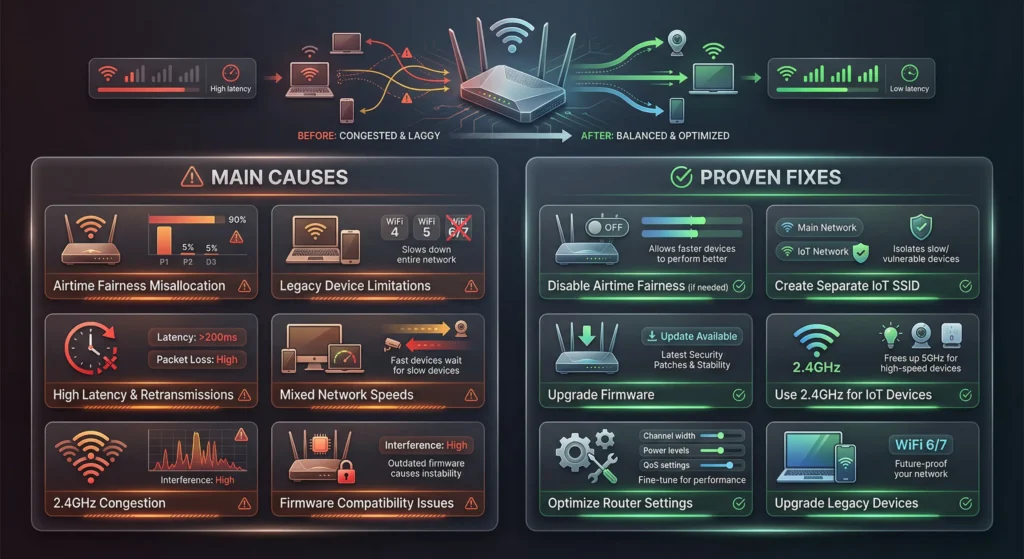
- Introduction: A Frustrating Smart Home Mystery
- What Is Airtime Fairness and How Does It Work?
- How Older Smart Switches Communicate on WiFi
- 7 Reasons Why Airtime Fairness Breaks Older Smart Switches
- Real World Scenarios: When Smart Switches Stop Responding
- Step by Step Guide to Diagnose the Problem
- 5 Proven and Safe Fixes to Solve the Issue
- Which Router Brands Are Most Affected?
- Should You Keep Airtime Fairness Enabled or Disabled?
- Real User Experiences and Community Feedback
- FAQ
- Final Thoughts
Introduction: A Frustrating Smart Home Mystery
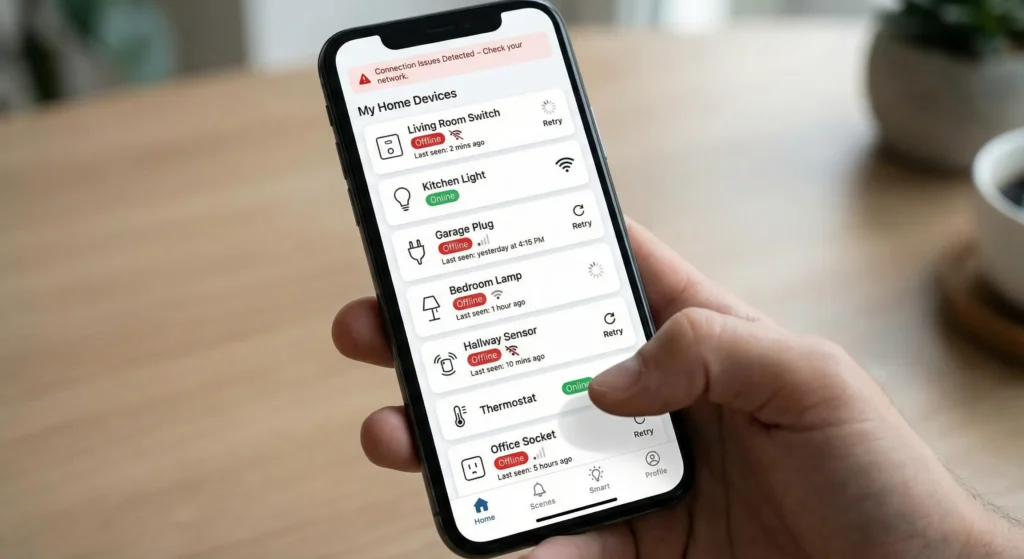
You come home after a long day, pull out your phone, and tap the button to turn on the living room lights. Nothing happens. You try again. Still nothing. Your smart switch, the one that worked perfectly for two years, is suddenly offline. You check your router, and everything looks fine. Your laptop streams Netflix without a hiccup. Your phone browses social media at full speed. But your smart switches? They act like they have completely forgotten how to connect to your network.
If this scenario sounds painfully familiar, you are not alone. Thousands of smart home users have experienced this exact problem, and in many cases, the hidden culprit is a single router setting they never even touched: Airtime Fairness.
I have spent over a decade writing about networking and smart home technology, and I can tell you that this is one of the most misunderstood features in modern routers. It sounds like something that should help your network. The name itself suggests equality and balance. But for older smart switches and IoT devices, enabling Airtime Fairness can be the equivalent of cutting off their oxygen supply.
In this comprehensive guide, I will explain exactly why this happens, walk you through the technical reasons behind the conflict, share real experiences from actual users, and give you safe, practical solutions that you can apply today.

What Is Airtime Fairness and How Does It Work?
Before we dive into the problem, let us first understand what Airtime Fairness actually does.
The Basic Concept
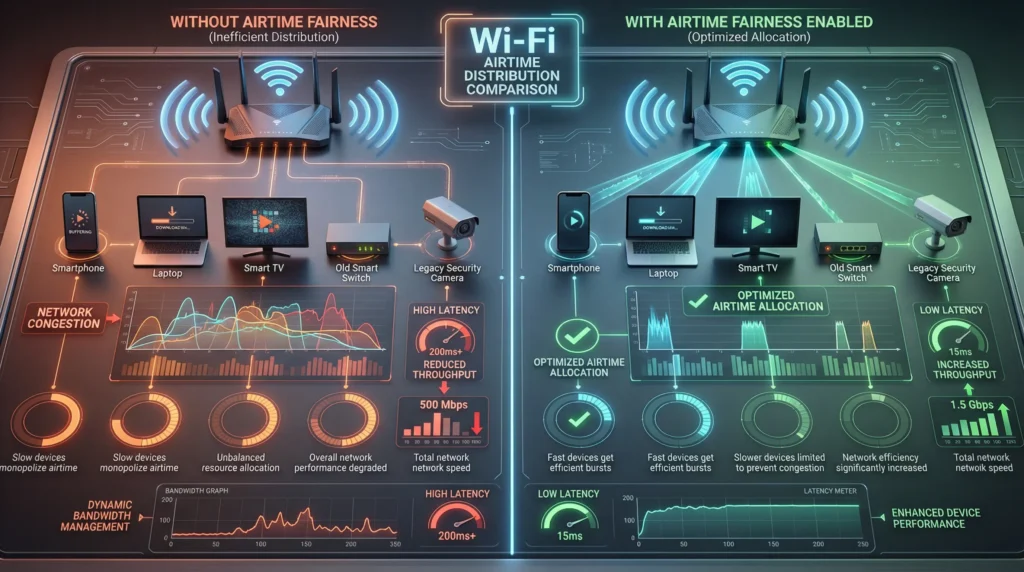
Airtime Fairness is a WiFi feature available on most modern routers that ensures every connected device receives an equal share of wireless transmission time, regardless of how fast or slow that device communicates.
Without Airtime Fairness, your router operates on a first come, first served basis. Each device gets a turn to send and receive data. The problem is that slower devices take longer to complete their transmissions, which means they occupy the wireless channel for more time. This can slow down faster devices that are waiting for their turn.
How It Works in Practice
Think of it like a checkout line at a grocery store. Without Airtime Fairness, everyone gets the same number of turns at the register, but the person paying with pennies (the slow device) holds up everyone behind them. With Airtime Fairness enabled, the router essentially says: “Everyone gets the same amount of time at the register. If you cannot finish in your allotted time, you will have to step aside.”
This sounds fair for modern devices. A laptop using WiFi 6 can transmit massive amounts of data in a tiny time window. But an older smart switch using WiFi 802.11b or 802.11g? It barely finishes saying “hello” before its time runs out.
Technical Mechanism
At a technical level, Airtime Fairness works by:
- Measuring the data rate of each connected client
- Allocating transmission opportunities based on time rather than packet count
- Prioritizing clients that can transmit faster, since they free up the channel more quickly
- Reducing the number of transmission opportunities given to slower clients
This is defined in part by the IEEE 802.11e amendment and implemented differently by each router manufacturer. Some call it ATF, others call it “Fair Queuing” or “Equal Airtime.”
For more technical background, you can read the Cisco documentation on Airtime Fairness.
How Older Smart Switches Communicate on WiFi
To understand why Airtime Fairness causes problems, you need to know how older smart switches behave on your wireless network.
The WiFi Standards They Use
Most older smart switches, especially those manufactured before 2020, rely on outdated WiFi standards:
| WiFi Standard | Maximum Speed | Year Introduced | Common in Smart Switches |
|---|---|---|---|
| 802.11b | 11 Mbps | 1999 | Very common in pre-2018 devices |
| 802.11g | 54 Mbps | 2003 | Common in 2018 to 2020 devices |
| 802.11n (WiFi 4) | 300 Mbps | 2009 | Common in 2020 to 2022 devices |
| 802.11ac (WiFi 5) | 1.3 Gbps | 2013 | Rare in smart switches |
| 802.11ax (WiFi 6) | 9.6 Gbps | 2019 | Very rare, only newest models |
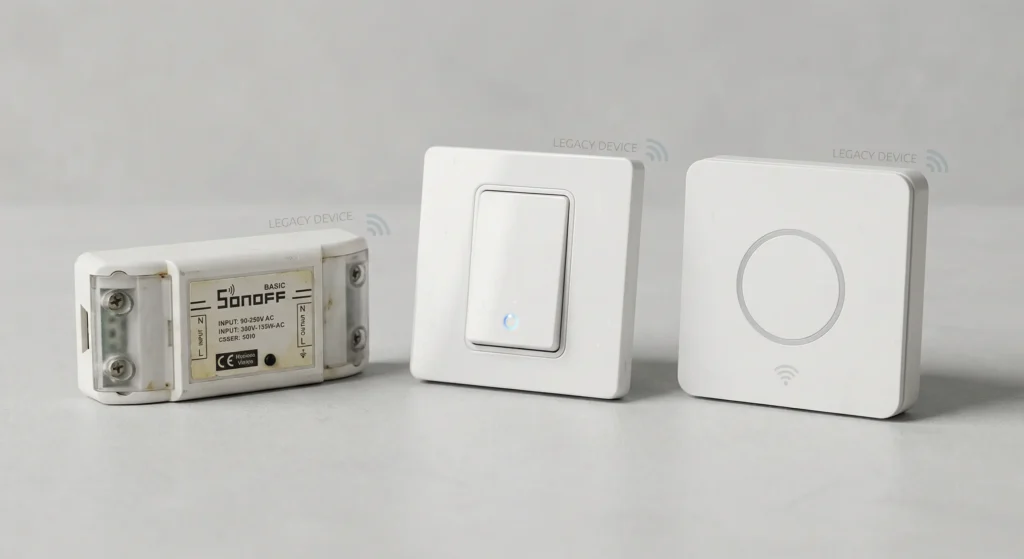
Smart switches are designed to be inexpensive and low power. Manufacturers use the cheapest WiFi chipsets available, which means most older smart switches are stuck on 802.11b or 802.11g. They do not need fast internet. They only need to receive a simple command like “turn on” or “turn off” and send back a brief status confirmation.
Their Communication Pattern
Unlike your laptop or phone, which constantly streams large amounts of data, a smart switch communicates in tiny, infrequent bursts:
- A brief “keep alive” signal every few seconds to maintain its connection
- A small command packet when you toggle it on or off
- An occasional status update to the cloud server or your smart home hub
These transmissions are tiny in size, often just a few bytes. But because the device uses a slow WiFi standard, it takes disproportionately longer to complete each transmission compared to a modern device.
The Vulnerability
Here is the critical point: older smart switches have minimal WiFi intelligence. They lack sophisticated roaming algorithms, band steering compatibility, and retry logic. When the router changes how it allocates airtime, these devices do not adapt. They simply fail.
7 Reasons Why Airtime Fairness Breaks Older Smart Switches
Now let us get into the specific technical reasons why enabling Airtime Fairness causes older smart switches to malfunction or disconnect entirely.
Reason 1: Severely Reduced Transmission Time
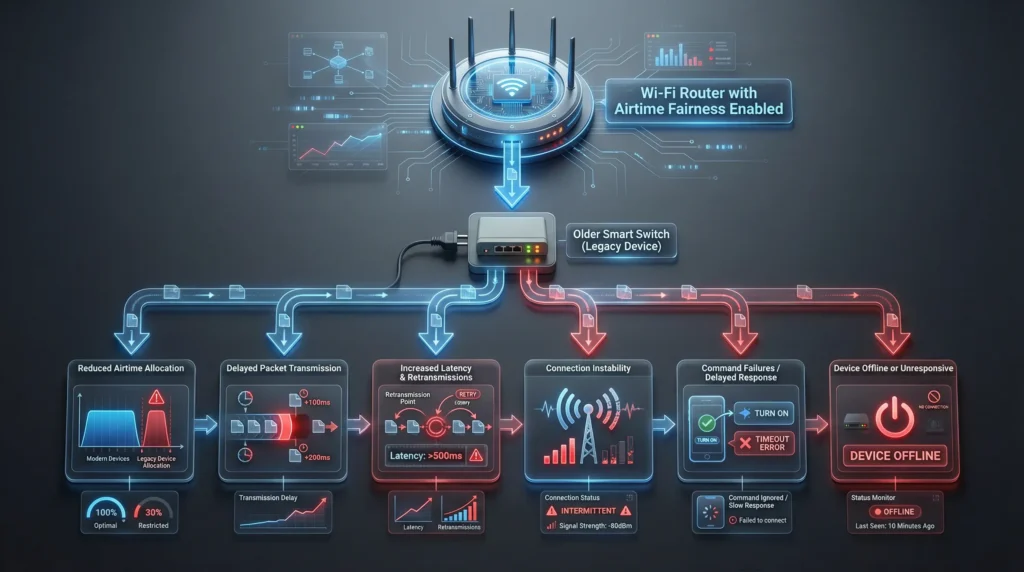
When Airtime Fairness is active, your router gives each device an equal slice of time on the wireless channel. A WiFi 6 laptop can transmit hundreds of megabytes in its time slice. An 802.11b smart switch? It can barely transmit a few kilobytes.
The result is that the smart switch does not get enough consecutive airtime to complete even its most basic communications. Its keep-alive packets get dropped. Its command responses arrive too late. The router or the cloud server eventually marks the device as offline.
Reason 2: Keep-Alive Signal Failure
Every smart switch maintains its connection by sending periodic keep-alive signals to the router and often to a cloud server like the Tuya cloud or the eWeLink platform. These signals need to arrive within a specific time window, usually every 30 to 120 seconds.
With Airtime Fairness reducing the device’s transmission opportunities, keep-alive packets frequently fail to send on time. After missing several consecutive keep-alive signals, the cloud server drops the connection. Your app shows the device as “offline,” even though it is physically powered on and trying to communicate.
Reason 3: Increased Packet Loss and Retransmissions
Slower WiFi standards are already more susceptible to interference and packet corruption. When you layer Airtime Fairness on top, the problem compounds.
The smart switch has fewer opportunities to retransmit failed packets. In a normal scenario, if a packet fails, the device tries again immediately. With Airtime Fairness, it has to wait for its next time slot, which may come too late. The cumulative packet loss rate can jump from 1 to 2 percent to 15 to 30 percent, which is devastating for a device that only sends a few packets per minute.
Reason 4: Incompatibility with Legacy Rate Protection
Many older smart switches rely on legacy rate protection mechanisms like RTS/CTS (Request to Send / Clear to Send) to avoid collisions on the wireless channel. These mechanisms require additional overhead and extra transmission time.
Airtime Fairness does not account for this overhead. It measures raw airtime without considering the extra frames needed for legacy protection. The switch ends up using most of its allocated time just on handshaking, leaving almost nothing for actual data transmission.
Reason 5: DHCP Lease Renewal Failures
Smart switches need to periodically renew their IP address through DHCP. This process involves a four-step handshake between the device and the router:
- DHCP Discover
- DHCP Offer
- DHCP Request
- DHCP Acknowledge
Each step requires successful transmission within a timeout window. With restricted airtime, one or more of these steps can fail, causing the device to lose its IP address. Without a valid IP, the switch cannot communicate with anything on the network.
Reason 6: Association and Authentication Timeouts
When a smart switch temporarily disconnects (which happens more often than you might think), it needs to reassociate with the router. This process involves:
- Probe requests and responses
- Authentication frames
- Association requests and responses
- Possible WPA2/WPA3 four-way handshake
All of these steps must complete within strict time limits. With Airtime Fairness throttling the device’s access to the channel, the reassociation process frequently times out. The switch enters a loop of trying to reconnect and failing, draining its processing resources and never successfully rejoining the network.
Reason 7: Firmware Limitations Prevent Adaptation
Modern devices have sophisticated firmware that can detect when airtime is being rationed and adjust their behavior accordingly. They can compress packets, reduce transmission frequency, or negotiate with the router for better scheduling.
Older smart switches run on extremely limited microcontrollers, often ESP8266 or similar chips with minimal firmware. They have no ability to detect Airtime Fairness, no ability to adjust their behavior, and no ability to negotiate better treatment. They are completely passive victims of the scheduling algorithm.
Real World Scenarios: When Smart Switches Stop Responding
Let me share some real scenarios that illustrate this problem in everyday situations.
Scenario 1: The Unresponsive Kitchen Lights
Mark, a homeowner in Texas, upgraded his router from an old Netgear N600 to a new ASUS RT-AX86U. He was excited about the faster speeds for his gaming PC. But within a week, his four Sonoff Mini smart switches started dropping offline one by one. His kitchen lights would not respond to Alexa commands. His garage door switch became unreachable through the eWeLink app.
After three weeks of troubleshooting, factory resets, and even replacing one of the switches thinking it was defective, Mark discovered that his new router had Airtime Fairness enabled by default. The moment he disabled it, all four switches came back online within minutes and have worked perfectly ever since.
Scenario 2: The Inconsistent Smart Home
Sarah runs a small Airbnb and uses Tuya-based smart switches throughout her rental property. After upgrading to a TP-Link Archer AX73 router, she started receiving complaints from guests that the lights were not responding to the smart home controls. She spent hours on the phone with Tuya support, who told her everything looked fine on their end.
A friend who works in IT suggested she check the Airtime Fairness setting. Disabling it immediately resolved the problem. Her 12 smart switches, all running on 802.11b/g chipsets, had been systematically starved of airtime by the new router.
Scenario 3: The Partial Failure
James noticed something strange after enabling Airtime Fairness on his Ubiquiti UniFi access point. His newer smart switches, purchased in 2023 with WiFi 4 chipsets, continued working fine. But his five older switches from 2017 became erratic. They would work sometimes and fail other times, seemingly at random.
The explanation was simple: the newer switches transmitted fast enough to complete their tasks within the reduced time window. The older switches, running on 802.11b, could not. The apparent randomness was actually determined by how many other devices were competing for airtime at any given moment.
Step by Step Guide to Diagnose the Problem
If you suspect Airtime Fairness is causing issues with your smart switches, follow these steps to confirm and isolate the problem.
Step 1: Identify Your Affected Devices
Make a list of all smart switches and IoT devices on your network. Note the manufacturer, model, and year of purchase. Check the product specifications to determine which WiFi standard each device supports.
What to look for:
- Devices using 802.11b or 802.11g are at highest risk
- Devices based on ESP8266 chipsets are especially vulnerable
- Devices from brands like Sonoff, early Tuya products, and first-generation TP-Link Kasa switches are common culprits
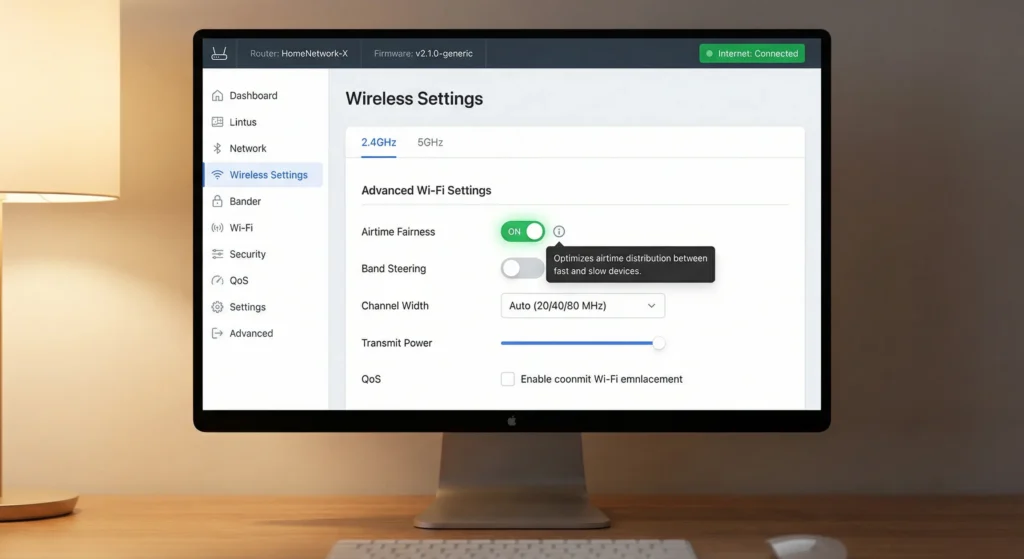
Step 2: Check Your Router Settings for Airtime Fairness
Log into your router’s admin panel and search for Airtime Fairness. It may appear under different names depending on your router brand:
| Router Brand | Setting Name | Typical Location |
|---|---|---|
| ASUS | Airtime Fairness | Wireless > Professional |
| TP-Link | Airtime Fairness | Advanced > Wireless > Advanced Settings |
| Netgear | Airtime Fairness | Advanced > Setup > Wireless Setup |
| Ubiquiti UniFi | Airtime Fairness | Settings > WiFi > Advanced |
| Linksys | Not always available | Varies by model |
Step 3: Run a Controlled Test
The most reliable way to confirm the issue is to run a controlled test:
- Note which devices are currently offline or unresponsive
- Disable Airtime Fairness on both the 2.4 GHz and 5 GHz bands
- Wait 10 to 15 minutes for devices to reconnect
- Check if the previously offline devices come back online
- Re-enable Airtime Fairness
- Wait another 10 to 15 minutes
- Check if the same devices go offline again
If devices consistently drop when Airtime Fairness is enabled and recover when it is disabled, you have confirmed the cause.
Step 4: Check Router Logs
Many routers log client association and disassociation events. Look for repeated entries showing your smart switches disconnecting and attempting to reconnect. Patterns like multiple associations and disassociations within a short period are strong indicators of airtime starvation.
Step 5: Monitor with a WiFi Analyzer
Use a WiFi analyzer tool like WiFi Analyzer on Android or WiFi Explorer on Mac to monitor the signal strength and connection status of your smart switches in real time.
5 Proven and Safe Fixes to Solve the Issue
Here are five tested solutions that will resolve the Airtime Fairness conflict with your older smart switches without compromising your network performance.
Fix 1: Disable Airtime Fairness (The Simplest Solution)
Difficulty: Easy
Time required: 2 minutes
Impact on network: Minimal for home networks
For most home networks with fewer than 30 devices, disabling Airtime Fairness has negligible impact on overall performance. The feature was designed primarily for high-density environments like offices, conference halls, and public hotspots where dozens or hundreds of clients compete for airtime.
Steps:
- Log into your router admin panel
- Navigate to the wireless settings (usually under Advanced or Professional tabs)
- Find the Airtime Fairness option
- Disable it for the 2.4 GHz band (this is where most smart switches connect)
- You can optionally leave it enabled on the 5 GHz band since few smart switches use that frequency
- Save settings and reboot the router
Fix 2: Create a Separate SSID for IoT Devices
Difficulty: Moderate
Time required: 15 to 30 minutes
Impact on network: Very positive
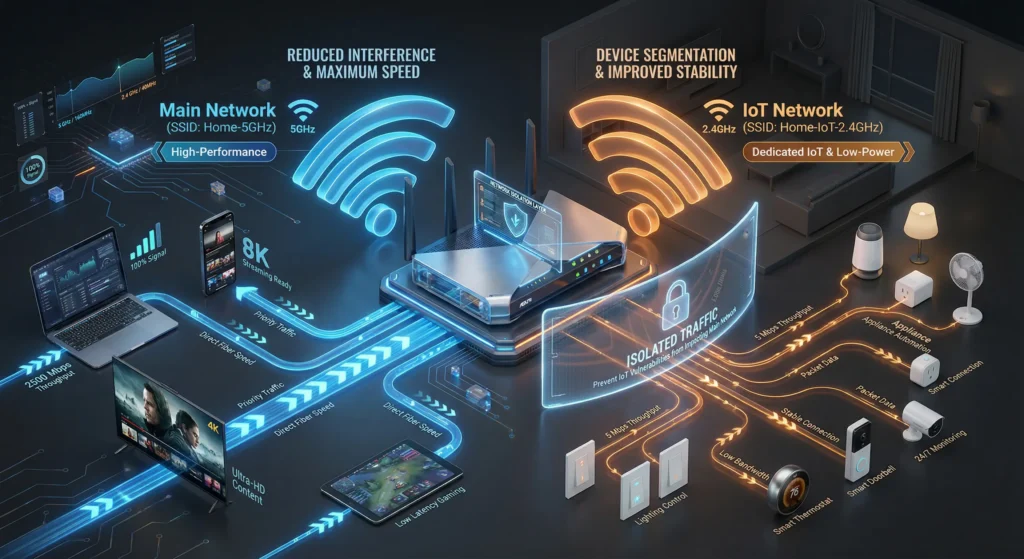
Many modern routers support multiple SSIDs. Create a dedicated network for your smart home devices with Airtime Fairness disabled, while keeping it enabled on your primary network.
Steps:
- Create a new SSID (for example, “HomeNetwork-IoT”)
- Set it to 2.4 GHz only
- Disable Airtime Fairness on this SSID
- Disable band steering on this SSID
- Use WPA2 Personal security (some older devices do not support WPA3)
- Reconnect all smart switches to this new network
This approach gives you the best of both worlds. Your phones and laptops benefit from Airtime Fairness on the main network, while your smart switches operate freely on their own dedicated network.
Fix 3: Set Up a Dedicated IoT VLAN
Difficulty: Advanced
Time required: 1 to 2 hours
Impact on network: Excellent for security and performance
If your router or access point supports VLANs, you can create a completely isolated network segment for IoT devices. This is the approach recommended by network security professionals.
Steps:
- Create a new VLAN (for example, VLAN 20 for IoT)
- Assign a separate subnet (for example, 192.168.20.0/24)
- Create an SSID mapped to this VLAN
- Disable Airtime Fairness on this SSID
- Set up firewall rules to allow IoT devices to reach the internet but not your main network
- Connect all smart switches to this SSID
For detailed VLAN setup instructions, check this guide on IoT network segmentation.
Fix 4: Upgrade Critical Smart Switches
Difficulty: Moderate (requires physical replacement)
Time required: Varies
Cost: $15 to $40 per switch
If you have specific smart switches that are critical to your daily routine, consider replacing them with newer models that support WiFi 4 (802.11n) or WiFi 5 (802.11ac). Newer switches from brands like Shelly, Meross, and current-generation TP-Link Kasa handle Airtime Fairness much better.
Recommended upgrade options:
- Shelly Plus 1 (WiFi 4, ESP32-based)
- Meross MSS510 (WiFi 4)
- TP-Link Kasa KS230 (WiFi 4)
- Sonoff Mini R4 (WiFi 4, much improved over the original Mini)
Fix 5: Use a Separate Access Point for IoT
Difficulty: Moderate
Time required: 30 minutes to 1 hour
Cost: $25 to $60
Purchase an inexpensive access point or repurpose an old router as a dedicated IoT access point with Airtime Fairness disabled. Connect it to your main network via ethernet cable.
Good options for a dedicated IoT access point:
- TP-Link TL-WR841N (inexpensive, reliable, no Airtime Fairness)
- An old router in access point mode with Airtime Fairness turned off
Which Router Brands Are Most Affected?
Not all routers implement Airtime Fairness the same way, and some are more aggressive than others.
ASUS Routers
ASUS enables Airtime Fairness by default on most of its AX (WiFi 6) and AXE (WiFi 6E) routers. Their implementation is particularly aggressive, which makes it one of the most common culprits in smart switch failures. Models like the RT-AX86U, RT-AX88U, and GT-AXE11000 are frequently mentioned in community forums.
TP-Link Routers
TP-Link also enables Airtime Fairness by default on many Archer series routers. Their implementation is somewhat less aggressive than ASUS, but it still causes problems for 802.11b devices. The Archer AX73 and AX90 are commonly reported.
Ubiquiti UniFi
UniFi access points offer Airtime Fairness as an option in the controller software. While not enabled by default in recent firmware versions, many users enable it during initial setup without understanding the consequences. The UniFi community forums have numerous threads about this exact issue.
Netgear Routers
Netgear Nighthawk routers include Airtime Fairness but often leave it disabled by default. When users enable it for perceived performance benefits, they frequently encounter problems with older IoT devices.
Mesh Systems
Many mesh WiFi systems like Google Wifi, Amazon Eero, and TP-Link Deco have Airtime Fairness-like features built in with no user-accessible toggle. This can be especially frustrating because users cannot simply disable the feature. In these cases, Fix 5 (a separate access point) is often the only practical solution.
Should You Keep Airtime Fairness Enabled or Disabled?
This is the question I get asked most often, and the answer depends on your specific situation.
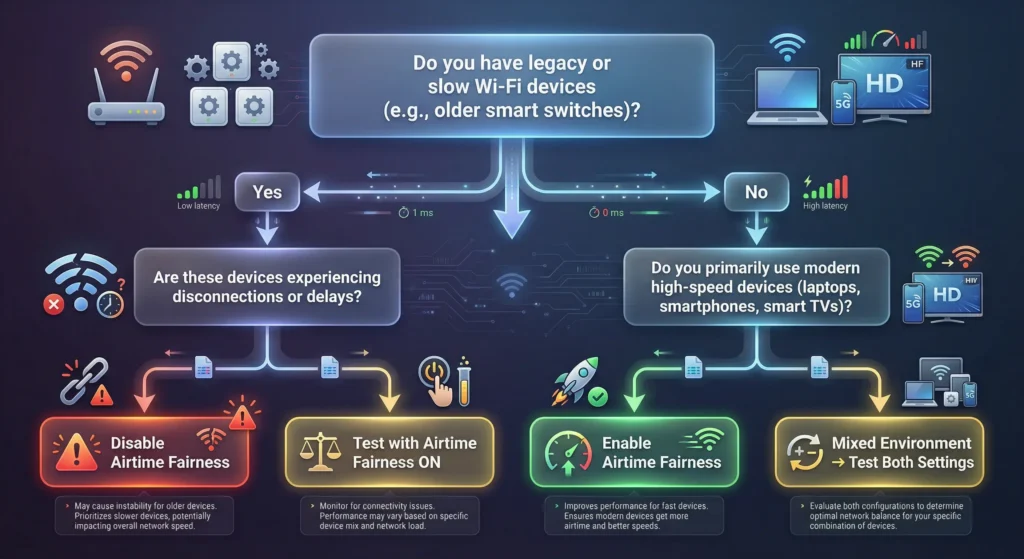
Keep It Enabled If:
- You have no older WiFi devices on your network
- You are running a high-density environment (office, coworking space, event venue)
- All your smart home devices use WiFi 4 or newer
- You have separated your IoT devices onto a different SSID with Airtime Fairness disabled
Disable It If:
- You have any smart switches from before 2020
- You use ESP8266-based IoT devices
- You are experiencing random device disconnections
- You are running a typical home network with fewer than 30 devices
- You do not operate in a high-density WiFi environment
The General Recommendation
For the vast majority of home users, disabling Airtime Fairness causes no noticeable performance degradation while dramatically improving reliability for older smart home devices. The performance benefit of Airtime Fairness in a home with 10 to 20 devices is negligible. The reliability cost of keeping it enabled when you have older IoT devices is significant.
Real User Experiences and Community Feedback
The internet is full of users who have struggled with this exact issue. Here are some real examples from popular forums and communities:
From the ASUS Subreddit
One user wrote: “I spent three weeks thinking my Sonoff switches were dying. Bought replacements. Same problem. Then I found a thread about Airtime Fairness and disabled it. Every single switch came back online. I felt like an idiot for not checking this first, but also angry that this is enabled by default.”
From the Home Assistant Community
A long-time Home Assistant user shared: “After upgrading to a UniFi U6 Pro access point, half my Tuya switches became unreachable. Support from three different companies could not figure it out. A fellow community member suggested disabling ATF. Problem solved in under a minute. This should be in every IoT troubleshooting guide.”
From the SmartThings Forum
Another user reported: “I have a mixed network of old and new smart switches. Disabling Airtime Fairness on the 2.4 GHz band while keeping it on the 5 GHz band was the perfect compromise. Old switches work again, and my laptops still get optimized airtime on 5 GHz.”
These experiences are consistent and widespread. A quick search on Reddit or the Home Assistant Community for “Airtime Fairness smart switch” returns hundreds of similar stories.
FAQ
What is Airtime Fairness in simple terms?
Airtime Fairness is a router feature that gives every connected WiFi device an equal amount of wireless transmission time. This benefits faster devices but can starve slower devices of the time they need to communicate.
Does Airtime Fairness affect all smart home devices?
No. It primarily affects older smart switches and IoT devices that use slower WiFi standards like 802.11b and 802.11g. Newer devices using WiFi 4 (802.11n) or later are generally unaffected or minimally impacted.
Is it safe to disable Airtime Fairness?
Yes, absolutely. Disabling Airtime Fairness is completely safe. In a typical home network, the performance difference is negligible. The feature is primarily beneficial in high-density commercial environments.
Will disabling Airtime Fairness slow down my internet?
In a home environment with 10 to 30 devices, you will not notice any slowdown. Your ISP speed and your router’s processing power are far more significant factors in your everyday internet performance.
Can I enable Airtime Fairness on 5 GHz and disable it on 2.4 GHz?
Yes, most routers allow you to configure Airtime Fairness independently for each band. Since nearly all older smart switches connect to the 2.4 GHz band, disabling it only on 2.4 GHz is an effective compromise.
Why do router manufacturers enable Airtime Fairness by default?
Router manufacturers optimize for the most common use case in their testing environment, which typically involves modern devices like phones, laptops, and tablets. In these scenarios, Airtime Fairness improves perceived performance. IoT devices are not always part of their default testing.
My smart switches work intermittently. Could Airtime Fairness be the cause?
Yes, intermittent behavior is actually the most common symptom. Smart switches may work when the network is less busy (fewer competing devices) and fail during peak usage hours when Airtime Fairness allocates less time to slow devices.
Does Airtime Fairness affect Zigbee or Z-Wave smart switches?
No. Airtime Fairness is a WiFi feature. Zigbee and Z-Wave devices use completely different radio protocols and frequencies. They are not affected by WiFi Airtime Fairness settings.
How can I tell if my smart switch uses 802.11b or 802.11g?
Check the product specifications on the manufacturer’s website. Alternatively, log into your router admin panel, look at the connected devices list, and check the connection speed of each device. Devices connecting at 11 Mbps are using 802.11b. Those at 54 Mbps are using 802.11g.
Are there any routers that handle Airtime Fairness well with older IoT devices?
Some enterprise-grade access points from Ruckus and Aruba have more sophisticated Airtime Fairness implementations that can detect and accommodate slower clients. However, these are expensive and typically overkill for home use.
Final Thoughts
Airtime Fairness is not a bad feature. It was designed with good intentions to solve a real problem in environments where dozens of devices compete for limited wireless bandwidth. But in the context of a smart home filled with older IoT devices, it creates more problems than it solves.
The core issue is straightforward: older smart switches speak a slow WiFi dialect, and Airtime Fairness penalizes them for it. When these devices cannot get enough time on the wireless channel to maintain their connections, they drop offline, become unresponsive, and turn your smart home into a frustrating experience.
The good news is that the fix is equally straightforward. For most home users, simply disabling Airtime Fairness on the 2.4 GHz band solves the problem immediately. For those who want a more refined approach, creating a separate IoT network with Airtime Fairness disabled offers the best balance of performance and reliability.
If you have been pulling your hair out over smart switches that randomly go offline, check this setting before you do anything else. It might just save you hours of unnecessary troubleshooting and the cost of replacing devices that were never actually broken.