

Table of Contents
- Introduction: The Frustration You Did Not Expect
- What Are DFS Channels and Why Do They Exist?
- How Smart Hubs Communicate With Your Wi-Fi Network
- The Real Reason DFS Channels Cause Smart Hub Instability
- Real World Scenarios: When DFS Channels Break Your Smart Home
- Which Smart Hubs Are Most Affected by DFS Channel Issues?
- Step by Step Guide to Diagnose DFS Related Smart Hub Problems
- Practical Fixes to Eliminate DFS Smart Hub Instability
- Safe Channel Selection: Best Practices for Smart Home Networks
- DFS Channels vs Non DFS Channels: A Direct Comparison
- Real User Experiences With DFS and Smart Hub Disconnections
- Advanced Tips for Users Who Must Use DFS Channels
- FAQ: DFS Channels and Smart Hub Instability
- Final Thoughts
Introduction: The Frustration You Did Not Expect
You spent hours setting up your smart home, and everything worked flawlessly. Your smart lights responded instantly, your thermostat followed its schedule precisely, and your security cameras streamed without a single glitch. Then one day, you enabled DFS channels on your router after someone suggested it would reduce congestion and boost speed.
That is when everything broke down.
Your SmartThings hub began dropping offline without warning. Your Zigbee devices stopped responding. Alexa could no longer detect half your connected devices. If this sounds familiar, you are far from alone. Having worked with home networking and smart home systems for over a decade, I have watched this exact scenario repeat itself hundreds of times.
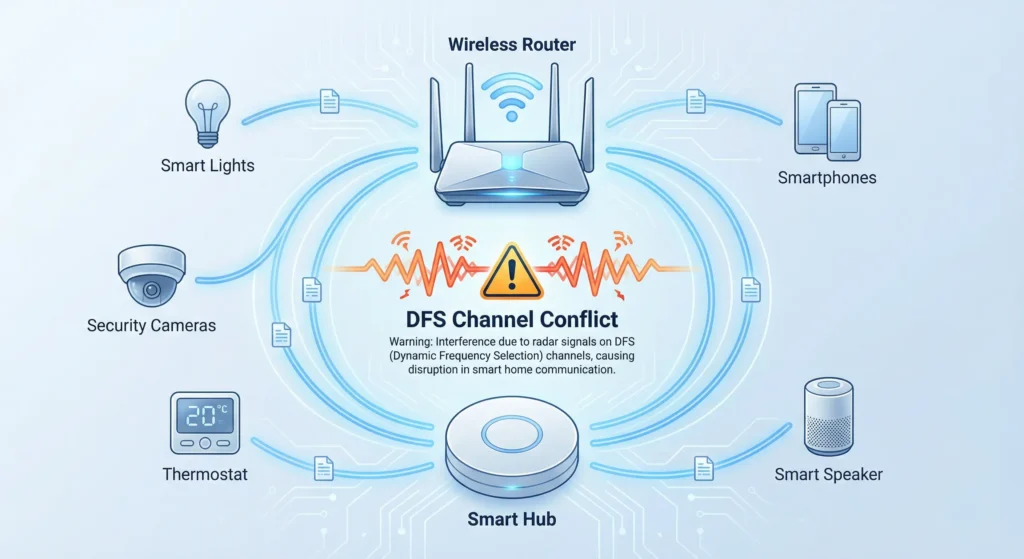
DFS channels smart hub instability remains one of the most widely misunderstood issues in modern smart homes. Most homeowners never suspect that their Wi-Fi channel selection could be the root cause behind an entire smart home ecosystem becoming unreliable.
In this article, I will explain exactly why this happens, what is taking place behind the scenes, and most importantly, how to resolve it without compromising your network performance.
What Are DFS Channels and Why Do They Exist?
Before we dive into the problem, let us make sure we understand what DFS channels actually are.
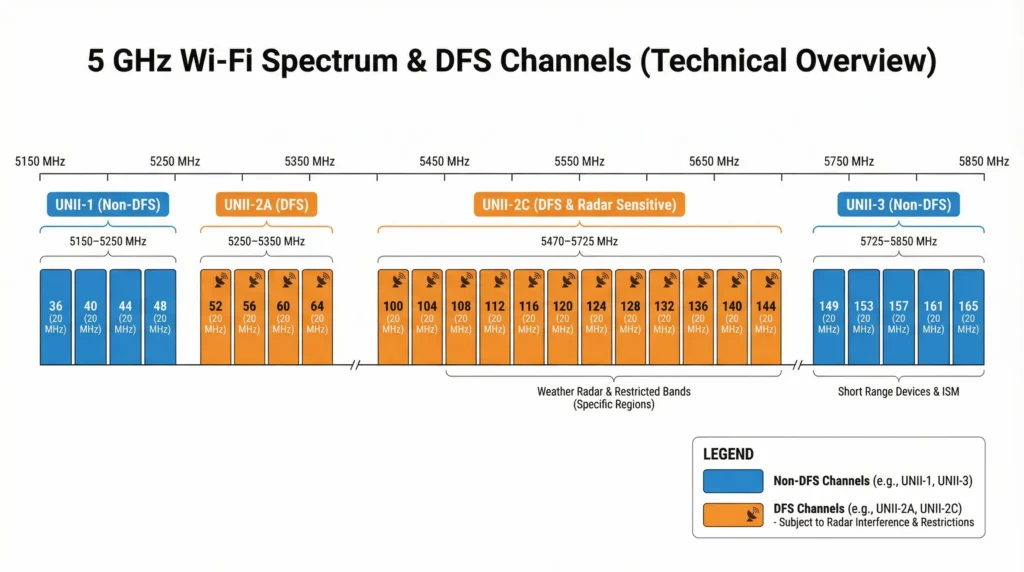
DFS stands for Dynamic Frequency Selection. These are specific Wi-Fi channels in the 5 GHz band that are shared with radar systems. In most regions, these include channels 52 through 144.
Governments and regulatory bodies like the FCC in the United States and ETSI in Europe require that Wi-Fi devices operating on these channels must yield to radar signals. This means your router must constantly listen for radar pulses, and if it detects one, it is legally required to vacate that channel immediately.
The DFS Channel Ranges
Here is a breakdown of the typical DFS and non DFS channels on the 5 GHz band:
| Channel Type | Channel Numbers | DFS Required |
|---|---|---|
| UNII-1 (Non DFS) | 36, 40, 44, 48 | No |
| UNII-2 (DFS) | 52, 56, 60, 64 | Yes |
| UNII-2 Extended (DFS) | 100, 104, 108, 112, 116, 120, 124, 128, 132, 136, 140, 144 | Yes |
| UNII-3 (Non DFS) | 149, 153, 157, 161, 165 | No |
The original idea behind DFS is actually smart. By opening up these additional channels for Wi-Fi use, regulators created more available spectrum, which reduces congestion. The trade off is that your router must be ready to abandon the channel at any moment if radar activity is detected.
The problem is that this “abandoning the channel” part creates chaos for devices that depend on a stable, uninterrupted connection. And smart hubs are exactly that type of device.
For a deeper technical explanation of DFS requirements, you can read the FCC guidelines on DFS operation.
How Smart Hubs Communicate With Your Wi-Fi Network
To understand why DFS channels cause problems, you need to understand how smart hubs work at a fundamental level.
Most smart hubs like Samsung SmartThings, Hubitat Elevation, Aeotec Smart Home Hub, and even Amazon Echo acting as a Zigbee hub operate as a bridge between your local smart devices and your home network.
The Communication Chain
Here is what happens every time you turn on a smart light:
- You tap a button in your app or give a voice command
- That command travels through the internet to the cloud server (or stays local)
- The cloud or local server sends the command to your smart hub via Wi-Fi or Ethernet
- The smart hub translates the command and sends it via Zigbee, Z-Wave, or Thread to the device
- The device responds and confirms the action back through the same chain
The critical link in this chain is the connection between your router and the smart hub. If that connection drops even for a few seconds, the entire chain breaks. Commands fail. Automations do not trigger. Devices appear offline.
Why Smart Hubs Are Particularly Sensitive
Unlike your laptop or smartphone, which can handle brief network interruptions gracefully, smart hubs are designed to maintain persistent connections. They keep open sockets to cloud servers, run continuous background processes, and manage dozens or hundreds of device connections simultaneously.
When the network drops unexpectedly, many smart hubs do not recover cleanly. Some require a full reconnection cycle. Others lose their device roster temporarily. And some older models even need a manual reboot to fully recover.
This is exactly what happens when DFS channels enter the picture.
The Real Reason DFS Channels Cause Smart Hub Instability
Now we get to the core of the problem. There are multiple technical reasons why enabling DFS channels creates instability for smart hubs, and they often compound each other.
1. Radar Detection Events Force Channel Switching
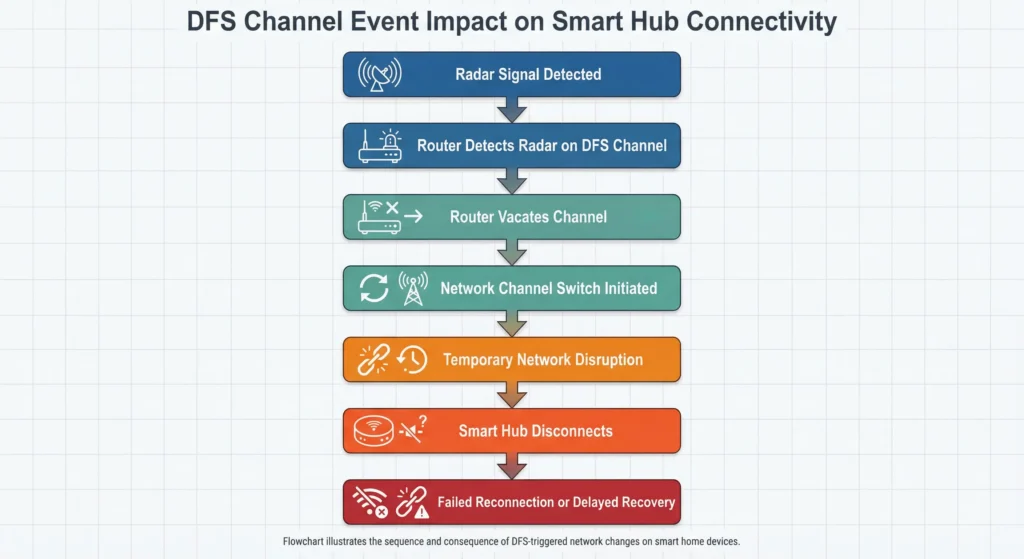
This is the primary cause. When your router detects a radar signal on a DFS channel (or thinks it detects one), it must immediately stop transmitting on that channel. This is not optional. It is a regulatory requirement.
The router then performs what is called a Channel Availability Check (CAC) on a new channel, which takes a minimum of 60 seconds in most regions and up to 10 minutes in some cases. During this time, your 5 GHz network effectively disappears.
For your laptop, this might mean a brief interruption while streaming Netflix. For your smart hub, this can mean:
- Complete disconnection from the cloud
- Loss of all pending commands
- Failed automation routines
- Zigbee and Z-Wave device timeouts
- Hub status showing as “offline” in your app
2. False Radar Detection Is More Common Than You Think
Here is something most people do not realize. Your router does not actually know the difference between a real radar signal and certain types of interference that look like radar pulses. Common sources of false radar detection include:
- Weather radar stations within 30 miles
- Airport surveillance radar
- Military installations
- Even some electronic devices in your own home
I have personally seen cases where a microwave oven triggered a false DFS radar event on a nearby router. The result was a smart home that went haywire every time someone heated up their lunch.
3. Smart Hub Wi-Fi Radios Have Limited DFS Support
Many smart hubs use simplified Wi-Fi radios to keep costs down and reduce power consumption. These radios often have incomplete or unreliable DFS support. Some hubs simply cannot reconnect to a DFS channel after a radar event because they lack the firmware logic to perform the required CAC themselves.
4. The Reconnection Race Condition
After a DFS event, your router moves to a new channel and starts broadcasting again. Every device on your network then tries to reconnect simultaneously. This creates a race condition where dozens of devices are competing for authentication and association at the same time.
Smart hubs often lose this race. Your smartphone reconnects quickly because it has a powerful Wi-Fi radio and sophisticated roaming algorithms. Your smart hub, with its basic radio and limited processing power, gets pushed to the back of the line.
5. Cloud Connection Timeouts
Most smart hubs maintain a persistent MQTT or WebSocket connection to their cloud servers. When DFS causes a channel switch, these connections time out. Reestablishing them requires DNS resolution, TLS handshakes, and authentication, all of which take time. During this period, your hub appears offline, and any cloud dependent automations fail.
Real World Scenarios: When DFS Channels Break Your Smart Home
Let me share some scenarios that I have encountered directly or that have been widely reported in smart home communities.
Scenario 1: The Midnight Alarm
A homeowner in New Jersey set up a SmartThings hub with motion sensors, smart locks, and an alarm system. Everything worked fine during the day. But at night, around 2 AM, the system would randomly trigger false alarms or fail to arm properly.
After weeks of frustration, the cause was traced to the router operating on DFS channel 100. A nearby weather radar station performed its most intensive scans during overnight hours, causing repeated DFS events. The SmartThings hub would lose connectivity for 60 to 90 seconds each time, which was enough to disrupt the security system.
The fix was simple. Moving the router to channel 36 (non DFS) eliminated the problem entirely.
Scenario 2: The Automation That Stopped Working
A family in Texas had a complex automation: when the last person left home, the system would lock doors, turn off lights, arm cameras, and adjust the thermostat. It worked flawlessly for three months.
Then they upgraded their router and enabled “auto channel selection,” which happened to pick DFS channel 132. The departure automation started failing randomly. Sometimes only half the devices would respond. Other times, nothing happened at all.
The Hubitat hub logs showed repeated “connection lost” entries that coincided exactly with DFS radar events logged by the router.
Scenario 3: The Smart Speaker That Forgot Its Hub
An Echo Plus (4th gen) being used as a Zigbee hub would periodically “forget” connected Zigbee devices. The user had to rediscover and re-add devices weekly. The root cause was DFS channel switches that disrupted the Echo’s internal state management, causing its Zigbee device table to become corrupted.
Which Smart Hubs Are Most Affected by DFS Channel Issues?
Not all smart hubs are equally vulnerable to DFS related instability. Here is a breakdown based on real world reports and testing:
| Smart Hub | DFS Sensitivity | Connection Type | Notes |
|---|---|---|---|
| Samsung SmartThings (v3) | High | Wi-Fi | Struggles to reconnect after DFS events |
| Hubitat Elevation | Medium | Ethernet | Ethernet models are immune, Wi-Fi bridge users are affected |
| Amazon Echo (Zigbee) | High | Wi-Fi | Cannot handle frequent channel switches |
| Apple HomePod Mini | Medium | Wi-Fi | Better recovery but still shows delays |
| Aeotec Smart Home Hub | High | Wi-Fi / Ethernet | Wi-Fi version is highly affected |
| Home Assistant (Yellow/Green) | Low | Ethernet | Ethernet connection avoids the issue entirely |
| Philips Hue Bridge | Low | Ethernet | Hardwired, so DFS is not a direct concern |
The pattern is clear. Hubs connected via Ethernet are largely immune to DFS issues because they do not rely on the 5 GHz Wi-Fi connection. Hubs connected via Wi-Fi are the ones that suffer.

Step by Step Guide to Diagnose DFS Related Smart Hub Problems
If you suspect that DFS channels are causing your smart hub to behave erratically, here is how to confirm it.
Step 1: Check Your Current Wi-Fi Channel
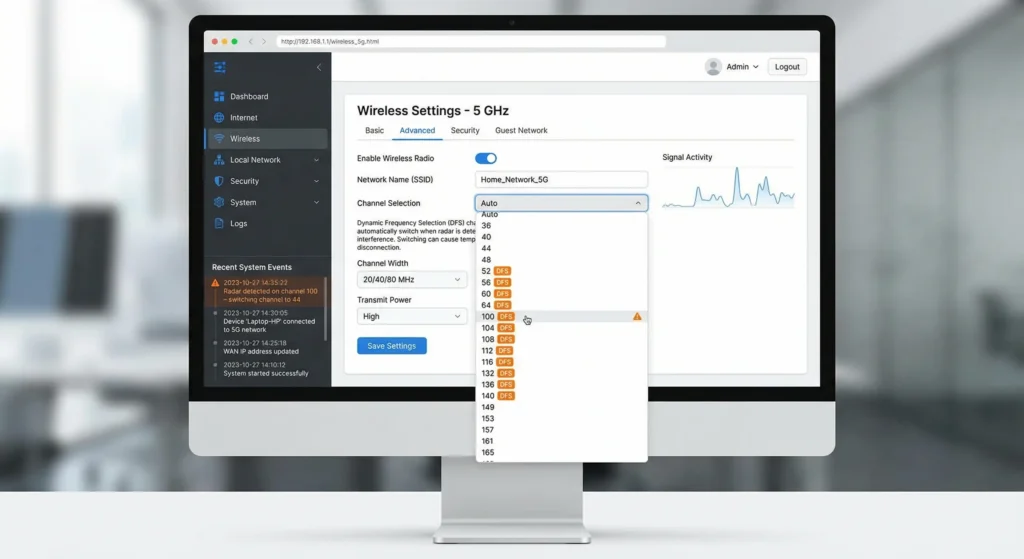
Log into your router’s admin panel (typically 192.168.1.1 or 192.168.0.1) and find the wireless settings. Look at which 5 GHz channel your router is using.
If it is any channel between 52 and 144, you are on a DFS channel.
Step 2: Review Router Logs for Radar Events
Most modern routers log DFS radar detection events. Look for entries like:
- “Radar detected on channel X”
- “DFS channel switch”
- “Moving to channel Y due to radar”
If you see these entries, your network is actively experiencing DFS disruptions.
Step 3: Correlate Hub Disconnections With DFS Events
Check your smart hub’s logs (if available) and compare the timestamps of disconnection events with the DFS events in your router logs. If they match up, you have found your culprit.
Step 4: Monitor With a Wi-Fi Analyzer
Use a Wi-Fi analyzer app like WiFi Analyzer for Android or NetSpot for Windows/Mac to monitor your network in real time. Watch for sudden channel changes, which indicate DFS events.
Step 5: Run a 48 Hour Test on a Non DFS Channel
Switch your router to a non DFS channel (36, 40, 44, 48, 149, 153, 157, 161, or 165) and monitor your smart hub stability for 48 hours. If the disconnections stop, DFS was the problem.
Practical Fixes to Eliminate DFS Smart Hub Instability
Now that you understand the problem, here are proven solutions ranked from simplest to most advanced.
Fix 1: Switch to a Non DFS Channel (Easiest)
This is the most straightforward solution. Log into your router and manually set your 5 GHz channel to one of these non DFS options:
UNII-1 Band: Channels 36, 40, 44, 48
UNII-3 Band: Channels 149, 153, 157, 161, 165
For most homes, channel 36 or 149 provides the best balance of performance and compatibility.
Fix 2: Connect Your Smart Hub via Ethernet
If your smart hub has an Ethernet port (many do), use it. A wired connection completely bypasses the Wi-Fi layer and eliminates DFS as a concern. This is the most reliable solution for any smart hub that supports it.
Hubs with Ethernet ports include:
- Hubitat Elevation
- Home Assistant Yellow and Green
- Philips Hue Bridge
- Aeotec Smart Home Hub (some models)
- Samsung SmartThings Station (via adapter)
Fix 3: Create a Separate SSID on a Non DFS Channel
If you want to keep DFS channels for your regular devices but protect your smart hub, create a separate SSID that operates exclusively on a non DFS channel. Connect your smart hub to this dedicated network.
Many routers support multiple SSIDs. Check your router’s documentation for instructions.
Fix 4: Disable Band Steering
Band steering is a feature that automatically pushes devices from 2.4 GHz to 5 GHz. If your smart hub supports 2.4 GHz (most do), band steering might be forcing it onto the 5 GHz DFS channel.
Disable band steering and manually connect your smart hub to the 2.4 GHz network, which does not use DFS channels at all.
Fix 5: Use a Dedicated IoT Network
The most robust solution is to set up a dedicated IoT network. Many modern routers and mesh systems like Eero, UniFi, and TP-Link Deco allow you to create a separate network specifically for smart home devices.
Configure this IoT network to use:
- 2.4 GHz only (for maximum compatibility)
- A fixed, non DFS channel
- WPA2 security (some IoT devices do not support WPA3)
Fix 6: Update Router Firmware
Manufacturers regularly improve DFS handling in firmware updates. Check your router manufacturer’s website for the latest firmware. Improved radar detection algorithms can reduce false positive DFS events.
For specific router firmware updates, visit:

Safe Channel Selection: Best Practices for Smart Home Networks
Choosing the right channel is not just about avoiding DFS. Here are best practices that will keep your smart home network stable and performant.
For the 5 GHz Band
- Preferred Channels: 36, 40, 44, 48 (UNII-1) or 149, 153, 157, 161, 165 (UNII-3)
- Avoid: Any channel between 52 and 144 if you have smart hubs on Wi-Fi
- Channel Width: Use 80 MHz for general use, but consider 40 MHz if stability is more important than speed
For the 2.4 GHz Band
- Preferred Channels: 1, 6, or 11 (these are the only non overlapping channels)
- Avoid: Channels 2 through 5 and 7 through 10 to prevent adjacent channel interference
- Channel Width: Always use 20 MHz on 2.4 GHz for IoT devices
For Wi-Fi 6E (6 GHz Band)
- The 6 GHz band has its own set of considerations, but currently, very few smart hubs support it
- If your hub does support 6 GHz, use it since there are no DFS requirements on the 6 GHz band
DFS Channels vs Non DFS Channels: A Direct Comparison
| Feature | DFS Channels | Non DFS Channels |
|---|---|---|
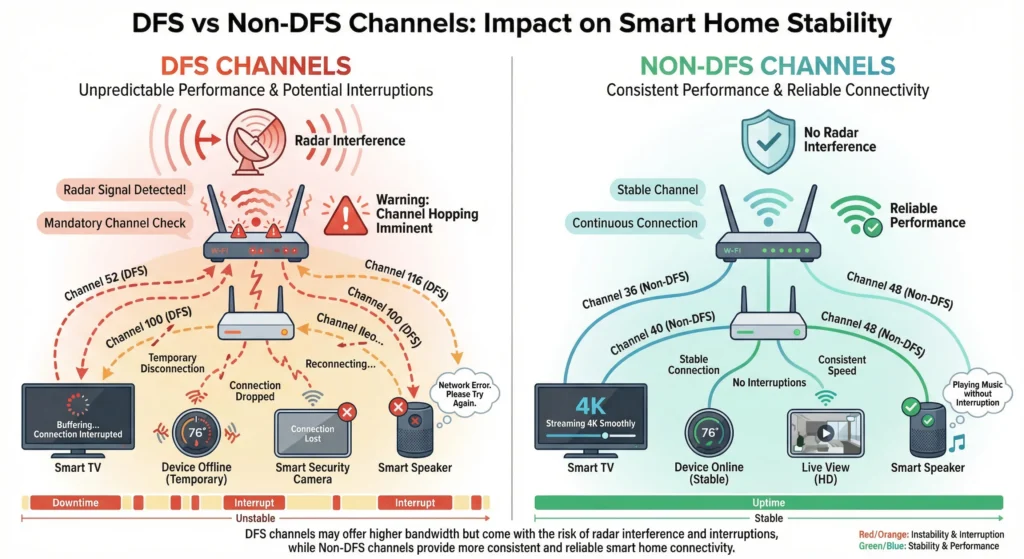
| Congestion | Usually lower | Can be higher in dense areas |
| Stability | Unpredictable | Consistent |
| Radar Interruption Risk | Yes | No |
| Smart Hub Compatibility | Poor | Excellent |
| Available Channels | 15 channels | 9 channels |
| Legal Requirements | Must vacate for radar | None |
| Recovery Time After Event | 60 seconds to 10 minutes | Not applicable |
| Best For | Laptops, phones in low radar areas | Smart hubs, IoT, streaming |
The bottom line is this: DFS channels offer more available spectrum and potentially less congestion, but the stability trade off makes them unsuitable for smart home hubs that need always on connectivity.
Real User Experiences With DFS and Smart Hub Disconnections
These are actual experiences shared by smart home users across various communities and forums.
Experience 1: Reddit User on r/SmartThings
“I spent two months thinking my SmartThings hub was defective. I went through three replacements from Samsung before someone on Reddit asked what channel my router was on. It was on channel 108. Switched to 44, and I have not had a single disconnection in four months.”
Experience 2: Home Assistant Community Forum
A user running Home Assistant on a Raspberry Pi with a USB Wi-Fi adapter reported that their Zigbee coordinator would lose connection every few hours. The issue was traced to their UniFi access point auto selecting DFS channel 116. After pinning the AP to channel 36, all issues resolved.
Experience 3: Amazon Echo Smart Home User
A user in a coastal area (near a port with maritime radar) found that their Echo devices would drop off the network multiple times per day. The DFS events were so frequent that the router was spending more time in CAC mode than actually transmitting. Moving to a non DFS channel and using 2.4 GHz for Echo devices solved the problem completely.
Experience 4: Professional Smart Home Installer
A professional installer shared that they now include “DFS channel avoidance” as a standard part of every smart home installation. Their callback rate for network related issues dropped by over 60 percent after implementing this policy.
You can find more user discussions about this issue on the SmartThings Community Forum and the Home Assistant Community.
Advanced Tips for Users Who Must Use DFS Channels
In some situations, you might have no choice but to use DFS channels. Maybe you live in a dense apartment building where non DFS channels are completely saturated. Here are strategies to minimize the impact on your smart hubs.
Tip 1: Use Ethernet for All Hubs
If DFS is unavoidable, take every smart hub off Wi-Fi entirely. Use Ethernet cables, Ethernet over Powerline adapters, or MoCA adapters to create wired connections.
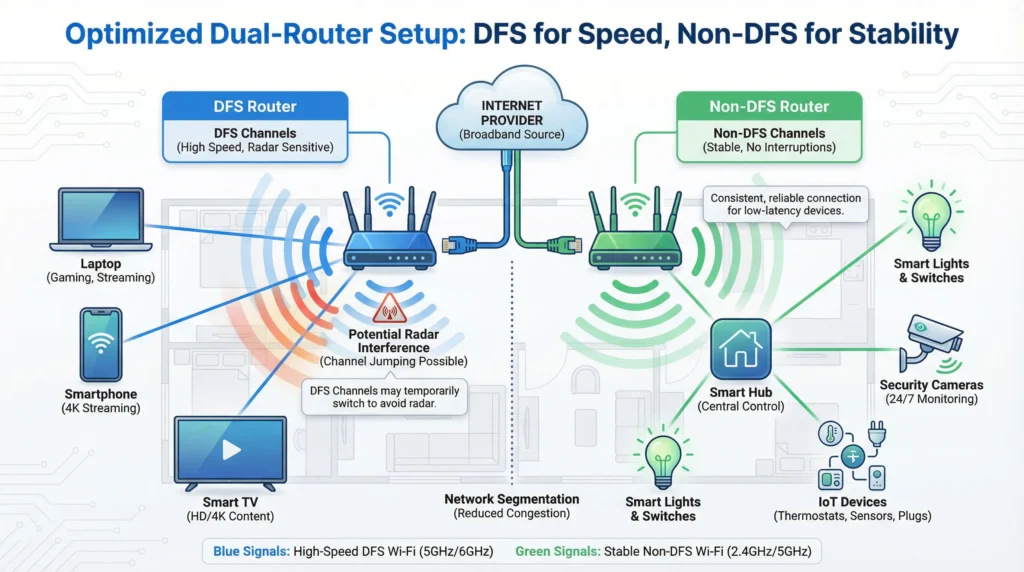
Tip 2: Use a Dual Router Setup
Run two routers. One on a DFS channel for your high bandwidth devices (laptops, phones, streaming boxes) and one on a non DFS channel exclusively for smart home devices. This gives you the best of both worlds.
Tip 3: Choose Lower DFS Channels
If you must use DFS, channels 52 through 64 (UNII-2) tend to experience fewer radar events than channels 100 through 144 (UNII-2 Extended). The extended range overlaps with more radar systems, including weather radar.
Tip 4: Check Your Local Radar Environment
Use the NTIA Radar Map to check for radar installations near your location. If you are within 30 miles of a weather radar station, airport, or military base, DFS events will be more frequent.
Tip 5: Enable DFS Fallback Channel
Some advanced routers (like UniFi, MikroTik, or pfSense based setups) allow you to configure a preferred fallback channel. Set this to a non DFS channel so that when a radar event occurs, the router moves to a stable channel rather than jumping to another DFS channel.
Tip 6: Schedule Radar Prone Hours
If you notice DFS events happen at predictable times (weather radar is often on a schedule), you can use router scheduling features to switch to non DFS channels during those periods.
FAQ: DFS Channels and Smart Hub Instability
What are DFS channels in simple terms?
DFS channels are Wi-Fi channels in the 5 GHz band (channels 52 through 144) that are shared with radar systems. Your router must stop using these channels whenever it detects radar signals, which causes temporary network disruptions that affect smart hubs.
Why does my smart hub keep going offline?
If your router is using a DFS channel, radar detection events can cause your 5 GHz network to temporarily disappear. Smart hubs often cannot recover quickly from these disruptions, causing them to show as offline in your app.
Can DFS channels damage my smart hub?
No, DFS channels cannot physically damage your smart hub. The issue is purely connectivity related. Your hub is fine, it just cannot maintain a stable connection when the router keeps switching channels.
How do I know if my router is using a DFS channel?
Log into your router’s admin panel and check the wireless settings. If your 5 GHz channel is any number between 52 and 144, you are on a DFS channel. You can also use a Wi-Fi analyzer app on your phone to check.
Should I always avoid DFS channels?
Not necessarily. DFS channels are fine for devices like laptops and smartphones that can handle brief interruptions. You should avoid DFS channels for smart hubs, security cameras, and any device that requires an always on connection.
Does the 2.4 GHz band have DFS channels?
No, DFS channels exist only in the 5 GHz band. The 2.4 GHz band does not have DFS requirements, which is one reason why many smart home professionals recommend using 2.4 GHz for IoT devices.
Will Wi-Fi 6E solve the DFS problem?
The 6 GHz band introduced with Wi-Fi 6E does not have DFS requirements in most regions, which eliminates this specific problem. However, very few smart hubs currently support Wi-Fi 6E, so this is more of a future solution.
How often do DFS radar events occur?
It depends entirely on your location. Users near airports, weather radar stations, or military installations may experience events multiple times per day. Users in rural areas far from radar infrastructure may never experience them.
Can I disable DFS on my router?
Yes, most routers allow you to manually select a non DFS channel, which effectively disables DFS. Simply choose a channel in the UNII-1 range (36 to 48) or UNII-3 range (149 to 165).
Does mesh Wi-Fi solve the DFS smart hub problem?
Not automatically. Many mesh systems use DFS channels for backhaul communication between nodes. If your smart hub connects to a mesh node that is using DFS, you will experience the same issues. Check your mesh system’s channel settings and configure accordingly.
Final Thoughts
The relationship between DFS channels and smart hub instability is a problem that trips up even experienced smart home enthusiasts. The technology behind DFS is sound and serves an important purpose, but it was never designed with always on IoT devices in mind.
The good news is that the fix is almost always simple. Whether you switch to a non DFS channel, connect your hub via Ethernet, or create a dedicated IoT network, you can eliminate this source of instability without spending any money or making dramatic changes to your setup.
If there is one takeaway from this article, it is this: your smart hub needs a stable, predictable network connection more than it needs a fast one. Give it a non DFS channel on the 2.4 GHz or 5 GHz band, and you will be amazed at how much more reliable your entire smart home becomes.
Before you go troubleshooting firmware bugs, replacing hardware, or calling customer support, check your channel settings first. The answer to your smart home problems might be hiding in your router’s admin panel.
