Table of Contents
- Introduction: The Frustration Is Real
- What Actually Happens During a Router Firmware Upgrade
- Top Reasons Your Smart Home Devices Stop Working After a Firmware Update
- Real Life Scenarios: When a Simple Update Destroyed an Entire Smart Home
- Step by Step Guide to Fix Smart Home Issues After a Router Update
- How to Prevent Smart Home Breakdowns Before Updating Your Router
- Which Smart Home Devices Are Most Vulnerable
- Router Brands and Known Smart Home Compatibility Issues
- Expert Tips for a Bulletproof Smart Home Network
- FAQ: Smart Home and Router Firmware Issues
- Final Thoughts
Introduction: The Frustration Is Real
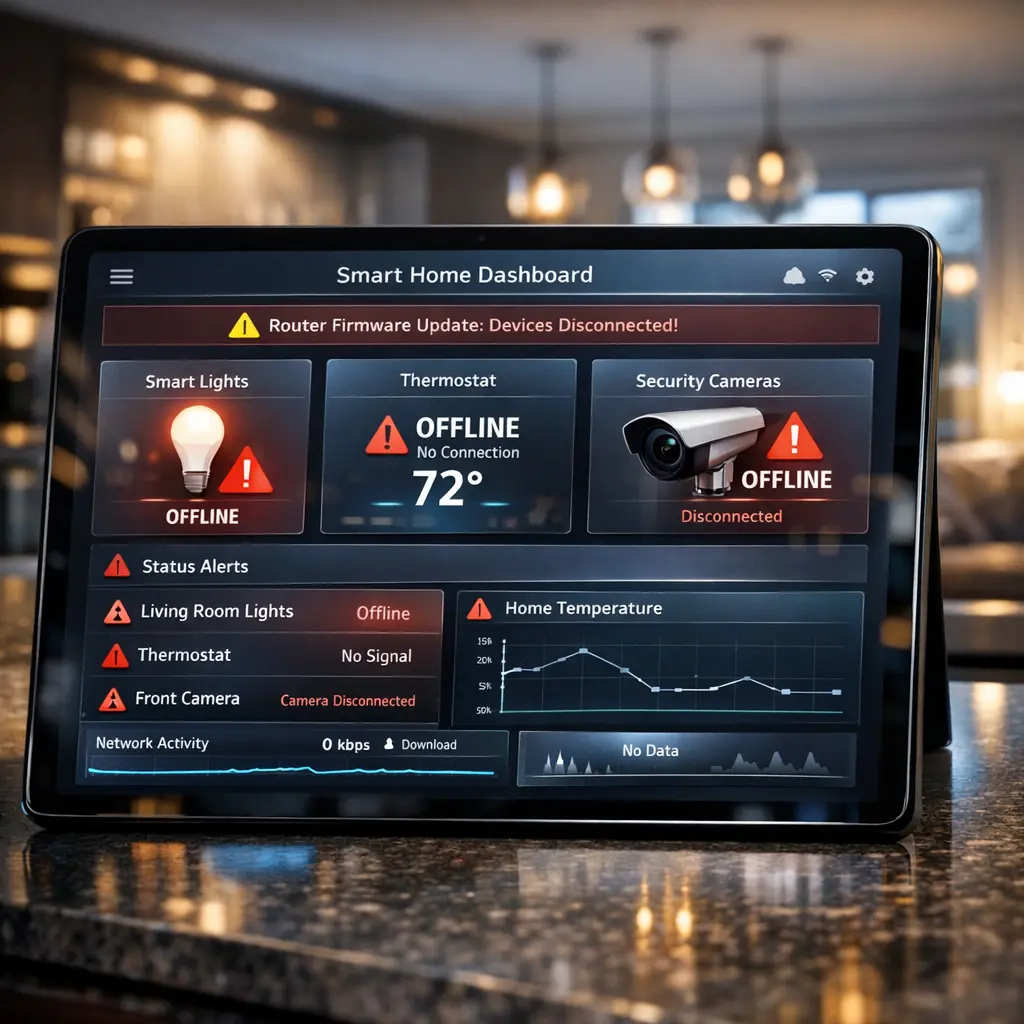
You wake up one morning, reach for your phone, and tap the smart home app to switch on the living room lights. Nothing. You check the thermostat — offline. The security camera — gone. The smart lock on your front door — completely dead.
Then it clicks. Your router pushed a firmware update overnight.
If this scenario feels painfully familiar, you are far from alone. Every single month, thousands of users discover that their smart home break after router firmware upgrade without any warning. I have lived through this exact frustration three times in the past few years, and each time, it felt like my entire house suddenly lost its memory.
Here is the irony. Router firmware upgrades are designed to improve things — they seal security gaps, boost performance, and introduce new capabilities. But when your network is holding together 15, 20, or even 50 connected devices, one small firmware change can throw the whole ecosystem into disorder.
In this article, I am going to explain exactly why this happens, share real stories from users who have been through it, and hand you a clear, actionable plan to fix everything and make sure it never catches you off guard again.
What Actually Happens During a Router Firmware Upgrade
Before we dive into solutions, it helps to understand what goes on behind the scenes when your router updates its firmware.
The Technical Side in Simple Terms
Router firmware is essentially the operating system that runs your router. When the manufacturer releases an update, it can change several things at once:
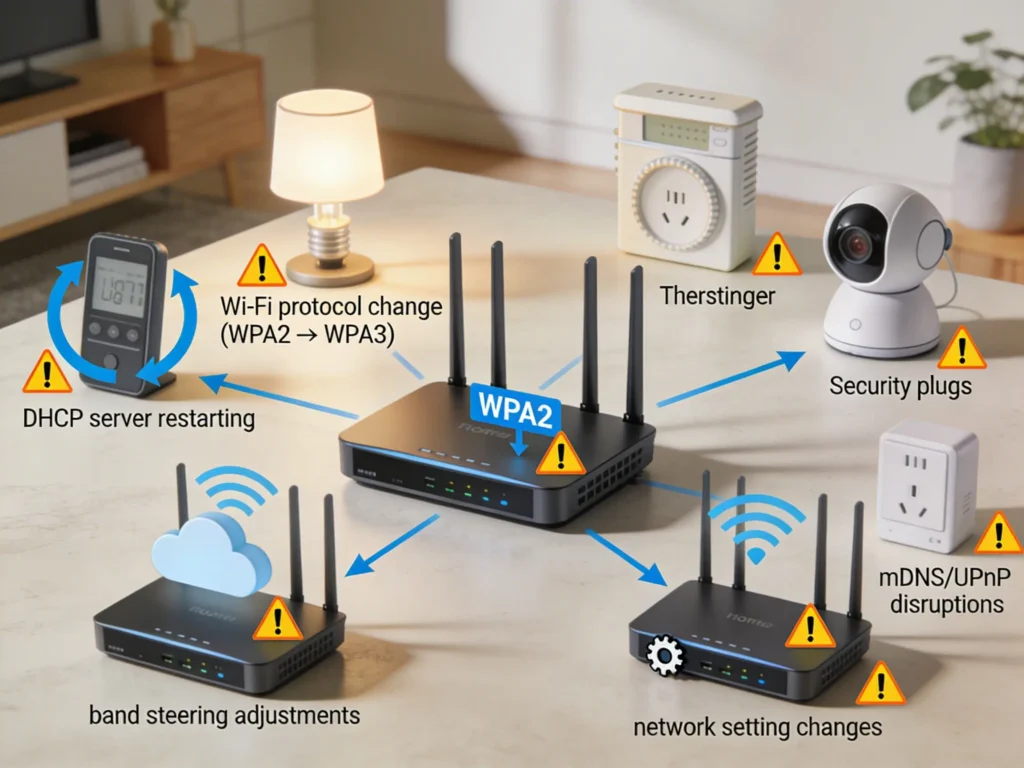
Network settings get reset or modified. Some updates change default configurations for Wi-Fi channels, band steering, DHCP lease times, or security protocols. Your smart devices were connected using the old settings, and now those settings have shifted underneath them.
The DHCP server restarts. Every device on your network has an IP address assigned by your router. When firmware updates, the DHCP server often restarts, and devices may receive new IP addresses. Some smart home devices handle this gracefully. Many do not.
Wi-Fi authentication protocols change. If the update switches from WPA2 to WPA3, or enables WPA3 transition mode, older smart devices that only support WPA2 might suddenly fail to authenticate.
mDNS and UPnP behavior shifts. Many smart home ecosystems rely on multicast DNS (mDNS) or Universal Plug and Play (UPnP) for device discovery. Firmware updates can alter how these protocols are handled, making devices invisible to their control hubs.
Band steering algorithms update. Modern routers try to push devices to the 5GHz band for better performance. But most smart home devices, especially those using Wi-Fi, only work on the 2.4GHz band. Updated band steering can prevent these devices from connecting.
Top Reasons Your Smart Home Devices Stop Working After a Firmware Update
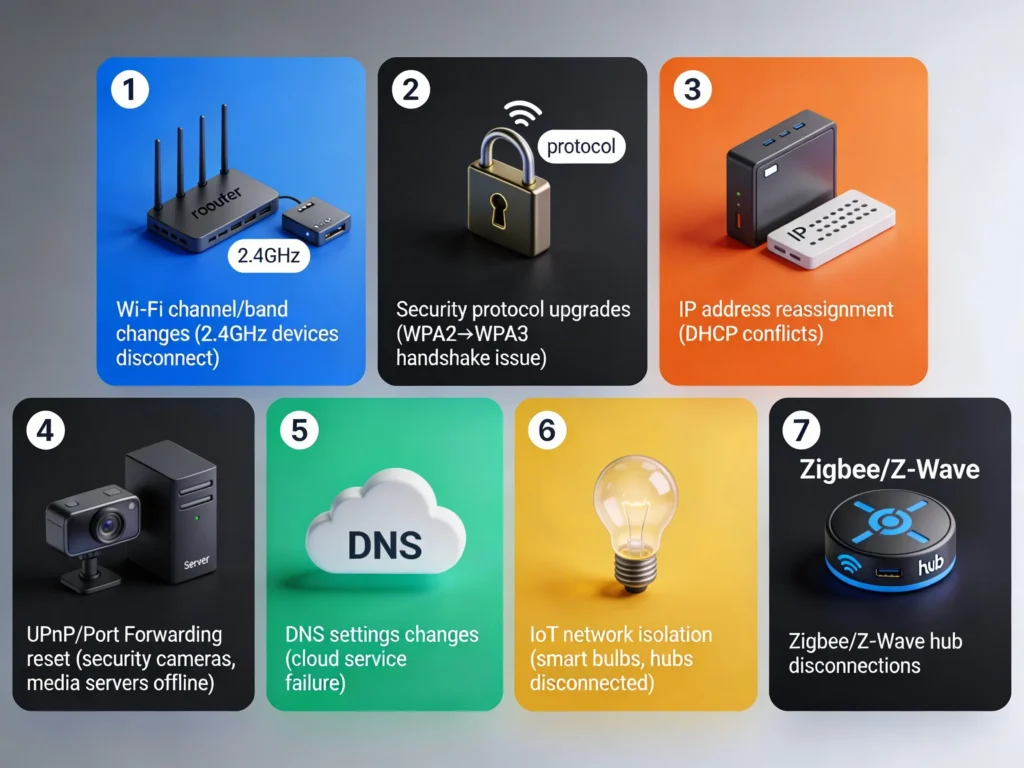
1. Wi-Fi Channel and Band Changes
This is the number one culprit. Many smart home devices, especially budget friendly ones from brands like Tuya, Govee, or older Ring cameras, only connect to the 2.4GHz band. If your router firmware update changed the Wi-Fi channel, merged the SSIDs, or adjusted band steering, these devices lose their connection immediately.
2. Security Protocol Upgrades
When routers upgrade from WPA2 to WPA3 or enable WPA2/WPA3 mixed mode, some smart home devices cannot negotiate the new security handshake. This is extremely common with smart plugs, light bulbs, and sensors that use basic Wi-Fi chips.
3. IP Address Reassignment
Smart devices often rely on static or semi-static IP addresses. A firmware update that resets the DHCP pool can reassign addresses, causing devices to conflict with each other or lose communication with their hub or cloud service.
4. UPnP and Port Forwarding Reset
Some firmware updates disable UPnP by default for security reasons. While this is generally a good practice, it can break devices that relied on UPnP to function, such as security cameras, video doorbells, and media servers.
5. DNS Settings Changes
If the firmware update changes the DNS server settings, devices that rely on specific cloud endpoints might fail to resolve domain names and go offline.
6. IoT Network Isolation Features
Some modern firmware updates enable IoT isolation or client isolation as a security feature. This prevents devices on the same network from communicating with each other, which completely breaks ecosystems like Philips Hue, SmartThings, or Home Assistant that depend on local device communication.
7. Zigbee and Z-Wave Hub Disconnections
While Zigbee and Z-Wave devices do not use Wi-Fi directly, their hubs do. If the hub loses its Wi-Fi connection due to the firmware change, every Zigbee or Z-Wave device connected through that hub goes offline too.
Real Life Scenarios: When a Simple Update Destroyed an Entire Smart Home
Scenario 1: The Google Nest Nightmare
Mark, a smart home enthusiast from Texas, had a fully integrated Google Nest ecosystem. Nest Hub, Nest cameras, Nest thermostat, and 12 Nest Mini speakers throughout his home. His ASUS router pushed an automatic firmware update overnight.
The result? The update enabled AiProtection with default settings, which included enabling a stricter firewall and changing the DNS to Trend Micro servers. Every single Nest device lost cloud connectivity. His thermostat reverted to manual mode during a cold snap, and his cameras stopped recording for 14 hours before he realized the issue.
What fixed it: Mark disabled AiProtection, reverted DNS to Google’s public DNS (8.8.8.8), and rebooted all Nest devices one by one.
Scenario 2: The Philips Hue Bridge Disappearance
Sarah from London had her TP-Link Deco mesh system update automatically. The new firmware changed the IGMP snooping settings and modified how multicast traffic was handled across mesh nodes. Her Philips Hue Bridge became completely invisible to the Hue app. The lights still worked manually, but all automation, schedules, and voice control through Alexa stopped functioning.
What fixed it: Sarah had to enable IGMP snooping manually, assign a static IP to the Hue Bridge, and restart the entire mesh network in a specific order, starting with the main node first.
Scenario 3: The Entire Tuya Ecosystem Collapse
James in Melbourne had over 30 Tuya based smart devices, including plugs, bulbs, and sensors. His ISP provided router pushed a firmware update that switched the Wi-Fi security from WPA2 to WPA2/WPA3 mixed mode. About 70% of his Tuya devices dropped off the network instantly. The remaining 30% stayed connected but became extremely slow to respond.
What fixed it: James forced the router back to WPA2 only mode and had to re-pair 21 devices from scratch, which took him an entire weekend.
Step by Step Guide to Fix Smart Home Issues After a Router Update
If you are currently dealing with this problem, here is a clear action plan to get your smart home back online.
Step 1: Document What Changed
Log into your router admin panel and check the firmware version. Look at the release notes on the manufacturer’s website. Identify what specific changes the update introduced. This will save you hours of guessing.
How to access your router admin panel:
- Open a browser and type your router’s gateway address (usually 192.168.1.1 or 192.168.0.1)
- Log in with your admin credentials
- Navigate to the firmware or system section
- Check the current firmware version and compare it with the previous one
Step 2: Check Your Wi-Fi Settings Immediately
Verify these critical settings:
- SSID names: Make sure your 2.4GHz and 5GHz networks are still configured the way they were. If the update merged them into a single SSID, consider separating them again.
- Wi-Fi security protocol: Confirm whether it is still on WPA2 Personal (AES). If it switched to WPA3 or mixed mode, change it back temporarily.
- Wi-Fi channel: Check if the channel changed. Auto channel selection can cause problems if it picked a congested channel.
- Band steering: If this was enabled by the update, disable it temporarily.
Step 3: Review Network Security Settings
Check if the firmware update enabled any of the following:
- Client isolation or AP isolation
- IoT device quarantine
- Enhanced firewall rules
- DNS filtering or parental controls
- UPnP changes (enabled or disabled)
Disable any new security features temporarily to see if your devices come back online.
Step 4: Power Cycle Everything in the Right Order
This is critical. Do not just unplug everything at once. Follow this sequence:
- Turn off your modem
- Turn off your router
- Wait 60 seconds
- Turn on your modem and wait until it fully connects (2 to 3 minutes)
- Turn on your router and wait until all lights stabilize (2 to 3 minutes)
- Power cycle your smart home hubs (SmartThings, Hue Bridge, etc.)
- Wait 5 minutes for devices to reconnect automatically
Step 5: Re-pair Devices That Did Not Reconnect
For devices still offline after power cycling:
- Open the device’s companion app
- Remove the device from the app
- Factory reset the device (usually by holding the reset button for 10 to 15 seconds)
- Add it back as a new device
- Reconnect any automations or routines
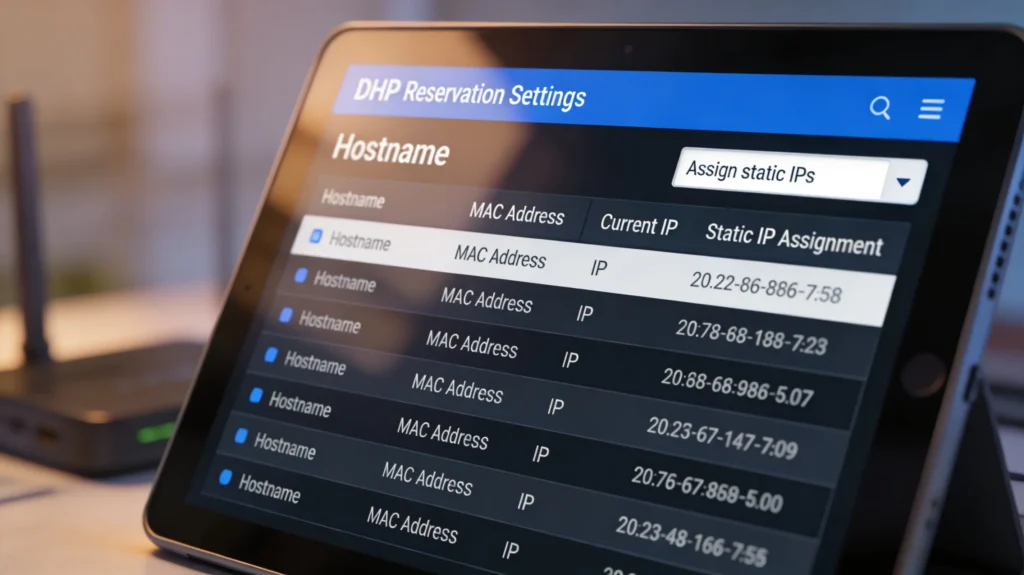
Step 6: Assign Static IP Addresses to Critical Devices
To prevent future DHCP related disconnections:
- Log into your router admin panel
- Navigate to DHCP reservation or address reservation
- Add your smart home hubs, cameras, and critical devices with fixed IP addresses
- Save and reboot the router
How to Prevent Smart Home Breakdowns Before Updating Your Router
Prevention is always better than spending a weekend re-pairing 30 devices. Here is what I recommend based on years of personal experience.
Create a Pre-Update Checklist
Before allowing any router firmware update, do the following:
- Export your router configuration. Most routers allow you to save the current settings as a backup file. Do this every time before an update.
- Document your current network settings. Take screenshots of your Wi-Fi settings, DHCP settings, firewall rules, and any custom configurations.
- Read the firmware release notes. Check the manufacturer’s website or forum for known issues with smart home devices.
- Check community forums. Reddit communities like r/smarthome, r/homeassistant, and r/HomeNetworking are excellent resources. Search for your router model plus the firmware version to see if other users have reported issues.
Disable Automatic Firmware Updates
I know this sounds counterintuitive from a security perspective, but for smart home users, automatic updates can cause more disruption than they prevent. Instead:
- Disable auto updates on your router
- Set a monthly reminder to check for updates manually
- Read the release notes before updating
- Update during a time when you can monitor your smart home for issues
- Keep a rollback plan ready
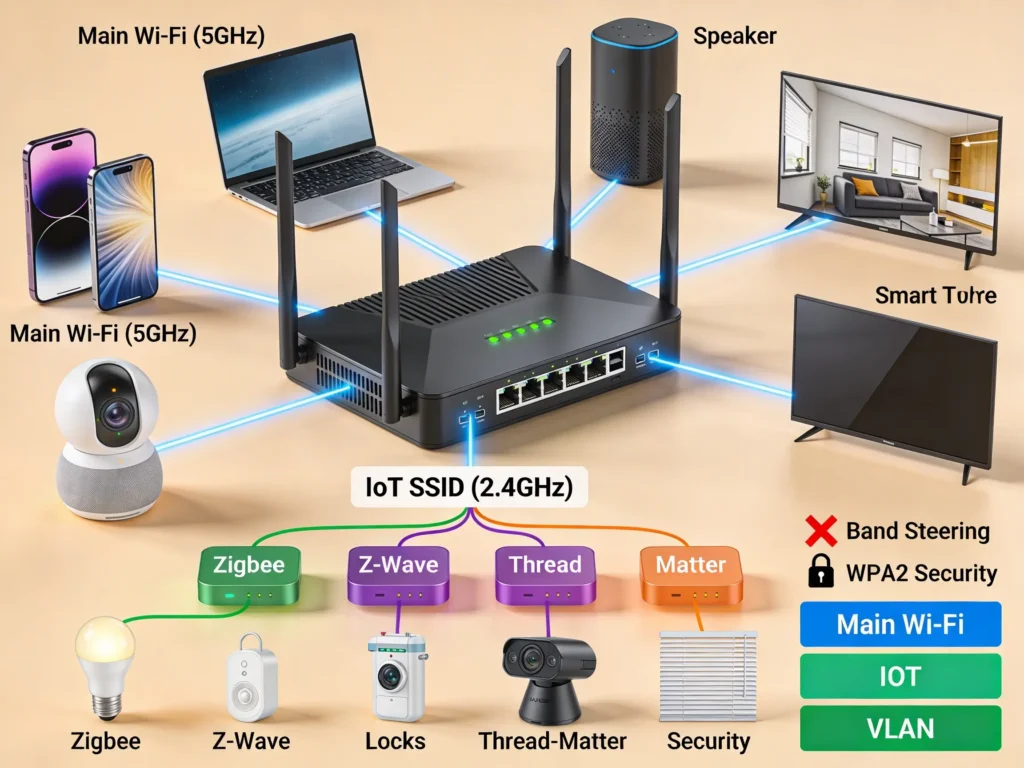
Separate Your IoT Network
This is the single best thing you can do for your smart home stability:
- Create a dedicated 2.4GHz SSID for your IoT devices
- Keep this SSID on a fixed Wi-Fi channel (channels 1, 6, or 11 are recommended)
- Set this SSID to WPA2 only
- Disable band steering for this SSID
- Consider using a VLAN to segment IoT traffic if your router supports it
Use a Dedicated Smart Home Hub
Instead of connecting every device directly to Wi-Fi, invest in a hub based ecosystem:
- Zigbee devices connected through a Zigbee coordinator (like a SONOFF Zigbee Bridge or a ConBee II)
- Z-Wave devices through a Z-Wave stick
- Thread/Matter devices through a Thread Border Router
These protocols do not depend on Wi-Fi, so router changes have minimal impact.
Which Smart Home Devices Are Most Vulnerable
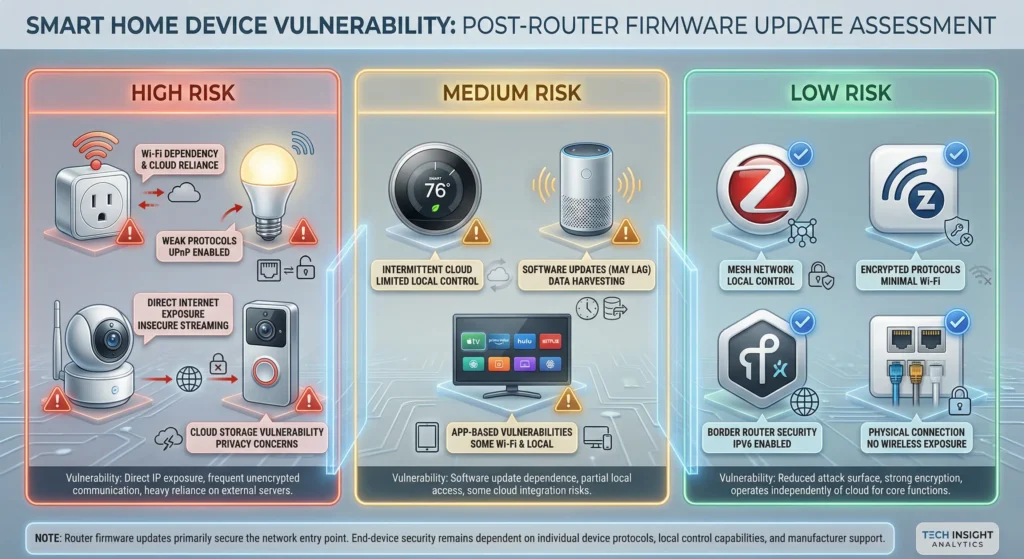
Not all smart home devices handle router changes equally. Here is a breakdown based on real world testing and community reports.
Most Vulnerable (High Risk)
| Device Type | Why They Break | Examples |
|---|---|---|
| Wi-Fi smart plugs | Basic Wi-Fi chips, no reconnection logic | Tuya plugs, Meross, Kasa TP-Link |
| Wi-Fi smart bulbs | Same limitations as plugs, harder to factory reset | Govee, Wyze Bulb, LIFX |
| Wi-Fi cameras | Sensitive to DNS and port changes | Wyze Cam, Blink, older Ring models |
| Smart doorbells | Depend on UPnP and cloud connectivity | Ring Video Doorbell (1st/2nd gen) |
Moderately Vulnerable (Medium Risk)
| Device Type | Why They Break | Examples |
|---|---|---|
| Smart thermostats | Usually reconnect, but may lose cloud features | Ecobee, older Nest models |
| Voice assistants | Generally resilient but can lose device discovery | Echo Dot, Google Nest Mini |
| Smart TVs | May need manual Wi-Fi reconnection | Samsung, LG, Roku TV |
Least Vulnerable (Low Risk)
| Device Type | Why They Survive | Examples |
|---|---|---|
| Zigbee devices | Do not use Wi-Fi directly | Aqara sensors, IKEA TRADFRI |
| Z-Wave devices | Independent radio protocol | Yale locks, Aeotec sensors |
| Thread/Matter devices | Modern protocol with resilience | Eve, Nanoleaf Thread |
| Wired Ethernet devices | No Wi-Fi dependency | Philips Hue Bridge (wired), HomeBridge server |
Router Brands and Known Smart Home Compatibility Issues
ASUS Routers
ASUS routers are popular among power users, but their firmware updates have been known to cause smart home issues. The AiMesh system, in particular, has had problems with multicast traffic that affects Hue Bridges and Chromecast devices. The AiProtection feature can also interfere with IoT cloud services.
Tip: After any ASUS firmware update, check that IGMP snooping is enabled and that AiProtection is not blocking your IoT devices.
For more details, check the ASUS support page on firmware updates.
TP-Link and Deco Mesh
TP-Link Deco systems are great for coverage but have a history of breaking smart home setups after firmware updates. Common issues include changes to DHCP behavior, band steering modifications, and mesh handoff problems that cause intermittent disconnections.
Tip: Always check the TP-Link community forum before updating.
Netgear and Orbi
Netgear Orbi mesh systems have had documented issues with IoT devices after firmware updates, particularly with the Armor security feature (powered by Bitdefender) blocking smart home traffic.
Tip: Review settings in the Orbi app after updates and check if Armor has quarantined any devices.
Google Nest WiFi and Google WiFi
Google’s mesh routers are generally more stable for Google ecosystem devices, but they offer limited advanced settings. When they do update, you have very little control over what changed, which can make troubleshooting more difficult.
Eero
Eero routers update automatically with no option to disable updates. While Amazon (Eero’s parent company) tests for smart home compatibility, there have been instances where updates broke Thread support or changed how devices were handled across the mesh.
For general router and smart home troubleshooting, the Home Assistant community forum is an excellent resource with detailed posts about specific router and device combinations.
Expert Tips for a Bulletproof Smart Home Network
After years of managing my own smart home and helping others fix theirs, here are my top recommendations:
1. Invest in a Proper Router
Consumer grade ISP routers are the weakest link in most smart home setups. Consider investing in a router that gives you full control over settings:
- Ubiquiti UniFi Dream Machine for advanced users
- ASUS RT-AX86U for a good balance of features and usability
- TP-Link Archer AX73 for budget friendly reliability
2. Run a Parallel Network During Updates
If you have a spare router, set it up with your IoT SSID and password before updating your main router. Connect your smart devices to this temporary network while you update and test your primary router.
3. Keep a Network Map
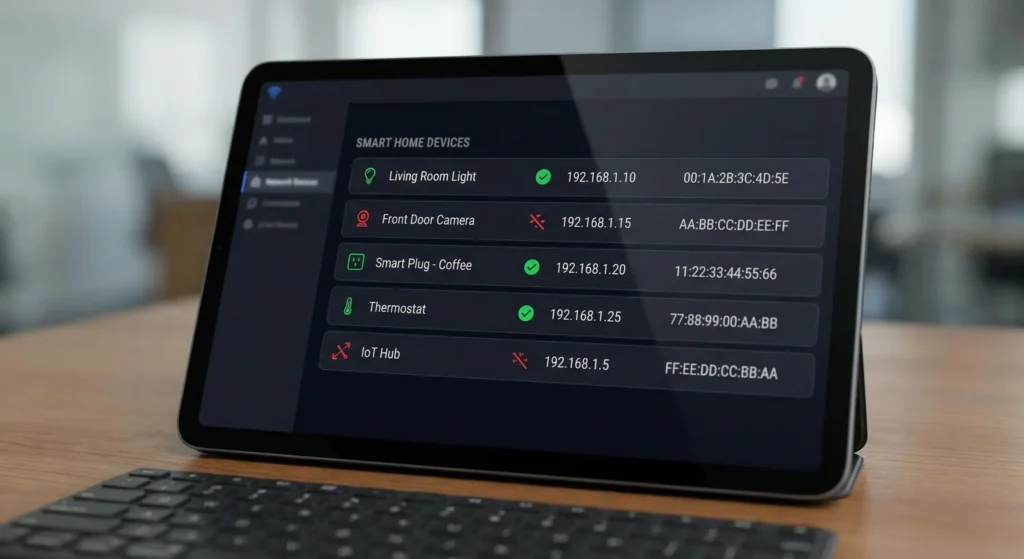
Maintain a spreadsheet with every smart device, its MAC address, assigned IP address, the SSID it connects to, and the protocol it uses. This document becomes invaluable when troubleshooting.
4. Use Home Assistant as a Central Hub
Home Assistant is a free, open source smart home platform that runs locally. Because it communicates with devices on your local network, it is more resilient to cloud outages and can help you monitor device connectivity in real time.
5. Set Up Network Monitoring
Tools like Fing (available for iOS and Android) can alert you when devices go offline. Running a scan before and after a firmware update gives you an instant picture of what broke.
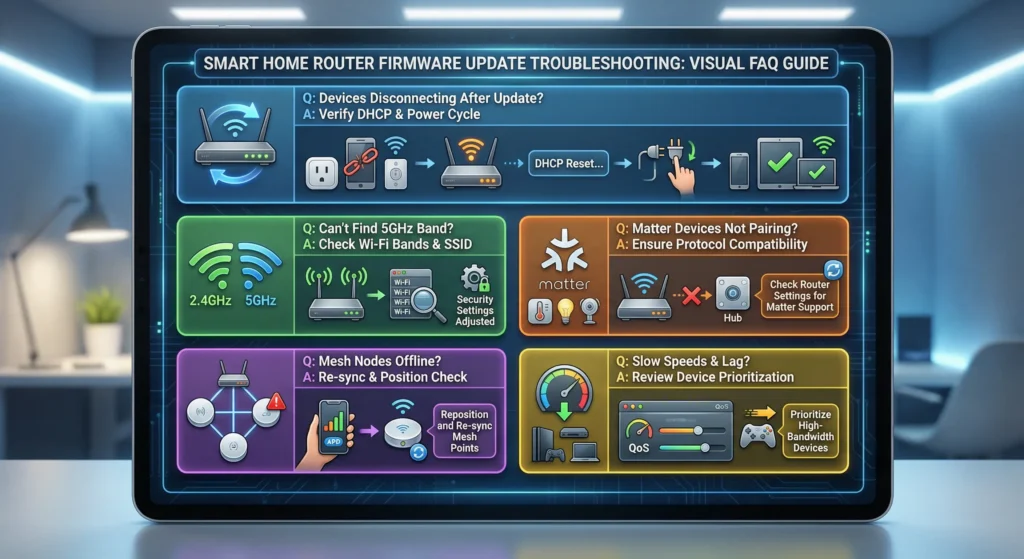
FAQ: Smart Home and Router Firmware Issues {#faq}
Why do my smart plugs go offline after a router update but my phone stays connected?
Your phone has a sophisticated Wi-Fi chip that can handle changes in security protocols, channel switches, and band transitions. Most smart plugs use basic ESP8266 or ESP8285 chips that have limited reconnection capabilities. They often cannot negotiate new security protocols or handle DHCP changes gracefully.
Should I roll back my router firmware to fix smart home issues?
Rolling back firmware can fix the immediate problem, but it is not a long term solution because you will miss security patches. Instead, try to identify the specific setting that changed and adjust it manually. Only roll back as a last resort and plan to update again once you have prepared your network properly.
Will Matter protocol fix these problems?
Matter is designed to improve interoperability and reduce these kinds of issues. Devices using Matter over Thread are particularly resilient because they do not rely on Wi-Fi. However, Matter over Wi-Fi devices will still be susceptible to the same router related issues. The standard is still evolving, and widespread adoption will take time.
How often do router firmware updates cause smart home problems?
Based on community reports and my own experience, roughly 1 in 4 major firmware updates causes some level of smart home disruption. Minor security patches are less likely to cause issues, but major version updates that change network behavior are higher risk.
Can a mesh Wi-Fi system prevent these problems?
Mesh systems can actually make the problem worse because firmware updates affect multiple nodes simultaneously. However, mesh systems that allow you to create separate SSIDs for IoT devices and offer granular controls (like Ubiquiti or ASUS AiMesh) give you more tools to manage the situation.
Do I need to re-pair all my devices after every router update?
No. In most cases, power cycling your devices and router in the correct order will restore connectivity. You should only need to re-pair devices if the SSID name, password, or security protocol changed during the update.
Is it safe to disable automatic router updates?
Disabling automatic updates means you take responsibility for applying security patches manually. This is acceptable as long as you commit to checking for updates regularly (at least monthly) and applying them promptly after reading the release notes.
Final Thoughts
Your smart home breaking after a router firmware upgrade is not a random glitch. It is a predictable consequence of how IoT devices interact with network infrastructure. The good news is that once you understand the underlying causes, you can take concrete steps to prevent it from happening again.
The key takeaways from this article are:
- Understand what changes with each firmware update before applying it
- Separate your IoT devices onto a dedicated network whenever possible
- Disable automatic updates and manage them manually with a proper checklist
- Assign static IP addresses to critical smart home devices
- Keep a network map so you can troubleshoot quickly when issues arise
- Invest in hub based protocols like Zigbee, Z-Wave, or Thread to reduce Wi-Fi dependency
Your smart home should make your life easier, not harder. With the right preparation, a router firmware update can be a smooth, painless process instead of a weekend long recovery project.
If you found this guide helpful, bookmark it for the next time your router announces an update. Future you will be grateful.