Table of Contents
- Introduction
- What Happens When You Power Cycle Your Network
- Top Reasons Power Cycling Causes Automation Delays
- Real Scenario: A Smart Home That Went Dark for 6 Hours
- How DHCP Lease Renewal Disrupts Automation
- Zigbee and Z-Wave Mesh Networks: The Rebuilding Problem
- Cloud Based Automation Platforms and Reconnection Lag
- Step by Step: How to Power Cycle Without Breaking Automation
- Preventive Measures to Avoid Automation Delays After Network Restart
- Real User Experiences and Lessons Learned
- FAQ
- Final Thoughts
Introduction
You have likely experienced this before. Your internet starts acting up, so you do what most people do. You disconnect the router, give it a few seconds, then reconnect it. It sounds straightforward enough. But then your smart lights become unresponsive. Your thermostat drops offline. Your carefully configured automations simply disappear without a trace. Before you know it, you are spending three, four, or even six hours trying to understand why your entire smart home seems to have lost its memory.
Having spent over a decade working with home automation systems and network infrastructure, I can confidently say this ranks among the most widespread frustrations users encounter. What makes it even worse is that most people never connect the dots. They point fingers at their smart devices, the companion apps, or the platforms themselves. Yet the real culprit nearly always comes down to what unfolds behind the scenes the moment your network restarts.
In this article, I will break down exactly why power cycling network automation delays can stretch on for hours after a simple reboot, what is actually taking place on the technical level during that process, and most importantly, how you can prevent this issue from happening altogether.
What Happens When You Power Cycle Your Network
Before we dive into the delays, let us first understand what actually happens the moment you pull the plug on your router or modem.
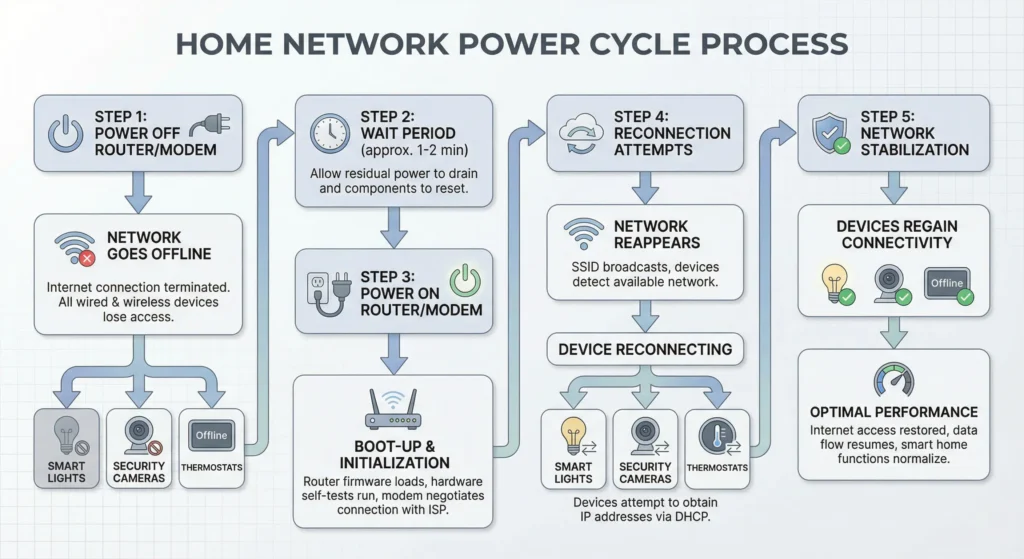
When you power cycle your network equipment, you are not just “restarting the internet.” You are essentially tearing down an entire communication ecosystem and forcing it to rebuild from scratch. Here is what occurs in sequence:
1. The Router Loses All Active Connections
Every device connected to your network, whether through Wi-Fi or Ethernet, immediately loses its connection. This includes your phone, laptop, smart speakers, security cameras, smart plugs, and every automation hub in your home.
2. DHCP Leases Are Disrupted
Your router assigns IP addresses to devices through a system called DHCP (Dynamic Host Configuration Protocol). When the router restarts, it may assign different IP addresses to your devices. This is where a huge chunk of automation problems begin.
3. DNS Cache Is Cleared
The router maintains a DNS cache that helps devices quickly resolve domain names to IP addresses. When you restart, that cache is wiped clean, and every device has to rebuild its DNS lookups from scratch.
4. NAT Tables Are Reset
Network Address Translation tables, which track active connections between your internal devices and the internet, are completely erased. Any ongoing cloud connections your automation devices were maintaining are instantly severed.
5. Device Reconnection Begins
Each device starts competing for bandwidth as they all try to reconnect simultaneously. This creates a traffic jam that can slow down the entire reconnection process significantly.
Top Reasons Power Cycling Causes Automation Delays
Now let us get into the specific reasons why your automations stall for hours after a network restart. Each of these factors can contribute to the problem, and in many cases, several of them combine to create a perfect storm of delays.
Reason 1: IP Address Changes Break Device Communication
Many automation platforms reference devices by their IP addresses internally. When your router assigns a new IP to a device after restarting, the automation platform may not recognize that device until it performs a new discovery scan. Some platforms do this automatically, but it can take anywhere from 30 minutes to several hours.
Reason 2: Cloud Authentication Tokens Expire
Smart home devices maintain persistent connections to cloud servers using authentication tokens. When the network drops, these tokens can expire. The device then needs to re-authenticate, and depending on the cloud service, this process may involve multiple handshakes that take time.
Reason 3: Zigbee and Z-Wave Mesh Networks Need to Rebuild
If you use Zigbee or Z-Wave devices, they operate on mesh networks where each device acts as a repeater. When power is cycled, these mesh routes are disrupted and need to be re-established. A full Zigbee mesh can take up to 24 hours to fully optimize itself.
Reason 4: Hub Reconnection Queues
Smart home hubs like SmartThings, Hubitat, or Home Assistant need to reconnect to every single device. If you have 50 or more devices, the hub processes these reconnections in a queue. Each device takes time, and the entire process can stretch into hours.
Reason 5: Rate Limiting by Cloud Services
Some cloud platforms implement rate limiting. When dozens of devices suddenly try to reconnect simultaneously, the cloud service may throttle these requests to prevent overload. This means your devices reconnect slowly, one by one, with forced delays between each.
Reason 6: Firmware Sync and State Checks
After reconnecting, many devices perform a firmware version check and state synchronization with the cloud. If there is a pending update or a state mismatch, the device may enter a sync loop that takes additional time to resolve.
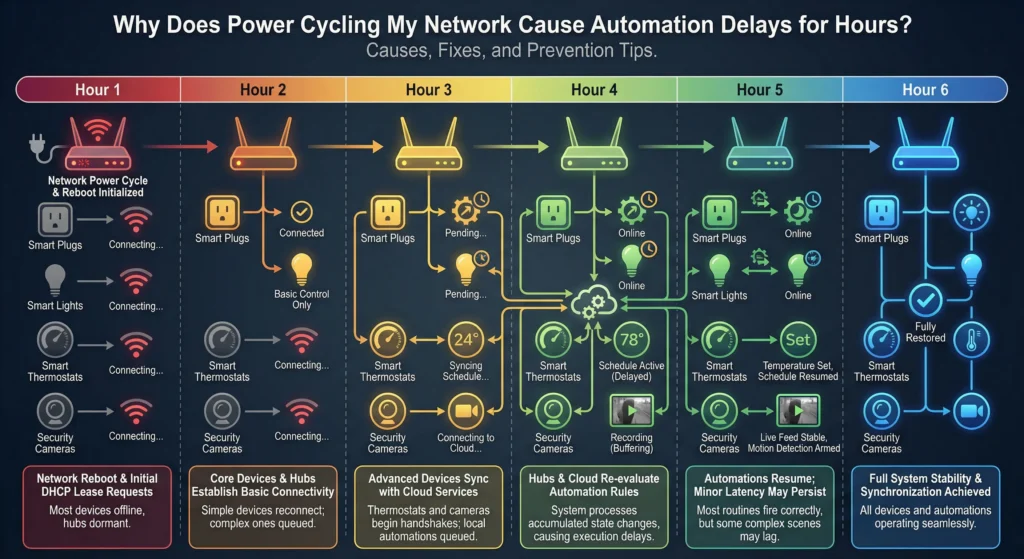
Real Scenario: A Smart Home That Went Dark for 6 Hours
Let me share a real situation that happened to a colleague of mine, someone who runs a fairly advanced smart home with over 70 connected devices.
He experienced a brief power outage one evening. Nothing dramatic, just about 30 seconds. His UPS kept his server running, but his router and modem lost power. When everything came back online, he expected things to normalize within a few minutes.
Here is what actually happened:
Hour 1: His Wi-Fi smart plugs reconnected, but they all received new IP addresses. His Home Assistant instance could not find half of them. His Zigbee coordinator was online, but only 12 out of 40 Zigbee devices were responding.
Hour 2: He noticed that his automated lighting scenes were not working. The system was trying to send commands to the old IP addresses. He had to manually update several integrations.
Hour 3: His Z-Wave door locks finally came back online, but they reported incorrect states. The system thought the front door was unlocked when it was actually locked. His security automation triggered a false alert.
Hour 4 to 6: The Zigbee mesh was still rebuilding. Devices that were acting as repeaters were slowly re-establishing routes. His motion sensors in the garage did not respond until almost the sixth hour.
The total downtime for full automation recovery was approximately 6 hours. All because of a 30 second power outage.
This is not an extreme case. This is what happens in a moderately complex smart home when the network is power cycled without proper safeguards in place.
How DHCP Lease Renewal Disrupts Automation
DHCP is one of the biggest culprits behind automation delays, and most people do not even know what it is. Let me explain it in simple terms.
What is DHCP?
DHCP stands for Dynamic Host Configuration Protocol. It is the system your router uses to assign IP addresses to every device on your network. Think of it like a hotel front desk assigning room numbers to guests. Every time a guest checks in, they might get a different room.
Why Does This Matter for Automation?
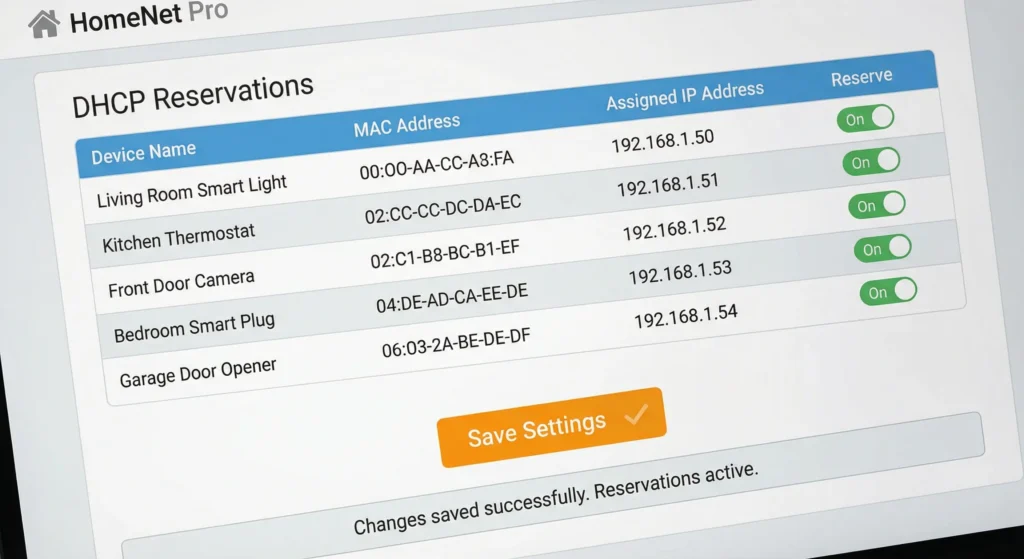
When your automation platform sets up a routine like “turn on the living room light at sunset,” it often stores the command as “send ON signal to device at 192.168.1.45.” If your router assigns that light a new address like 192.168.1.72 after a restart, the automation sends the command to the wrong address, and nothing happens.
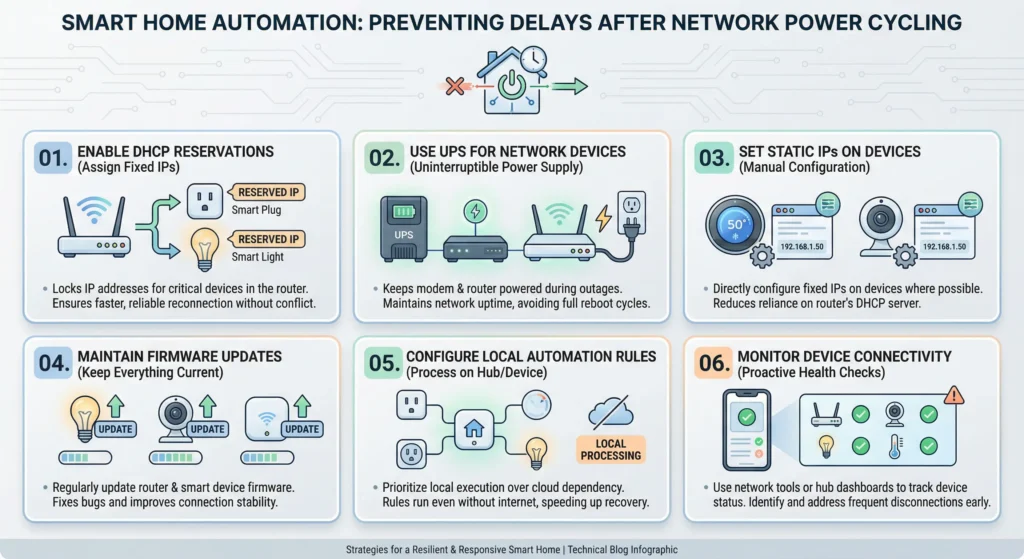
The Solution: Static IP Addresses or DHCP Reservations
The fix is straightforward. You need to assign static IP addresses or create DHCP reservations for every smart device on your network. This ensures that each device always gets the same IP address, even after a network restart.
Here is how to set up DHCP reservations:
- Log into your router admin panel (usually 192.168.1.1 or 192.168.0.1)
- Find the DHCP settings section
- Look for connected devices or client list
- Select each smart device and choose “Reserve” or “Add Reservation”
- Save the settings
This one change alone can reduce your automation recovery time from hours to minutes.
Zigbee and Z-Wave Mesh Networks: The Rebuilding Problem
If you use Zigbee or Z-Wave devices, you face an additional layer of complexity that Wi-Fi devices do not have.
How Mesh Networks Work
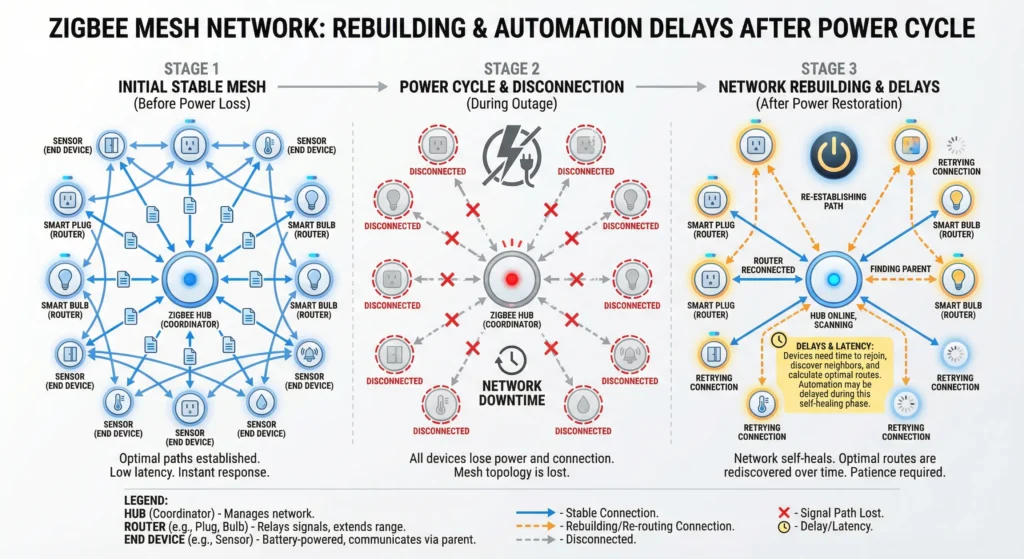
Zigbee and Z-Wave create mesh networks where devices relay signals to each other. A command from your hub to a sensor in the garage might travel through three or four intermediary devices before reaching its destination. This mesh structure is what gives these protocols their reliability and range.
What Happens During a Power Cycle
When you power cycle your network, your Zigbee or Z-Wave coordinator (usually inside your hub) restarts. When it comes back online, it needs to:
- Rediscover all devices on the mesh
- Rebuild the routing tables that define how messages travel between devices
- Verify the status of each device
- Re-establish group associations
Why This Takes Hours
The mesh routing table is not rebuilt instantly. The coordinator sends out discovery messages, waits for responses, calculates optimal routes, and stores the new routing table. In a mesh with 30 or more devices, this process can take 2 to 4 hours for basic functionality and up to 24 hours for full optimization.
Tips to Speed Up Mesh Recovery
- Keep mains-powered devices on a UPS: Zigbee routers (mains-powered devices) need to stay online for the mesh to rebuild faster
- Run a Zigbee network heal manually: Platforms like Home Assistant and Hubitat let you trigger a network heal, which forces the coordinator to rebuild routes immediately
- Avoid moving devices during recovery: Physical changes during mesh rebuilding can extend the process
- Use Zigbee 3.0 devices: Newer Zigbee 3.0 devices have faster reconnection protocols compared to older Zigbee Home Automation devices
For more details on Zigbee mesh behavior, you can read the Zigbee Alliance official documentation.
Cloud Based Automation Platforms and Reconnection Lag
Many popular automation platforms rely heavily on cloud connectivity. This adds another variable to the delay equation.
Platforms That Depend on Cloud Connections
- Amazon Alexa: All routines are processed in the cloud
- Google Home: Automation logic runs on Google servers
- Samsung SmartThings: Most processing happens in the cloud (though newer versions have local processing)
- IFTTT: Entirely cloud based
- Apple HomeKit: Primarily local, but some features need iCloud
What Causes Cloud Reconnection Delays
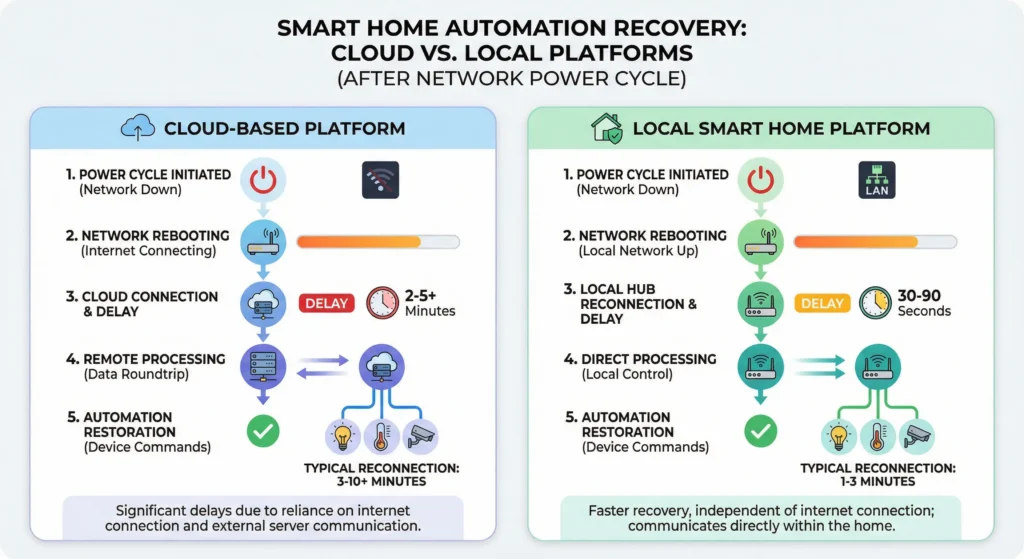
When your network comes back online after a power cycle, your devices need to re-establish secure connections to their respective cloud servers. This process involves:
- DNS Resolution: Finding the cloud server address (new DNS lookups needed since the cache was cleared)
- TLS Handshake: Establishing an encrypted connection (this requires multiple round trips)
- Authentication: Verifying device identity and refreshing tokens
- State Sync: Uploading current device state and downloading pending commands
- Subscription Renewal: Re-subscribing to event streams and push notifications
Each of these steps takes time, and if the cloud service is experiencing high traffic, the delays compound.
Why Local Automation Is Faster to Recover
This is one of the strongest arguments for using local automation platforms like Home Assistant, Hubitat, or HomeSeer. These platforms process automation logic locally, without needing to reach out to the internet. After a network restart, they only need to reconnect to local devices, which is significantly faster than waiting for cloud services to respond.
For a deeper comparison of local vs cloud automation, check out this resource from Home Assistant Community.
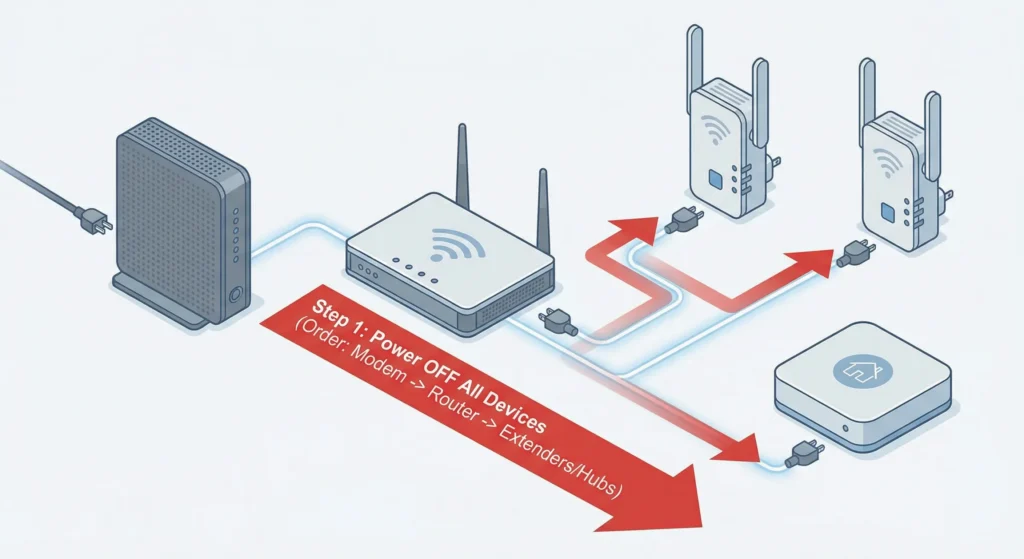
Step by Step: How to Power Cycle Without Breaking Automation
Sometimes you genuinely need to restart your network. Maybe the internet is down, or you are troubleshooting a connectivity issue. Here is the right way to do it without causing hours of automation delays.
Step 1: Notify Your Automation Platform
If your platform supports it, trigger a “maintenance mode” or pause all automations before you restart the network. In Home Assistant, you can create a script that disables all automations with a single tap.
Step 2: Power Down in the Correct Order
Follow this sequence:
- Turn off smart home hubs and controllers first
- Turn off network switches (if you have managed switches)
- Turn off the router
- Turn off the modem
Step 3: Wait at Least 30 Seconds
Give all capacitors in your equipment time to fully discharge. This ensures a clean restart and avoids partial boot states.
Step 4: Power Up in Reverse Order
- Turn on the modem first and wait until it fully connects to your ISP (look for solid indicator lights)
- Turn on the router and wait until Wi-Fi broadcasts are active
- Turn on network switches
- Turn on smart home hubs last
Step 5: Give Devices Time to Reconnect
Wait at least 10 to 15 minutes before interacting with your automations. Resist the urge to start troubleshooting immediately. Many devices need this buffer time to reconnect naturally.
Step 6: Run a Network Heal (If Applicable)
For Zigbee and Z-Wave networks, run a network heal after all devices have had a chance to reconnect. Wait at least 30 minutes after the hub is online before initiating this.
Step 7: Re-enable Automations
Once devices are back online and reporting correct states, re-enable your automations and test a few key routines to confirm everything is working.
Preventive Measures to Avoid Automation Delays After Network Restart
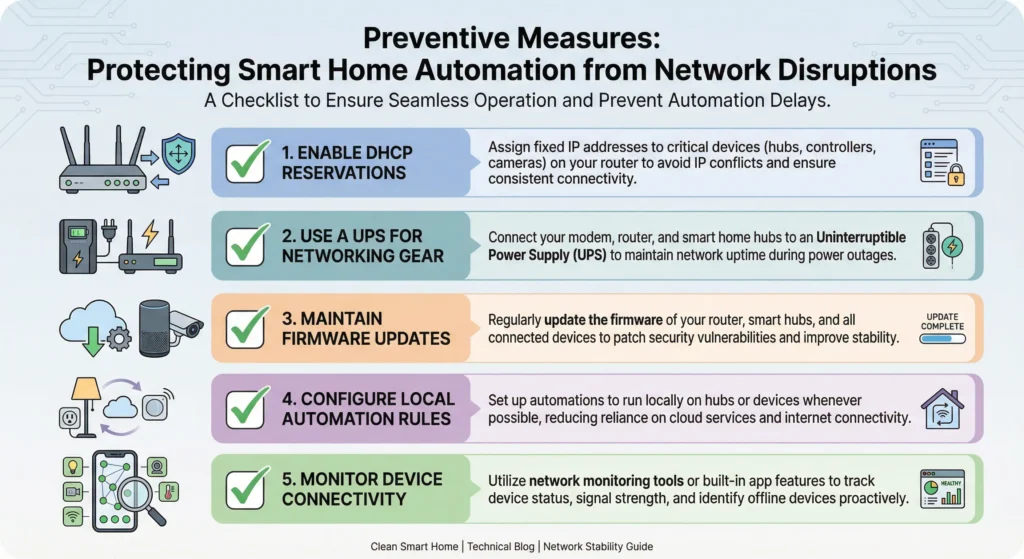
Prevention is always better than troubleshooting. Here are proven strategies to minimize or eliminate automation delays caused by network restarts.
1. Use a UPS (Uninterruptible Power Supply)
Invest in a quality UPS for your modem, router, and smart home hub. A good UPS can keep your network running through brief power outages, which are the most common cause of unplanned power cycles. Models like the APC Back-UPS series are affordable and reliable for home use.
2. Assign Static IP Addresses to All Smart Devices
As mentioned earlier, DHCP reservations prevent IP address changes that break automations. Take an hour one weekend and set up reservations for every smart device on your network.
3. Use a Dedicated IoT Network
Create a separate VLAN or SSID for your smart home devices. This isolates IoT traffic from your regular network and can speed up reconnection times since there is less competition for bandwidth.
4. Switch to Local Automation Where Possible
Move your automation logic to local platforms. Even if you use Alexa or Google Home for voice control, you can run the actual automations locally through Home Assistant or Hubitat and simply use the voice assistants as triggers.
5. Implement Device Watchdog Automations
Create automations that monitor device connectivity and automatically attempt to reconnect or restart unresponsive devices. Home Assistant has integrations like “Ping” and “Device Tracker” that can help with this.
6. Keep Firmware Updated
Manufacturers regularly release firmware updates that improve reconnection behavior. Keeping your router, hub, and device firmware updated can significantly reduce recovery times.
7. Document Your Network
Maintain a spreadsheet or document that lists every device, its MAC address, its assigned IP, and its role in your automation setup. This makes troubleshooting after a network restart much faster.
Real User Experiences and Lessons Learned
Experience 1: The Frustration of a Google Home User
A Reddit user shared their experience on r/googlehome about how every time their ISP performed maintenance, their Google Home routines would stop working for 3 to 4 hours. The routines were set to turn on lights at specific times and adjust the thermostat based on schedules. After the network came back, the routines would either fire late, skip entirely, or trigger all at once in a burst.
Lesson Learned: Cloud-dependent routines are vulnerable to network disruptions. The user eventually migrated critical automations to a local Home Assistant instance and kept Google Home only for voice commands.
Experience 2: SmartThings and Z-Wave Lock Issues
Another user on the SmartThings Community Forum reported that their Z-Wave smart locks would show incorrect lock states for up to 5 hours after a network restart. The security implications were serious, as the system was reporting the door as “locked” when it was actually unlocked.
Lesson Learned: Always verify security device states manually after a network restart. Do not rely solely on automation for security-critical devices until you have confirmed the system has fully recovered.
Experience 3: Home Assistant and Zigbee Recovery
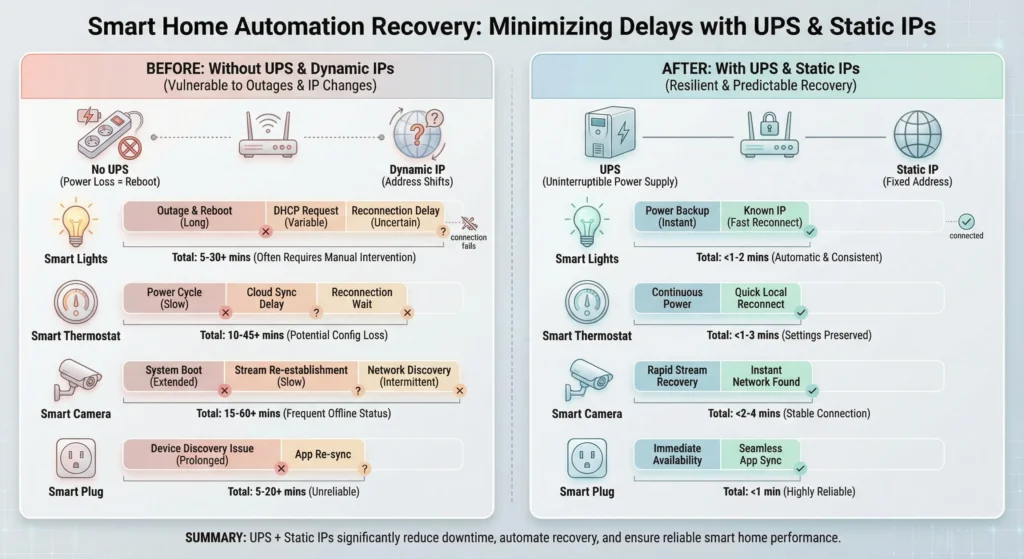
A Home Assistant user documented their Zigbee mesh recovery time after a power outage. With 65 Zigbee devices, it took approximately 4 hours for all devices to respond reliably. However, after implementing DHCP reservations and putting the coordinator on a UPS, their recovery time dropped to under 20 minutes.
Lesson Learned: A small investment in infrastructure (UPS and static IPs) can dramatically reduce recovery times.
Frequently Asked Questions (FAQ)
How long does it take for smart home devices to reconnect after a network restart?
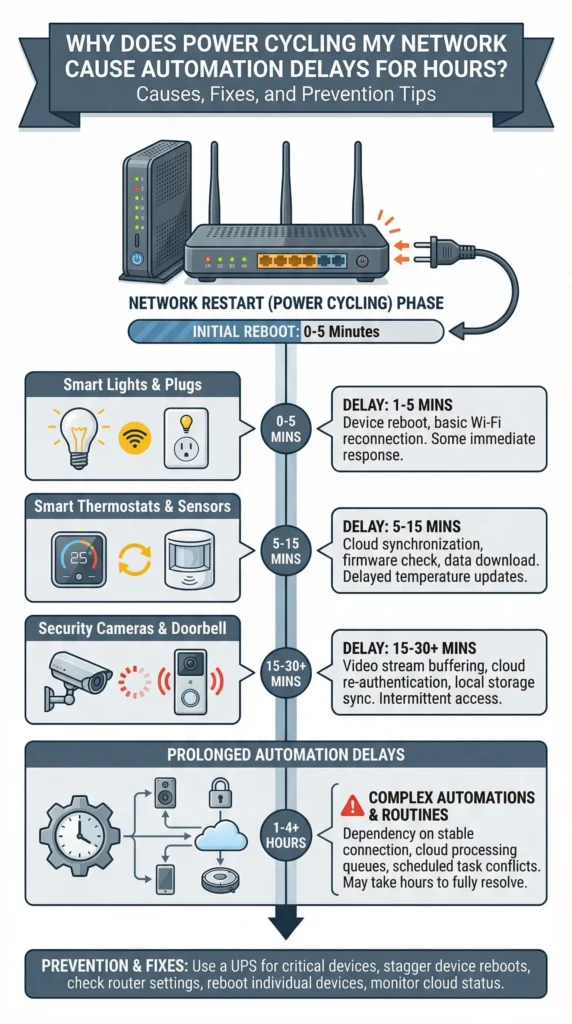
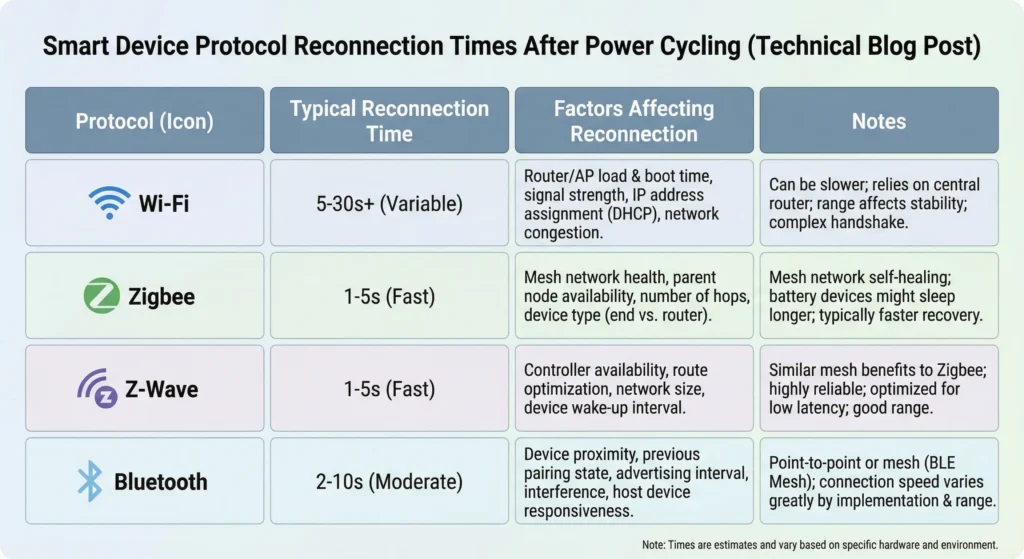
It depends on the protocol and platform. Wi-Fi devices typically reconnect within 2 to 10 minutes. Zigbee devices can take 30 minutes to several hours. Z-Wave devices usually reconnect within 15 to 60 minutes. Cloud-dependent platforms may take 1 to 4 hours for full functionality.
Will a UPS completely prevent automation delays?
A UPS prevents delays caused by brief power outages by keeping your network equipment running. However, if you intentionally restart your network or experience an extended outage that exceeds the UPS battery life, you will still experience some level of delay.
Do static IP addresses really make a difference?
Yes, absolutely. Static IP addresses or DHCP reservations are one of the single most effective steps you can take. They eliminate the most common cause of automation failures after network restarts, which is IP address changes.
Should I switch from cloud-based to local automation?
If minimizing downtime is important to you, local automation is the better choice for critical routines. You can use a hybrid approach where local platforms handle essential automations and cloud platforms handle convenience features.
Does the type of router affect recovery time?
Yes. Enterprise-grade or prosumer routers with faster boot times, better DHCP handling, and more robust firmware tend to reduce overall recovery times. Mesh routers like Ubiquiti UniFi or TP-Link Omada are popular choices for smart homes.
Can I automate the recovery process itself?
Yes. Platforms like Home Assistant allow you to create automations that detect when the system comes back online and automatically run recovery scripts, such as triggering a Zigbee network heal, checking device states, and sending you a notification when all devices are back online.
Why do some devices recover faster than others?
Devices with better firmware and more robust reconnection logic recover faster. Additionally, devices connected via Ethernet recover faster than Wi-Fi devices, and local devices recover faster than cloud-dependent ones.
Is it safe to power cycle my network frequently?
Occasional power cycling is fine and can actually resolve some issues. However, frequent power cycling (multiple times per day) can stress your equipment and lead to premature hardware failure. It can also prevent your Zigbee and Z-Wave meshes from ever fully optimizing.
Final Thoughts
Power cycling your network might seem like a simple and harmless troubleshooting step, but when you have a smart home with dozens of connected devices and automated routines, it can trigger a cascade of delays that take hours to resolve.
The good news is that this is a solvable problem. By understanding what happens during a network restart, setting up DHCP reservations, investing in a UPS, following the correct power cycling sequence, and moving critical automations to local platforms, you can reduce your recovery time from hours to minutes.
The key takeaway is this: treat your network infrastructure as the foundation of your smart home. Just like a house needs a solid foundation, your automations need a stable, well-configured network to function reliably.
If you found this article helpful, I encourage you to take action today. Start with DHCP reservations. It takes less than an hour and makes a world of difference. Your future self, the one who does not have to spend 6 hours fixing automations after a power outage, will thank you.