Table of Contents
- Introduction
- What Is Dual-WAN Load Balancing and How Does It Work?
- How Cloud Automations Rely on Network Consistency
- Why Dual-WAN Load Balancing Breaks Cloud Automations
- Real-World Scenarios Where This Problem Occurs
- Step-by-Step Guide to Diagnose the Issue
- Proven Fixes and Safe Solutions
- Best Practices for Running Cloud Automations on Dual-WAN Networks
- Tools and Resources That Help
- Frequently Asked Questions (FAQ)
- Final Thoughts
Introduction
You spent hours building the perfect automation workflow. Zapier triggers fire correctly. Your CRM syncs with your email platform. Inventory updates push to your cloud dashboard in real time. Everything works flawlessly.
Then your IT team enables dual-WAN load balancing on the office router to improve internet speed and redundancy. Suddenly, automations start failing randomly. API calls return authentication errors. Webhooks stop firing. OAuth tokens expire without warning.
If this sounds familiar, you are not alone. I have seen this exact problem disrupt operations for small businesses, agencies, and even mid-size enterprises. The frustrating part is that nobody tells you this will happen when you set up load balancing. The router manual never warns you. The cloud automation platform support team scratches their heads because “everything looks fine on their end.”
In this article, I will explain exactly why enabling dual-WAN load balancing break cloud automations, walk you through real scenarios I have encountered, and give you practical, safe solutions you can implement today.
What Is Dual-WAN Load Balancing and How Does It Work?
The Basic Concept
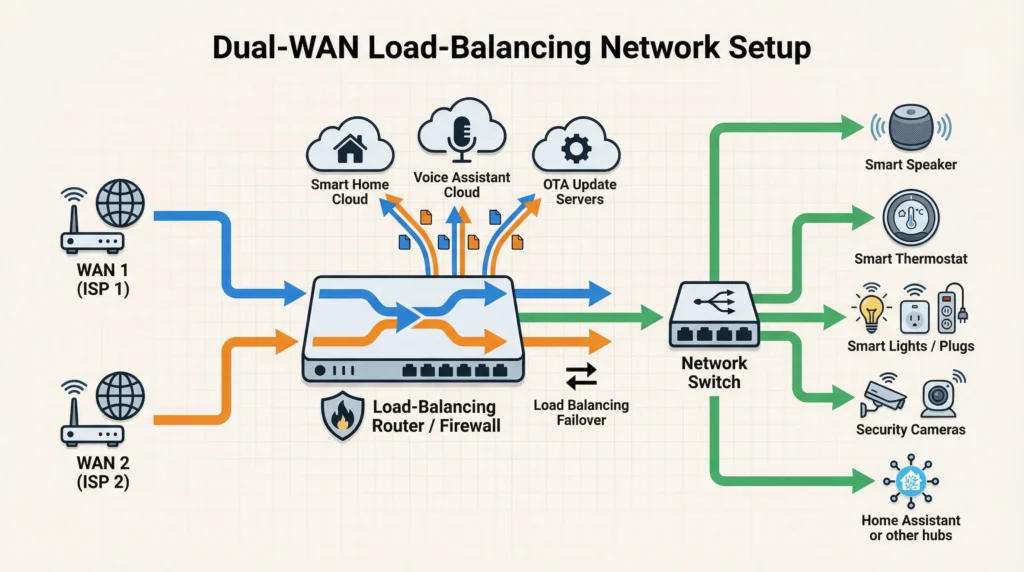
Dual-WAN load balancing is a networking feature that allows a router to use two separate internet connections simultaneously. Instead of relying on a single ISP, the router distributes outgoing traffic across both connections based on predefined rules.
Common Load Balancing Methods
There are several methods routers use to distribute traffic:
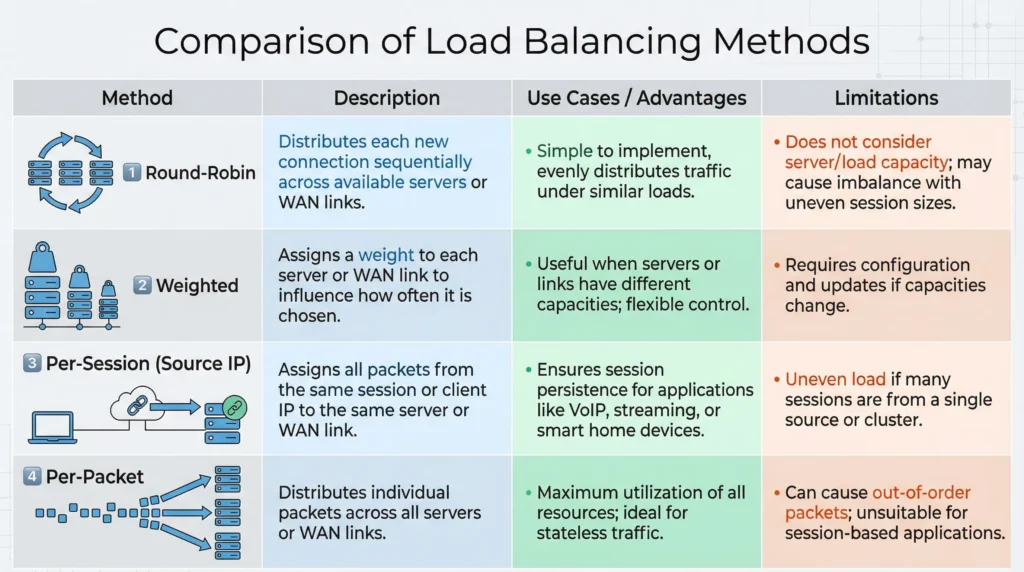
Round-Robin Distribution: The router alternates requests between WAN 1 and WAN 2. Request one goes through ISP A, request two goes through ISP B, and so on.
Weighted Load Balancing: If one connection is faster than the other, you assign a weight ratio. For example, 70% of traffic goes through the faster line and 30% through the slower one.
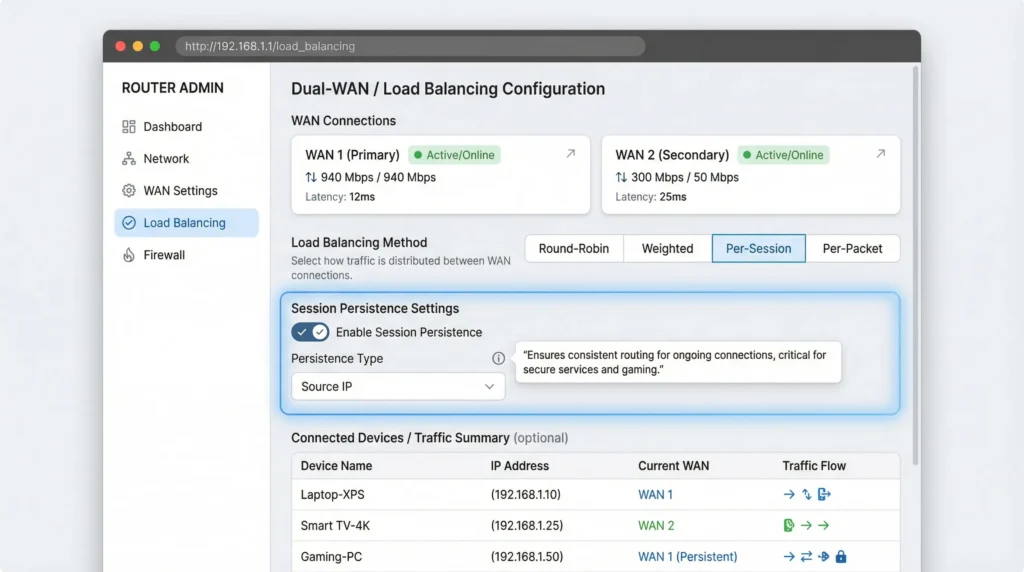
Per-Session Balancing: Each new session gets assigned to one of the two WAN connections. Once a session starts on WAN 1, it stays on WAN 1 until it ends.
Per-Packet Balancing: This is the most aggressive method. Individual packets within the same session can be sent over different WAN connections.
Why Businesses Use Dual-WAN
The benefits are clear and appealing:
- Increased total bandwidth
- Internet redundancy if one ISP goes down
- Better performance for high-traffic environments
- Cost savings compared to upgrading to a single premium business line
The problem is that these benefits come with a hidden cost that most network administrators do not anticipate until something breaks.
How Cloud Automations Rely on Network Consistency
The Invisible Expectations of Cloud Platforms
Cloud automation platforms like Zapier, Make (formerly Integromat), Microsoft Power Automate, AWS Lambda, and n8n all share a common assumption: your network connection behaves predictably.
Here is what cloud automations expect from your network:
Consistent Source IP Address
When your automation authenticates with a cloud API, the API server records your public IP address. Many APIs validate that subsequent requests in the same session come from the same IP. This is a security measure designed to prevent session hijacking.
Stable TCP Sessions
Automation workflows often involve multi-step API calls. A single Zap might:
- Authenticate with Service A
- Pull data from Service A
- Transform the data
- Push the data to Service B
- Confirm the transaction
All of these steps may need to happen within the same TCP session or at least from the same source IP.
OAuth Token Binding
OAuth 2.0 tokens, which power most modern cloud integrations, are frequently bound to the IP address that initiated the authorization flow. When the token is used from a different IP, the API server may reject it as potentially compromised.
Webhook Delivery Confirmation
Many webhooks use a handshake mechanism where the sending service expects a response from the same IP that registered the webhook endpoint. IP inconsistencies can cause webhook registration to fail silently.
Why Dual-WAN Load Balancing Breaks Cloud Automations
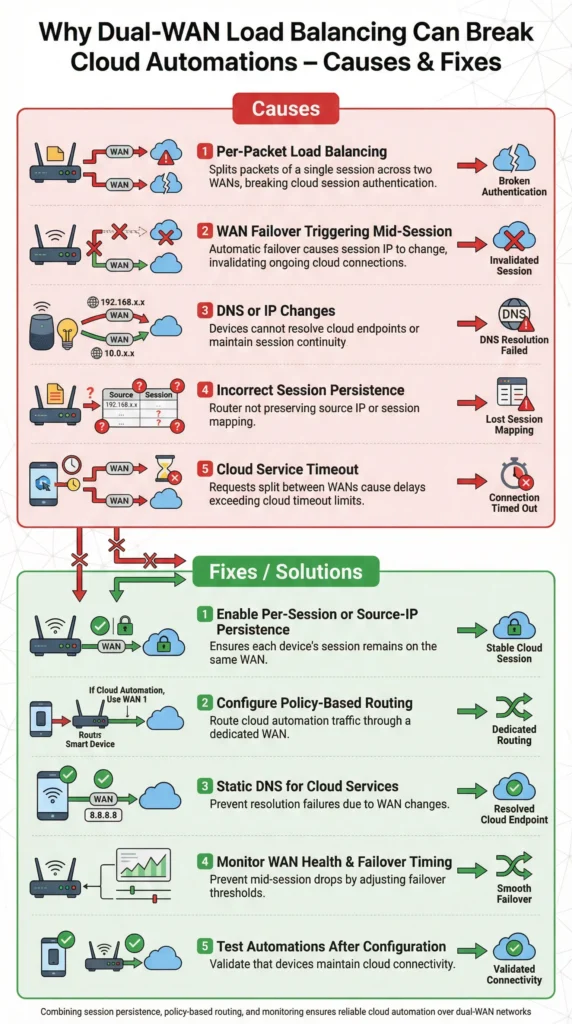
Now let us connect the dots. Here are the specific technical reasons why enabling load balancing causes cloud automations to fail.
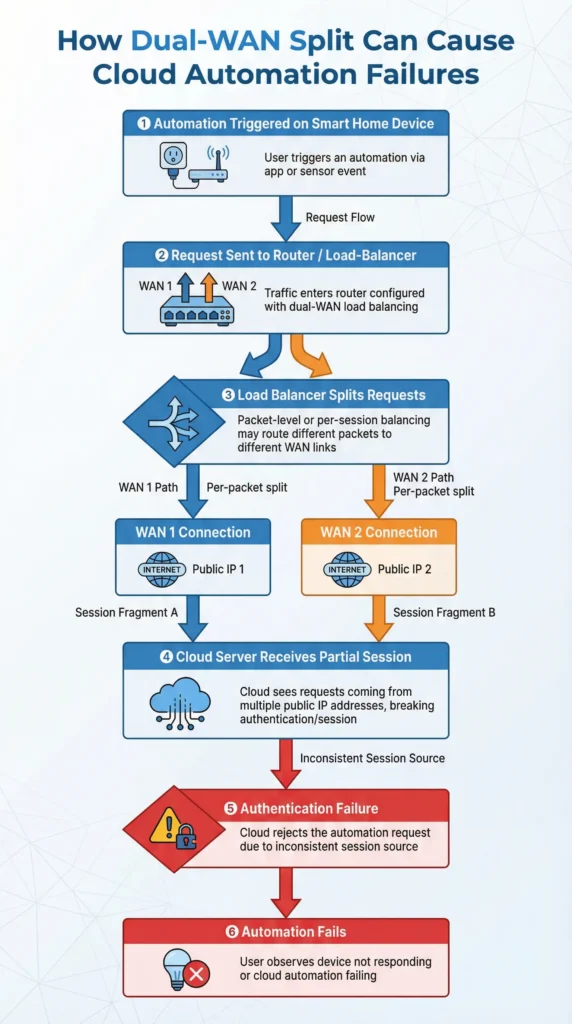
1. IP Address Flipping Mid-Session
This is the number one culprit. When load balancing is active, your outgoing requests can alternate between two different public IP addresses, one from each ISP.
Imagine this sequence:
- Step 1 of your automation sends a request from IP 203.45.67.89 (WAN 1)
- Step 2 sends the next request from IP 198.51.100.22 (WAN 2)
- The API server sees a different IP and flags it as suspicious
- Authentication fails, and the automation stops
2. OAuth Token Invalidation
Services like Google Workspace, Salesforce, HubSpot, and Slack use OAuth tokens that are often IP-sensitive. When you authenticate through WAN 1 but the token refresh request goes through WAN 2, the OAuth provider may revoke the token entirely.
This results in the dreaded “Token expired” or “Re-authentication required” errors that seem to appear randomly.
3. Session Persistence Failures
Many cloud APIs use session cookies or session IDs tied to your IP address. Load balancing can break session persistence by routing different requests in the same workflow through different WAN interfaces.
4. DNS Resolution Inconsistencies
Each ISP may use different DNS servers. When your router switches between WANs, DNS resolution might return different results or experience different caching behaviors. This can cause automation tools to connect to different server endpoints unexpectedly.
5. SSL/TLS Handshake Interruptions
Secure connections require a complete TLS handshake. If the initial handshake packets go through WAN 1 but subsequent packets route through WAN 2, the handshake fails. The automation tool reports a connection error, and retries may also fail if they land on the other WAN.
6. Rate Limiting Confusion
Some APIs track rate limits per IP address. With two IPs hitting the same API, you might actually benefit in some cases, but more commonly, the API sees inconsistent behavior patterns and triggers abuse protection mechanisms.
Real-World Scenarios Where This Problem Occurs
Scenario 1: The E-Commerce Store That Lost Orders
A client of mine runs a Shopify store with automated order processing. They use Zapier to send new orders to their fulfillment center via API, update inventory in Google Sheets, and notify the team on Slack.
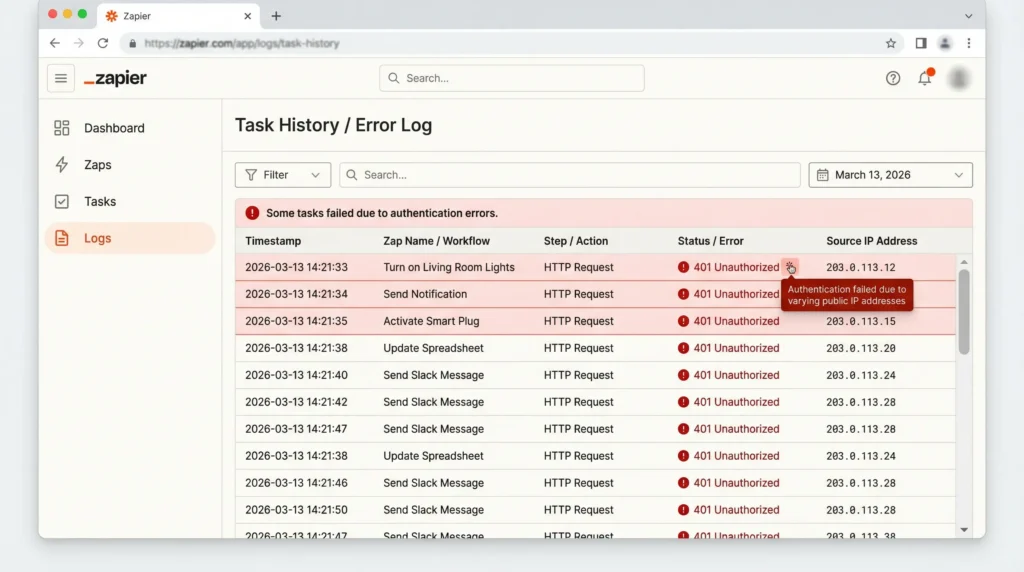
After their IT provider set up dual-WAN load balancing, about 15% of orders stopped syncing. The Zapier logs showed “401 Unauthorized” errors at random intervals. It took three weeks of troubleshooting before we traced it back to the load balancer flipping the source IP between the Shopify API calls.
The impact: Lost orders, angry customers, and manual reconciliation that consumed hours every week.
Scenario 2: The Marketing Agency with Broken HubSpot Workflows
An agency I consulted for had complex automations between HubSpot, Google Ads, and their reporting dashboard. After upgrading to a dual-WAN setup for faster file uploads, their HubSpot OAuth tokens started expiring every few hours instead of every few months.
The root cause was that token refresh requests were going through a different WAN than the original authentication, and HubSpot’s security layer was revoking the tokens as a precaution.
Scenario 3: The Remote Team with Failing Microsoft Power Automate Flows
A company with 50 remote workers set up dual-WAN at their main office where the server handling Power Automate triggers was located. Their flows connecting SharePoint, Teams, and Dynamics 365 started producing intermittent errors. Microsoft’s API was rejecting requests because the source IP kept changing between sequential API calls within the same flow execution.
Step-by-Step Guide to Diagnose the Issue
If you suspect dual-WAN load balancing is breaking your cloud automations, follow these diagnostic steps.
Step 1: Confirm Your Public IP Is Changing
Open two browser tabs. In each tab, visit https://whatismyipaddress.com. Refresh both tabs several times. If you see two different IP addresses appearing, your load balancer is actively distributing traffic across both WANs.
Step 2: Check Your Automation Error Logs
Go into your automation platform (Zapier, Make, Power Automate) and look at the error logs for failed tasks. Look specifically for these error types:
- 401 Unauthorized
- 403 Forbidden
- Token expired or invalid
- Session timeout
- Connection reset
Step 3: Correlate Failures with IP Changes
Use a simple script or monitoring tool to log your public IP at regular intervals. Compare the timestamps of IP changes with the timestamps of automation failures. If they align, you have found your culprit.
Here is a simple command you can run on your server:
Bashwhile true; do echo "$(date): $(curl -s ifconfig.me)"; sleep 10; done >> ip_log.txt
This logs your public IP every 10 seconds with a timestamp.
Step 4: Test with Load Balancing Disabled
Temporarily disable load balancing and run your automations on a single WAN connection. If the errors stop, you have confirmed the root cause.
Step 5: Review Your Router’s Session Persistence Settings
Log into your router’s admin panel and check if session persistence (also called sticky sessions or connection persistence) is enabled. Many routers have this disabled by default when load balancing is turned on.
Proven Fixes and Safe Solutions
Here are the solutions I have tested and confirmed to work across different router brands and automation platforms.
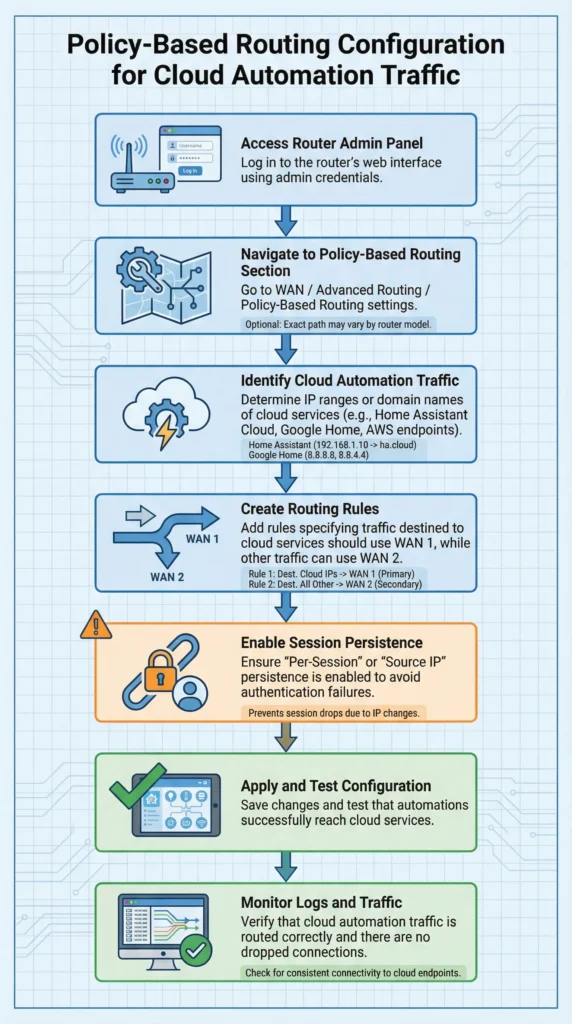
Fix 1: Enable Policy-Based Routing for Cloud Services
This is the most effective solution. Instead of letting the load balancer decide which WAN to use for all traffic, you create routing policies that force specific traffic through a designated WAN.
How to implement:
- Log into your router admin panel
- Navigate to the firewall or routing policy section
- Create a new policy rule
- Set the destination to include the IP ranges or domain names of your cloud automation services
- Force this traffic through WAN 1 (or whichever WAN you prefer)
- Save and apply the rule
Common domains to route through a single WAN:
- hooks.zapier.com
- hook.integromat.com (Make)
- login.microsoftonline.com
- accounts.google.com
- api.hubspot.com
- login.salesforce.com
Fix 2: Enable Session Persistence (Sticky Sessions)
Most enterprise-grade and prosumer routers support session persistence. When enabled, the router ensures that all packets belonging to the same session go through the same WAN interface.
Routers that support this feature:
- Ubiquiti UniFi Security Gateway and Dream Machine Pro
- TP-Link ER7206 and ER605
- Peplink Balance series
- pfSense (open source)
- Cisco RV340
Configuration example on pfSense:
- Go to System, then Routing, then Gateway Groups
- Set up your gateway group with both WANs
- Under the “Sticky Connections” option, check the box to enable it
- Set the sticky connection timeout (recommended: 3600 seconds or higher)
Fix 3: Use a Dedicated WAN for Automation Traffic
If your automations run from a specific server or device, assign that device a static route through one WAN connection only.
Steps:
- Assign a static internal IP to your automation server
- Create a routing rule in your router that sends all traffic from that specific internal IP through WAN 1
- Let all other office traffic continue using load balancing across both WANs
This way, your team benefits from the speed and redundancy of dual-WAN, while your automations enjoy the consistency of a single WAN.
Fix 4: Implement a VPN Tunnel for Automation Traffic
Route your automation traffic through a VPN tunnel. This gives all outgoing requests a single, consistent IP address regardless of which WAN the VPN traffic itself uses.
Recommended VPN options:
- A cloud-hosted VPN server on AWS, Azure, or DigitalOcean
- A commercial VPN with a dedicated IP address
- WireGuard for lightweight, fast VPN tunneling
Fix 5: Use IP Whitelisting with Both WAN IPs
If your cloud services support IP whitelisting, add both of your WAN public IP addresses to the whitelist. This does not solve session persistence issues, but it prevents authentication failures caused by IP-based access controls.
Important note: This fix alone is not sufficient for OAuth-based automations where tokens are bound to a single IP. Combine it with session persistence for best results.
Best Practices for Running Cloud Automations on Dual-WAN Networks
Practice 1: Always Test After Network Changes
Any time you modify your network configuration, run a full test of all active automations. Do not wait for failures to discover the problem.
Practice 2: Document Your WAN IP Addresses
Keep a record of both WAN public IP addresses. Update this record whenever your ISP changes them. Share this information with any cloud service that uses IP-based security.
Practice 3: Monitor Automation Health Proactively
Set up monitoring alerts for automation failures. Tools like UptimeRobot or Healthchecks.io can notify you immediately when a scheduled automation misses its expected run.
Practice 4: Choose the Right Load Balancing Algorithm
If you must use load balancing, prefer per-session balancing over per-packet or round-robin methods. Per-session balancing keeps entire sessions on the same WAN, which reduces (but does not eliminate) the risk of breaking automations.
Practice 5: Separate Network Segments
Use VLANs to separate automation servers from general office traffic. Apply different routing rules to each VLAN. This gives you granular control over which traffic uses load balancing and which does not.
Practice 6: Keep Firmware Updated
Router manufacturers regularly release firmware updates that improve load balancing algorithms and session tracking. Check for updates quarterly at minimum.
Tools and Resources That Help
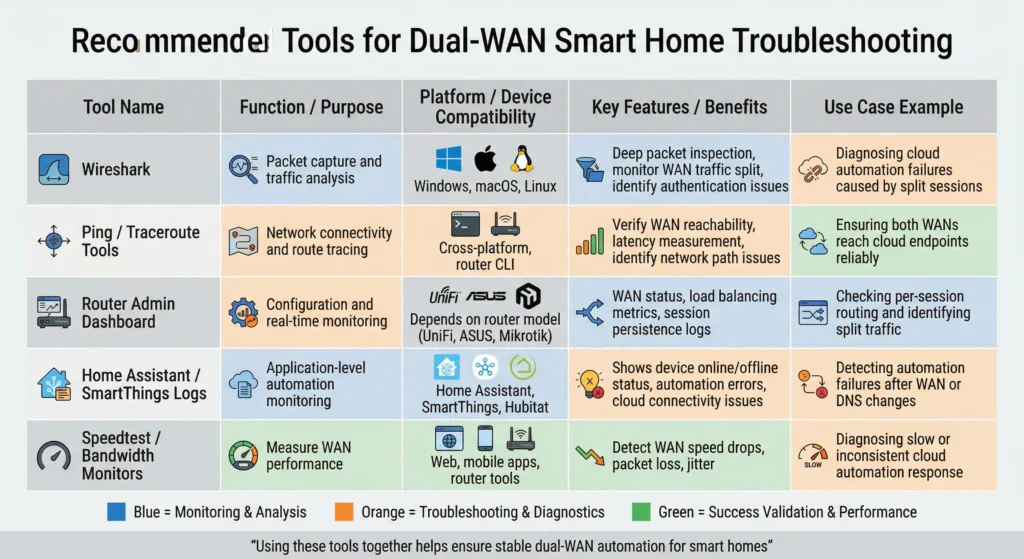
Here are tools and resources that can help you manage dual-WAN configurations alongside cloud automations:
Network Monitoring:
- PRTG Network Monitor for comprehensive network monitoring
- Wireshark for packet-level analysis
Automation Monitoring:
- Zapier Task History for Zapier workflow monitoring
- Make Scenario Logs for Make automation debugging
Router Configuration Guides:
- pfSense Documentation on Multi-WAN for pfSense users
- Ubiquiti Community Forums for UniFi users
VPN Solutions:
- WireGuard Official Site for lightweight VPN setup
- Tailscale for easy mesh VPN deployment
Frequently Asked Questions (FAQ)
Does dual-WAN failover (not load balancing) also cause this problem?
No, failover mode is generally safe for cloud automations. In failover mode, all traffic uses WAN 1 as the primary connection. WAN 2 only activates when WAN 1 goes down. Since traffic normally flows through a single WAN, your IP stays consistent. However, when a failover event occurs, your IP will change, which may cause a brief disruption.
Which cloud automation platforms are most affected?
Platforms that rely heavily on OAuth 2.0 and IP-based session validation are most affected. Zapier, Make, and Microsoft Power Automate are commonly reported to have issues. Platforms with more forgiving authentication, like some webhook-only integrations, may work fine even with load balancing.
Can I use dual-WAN load balancing with AWS or Azure cloud services?
Yes, but you need to configure policy-based routing. Route all traffic destined for AWS or Azure endpoints through a single WAN. Both AWS and Azure use IP-based security groups, and inconsistent source IPs will trigger access denials.
Will a static IP from my ISP solve this problem?
Having static IPs helps but does not solve the core problem. Even with static IPs on both WANs, you still have two different IPs. The issue is not whether the IPs change over time but that traffic alternates between two different IPs during active sessions.
How do I know if my router supports session persistence?
Check your router’s documentation for terms like “sticky sessions,” “session persistence,” “connection tracking,” or “session binding.” Enterprise routers almost always support this. Consumer-grade routers often do not.
Is per-packet load balancing ever safe for cloud automations?
No. Per-packet balancing is the most disruptive method for any application that requires session consistency. Avoid it entirely if you run cloud automations. Per-session balancing is the minimum requirement.
Can I whitelist both WAN IPs in my cloud service to fix the problem?
IP whitelisting helps with services that use IP-based access control lists, but it does not fix OAuth token binding issues or session persistence problems. Use it as a supplementary measure, not a complete solution.
Final Thoughts
Dual-WAN load balancing is a powerful networking feature that delivers real benefits in speed, redundancy, and cost savings. But it was designed with general web browsing and file downloads in mind, not for the persistent, session-dependent connections that cloud automations require.
The good news is that you do not have to choose between fast internet and working automations. With policy-based routing, session persistence, or dedicated WAN assignments for automation traffic, you can have both.
If you are currently experiencing random automation failures and you recently enabled load balancing, start with the diagnostic steps I outlined above. In my experience, the fix usually takes less than 30 minutes once you identify the root cause.
The key takeaway is this: before making any network infrastructure change, always consider its impact on your automation workflows. A quick test after every network change can save you weeks of troubleshooting and prevent lost revenue from broken integrations.
Your automations are only as reliable as the network they run on. Treat your network configuration as part of your automation strategy, and you will avoid the frustration that catches so many businesses off guard.