

Many users find that Google Home routines ignore temperature readings from Z-Wave thermostats and it’s one of the most frustrating smart home issues in 2026. You set everything up perfectly. Your Z-Wave thermostat is connected, your Google Home routine is configured, and you expect your smart home to react when the temperature hits a certain point. But nothing happens. The routine just… ignores the temperature condition entirely.
If you’re reading this right now, chances are you’ve spent hours troubleshooting, checking connections, restarting devices, and searching forums for answers. I’ve been there. In fact, I spent nearly two weeks trying to figure out why my Honeywell T6 Pro Z‑Wave thermostat wouldn’t trigger a simple Google Home routine based on temperature readings. It was maddening.
The good news? This is a known issue with a real explanation and there are actual workarounds that work. In this guide, I’ll walk you through exactly why this happens, what’s going on behind the scenes, and how to fix it step by step.
Table of Contents
- Understanding the Core Problem
- How Google Home Routines Actually Process Conditions
- Why Z‑Wave Thermostats Specifically Get Ignored
- The SmartThings / Hubitat Bridge Factor
- Real-World Scenarios and Experiences
- Step-by-Step Fixes That Actually Work
- Alternative Automation Platforms to Consider
- FAQ
- Final Thoughts
Understanding the Core Problem Between Google Home and Z‑Wave Thermostats
Before diving into fixes, you need to understand what’s actually happening when Google Home “ignores” your Z‑Wave thermostat’s temperature data.
Google Home routines support starters (triggers) and actions (what happens). In 2024 and into 2025, Google expanded routine capabilities to include conditions like time, device state, and theoretically sensor readings like temperature. However, the way Google Home communicates with Z‑Wave devices creates a fundamental disconnect.
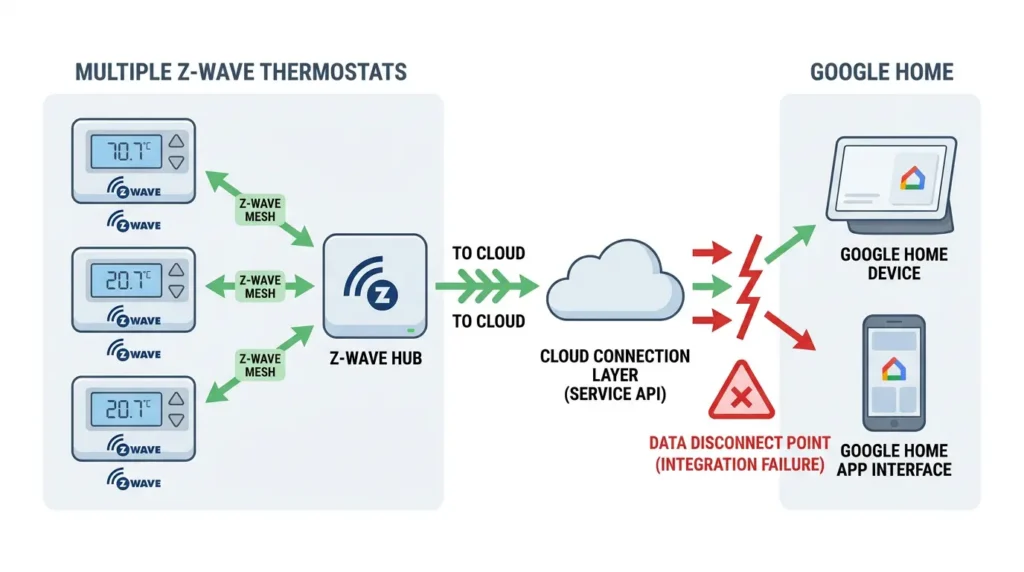
Z‑Wave devices don’t talk directly to Google Home. They communicate through a hub typically SmartThings, Hubitat, or a similar Z‑Wave controller. Google Home then connects to that hub’s cloud service (or local API) to receive device information.
Here’s where things break down: Google Home often treats Z‑Wave thermostats as simple on/off or setpoint devices, not as temperature sensors that can feed real-time data into routine conditions.
How Google Home Routines Actually Process Temperature Conditions
Google Home routines work on a polling model, not a push model for most third-party devices. This means:
Push vs. Polling Why It Matters
- Push model: The device immediately tells Google Home when something changes (e.g., “temperature just hit 75°F”).
- Polling model: Google Home periodically checks the device status, but the intervals can be 15 to 30 minutes apart or longer.
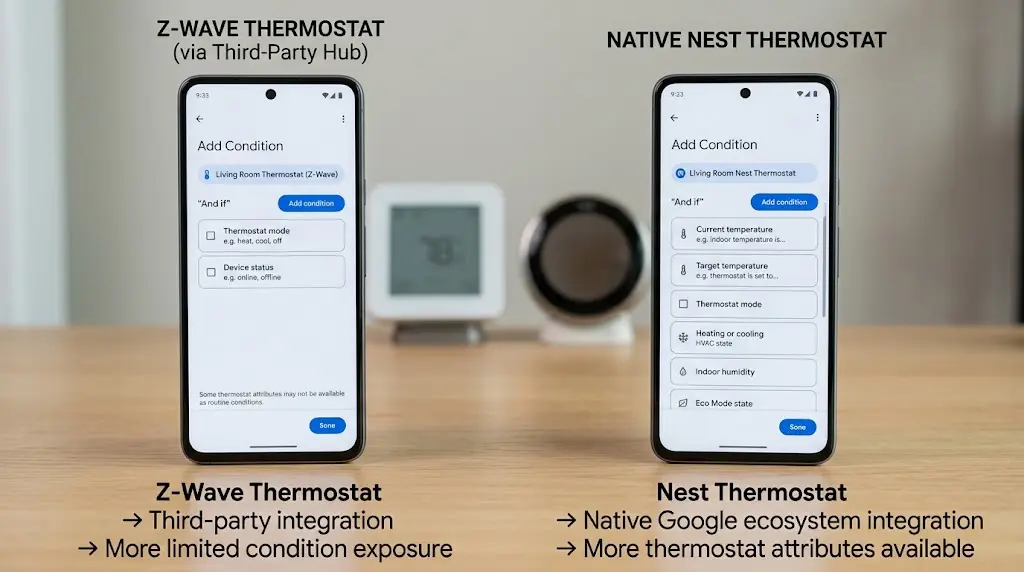
For native Google Nest thermostats, Google uses a direct integration with real-time data. For Z‑Wave thermostats connected through third-party hubs, Google relies on whatever data the hub’s cloud service reports and it doesn’t always request temperature updates frequently enough to trigger time-sensitive routines.
The “Condition” vs. “Starter” Confusion
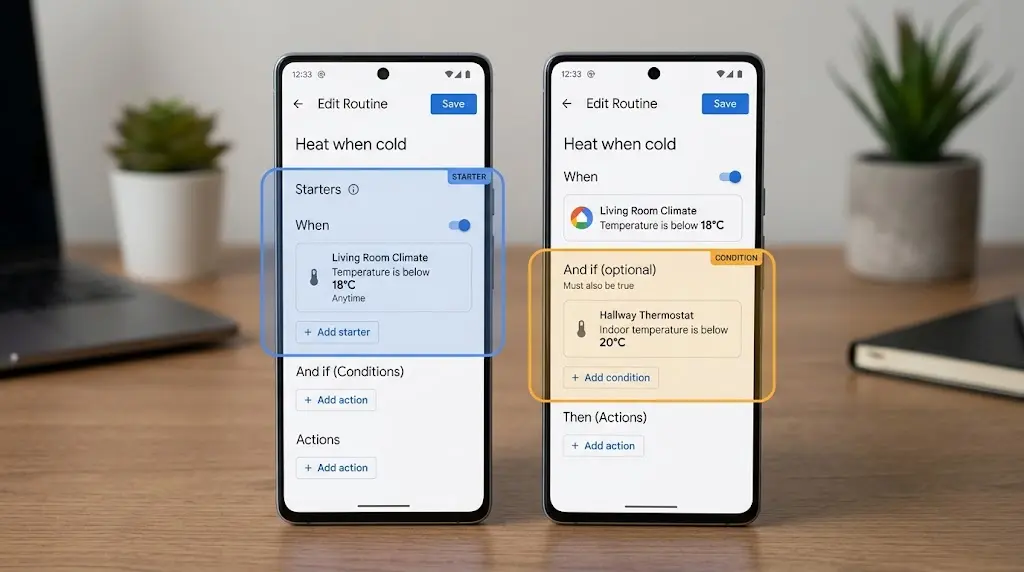
Many users confuse conditions with starters. Even when you set a temperature condition in a Google Home routine:
- The routine still needs a starter (like a time of day or a voice command)
- The temperature condition is only evaluated at the moment the starter fires
- If the polling data is stale, the condition check uses outdated temperature readings
This means your thermostat might be reporting 78°F to the hub, but Google Home still thinks it’s 72°F because it hasn’t polled recently.
Why Z‑Wave Thermostats Specifically Get Ignored
Not all smart thermostats have this problem. Here’s why Z‑Wave models are particularly affected:
1. Protocol Translation Layers
Z‑Wave → Hub → Hub Cloud → Google Cloud → Google Home App
Each translation layer can lose data fidelity or introduce delays. By the time temperature data reaches Google Home, it may be:
- Rounded to the nearest degree
- Delayed by several minutes
- Missing entirely if the hub-to-cloud sync failed
2. Device Trait Mapping Issues
Google Home uses a system called device traits to understand what a device can do. When a Z‑Wave thermostat connects through SmartThings or Hubitat, it’s often mapped with these traits:
action.devices.traits.TemperatureSetting(allows setpoint control)action.devices.traits.OnOff(basic power control)
What’s frequently missing is:
action.devices.traits.TemperatureControl(allows reading current temperature as a triggerable value)action.devices.traits.SensorState(allows using the device as a sensor for automations)
Without these traits properly mapped, Google Home literally cannot use the thermostat’s temperature reading as a routine condition even if the data exists somewhere in the system.
3. Hub Integration Limitations
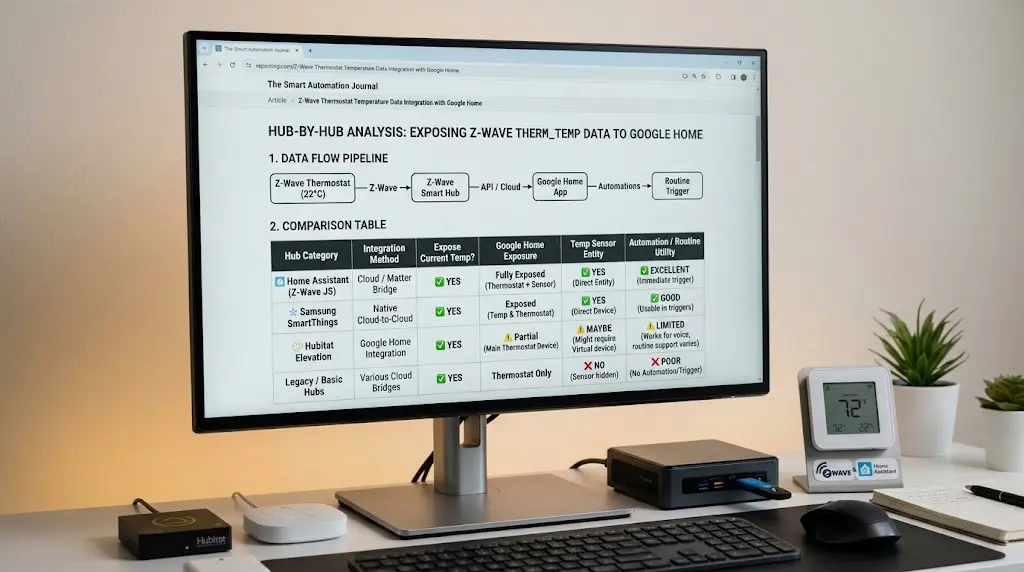
Different hubs expose Z‑Wave thermostat capabilities differently:
| Hub | Temperature Exposed to Google? | Usable as Routine Condition? |
|---|---|---|
| SmartThings | Partially (cloud-dependent) | Rarely works reliably |
| Hubitat | Via Google Home integration | Usually not recognized |
| Wink (legacy) | Limited | No |
| Home Assistant | Via Google Home integration | Works with proper config |
| Vera/Ezlo | Partial | No |
The SmartThings and Hubitat Bridge Factor
Since most Z‑Wave thermostats connect to Google Home through SmartThings or Hubitat, let’s examine what happens with each.
SmartThings Integration
SmartThings syncs device data with Google Home through Samsung’s cloud. The integration has improved significantly, but temperature sensor data from Z‑Wave thermostats is still inconsistently exposed as a triggerable attribute in Google Home.
What actually gets synced:
- Thermostat mode (heat/cool/auto/off)
- Setpoint temperatures
- Current temperature (sometimes, with delays)
What doesn’t reliably sync:
- Real-time temperature changes
- Humidity readings
- Temperature as a usable condition for Google Home routines
Hubitat Integration
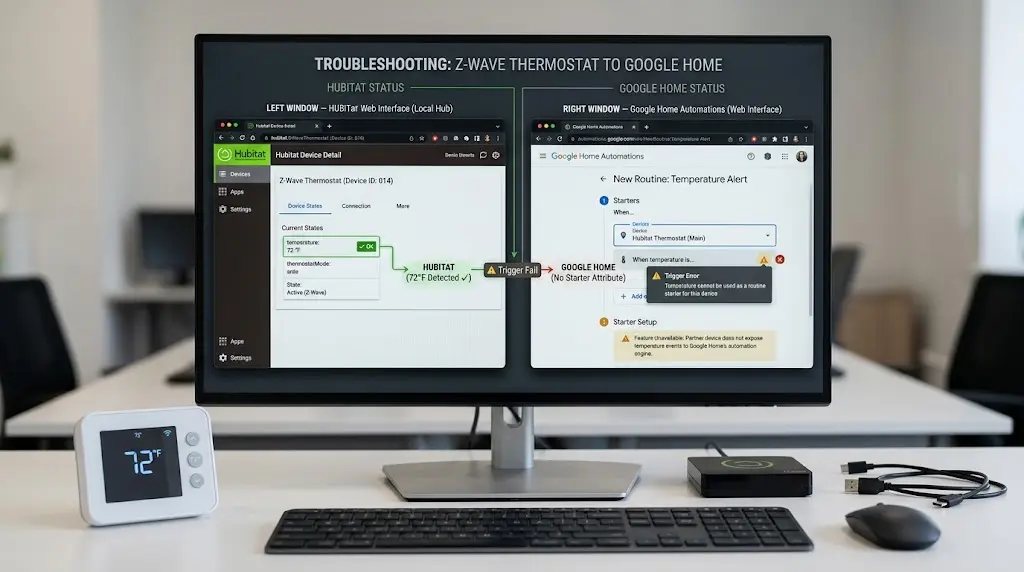
Hubitat’s Google Home integration uses either the built-in app or community-developed solutions like Hubitat’s Google Home Community app. The challenge is similar Hubitat can expose the thermostat, but Google Home may not interpret the temperature data as a usable condition.
A user on the Hubitat community forum shared this experience:
“My GoControl Z‑Wave thermostat shows up in Google Home. I can change the temperature with voice commands. But when I try to create a routine that triggers when the temperature drops below 65°F, the condition never fires. The routine just runs based on the time trigger and completely ignores the temperature condition.”
Hubitat Community Forum, 2024
This perfectly illustrates the problem: control works, but sensing for automation purposes doesn’t.
Real-World Scenarios and Experiences
Let me share some real scenarios that show how this problem manifests and why it’s so frustrating.
Scenario 1: The Overnight Temperature Drop
Mark’s Setup:
- Honeywell T6 Pro Z‑Wave thermostat
- SmartThings Hub v3
- Google Home routine: “If temperature drops below 62°F between 11 PM and 6 AM, turn on the space heater smart plug”
What happened: The routine never triggered. Mark woke up to a 58°F house with the space heater still off. The SmartThings app showed the temperature had dropped below 62°F at 2:15 AM, but Google Home never acted on it.
Why: Google Home wasn’t polling the SmartThings cloud frequently enough during overnight hours, and the temperature condition was never evaluated in real time.
Scenario 2: The Summer Cooling Automation
Lisa’s Setup:
- GoControl Z‑Wave thermostat
- Hubitat Elevation C-7
- Google Home routine: “When temperature exceeds 78°F, announce on living room speaker: ‘It’s getting warm, closing the blinds’ and close smart blinds”
What happened: The announcement and blind closure never triggered automatically. Lisa could ask Google “What’s the thermostat temperature?” and get an answer, proving the data connection existed but the routine condition was invisible to the automation engine.
Why: The thermostat was exposed as a controllable device but not as a sensor device in the Google Home device graph.
Scenario 3: The Partial Success
James’s Setup:
- Zen Thermostat (Z‑Wave)
- SmartThings + Google Home
- After switching to Home Assistant as a bridge instead of SmartThings
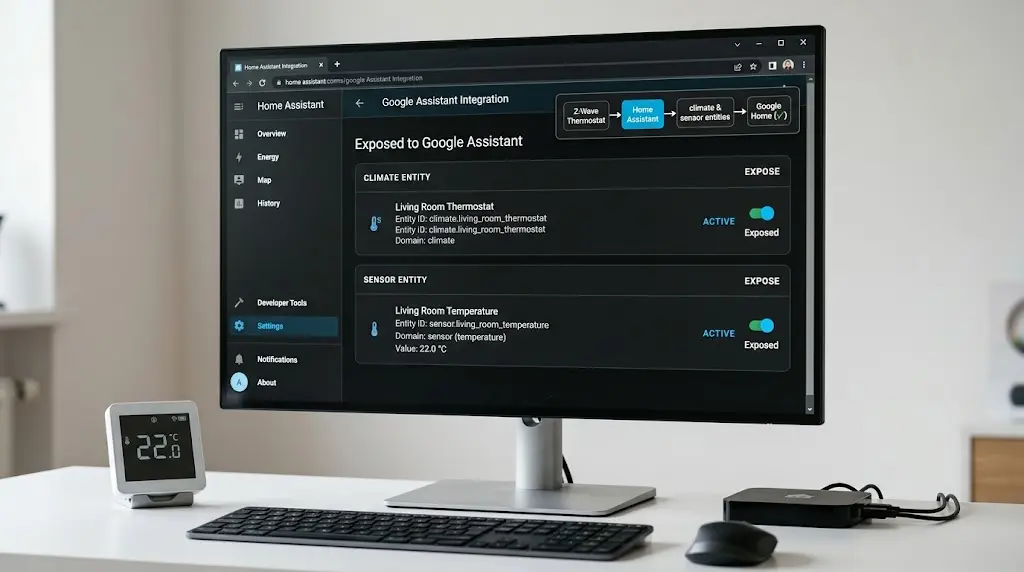
What happened: Temperature-based routines started working but only after configuring Home Assistant’s Google Assistant integration with explicit expose settings for the thermostat’s temperature sensor entity.
Why: Home Assistant allowed James to expose the thermostat’s sensor component separately from its climate component, giving Google Home the right device traits to work with.
Step-by-Step Fixes That Actually Work
Now let’s get to the solutions. I’m listing these from simplest to most involved.
Fix 1: Use Home Assistant as Your Bridge (Most Reliable)
This is the most reliable solution I’ve found, and it’s what I personally use now.
Step 1: Install Home Assistant on a Raspberry Pi, mini PC, or as a VM.
Step 2: Add your Z‑Wave integration to Home Assistant using the Z‑Wave JS add-on. Your thermostat will appear as both a climate entity and a sensor entity (for temperature).
Step 3: Set up the Google Assistant integration in Home Assistant (either cloud or manual).
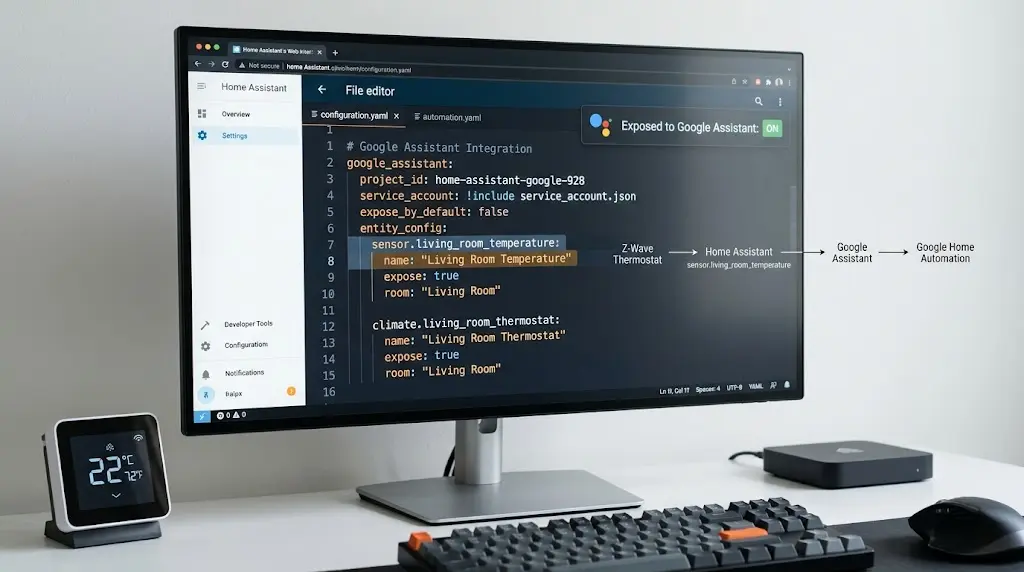
Step 4: In your Home Assistant configuration.yaml, explicitly expose the temperature sensor:
YAMLgoogle_assistant:
  project_id: your-project-id
  service_account: !include service_account.json
  expose_by_default: false
  entity_config:
    sensor.thermostat_temperature:
      expose: true
      name: "Living Room Temperature"
      room: "Living Room"
    climate.thermostat:
      expose: true
      name: "Living Room Thermostat"
      room: "Living Room"
Step 5: In Google Home, create your routine using the temperature sensor (not the thermostat) as the condition source.
Step 6: Test by manually changing the temperature near the thermostat and waiting for the routine to trigger.
Fix 2: Use SmartThings Automations Instead of Google Home Routines
If you’re already using SmartThings, consider keeping your temperature automations within SmartThings rather than relying on Google Home.
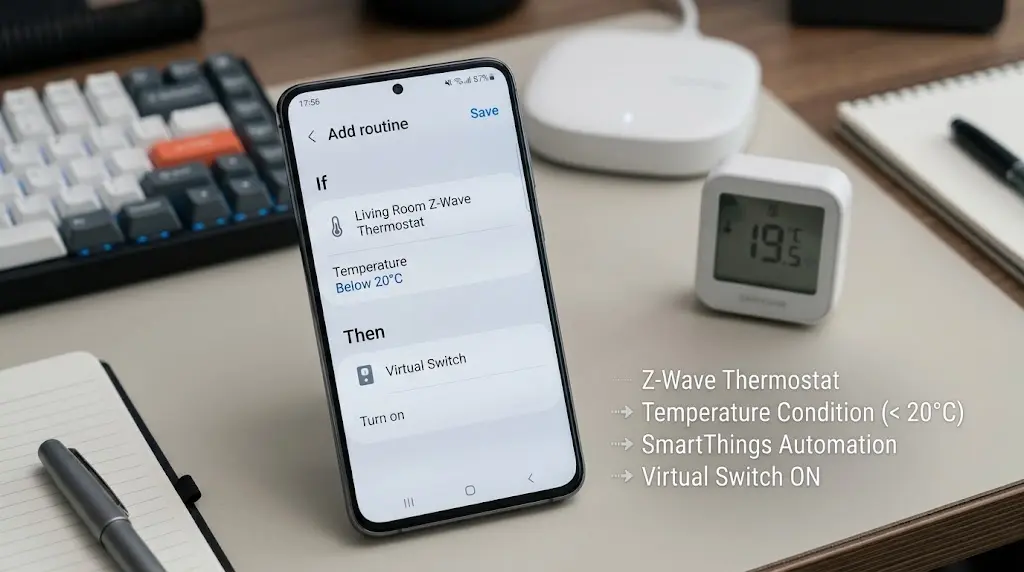
Step 1: Open the SmartThings app → Automations → Create New Automation
Step 2: Set the condition: “If [thermostat name] temperature is above/below [value]”
Step 3: Set the action: control your devices directly through SmartThings
Step 4: For Google Home-specific actions (like announcements), use a virtual switch in SmartThings that triggers a Google Home routine:
- Create a virtual switch in SmartThings
- In SmartThings automation: when temperature condition is met → turn on virtual switch
- In Google Home routine: when virtual switch turns on → make announcement / perform action
This approach keeps temperature monitoring in SmartThings (which has reliable Z‑Wave polling) and only uses Google Home for output actions.
Fix 3: Use Hubitat Rule Machine with Google Home Actions
Hubitat’s Rule Machine is extremely powerful for Z‑Wave device automations.
Step 1: In Hubitat, go to Apps → Rule Machine → Create New Rule
Step 2: Set the trigger: Thermostat temperature crosses threshold
Step 3: For the action, use one of these methods to bridge to Google Home:
- Google Home Community App: Toggle a virtual device that Google Home sees
- Pushover/Notification: Send notifications directly (bypassing Google Home)
- MQTT Bridge: For advanced users, bridge to Google via MQTT
Step 4: In Google Home, create a routine that responds to the virtual device state change
Fix 4: Improve Polling Frequency (Partial Fix)
If you want to stay within Google Home’s ecosystem, you can try improving how often your hub reports temperature data.
For SmartThings:
- Use the SmartThings CLI or API to check device health reporting intervals
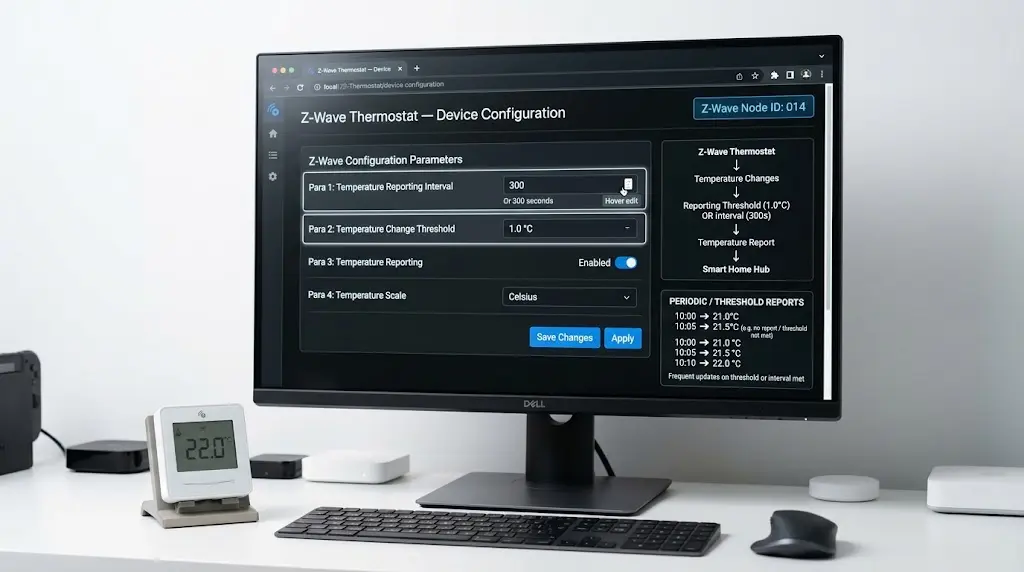
- Some Z‑Wave thermostats support configurable reporting intervals set them to report temperature changes every 1°F or every 5 minutes
- Use the Z‑Wave thermostat’s configuration parameters (check your thermostat’s manual for the specific parameter numbers)
For the Honeywell T6 Pro Z‑Wave, for example:
- Parameter 23: Temperature reporting threshold (default: 1°F)
- Parameter 24: Reporting interval (configurable in minutes)
Set these to more aggressive reporting:
textParameter 23: 1 (report every 1°F change)
Parameter 24: 300 (report every 5 minutes / 300 seconds)
⚠️ Warning: Setting very aggressive reporting intervals can increase Z‑Wave network traffic and reduce thermostat battery life (if battery-powered).
Fix 5: Use a Separate Z‑Wave Temperature Sensor
Sometimes the cleanest solution is to separate the sensing from the thermostat.
Step 1: Purchase a dedicated Z‑Wave temperature sensor like the:
- Aeotec MultiSensor 7
- Zooz ZSE40 MultiSensor
- Fibaro Motion Sensor (includes temperature)
Step 2: Pair the sensor with your hub
Step 3: Expose the sensor’s temperature reading to Google Home (this often works better than thermostat temperature data because sensors are mapped with the correct device traits)
Step 4: Use the sensor’s temperature in your Google Home routine conditions
Why this works better: Dedicated sensors are often mapped as SensorState devices in Google Home’s device graph, which is exactly what the routine engine looks for when evaluating conditions. Thermostats, on the other hand, are mapped as TemperatureSetting devices which Google treats as controllable, not as triggerable.
Alternative Automation Platforms to Consider
If Google Home’s limitations are too frustrating, here are platforms that handle Z‑Wave thermostat temperature conditions reliably:
Home Assistant Automations
Home Assistant’s built-in automation engine handles Z‑Wave thermostat temperature triggers natively and reliably. You can create automations like:
YAMLautomation:
  - alias: "High Temperature Alert"
    trigger:
      - platform: numeric_state
        entity_id: sensor.zwave_thermostat_temperature
        above: 78
    action:
      - service: notify.mobile_app
        data:
          message: "Temperature exceeded 78°F"
      - service: switch.turn_on
        entity_id: switch.fan
This runs locally, responds in seconds, and doesn’t depend on cloud polling.
Learn more at the Home Assistant Z-Wave documentation.
Hubitat Rule Machine
Hubitat processes everything locally and can trigger actions based on thermostat temperature changes in real time no cloud dependency, no polling delays.
Check the Hubitat Rule Machine documentation for setup instructions.
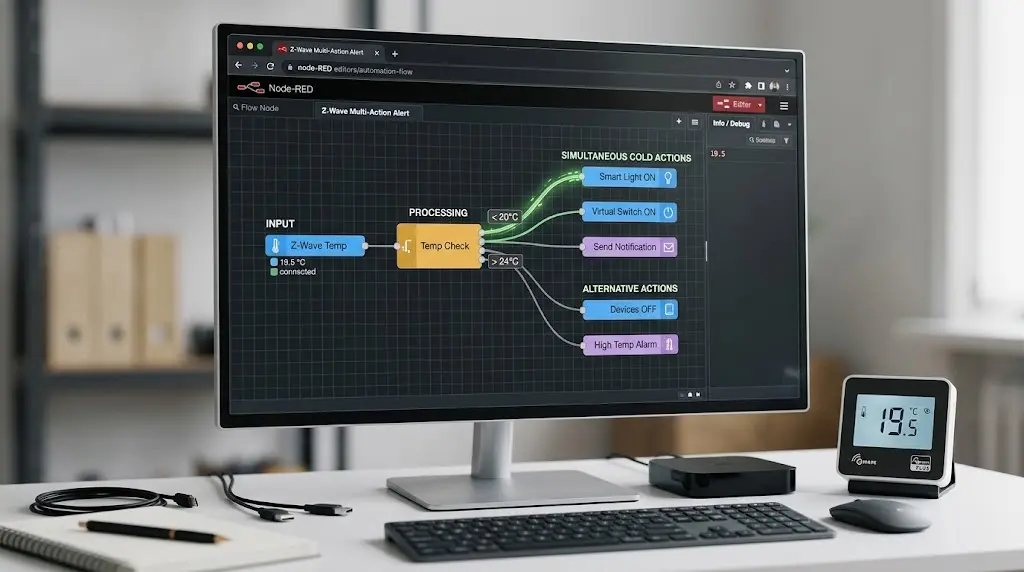
Node-RED (Advanced)
For technically inclined users, Node-RED with Z‑Wave nodes offers complete control over temperature-based automations with visual flow programming.
Common Mistakes to Avoid
While troubleshooting, avoid these pitfalls:
❌ Mistake 1: Relying Solely on Google Home for Critical Automations
Temperature-based automations for freeze protection or overheating prevention should never depend solely on Google Home. Use your hub’s local automation engine as the primary system.
❌ Mistake 2: Not Checking Device Traits
Before creating a routine, ask Google: “Hey Google, what’s the temperature on [thermostat name]?” If Google can’t answer, the data isn’t being exposed correctly and no routine will work.
❌ Mistake 3: Ignoring Z‑Wave Mesh Health
A weak Z‑Wave mesh can cause intermittent temperature reporting. Make sure your thermostat has a strong connection to the hub with adequate repeaters nearby.
❌ Mistake 4: Assuming All Integrations Are Equal
The SmartThings ↔ Google Home integration, the Hubitat ↔ Google Home integration, and the Home Assistant ↔ Google Home integration all expose device capabilities differently. Test with your specific combination.
What Google Needs to Fix
To be fair, this isn’t entirely the user’s fault. Google has some fundamental improvements to make:
- Better device trait mapping for third-party thermostats
- Real-time event subscriptions instead of polling for temperature data
- Clear documentation about which device types can serve as routine conditions
- Standardized sensor data handling regardless of the source protocol (Z‑Wave, Zigbee, Wi-Fi)
Google has been gradually improving the Home platform the 2024 updates brought better routine conditions but Z‑Wave thermostat support remains a gap as of early 2025.
Frequently Asked Questions (FAQ)
Why does my Google Home routine work with a Nest thermostat but not my Z‑Wave thermostat?
Nest thermostats use Google’s native integration with direct API access and real-time data. Z‑Wave thermostats go through third-party hubs and cloud services, which means Google Home doesn’t receive temperature updates in real time. The device traits are also mapped differently Nest thermostats automatically include sensor capabilities that Z‑Wave thermostats often lack in Google’s device graph.
Can I use a Z‑Wave thermostat’s temperature reading as a Google Home routine starter?
As of 2025, no — not directly. Google Home routines can use temperature as a condition (checked when another starter fires), but Z‑Wave thermostats rarely provide this data in a format Google can use. The workaround is to use a bridge platform like Home Assistant or to use a virtual switch triggered by your hub’s automation engine.
Will upgrading my SmartThings hub to the latest version fix this?
Unlikely. The issue isn’t with the hub hardware but with how Google Home’s cloud interprets device data from the SmartThings API. A hub upgrade may improve local performance but won’t change the Google Home integration behavior.
Is this a Z‑Wave-specific problem, or do Zigbee thermostats have the same issue?
Zigbee thermostats connected through hubs face similar challenges. The core issue is the hub-to-Google-Home cloud integration, not the wireless protocol itself. However, some Zigbee thermostats that connect directly to Google Home (without a hub) may work better because they eliminate the translation layer.
How often does Google Home poll my Z‑Wave thermostat for temperature data?
Polling intervals vary, but community testing suggests every 15 to 30 minutes for most third-party integrations. For some devices, polling may only occur when the Google Home app is opened or when a routine’s starter fires. This makes temperature conditions unreliable for time-sensitive automations.
Can I use IFTTT to bridge the gap between my Z‑Wave thermostat and Google Home?
IFTTT can help in some cases. You can create an IFTTT applet that monitors your thermostat’s temperature (through SmartThings) and triggers a Google Home action. However, IFTTT also has polling delays (typically 1-15 minutes), so it’s not a real-time solution. For faster response times, use your hub’s native automation engine.
Will Matter/Thread protocol support fix this problem in the future?
Potentially. Matter is designed to provide a unified device communication standard that could eliminate the translation layer issues. If Z‑Wave thermostat manufacturers release Matter-compatible firmware or bridges, Google Home should be able to receive temperature data more reliably. However, most Z‑Wave thermostats on the market today don’t support Matter, and retrofit adoption will take time.
My Personal Recommendation
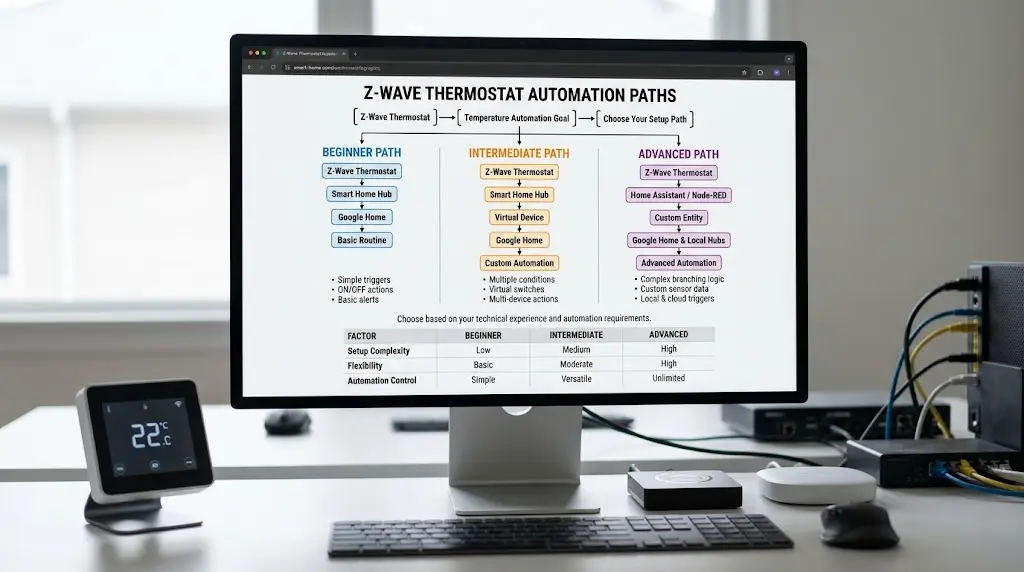
After testing multiple approaches over several months, here’s what I recommend based on your technical comfort level:
If you’re a beginner: Use SmartThings automations for temperature-based triggers and connect to Google Home only for voice control and announcements via virtual switches.
If you’re intermediate: Set up Home Assistant with the Google Assistant integration. Expose your thermostat’s temperature sensor separately. This gives you the best of both worlds reliable temperature automations and Google Home integration.
If you’re advanced: Use Home Assistant automations or Hubitat Rule Machine for all critical automations. Use Google Home only as a voice interface and notification output. Never depend on Google Home’s routine engine for anything temperature-critical.
Final Thoughts
The frustration of Google Home ignoring temperature conditions from Z‑Wave thermostats is real and valid. It stems from a combination of protocol translation layers, device trait mapping limitations, and cloud polling delays that make real-time temperature-based routines unreliable.
The good news is that reliable solutions exist. Whether you use Home Assistant as a bridge, keep automations within your hub’s ecosystem, or deploy virtual switch workarounds, you can achieve the temperature-based automations you need.
The smart home ecosystem is still evolving, and as Matter adoption grows and Google continues improving its Home platform, these integration gaps should narrow. But right now, in 2025, the practical answer is: don’t rely on Google Home alone for Z‑Wave thermostat temperature automations use your hub’s native automation engine and bridge the results to Google Home.
Your home deserves automations that actually work. Now you know how to make them happen.
Useful External Resources: