Table of Contents
- Introduction: The Frustrating Reality of IoT Ping Spikes
- What Exactly Happens When IoT Devices Report at the Same Time?
- Top Causes of High Ping Spikes with Multiple IoT Devices
- Real Scenario: A Smart Home That Nearly Broke Its Own Network
- How to Diagnose IoT Related Ping Spikes Step by Step
- Practical Fixes to Eliminate Ping Spikes from IoT Traffic
- Network Configuration Best Practices for IoT Environments
- Advanced Solutions for Enterprise and Large Scale IoT Networks
- Tools You Can Use Right Now to Monitor and Fix the Problem
- Real Experiences from Network Engineers and IoT Enthusiasts
- FAQ: High Ping Spikes and IoT Devices
- Final Thoughts
Introduction: The Frustrating Reality of IoT Ping Spikes
You are at your desk, ready to jump into an important video call or dive into an online game, when everything suddenly grinds to a halt. Your ping shoots from a smooth 15ms all the way up to 300ms or beyond. You check your connection, and everything looks normal. Then it hits you: your smart thermostat, security cameras, door sensors, and a whole collection of IoT devices all decided to push their data at the exact same time.
If this scenario feels painfully familiar, you are definitely not alone. High ping spikes IoT devices cause are quickly becoming one of the most common yet most ignored networking headaches in today’s connected homes and workplaces. The reality is that most routers and standard network configurations were simply never built to handle dozens of devices demanding bandwidth all at once.
Having spent years helping people dig into frustrating network problems, I can say with confidence that this specific issue now tops the list of complaints I hear from everyday users and small business owners alike. The encouraging part? Once you understand what is actually happening behind the scenes, this is a problem you can solve completely.
Let me break down everything you need to know.
What Exactly Happens When IoT Devices Report at the Same Time?
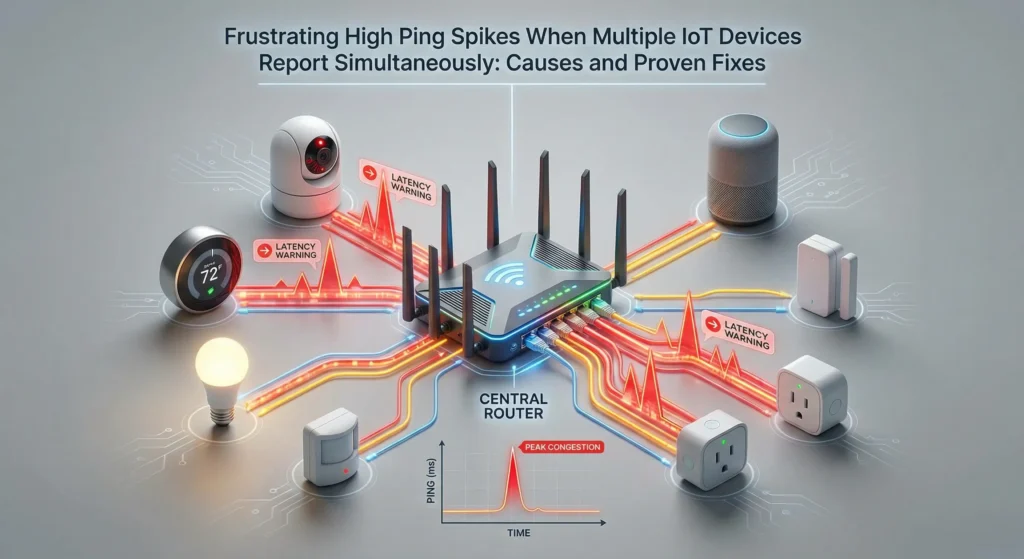
To understand the problem, you need to picture your home network like a single lane road. Every device that sends or receives data is like a car on that road. When only a few cars are driving, everything flows smoothly. But when 20 or 30 cars all try to merge onto that road at the exact same second, you get a traffic jam.
Most IoT devices operate on scheduled reporting intervals. A smart thermostat might send temperature data every 30 seconds. A security camera streams continuously. A motion sensor sends alerts the moment it detects movement. A smart plug reports energy usage every minute.
The problem starts when these reporting intervals overlap. Even though each device sends a tiny amount of data, the combined effect of all those simultaneous transmissions creates what network engineers call a “micro burst” of traffic.
Why Micro Bursts Are So Damaging
Your router has a limited processing capacity. It can only handle a certain number of packets per second. When a micro burst occurs, the router has to queue up all those packets and process them one by one. This queuing is what creates latency, and that latency is exactly what you experience as a ping spike.
Here is what makes it worse: most consumer routers use a simple First In First Out (FIFO) queuing system. This means your gaming packet or video call packet gets stuck behind dozens of IoT packets, waiting its turn. There is no priority system in place unless you configure one yourself.
Top Causes of High Ping Spikes with Multiple IoT Devices
Understanding the root causes will help you pick the right solution. Here are the most common reasons your ping spikes when IoT devices report simultaneously.
1. Router CPU Overload
Most consumer routers have weak processors. When multiple devices send data at once, the router CPU spikes to 100%, and it cannot process packets fast enough. This creates a bottleneck that affects every device on the network.
2. Wi-Fi Channel Congestion
The majority of IoT devices connect over 2.4GHz Wi-Fi. This band only has three non overlapping channels (1, 6, and 11). When too many devices compete for airtime on the same channel, collisions happen. Each collision forces devices to wait and retransmit, adding latency.
3. NAT Table Exhaustion
Every connection your IoT device makes requires an entry in the router’s NAT (Network Address Translation) table. Consumer routers typically support between 2,000 and 10,000 NAT entries. With dozens of IoT devices making frequent connections, this table can fill up fast.
4. Buffer Bloat
This is a well documented problem where routers with large buffers hold onto packets too long instead of dropping them. The result is artificially inflated latency. When IoT devices flood the buffer, your real time traffic (gaming, video calls) gets delayed significantly.
Learn more about buffer bloat from the Bufferbloat Project.
5. DNS Query Storms
Many IoT devices resolve DNS names every time they report data. When 20 devices all send DNS queries at the same time, your router’s DNS proxy can become overwhelmed, adding hundreds of milliseconds to every request.
6. Synchronized Reporting Intervals
This is the silent killer. If all your IoT devices are set to report every 60 seconds, and they all started around the same time, they will keep reporting in sync forever. This creates a predictable but devastating traffic pattern.

Real Scenario: A Smart Home That Nearly Broke Its Own Network
Let me share a story from a real case I worked on last year.
A homeowner named James had invested heavily in smart home technology. He had 4 security cameras, 12 smart bulbs, 3 smart plugs, 2 smart thermostats, a robot vacuum, a smart doorbell, and a handful of sensors for doors and windows. In total, about 30 IoT devices.
James started noticing that every evening around 7 PM, his internet would become unusable. Video calls would drop. Netflix would buffer. Even basic web browsing felt sluggish. His ISP ran tests and said his connection was fine.
When I examined his network, the problem became obvious. His router was a standard ISP provided unit with a single core 600MHz processor. At peak reporting times, the CPU usage hit 98%. The 2.4GHz band had 27 devices fighting for airtime on channel 6. His NAT table was 80% full. And his ping to Google DNS (8.8.8.8) was spiking to 450ms every 30 seconds like clockwork.
The solution involved several changes that I will detail below, but the key takeaway is this: James did not have an internet problem. He had a network architecture problem. His setup could not handle the traffic pattern his IoT devices created.
After implementing the fixes, his ping stabilized at 12ms with spikes never exceeding 25ms. His network went from barely functional to rock solid.
How to Diagnose IoT Related Ping Spikes Step by Step
Before you start fixing anything, you need to confirm that IoT devices are actually the cause. Here is a systematic approach.
Step 1: Run a Baseline Ping Test
Open a command prompt or terminal and run a continuous ping test to a reliable server.
textping -t 8.8.8.8
On Mac or Linux:
textping 8.8.8.8
Let it run for at least 10 minutes and note the average latency and any spikes.
Step 2: Disconnect All IoT Devices
Turn off or disconnect every IoT device from your network. You can do this by disabling the IoT SSID if you have a separate one, or by unplugging devices one group at a time.
Step 3: Run the Ping Test Again
With IoT devices disconnected, run the same ping test for another 10 minutes. Compare the results. If the spikes disappear, you have confirmed that IoT traffic is the culprit.
Step 4: Reconnect Devices in Groups
Start reconnecting IoT devices in small groups (cameras first, then sensors, then smart plugs). After each group, run the ping test for 5 minutes. This helps you identify which specific devices or device types cause the most impact.
Step 5: Check Router CPU and Memory
Log into your router’s admin panel and monitor CPU usage and memory consumption during peak IoT reporting times. If CPU usage exceeds 80%, your router is the bottleneck.
Step 6: Test for Buffer Bloat
Use the Waveform Buffer Bloat Test to check if your network suffers from buffer bloat. A grade of C or lower indicates a serious problem.

Practical Fixes to Eliminate Ping Spikes from IoT Traffic
Now let us get to the solutions. I am listing these from simplest to most advanced, so you can start with the easy wins.
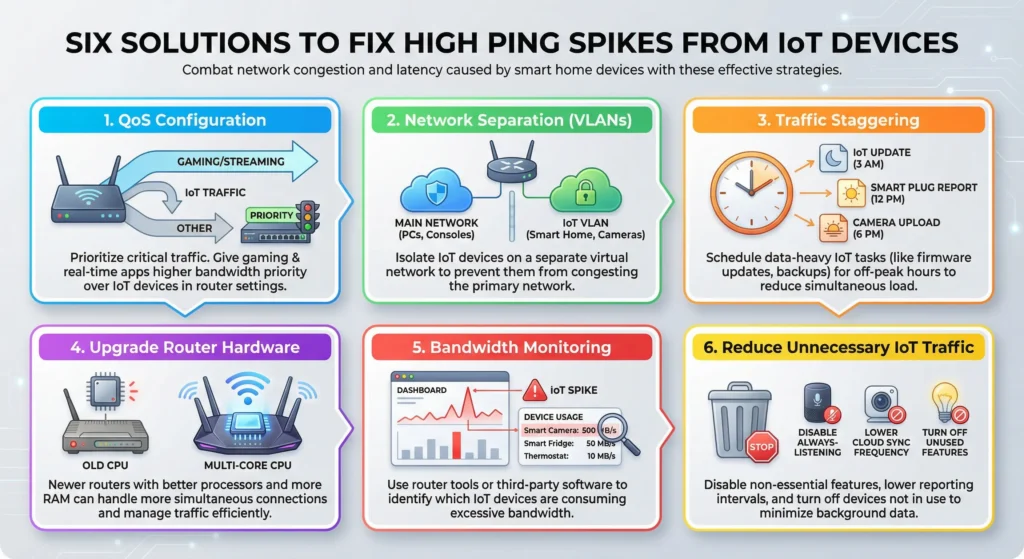
Fix 1: Stagger IoT Reporting Intervals
This is the single most effective fix and it costs nothing. Log into each IoT device’s settings (through its app or web interface) and change the reporting interval so that devices do not all report at the same time.
For example:
- Set your thermostat to report at 0 and 30 seconds past each minute
- Set your motion sensors to report at 10 and 40 seconds
- Set your smart plugs to report at 20 and 50 seconds
By spreading out the traffic, you eliminate micro bursts entirely.
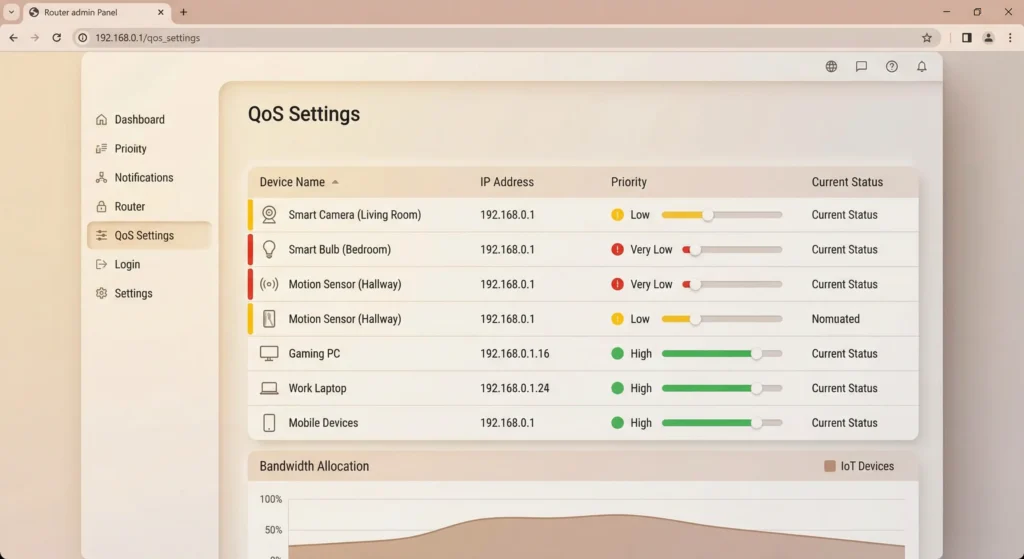
Fix 2: Enable QoS (Quality of Service) on Your Router
QoS allows you to prioritize certain types of traffic. Configure your router to give high priority to real time traffic like video calls, gaming, and VoIP, while giving IoT traffic a lower priority.
Most modern routers support this feature. Look for it under Advanced Settings or Traffic Management in your router’s admin panel.
For detailed QoS setup guidance, check this guide from Cisco.
Fix 3: Create a Separate Network for IoT Devices
Set up a dedicated SSID (Wi-Fi network) for your IoT devices. Most modern routers support guest networks or VLANs. By isolating IoT traffic on a separate network, you prevent it from interfering with your primary devices.
This also improves security, since IoT devices are often vulnerable to attacks and should not share a network with your computers and phones.
Fix 4: Upgrade Your Router
If your router is more than 3 years old or was provided by your ISP, it likely cannot handle the demands of a modern IoT environment. Look for a router with:
- A dual core or quad core processor
- At least 512MB of RAM
- Support for WPA3
- Built in QoS and VLAN support
- MU-MIMO technology
Popular options include the ASUS RT-AX86U, TP-Link Archer AX73, and Ubiquiti UniFi Dream Machine.
Fix 5: Switch IoT Devices to a Wired Connection Where Possible
Devices like security camera hubs, smart home controllers, and network bridges can often be connected via Ethernet. This removes them from the Wi-Fi congestion problem entirely and provides a more stable connection.
Fix 6: Implement SQM (Smart Queue Management)
SQM is the most effective solution for buffer bloat. It actively manages your router’s packet queues to prevent any single type of traffic from dominating. Routers running OpenWrt or custom firmware often support SQM through the CAKE algorithm.
Learn more about SQM at the OpenWrt SQM documentation.
Network Configuration Best Practices for IoT Environments
Beyond fixing the immediate problem, here are best practices that will keep your network running smoothly as you add more IoT devices.
Use Both 2.4GHz and 5GHz Bands Strategically
Reserve the 5GHz band for your high priority devices (laptops, phones, gaming consoles). Keep IoT devices on the 2.4GHz band since they typically do not need high bandwidth but benefit from the longer range of 2.4GHz.
Optimize Your Wi-Fi Channels
Use a Wi-Fi analyzer app like WiFi Analyzer (Android) to find the least congested channel for each band. Set your channels manually rather than leaving them on auto.
Limit the Number of Devices Per Access Point
A single consumer access point should ideally handle no more than 20 to 25 connected devices. If you have more than that, consider adding a second access point dedicated to IoT devices.
Use Static IP Addresses for Critical Devices
Assign static IP addresses to devices that need consistent connectivity. This prevents DHCP lease renewal issues that can cause temporary disconnections and additional network traffic.
Keep Firmware Updated
Router firmware updates often include performance improvements and bug fixes that can significantly reduce latency issues. Check for updates at least once a month.
Advanced Solutions for Enterprise and Large Scale IoT Networks
If you are managing IoT devices in a business or industrial setting, you need more robust solutions.
MQTT Protocol Optimization
Most IoT devices use MQTT for communication. Configure your MQTT broker to implement message throttling and queuing. Set different QoS levels for different device types (QoS 0 for non critical sensors, QoS 1 for important data).
Edge Computing
Instead of having every IoT device send data directly to the cloud, deploy an edge computing device (like a Raspberry Pi or Intel NUC) that collects and aggregates data locally. This device can then send batched updates to the cloud, reducing the number of simultaneous outbound connections.
Network Segmentation with VLANs
Create separate VLANs for different categories of IoT devices:
- VLAN 10: Security cameras
- VLAN 20: Environmental sensors
- VLAN 30: Smart building controls
- VLAN 40: Employee devices
This prevents any single category from affecting others and makes troubleshooting much easier.
Implement a Dedicated IoT Gateway
Products like the AWS IoT Greengrass or Azure IoT Edge can manage device communication, implement traffic shaping, and provide local processing capabilities.

Tools You Can Use Right Now to Monitor and Fix the Problem
Here are proven tools that will help you identify and resolve IoT related ping spikes.
Free Tools
| Tool | Purpose | Platform |
|---|---|---|
| PingPlotter Free | Visual ping and traceroute analysis | Windows, Mac |
| Wireshark | Deep packet inspection and traffic analysis | Windows, Mac, Linux |
| iPerf3 | Network throughput testing | All platforms |
| Waveform Bufferbloat Test | Online buffer bloat testing | Web browser |
| WiFi Analyzer | Wi-Fi channel analysis | Android |
Paid Tools (Worth the Investment)
| Tool | Purpose | Price Range |
|---|---|---|
| PingPlotter Pro | Advanced latency monitoring with alerts | $39.99 per year |
| PRTG Network Monitor | Comprehensive network monitoring | Free for 100 sensors |
| Ubiquiti UniFi Controller | Centralized network management | Free with UniFi hardware |
How to Use PingPlotter for IoT Spike Detection
- Download and install PingPlotter
- Set the target to 8.8.8.8 or your ISP’s gateway
- Set the interval to 1 second
- Let it run for 24 hours
- Look for patterns in the latency graph that correspond to IoT reporting intervals
- The visual timeline will clearly show periodic spikes if IoT devices are the cause
Real Experiences from Network Engineers and IoT Enthusiasts
Experience 1: The Smart Office Disaster
A network engineer named Sarah shared her experience on a networking forum. Her company deployed 50 temperature and humidity sensors across their office building. Within a week, employees started complaining about slow internet and dropped VoIP calls.
After investigation, Sarah discovered that all 50 sensors were configured to report every 10 seconds, and they had all been powered on within the same minute. The synchronized reporting was generating traffic bursts that overwhelmed their Cisco Meraki access points.
Her solution was simple but effective: she wrote a script that randomly offset each sensor’s reporting interval by 0 to 9 seconds. The result was an even distribution of traffic instead of a massive burst every 10 seconds. VoIP quality returned to normal within hours.
Experience 2: The Gamer’s Nightmare
A Reddit user described how his gaming ping went from a stable 20ms to unpredictable spikes of 200 to 500ms after his family installed a Ring security system with 4 cameras. The cameras were all configured to upload motion clips to the cloud simultaneously.
His fix involved three changes: setting up QoS to prioritize gaming traffic, moving the Ring cameras to a separate VLAN, and configuring the cameras to use lower resolution for cloud uploads while keeping high resolution for local storage.
Experience 3: The Smart Farm Solution
An agricultural IoT company managing 200 soil moisture sensors across a large farm faced constant connectivity issues. Their solution was implementing an edge computing architecture where groups of 20 sensors reported to a local gateway. Each gateway would aggregate the data and send a single batch update every 5 minutes instead of 20 individual updates every minute.
This reduced their network traffic by 75% and completely eliminated ping spikes on their management network.

FAQ: High Ping Spikes and IoT Devices
How many IoT devices can a typical home router handle before experiencing ping issues?
Most consumer routers start showing performance degradation around 15 to 20 active IoT devices. This varies significantly based on the router’s processor, RAM, and the reporting frequency of your devices. High end routers can handle 50 or more devices without issues.
Will upgrading my internet speed fix IoT related ping spikes?
In most cases, no. IoT ping spikes are caused by router processing limitations and Wi-Fi congestion, not by insufficient bandwidth. A faster internet plan will not help if your router cannot process the packets fast enough. The exception is if your upload speed is very low (under 5 Mbps) and you have multiple cameras streaming simultaneously.
Can IoT devices cause ping spikes even when I am connected via Ethernet?
Yes, absolutely. Even if your computer is connected via Ethernet, IoT traffic still passes through the same router. If the router’s CPU is overloaded by IoT traffic, it affects all connected devices regardless of connection type.
Is it safe to put IoT devices on a separate network?
Yes, and it is actually recommended by cybersecurity experts. IoT devices often have weaker security and can be entry points for hackers. Keeping them on a separate network protects your primary devices and reduces the impact of IoT traffic on your main network.
Do wired IoT devices cause fewer ping spikes than wireless ones?
Wired devices eliminate Wi-Fi congestion as a factor, but they can still cause router CPU overload if many devices report simultaneously. However, wired connections are generally more predictable and easier to manage with QoS settings.
How often should I monitor my network for IoT related issues?
I recommend running a 24 hour ping test at least once a month, especially after adding new IoT devices. Set up automated alerts using tools like PingPlotter or PRTG to notify you when latency exceeds acceptable thresholds.
Can a mesh Wi-Fi system solve IoT ping spike problems?
A mesh system can help with Wi-Fi congestion by distributing devices across multiple access points, but it will not solve router CPU overload or buffer bloat issues. The best approach is combining a mesh system with QoS configuration and traffic staggering.
What is the ideal reporting interval for IoT devices to avoid network issues?
There is no single answer, as it depends on your device count and router capability. As a general rule, avoid intervals shorter than 30 seconds unless the data is time critical. For most home sensors, a 60 second or even 5 minute interval is perfectly adequate.
Final Thoughts
High ping spikes caused by multiple IoT devices reporting simultaneously is a growing problem that will only become more common as our homes and businesses become smarter. But it is not an unsolvable problem.
The key takeaways from this guide are:
- Identify the cause first by running systematic ping tests with and without IoT devices connected
- Stagger your reporting intervals to eliminate synchronized micro bursts
- Implement QoS to protect your real time traffic from IoT interference
- Separate your networks so IoT devices cannot impact your primary devices
- Upgrade your router if it does not have the processing power to handle your device count
- Monitor continuously to catch problems before they become severe
Remember that every network is different, and the right combination of solutions depends on your specific setup. Start with the free and simple fixes first, then move to more advanced solutions if needed.
Your smart home should make your life easier, not destroy your network performance. With the right configuration, you can have 50 IoT devices and still maintain single digit ping times.
If this guide helped you solve your ping spike problem, consider bookmarking it for future reference as you add more IoT devices to your network.