Table of Contents
- What Is OFDMA and Why Does It Matter?
- Why IoT Devices Disconnect When OFDMA Is Enabled
- Which IoT Devices Are Most Affected?
- 7 Proven Fixes to Stop IoT Disconnections on Your ASUS Router
- Real-World Scenario: My Smart Home Nightmare
- ASUS Router Models Most Affected by This Issue
- Should You Disable OFDMA Completely?
- Advanced Troubleshooting: When Nothing Else Works
- FAQ – Frequently Asked Questions
- Final Thoughts
Introduction The Frustration Is Real
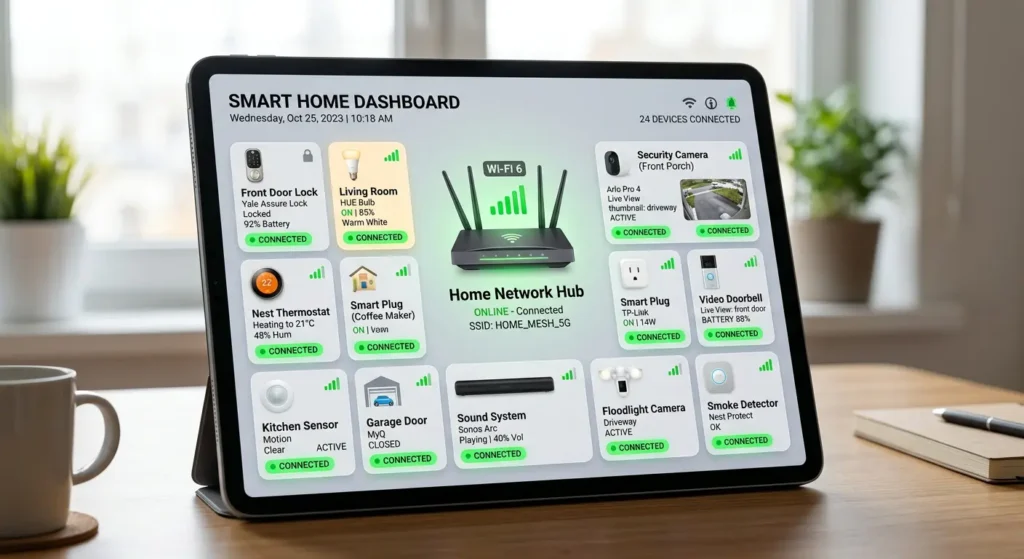
You just upgraded to a shiny new ASUS Wi‑Fi 6 router. You were excited about faster speeds, better coverage, and handling dozens of devices simultaneously. Then you enabled OFDMA one of Wi‑Fi 6’s flagship features and suddenly, your smart bulbs went offline, your security cameras stopped streaming, and your smart thermostat became unreachable.
Sound familiar? You are definitely not alone.
I spent three sleepless nights troubleshooting this exact problem in my own home. My Ring doorbell kept dropping, my Wyze cameras went dark every 20 minutes, and my smart plugs became “dumb plugs” overnight. After hours of research, firmware flashing, and testing every possible setting combination, I finally figured out what was happening and how to fix it permanently.
In this guide, I will walk you through exactly why OFDMA causes IoT devices disconnect OFDMA ASUS router, which devices are most vulnerable, and 7 proven fixes that actually work. No fluff, no generic advice just real solutions from real experience.
What Is OFDMA and Why Does It Matter?
Before diving into the fixes, let’s understand what we are dealing with.
OFDMA Explained Simply
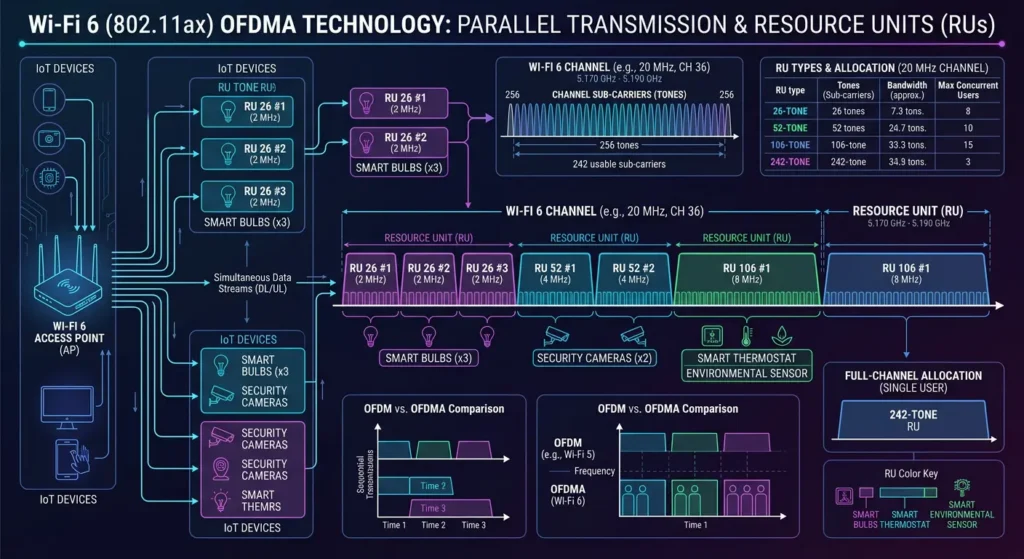
OFDMA stands for Orthogonal Frequency Division Multiple Access. It is one of the core technologies introduced with Wi‑Fi 6 (802.11ax). In simple terms, OFDMA allows your router to communicate with multiple devices simultaneously on the same channel by dividing it into smaller sub-channels called Resource Units (RUs).
How It Differs from Previous Wi‑Fi Standards
| Feature | Wi‑Fi 5 (OFDM) | Wi‑Fi 6 (OFDMA) |
|---|---|---|
| Data transmission | One device at a time | Multiple devices simultaneously |
| Channel usage | Full channel per device | Divided into Resource Units |
| Efficiency with many devices | Low | High |
| Latency | Higher | Lower |
| Legacy device support | Native | Backward compatible (in theory) |
The Promise vs. The Reality
In theory, OFDMA should be perfect for IoT environments because it handles many small data packets efficiently. Your smart sensor sending a 50-byte temperature reading doesn’t need the entire channel OFDMA assigns it a tiny Resource Unit while other devices use the rest.
But here is the problem: theory and reality don’t always agree. Many IoT devices were designed and manufactured before Wi‑Fi 6 existed, and their chipsets simply cannot understand or properly respond to OFDMA scheduling.
Why IoT Devices Disconnect When OFDMA Is Enabled
This is the core question, and the answer involves multiple technical factors working together.
1. Legacy Chipsets Cannot Handle OFDMA Scheduling
Most affordable IoT devices smart plugs, bulbs, sensors, basic cameras use ultra-cheap Wi‑Fi chipsets (often ESP8266, ESP32, or Realtek RTL8710). These chips support Wi‑Fi 4 (802.11n) at best. When your ASUS router enables OFDMA, it starts using trigger-based transmissions and expects devices to respond in specific time slots.
Legacy chipsets do not understand these triggers. They either:
- Ignore the scheduling entirely and miss their transmission window
- Interpret the trigger frames as corrupted data
- Fail to send acknowledgment packets on time
The result? Your router thinks the device has disconnected and drops the association.
2. Timing Sensitivity Issues
OFDMA requires extremely precise timing synchronization between the router and connected devices. IoT devices with low-cost oscillators and minimal processing power often cannot maintain the microsecond-level timing that OFDMA demands.
When a device responds too late or too early within its assigned Resource Unit, the transmission collides with another device’s allocated slot, causing both devices to experience packet loss.
3. Power Save Mode Conflicts
Most IoT devices aggressively use power save modes to extend battery life or reduce heat. When OFDMA is active, the router uses Target Wake Time (TWT) in conjunction with OFDMA scheduling. Many IoT devices do not support TWT and wake up at random intervals that conflict with the OFDMA schedule.
4. Firmware Incompatibilities on ASUS Routers
ASUS routers particularly models running ASUSWRT firmware have had documented issues with their OFDMA implementation. The Broadcom and Qualcomm chipsets used in different ASUS models handle OFDMA differently, and some firmware versions have bugs that cause:
- Aggressive client de-authentication
- Incorrect Resource Unit allocation
- Memory leaks in the wireless driver when managing mixed legacy/Wi‑Fi 6 clients
5. Band Steering Interference
Many ASUS routers have Smart Connect or band steering enabled by default. When combined with OFDMA, the router may try to steer an IoT device to the 5 GHz band (where OFDMA is active), but the device only supports 2.4 GHz. This back-and-forth causes repeated disconnections.
Which IoT Devices Are Most Affected?
Not all IoT devices suffer equally. Based on extensive community testing and my personal experience, here is a breakdown:
High Risk of Disconnection
- Smart plugs (TP-Link Kasa HS103/HS105, Wyze Plug)
- Smart bulbs (LIFX Mini, older Philips Wiz bulbs)
- Budget security cameras (Wyze Cam v2, YI Home Camera)
- Smart sensors (Aqara sensors with Wi‑Fi bridge, SmartThings hub)
- Smart doorbells (Ring Video Doorbell 2nd gen and older)
- ESP8266/ESP32-based DIY devices
Medium Risk
- Smart speakers (Echo Dot 3rd gen, Google Home Mini 1st gen)
- Smart TVs (older Samsung, LG models from 2018-2019)
- Robot vacuums (Roborock S5, older Roomba models)
Low Risk (Usually Compatible)
- Apple HomePod Mini (Wi‑Fi 4 but handles OFDMA gracefully)
- Newer Ring/Nest devices (2023+ models)
- Wi‑Fi 6 certified devices (any device with official Wi‑Fi 6 certification)
7 Proven Fixes to Stop IoT Disconnections on Your ASUS Router
Here are the solutions, ordered from easiest to most advanced. Start with Fix 1 and work your way down.
Fix 1: Disable OFDMA on the 2.4 GHz Band Only
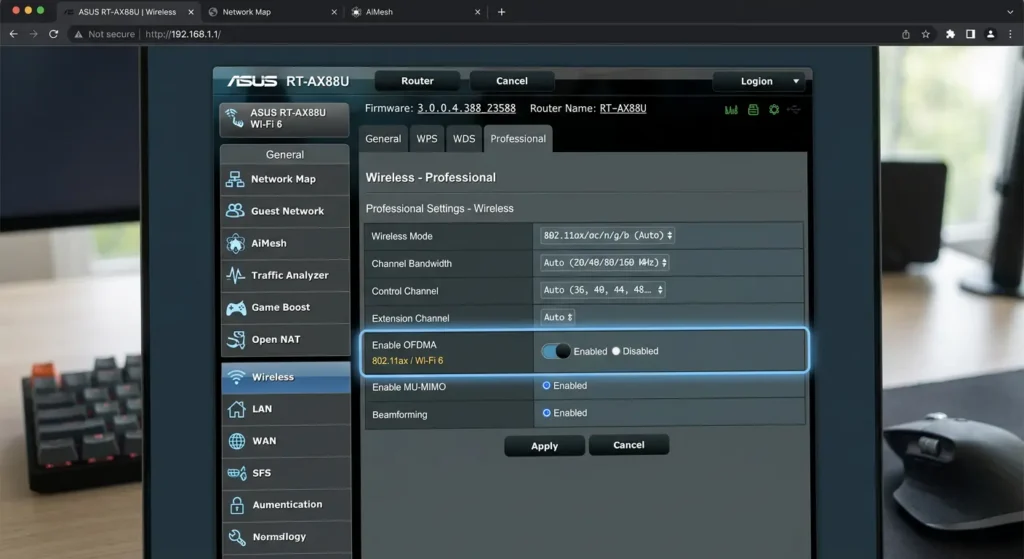
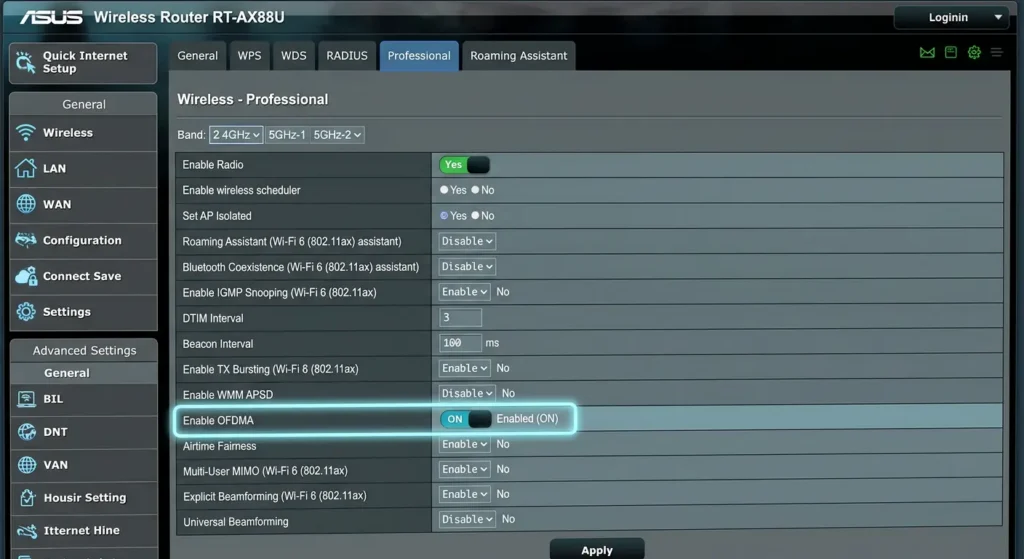
This is the fastest and most effective solution for most people. Since most IoT devices connect on 2.4 GHz, you can disable OFDMA there while keeping it active on 5 GHz for your phones, laptops, and tablets.
Step-by-step:
- Log into your ASUS router at
http://router.asus.comor192.168.1.1 - Navigate to Wireless → Professional tab
- Select the 2.4 GHz band from the dropdown
- Find OFDMA/802.11ax setting
- Set it to Disabled
- Click Apply
- Wait 2 minutes for the router to restart the wireless radio
Important: On some ASUS models (like the RT-AX86U), the setting is labeled “802.11ax/AX Mode” rather than “OFDMA” specifically. Disabling AX mode on 2.4 GHz will disable OFDMA along with other Wi‑Fi 6 features on that band.
Fix 2: Separate Your SSIDs (2.4 GHz and 5 GHz)
If you have Smart Connect enabled, your router uses a single SSID for both bands. This is where problems start for IoT devices.
Step-by-step:
- Go to Wireless → General
- Disable Smart Connect
- Create separate SSIDs:
MyHome_2.4Gfor IoT devices (OFDMA disabled)MyHome_5Gfor phones, laptops (OFDMA enabled)
- Connect all your IoT devices to the 2.4 GHz SSID
- Connect your high-performance devices to the 5 GHz SSID
This gives you the best of both worlds: legacy compatibility for IoT and maximum performance for modern devices.
Fix 3: Update Your ASUS Router Firmware
ASUS has released multiple firmware updates specifically addressing OFDMA compatibility issues with legacy devices.
Step-by-step:
- Go to Administration → Firmware Upgrade
- Click Check for updates
- If an update is available, install it
- After the update, reset your wireless settings and reconfigure
Recommended firmware versions (as of 2025):
| Router Model | Minimum Recommended Firmware |
|---|---|
| RT-AX86U / RT-AX86U Pro | 3.0.0.4.388.24861 or newer |
| RT-AX88U / RT-AX88U Pro | 3.0.0.4.388.24198 or newer |
| ZenWiFi AX (XT8) | 3.0.0.4.388.24609 or newer |
| RT-AX68U | 3.0.0.4.388.23759 or newer |
| ROG Rapture GT-AX11000 | 3.0.0.4.388.24661 or newer |
You can also consider installing Merlin firmware (asuswrt-merlin.net), which often fixes wireless bugs faster than official ASUS releases and provides more granular control over OFDMA settings.
Fix 4: Adjust the Roaming Assistant and Airtime Fairness
Two ASUS features can worsen IoT disconnections when OFDMA is active:
Disable Roaming Assistant:
- Go to Wireless → Professional
- Find Roaming Assistant
- Set to Disabled
Roaming Assistant disconnects devices with weak signals. IoT devices often have weak radios, so they get kicked off repeatedly.
Disable Airtime Fairness:
- In the same Professional tab
- Find Airtime Fairness
- Set to Disabled
Airtime Fairness limits how much airtime slow devices get. Since IoT devices are inherently slow, this feature starves them of connection time and causes timeouts.
Fix 5: Set a Fixed Wireless Channel and Channel Width
Auto-channel selection combined with OFDMA can cause chaos. Your router keeps switching channels, and IoT devices cannot follow fast enough.
Recommended settings for 2.4 GHz:
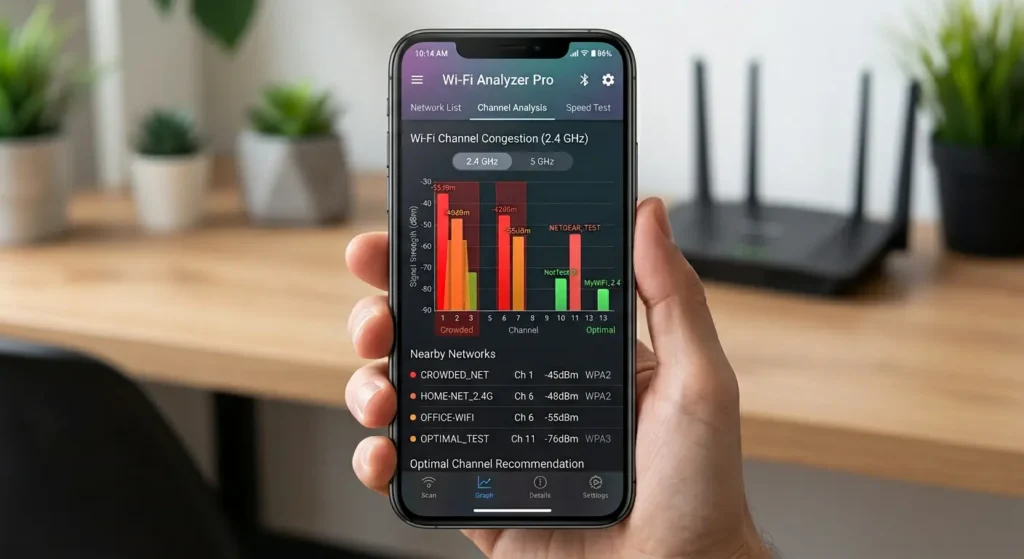
- Channel: 1, 6, or 11 (use a Wi‑Fi analyzer app to pick the least congested)
- Channel Width: 20 MHz (NOT 40 MHz)
- Extension Channel: Auto
Why 20 MHz? Many IoT devices only support 20 MHz channel width. When your router uses 40 MHz, it doubles the bandwidth but halves the compatibility. Combined with OFDMA, this creates Resource Unit sizes that budget IoT chipsets cannot process.
Fix 6: Create a Dedicated IoT VLAN (Advanced)
If you have many IoT devices and want maximum stability plus security, creating a separate VLAN is the gold standard approach.
On ASUS routers with Merlin firmware:
- Install amtm (ASUS Merlin Terminal Menu)
- Use the YazFi script to create a guest network with its own VLAN
- Configure the guest network:
- SSID:
IoT_Devices - Band: 2.4 GHz only
- 802.11ax mode: Disabled
- Client isolation: Optional (based on your needs)
- SSID:
- Connect all IoT devices to this network
This approach completely isolates your IoT traffic from your main network and eliminates any OFDMA interference.
Fix 7: Manually Adjust DTIM Interval and Beacon Interval
These are lesser-known settings that significantly affect IoT device connectivity:
Step-by-step:
- Go to Wireless → Professional → 2.4 GHz
- Set DTIM Interval to 3 (default is usually 1 or 3)
- Set Beacon Interval to 100 (default)
Why this helps: A higher DTIM interval gives IoT devices more time to sleep between beacons, reducing the chance of missing an OFDMA trigger frame. Some users report that setting DTIM to 1 works better for always-on devices like cameras, while 3 works better for battery-powered sensors.
Real-World Scenario: My Smart Home Nightmare
Let me share my actual experience because it perfectly illustrates this problem.
The Setup
- Router: ASUS RT-AX86U Pro
- Firmware: 3.0.0.4.388.22525 (at the time)
- IoT devices: 23 smart home devices
- 8 × TP-Link Kasa smart plugs
- 4 × Wyze Cam v3
- 3 × Ring devices (doorbell + 2 cameras)
- 2 × Echo Dot (3rd gen)
- 2 × Sonoff smart switches
- 4 × various sensors
What Happened
After upgrading from an older ASUS RT-AC68U to the RT-AX86U Pro, I was thrilled with the speed improvements on my laptop and phone. Wi‑Fi 6 was living up to the hype for those two devices.
Within 48 hours, I noticed:
- 5 smart plugs showed “offline” in the Kasa app
- 2 Wyze cameras kept cycling between online and offline every 15-25 minutes
- Ring doorbell missed 3 motion events because it was disconnected
- Both Echo Dots occasionally said “I’m having trouble connecting to the internet”
The Debugging Process
Day 1: I blamed my ISP. Restarted the modem. No improvement.
Day 2: I checked the ASUS router logs (System Log → Wireless Log) and saw dozens of entries like:
textwl: wlceventd_proc_event(bindary): MAC_ADDRESS deauthenticated
wl: wlceventd_proc_event(bindary): MAC_ADDRESS disassociated
These devices were being actively kicked off by the router.
Day 3: I found a thread on SNBForums discussing OFDMA issues with legacy clients. I disabled OFDMA on 2.4 GHz and every single IoT device came back online within 10 minutes and stayed connected.
The Final Configuration That Works
After weeks of testing different combinations, here is my stable configuration:
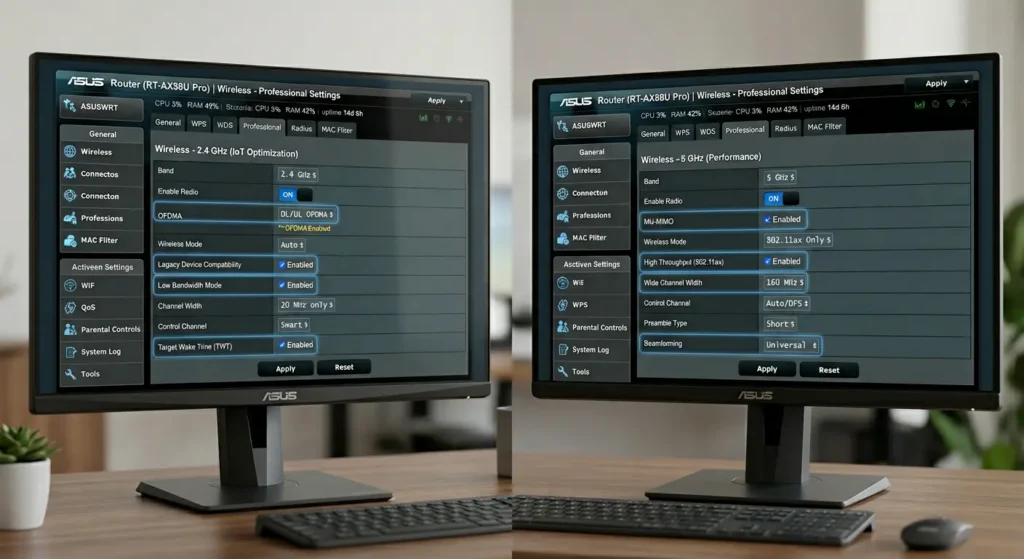
2.4 GHz Band (IoT devices):
- 802.11ax/AX Mode: Disabled
- Channel: 6 (fixed)
- Channel Width: 20 MHz
- Airtime Fairness: Disabled
- Roaming Assistant: Disabled
- DTIM: 3
5 GHz Band (phones, laptops, tablets):
- 802.11ax/AX Mode: Enabled
- OFDMA: Enabled
- Channel: 149 (fixed, DFS-free)
- Channel Width: 80 MHz
- Airtime Fairness: Enabled
- Target Wake Time: Enabled
Result: Zero disconnections in over 6 months. Every device stable. Wi‑Fi 6 benefits fully utilized on devices that support it.
ASUS Router Models Most Affected by This Issue
Based on community reports from SNBForums, Reddit r/ASUS, and ASUS support forums, these models are most frequently reported:
Broadcom-Based Models (More Reports)
- RT-AX86U / RT-AX86U Pro Most reported model
- RT-AX88U / RT-AX88U Pro
- ZenWiFi AX (XT8) Mesh systems amplify the problem
- ROG Rapture GT-AX11000 / GT-AX11000 Pro
- RT-AX92U
- ZenWiFi AX Mini (XD4)
Qualcomm-Based Models (Fewer Reports but Still Present)
- RT-AX55
- RT-AX58U / RT-AX58U V2
- ZenWiFi AX Hybrid (XP4)
Why Broadcom models are worse: Broadcom’s wireless driver implementation of OFDMA is known to be more aggressive with legacy client management. Qualcomm’s implementation tends to be more forgiving with backward compatibility.
Should You Disable OFDMA Completely?
This is a question I see everywhere, and the answer is nuanced.
When to Disable OFDMA Completely
- You have more than 15 IoT devices on your network
- You are not a heavy user of Wi‑Fi 6 specific features
- You prioritize stability over maximum throughput
- You use mostly 2.4 GHz devices
When to Keep OFDMA Enabled (on 5 GHz)
- You have Wi‑Fi 6 devices (iPhone 11+, Samsung S10+, modern laptops)
- You experience network congestion with many simultaneous users
- You game or video conference frequently
- Your IoT devices are all on a separate 2.4 GHz SSID
The Performance Impact of Disabling OFDMA
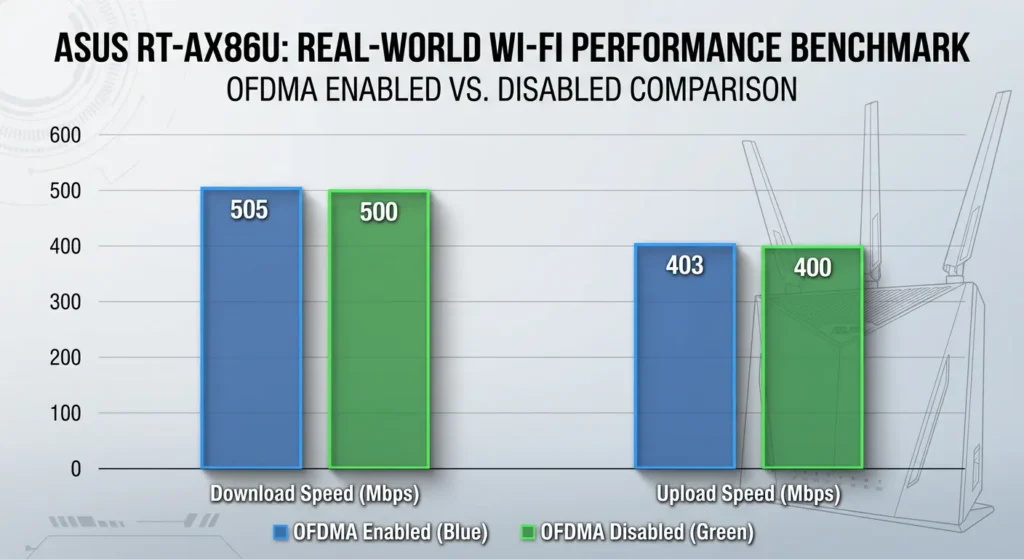
Let’s be honest: for most home users, you will not notice any performance difference with OFDMA disabled. The real-world benefits of OFDMA are most visible in:
- Dense environments (offices, apartments with 50+ devices)
- Scenarios with many simultaneous small data transfers
- Networks with mostly Wi‑Fi 6 certified clients
For a typical home with 5-10 active devices, the performance difference between OFDMA on and off is less than 5% in real-world throughput.
Advanced Troubleshooting: When Nothing Else Works
If you have tried all 7 fixes above and still experience disconnections, try these advanced steps:
Check for IP Address Conflicts
- Go to LAN → DHCP Server
- Increase the DHCP lease time to 86400 seconds (24 hours)
- Assign static IPs to all IoT devices (this prevents DHCP conflicts)
- Ensure your DHCP pool is large enough for all devices
Analyze Wireless Logs
- Enable Syslog on your ASUS router
- Go to System Log → Wireless Log
- Look for patterns:
- If disconnections happen at specific times → possible DFS channel switching
- If specific MAC addresses keep deauthenticating → device-specific issue
- If all devices disconnect simultaneously → router-side bug
Try Merlin Firmware
ASUSWRT-Merlin is a third-party firmware based on ASUS’s official code but with bug fixes, improvements, and additional features. Many users report that Merlin firmware resolves OFDMA-related disconnections that persist on stock firmware.
Installation steps:
- Download the correct firmware for your model from asuswrt-merlin.net
- Go to Administration → Firmware Upgrade
- Upload the Merlin firmware file
- After installation, perform a factory reset (recommended)
- Reconfigure your settings from scratch (do not restore a backup from stock firmware)
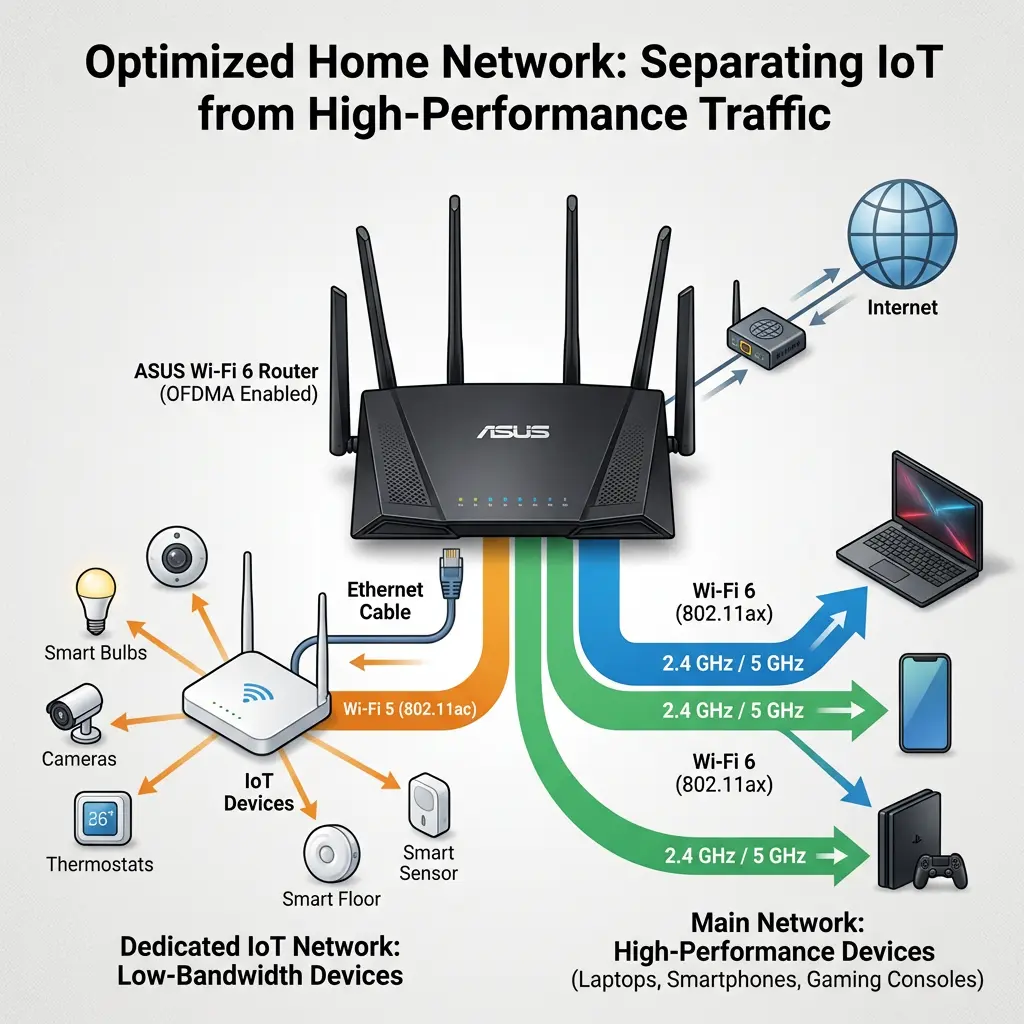
Consider a Dedicated IoT Access Point
If you have a large smart home setup (30+ devices), consider adding a cheap Wi‑Fi 5 access point dedicated to IoT devices:
- TP-Link EAP225 (~$60) Excellent for IoT
- Ubiquiti UniFi AP Lite (~$99) More advanced
- Connect it via Ethernet to your ASUS router
- Disable Wi‑Fi on the AP’s 5 GHz radio
- Set 2.4 GHz to channels 1, 6, or 11 (non-overlapping with your ASUS router)
This completely eliminates the OFDMA compatibility problem while keeping your ASUS router optimized for modern devices.
FAQ – Frequently Asked Questions
Does disabling OFDMA slow down my internet?
No, for most home users, disabling OFDMA will not noticeably affect your internet speed. OFDMA primarily improves efficiency in dense environments with many simultaneous connections. Your actual internet speed is determined by your ISP plan, not OFDMA.
Can I enable OFDMA on 5 GHz and disable it on 2.4 GHz?
Yes! This is actually the recommended approach. Most ASUS routers allow you to configure each band independently under Wireless → Professional. Select the 2.4 GHz band, disable OFDMA/AX mode, then select 5 GHz and keep it enabled.
Will a firmware update fix this permanently?
Partially. ASUS firmware updates have improved OFDMA compatibility, but the root cause is the IoT devices’ hardware limitations, not the router’s software. No firmware update can make a Wi‑Fi 4 chipset understand Wi‑Fi 6 OFDMA scheduling. Firmware updates can improve the router’s handling of mixed environments, but separating your bands remains the most reliable solution.
Why do only some of my IoT devices disconnect?
Different IoT devices use different Wi‑Fi chipsets with varying levels of tolerance to OFDMA signaling. Devices with slightly better chipsets (like some newer Echo devices) may handle the interference gracefully, while devices with bare-minimum chipsets (like budget smart plugs) cannot cope at all.
Is this problem specific to ASUS routers?
No. This issue affects all Wi‑Fi 6 routers from every brand, including Netgear, TP-Link, Linksys, and others. However, ASUS routers are more frequently reported because they are extremely popular among tech-savvy users who are more likely to notice and report the issue. ASUS’s OFDMA implementation, particularly on Broadcom-based models, also tends to be more aggressive.
Does Wi‑Fi 6E (6 GHz) have the same problem?
The 6 GHz band does not have this problem because it only allows Wi‑Fi 6E certified devices. There are no legacy devices on 6 GHz, so OFDMA works perfectly. However, no IoT devices currently use 6 GHz, so this is not a practical solution for IoT.
Should I return my ASUS router because of this issue?
Absolutely not. This is not a defect it is a compatibility issue inherent to the Wi‑Fi 6 standard when mixed with legacy devices. The solutions in this guide will give you a stable, fast network that takes advantage of Wi‑Fi 6 for modern devices while keeping your IoT devices reliably connected.
How do I know if my IoT device supports Wi‑Fi 6?
Check the device’s specifications for “802.11ax” or “Wi‑Fi 6” certification. If it only mentions “802.11b/g/n” or “802.11n,” it is a legacy device that may have issues with OFDMA. You can also check the Wi-Fi Alliance product finder for certified devices.
Final Thoughts
The irony of OFDMA is hard to miss. A technology specifically designed to handle many devices efficiently ends up disconnecting the devices that need it most. But this is not a flaw in your ASUS router or in Wi‑Fi 6 itself it is a growing pain of technology evolution.
The good news is that the fix is straightforward. In most cases, simply disabling OFDMA on the 2.4 GHz band and separating your SSIDs resolves the issue completely. You lose nothing meaningful in terms of performance, and you gain a rock-solid smart home network.
Here is my personal recommendation summarized:
- Disable OFDMA/AX mode on 2.4 GHz do this first
- Separate your SSIDs 2.4 GHz for IoT, 5 GHz for everything else
- Update firmware always stay current
- Fix your channel to 1, 6, or 11 on 2.4 GHz at 20 MHz width
- Disable Airtime Fairness and Roaming Assistant on 2.4 GHz
Do these five things and I am confident your IoT disconnection nightmare will be over.
Your smart home should make your life easier, not harder. With the right settings, your ASUS Wi‑Fi 6 router can deliver blazing-fast performance to your modern devices and keep every last smart bulb and sensor reliably online.