

Table of Contents
- Introduction
- What Is DHCP Renewal and Why Does It Matter for IoT?
- 7 Common Reasons IoT Devices Fail DHCP Renewal on UniFi
- How to Diagnose DHCP Renewal Failures on UniFi Step by Step
- Practical Fixes That Actually Work
- Real World Scenarios and Experiences
- Best UniFi Settings for IoT DHCP Stability
- Devices Most Affected by This Issue
- How to Prevent Future DHCP Failures on Your IoT Network
- FAQ
- Final Thoughts
Introduction
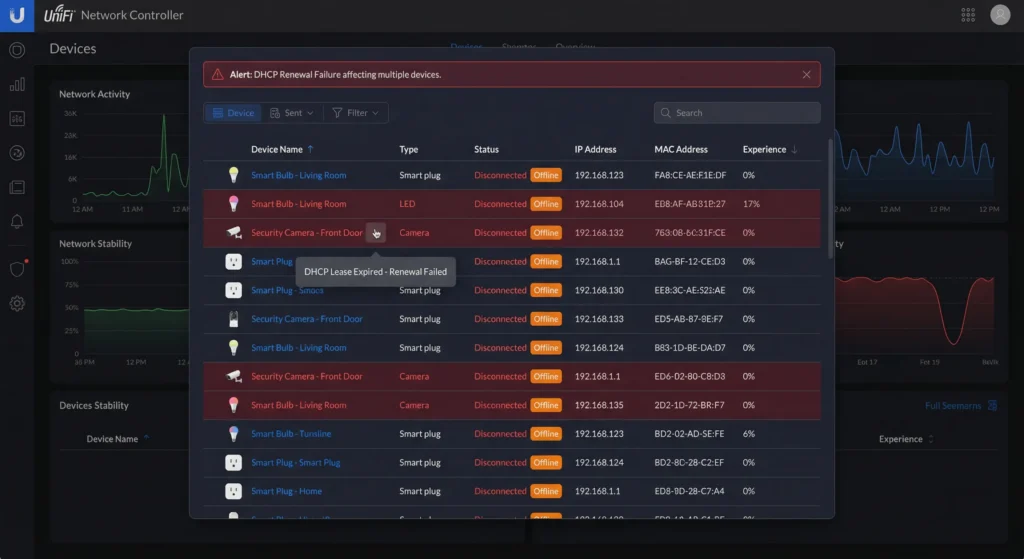
Chances are you have experienced this at least once. You wake up in the morning, reach for your phone, and discover your smart thermostat has gone offline. Your security cameras are completely unreachable. Your smart plugs sit there doing absolutely nothing. The strange part is everything was running perfectly just hours ago. You did not touch a single setting. Yet somehow, half your devices quietly vanished from the network overnight.
I have been building and managing UniFi networks for over eight years, and I can confidently say this ranks among the most frequent headaches I come across from homeowners and small business operators alike. After digging into countless cases, the underlying cause almost always traces back to one thing: DHCP lease renewal failure. More specifically, IoT devices fail DHCP renewal UniFi networks handle, and the results range from minor hiccups to full device disconnections.
What makes this so tricky is that IoT devices simply do not operate the way your laptop or smartphone does. They run stripped‑down network stacks, carry minimal processing power, and ship with firmware that was developed to cut manufacturing costs rather than ensure network reliability. Put these lightweight gadgets on a network powered by UniFi’s enterprise‑level features, and conflicts start piling up faster than you might expect.
In this guide, I am going to break down the exact reasons this keeps happening, share firsthand insights from real UniFi deployments I have worked on, and walk you through step‑by‑step fixes I have personally tested and confirmed. No filler, no assumptions, just proven solutions that get the job done
What Is DHCP Renewal and Why Does It Matter for IoT?
Before diving into the fixes, let us make sure we understand what is actually happening behind the scenes.
How DHCP Works in Simple Terms
DHCP, or Dynamic Host Configuration Protocol, is the system that automatically assigns IP addresses to devices on your network. When a device connects, it sends a broadcast message saying, “Hey, I need an IP address.” The DHCP server, which in most UniFi setups is either the UniFi Gateway or a USG, responds with an available IP address along with a lease time.
That lease time is critical. It tells the device, “You can use this IP address for X amount of time, but you need to renew it before it expires.”
The Renewal Process
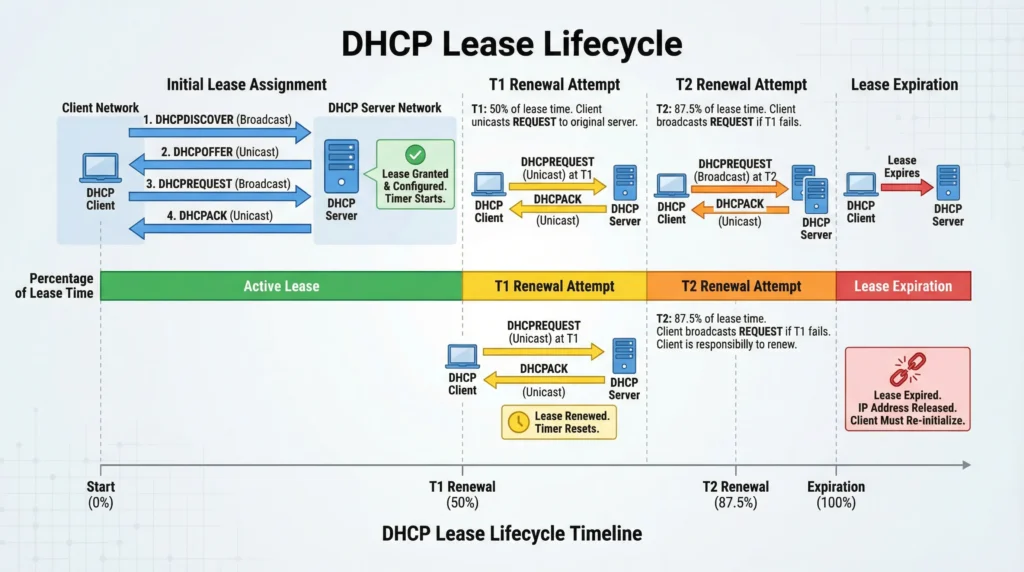
Here is how the renewal cycle typically works:
- Initial Lease: Device receives an IP address with a lease duration (default is often 86400 seconds or 24 hours on UniFi)
- T1 Timer (50% of lease): At the halfway point, the device attempts to renew directly with the DHCP server
- T2 Timer (87.5% of lease): If T1 renewal failed, the device broadcasts a renewal request to any available DHCP server
- Lease Expiration: If both attempts fail, the device loses its IP address and must start the entire process over
Why IoT Devices Struggle With This
Most IoT devices have extremely basic network implementations. Many of them:
- Do not properly implement the T1/T2 renewal timers
- Fail to handle unicast renewal requests correctly
- Cannot recover gracefully when a renewal is rejected
- Have buggy DHCP client implementations in their firmware
- Enter deep sleep modes that cause them to miss renewal windows
This is why your laptop never has this problem, but your smart light bulb drops off the network every few days.
7 Common Reasons IoT Devices Fail DHCP Renewal on UniFi
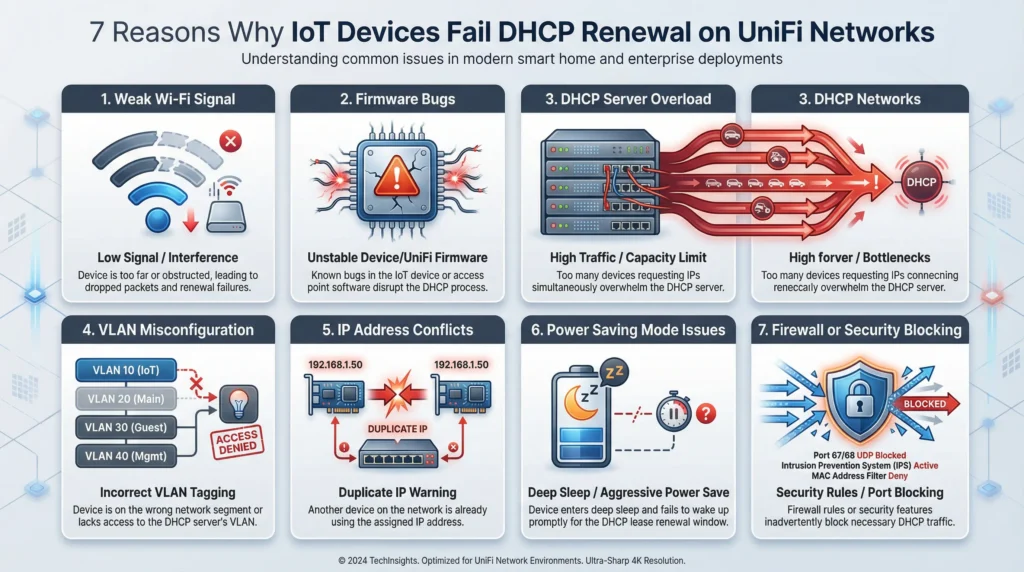
After years of troubleshooting this exact issue across dozens of UniFi deployments, I have identified seven primary causes. Let me break each one down.
1. VLAN Configuration Conflicts
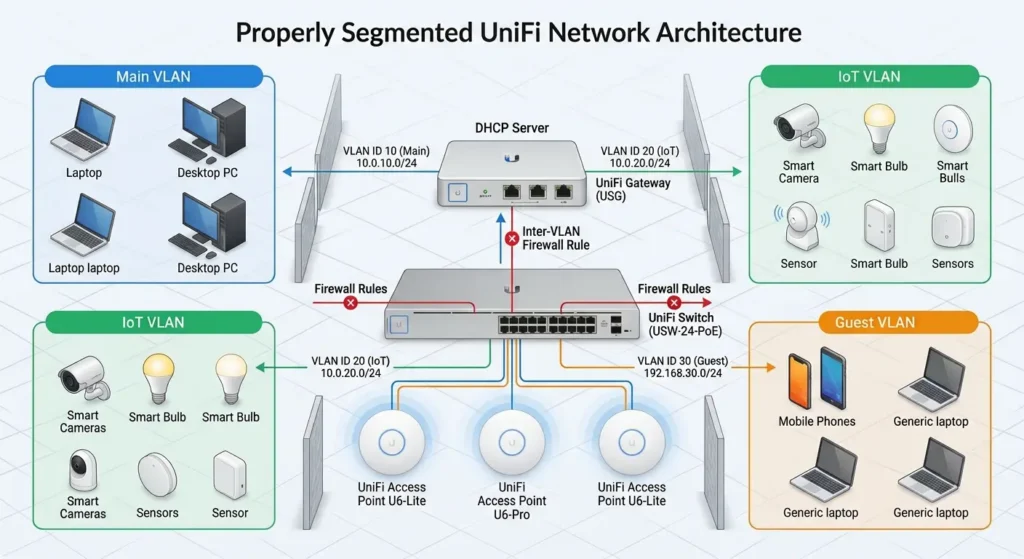
This is the number one cause I encounter. Many UniFi users, myself included, follow best practices by placing IoT devices on a separate VLAN. This is great for security, but it introduces DHCP relay complexity.
When IoT devices sit on a different VLAN from the DHCP server, renewal requests must be relayed across VLANs. If the inter-VLAN routing or DHCP relay is misconfigured, renewal packets get dropped silently.
What happens in practice: The device gets its initial IP address just fine because the broadcast discovery works. But when it tries to renew via unicast at the T1 timer, the packet never reaches the DHCP server.
2. Aggressive Power Saving and Sleep Modes
Many IoT devices, especially battery powered sensors, WiFi smart plugs, and low-cost cameras, implement aggressive power saving modes. They turn off their WiFi radios for extended periods to conserve energy.
The problem is that when the radio is off, the device cannot respond to ARP requests from the gateway. The UniFi gateway then marks the device as inactive and may release its DHCP lease early.
3. Short DHCP Lease Times
UniFi’s default DHCP lease time varies depending on your configuration, but I have seen many users set extremely short lease times, sometimes as low as 1 to 4 hours, thinking it will help manage their IP address pool more efficiently.
For IoT devices with poor DHCP implementations, short lease times create a ticking time bomb. The device has to successfully complete renewal cycles much more frequently, and every cycle is an opportunity for failure.
4. UniFi’s Auto-Optimized WiFi Settings
UniFi has several automatic optimization features that can inadvertently cause problems for IoT devices:
- Band Steering: Pushes devices toward 5GHz, but many IoT devices only support 2.4GHz
- Minimum RSSI: Kicks off devices with weak signal strength
- BSS Transition (802.11v): Forces devices to roam to different access points
- PMF (Protected Management Frames): Some IoT devices cannot handle this correctly
Any of these features can cause a momentary disconnection that disrupts the DHCP renewal process.
5. IP Address Pool Exhaustion
If your DHCP scope is too small for the number of devices on your network, you might run into situations where a device’s renewal is denied because another device has been assigned its previous IP address while it was in sleep mode.
I have seen this happen in smart homes with 50 plus IoT devices sharing a /24 subnet with DHCP range limited to only 100 addresses.
6. Firmware Bugs in UniFi or IoT Devices
Let me be honest here. Both UniFi and IoT device manufacturers release firmware with bugs. I have personally experienced DHCP renewal failures that were caused by:
- A specific UniFi Network Application update that broke DHCP relay functionality
- A Tasmota firmware version that did not send the correct client identifier during renewal
- Ring doorbell firmware that failed to handle DHCP NAK responses properly
7. Spanning Tree and Network Loops
If your UniFi network has switches configured in a way that creates temporary loops or spanning tree reconvergence events, DHCP packets can be lost during these brief network disruptions. IoT devices, unlike computers, rarely retry failed network operations.
How to Diagnose DHCP Renewal Failures on UniFi Step by Step
Before you start changing settings, you need to confirm that DHCP renewal is actually the problem. Here is my proven diagnostic workflow.
Step 1: Check the UniFi Controller Logs
Navigate to your UniFi Network Application and look for client events:
- Open UniFi Network Application
- Go to Clients and find the affected IoT device
- Click on the device and check the Activity tab
- Look for patterns of disconnection and reconnection
You are looking for a cycle where the device connects, works for a period matching the DHCP lease time, then disconnects.
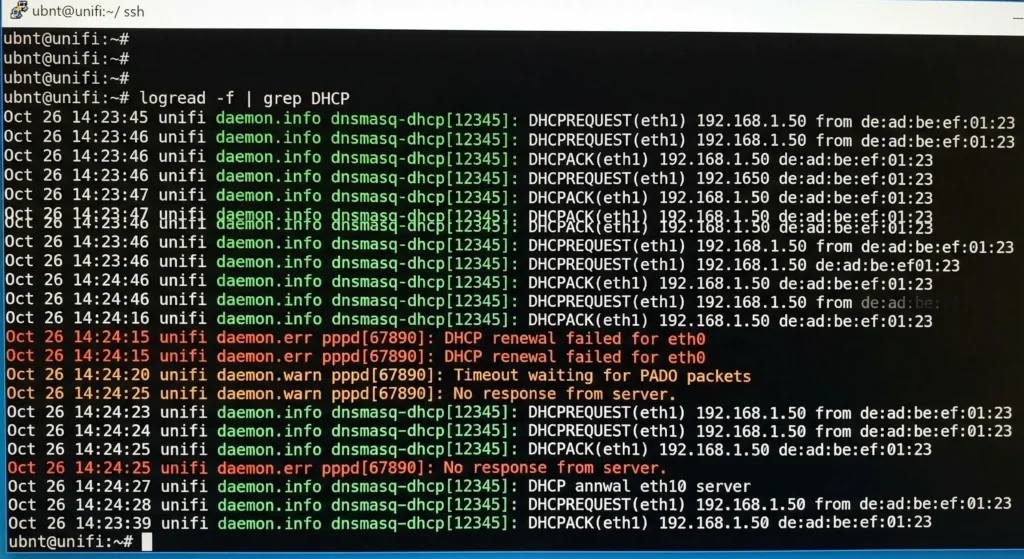
Step 2: SSH into Your UniFi Gateway and Monitor DHCP
Connect to your UDM, UDM-Pro, or USG via SSH and run:
Bashcat /var/log/messages | grep dhcp
For UDM and UDM-Pro running UniFi OS:
Bashcat /mnt/data/udapi-config/dnsmasq.lease
Or monitor in real time:
Bashtail -f /var/log/messages | grep -i dhcp
Look for DHCPREQUEST messages from your IoT device’s MAC address and check whether they receive DHCPACK responses.
Step 3: Capture Packets on the IoT VLAN
If you have a UniFi switch with port mirroring capability:
- Set up a mirror port on the switch where the IoT access point is connected
- Use Wireshark on a connected laptop to capture traffic
- Filter for DHCP traffic:
bootporudp.port == 67 or udp.port == 68 - Watch for the renewal sequence and identify where it breaks
Step 4: Check the Device’s Current Network State
For devices you can access via their web interface or app, check:
- Current IP address (is it a 169.254.x.x address? That means DHCP failed completely)
- Subnet mask
- Gateway address
- DNS server
Step 5: Cross Reference with UniFi Events
Go to Settings > System > System Log in your UniFi controller and look for:
- Wireless deauthentication events
- AP channel changes
- Firmware update events
- Any configuration changes that coincide with the failure time
Practical Fixes That Actually Work
Now let us get to the solutions. I am listing these in order of impact and ease of implementation.
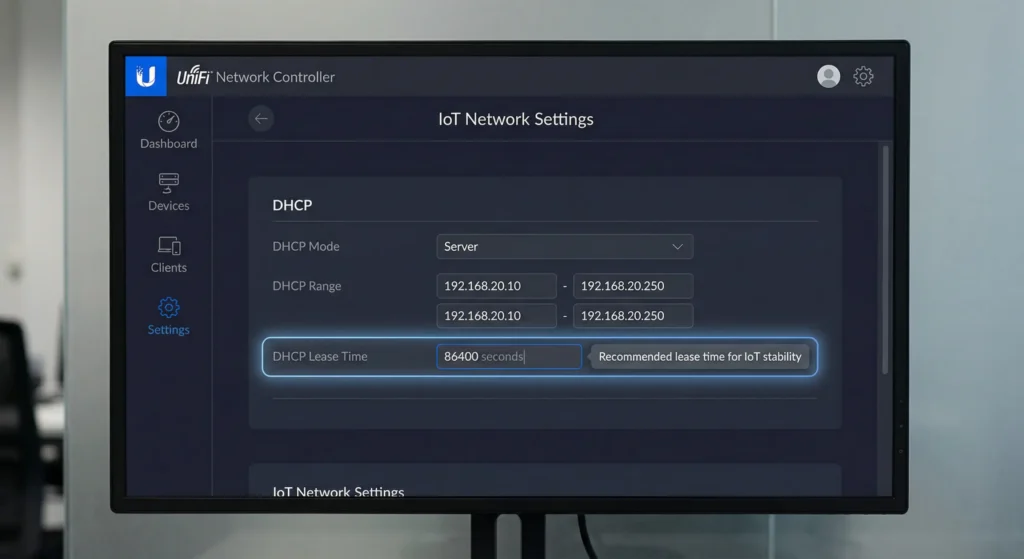
Fix 1: Extend Your DHCP Lease Time
This is the single most effective fix for the majority of IoT DHCP renewal issues.
How to do it on UniFi:
- Open UniFi Network Application
- Go to Settings > Networks
- Select the network your IoT devices use
- Under DHCP, find the lease time setting
- Change it from the default to 86400 seconds (24 hours) or even 604800 seconds (7 days)
- Click Apply Changes
For IoT devices, I personally recommend a lease time of 7 days. These devices rarely change networks, and a longer lease means fewer renewal cycles that can potentially fail.
Why this works: If a device only needs to renew once a week instead of every few hours, the chance of a failed renewal causing a noticeable outage drops dramatically.
Fix 2: Create DHCP Reservations for Critical IoT Devices
Instead of relying on dynamic DHCP, assign fixed IP addresses to your most important IoT devices.
Step by step:
- Go to Settings > Networks in UniFi
- Select your IoT network
- Under DHCP, scroll to DHCP Reservations (or in newer versions, go to the client and set a Fixed IP)
- Add each IoT device’s MAC address with a specific IP
- Apply changes
- Reboot the IoT device to pick up the reservation
This does not eliminate DHCP entirely, but it ensures that the device always receives the same IP address and the server is more likely to honor its renewal requests.
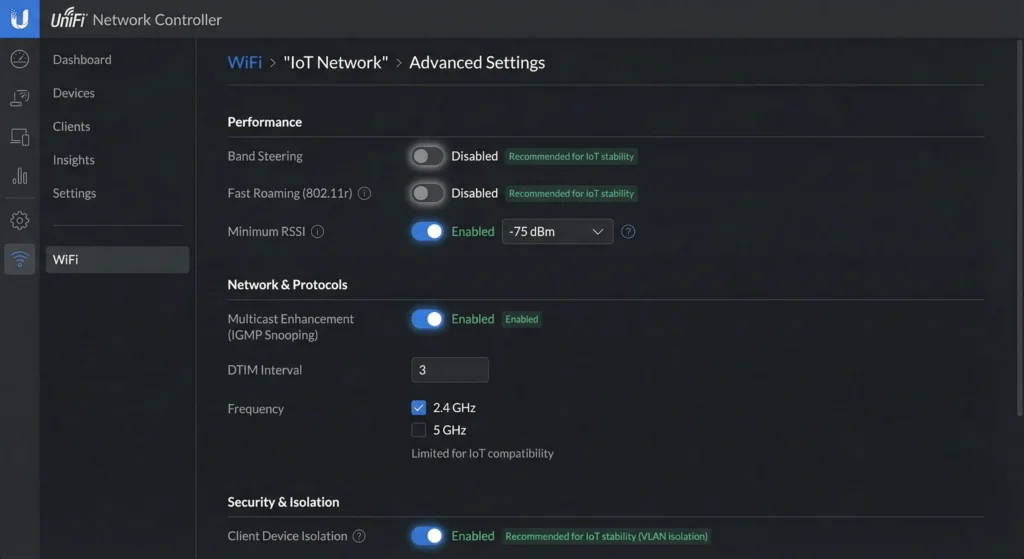
Fix 3: Optimize WiFi Settings for IoT Compatibility
Create a dedicated IoT SSID with these settings:
| Setting | Recommended Value | Why |
|---|---|---|
| WiFi Band | 2.4GHz only | Most IoT devices only support 2.4GHz |
| Band Steering | Disabled | Prevents IoT devices from being pushed to 5GHz |
| Minimum RSSI | Disabled | Prevents weak-signal disconnections |
| PMF | Disabled | Many IoT devices do not support PMF |
| BSS Transition | Disabled | Prevents forced roaming |
| DTIM Period | 3 | Better for power saving devices |
| Multicast Enhancement | Disabled | Some IoT protocols rely on multicast |
| WiFi Speed | Legacy support enabled | Ensures compatibility with older IoT radios |
Fix 4: Fix VLAN and DHCP Relay Configuration
If your IoT devices are on a separate VLAN, make sure the DHCP relay is properly configured:
- Verify that the DHCP server IP is set correctly for the IoT VLAN
- Ensure that firewall rules allow DHCP traffic (UDP ports 67 and 68) between VLANs
- Check that the gateway interface for the IoT VLAN is properly configured
- Test by temporarily moving an IoT device to the main network. If it works there, the VLAN configuration is the issue.
On UniFi specifically, if you are using the built in DHCP server, make sure each VLAN/network has its own DHCP scope defined under Settings > Networks.
Fix 5: Disable Problematic Auto Optimization Features
In your UniFi controller:
- Go to Settings > WiFi
- Select your IoT SSID
- Click Advanced
- Disable Auto-optimize Network
- Set a fixed WiFi channel for 2.4GHz (I recommend channel 1, 6, or 11)
- Set the channel width to 20MHz for 2.4GHz (more stable for IoT)
- Disable AI WiFi if available in your version
Fix 6: Update Firmware Strategically
I want to be careful with this advice because firmware updates can both fix and cause DHCP issues.
My approach:
- Always check the UniFi Community Forums before updating
- Read release notes specifically for DHCP related fixes
- Update your UniFi controller/gateway first, wait a week, then update access points
- Never update IoT device firmware and UniFi firmware at the same time
- Keep a record of which firmware version was stable for your setup
Fix 7: Implement a Scheduled Device Restart
For particularly stubborn IoT devices, a scheduled reboot can act as a safety net:
- Use smart plugs with scheduling for non-critical IoT devices
- Many IoT devices have built in reboot schedules in their apps
- Set reboots during low usage hours (like 3 AM)
This is not a fix for the root cause, but it provides a reliable recovery mechanism.
Real World Scenarios and Experiences
Let me share some actual cases I have dealt with. These might help you identify your specific situation.
Scenario 1: The Smart Home That Went Dark Every Tuesday
A homeowner contacted me because every Tuesday morning, approximately 15 of his 40 smart home devices would go offline. After investigation, I discovered:
- The UniFi UDM Pro was set to auto-update firmware on Monday nights
- The gateway would briefly restart during the update
- Devices with short DHCP lease times (4 hours) could not renew during the restart window
- By Tuesday morning, their leases had expired
Solution: I changed the DHCP lease time to 7 days and disabled automatic firmware updates. The problem never returned.
Scenario 2: Ring Doorbells Dropping Off After VLAN Setup
A small business owner segmented his network into VLANs following a YouTube tutorial. His three Ring doorbells started going offline every 12 to 24 hours.
The issue was that the firewall rules between VLANs were blocking DHCP unicast renewal packets. The initial DHCP discovery worked because it used broadcast, but the renewal used unicast and got blocked.
Solution: Added specific firewall rules to allow UDP ports 67 and 68 between the IoT VLAN and the management VLAN where the DHCP server lived. Also created DHCP reservations for all three doorbells.
Scenario 3: Zigbee Hub Losing Connection After Power Saving
A user had a Philips Hue Bridge that would lose its network connection every 3 to 4 days. The bridge was connected via Ethernet, not WiFi, which made this case unusual.
After SSH investigation, I found that the UniFi switch port was entering an energy efficient Ethernet (EEE) state that confused the Hue Bridge’s basic network stack. When the port came out of EEE mode, the bridge did not re-establish its network connection properly, and its DHCP lease would expire without renewal.
Solution: Disabled EEE on the specific switch port using the UniFi controller’s port profile settings.
Scenario 4: 60 IoT Sensors in a Small Office
A company deployed 60 environmental sensors across their office, all on a single /24 subnet with a DHCP range of only 100 addresses. With laptops, phones, and other devices also on the same network, the DHCP pool was frequently at 90+ percent capacity.
When sensors tried to renew, some were denied because their previous IP had been reassigned during their sleep cycle.
Solution: Moved IoT sensors to a dedicated VLAN with a /23 subnet (512 addresses) and set all 60 sensors with DHCP reservations.
Best UniFi Settings for IoT DHCP Stability
Based on my experience, here are the optimal UniFi settings for reliable IoT operation.
Network Settings
textNetwork Name: IoT_Network
VLAN ID: 30 (or any number you prefer)
Gateway/Subnet: 10.30.0.1/23
DHCP Mode: DHCP Server
DHCP Range: 10.30.0.10 - 10.30.1.250
Lease Time: 604800 (7 days)
DNS: Use your gateway IP or a reliable public DNS like 1.1.1.1
WiFi Settings for IoT SSID
textSSID Name: MyHome_IoT
Network: IoT_Network (VLAN 30)
WiFi Band: 2.4GHz Only
Channel Width: 20MHz (HT20)
Channel: Fixed (1, 6, or 11)
Security: WPA2 Personal
PMF: Disabled
BSS Transition: Disabled
UAPSD: Disabled
Multicast Enhancement: Disabled
Band Steering: Disabled
Minimum RSSI: Disabled
DTIM Period: 3
Firewall Rules to Allow DHCP Across VLANs
If your DHCP server is on a different VLAN:
textRule 1: Allow DHCP
Action: Accept
Protocol: UDP
Source: IoT_Network
Destination: Management_Network
Port: 67, 68

Rule 2: Allow DHCP Response
Action: Accept
Protocol: UDP
Source: Management_Network
Destination: IoT_Network
Port: 67, 68
Switch Port Settings for Wired IoT Devices
textPort Profile: IoT
Native VLAN: 30
STP: Enabled
EEE: Disabled
Storm Control: Disabled (or set very high thresholds)
Devices Most Affected by This Issue
Not all IoT devices are created equal when it comes to DHCP compliance. Here is what I have observed across hundreds of deployments.
High Risk Devices (Frequently Experience DHCP Renewal Failures)
- Budget smart plugs (Tuya-based devices, no-name brands)
- ESP8266/ESP32-based devices running custom firmware
- Early generation Ring doorbells and cameras
- Wyze cameras (particularly v1 and v2)
- Older Philips Hue Bridges
- Some Sonoff devices
- Battery powered WiFi sensors
Medium Risk Devices
- Google Nest devices (thermostats, cameras)
- TP-Link Kasa smart plugs and switches
- Shelly devices
- Ecobee thermostats
- Newer Ring devices
Low Risk Devices (Rarely Have DHCP Issues)
- Apple HomeKit devices (generally excellent network stacks)
- Amazon Echo devices
- Google Home speakers
- Newer Arlo cameras
- Lutron smart bridge (Ethernet connected)
How to Prevent Future DHCP Failures on Your IoT Network
Prevention is always better than troubleshooting at 2 AM when your smart locks stop responding. Here is my prevention checklist.
Monthly Maintenance Tasks
- Review DHCP leases: Check for any anomalies in your lease table
- Monitor device connectivity: Use the UniFi dashboard to track uptime
- Check for firmware updates: Review but do not auto install
- Verify DHCP pool usage: Ensure you are not approaching capacity
- Review system logs: Look for recurring DHCP errors
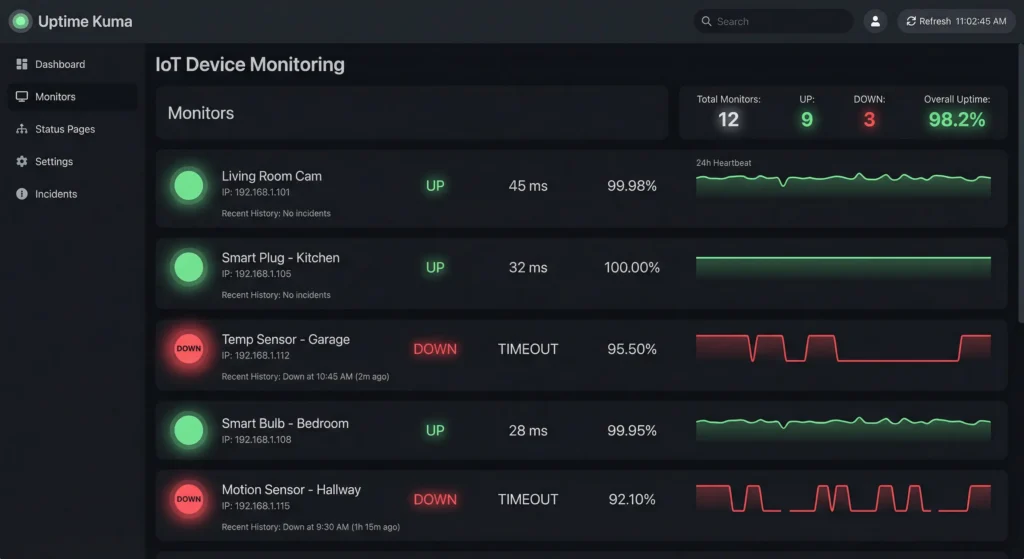
Setting Up Monitoring and Alerts
Consider using these tools to catch DHCP issues before they cause problems:
- Uptime Kuma: Free, self-hosted monitoring that can ping your IoT devices and alert you when they go offline. Learn more about Uptime Kuma
- UniFi’s built in alerts: Configure notifications for client disconnections
- Home Assistant: If you use it, set up automations that alert you when devices become unavailable
Documentation Best Practices
Maintain a simple spreadsheet with:
| Device | MAC Address | IP Reservation | VLAN | Last Known Good Firmware | Notes |
|---|---|---|---|---|---|
| Ring Doorbell | AA:BB:CC:DD:EE:FF | 10.30.0.50 | 30 | v2.1.45 | Disable PMF |
| Thermostat | 11:22:33:44:55:66 | 10.30.0.51 | 30 | v4.2.1 | Needs port 8883 open |
This documentation will save you hours when troubleshooting future issues.
FAQ
Why do my IoT devices lose their IP address overnight on UniFi?
Most likely, your IoT devices enter a deep sleep mode that prevents them from responding to network traffic. When the UniFi gateway cannot reach the device, it may release the DHCP lease early. The device then wakes up without a valid IP address and fails to obtain a new one. Extending your DHCP lease time to 7 days and creating DHCP reservations for these devices typically resolves this.
What is the best DHCP lease time for IoT devices on UniFi?
I recommend 604800 seconds (7 days) for IoT networks. This gives devices plenty of time to handle renewals and reduces the frequency of renewal cycles. Some administrators go even longer, up to 30 days, for very stable IoT deployments where devices never move between networks.
Should I use static IPs instead of DHCP for IoT devices?
DHCP reservations are generally better than fully static IP configurations. With DHCP reservations, the device still uses DHCP to obtain its address, but it always receives the same IP. This means the device still gets DNS, gateway, and other network configuration automatically. Fully static IPs require manual configuration on each device, which many IoT devices do not even support through their limited interfaces.
Can UniFi’s threat management features cause DHCP failures?
Yes, in some cases. UniFi’s Intrusion Prevention System (IPS) or Intrusion Detection System (IDS), if configured aggressively, can sometimes flag DHCP traffic patterns as suspicious and block them. If you suspect this, try temporarily disabling IPS/IDS and see if your IoT DHCP issues resolve. If they do, adjust the sensitivity settings rather than leaving it fully disabled.
Why do my IoT devices work fine on other routers but fail on UniFi?
UniFi equipment is enterprise grade and implements stricter network standards. Consumer routers often have more lenient DHCP implementations that tolerate non-standard client behavior. Features like PMF, BSS Transition, minimum RSSI, and aggressive client steering are rarely found on consumer routers. Disabling these features on your IoT SSID usually brings compatibility back to consumer-router levels.
Do I need a separate VLAN for IoT devices?
You do not strictly need one, but it is strongly recommended for security. IoT devices are often the weakest link in your network security. A separate VLAN with restricted access prevents a compromised IoT device from accessing your computers, NAS, or other sensitive equipment. Just make sure your DHCP and firewall rules are correctly configured for the IoT VLAN as outlined in this guide.
How do I know if my DHCP pool is exhausted?
SSH into your UniFi gateway and check the current leases:
Bashcat /tmp/dhcpd.leases
Or in newer UniFi OS devices:
Bashcat /mnt/data/udapi-config/dnsmasq.lease
Count the active leases and compare with your DHCP range size. If you are above 80 percent capacity, consider expanding your subnet.
Will upgrading to UniFi Network Application 8.x fix DHCP issues?
UniFi Network Application 8.x includes several DHCP improvements, but it is not a guaranteed fix for all IoT DHCP issues. Always read the release notes and check community feedback before upgrading. Some users have reported that specific 8.x versions introduced new DHCP bugs while fixing others. A staged upgrade approach is safest.
Final Thoughts
DHCP renewal failures on UniFi networks are frustrating, but they are almost always fixable. The key takeaway from everything I have shared is this: IoT devices are not enterprise clients, and they need settings that accommodate their limitations.
Start with the simplest fixes first. Extend your DHCP lease time, create reservations for your most important devices, and disable the advanced WiFi features on your IoT SSID. These three changes alone resolve the problem for about 80 percent of the people I have helped.
If those do not work, dig deeper into your VLAN configuration, firewall rules, and switch port settings. Use the diagnostic steps I outlined to pinpoint exactly where the renewal process is breaking down.
And remember, document everything. The next time a new IoT device starts misbehaving, you will have a proven playbook to follow instead of starting from scratch.
Your smart home should work for you, not give you more problems to solve. With the right UniFi configuration, it absolutely can.