Table of Contents
- Introduction: The IPv6 and IoT Problem Nobody Warned You About
- What Is IPv6 and Why Is It Being Adopted?
- How IoT Devices Communicate on Your Network
- Why Enabling IPv6 Breaks Certain IoT Integrations
- Real World Scenarios: IPv6 Breaking IoT Setups
- Common IoT Devices Affected by IPv6 Issues
- Step by Step Troubleshooting Guide
- Proven Fixes to Resolve IPv6 and IoT Conflicts
- How to Run Dual Stack Without Breaking IoT
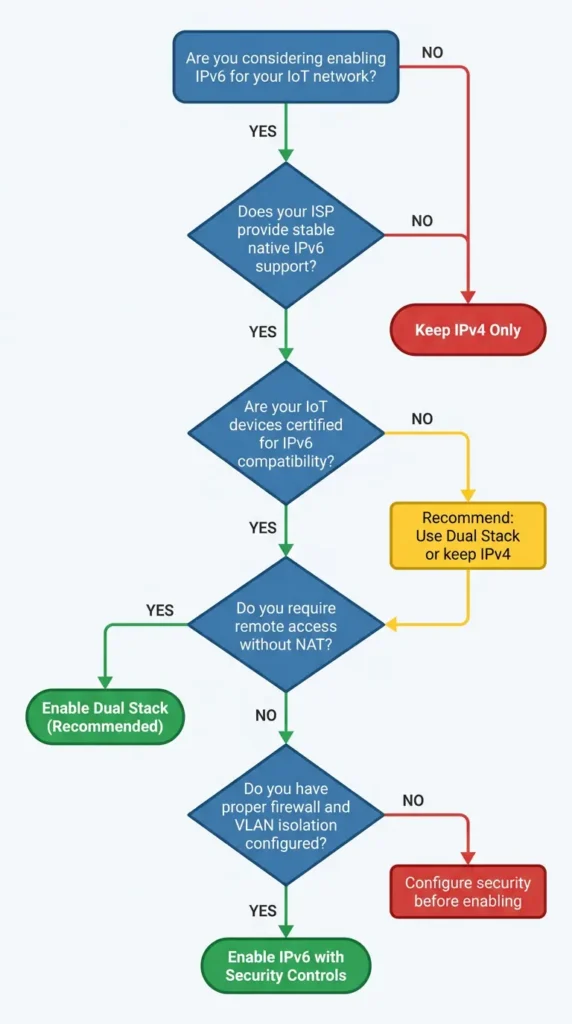
- When to Disable IPv6 and When to Keep It
- Real User Experiences and Lessons Learned
- FAQ: IPv6 and IoT Integration Failures
- Final Thoughts
Introduction: The IPv6 and IoT Problem Nobody Warned You About
Let me start with something that happened to me personally. I spent an entire weekend setting up a smart home system. Everything was working perfectly. The smart lights responded instantly. The thermostat synced with my phone. The security cameras streamed without a single hiccup.
Then I enabled IPv6 on my router because my ISP recommended it.
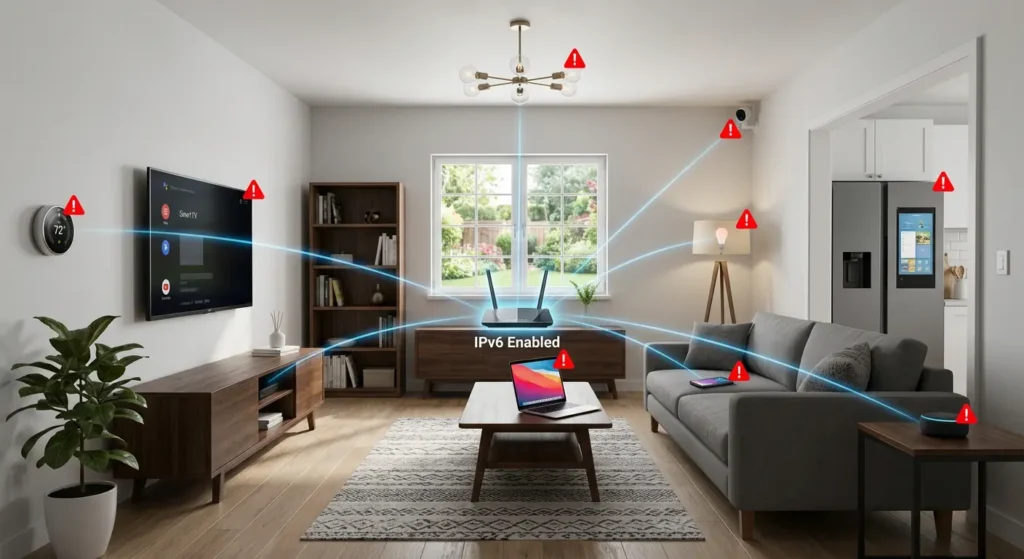
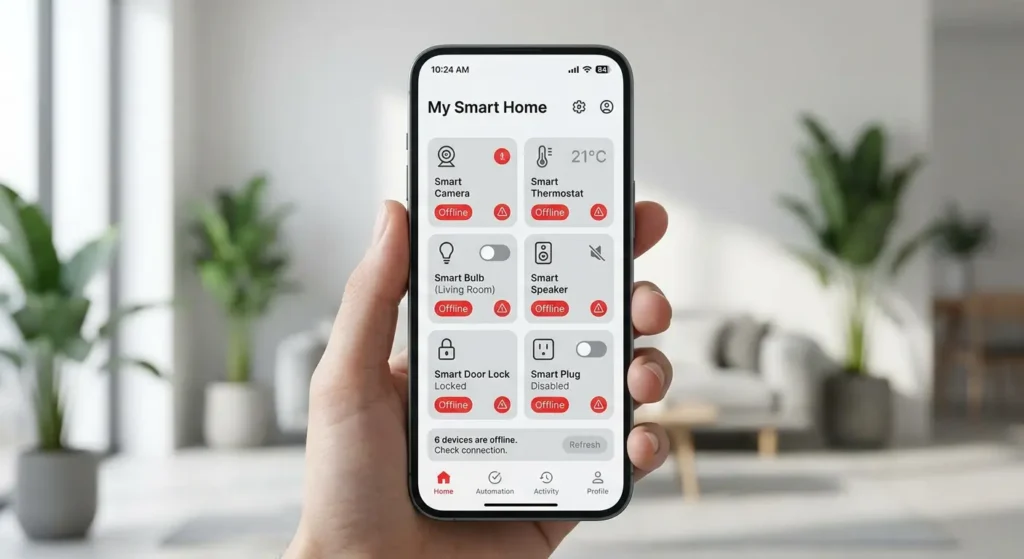
Within minutes, my smart plugs went offline. The hub lost connection with three devices. My voice assistant could no longer control the garage door opener. I sat there staring at my phone, watching device after device show “unavailable” in the app.
If this sounds familiar, you are not alone. Thousands of users around the world experience the exact same frustration every single day. The transition from IPv4 to IPv6 is necessary for the future of the internet, but it introduces real problems for many IoT ecosystems that were simply never designed with IPv6 in mind.
In this article, I will explain exactly why enabling ipv6 iot integration failure, walk you through practical troubleshooting steps, and share proven fixes that actually work. No fluff. No generic advice. Just real solutions based on real experience.
What Is IPv6 and Why Is It Being Adopted?
Before diving into the problems, let us quickly understand what IPv6 actually is and why it matters.
IPv4 vs IPv6: The Basics
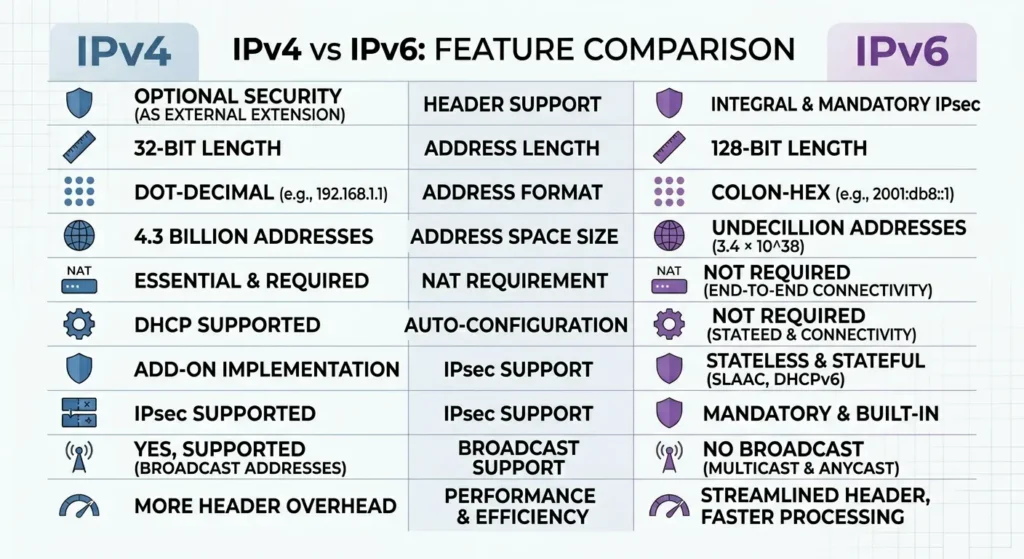
IPv4 (Internet Protocol version 4) has been the backbone of internet communication since the 1980s. It uses 32 bit addresses, which gives us roughly 4.3 billion unique addresses. That sounded like plenty decades ago, but with billions of smartphones, laptops, tablets, and IoT devices now connected to the internet, we have essentially run out of IPv4 addresses.
IPv6 (Internet Protocol version 6) solves this problem by using 128 bit addresses. This provides an almost unlimited number of unique addresses, approximately 340 undecillion (3.4 x 10^38). That is enough to assign a unique address to every grain of sand on Earth and still have addresses left over.
Why ISPs and Companies Are Pushing IPv6
Several factors are driving IPv6 adoption:
- Address exhaustion: IPv4 addresses are commercially depleted in most regions
- Better routing efficiency: IPv6 simplifies routing tables and packet processing
- Built in security: IPsec is mandatory in IPv6, offering native encryption support
- No need for NAT: Every device can have a globally unique address
- Future readiness: New networks and services are being built IPv6 first
Major ISPs like Comcast, AT&T, T Mobile, and Verizon already have significant IPv6 deployment. Google reports that over 45% of its traffic now arrives over IPv6 (Google IPv6 Statistics).
How IoT Devices Communicate on Your Network
Understanding how IoT devices talk to each other is critical to understanding why IPv6 breaks things.
Discovery Protocols
Most IoT devices rely on local network discovery protocols to find and communicate with each other. These include:
- mDNS (Multicast DNS): Used by Apple HomeKit, Google Cast, and many smart home platforms
- SSDP (Simple Service Discovery Protocol): Used by UPnP devices
- CoAP (Constrained Application Protocol): Used by lightweight IoT sensors
- MQTT: A lightweight messaging protocol for IoT communication
- Zigbee and Z Wave: Protocols that use a hub as a bridge to the IP network
The IPv4 Assumption
Here is the critical point. The vast majority of consumer IoT devices were designed and tested in IPv4 only environments. Their firmware, their companion apps, their cloud services, and their discovery mechanisms all assume IPv4 connectivity. Many IoT manufacturers, especially budget brands, never tested their products with IPv6 enabled networks.
This is not a theoretical concern. It is a documented, widespread, and ongoing problem.
Why Enabling IPv6 Breaks Certain IoT Integrations
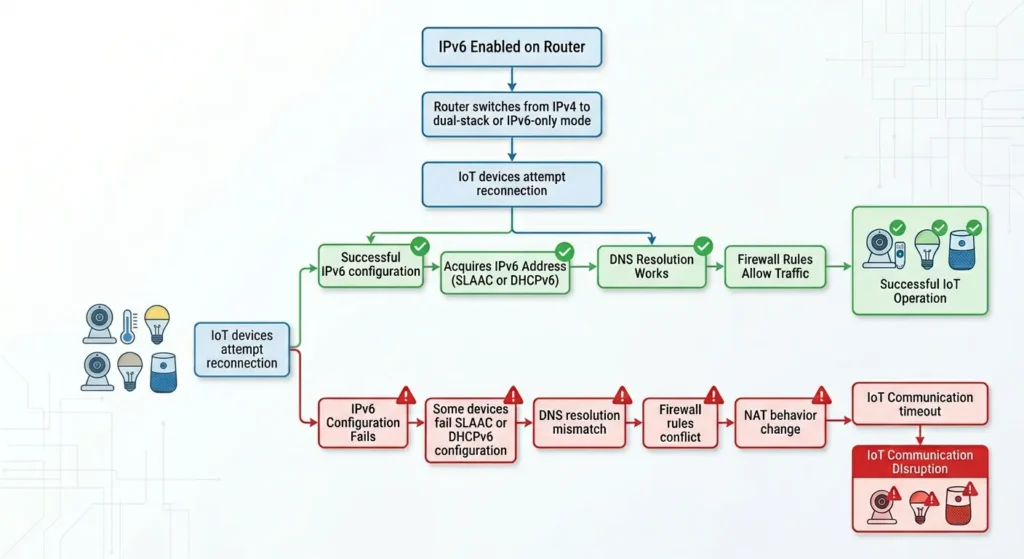
Now we get to the heart of the matter. There are several specific technical reasons why enabling IPv6 causes IoT failures. Let me break them down clearly.
1. Dual Stack Confusion and Address Selection
When you enable IPv6, most modern operating systems and devices run what is called a “dual stack” configuration. This means they have both an IPv4 address and an IPv6 address simultaneously.
The problem arises when a device or application tries to communicate using IPv6, but the target device only understands IPv4. The initiating device might select the IPv6 address as the preferred route (following RFC 6724 address selection rules), send packets over IPv6, and get no response because the receiving IoT device simply drops or ignores IPv6 traffic.
2. Broken Multicast Discovery
Many IoT discovery protocols rely on multicast. IPv4 multicast and IPv6 multicast operate differently and use completely different address ranges.
- IPv4 multicast uses the 224.0.0.0/4 range
- IPv6 multicast uses the ff00::/8 range
When a smart home hub sends a multicast discovery message over IPv6, devices that only listen on IPv4 multicast will never see it. The hub thinks no devices exist on the network. The devices think no hub is trying to reach them.
This is one of the most common causes of “device not found” errors after enabling IPv6.
3. DNS Resolution Failures
With IPv6 enabled, DNS queries may return AAAA records (IPv6 addresses) instead of or in addition to A records (IPv4 addresses). If an IoT device’s cloud service has AAAA records but the actual IoT device firmware cannot handle IPv6 communication, you get a mismatch.
The companion app on your phone resolves the cloud service to an IPv6 address, connects over IPv6, but the IoT device itself connects to the cloud over IPv4. In some poorly designed systems, this creates session mismatches, authentication failures, or inability to relay commands to the device.
4. Firewall and Router Rule Conflicts
Most home routers have separate firewall rules for IPv4 and IPv6 traffic. When you enable IPv6, the router creates a new set of firewall rules that may be more restrictive than your IPv4 rules.
Many users spend time configuring port forwarding, static routes, and firewall exceptions for their IoT devices on IPv4. They enable IPv6 and forget that none of those rules apply to IPv6 traffic. The IoT devices suddenly cannot reach their cloud servers, receive incoming connections, or communicate with other devices because the IPv6 firewall blocks traffic that the IPv4 firewall was configured to allow.
5. NAT Removal Exposing Devices
IPv4 networks typically use NAT (Network Address Translation), which acts as an accidental firewall. Devices behind NAT are not directly reachable from the internet.
IPv6 eliminates the need for NAT. Every device gets a globally routable address. This means IoT devices that were previously hidden behind NAT are now potentially directly accessible from the internet. Some IoT platforms detect this exposure and shut down connections as a security measure. Others simply malfunction because their firmware was never designed to handle direct internet facing connections.
6. Firmware and SDK Limitations
Many IoT devices run on extremely constrained hardware. They use microcontrollers with limited memory and processing power. Their network stacks are often minimal implementations that support only IPv4.
Common IoT chipsets like the ESP8266, older versions of the ESP32, and many Zigbee/Z Wave bridge modules have limited or no IPv6 support in their default firmware. Even when the chipset technically supports IPv6, manufacturers often disable it to save memory and reduce complexity.
7. Hub and Bridge Incompatibilities
Smart home hubs like older Samsung SmartThings hubs, Philips Hue Bridge (first generation), and some Tuya based hubs were built and tested exclusively on IPv4 networks. When the router starts assigning IPv6 addresses and the network topology changes, these hubs can lose their connection to both local devices and cloud services.
Real World Scenarios: IPv6 Breaking IoT Setups
Let me share some real scenarios that illustrate these problems in practice.
Scenario 1: Google Home and Chromecast Discovery Failure
A user on Reddit enabled IPv6 on their Asus router after a firmware update. Immediately, Google Home could no longer discover Chromecast devices on the same network. The Google Home app showed “no devices found” even though everything was connected to the same Wi-Fi network.
What happened: Google Cast uses mDNS for device discovery. With IPv6 enabled, the Google Home app on the phone was sending mDNS queries over IPv6, but the Chromecast was only responding to IPv4 mDNS queries. The discovery packets never matched.
The fix: Disabling IPv6 on the router immediately restored Chromecast discovery. A more targeted fix was to disable IPv6 on the specific VLAN or SSID used by IoT devices.
Scenario 2: Home Assistant Integration Failures
A Home Assistant user running a smart home server noticed that after their ISP enabled IPv6 on their connection, several integrations broke. The Xiaomi Mi Home integration, TP Link Kasa integration, and LIFX bulb integration all stopped working simultaneously.
What happened: Home Assistant was binding to the IPv6 interface by default (as per OS preference). The IoT devices were only reachable via IPv4. The integration attempts timed out because Home Assistant was trying to reach devices on IPv6 addresses that did not exist for those devices.
The fix: The user configured Home Assistant to explicitly bind to the IPv4 interface and added specific network configuration to prefer IPv4 for local device communication.
Scenario 3: Ring Doorbell Intermittent Disconnections
After a router upgrade that enabled IPv6 by default, a user experienced their Ring doorbell going offline several times per day. The Ring app would show the device as offline, then it would reconnect 5 to 10 minutes later, only to drop again.
What happened: The router was assigning both IPv4 and IPv6 addresses to the Ring doorbell. The doorbell’s firmware would occasionally attempt to use the IPv6 address to reach Ring’s cloud servers. When the IPv6 route failed (due to the ISP’s incomplete IPv6 deployment), the doorbell would lose its connection until it fell back to IPv4.
The fix: Disabling IPv6 DHCP assignment for IoT devices while keeping IPv6 active for computers and phones resolved the issue completely.
Common IoT Devices Affected by IPv6 Issues
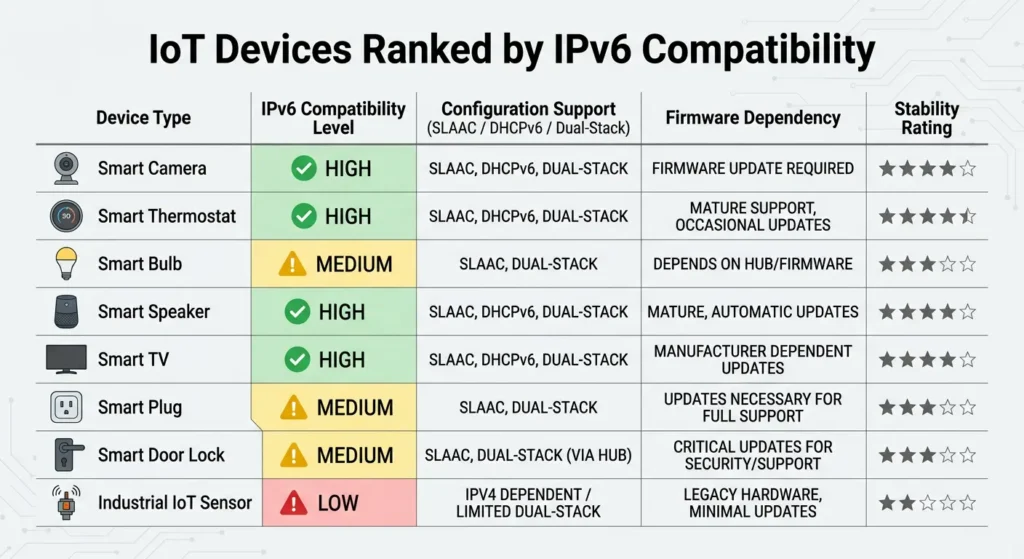
Based on extensive community reports, forum discussions, and my own testing, here are the device categories most commonly affected by IPv6 related failures.
Smart Home Hubs and Bridges
| Device | IPv6 Issue Severity | Known Problem |
|---|---|---|
| Philips Hue Bridge (Gen 1) | High | Loses cloud connectivity |
| Samsung SmartThings (older models) | High | Device discovery fails |
| Tuya based hubs | Medium | Intermittent cloud disconnections |
| Hubitat Elevation | Low | Generally works but some integrations break |
| Apple HomePod Mini (as hub) | Low | Mostly compatible with IPv6 |
Smart Cameras and Doorbells
| Device | IPv6 Issue Severity | Known Problem |
|---|---|---|
| Wyze Cam v2/v3 | High | Fails to stream, shows offline |
| Ring Doorbell (older firmware) | Medium | Intermittent disconnections |
| Blink cameras | Medium | Cloud sync failures |
| Reolink cameras | Low to Medium | ONVIF discovery issues |
Smart Plugs and Switches
| Device | IPv6 Issue Severity | Known Problem |
|---|---|---|
| TP Link Kasa smart plugs | High | Local control completely fails |
| Meross smart plugs | Medium | App cannot find devices |
| Wemo switches | High | Discovery and control failures |
| Sonoff devices | Medium | eWeLink app connectivity issues |
Voice Assistants and Speakers
| Device | IPv6 Issue Severity | Known Problem |
|---|---|---|
| Amazon Echo (older gen) | Medium | Smart home skill failures |
| Google Nest Mini | Low | Cast group issues |
| Google Home Max | Medium | Chromecast discovery problems |
Step by Step Troubleshooting Guide
If you have enabled IPv6 and your IoT devices are misbehaving, follow these steps in order.
Step 1: Confirm IPv6 Is the Actual Cause
Before making any changes, verify that IPv6 is actually causing the problem.
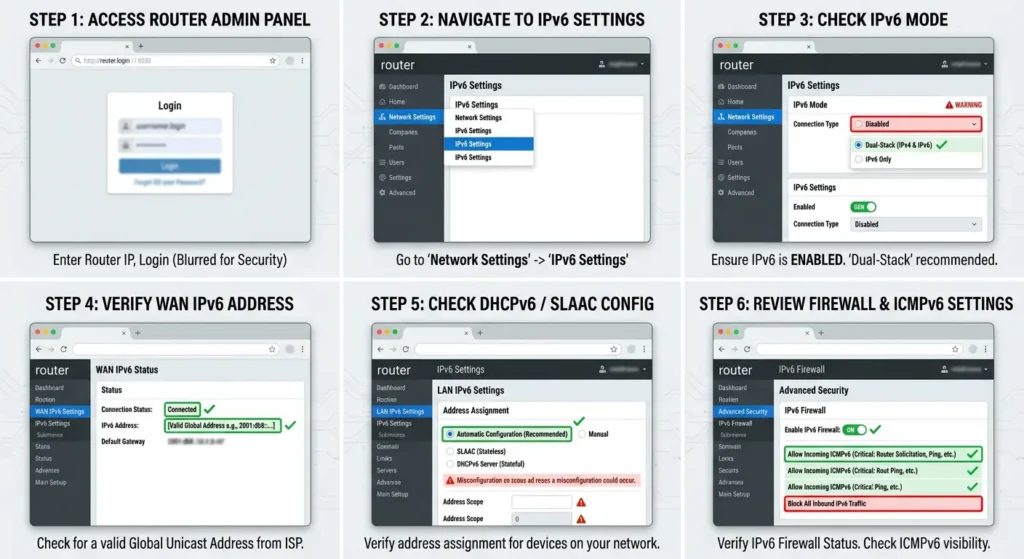
- Open your router’s administration page (usually 192.168.1.1 or 192.168.0.1)
- Navigate to the IPv6 settings section
- Temporarily disable IPv6
- Wait 2 to 3 minutes for all devices to re-establish connections
- Test your IoT devices
If the IoT devices immediately start working after disabling IPv6, you have confirmed the cause.
Step 2: Identify Which Devices Are Affected
Make a list of every IoT device that fails when IPv6 is enabled. This helps you understand the scope of the problem and apply targeted fixes rather than blanket disabling IPv6 for your entire network.
- Re-enable IPv6
- Open each IoT companion app one by one
- Test each device’s basic functions (on/off, sensor readings, streaming)
- Note which devices work and which do not
- Check if the affected devices share a common manufacturer, protocol, or hub
Step 3: Check Device Firmware Versions
Outdated firmware is a leading cause of IPv6 incompatibility.
- Open each affected device’s companion app
- Check for firmware updates
- Apply all available updates
- Restart the device after updating
- Test again with IPv6 enabled
Step 4: Examine Router Configuration
Your router settings may need adjustment to handle dual stack properly.
- Log into your router admin panel
- Check if IPv6 firewall rules are blocking IoT traffic
- Verify that mDNS/Bonjour forwarding is enabled for both IPv4 and IPv6
- Check if IGMP snooping and MLD snooping are both enabled (IGMP for IPv4 multicast, MLD for IPv6 multicast)
- Ensure the router is not running an overly aggressive IPv6 privacy extension that changes addresses too frequently
Step 5: Test Network Segmentation
If your IoT devices are on a separate VLAN or SSID, IPv6 routing between VLANs may be misconfigured.
- Temporarily move an affected IoT device to the same network as your phone
- Test if the device works
- If it works on the same network but not across VLANs, the issue is inter-VLAN IPv6 routing
- Configure IPv6 routing rules between your VLANs or disable IPv6 on the IoT VLAN only
Proven Fixes to Resolve IPv6 and IoT Conflicts
Based on hundreds of community reports and my own extensive testing, here are the most effective solutions ranked from simplest to most advanced.
Fix 1: Disable IPv6 on the IoT Network Only (Recommended)
This is the best balanced approach. You keep IPv6 for your computers, phones, and tablets while disabling it for IoT devices.
How to do it:
- Create a separate SSID or VLAN for IoT devices
- In your router settings, disable IPv6 DHCP (DHCPv6) and Router Advertisement (RA) for the IoT VLAN/SSID
- Keep IPv6 fully enabled on your primary network
- Move all affected IoT devices to the IPv4 only network
- Restart the IoT devices
This approach works on most advanced routers including Ubiquiti UniFi, pfSense, OPNsense, MikroTik, Asus (Merlin firmware), and TP Link (Omada series).
Fix 2: Configure Application Level IPv4 Preference
If you use a smart home platform like Home Assistant, you can configure it to prefer IPv4 for local device communication.
For Home Assistant:
Add this to your configuration.yaml:
YAMLhomeassistant:
  internal_url: "http://192.168.1.x:8123"
And in the network settings, explicitly bind Home Assistant to your IPv4 address only.
For Node RED:
Set the bind address in your settings.js file to your IPv4 address:
JavaScriptuiHost: "192.168.1.x",
Fix 3: Enable Proper Multicast Handling
Many routers block or mishandle multicast traffic when IPv6 is enabled. Fixing multicast often restores IoT discovery.
- Enable IGMP Snooping (for IPv4 multicast)
- Enable MLD Snooping (for IPv6 multicast, the IPv6 equivalent of IGMP)
- Enable mDNS reflector or Avahi reflector if devices are on different VLANs
- Disable Multicast Rate Limiting if your router has this option
On Ubiquiti UniFi systems, you can enable the mDNS reflector under Settings > Networks > Advanced.
Fix 4: Use a DNS64/NAT64 Gateway
For advanced users who want full IPv6 on all networks but need backward compatibility, DNS64/NAT64 provides a translation mechanism.
- Set up a DNS64 server that synthesizes AAAA records from A records
- Configure a NAT64 gateway that translates IPv6 traffic to IPv4 for devices that need it
- This allows IPv6-only clients to communicate with IPv4-only IoT devices
This is a complex solution best suited for enterprise or advanced home lab environments. Tools like Jool provide open source NAT64 implementation for Linux.
Fix 5: Set IPv6 Privacy Extensions Correctly
Some devices generate temporary IPv6 addresses using privacy extensions (RFC 4941). These changing addresses can confuse IoT platforms that rely on stable IP addresses for device identification.
On Windows:
textnetsh interface ipv6 set privacy state=disabled
On Linux:
textsudo sysctl -w net.ipv6.conf.all.use_tempaddr=0
On macOS:
textsudo sysctl -w net.inet6.ip6.use_tempaddr=0
Note: This reduces privacy but improves IoT stability. Apply it only on devices that control IoT systems, not on general browsing devices.
Fix 6: Update Router Firmware
Router manufacturers regularly release firmware updates that improve IPv6 and IoT coexistence. Check for updates on your router manufacturer’s website:
How to Run Dual Stack Without Breaking IoT
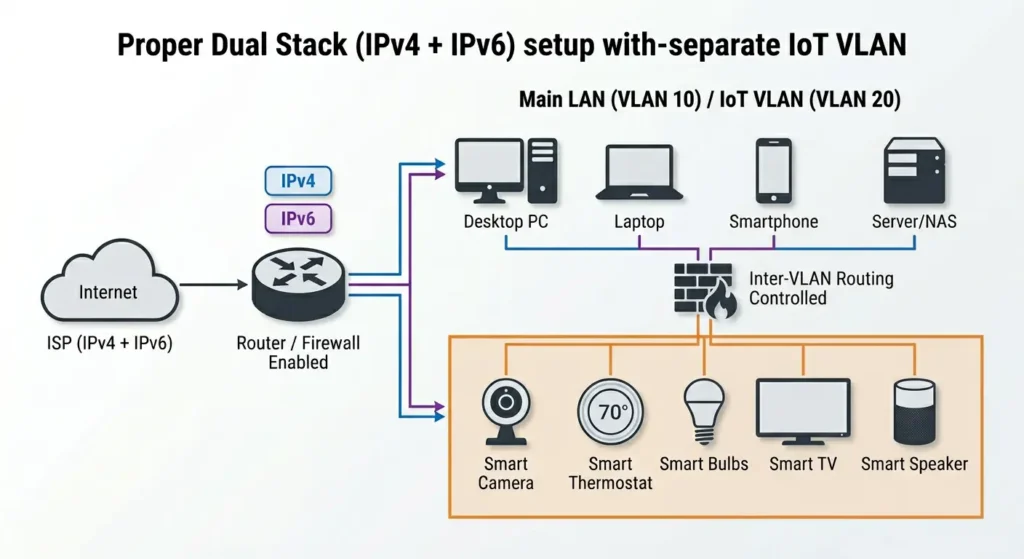
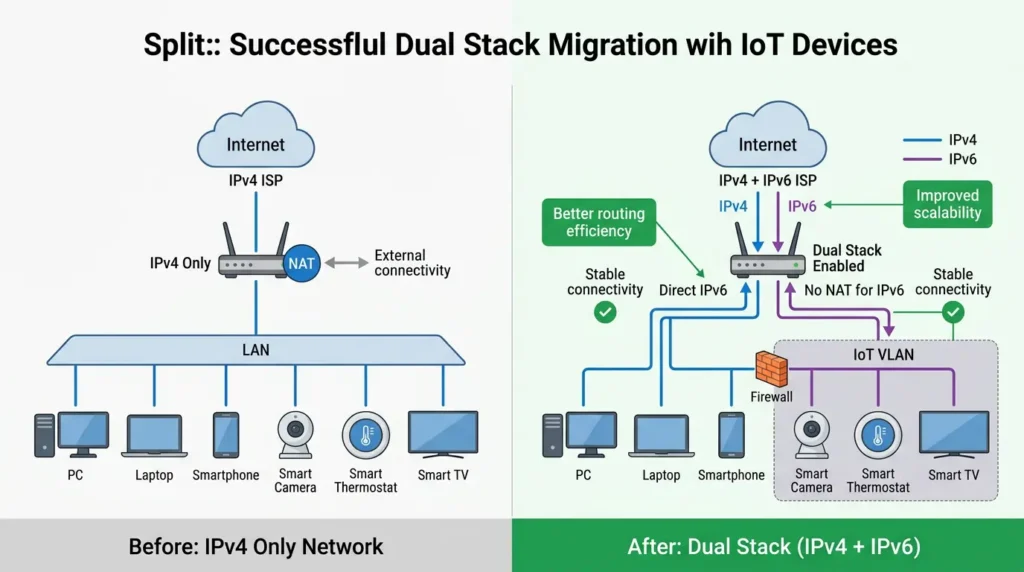
Running both IPv4 and IPv6 simultaneously is the recommended long term approach. Here is how to set it up properly so your IoT devices continue working.
Network Architecture Best Practices
Primary Network (IPv4 + IPv6):
- Computers, laptops, tablets, smartphones
- Streaming devices (Apple TV, Fire Stick, Roku)
- Gaming consoles
IoT Network (IPv4 Only):
- Smart plugs, switches, and bulbs
- Smart cameras and doorbells
- Sensors and thermostats
- Smart home hubs and bridges
Guest Network (IPv4 + IPv6):
- Visitor devices
- Isolated from both primary and IoT networks
Router Configuration Checklist
Here is a practical checklist for configuring your router:
- Create separate VLANs or SSIDs for IoT and primary devices
- Enable IPv6 with SLAAC on the primary network
- Disable IPv6 RA and DHCPv6 on the IoT network
- Enable IGMP snooping on all networks
- Enable MLD snooping on IPv6 enabled networks
- Configure firewall rules to allow necessary cross-VLAN communication
- Enable mDNS reflector if your platform supports it
- Set appropriate MTU values (IPv6 minimum MTU is 1280 bytes)
- Test all IoT devices after configuration changes
When to Disable IPv6 and When to Keep It
Disable IPv6 When:
- You have many older IoT devices that are no longer receiving firmware updates
- Your ISP’s IPv6 deployment is incomplete or unreliable
- You are running legacy smart home software that does not support IPv6
- Your router does not support per-VLAN IPv6 configuration
- You are experiencing intermittent issues that you cannot isolate
Keep IPv6 Enabled When:
- You can segment your network with VLANs
- Your IoT devices are from reputable manufacturers with current firmware
- Your ISP has mature IPv6 infrastructure
- You are using modern smart home platforms (recent Home Assistant, Apple HomeKit with Thread)
- You need IPv6 for other services on your network
The Future Is IPv6, but IoT Needs to Catch Up
The reality is that IPv6 is not going away. More ISPs are deploying it. More services require it. Eventually, IPv4 will be legacy. But the IoT industry, especially the budget segment, is slow to adopt proper IPv6 support. The best strategy today is to run dual stack with proper network segmentation.
Real User Experiences and Lessons Learned
Experience 1: The Smart Home That Went Dark
Marcus, a home automation enthusiast from Texas, shared his story on the Home Assistant community forums. He had 47 smart devices running perfectly for two years. His ISP pushed a modem update that enabled IPv6 by default. Over the next 48 hours, devices started dropping off one by one. His Zigbee coordinator (running through a network bridge) was the first to go. Then his Shelly relays stopped responding. Finally, his entire Tuya device ecosystem went offline.
It took him three days to identify IPv6 as the culprit. His solution was to disable IPv6 on his modem, set up a dedicated IoT VLAN on his Ubiquiti network, and systematically test each device category with IPv6 before re-enabling it on his primary network.
Lesson learned: When your ISP makes network changes, check IPv6 settings immediately if IoT devices start failing.
Experience 2: The Enterprise Office That Lost Its Smart Building
A facilities manager at a mid-size office building reported that after their IT department enabled IPv6 across the corporate network, their smart building integrations (HVAC controls, automated lighting, occupancy sensors) started behaving erratically. The BACnet/IP gateway that connected the building automation system to the corporate network could not handle IPv6 traffic.
Lesson learned: Enterprise IoT deployments need thorough IPv6 compatibility testing before network transitions. Industrial IoT protocols like BACnet, Modbus TCP, and KNXnet/IP often have zero IPv6 support.
Experience 3: The Successful Dual Stack Migration
Sarah, a network engineer who runs a heavily automated smart home, successfully migrated to full dual stack without losing any IoT functionality. Her approach:
- She audited every IoT device for IPv6 support before making changes
- She set up three VLANs: primary (dual stack), IoT tested (dual stack), IoT legacy (IPv4 only)
- She migrated devices one at a time, testing each for 48 hours
- She kept detailed notes on which devices worked and which needed IPv4 only
- She contacted manufacturers of non-working devices and filed feature requests for IPv6 support
Lesson learned: A systematic, device by device approach to IPv6 migration is the safest path for IoT environments.
FAQ: IPv6 and IoT Integration Failures
Does IPv6 permanently damage IoT devices?
No. IPv6 does not cause any permanent damage to IoT devices. When you disable IPv6 or move the device to an IPv4 only network, it will resume normal operation. The issues are purely related to network communication and are fully reversible.
Can I use IPv6 with Zigbee and Z Wave devices?
Zigbee and Z Wave devices do not use IP protocols directly. They communicate through their own radio protocols and connect to your IP network via a hub or bridge. The hub itself may be affected by IPv6 issues, but the Zigbee/Z Wave devices themselves are not directly impacted. If your hub supports IPv6 properly (or is on an IPv4 network), your Zigbee and Z Wave devices will work fine.
Why do some IoT devices work fine with IPv6 while others fail?
It comes down to firmware quality and manufacturer testing. Companies like Apple (HomeKit/Thread), Google (Nest), and high-end smart home brands invest in IPv6 testing and compliance. Budget manufacturers and older devices often skip IPv6 testing entirely, resulting in firmware that cannot handle IPv6 traffic or dual stack environments.
Will Thread and Matter protocol solve IPv6 IoT problems?
Yes, partially. The Matter smart home standard and Thread networking protocol are built on IPv6 from the ground up. Devices certified for Matter/Thread are designed to work natively with IPv6. However, the transition to Matter is gradual, and millions of existing non-Matter IoT devices will remain in use for years. You can learn more at the Connectivity Standards Alliance.
Is it safe to completely disable IPv6?
For most home users in 2025, disabling IPv6 will not cause significant problems. The vast majority of internet services still work over IPv4. However, some services (particularly in regions with advanced IPv6 deployment) may perform better or only work over IPv6. The best approach is selective disabling on IoT networks rather than completely turning off IPv6 across your entire network.
How do I know if my ISP supports IPv6 properly?
Visit Test IPv6 from a device on your network. This site will test your IPv6 connectivity and readiness. A score of 10/10 indicates full, properly configured IPv6 support from your ISP. Scores below 10 may indicate partial or broken IPv6 deployment, which can cause more IoT issues than having no IPv6 at all.
Can a VPN cause additional IPv6 and IoT problems?
Yes. Many VPN clients disable IPv6 to prevent IP leaks. If you run a VPN on your router, it may interfere with IPv6 on your entire network. If you run a VPN on individual devices, those devices may lose the ability to communicate with IPv6 capable IoT devices. Check your VPN provider’s IPv6 settings and configure accordingly.
Does enabling IPv6 affect Wi-Fi performance for IoT devices?
IPv6 itself does not significantly impact Wi-Fi performance. However, the additional network traffic from Router Advertisements (RA), Neighbor Discovery Protocol (NDP), and duplicate address detection can add slight overhead to networks with many devices. On networks with 50+ IoT devices, this overhead can occasionally cause congestion on low-end routers.
Final Thoughts
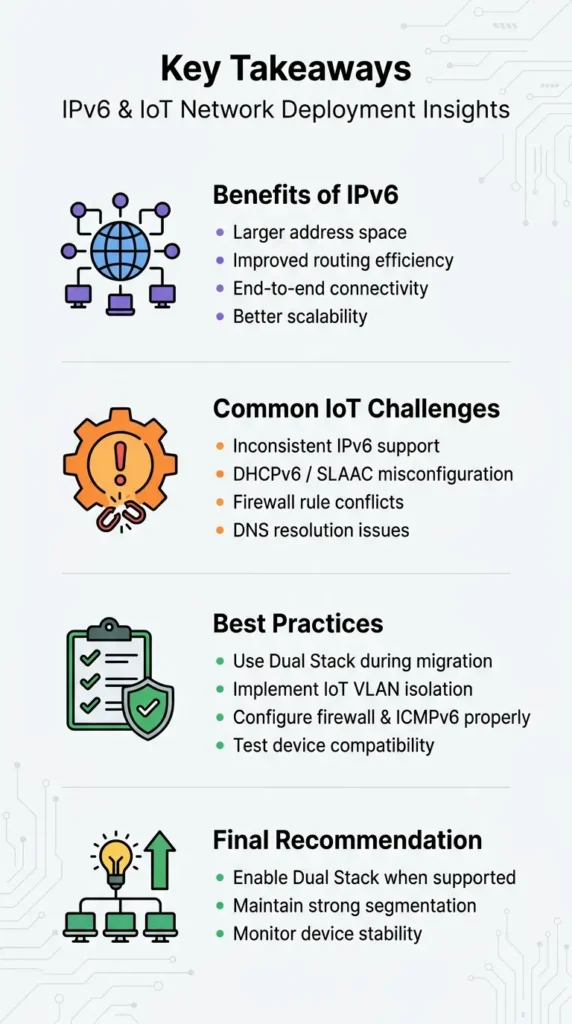
The conflict between IPv6 and IoT devices is one of the most frustrating networking issues facing smart home users today. It is a problem born from a technology transition where the infrastructure is moving faster than the devices connected to it.
The good news is that this problem has clear causes and proven solutions. You do not need to choose between IPv6 and a working smart home. With proper network segmentation, firmware updates, and targeted configuration, you can run both successfully.
If you take away one thing from this article, let it be this: network segmentation is your best friend. Create a dedicated IoT network, control its IPv6 settings independently, and you will have a stable foundation for both current and future devices.
The IoT industry is slowly catching up. Matter and Thread are bringing native IPv6 support to new devices. Major manufacturers are updating firmware for IPv6 compatibility. In a few years, many of these problems will be resolved at the device level. Until then, the practical solutions in this guide will keep your smart home running smoothly.
Stay patient. Stay methodical. And always test one change at a time.