

If you’ve been dealing with a Philips Hue Zigbee unstable connection right after running a network heal on your Aeotec Z-Wave hub, trust me you’re not the only one going through this. Plenty of smart home enthusiasts have run into the same frustrating pattern: signal drops out of nowhere, devices taking forever to respond, or connections cutting in and out for no obvious reason.
So What’s Actually Going On Here?
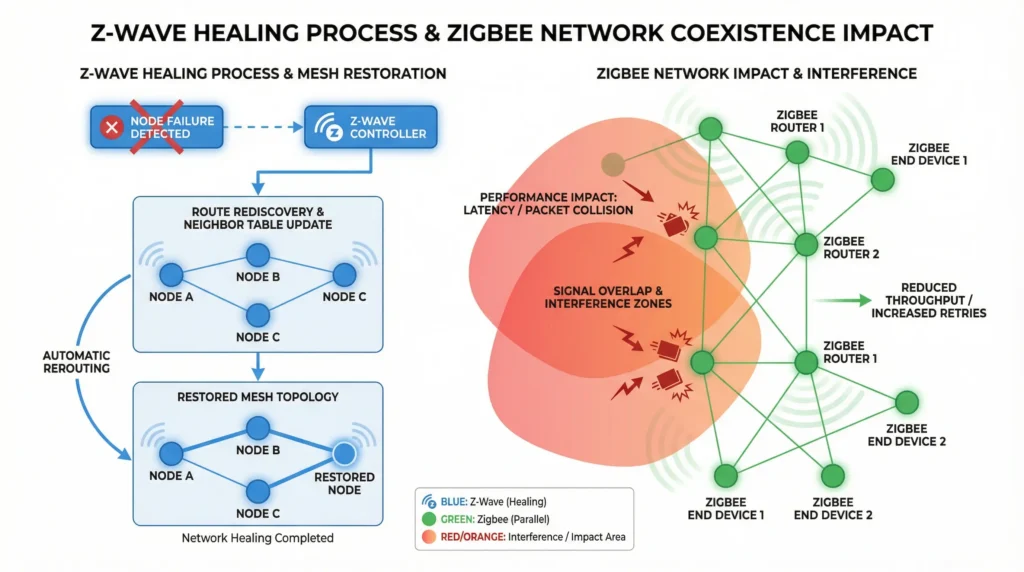
The root of the problem comes down to two things happening at once: radio frequency interference and mesh network congestion. When your Z-Wave controller kicks off a network heal especially right after you’ve added new devices it basically floods the airwaves with a wave of routing requests and optimization signals. That surge creates two serious issues that feed into each other:
- RF Spectrum Collision: Zigbee and Z-Wave don’t always play nicely together in the 2.4 GHz band, particularly when both are running at high power at the same time. The overlap creates interference that neither protocol handles well under load.
- Routing Table Saturation: All that intense back-and-forth communication during a Z-Wave heal generates electrical noise and processing overhead and that’s exactly the kind of disruption that throws off Zigbee’s timing-sensitive mesh communications.
The silver lining? This isn’t a permanent problem. With a few targeted configuration tweaks and a bit of smarter timing around your network heals, you can get rid of these conflicts entirely and end up with a smart home setup that actually behaves the way it’s supposed to.k.
Understanding Why These Protocols Conflict
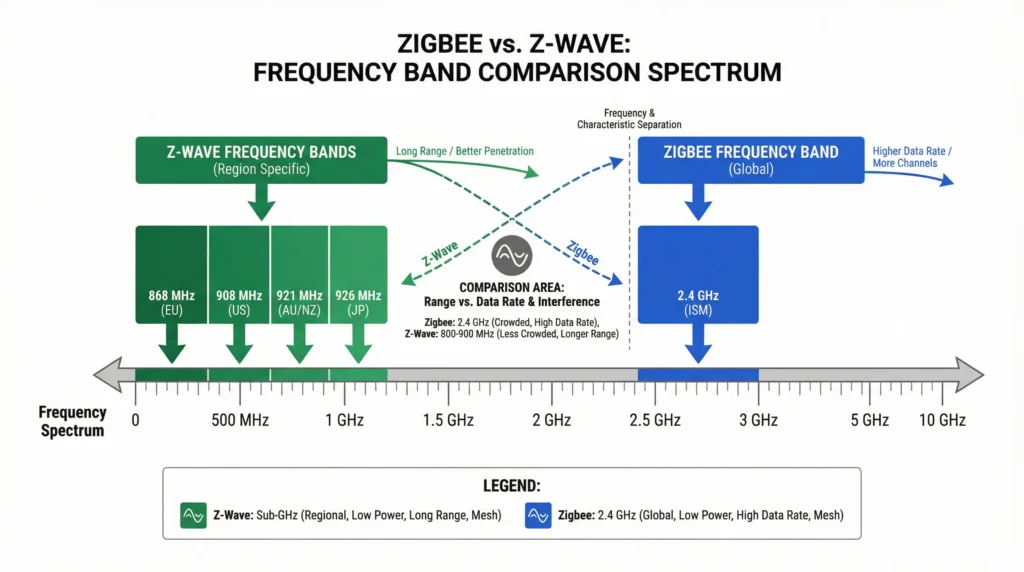
The 2.4 GHz Frequency Challenge
While Z-Wave primarily operates on sub-GHz frequencies (908.42 MHz in North America, 868.42 MHz in Europe), Zigbee exclusively uses the 2.4 GHz ISM band the same spectrum occupied by Wi-Fi and Bluetooth. The interference doesn’t come directly from Z-Wave’s radio frequency, but rather from:
- Electrical noise generated during intensive mesh operations
- Power supply fluctuations when Z-Wave devices communicate heavily
- USB 3.0 interference if your hubs are connected to USB 3.0 ports
- Shared CPU resources if both controllers run on the same home automation server
What Happens During a Z-Wave Network Heal
A Z-Wave network heal is essentially a complete mesh reorganization. During this process:
- Every Z-Wave device rediscovers its neighbors
- Routing tables are rebuilt from scratch
- Signal strength measurements are taken between all node pairs
- Optimal communication paths are recalculated
This process can generate thousands of RF packets within minutes, creating electromagnetic interference that sensitive Zigbee coordinators can’t filter out effectively.
Essential Diagnostic Steps Before Implementing Fixes
Before jumping into solutions, you need to accurately identify whether this is indeed an interference issue or something else entirely. Follow these diagnostic procedures:
1. Monitor Zigbee Channel Performance
Access your Philips Hue Bridge settings and identify which Zigbee channel it’s using (typically channels 11, 15, 20, or 25). Then:
- Download a Wi-Fi analyzer app on your smartphone (WiFi Analyzer for Android or Airport Utility for iOS)
- Check for Wi-Fi congestion on overlapping channels
- Document the channel utilization percentage during normal operation vs. during Z-Wave healing
Channel overlap reference:
- Zigbee Channel 11 = Wi-Fi Channels 1-3
- Zigbee Channel 15 = Wi-Fi Channels 3-5
- Zigbee Channel 20 = Wi-Fi Channels 6-8
- Zigbee Channel 25 = Wi-Fi Channels 9-11
2. Analyze Z-Wave Healing Logs
If you’re using Home Assistant, Z-Wave JS UI, or another advanced platform:
- Navigate to your Z-Wave integration settings
- Enable verbose logging before initiating a manual network heal
- Look for patterns like excessive retry attempts, failed node communications, or routing timeouts
- Note the timing correlation between Z-Wave activity spikes and Zigbee disconnections
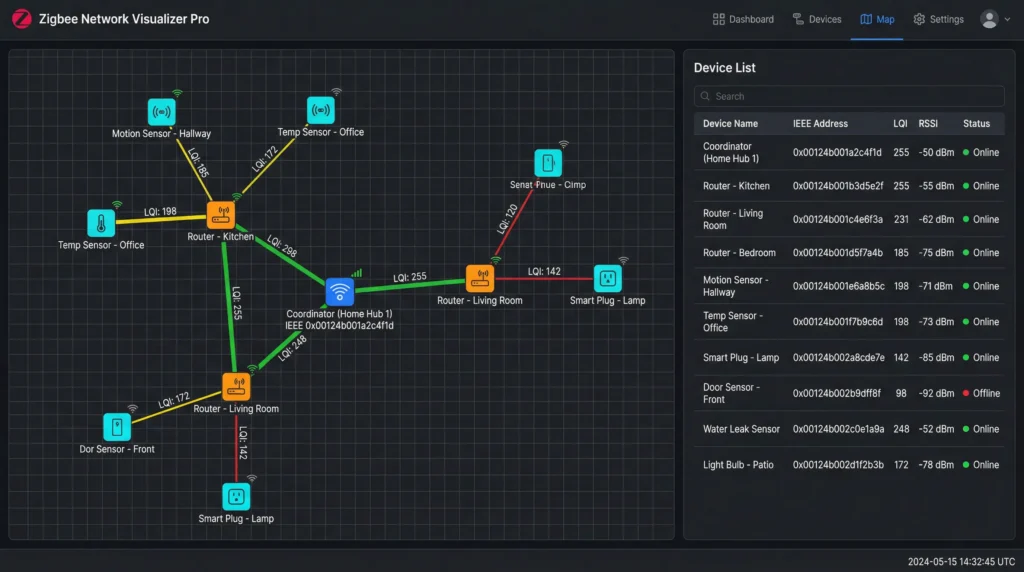
3. Measure Link Quality Metrics
For Zigbee devices connected through Home Assistant, Zigbee2MQTT, or deCONZ:
- Check the LQI (Link Quality Indicator) values for your Hue lights
- Monitor RSSI (Received Signal Strength Indicator) levels
- Record baseline values during stable operation
- Compare them to values captured during active Z-Wave healing
Healthy Zigbee links typically show:
- LQI above 150 (out of 255)
- RSSI between -20 dBm and -70 dBm
4. Verify Physical Hub Placement
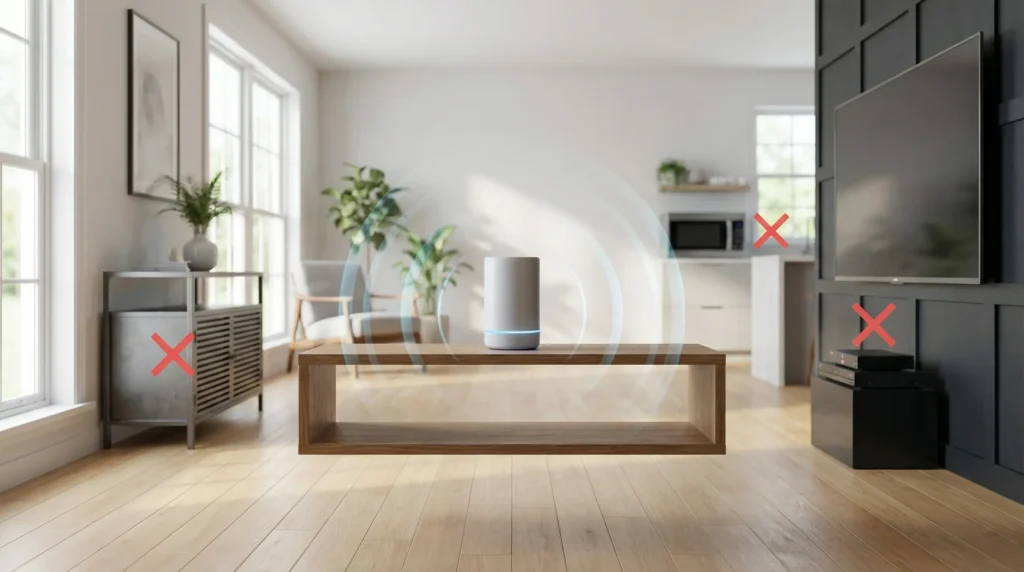
RF interference increases exponentially as devices get closer together. Measure the distance between:
- Your Philips Hue Bridge and Aeotec Z-Wave controller
- Both hubs and your Wi-Fi router
- Any USB 3.0 ports (known interference sources)
Critical distance guidelines:
- Minimum 1 meter between different protocol coordinators
- Minimum 2 meters from high-power Wi-Fi routers
- Use a USB 2.0 extension cable if the Z-Wave stick is in a USB 3.0 port
5. Test with Controlled Variables
Perform this simple experiment:
- Document current Zigbee stability (note any disconnections over 24 hours)
- Manually trigger a Z-Wave network heal
- Observe Zigbee device behavior in real-time
- Repeat with hubs moved 2+ meters apart
- Compare results
This controlled test will definitively confirm whether the correlation is causation.
Proven Solutions to Fix a Philips Hue Zigbee Unstable Connection
Now that you’ve identified the problem, implement these technical solutions in order of priority:
Solution 1: Optimize Zigbee Channel Selection
Why this works: Moving your Zigbee network to a cleaner channel eliminates the most common source of interference.
Implementation steps:
- Open the Philips Hue app on your smartphone
- Navigate to Settings → Hue Bridges → [Your Bridge Name]
- Tap on “Zigbee Channel Change”
- Select Channel 15 or 11 (these typically have the least Wi-Fi overlap)
- Allow 10-15 minutes for all devices to reconnect
Pro tip: Avoid channels 20 and 25 if you have a busy Wi-Fi environment, as they overlap with the most commonly used Wi-Fi channels.
Solution 2: Schedule Z-Wave Healing Strategically
Why this works: Running network maintenance during low-activity periods prevents conflicts with active Zigbee operations.
For Home Assistant users:
yaml
automation:
– alias: “Controlled Z-Wave Heal”
trigger:
– platform: time
at: “03:00:00”
condition:
– condition: time
weekday:
– sun
action:
– service: zwave_js.heal_network
For other platforms:
- Disable automatic nightly heals in your Z-Wave controller settings
- Manually trigger heals only after adding/removing devices
- Run heals during the early morning hours (2-4 AM) when Zigbee traffic is minimal
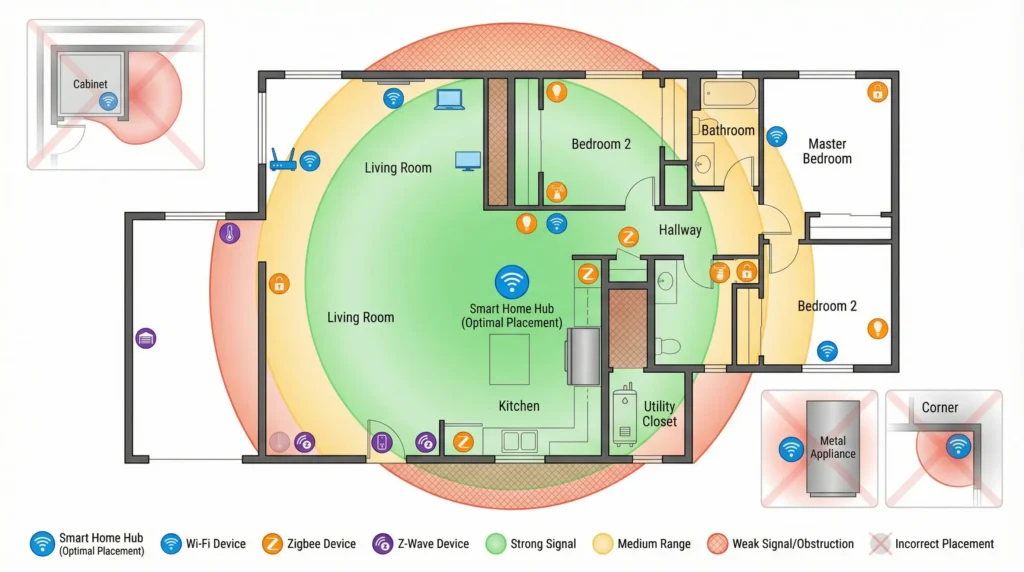
Solution 3: Increase Physical Separation
Why this works: RF interference follows the inverse square law—doubling distance reduces interference by 75%.
Action steps:
- Relocate your Aeotec hub at least 1.5-2 meters from the Hue Bridge
- If both are rack-mounted, place them on different shelves with metal shielding between
- Use shielded USB extension cables to position dongles away from each other
- Keep both away from metal filing cabinets or large electronics that can reflect RF signals
Solution 4: Reduce Zigbee Transmit Power
Why this works: Lower power levels reduce the “noise floor” and make the network less sensitive to external interference.
For Zigbee2MQTT users:
- Access your Zigbee2MQTT web interface
- Navigate to Settings → Advanced
- Locate “Transmit Power” setting
- Reduce from default (typically 5 dBm) to 0-2 dBm
- Monitor network stability for 48 hours
Important: Only reduce power if you have adequate router coverage. Most homes with 3+ Zigbee router devices (smart bulbs) can operate reliably at reduced power.
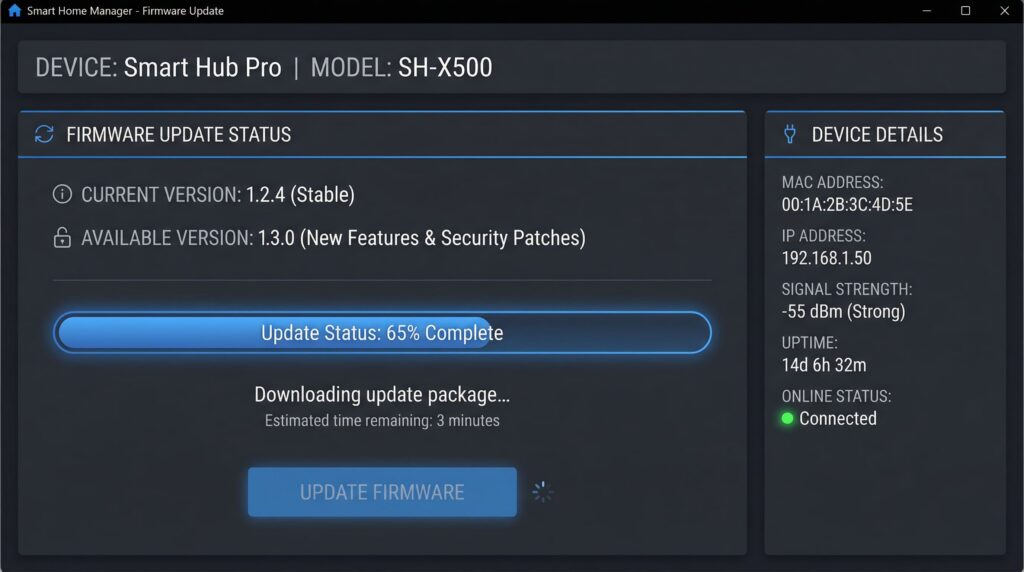
Solution 5: Update All Firmware
Why this works: Modern firmware includes improved radio coexistence algorithms specifically designed to handle multi-protocol environments.
Update priority order:
- Philips Hue Bridge: Check for updates in the Hue app (Settings → Software Update)
- Aeotec Z-Wave Controller: Update through manufacturer’s desktop software or your home automation platform
- Individual Zigbee Devices: Update through the Hue app or your coordinator’s OTA update feature
- Z-Wave Devices: Update through your Z-Wave management interface
Solution 6: Minimize Z-Wave Polling Traffic
Why this works: Excessive polling creates constant RF chatter that compounds interference during healing operations.
Configuration adjustments:
For Home Assistant Z-Wave JS:
- Navigate to Configuration → Integrations → Z-Wave JS
- Select each device that shows frequent polling
- Adjust polling interval from default (15s) to 60s or higher
- Disable polling entirely for battery-powered devices
Devices that rarely need polling:
- Motion sensors (event-based)
- Door/window contacts (event-based)
- Smart locks (status changes are reported automatically)
Solution 7: Implement Static Z-Wave Routes
Why this works: Pre-defined routing paths reduce the discovery traffic generated during network heals.
Advanced configuration (for experienced users):
This feature is available in Z-Wave JS UI and some other advanced controllers. Assign preferred routes for critical devices to prevent routing table thrashing during heals.
Note: This is an advanced technique. Only implement if you’re comfortable with Z-Wave network architecture.
Long-Term Prevention Strategies
1. Network Segmentation Best Practices
Create logical and physical separation between your smart home protocols:
- Assign static IP addresses to all hubs and bridges to prevent DHCP-related routing delays
- Create a dedicated IoT VLAN if your router supports it, separating smart home traffic from general network activity
- Use a separate 2.4 GHz SSID for IoT devices with disabled band-steering to prevent channel-hopping interference
2. Establish an RF Buffer Zone
Maintain clear zones around each coordinator:
- 1-meter minimum between any two wireless protocol coordinators
- 2-meter minimum from high-power Wi-Fi access points
- 3-meter minimum from microwave ovens, baby monitors, and wireless video transmitters
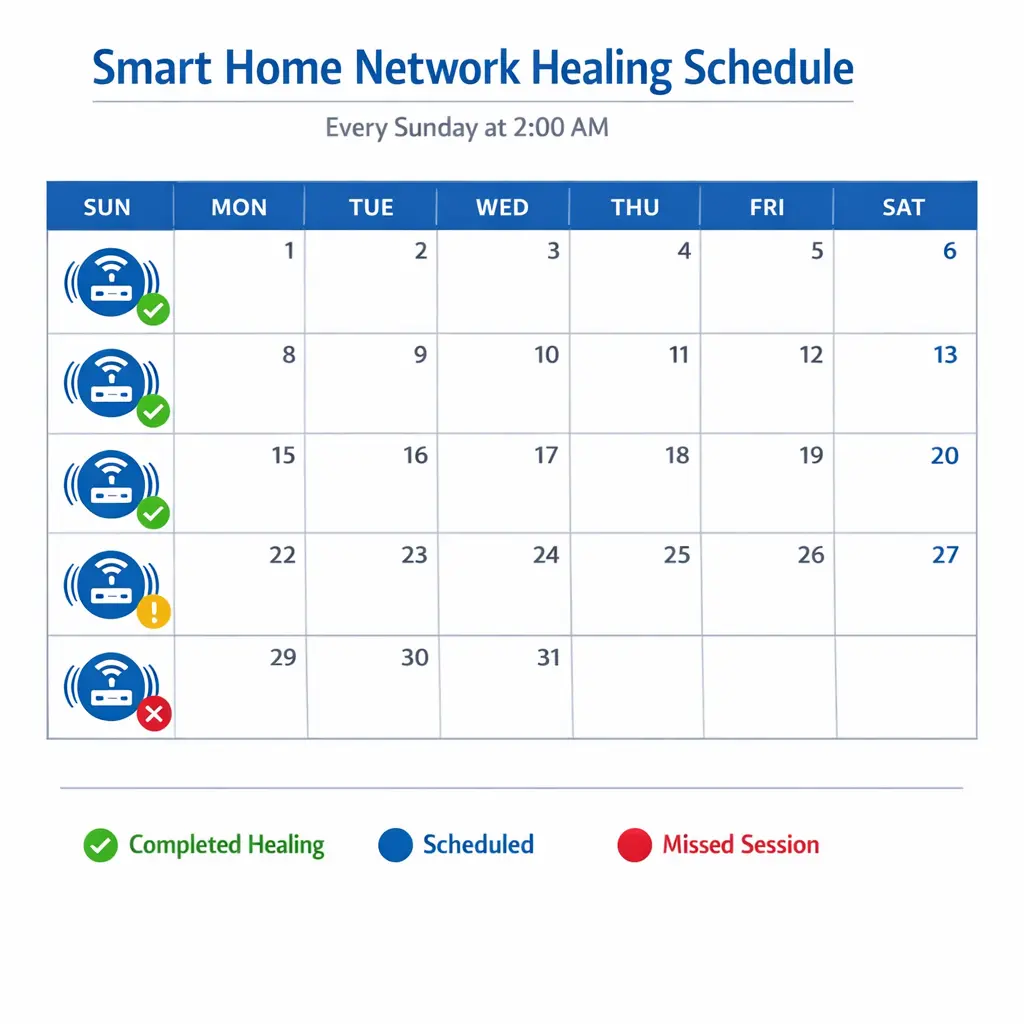
3. Limit Network Heal Frequency
Z-Wave healing should be an occasional maintenance task, not a daily routine:
- Only heal after topology changes: New devices added or removed
- Skip healing for battery device additions: They don’t participate in routing
- Quarterly scheduled heals: More frequent healing rarely improves performance
4. Balance Mesh Density
Over-saturating your space with too many repeaters can actually degrade performance:
- Zigbee mesh: Aim for 1 router device per 30-50 square meters
- Z-Wave mesh: Target 1 powered device per 40-60 square meters
- Avoid creating “mesh hotspots” with 5+ devices in the same room
5. Monitor Network Health Continuously
Set up automated monitoring to catch degradation early:
Home Assistant example automation:
yaml
automation:
– alias: “Alert on Zigbee Network Degradation”
trigger:
– platform: numeric_state
entity_id: sensor.zigbee_network_lqi_average
below: 120
for:
minutes: 30
action:
– service: notify.mobile_app
data:
message: “Zigbee network quality degrading – check for interference”
Advanced Troubleshooting for Persistent Issues
If you’ve implemented all the above solutions and still experience instability, consider these advanced interventions:
USB Interference Mitigation
USB 3.0 ports generate significant RF noise in the 2.4 GHz band:
- Solution: Use a high-quality USB 2.0 extension cable (minimum 1 meter) to distance the Z-Wave stick from the USB port
- Alternative: Switch to a Z-Wave over Ethernet solution like the Aeotec Z-Stick 7 with a USB-over-IP adapter
Coordinator Migration
If your Hue Bridge consistently struggles:
- Consider: Migrating to a more robust Zigbee coordinator like ConBee II or Sonoff ZBDongle-E with Zigbee2MQTT
- Benefit: Better control over channel selection, transmit power, and interference handling
- Trade-off: Loses some Hue-specific features like entertainment zones
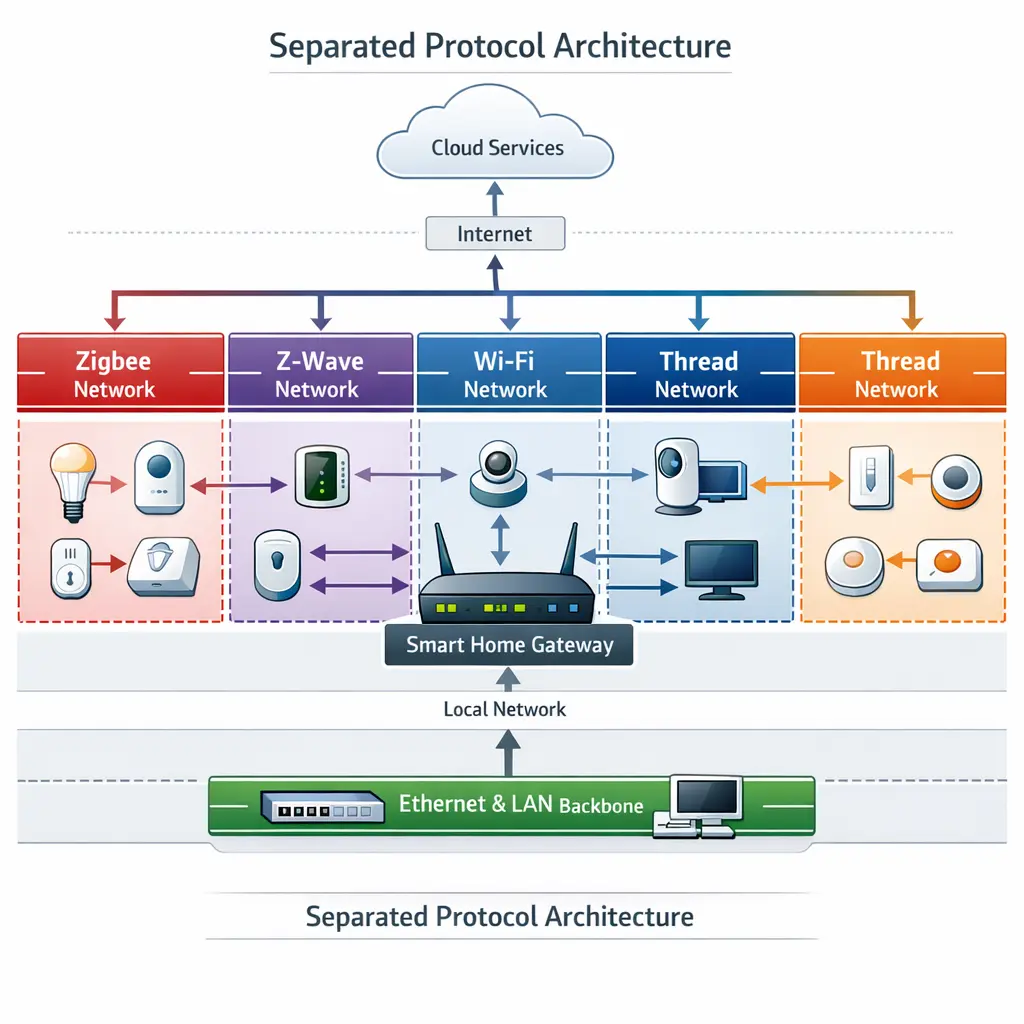
Protocol Separation
For large installations with 50+ devices across both protocols:
- Deploy dedicated servers: Run Zigbee and Z-Wave on separate hardware (two Raspberry Pis)
- Use different physical locations: Place coordinators in different rooms entirely
- Implement wired backhaul: Connect both to your network via Ethernet rather than Wi-Fi
Frequently Asked Questions (FAQs)
Q1: Can Z-Wave and Zigbee ever interfere directly with each other?
While Z-Wave operates on sub-GHz frequencies and Zigbee uses 2.4 GHz, they don’t directly interfere at the radio level. However, they can create indirect interference through:
- Electrical noise from power supplies and processing loads
- USB port interference (especially USB 3.0)
- Shared CPU resources causing timing delays
- Network congestion on your home automation controller
The interference during Z-Wave healing is primarily due to electromagnetic noise generated by intensive mesh operations, not frequency overlap.
Q2: How long should a Z-Wave network heal take?
A typical Z-Wave network heal duration depends on network size:
- Small network (5-10 devices): 5-15 minutes
- Medium network (10-25 devices): 15-45 minutes
- Large network (25+ devices): 45-90 minutes
If your heal takes significantly longer, you may have failed nodes, poor mesh topology, or battery-powered devices preventing completion.
Q3: Will changing my Zigbee channel disconnect all my Hue lights?
Yes, temporarily. When you change the Zigbee channel on your Hue Bridge:
- All devices will disconnect during the channel change process (usually 1-2 minutes)
- Devices will automatically reconnect to the new channel (10-15 minutes total)
- You may need to manually toggle power on some bulbs if they don’t reconnect automatically
- Automations and scenes remain intact only the radio channel changes
Q4: Can I disable Z-Wave network healing completely?
Yes, but it’s not recommended as a permanent solution. Z-Wave healing serves important functions:
- Updates routing tables when you move devices
- Optimizes communication paths as your network evolves
- Repairs broken routes caused by device failures
Better approach: Disable automatic healing and run it manually only when needed (after adding/removing devices or when experiencing issues).
Q5: How do I know if my Wi-Fi is causing the interference instead of Z-Wave?
Perform this isolation test:
- Document Zigbee stability over 24 hours with normal Wi-Fi operation
- Temporarily disable your Wi-Fi router’s 2.4 GHz band
- Monitor Zigbee performance for 24 hours
- Trigger a Z-Wave heal with Wi-Fi still disabled
- Re-enable Wi-Fi and compare results
If Zigbee remains stable during Z-Wave healing when Wi-Fi is off, your Wi-Fi is the primary interference source. Solution: Change Wi-Fi channels to avoid Zigbee overlap.
Q6: Should I use Zigbee channel 11, 15, 20, or 25?
Recommended channel selection:
- Channel 15: Best for most environments minimal Wi-Fi overlap (Wi-Fi channels 3-5)
- Channel 11: Good alternative if channel 15 is congested overlaps with Wi-Fi 1-3
- Channel 20: Avoid unless channels 11 and 15 are extremely congested
- Channel 25: Last resort overlaps with heavily used Wi-Fi channels 9-11
Pro tip: Use a Wi-Fi analyzer first to see which Wi-Fi channels your neighbors use, then select the Zigbee channel with the least overlap.
Q7: My Zigbee network was fine until I added my 20th Z-Wave device. Why?
Adding more Z-Wave devices increases:
- Network density: More routing paths to calculate during healing
- RF traffic volume: More devices communicating simultaneously
- Healing duration: Larger networks take longer to optimize
- Electromagnetic noise: More powered devices generate more ambient RF noise
Solution: Implement all the spacing and scheduling recommendations above, and consider whether you truly need 20+ Z-Wave devices or if some could be consolidated or replaced with wired alternatives.
Q8: Can I run Zigbee and Z-Wave on the same Raspberry Pi?
Yes, absolutely! Many Home Assistant users successfully run both protocols on a single Raspberry Pi 4. However:
- Use quality USB extension cables (minimum 1 meter) for both dongles
- Position the dongles as far apart as physically possible
- Ensure adequate power supply (official Raspberry Pi power adapter recommended)
- Monitor CPU temperature and load during Z-Wave healing operations
- Consider adding a powered USB hub if you’re connecting multiple USB devices
Q9: Is Thread/Matter going to solve these interference problems?
Matter (which can run over Thread, Wi-Fi, or Ethernet) will eventually reduce protocol fragmentation, but:
- Thread uses the same 2.4 GHz band as Zigbee, so interference potential remains
- Matter-over-Wi-Fi shares spectrum with existing Wi-Fi congestion
- Matter-over-Ethernet eliminates wireless interference entirely (best option for critical devices)
The long-term solution is migrating to Matter-over-Ethernet for stationary devices while using Thread only for battery-powered sensors.
Q10: Should I just replace everything with one protocol?
While protocol consolidation can reduce complexity, it’s not always practical or necessary:
Keep both protocols if:
- You’ve already invested significantly in both ecosystems
- Certain devices are only available in one protocol (e.g., Philips Hue Gradient Lightstrips)
- You have specific Z-Wave devices that outperform Zigbee alternatives (e.g., certain thermostats or locks)
Consolidate if:
- You’re just starting your smart home journey
- You experience frequent reliability issues despite optimization
- You value simplicity over specific device features
With proper configuration (channel separation, scheduled healing, adequate spacing), most users can successfully operate both protocols without issues.
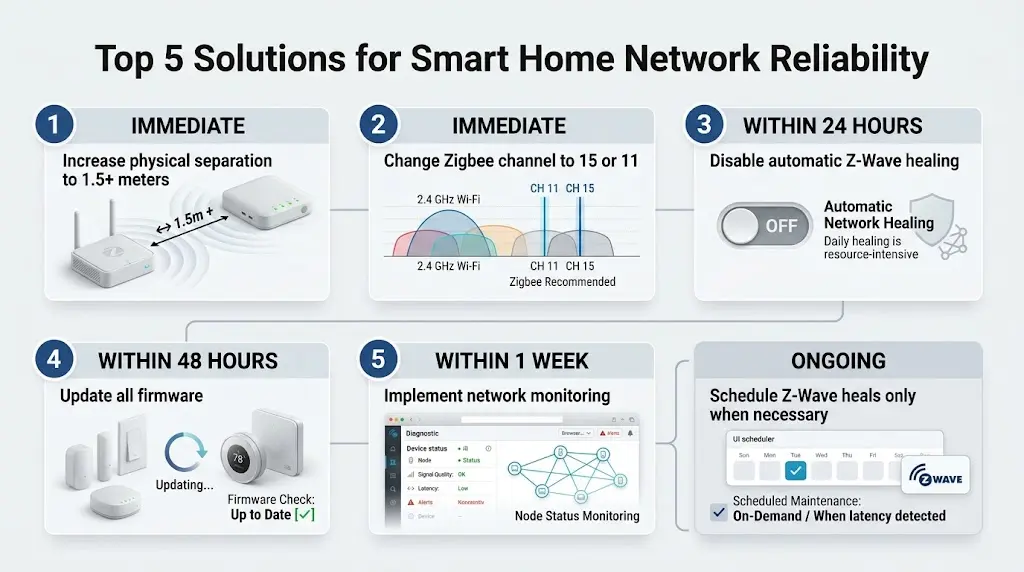
Final Recommendations
The instability you’re experiencing between your Philips Hue Zigbee network and Aeotec Z-Wave hub during network healing is solvable through systematic optimization. Follow this priority order:
- Immediate: Increase physical separation to 1.5+ meters
- Immediate: Change Zigbee channel to 15 or 11
- Within 24 hours: Disable automatic Z-Wave healing
- Within 48 hours: Update all firmware
- Within 1 week: Implement network monitoring automation
- Ongoing: Schedule Z-Wave heals only when necessary
By implementing these solutions and following the prevention strategies, you’ll create a robust, interference-free multi-protocol smart home that operates reliably regardless of network maintenance activities.
Have you successfully resolved similar interference issues in your smart home? Share your experience or ask additional questions in the comments below!