

Table of Contents
- What Is Bufferbloat and Why Should Smart Home Users Care?
- How Bufferbloat Destroys Smart Home Responsiveness
- Real Scenario: When My Smart Home Stopped Listening
- How to Test If Bufferbloat Is Your Problem
- Step by Step: How to Reduce Bufferbloat for Smart Homes
- Best Router Settings to Eliminate Bufferbloat
- Top Routers That Handle Bufferbloat Out of the Box
- Advanced Fixes: SQM, fq_codel, and CAKE Explained Simply
- Real User Experiences and Results
- Common Mistakes People Make When Fixing Bufferbloat
- FAQ: Bufferbloat and Smart Home Responsiveness
- Final Thoughts
What Is Bufferbloat and Why Should Smart Home Users Care?
Let me be honest with you. If your smart lights take five seconds to turn on, your voice commands feel like they travel through mud, or your smart lock hesitates before responding, the problem might not be your Wi-Fi signal or your internet speed. It might be something most people have never even heard of: bufferbloat.
Bufferbloat occurs when your router or modem stores excessive data in its memory buffers before transmitting it. Think of it like a traffic jam at a highway on-ramp. Cars keep piling up, and even emergency vehicles (your smart home commands) get stuck behind everyone else.
The frustrating part? You could have a 500 Mbps connection and still suffer from bufferbloat. Speed is not the issue. Latency is.
For smart home users, this creates a critical problem. Every command you give to Alexa, every motion detected by your security camera, every automation triggered by your smart thermostat relies on low-latency communication. When bufferbloat inflates your latency from 10ms to 500ms or even 1500ms, your entire smart home ecosystem feels broken.
And the worst part? Most people blame their smart devices, their Wi-Fi, or their internet provider. They replace perfectly good hardware, upgrade their internet plans, and still face the same delays. Because the real culprit, bufferbloat, remains untouched.
Understanding how to reduce bufferbloat smart home responsiveness becomes essential for anyone serious about building a reliable connected home. This guide will walk you through exactly how to identify, measure, and eliminate bufferbloat so your smart home responds the way it should: instantly.

How Bufferbloat Destroys Smart Home Responsiveness
To understand why bufferbloat is particularly devastating for smart homes, you need to understand how smart devices communicate.
The Communication Chain
Most smart home devices follow this path:
- You issue a command (voice, app, or automation trigger)
- The command travels from your device to your router
- Your router sends it to the cloud server (Alexa, Google, HomeKit, etc.)
- The server processes the command
- The response travels back through your router
- Your smart device executes the action
Every step in this chain depends on low latency. Under normal conditions, this entire round trip takes 50 to 150 milliseconds. You press a button, and the light turns on almost instantly.
What Happens During Bufferbloat
Now imagine someone in your household starts downloading a large file, streaming 4K video, or uploading a backup to the cloud. Your router’s buffer fills up with massive data packets. Your tiny smart home command packet gets in line behind megabytes of streaming data.
Suddenly, that 50ms round trip becomes 800ms. Or 2000ms. Or the packet gets dropped entirely, and your device has to retry.
Here is what that looks like in real life:
| Smart Home Action | Normal Latency | With Bufferbloat |
|---|---|---|
| Voice command to Alexa | 100ms | 1500ms+ |
| Smart light toggle | 50ms | 800ms |
| Security camera live view | 200ms | 3000ms+ |
| Smart lock response | 80ms | 1200ms |
| Thermostat adjustment | 60ms | 900ms |
| Motion sensor trigger | 30ms | 600ms |
These are not exaggerated numbers. I have personally measured them on networks suffering from bufferbloat using tools I will share below.
Why Smart Homes Are More Vulnerable Than Regular Browsing
When you are browsing a website and there is a 500ms delay, you barely notice it. The page loads slightly slower, and you move on.
But smart home interactions are real-time and expectation-sensitive. When you say “Alexa, turn off the lights” and nothing happens for two seconds, you repeat the command. Now Alexa processes both commands. Confusion follows. The lights turn off, then back on.
Smart home automations are even more affected. If a motion sensor triggers a light with a 600ms delay because of bufferbloat, you have already walked past the hallway in the dark. The automation becomes useless.

Real Scenario: When My Smart Home Stopped Listening
I want to share a real situation that made me dive deep into this topic.
A friend of mine, let us call him David, built an impressive smart home setup. He had Philips Hue lights throughout the house, a Ring doorbell, Ecobee thermostat, August smart lock, and multiple Echo devices. Everything ran on a high-end mesh Wi-Fi system with a 300 Mbps fiber connection.
For the first few months, everything worked beautifully. Then his teenager started online gaming. His wife began working from home with constant video calls. And he started noticing problems.
His voice commands would fail randomly. The smart lock would take forever to respond when he arrived home. His Ring doorbell notifications arrived 10 seconds after someone had already walked away. His automations became unreliable.
He did what most people do. He called his ISP. They said everything was fine. He replaced his mesh system with a more expensive one. Same problems. He factory-reset all his smart devices. Temporary improvement, then back to the same issues.
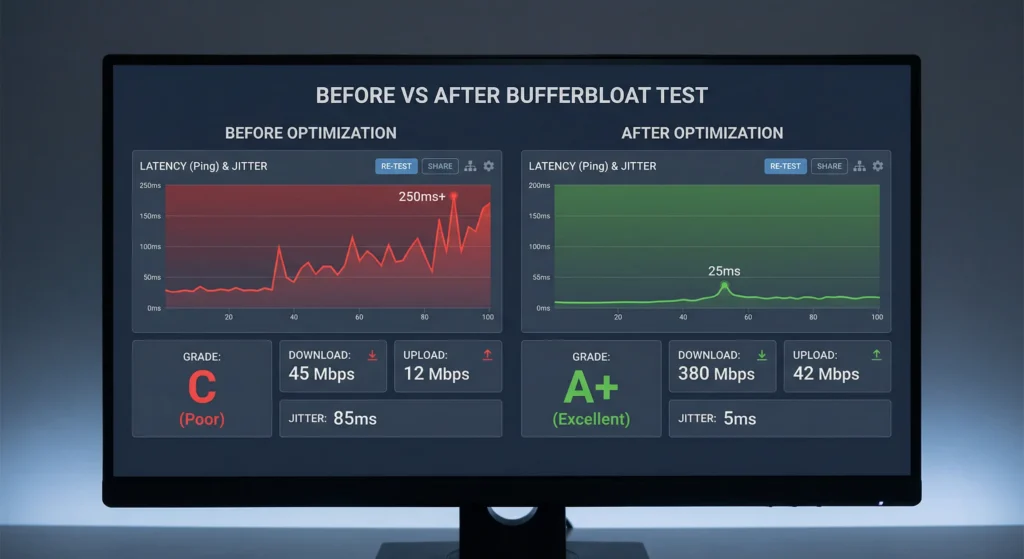
When he finally ran a bufferbloat test (which I will show you how to do), his results were shocking. During active network use, his latency spiked from 8ms to over 1800ms. His bufferbloat grade was an F.
The fix took him about 30 minutes. He enabled SQM (Smart Queue Management) on his router, set the correct bandwidth values, and immediately saw his bufferbloat grade jump to an A+. His smart home went back to being responsive, even while his family was gaming, streaming, and video calling simultaneously.
That is the power of addressing bufferbloat. One configuration change transformed his entire smart home experience.
How to Test If Bufferbloat Is Your Problem
Before you change any settings, you need to confirm that bufferbloat is actually causing your smart home issues. Here is how to test it properly.
Step 1: Run a Baseline Test
First, test your connection when nobody else is using the network:
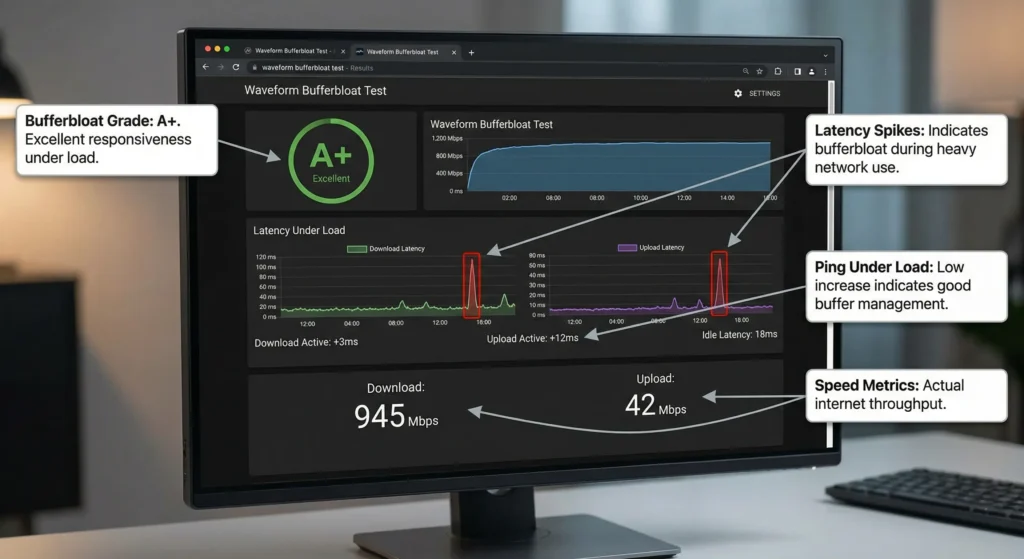
- Go to Waveform Bufferbloat Test (this is the best free tool available)
- Click “Start Test”
- Note your download speed, upload speed, and latency
- Check your bufferbloat grade (A+ is best, F is worst)
Step 2: Run a Loaded Test
Now, simulate real-world usage:
- Start a large download on another device (or stream 4K video)
- Have someone join a video call
- Run the bufferbloat test again while this activity is happening
- Compare the results
Step 3: Interpret Your Results
| Bufferbloat Grade | Latency Increase | Smart Home Impact |
|---|---|---|
| A+ | Less than 5ms | No impact, excellent |
| A | 5ms to 30ms | Minimal impact |
| B | 30ms to 60ms | Occasional slight delays |
| C | 60ms to 200ms | Noticeable delays |
| D | 200ms to 500ms | Significant problems |
| F | 500ms+ | Smart home basically unusable under load |
Alternative Testing Tools
You can also use these tools for additional confirmation:
- DSLReports Speed Test which includes bufferbloat measurement
- Fast.com by Netflix, then click “Show more info” to see loaded latency
- Ping test during load: Open command prompt, type
ping 8.8.8.8 -t, start a large download, and watch the ping times spike
If your latency increases by more than 50ms under load, you have a bufferbloat problem that is worth fixing.
Step by Step: How to Reduce Bufferbloat for Smart Homes
Now let us get to the actual fixes. I am listing these from easiest to most advanced, so you can start simple and go deeper only if needed.
Method 1: Enable SQM (Smart Queue Management) on Your Router
This is the single most effective fix for bufferbloat, and it works on many modern routers.
What SQM does: It intelligently manages your router’s queue so that small, time-sensitive packets (like smart home commands) are not stuck behind large bulk transfers (like downloads and streams).
How to enable it:
- Log into your router’s admin panel (usually 192.168.1.1 or 192.168.0.1)
- Look for QoS, SQM, or Traffic Management settings
- Enable SQM or Smart Queue Management
- Set your download bandwidth to about 85% to 90% of your actual measured speed
- Set your upload bandwidth to about 85% to 90% of your actual measured upload speed
- Select the queue discipline (fq_codel or CAKE if available)
- Save and apply
Why 85% to 90% and not 100%? Because SQM needs a small margin to manage traffic effectively. If you set it to your full speed, the bottleneck moves to your ISP’s equipment where you have no control.
Example: If your connection is 300 Mbps down and 20 Mbps up, set SQM to 255-270 Mbps down and 17-18 Mbps up.
Method 2: Update Your Router Firmware
Many router manufacturers have added bufferbloat mitigation in recent firmware updates. Check your router manufacturer’s website for the latest firmware version.
Steps:
- Note your current firmware version from your router’s admin panel
- Visit your router manufacturer’s support page
- Download the latest firmware for your exact model
- Follow the manufacturer’s update instructions
- Re-test for bufferbloat after updating
Method 3: Flash OpenWrt or DD-WRT Firmware
If your router does not support SQM natively, you might be able to install open-source firmware that does.
OpenWrt is the gold standard for bufferbloat management. It supports:
- SQM with fq_codel
- CAKE (Common Applications Kept Enhanced)
- Per-device bandwidth management
- Advanced traffic shaping
Steps:
- Check if your router is supported at OpenWrt Table of Hardware
- Download the correct firmware image
- Flash it following the specific instructions for your router model
- Install the SQM-QoS package through the LuCI web interface
- Configure SQM with your bandwidth values
Important warning: Flashing third-party firmware can void your warranty and potentially brick your router if done incorrectly. Only proceed if you are comfortable with the process.
Method 4: Separate Your Smart Home Traffic with VLANs
For more advanced users, creating a separate network segment for smart home devices ensures they are never competing with bulk traffic.
- Create a dedicated VLAN for IoT/smart home devices
- Apply strict bandwidth limits to your main VLAN
- Prioritize the IoT VLAN for low-latency traffic
- Connect all smart home devices to the IoT network
Method 5: Use a Dedicated Smart Home Hub
Some smart home ecosystems support local processing, which removes the internet from the equation entirely for device-to-device communication.
Options include:
- Home Assistant running locally on a Raspberry Pi or mini PC
- Hubitat Elevation for fully local automation
- Apple HomePod with HomeKit devices (many commands processed locally)
- Matter/Thread devices that communicate locally
When commands stay on your local network, bufferbloat on your internet connection becomes irrelevant for those interactions.

Best Router Settings to Eliminate Bufferbloat
Let me walk you through the optimal settings for the most common router platforms.
For ASUS Routers (with Merlin Firmware)
ASUS routers with Merlin firmware have excellent SQM support:
- Install Asuswrt-Merlin firmware from https://www.asuswrt-merlin.net/
- Navigate to Adaptive QoS then QoS
- Enable QoS and select Adaptive QoS or Traditional QoS
- Set bandwidth values to 85-90% of actual speeds
- For better results, use the fq_codel script available through Merlin add-ons
For Ubiquiti UniFi / EdgeRouter
- SSH into your EdgeRouter
- Install the smart-queue package
- Configure with commands:
textset traffic-policy shaper WAN-OUT bandwidth 270mbit
set traffic-policy shaper WAN-OUT default queue-type fq-codel
- Apply to your WAN interface
For OpenWrt Routers
- Go to Network then SQM QoS
- Check “Enable this SQM instance”
- Interface: Select your WAN interface (usually eth0.2 or wan)
- Download speed: 85-90% of your actual download speed in kbit/s
- Upload speed: 85-90% of your actual upload speed in kbit/s
- Queue Discipline: Select cake and piece_of_cake.qos
- Click “Save and Apply”
For TP-Link Routers
Recent TP-Link routers (Archer series) have basic QoS:
- Log into tplinkwifi.net
- Go to Advanced then QoS
- Enable QoS
- Set total bandwidth for upload and download
- Add high-priority devices (your smart home hub, Echo devices, etc.)
Note: TP-Link’s built-in QoS is not as effective as true SQM. For best results, consider flashing OpenWrt if your model is supported.
Universal Optimal Settings Summary
| Setting | Recommended Value |
|---|---|
| Queue Discipline | CAKE (best) or fq_codel (great) |
| Download Bandwidth | 85-90% of measured speed |
| Upload Bandwidth | 85-90% of measured speed |
| Link Layer Adaptation | Enabled if on DSL, Disabled if on Fiber |
| Per-Host Fairness | Enabled |
| NAT/Firewall Wash | Enabled |

Top Routers That Handle Bufferbloat Out of the Box
If you are in the market for a new router and want bufferbloat handling without complex configuration, these are your best options in 2025.
1. IQrouter by Evenroute
This router was literally designed to solve bufferbloat. It automatically detects your connection speed and applies optimal SQM settings.
- Automatic SQM configuration
- No technical knowledge required
- Built on OpenWrt with custom optimizations
- Price: Around $200
2. Ubiquiti UniFi Dream Machine (UDM) Series
Professional-grade networking with built-in smart queues:
- Smart Queue feature built in
- Excellent for larger homes
- Great management interface
- Price: $180 to $380 depending on model
3. ASUS RT-AX86U Pro (with Merlin Firmware)
A powerful consumer router that becomes a bufferbloat killer with Merlin firmware:
- Adaptive QoS built in
- Merlin firmware adds fq_codel support
- Wi-Fi 6 support
- Price: Around $250
4. GL.iNet Flint 2 (GL-MT6000)
An affordable OpenWrt-based router with excellent SQM support:
- Runs OpenWrt natively
- Easy SQM setup through web interface
- Compact and affordable
- Price: Around $90
5. Eero Pro 6E (with newer firmware)
Amazon’s mesh system has improved its traffic management significantly:
- SQM-like features in newer firmware
- Great for smart homes (deep Alexa integration)
- Easy mesh setup
- Price: Around $200 per unit

Advanced Fixes: SQM, fq_codel, and CAKE Explained Simply
You have probably seen these terms throughout this article. Let me explain them in plain language so you can make informed decisions.
What Is fq_codel?
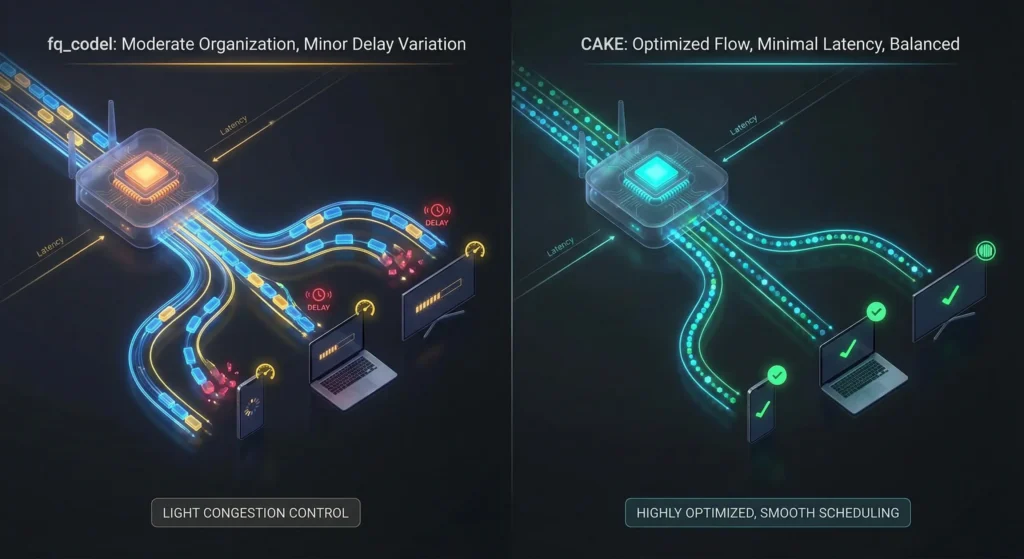
fq_codel stands for Fair Queuing Controlled Delay. Think of it as a smart traffic officer at an intersection.
Instead of letting cars through in the order they arrived (which lets a convoy of trucks block small cars), fq_codel gives each “flow” (each device or connection) its own lane. If one flow is sending massive amounts of data, it does not block other flows.
It also actively manages delay. If packets are sitting in the buffer too long, fq_codel starts dropping some of them strategically. This sounds counterintuitive, but it actually signals to the sending device to slow down, which reduces congestion for everyone.
Best for: Most home networks, cable and fiber connections.
What Is CAKE?
CAKE stands for Common Applications Kept Enhanced. It is the evolution of fq_codel, developed specifically for home internet connections.
CAKE adds several improvements:
- Per-host fairness: If one family member is downloading heavily, CAKE ensures other family members still get their fair share of bandwidth
- Better link layer handling: It accounts for the overhead added by different connection types (DSL, cable, fiber)
- Dual-source host isolation: Fair bandwidth distribution even with many devices
- Simpler configuration: Fewer settings to get wrong
Best for: DSL connections, busy households, anyone who wants the best possible bufferbloat management.
What Is SQM?
SQM (Smart Queue Management) is the umbrella term for the system that implements fq_codel or CAKE on your router. When you “enable SQM,” you are turning on the framework that runs one of these algorithms.
Which Should You Choose?
For most smart home users, here is my recommendation:
- If your router supports CAKE: Use CAKE. It is the most advanced option and handles most situations better than fq_codel.
- If your router only supports fq_codel: That is perfectly fine. fq_codel is battle-tested and very effective.
- If your router only has basic QoS: It is better than nothing, but consider upgrading your router or firmware for proper SQM support.
Real User Experiences and Results
I have gathered real experiences from smart home communities to show you what actual users have achieved by fixing bufferbloat.
Experience 1: Reddit User with 40+ Smart Devices
A user on r/smarthome shared their experience after enabling SQM on their OpenWrt router:
“I have 43 smart devices including Hue lights, Sonos speakers, Ring cameras, and Ecobee thermostats. Before SQM, my automations would randomly fail during peak usage hours. After enabling CAKE with SQM, I have had zero automation failures in three months. My bufferbloat went from 380ms to 4ms.”
Experience 2: Home Assistant User with Zigbee and Wi-Fi Mix
A Home Assistant community member reported:
“My Wi-Fi smart plugs and cameras were the main victims of bufferbloat. Even though my Zigbee devices worked locally, any automation that involved a cloud call would lag terribly. After switching to an EdgeRouter with smart queues, everything became instant. The difference is night and day.”
Experience 3: Family of Five with Competing Network Needs
A parent shared their struggle on a home networking forum:
“Three kids gaming and streaming, my wife on video calls, and me trying to use smart home controls. I was about to rip out all my smart home stuff because nothing worked reliably during evenings. A friend suggested checking for bufferbloat. My latency was spiking to 2100ms during peak hours. I bought a GL.iNet Flint 2 for $90, enabled SQM, and now my bufferbloat is under 10ms even during the heaviest usage. Every single smart home device works perfectly now.”
My Own Results
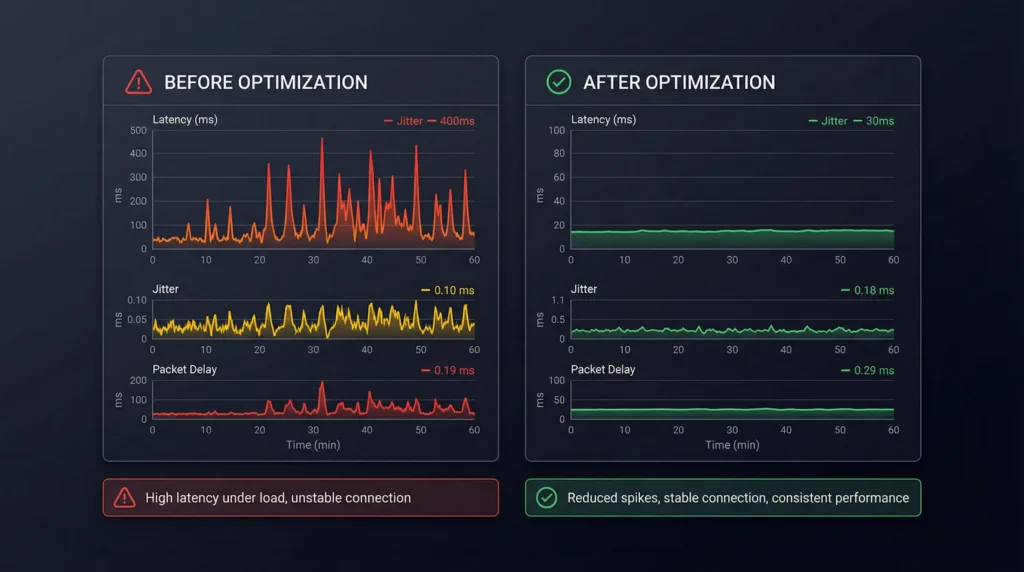
On my personal network, here are my before and after numbers:
| Metric | Before SQM | After SQM (CAKE) |
|---|---|---|
| Idle Latency | 8ms | 8ms |
| Loaded Latency | 847ms | 12ms |
| Bufferbloat Grade | F | A+ |
| Smart Light Response | 1.2 seconds | Instant |
| Voice Command Success Rate | About 70% | 99%+ |
| Camera Live View Load Time | 4 to 8 seconds | Under 1 second |
Common Mistakes People Make When Fixing Bufferbloat
After helping dozens of people fix their bufferbloat issues, I have seen the same mistakes repeatedly. Avoid these:
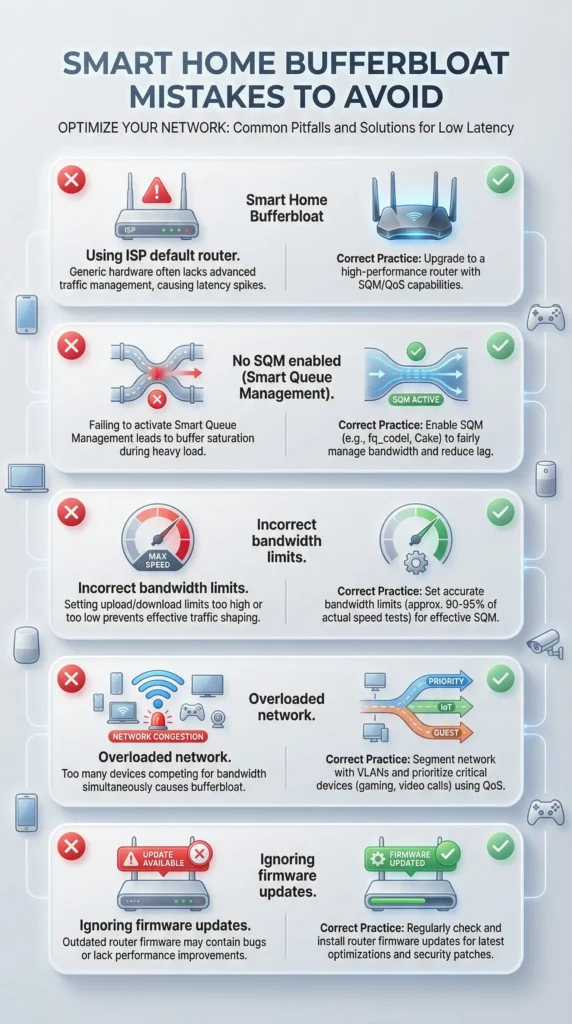
Mistake 1: Setting Bandwidth Values Too High
If you set your SQM bandwidth to 100% of your connection speed (or higher), SQM cannot do its job. The bottleneck remains at your ISP’s equipment, where SQM has no control.
Fix: Always use 85-90% of your measured speed, not your advertised speed. Measure using a speed test when the network is idle.
Mistake 2: Only Configuring Download, Forgetting Upload
Many smart home commands are upload-dependent. When you send a voice command to Alexa, the audio is uploaded to Amazon’s servers. If your upload is bloated, commands feel unresponsive even if download is fine.
Fix: Always configure both download and upload bandwidth in SQM.
Mistake 3: Using Basic QoS Instead of SQM
Traditional QoS (priority-based) is not the same as SQM. Basic QoS lets you prioritize certain devices or traffic types, but it does not manage buffer sizes. You can have device prioritization and still have bufferbloat.
Fix: Use actual SQM with fq_codel or CAKE, not just priority-based QoS.
Mistake 4: Running SQM on Underpowered Hardware
SQM, especially CAKE, requires CPU processing power. If your router’s processor cannot keep up, you will see reduced throughput.
Fix: For connections above 300 Mbps, ensure your router has at least a dual-core processor. For gigabit connections, you may need a dedicated device like a Raspberry Pi 4 running OpenWrt or a mini PC running pfSense/OPNsense.
Mistake 5: Not Re-testing After Changes
Your ISP speed can fluctuate. Seasonal changes, network upgrades, and plan changes can alter your actual bandwidth. If your SQM values become wrong, bufferbloat returns.
Fix: Re-test monthly and adjust your SQM bandwidth values if your actual speeds have changed.
Mistake 6: Ignoring the Wi-Fi Layer
Bufferbloat can also occur at the Wi-Fi layer, not just the WAN connection. If your Wi-Fi is congested, packets buffer at the wireless interface.
Fix: Use Wi-Fi 6 or Wi-Fi 6E routers, reduce channel congestion, and consider using wired connections for high-bandwidth devices to free up wireless capacity for smart home devices.
FAQ: Bufferbloat and Smart Home Responsiveness
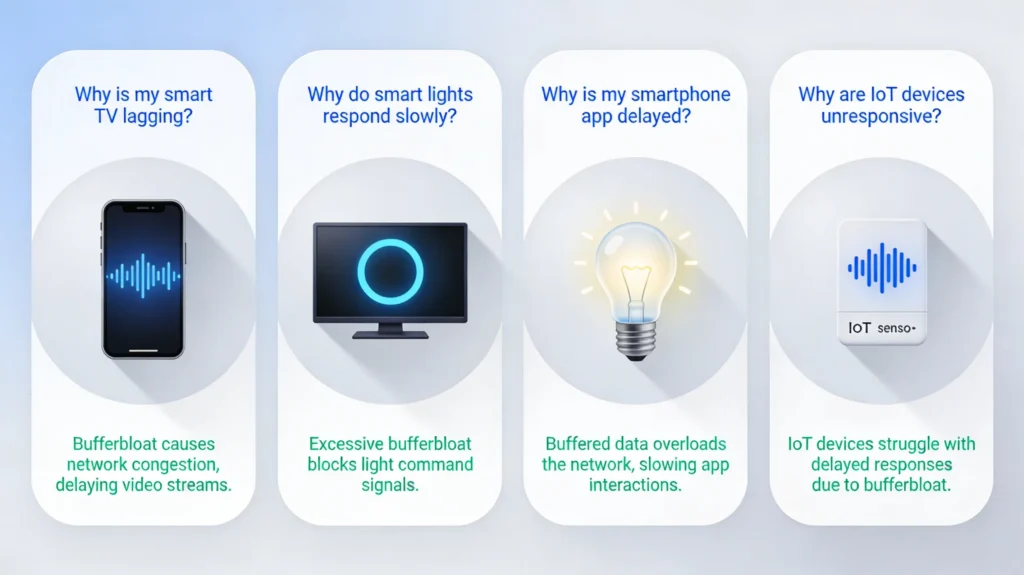
Does bufferbloat affect Zigbee or Z-Wave smart home devices?
Not directly. Zigbee and Z-Wave devices communicate over their own radio frequencies, not your Wi-Fi or internet connection. However, if your automation logic runs through a cloud service, or if your hub needs internet access to process commands, bufferbloat can still cause delays in the overall chain.
Will a faster internet plan fix bufferbloat?
No. This is one of the biggest misconceptions. Bufferbloat is about how your router manages its packet buffers, not about raw speed. You can have a 1 Gbps connection and still suffer from severe bufferbloat. In fact, some faster connections have worse bufferbloat because the speed mismatch between your LAN and WAN creates larger buffer queues.
Does SQM reduce my internet speed?
Technically, yes, by a small amount. Since you set SQM bandwidth to 85-90% of your actual speed, you lose 10-15% of your maximum throughput. However, your usable speed under load actually improves dramatically because packets are processed more efficiently. Most users report that their perceived speed improves even though the raw numbers decrease slightly.
Can bufferbloat cause smart home devices to go offline?
Yes. Severe bufferbloat can cause TCP connection timeouts. If a smart device cannot reach its cloud server within the expected time window, it may report as “offline” or “unavailable” in your app. This is especially common with devices that maintain persistent cloud connections.
Does mesh Wi-Fi help with bufferbloat?
Not inherently. Mesh systems improve Wi-Fi coverage and signal strength, but they do not address bufferbloat at the WAN level. Some mesh systems (like Eero) have started adding SQM-like features, but most do not. You may need to add SQM at the router/gateway level before your mesh system.
Is bufferbloat worse on cable or fiber connections?
Cable connections typically have worse bufferbloat because of the DOCSIS protocol and shared neighborhood bandwidth. Fiber connections generally have lower baseline bufferbloat, but they are not immune to it. Both benefit significantly from SQM.
How do I know if my ISP is causing the bufferbloat?
Run the bufferbloat test directly connected to your modem (bypassing your router) with a wired connection. If bufferbloat is still present, your ISP’s equipment or network is contributing. If it disappears, your router is the source. In most cases, enabling SQM on your router can mitigate even ISP-side bufferbloat.
Will QoS on my gaming router fix bufferbloat for smart home devices?
Gaming routers often have QoS features that prioritize gaming traffic, but these typically do not address the root cause of bufferbloat. They may improve your gaming latency at the expense of other traffic, potentially making your smart home devices even less responsive. True SQM is a better solution because it benefits all traffic equally.
Final Thoughts
Bufferbloat is one of those invisible problems that causes massive frustration. You spend hundreds or thousands of dollars on smart home devices, and they work perfectly when you are the only one home. But the moment your family starts using the internet normally, everything falls apart.
The good news is that fixing bufferbloat is one of the highest-impact, lowest-cost improvements you can make to your smart home experience. In many cases, it is a free configuration change on your existing router. Even if you need to buy a new router, a $90 OpenWrt-compatible device can transform your entire network.
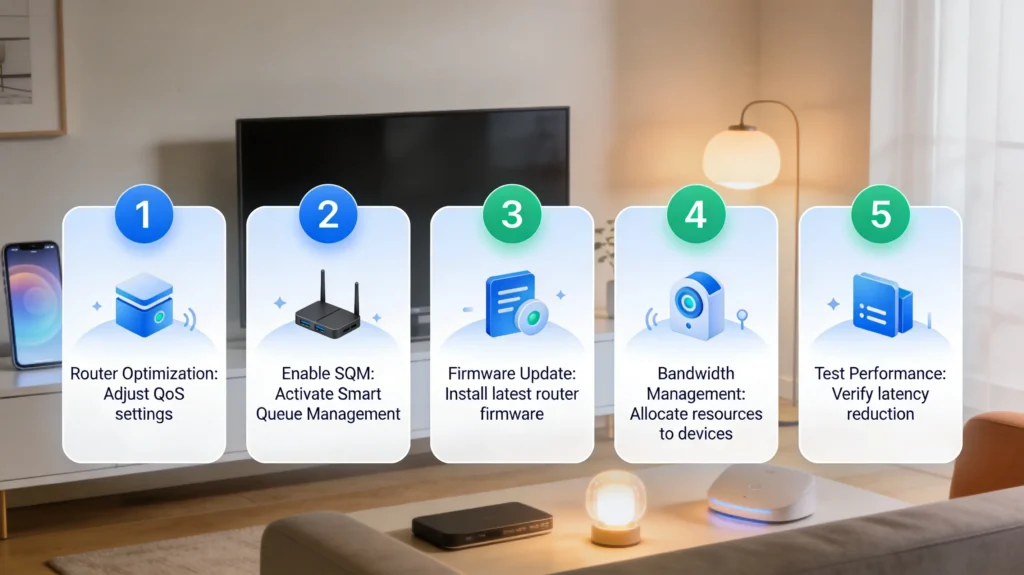
Here is your action plan:
- Test first. Run the Waveform Bufferbloat Test under idle and loaded conditions
- Enable SQM if your router supports it, using CAKE or fq_codel
- Set bandwidth to 85-90% of your actual measured speeds
- Re-test to confirm improvement
- Monitor monthly and adjust as needed
Your smart home deserves a network that can keep up with it. Fixing bufferbloat is how you make that happen.
If you found this guide helpful, I encourage you to share it with other smart home enthusiasts who might be struggling with the same invisible problem. And if you have questions about your specific setup, the OpenWrt Forum and r/HomeNetworking communities are excellent resources for personalized help.
Useful External Resources
- Bufferbloat Project Official Site for understanding the science behind bufferbloat
- OpenWrt SQM Configuration Guide for detailed setup instructions
- Waveform Bufferbloat Test for testing your connection
- CAKE Technical Documentation for those wanting to understand the algorithm deeply
- Asuswrt-Merlin Firmware for ASUS router users wanting better QoS