Table of Contents
- Introduction: Why Your Smart Home Devices Keep Dropping
- Understanding Zigbee and Wi-Fi Interference: The Root Cause
- How to Identify If You Have a Zigbee Wi-Fi Interference Problem
- Step-by-Step Guide to Troubleshoot Zigbee and Wi-Fi Interference
- Best Channel Configuration to Avoid Zigbee Wi-Fi Overlap
- Real-World Scenarios and How People Fixed Them
- Advanced Solutions for Persistent Interference Issues
- Tools You Can Use to Diagnose Interference
- Common Mistakes That Make Interference Worse
- FAQ: Zigbee and Wi-Fi Interference
- Final Thoughts
Introduction: Why Your Smart Home Devices Keep Dropping
You just spent hours setting up your smart home. Zigbee sensors on every door. Smart bulbs in every room. A beautiful automation that turns off the lights when you leave. Everything works perfectly for two days. Then suddenly, your Zigbee motion sensor stops responding. Your smart lock delays by 10 seconds. Your lights flicker or simply ignore commands.
You check your hub. It says the device is “unavailable.” You restart everything, and it works again. For a few hours. Then the same problem comes back.
If this sounds familiar, you are not alone. I went through the exact same frustration three years ago when I built my first serious Zigbee mesh network alongside a busy Wi-Fi environment. The culprit was something most people overlook: Zigbee and Wi-Fi interference.
Both Zigbee and Wi-Fi operate on the 2.4 GHz frequency band. When they are not configured properly, they literally shout over each other. The result is dropped packets, delayed commands, and devices that randomly go offline.
In this guide, I will walk you through exactly how to troubleshoot simultaneous zigbee and wi fi interference. No theory-only explanations. Just practical, tested solutions that actually work. Whether you use Home Assistant, SmartThings, Hubitat, or any other Zigbee coordinator, this article will help you fix the problem once and for all.
Understanding Zigbee and Wi-Fi Interference: The Root Cause
Before we fix the problem, let us understand why it happens in the first place.
The 2.4 GHz Crowded Highway
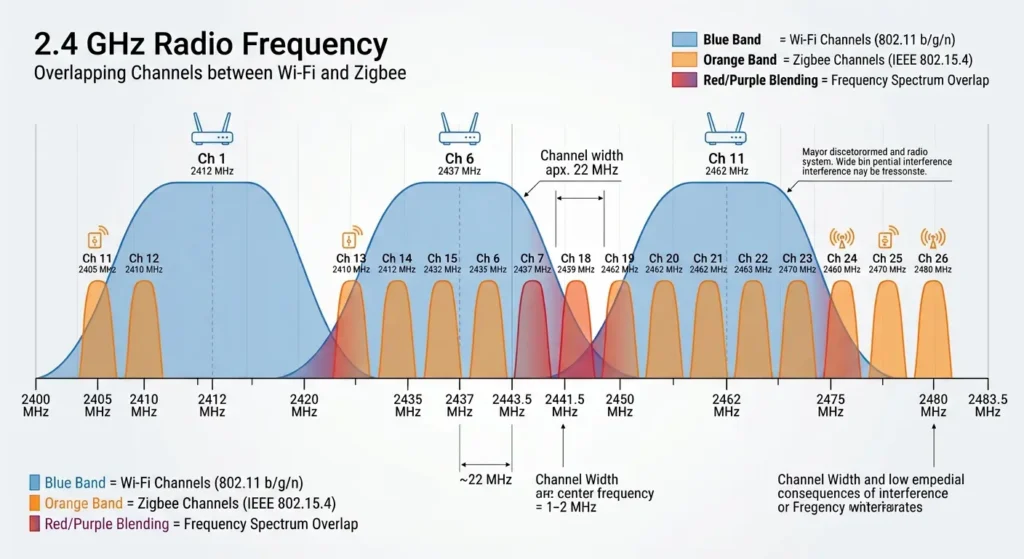
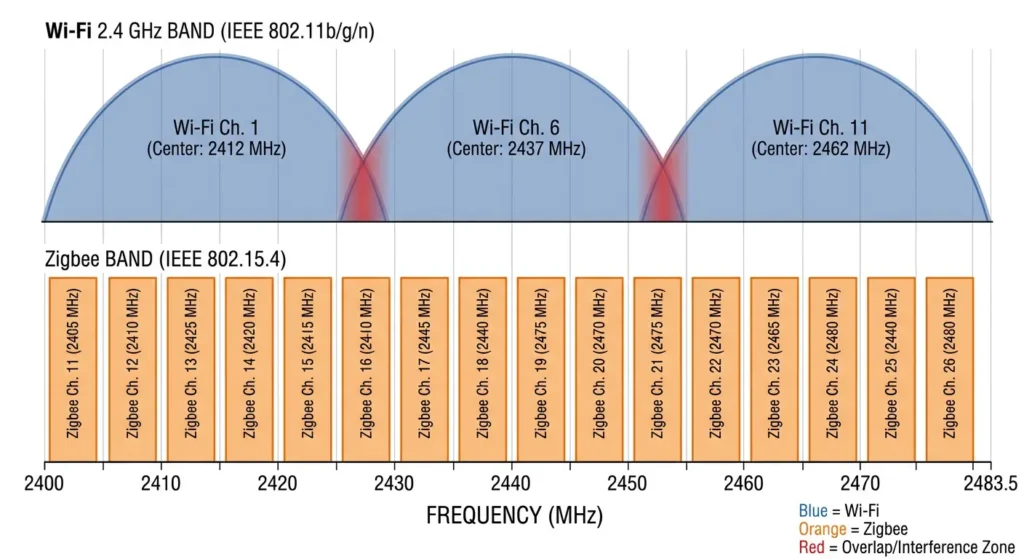
Think of the 2.4 GHz band as a highway with limited lanes. Wi-Fi uses wide lanes (each Wi-Fi channel occupies about 20 to 40 MHz of bandwidth). Zigbee uses narrow lanes (each Zigbee channel occupies only 2 MHz). But here is the catch: they share the same highway.
Wi-Fi has 11 usable channels in North America (channels 1 through 11), and Zigbee has 16 channels (channels 11 through 26). When a wide Wi-Fi lane overlaps with a narrow Zigbee lane, the Wi-Fi signal is so much more powerful that it drowns out the Zigbee signal completely.
Why Wi-Fi Always Wins the Fight
Wi-Fi transmits at power levels up to 100 mW (20 dBm) or even higher. Zigbee transmits at only 1 to 2 mW. That is a massive difference. When both signals occupy the same frequency space, Wi-Fi does not just cause a little noise for Zigbee. It completely overwhelms it.
The Three Types of Interference
| Type | Description | Severity |
|---|---|---|
| Co-channel interference | Zigbee and Wi-Fi operate on the exact same frequency | Critical |
| Adjacent channel interference | Zigbee channel sits right next to a busy Wi-Fi channel | Moderate |
| Environmental noise | Other 2.4 GHz devices like microwaves, baby monitors, Bluetooth | Variable |
Understanding which type of interference you are dealing with is the first step toward fixing it.
How to Identify If You Have a Zigbee Wi-Fi Interference Problem
Not every Zigbee issue is caused by Wi-Fi interference. Before you start changing channels and moving devices around, confirm that interference is actually your problem.
Signs That Point to Interference
Here are the most common symptoms I have seen (and experienced personally):
- Devices intermittently go offline and come back on their own without any physical change
- Commands have noticeable delays of 3 to 15 seconds, especially during peak Wi-Fi usage times
- Zigbee devices far from the coordinator fail more often than nearby ones
- Problems get worse in the evening when more family members are streaming video or gaming
- Battery-powered Zigbee sensors drain faster than expected because they keep retrying transmissions
- Your Zigbee mesh map shows weak LQI (Link Quality Indicator) values below 80
Signs That Point to Other Problems
To avoid chasing the wrong issue, here are symptoms that usually are NOT caused by Wi-Fi interference:
- A single device that never connects (likely a pairing or compatibility issue)
- All devices failing at once (likely a coordinator hardware or power problem)
- Devices only failing after a software update (likely a firmware bug)
Quick Test: Is It Really Interference?
Try this simple experiment. Temporarily turn off your Wi-Fi router completely. Then test your Zigbee devices. If they suddenly respond faster and more reliably, you have confirmed that Wi-Fi interference is the problem.
I did this exact test in my own setup in 2022. With my Wi-Fi router running on channel 6, my Zigbee network on channel 11 was experiencing about 15 percent packet loss. The moment I turned off the router, packet loss dropped to zero. That confirmed the overlap.
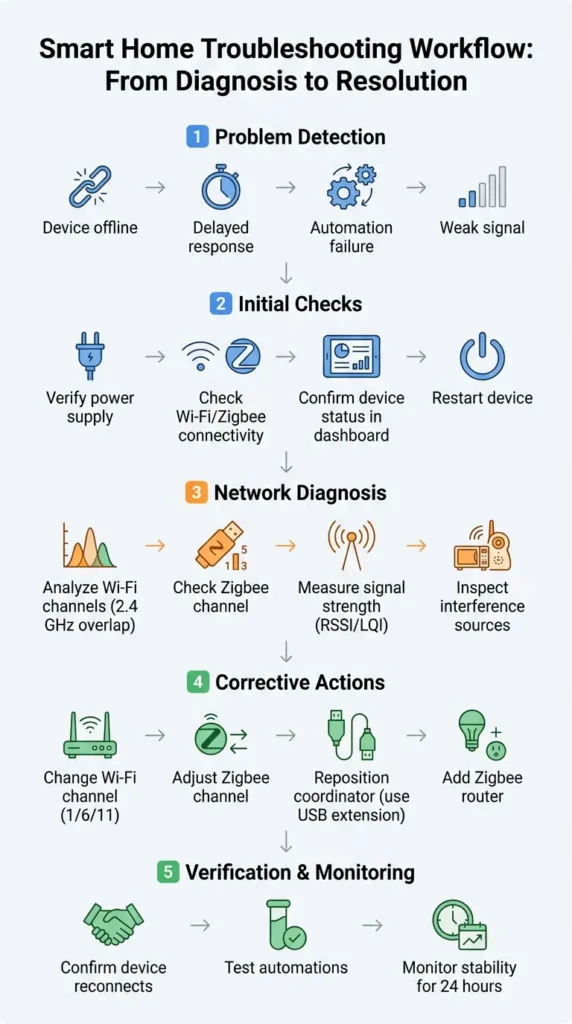
Step-by-Step Guide to Troubleshoot Zigbee and Wi-Fi Interference
Now let us get into the actual troubleshooting process. Follow these steps in order.
Step 1: Map Your Current Channel Configuration
Before changing anything, document what you currently have.
For Wi-Fi:
- Log into your router admin panel
- Find the 2.4 GHz wireless settings
- Note the current channel (or check if it is set to “Auto”)
- Note the channel width (20 MHz or 40 MHz)
For Zigbee:
- Open your Zigbee coordinator software (ZHA, Zigbee2MQTT, SmartThings IDE, etc.)
- Find the current Zigbee channel
- Note the number of connected devices and their signal quality
For neighbors’ Wi-Fi:
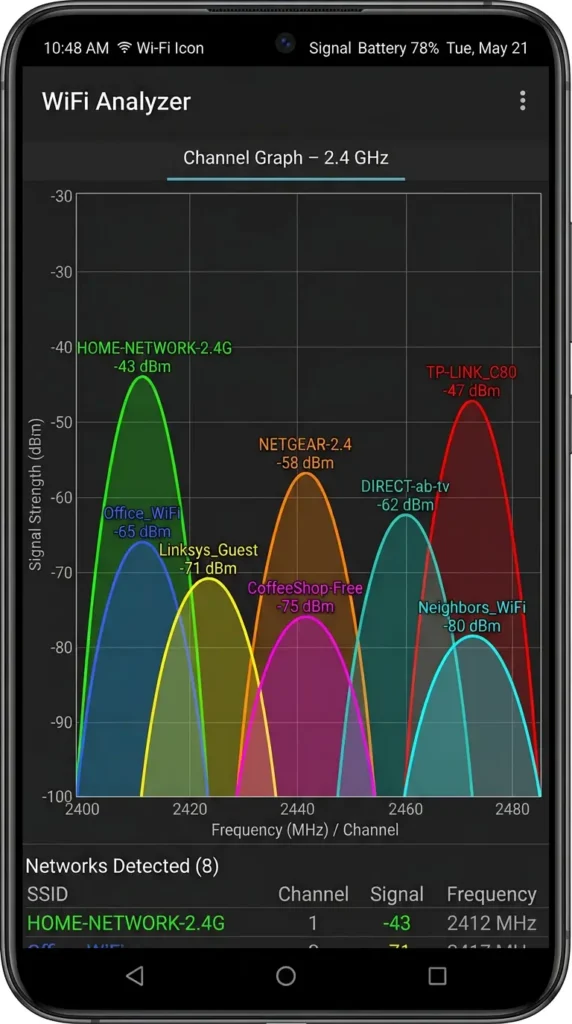
- Use a free app like WiFi Analyzer on Android
- Or use the built-in wireless diagnostics on macOS
- Scan and document all nearby Wi-Fi networks and their channels
Step 2: Identify the Overlap
Using the information from Step 1, check if your Zigbee channel falls within the frequency range of any active Wi-Fi channel.
Here is the critical overlap map:
| Wi-Fi Channel | Wi-Fi Frequency Range | Conflicting Zigbee Channels |
|---|---|---|
| 1 | 2401 – 2423 MHz | 11, 12, 13, 14 |
| 6 | 2426 – 2448 MHz | 15, 16, 17, 18, 19, 20 |
| 11 | 2451 – 2473 MHz | 20, 21, 22, 23, 24 |
The safest Zigbee channels when Wi-Fi uses channels 1, 6, and 11:
- Zigbee channel 25 (2475 MHz)
- Zigbee channel 26 (2480 MHz)
- Zigbee channel 15 (only if Wi-Fi channel 1 is not heavily loaded)
Step 3: Change Your Zigbee Channel
This is usually the easier change to make compared to changing your Wi-Fi channel.
Important warning: Changing your Zigbee channel will likely require you to re-pair all your Zigbee devices. Plan for this. Set aside a few hours.
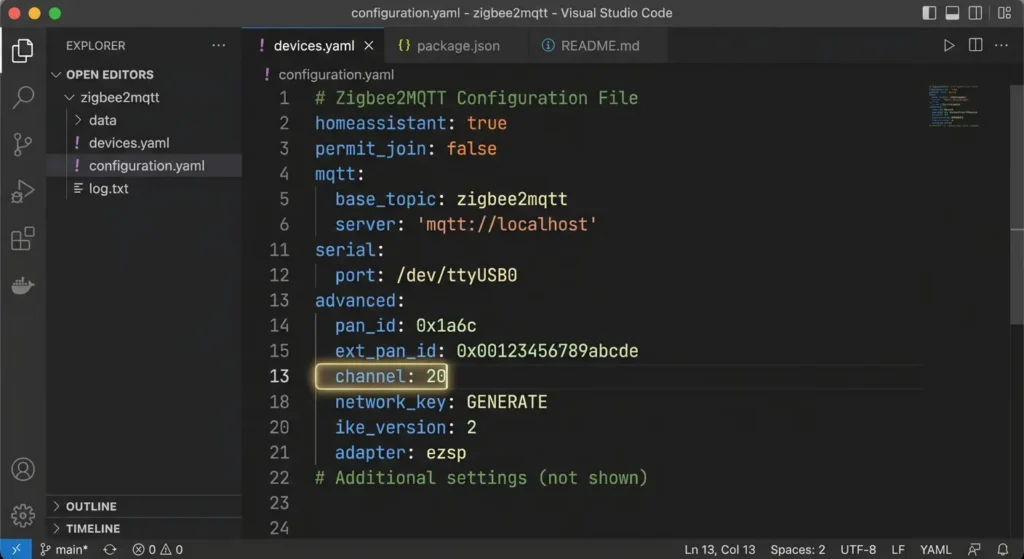
For Zigbee2MQTT users:
- Stop Zigbee2MQTT
- Edit the configuration.yaml file
- Change the
channelvalue under theadvancedsection - Set
last_seentoepochif not already set - Delete the coordinator backup if prompted
- Start Zigbee2MQTT
- Re-pair all devices
For ZHA (Home Assistant) users:
- Go to Settings then Devices and Services
- Click on the ZHA integration
- Select “Migrate Radio” or remove and re-add ZHA with the new channel
- Re-pair all devices
For SmartThings users:
SmartThings automatically selects the Zigbee channel during hub setup. You may need to reset the hub and set it up again to get a different channel. Unfortunately, SmartThings gives you limited control over this.
Step 4: Optimize Your Wi-Fi Channel Selection
If you cannot easily change your Zigbee channel (or you want to optimize from both sides), adjust your Wi-Fi settings.
Best practices:
- Set your 2.4 GHz Wi-Fi to channel 1 and your Zigbee to channel 25 or 26. This creates the maximum frequency separation.
- Use 20 MHz channel width for your 2.4 GHz Wi-Fi instead of 40 MHz. The wider the Wi-Fi channel, the more Zigbee channels it interferes with.
- Move as many devices as possible to 5 GHz Wi-Fi. Every device you move off 2.4 GHz reduces the interference potential. Most modern phones, laptops, and streaming devices support 5 GHz.
- Disable 2.4 GHz entirely if possible. If all your Wi-Fi devices support 5 GHz or 6 GHz, consider turning off the 2.4 GHz radio completely. This eliminates the interference problem at its source.
Step 5: Optimize Physical Placement
Even with perfect channel separation, physical proximity between your Wi-Fi router and Zigbee coordinator can cause problems due to out-of-band emissions and harmonics.
Placement rules:
- Keep your Zigbee coordinator at least 1 to 2 meters (3 to 6 feet) away from your Wi-Fi router
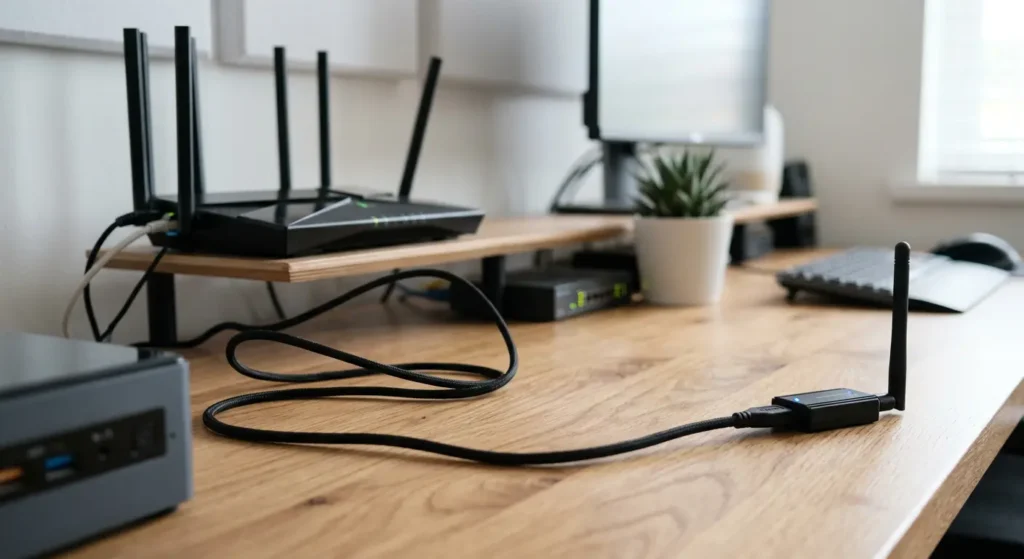
- Never plug a USB Zigbee coordinator directly into a device that has Wi-Fi (like a Raspberry Pi or NAS). Use a USB extension cable of at least 1 meter
- Place the Zigbee coordinator in a central location in your home, elevated if possible
- Avoid placing either device near microwave ovens, baby monitors, or Bluetooth hubs
Step 6: Strengthen Your Zigbee Mesh
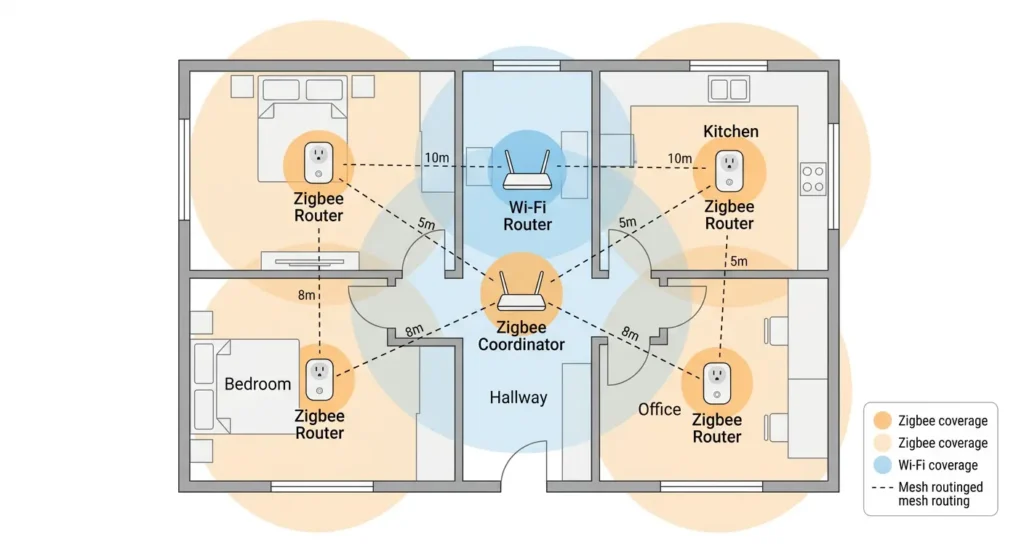
A strong Zigbee mesh network can tolerate some interference because messages can route through multiple paths. If one path is affected by interference, the mesh finds another way.
How to strengthen the mesh:
- Add more Zigbee router devices (mains-powered devices like smart plugs and light bulbs act as routers)
- Place router devices between the coordinator and distant end devices
- Aim for no more than 3 to 4 hops between any device and the coordinator
- After adding routers, give the mesh 24 to 48 hours to optimize its routing tables. While building a stronger mesh helps overcome interference, sometimes your devices still select inefficient routes through your home. To understand why this happens and how to fix it, read our guide on Why Do Zigbee Devices Choose Poor Routing Paths in Dense Homes? Causes, Fixes, and Real Solutions.
Best Channel Configuration to Avoid Zigbee Wi-Fi Overlap
Let me give you the configurations that have worked best in real-world setups.
Configuration 1: Maximum Separation (Recommended)
| Setting | Value |
|---|---|
| Wi-Fi 2.4 GHz Channel | 1 |
| Wi-Fi Channel Width | 20 MHz |
| Zigbee Channel | 25 or 26 |
| Distance Between Radios | 2+ meters |
This is the gold standard. Wi-Fi channel 1 sits at the bottom of the 2.4 GHz band. Zigbee channels 25 and 26 sit at the very top. They are as far apart as physically possible.
Configuration 2: Good Separation (When Neighbors Use Channel 1)
| Setting | Value |
|---|---|
| Wi-Fi 2.4 GHz Channel | 11 |
| Wi-Fi Channel Width | 20 MHz |
| Zigbee Channel | 15 |
| Distance Between Radios | 1.5+ meters |
This works when your neighbors are heavily using Wi-Fi channel 1 and you need to use channel 11 instead.
Configuration 3: Apartment Living (High Density)
| Setting | Value |
|---|---|
| Wi-Fi 2.4 GHz Channel | Best available (use WiFi Analyzer) |
| Wi-Fi Channel Width | 20 MHz (never 40 MHz in apartments) |
| Zigbee Channel | 25 |
| Additional Step | Add extra Zigbee routers every 5 to 7 meters |
In apartments, you cannot control your neighbors’ Wi-Fi. Focus on using Zigbee channel 25 or 26 and building a dense mesh to compensate for any residual interference.
A Note About Zigbee Channel 26
Zigbee channel 26 is the highest and has the best separation from Wi-Fi. However, some older Zigbee devices do not support channel 26, and some coordinators transmit at reduced power on this channel. Test it, but be aware of potential compatibility issues. Channel 25 is generally the safer choice.
Real-World Scenarios and How People Fixed Them
Scenario 1: The Smart Home That Worked Great Until the Neighbor Got a Mesh Router
The situation: Mark had a perfectly working Zigbee setup in his townhouse for over a year. Suddenly, in March 2024, half his devices started dropping offline every evening. After weeks of frustration, he discovered his neighbor had installed a TP-Link Deco mesh system that was using Wi-Fi channel 6 with 40 MHz width. This blanketed Zigbee channels 15 through 22.
The fix: Mark changed his Zigbee network from channel 20 to channel 25 and re-paired all 34 devices. It took him about 3 hours. He has not had a single dropout since.
The lesson: Your interference environment can change at any time. What works today might not work tomorrow if a neighbor adds new Wi-Fi equipment.
Scenario 2: The USB Coordinator Plugged Directly Into a Router
The situation: Sarah was using a Sonoff Zigbee 3.0 USB coordinator plugged directly into the USB port of her Asus router (which she was also using as her Home Assistant server). Her Zigbee devices had terrible range, and she could not figure out why.
The fix: She bought a 2-meter USB extension cable for less than 5 dollars and moved the coordinator away from the router. Her Zigbee LQI values improved by 40 to 60 points across the board.
The lesson: Never place a Zigbee radio directly next to a Wi-Fi radio. The electromagnetic noise at close range is intense, even if the channels do not overlap.
Scenario 3: The Microwave That Killed the Smart Home Every Dinner Time
The situation: David noticed his kitchen Zigbee sensors would go unresponsive every day between 6:00 and 7:00 PM. After logging the exact times, his wife pointed out that this was exactly when she used the microwave to heat food. Microwaves operate at 2.45 GHz, right in the middle of the 2.4 GHz band, and they can leak significant radiation.
The fix: David moved his nearest Zigbee router device (a smart plug) from the kitchen counter to the hallway outside the kitchen, about 3 meters from the microwave. He also added a second Zigbee router on the other side of the kitchen. The mesh now routes around the microwave interference.
The lesson: Microwaves are notorious 2.4 GHz interference sources. Always account for them in your Zigbee network planning.
Advanced Solutions for Persistent Interference Issues
If you have tried all the basic steps and still experience problems, here are more advanced approaches.
Use a Dedicated Zigbee Coordinator with an External Antenna
USB stick coordinators with internal antennas have limited range and are more susceptible to interference. Consider upgrading to a coordinator with an external antenna, such as:
- SLZB-06 (Ethernet-based Zigbee coordinator with external antenna)
- Tube’s Zigbee Coordinator (with external antenna options)
- EasyIOT Zigbee stick with SMA antenna connector
An external antenna lets you position the antenna for optimal reception and choose an antenna with higher gain if needed.
Set Up a Separate VLAN or IoT Network
If your router supports it, create a separate 2.4 GHz SSID specifically for IoT devices and lock it to a specific channel. This gives you full control over which Wi-Fi channel your IoT devices use, reducing unpredictable channel changes.
Use Zigbee 3.0 Devices
Zigbee 3.0 devices have improved coexistence mechanisms compared to older Zigbee HA 1.2 devices. They handle interference more gracefully and recover faster from packet loss. When buying new devices, always choose Zigbee 3.0 certified products.
Consider a Thread/Matter Migration for New Devices
For new installations, consider using Thread-based devices alongside your Zigbee network. Thread operates on the same 2.4 GHz band but uses 802.15.4 with improved channel hopping and interference avoidance. It is not a complete solution, but it adds resilience.
Monitor Your Network Continuously
Set up automated monitoring for your Zigbee network health. In Home Assistant, you can use the Zigbee Network Map integration to visualize your mesh and track LQI values over time. If LQI drops on certain devices, you can correlate that with Wi-Fi activity or other interference sources.
Tools You Can Use to Diagnose Interference
Here are the tools I personally recommend for diagnosing 2.4 GHz interference issues.
Free Tools
| Tool | Platform | What It Does |
|---|---|---|
| WiFi Analyzer | Android | Shows all nearby Wi-Fi networks, their channels, and signal strength |
| Airport Utility (Wi-Fi Scanner) | iOS | Basic Wi-Fi scanning for Apple devices |
| Wireless Diagnostics | macOS | Built-in spectrum analysis on Mac |
| inSSIDer (free version) | Windows | Detailed Wi-Fi network scanning |
| Zigbee2MQTT Network Map | Web | Visualizes your Zigbee mesh topology and link quality |
Paid/Professional Tools
| Tool | Price Range | What It Does |
|---|---|---|
| Ubiquiti WiFiman | Free (with Ubiquiti hardware) | Advanced spectrum analysis |
| MetaGeek Chanalyzer | $499+ | Professional-grade 2.4 GHz spectrum analysis |
| TI SmartRF Packet Sniffer | $50 (hardware) | Captures actual Zigbee packets for analysis |
| Wireshark with Zigbee plugin | Free (software only) | Decodes captured Zigbee packets |
For most home users, WiFi Analyzer on Android plus the built-in Zigbee network map in your coordinator software is more than enough to diagnose interference issues.
Common Mistakes That Make Interference Worse
I have seen these mistakes repeatedly in smart home forums and communities. Avoid them.
Mistake 1: Setting Wi-Fi to “Auto” Channel
When your router is set to auto channel selection, it can change channels at any time. You might carefully configure your Zigbee to avoid Wi-Fi channel 1, and then your router decides to switch to channel 1 next Tuesday. Always manually set your Wi-Fi channel.
Mistake 2: Using 40 MHz Channel Width on 2.4 GHz
A 40 MHz wide channel on 2.4 GHz occupies nearly half the entire band. This makes it almost impossible to find a clean Zigbee channel. Always use 20 MHz width for 2.4 GHz Wi-Fi.
Mistake 3: Ignoring Neighbor Networks
Your own Wi-Fi is only part of the picture. If your neighbor has a powerful mesh system on channel 6, that affects your Zigbee network just as much as your own router would. Scan for all nearby networks before choosing channels.
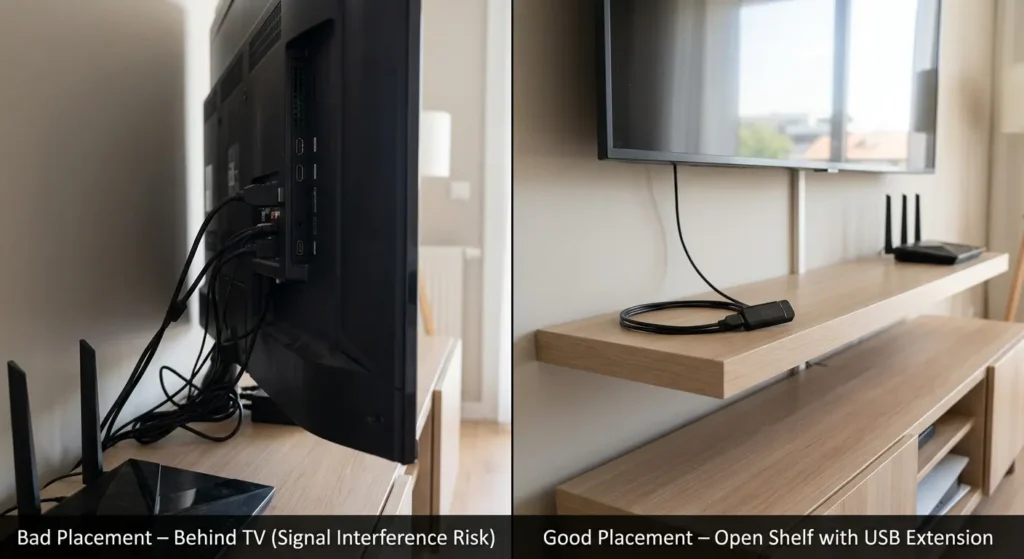
Mistake 4: Placing the Coordinator Behind a TV
TVs, monitors, and other electronics generate significant electromagnetic noise. Placing your Zigbee coordinator behind or underneath a TV is one of the worst possible locations.
Mistake 5: Not Giving the Mesh Time to Heal
After making changes to your Zigbee network (changing channels, adding routers, re-pairing devices), the mesh needs time to optimize its routing tables. This process takes 24 to 48 hours. Do not judge the results immediately after making changes.
Mistake 6: Buying Cheap Zigbee Devices with Poor RF Design
Not all Zigbee devices are created equal. Some budget devices have poor RF shielding and are much more susceptible to interference. Stick with reputable brands like Aqara, IKEA TRADFRI, Sonoff, Hue, or Third Reality for reliable Zigbee performance.
FAQ: Zigbee and Wi-Fi Interference
Can Zigbee and Wi-Fi coexist on the same 2.4 GHz band without issues?
Yes, absolutely. Millions of homes run both successfully. The key is proper channel separation. When Zigbee and Wi-Fi are on non-overlapping frequencies, they coexist without any problems. The interference only happens when their frequencies overlap.
Which Zigbee channel is best to avoid Wi-Fi interference?
Zigbee channel 25 is generally the best choice. It sits at 2475 MHz, which is above all standard Wi-Fi channels. Zigbee channel 26 (2480 MHz) offers even more separation but has compatibility issues with some devices and may operate at reduced transmit power on certain coordinators.
Does Bluetooth also interfere with Zigbee?
Bluetooth operates in the same 2.4 GHz band, but it uses frequency hopping spread spectrum (FHSS), rapidly jumping between frequencies. This means Bluetooth typically causes less sustained interference with Zigbee compared to Wi-Fi. However, in environments with many active Bluetooth devices, it can contribute to the overall noise floor.
Will moving to Wi-Fi 6 or Wi-Fi 7 solve the interference problem?
Not by itself. Wi-Fi 6 (802.11ax) and Wi-Fi 7 (802.11be) still use the 2.4 GHz band alongside 5 GHz and 6 GHz bands. However, these newer standards are better at managing airtime and reducing unnecessary transmissions, which can indirectly reduce interference. The real benefit comes from moving more devices to 5 GHz or 6 GHz bands.
Do I need to re-pair all devices when changing the Zigbee channel?
In most cases, yes. When you change the Zigbee channel on your coordinator, devices that were paired on the old channel will not automatically follow. You will need to re-pair them on the new channel. Some coordinators (like those running newer Zigbee 3.0 firmware) support channel migration, but this feature is not always reliable.
Can a Wi-Fi mesh system cause more Zigbee interference than a single router?
Yes. Mesh systems with multiple access points create more Wi-Fi coverage, which means more 2.4 GHz radio activity spread throughout your home. Each mesh node is essentially another Wi-Fi radio that can interfere with your Zigbee network. If possible, disable the 2.4 GHz radio on mesh nodes that are close to critical Zigbee devices.
How do I check the signal quality of my Zigbee devices?
Most Zigbee coordinator software provides LQI (Link Quality Indicator) values for each connected device. In Zigbee2MQTT, you can see this in the device details page. In ZHA (Home Assistant), check the device information panel. LQI values above 150 (out of 255) are generally good. Values below 50 indicate significant signal problems.
Is it worth buying a spectrum analyzer for home use?
For most home users, no. Free tools like WiFi Analyzer on Android give you enough information to make informed channel selections. A professional spectrum analyzer only becomes necessary if you have a very complex RF environment or persistent issues that basic tools cannot diagnose.
Final Thoughts
Troubleshooting simultaneous Zigbee and Wi-Fi interference is not rocket science, but it does require a systematic approach. The most important takeaway from this entire guide is this: separate your frequencies.
Set your Wi-Fi to channel 1 with 20 MHz width. Set your Zigbee to channel 25. Keep the radios physically apart. Build a strong Zigbee mesh with plenty of router devices. And give the system time to stabilize.
I have applied these exact steps in my own home and in helping dozens of people in online communities. The results are consistently positive. What was once a frustrating, unreliable smart home becomes rock-solid and responsive.
If you are just starting your smart home journey, take 30 minutes to plan your channel configuration before you start pairing devices. It will save you hours of troubleshooting later.
And if you are dealing with ongoing issues right now, start with Step 1 of this guide. Map your current channels, identify the overlap, and fix it. You will be amazed at the difference proper channel separation makes.
Your smart home should work for you, not against you. And with the right RF configuration, it will.