Table of Contents
- Introduction: When Your Smart Home Fights Against Itself
- How Zigbee Routing Actually Works
- Why Dense Homes Create Unique Zigbee Routing Problems
- The Top 7 Reasons Zigbee Devices Pick Bad Routes
- Real Scenario: A 3 Bedroom Apartment with 40 Zigbee Devices
- Step by Step Guide to Fix Poor Zigbee Routing
- Tools to Visualize and Debug Your Zigbee Network Map
- Common Mistakes That Make Zigbee Routing Worse
- Best Practices for Zigbee Mesh Layout in Dense Homes
- Real User Experiences and Lessons Learned
- FAQ: Zigbee Routing Issues in Dense Homes
- Final Thoughts
Introduction: When Your Smart Home Fights Against Itself
You have invested hours building what should be a flawless smart home. Forty devices, maybe fifty. Zigbee bulbs in every room, motion sensors at every corner, smart plugs scattered throughout the house. Everything should work like a well oiled machine, right?
But then it happens. A light in the kitchen takes three seconds to respond. A door sensor in the hallway misses events. A temperature sensor in the bedroom drops off the network completely, only to reconnect through a device on the opposite side of the house, ignoring the router that sits just five feet away.
I have been there. And if you are reading this, chances are you are dealing with the exact same frustration. The truth is that Zigbee devices poor routing paths dense homes where dozens of devices compete for attention.
In this article, I will explain exactly why this happens, what causes Zigbee devices to pick inefficient and sometimes bizarre routing paths, and most importantly, how you can fix it without tearing your entire setup apart.
How Zigbee Routing Actually Works
Before we talk about why things go wrong, let us first understand how Zigbee routing is supposed to work.
The Zigbee Mesh Basics
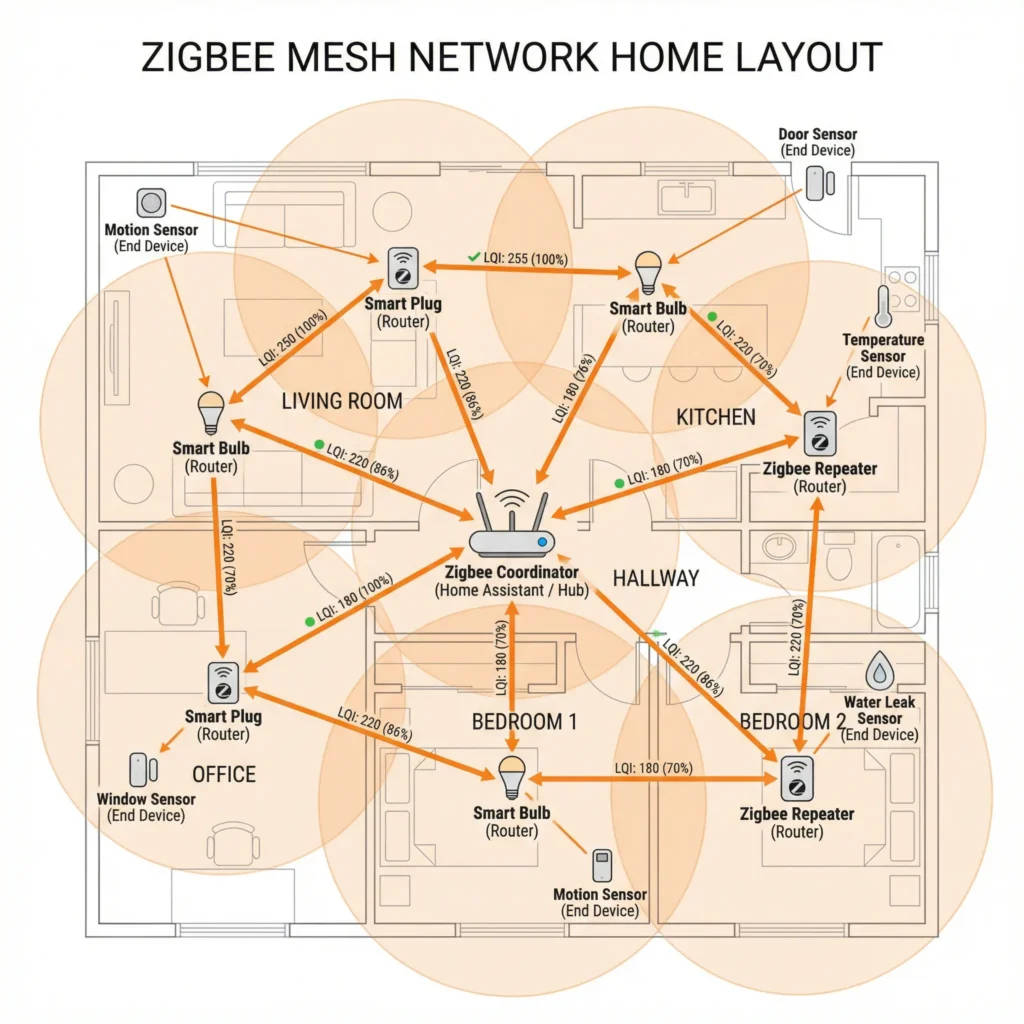
Zigbee operates on the IEEE 802.15.4 standard and uses a mesh networking topology. There are three types of devices in any Zigbee network:
- Coordinator: The central hub that manages the entire network. You only have one of these, and it is usually your Zigbee gateway or USB stick (like the Sonoff Zigbee 3.0 Dongle or ConBee II).
- Routers: Devices that are always powered on and can relay messages from other devices. Smart plugs, smart bulbs, and wired switches typically act as routers.
- End Devices: Battery powered sensors and switches that sleep most of the time and rely on routers or the coordinator to pass their messages along.
How Route Discovery Works
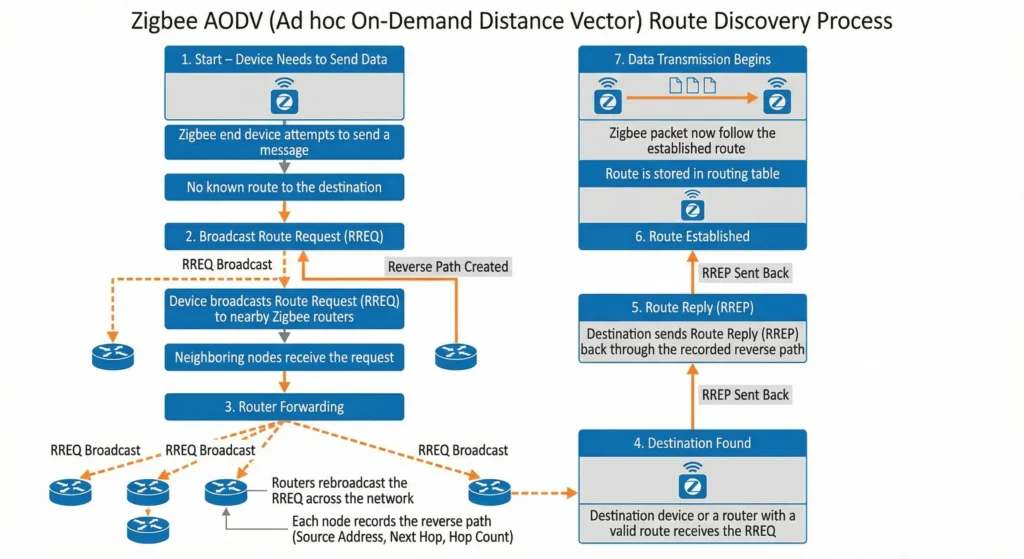
When a Zigbee device needs to send a message, it does not simply blast it toward the coordinator. Instead, it uses a process called AODV (Ad hoc On Demand Distance Vector) routing. Here is the simplified version:
- The device broadcasts a route request (RREQ) to its neighbors.
- Each neighbor that receives the RREQ forwards it until it reaches the destination.
- The destination sends a route reply (RREP) back along the best path it found.
- The device stores this route and uses it for future communication.
The keyword here is “best path.” But what Zigbee considers the “best” path and what you consider the best path are often two very different things.
What Determines “Best” in Zigbee?
Zigbee evaluates routes based on link cost, which factors in:
- Signal strength (RSSI) at the time of discovery
- Number of hops to the destination
- Whether the route was successfully used before
The problem? This evaluation happens at a single moment in time, and the result gets cached. Zigbee does not constantly reevaluate whether a better path has become available.
Why Dense Homes Create Unique Zigbee Routing Problems
A “dense home” in Zigbee terms is not just about square footage. It is about the number of devices packed into a relatively small space. And this density, which should theoretically make the mesh stronger, often introduces problems that most people never anticipate.
Signal Overlap and Interference
When you have 30 or more Zigbee routers in a 1,500 square foot home, their radio signals overlap significantly. Every device can “hear” many neighbors, sometimes 10 or 15 at once. While this sounds beneficial, it actually creates confusion during route discovery because the device receives multiple RREPs and may not always pick the optimal one.
The Congestion Factor
Dense networks mean more traffic. Every router has to process and forward messages not just for itself, but for all the end devices and other routers that use it as a relay. Some routers, especially cheaper smart bulbs, have very limited routing tables. When those tables fill up, they start dropping routes or refusing new ones.
Physical Environment Challenges
Dense homes often have thick walls, metal structures, large appliances, and other obstacles that create unpredictable RF environments. A device might have a clear line of sight to a nearby router during route discovery, but interference from a microwave, a USB 3.0 device, or even a running WiFi network on a nearby channel can degrade that link quality within minutes.
The Top 7 Reasons Zigbee Devices Pick Bad Routes
Now let us get into the core of the problem. Here are the most common and well documented reasons why Zigbee devices in dense homes end up choosing poor routing paths.
1. Stale Route Tables
This is the number one offender. Zigbee devices discover routes and then cache them. They do not proactively search for better routes unless the current route fails completely. So if a device found a route through a distant router during initial pairing, it may stick with that inefficient route for weeks or even months, even though a much closer router was added to the network later.
2. Route Discovery Timing Issues
The order in which you add devices to your network matters more than you think. If you pair all your end devices before adding routers in key locations, those end devices will have already established routes that bypass those routers entirely. The mesh does not automatically restructure itself when new routers come online.
3. Asymmetric Link Quality
Just because Device A can hear Device B clearly does not mean Device B can hear Device A equally well. This asymmetry is common with devices that have different antenna designs or transmit power levels. Zigbee might establish a route based on one direction of communication, not realizing that the return path is weak.
4. Zigbee Channel Conflicts with WiFi
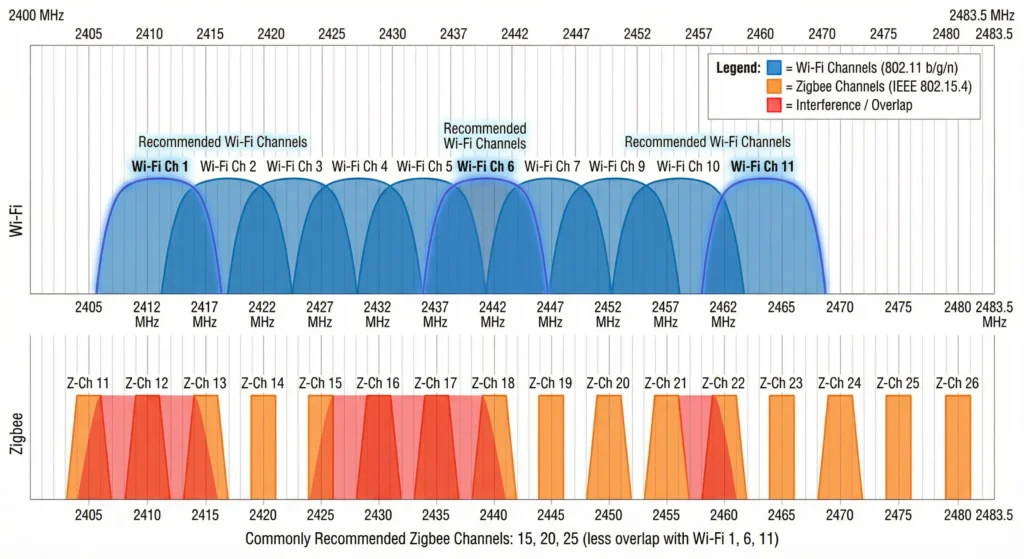
Zigbee operates in the 2.4 GHz band, sharing space with WiFi networks. In dense homes with multiple WiFi access points, the interference can be severe. If your Zigbee network is on channel 11 and your WiFi router is on channel 1, there is significant overlap. This interference is not constant, so a route that seemed fine during discovery might perform terribly during peak WiFi usage hours.
5. Router Table Limitations
Not all Zigbee routers are created equal. Many cheap smart bulbs can only maintain routing tables for 5 to 7 child devices. When you have a dense network and many end devices try to route through the same bulb, the bulb silently drops some of them. Those displaced devices then scramble to find alternative routes, often settling on suboptimal ones.
Here is a quick comparison of common Zigbee routers and their child device limits:
| Device | Router Capability | Max Child Devices | Routing Table Size |
|---|---|---|---|
| IKEA Tradfri Bulb | Yes | 5 to 7 | Limited |
| Sonoff Zigbee Smart Plug | Yes | 20 to 32 | Good |
| Aqara Smart Plug | Yes | 15 to 20 | Moderate |
| IKEA Tradfri Signal Repeater | Yes | 20 to 30 | Good |
| Hue Bulb (newer models) | Yes | 10 to 12 | Moderate |
| Sonoff SNZB Router | Yes | 32+ | Excellent |
6. Coordinator Bottleneck
In many setups, the coordinator becomes a bottleneck because too many devices try to route directly through it. This is especially common in smaller homes where most devices are within direct range of the coordinator. When the coordinator is overwhelmed, messages get delayed or dropped, and devices may attempt to find alternative routes that are technically longer but less congested.
7. Firmware Differences and Incompatibilities
Mixing devices from different manufacturers with different Zigbee stack implementations can lead to routing inconsistencies. A Xiaomi sensor might not play well with an IKEA router. A Tuya device might prefer routing through other Tuya devices even when closer alternatives exist. These brand specific behaviors are not officially documented but are widely observed in the community.
Real Scenario: A 3 Bedroom Apartment with 40 Zigbee Devices
Let me walk you through a real scenario that illustrates these problems perfectly.
The Setup
Mark lives in a 1,200 square foot three bedroom apartment. He runs Home Assistant on a Raspberry Pi with a Sonoff Zigbee 3.0 USB Dongle Plus as his coordinator. His network includes:
- 12 Zigbee smart bulbs (mix of IKEA and Hue)
- 8 Aqara door and window sensors
- 6 Aqara temperature sensors
- 4 Sonoff smart plugs
- 3 IKEA motion sensors
- 4 Tuya smart switches
- 3 Aqara vibration sensors
The Problem
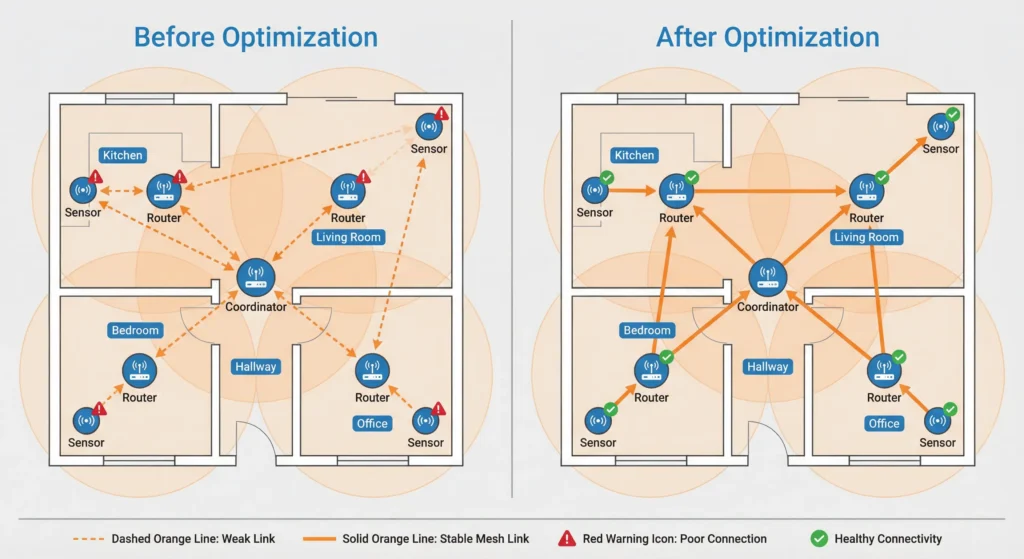
Mark noticed that his bedroom motion sensor (located 10 feet from an IKEA bulb acting as a router) was routing its messages through a Sonoff smart plug in the kitchen, which is on the other side of the apartment. The response time was inconsistent, sometimes instant, sometimes delayed by 2 to 4 seconds.
His Zigbee network map in ZHA (Zigbee Home Automation) showed several devices taking unnecessarily long paths. Two temperature sensors in the living room were routing through a bulb in the bathroom, skipping three closer routers entirely.
The Root Cause
After investigating, Mark discovered several issues:
- He had paired most of his sensors before adding the Sonoff smart plugs. The sensors had already locked onto routes that did not include these plugs.
- His IKEA bulbs had reached their child device limit. New devices that tried to connect through them were being silently rejected.
- His Zigbee coordinator was on channel 15, which overlapped with his WiFi network on channel 6.
- Two of his Aqara sensors had older firmware that preferred routing through other Aqara devices, even when closer alternatives from other brands were available.
The Fix
Mark followed a systematic approach:
- Changed his Zigbee channel to 25 to avoid WiFi interference.
- Added two dedicated Zigbee router devices (IKEA Signal Repeaters) in strategic locations.
- Removed and re paired the problematic sensors, this time with all routers already in place.
- Replaced two IKEA bulbs in high traffic areas with Sonoff smart plugs that have larger routing tables.
After these changes, his network map showed clean, logical routing paths, and response times dropped to under 500 milliseconds across all devices.
Step by Step Guide to Fix Poor Zigbee Routing
If you are dealing with similar issues, here is a practical, step by step approach to improve your Zigbee routing.
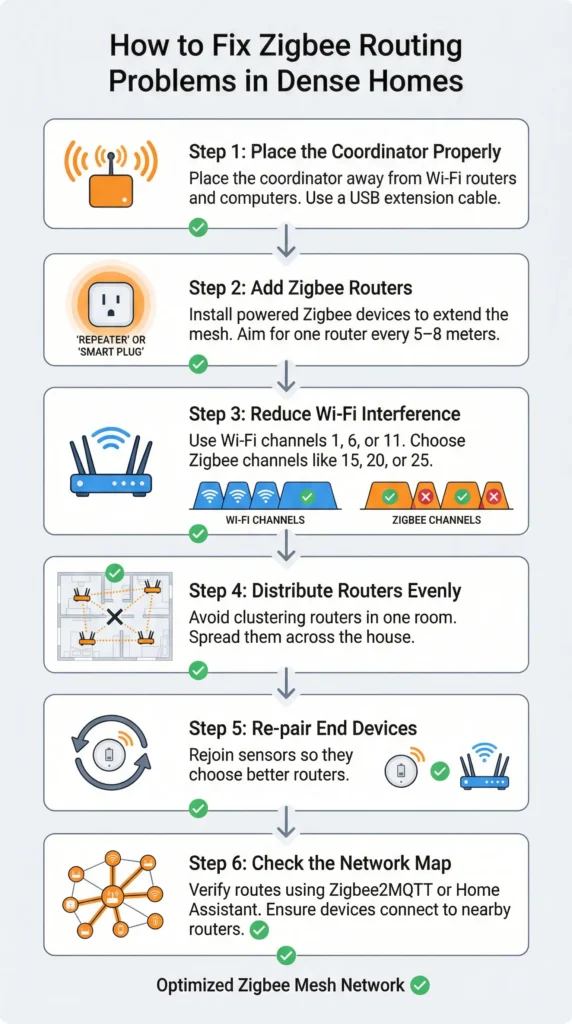
Step 1: Map Your Current Network
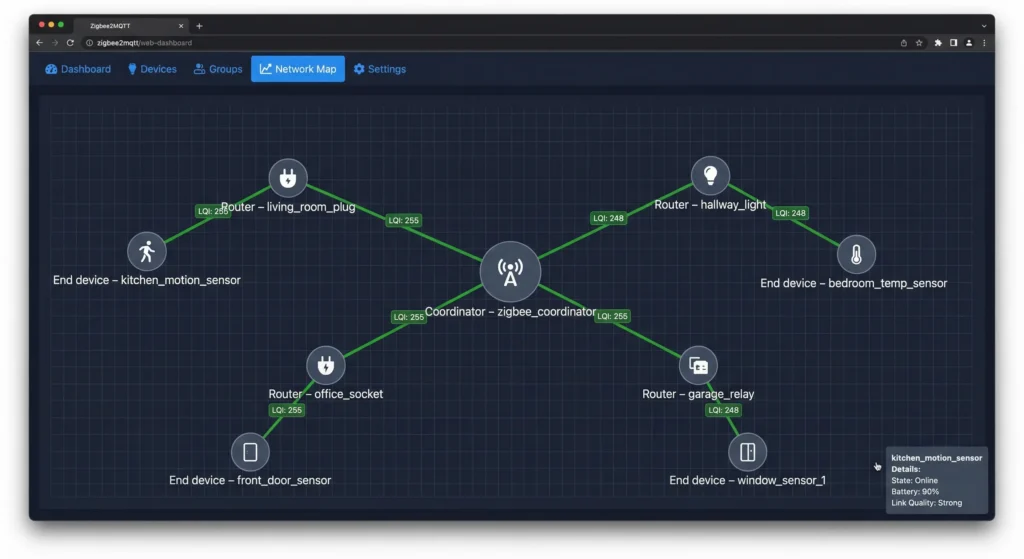
Before changing anything, you need to see what your network looks like right now. Use your Zigbee integration’s network map feature:
- ZHA (Home Assistant): Go to Settings, then Devices and Services, then ZHA, and click on “Visualize Network.”
- Zigbee2MQTT: Open the web interface and click on the “Map” tab.
- deCONZ/Phoscon: Use the built in network overview.
Take a screenshot. Identify which devices are taking unnecessarily long paths to reach the coordinator.
Step 2: Check Your Zigbee Channel
Use a WiFi analyzer app on your phone (like WiFi Analyzer for Android) to see which WiFi channels are active in your home. Then compare with this Zigbee to WiFi channel mapping:
| Zigbee Channel | Overlapping WiFi Channels |
|---|---|
| 11, 12, 13, 14 | WiFi Channel 1 |
| 15, 16, 17, 18, 19, 20 | WiFi Channel 6 |
| 21, 22, 23, 24 | WiFi Channel 11 |
| 25, 26 | Minimal WiFi overlap |
If there is a conflict, change your Zigbee channel. Note that changing the channel requires re pairing all devices in most setups, so plan accordingly.
Step 3: Audit Your Routers
Make a list of all your router devices. Check their specifications for routing table size and child device limits. If you are relying heavily on smart bulbs as routers, consider adding dedicated routing devices like:
- IKEA Tradfri Signal Repeater
- Sonoff Zigbee 3.0 USB Dongle (configured as router)
- Third Reality Zigbee Repeater
- Any always powered Zigbee smart plug
Step 4: Strategic Router Placement
Place routers based on these principles:
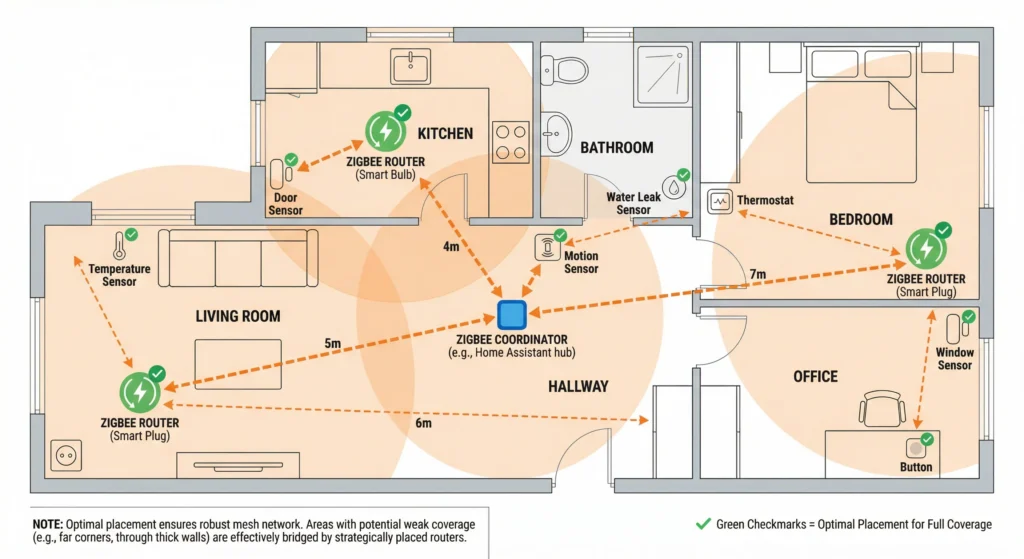
- Every room should have at least one router device.
- Routers should be placed between end devices and the coordinator.
- Avoid placing routers behind large metal objects or inside closed cabinets.
- The distance between any two routers should not exceed 30 feet (10 meters) indoors.
- Place extra routers near areas with many end devices to distribute the load.
Step 5: Re pair Problematic Devices
After your routers are in place and have been online for at least 2 hours (giving them time to establish their own routes), re pair the end devices that were showing poor routing. Remove them from your network and add them back while standing near the router you want them to connect through.
Step 6: Allow the Network to Settle
After making changes, give your Zigbee network 24 to 48 hours to stabilize. Zigbee meshes do perform some background route optimization, but it takes time. Avoid adding or removing devices during this settling period.
Step 7: Monitor and Adjust
Check your network map again after 48 hours. If specific devices are still choosing poor routes, try power cycling the routers near those devices. This forces the end devices to find new routes, and they will likely discover the closer router this time.
Tools to Visualize and Debug Your Zigbee Network Map
Having the right tools makes diagnosing Zigbee routing issues much easier. Here are the most popular options:
Zigbee2MQTT Network Map
If you use Zigbee2MQTT, the built in network map is one of the best visualization tools available. It shows:
- All devices and their connections
- Link quality indicators (LQI) between devices
- Device types (coordinator, router, end device)
- The actual routing path each device uses
ZHA Network Visualization
Home Assistant’s ZHA integration includes a network visualization tool. While not as detailed as Zigbee2MQTT’s map, it gives you a clear picture of your mesh topology. You can access it through the ZHA integration settings.
deCONZ
The deCONZ software provides an excellent graphical interface for viewing your Zigbee network. It shows signal strength between devices and highlights potential problem areas.
Zigbee Sniffer Tools
For advanced users, a Zigbee packet sniffer (using a second USB dongle and Wireshark) can capture actual Zigbee traffic and reveal exactly how messages are being routed. This is the most detailed level of debugging available but requires technical expertise.
Common Mistakes That Make Zigbee Routing Worse
Many smart home enthusiasts unknowingly make their Zigbee routing problems worse. Here are the most common mistakes to avoid:
Mistake 1: Adding Too Many Devices Too Fast
Pairing 10 devices in one evening might feel productive, but it overwhelms the mesh. Each new device triggers route discovery, and if the network is still processing previous additions, the results are unpredictable. Add no more than 3 to 5 devices per day.
Mistake 2: Using Smart Bulbs as Primary Routers
Smart bulbs are unreliable routers for several reasons. When you turn them off at the wall switch, they disappear from the mesh, leaving their child devices stranded. Even when powered on, most bulbs have limited routing tables. Use smart plugs or dedicated repeaters instead.
Mistake 3: Placing the Coordinator in a Corner
Your coordinator should be as central as possible. Placing it in a corner of the house means devices on the opposite end must route through many hops, increasing latency and the chance of routing issues.
Mistake 4: Ignoring USB 3.0 Interference
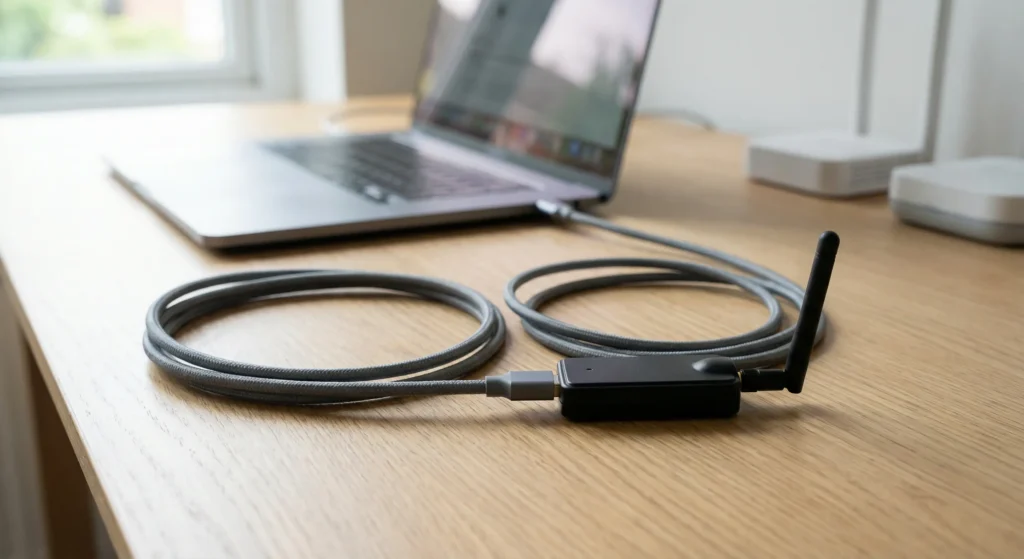
This one catches a lot of people off guard. USB 3.0 ports and cables emit RF interference in the 2.4 GHz band. If your Zigbee USB dongle is plugged directly into a USB 3.0 port or near a USB 3.0 cable, your signal quality can drop dramatically. Always use a USB 2.0 extension cable (at least 3 feet long) to move the dongle away from your computer.
Mistake 5: Mixing Too Many Brands Without Testing
While Zigbee is a standard, not all implementations are equal. Some Xiaomi and Aqara devices are known to be picky about which routers they will connect through. Test compatibility before building your entire network around a single brand of router.
Best Practices for Zigbee Mesh Layout in Dense Homes
Based on years of community experience and official Zigbee Alliance recommendations, here are the best practices for building a reliable mesh in a device dense home:
Plan Your Router Grid First
Before adding a single sensor, map out where your routers will go. Think of them as the backbone of your network. A good rule of thumb is one dedicated router for every 6 to 8 end devices.
Use Homogeneous Router Hardware
While mixing brands for end devices is generally fine, try to use the same type of device for your routers. This reduces compatibility issues and ensures consistent routing table sizes and behavior across the mesh.
Keep the Coordinator Light
Configure your network so that the coordinator handles as few direct child devices as possible. End devices near the coordinator should still route through a nearby router to reduce the load on the coordinator. Some advanced users even place a dedicated router right next to the coordinator for this purpose.
Update Firmware Regularly
Router firmware updates often include improvements to routing algorithms, table sizes, and compatibility. Check for updates regularly, especially for devices from IKEA, Sonoff, and Hue.
Monitor LQI Values
Link Quality Indicator (LQI) values above 100 (on a 0 to 255 scale) generally indicate good connections. If you see devices connected with LQI values below 50, that link is weak and likely to cause problems. Add a router between those devices.
Separate Zigbee and WiFi Physically
If possible, keep your Zigbee coordinator and your WiFi router at least 6 feet (2 meters) apart. This reduces direct interference between the two systems.
Real User Experiences and Lessons Learned
Experience 1: The “Bulb Massacre”
A Reddit user in r/homeassistant shared how their network of 60 devices became unstable after they switched all their Zigbee bulbs to a physical wall switch schedule. Every morning at 7 AM, the wall switch would cut power to 15 Zigbee bulbs simultaneously. This caused a cascade of route failures as dozens of end devices lost their routers at the same time. The solution was to replace the wall switches with Zigbee smart switches that keep power to the bulbs while controlling them digitally.
Experience 2: The USB 3.0 Discovery
Another user spent three weeks troubleshooting random device dropouts before discovering that their new external SSD, connected via USB 3.0 to the same Raspberry Pi running Home Assistant, was the culprit. Moving the Zigbee dongle to a USB 2.0 extension cable solved the problem overnight. The Intel white paper on USB 3.0 Radio Frequency Interference documents this issue in detail.
Experience 3: The Channel Change Miracle
A user with 45 Zigbee devices reported that simply changing from Zigbee channel 11 to channel 25 reduced their device unresponsiveness from daily occurrences to zero issues over a three month period. Their home had four WiFi access points, all operating on WiFi channel 1, which directly overlaps with Zigbee channel 11.
FAQ: Zigbee Routing Issues in Dense Homes
How often does Zigbee re evaluate its routing paths?
Zigbee does not continuously re evaluate routes. A new route discovery is triggered only when the current route fails (messages are not acknowledged). Some Zigbee stacks perform periodic “network rejoin” processes, but these vary by implementation and can take hours or even days to occur naturally.
Can I manually force a Zigbee device to use a specific router?
No, Zigbee does not support manual route pinning. However, you can influence routing by strategically placing routers and re pairing end devices near the router you want them to use. The device will typically connect to the strongest available signal during pairing.
How many Zigbee devices is too many for one network?
The Zigbee protocol theoretically supports up to 65,000 devices per network. In practice, most coordinators handle 50 to 200 devices comfortably. The limitation is usually the coordinator’s processing power and memory, not the protocol itself.
Do Zigbee 3.0 devices route better than older Zigbee devices?
Zigbee 3.0 includes improvements to the routing algorithm and better interoperability between brands. If you are building a new network, choosing Zigbee 3.0 certified devices is recommended. However, the fundamental AODV routing behavior and its limitations remain the same.
Will adding more routers always improve my mesh?
Not necessarily. Adding too many routers in a small area can actually cause problems because devices have too many routing options and may not consistently choose the best one. A balanced approach with one router per room or per 6 to 8 end devices is generally optimal.
Should I use Zigbee or Z Wave for a dense smart home?
Z Wave uses source routing, where the controller determines the full path for each message. This can result in more predictable routing compared to Zigbee’s distributed AODV approach. However, Z Wave is limited to 232 devices per network and operates on a different frequency band (800/900 MHz). For very dense homes, some users run both protocols.
Does Thread/Matter solve these routing problems?
Thread, the networking protocol used by Matter compatible devices, uses a different routing approach (MLE and MPL) that is generally more efficient at handling dense networks. If you are starting fresh and your devices support it, Thread is worth considering as a future proof alternative.
Final Thoughts
Zigbee routing in dense homes is not broken by design. It is a challenge that emerges from the gap between how the protocol was designed to work and the complex, interference heavy environments of modern smart homes.
The good news is that with some understanding of how Zigbee routing works, strategic placement of quality router devices, proper channel selection, and a bit of patience during network setup, you can build a Zigbee mesh that is fast, reliable, and handles dozens of devices without breaking a sweat.
Remember, the goal is not a perfect network from day one. It is a well planned foundation that allows the mesh to optimize itself over time. Start with your routers, add end devices gradually, monitor your network map, and do not be afraid to re pair devices that are not behaving as expected.
Your smart home should work for you, not against you. And with the right approach, it absolutely will.