

You set up your automation perfectly. The trigger fires. You can see it in the logs. But then… nothing happens. No lights turn on. No notifications sent. No scripts executed. Everything just stops after the trigger.
If you’ve been pulling your hair out trying to figure out why your automation trigger but not execute actions parallel mode, trust me — you’re not alone. I spent three frustrating nights debugging this exact issue in my Home Assistant setup before I finally cracked the code.
This problem is more common than you think, and it affects users across Home Assistant, Node-RED, n8n, Make (formerly Integromat), and even Zapier. The good news? Once you understand why it happens, the fix is usually straightforward.
In this guide, I’ll walk you through every possible reason this happens, share real scenarios I’ve encountered, and give you step-by-step solutions that actually work.
Table of Contents
- What Does Parallel Mode Actually Mean in Automation?
- Why Your Automation Triggers But Doesn’t Execute Actions
- Real-World Scenarios and How to Fix Them
- Step-by-Step Debugging Guide
- Common Mistakes That Cause This Issue
- Platform-Specific Fixes
- FAQ
What Does Parallel Mode Actually Mean in Automation?
Before we dive into solutions, let’s make sure we’re on the same page about what parallel mode actually does.
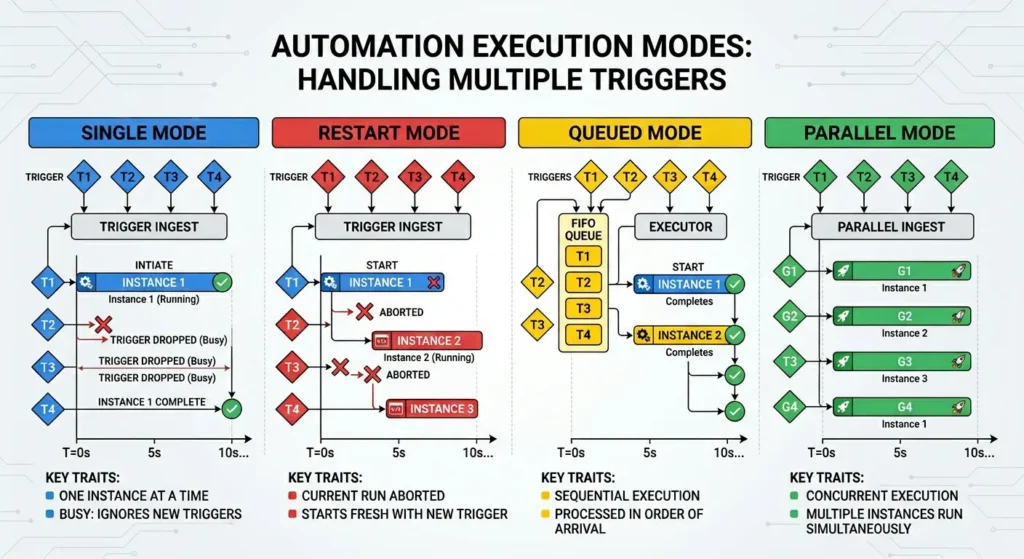
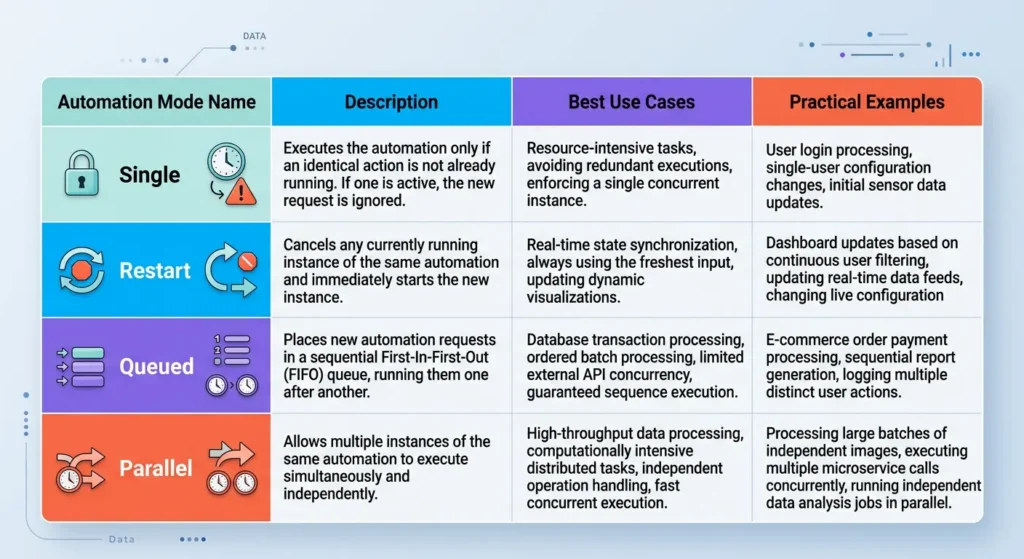
In most automation platforms, when an automation is triggered while a previous instance of that same automation is still running, the system needs to decide what to do. There are typically four modes:
Single Mode
Only one instance runs at a time. If the automation is triggered again while already running, the new trigger is ignored.
Restart Mode
If triggered again while running, the current instance is stopped, and a new one starts from the beginning.
Queued Mode
New triggers wait in line. Each instance runs one after another in order.
Parallel Mode
Multiple instances of the same automation run simultaneously. No waiting, no canceling — every trigger gets its own execution thread.
Parallel mode sounds great in theory. But it introduces a whole set of problems that can make your actions silently fail.
Why Your Automation Triggers But Doesn’t Execute Actions
Here’s where things get interesting. There are multiple reasons why parallel mode specifically causes actions to fail, even when the trigger fires correctly.
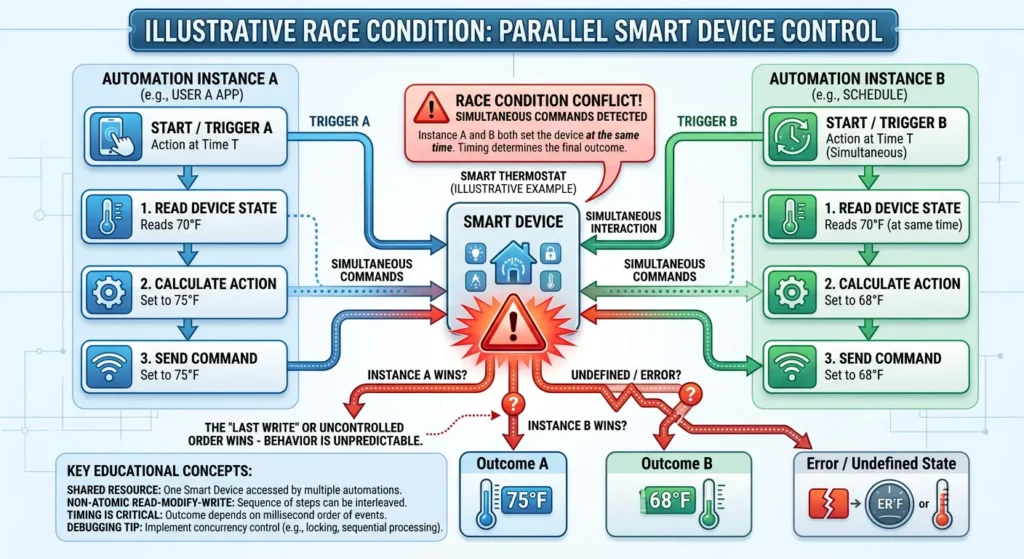
1. Race Conditions Between Parallel Instances
This is the number one culprit. When two or more instances of the same automation run simultaneously, they might try to control the same device or resource at the same time.
Imagine this: your motion sensor triggers an automation to turn on a light. You walk through the sensor’s detection zone, and it fires three times within two seconds. In parallel mode, three instances launch simultaneously. They all try to send a “turn on” command to the same light. The device gets confused, and sometimes none of the commands actually execute.
What happens behind the scenes:
- Instance 1 sends: “Turn on living room light”
- Instance 2 sends: “Turn on living room light” (before Instance 1’s command is acknowledged)
- Instance 3 sends: “Turn on living room light” (before Instance 2’s command is acknowledged)
- The device or API receives conflicting simultaneous requests and drops some or all of them
2. Shared Variables Getting Overwritten
If your automation uses variables, templates, or stored states, parallel instances can overwrite each other’s data before actions execute.
For example:
YAMLautomation:
  trigger:
    - platform: state
      entity_id: binary_sensor.motion_hallway
  mode: parallel
  action:
    - variables:
        brightness: "{{ states('input_number.brightness_level') }}"
    - delay: "00:00:01"
    - service: light.turn_on
      data:
        brightness_pct: "{{ brightness }}"
If the brightness level changes between instances, one instance might grab the wrong value, or the variable might become undefined by the time the action runs.
3. API Rate Limits and Throttling
Many smart home devices and cloud services have rate limits. When parallel mode fires multiple instances simultaneously, you might hit those limits without realizing it.
Common rate-limited services:
- Philips Hue Bridge: Maximum ~10 commands per second
- Z-Wave devices: Sequential command processing
- Cloud APIs (Google, Alexa, IFTTT): Strict rate limiting
- Webhooks: Server-side request throttling
When you exceed these limits, commands are silently dropped. The trigger logs show success, but the action never reaches the device.
4. Condition Evaluation Timing Issues
If your automation has conditions between the trigger and actions, parallel mode can cause timing nightmares.
YAMLautomation:
  trigger:
    - platform: state
      entity_id: binary_sensor.door_sensor
  mode: parallel
  condition:
    - condition: state
      entity_id: alarm_control_panel.home
      state: "armed_away"
  action:
    - service: notify.mobile_app
      data:
        message: "Door opened while away!"
Instance 1 triggers and checks the condition — the alarm is armed. Before the notification sends, Instance 2 triggers and somehow the alarm state changes. Now Instance 1’s action might fail because the system state changed between condition check and action execution.
5. Resource Locking and Deadlocks
Some platforms implement resource locks to prevent conflicts. When parallel instances both try to acquire a lock on the same resource, a deadlock can occur — both instances wait forever, and neither executes.
Real-World Scenarios and How to Fix Them
Let me share some actual situations I’ve encountered (and helped others fix) so you can see if any match your problem.
Scenario 1: The Motion Sensor That Stopped Working
The setup: A Home Assistant user had a motion sensor automation set to parallel mode. The idea was that every motion detection would trigger a “reset timer” to keep the lights on.
The problem: After switching to parallel mode, the lights would sometimes not turn on at all, even though the automation showed as triggered in the trace.
The root cause: The motion sensor was firing rapid triggers (every 200ms during continuous motion). Parallel mode spawned dozens of instances, all trying to call light.turn_on simultaneously. The Zigbee mesh network couldn’t handle that many simultaneous commands.
The fix:
YAMLautomation:
  trigger:
    - platform: state
      entity_id: binary_sensor.motion_kitchen
      to: "on"
  mode: restart  # Changed from parallel to restart
  action:
    - service: light.turn_on
      target:
        entity_id: light.kitchen
    - wait_for_trigger:
        - platform: state
          entity_id: binary_sensor.motion_kitchen
          to: "off"
          for: "00:05:00"
    - service: light.turn_off
      target:
        entity_id: light.kitchen
Why restart mode worked better: Each new motion detection restarts the timer without spawning a new instance. The light gets one “turn on” command instead of fifty.
Scenario 2: The Notification Flood That Sent Nothing
The setup: An n8n workflow triggered by a webhook, running in parallel mode, designed to send Slack notifications for each incoming order.
The problem: When multiple orders came in simultaneously (like during a sale), some notifications never sent. The workflow showed as executed, but Slack received nothing.
The root cause: Slack’s API rate limit (1 message per second per channel) was being exceeded. The parallel instances all hit the API at once, and Slack returned 429 Too Many Requests errors that n8n wasn’t handling.
The fix: Added error handling and a small delay with jitter:
JavaScript// Added random delay to prevent simultaneous API hits
const delay = Math.random() * 2000; // 0-2 second random delay
await new Promise(resolve => setTimeout(resolve, delay));
Plus proper retry logic for 429 errors.
Scenario 3: The Smart Lock That Wouldn’t Lock
The setup: A Z-Wave smart lock automated to lock when everyone leaves home. Mode set to parallel because multiple people might leave at different times.
The problem: When two people left within 30 seconds of each other, the lock automation triggered twice. The lock didn’t engage either time.
The root cause: Z-Wave processes commands sequentially. The second “lock” command arrived while the first was still being processed. The Z-Wave controller rejected the second command, and due to a firmware quirk, the first command was also canceled.
The fix: Switched to queued mode and added a confirmation check:
YAMLautomation:
  mode: queued
  max: 3
  action:
    - service: lock.lock
      target:
        entity_id: lock.front_door
    - delay: "00:00:05"
    - condition: state
      entity_id: lock.front_door
      state: "locked"
    - service: notify.mobile_app
      data:
        message: "Front door locked successfully"
Step-by-Step Debugging Guide
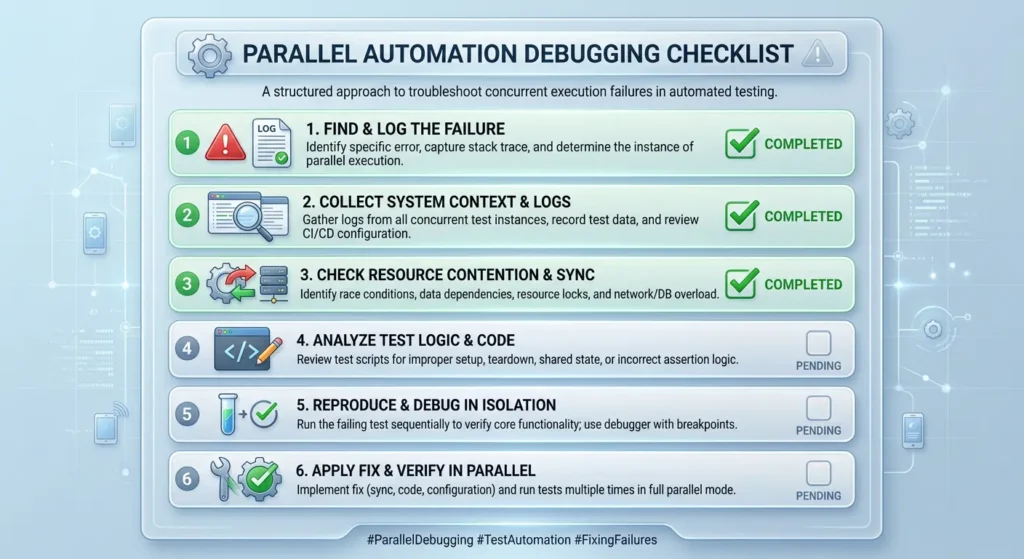
If your automation is triggering but not executing actions in parallel mode, follow these steps in order:
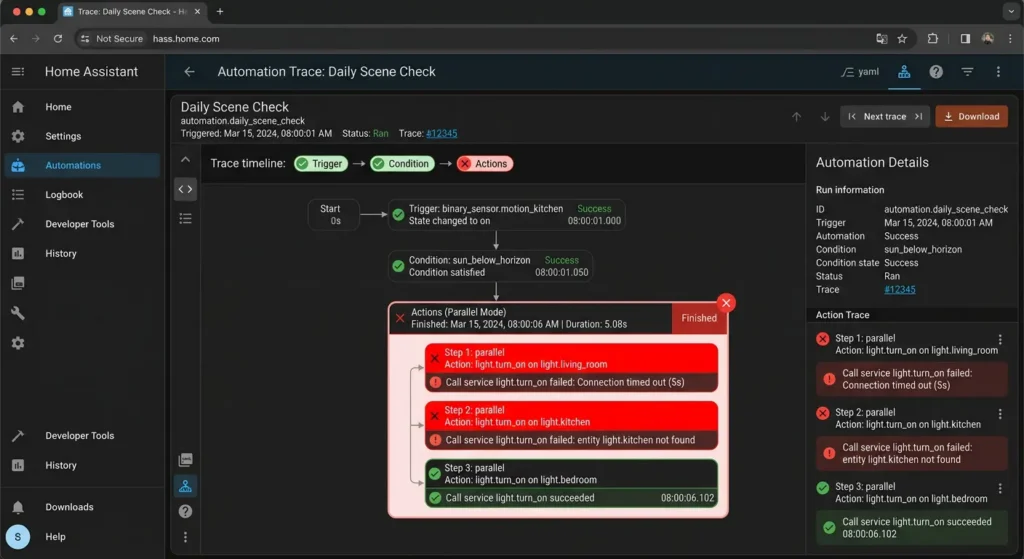
Step 1: Check the Automation Trace or Execution Log
Every major platform provides execution logs:
- Home Assistant: Go to Settings → Automations → Click your automation → Traces
- Node-RED: Check the debug panel and node status
- n8n: Check Executions tab for the workflow
- Make/Integromat: Check Scenario history
Look for:
- ✅ Trigger fired successfully
- ❌ Action execution errors
- ⚠️ Condition evaluation results
- 🕐 Timing between trigger and action
Step 2: Count Simultaneous Instances
Add a counter or logging step at the beginning of your automation:
YAMLaction:
  - service: counter.increment
    target:
      entity_id: counter.automation_instances
  - service: system_log.write
    data:
      message: "Automation instance started. Total running: {{ states('counter.automation_instances') }}"
      level: warning
If you see the counter jumping to 5, 10, or 20+, you’ve found your problem — too many parallel instances.
Step 3: Test with a Single Instance
Temporarily switch your automation to single mode. If it works perfectly in single mode but fails in parallel mode, you’ve confirmed the issue is parallel-specific.
Step 4: Check Device and API Limitations
Research the rate limits and concurrent connection limits for every device and service your automation touches:
| Device/Service | Typical Limit | What Happens When Exceeded |
|---|---|---|
| Philips Hue Bridge | ~10 commands/sec | Commands silently dropped |
| Z-Wave Controller | 1 command at a time | Queue overflow, commands rejected |
| Zigbee Coordinator | ~5-20 commands/sec | Mesh congestion, packet loss |
| Google Home API | Varies | 429 error, temporary ban |
| Slack API | 1 msg/sec/channel | 429 error |
| REST APIs (general) | Varies | Connection refused or timeout |
Step 5: Add Error Handling to Every Action
This is something most people skip. Every action in a parallel automation should have error handling:
YAMLaction:
  - service: light.turn_on
    target:
      entity_id: light.living_room
    continue_on_error: true
  - if:
      - condition: state
        entity_id: light.living_room
        state: "off"
    then:
      - delay: "00:00:02"
      - service: light.turn_on
        target:
          entity_id: light.living_room
Step 6: Add Strategic Delays
Sometimes the simplest fix is a small delay between trigger and action:
YAMLaction:
  - delay:
      milliseconds: "{{ range(100, 1000) | random }}"
  - service: light.turn_on
    target:
      entity_id: light.kitchen
The random delay staggers parallel instances so they don’t all hit the device simultaneously.
Common Mistakes That Cause This Issue
Based on hundreds of community forum posts and my own experience, here are the most common mistakes:
Mistake 1: Using Parallel Mode When You Don’t Need It
Ask yourself: Does this automation genuinely need to run multiple instances simultaneously?
In most cases, the answer is no. Here’s a quick guide:
| Scenario | Best Mode |
|---|---|
| Motion sensor → Turn on lights | Restart |
| Door opens → Send notification | Parallel (with rate limiting) |
| Temperature drops → Turn on heater | Single |
| Button pressed → Toggle light | Queued |
| Webhook → Process data | Parallel (with error handling) |
| Time-based → Daily routine | Single |
Mistake 2: Not Setting a Maximum for Parallel Instances
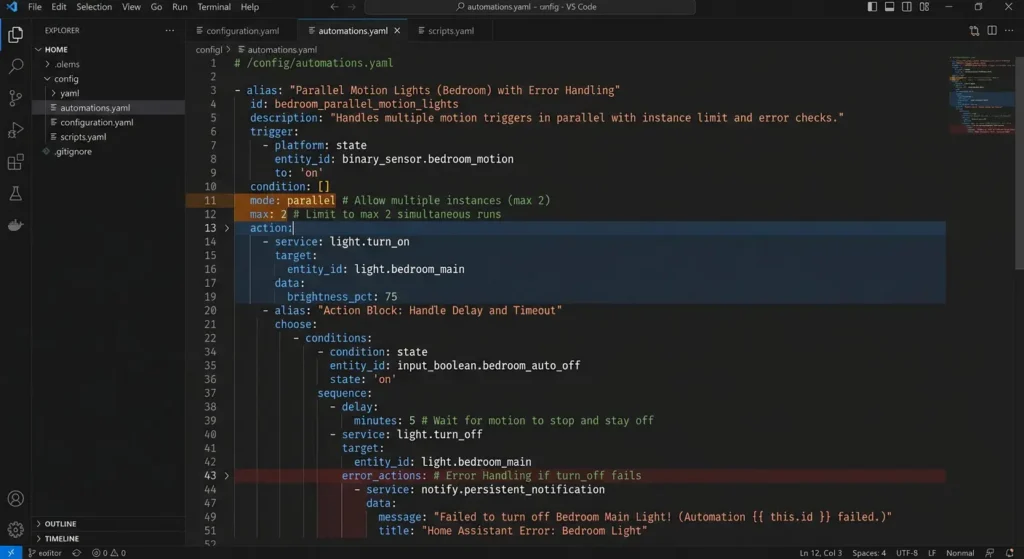
In Home Assistant, you can limit the number of parallel instances:
YAMLautomation:
  mode: parallel
  max: 5  # Never run more than 5 instances simultaneously
Without this limit, you could end up with hundreds of instances during a sensor malfunction.
Mistake 3: Ignoring Device Response Times
If your action calls a device that takes 3 seconds to respond, and you trigger 10 parallel instances in 1 second, you’ll have 10 instances all waiting for a device that can only handle one request at a time.
Mistake 4: No Confirmation After Actions
Always verify that your action actually worked:
YAMLaction:
  - service: light.turn_on
    target:
      entity_id: light.bedroom
  - wait_template: "{{ is_state('light.bedroom', 'on') }}"
    timeout: "00:00:10"
  - if:
      - "{{ not wait.completed }}"
    then:
      - service: system_log.write
        data:
          message: "WARNING: Light failed to turn on!"
          level: error
Mistake 5: Using Shared Resources Without Protection
If multiple parallel instances need to access the same input helper, variable, or file, you need a mechanism to prevent conflicts. Consider using:
- Input booleans as simple locks
- Script queuing for shared resource access
- Separate variables per instance
Platform-Specific Fixes
Home Assistant
The most common fix:
YAML# Before (broken)
automation:
  alias: "Motion Light"
  mode: parallel
  trigger:
    - platform: state
      entity_id: binary_sensor.motion
      to: "on"
  action:
    - service: light.turn_on
      entity_id: light.hallway

# After (working)
automation:
  alias: "Motion Light"
  mode: restart  # or queued
  trigger:
    - platform: state
      entity_id: binary_sensor.motion
      to: "on"
  action:
    - service: light.turn_on
      target:
        entity_id: light.hallway
    - delay: "00:00:01"  # Give device time to respond
    - wait_for_trigger:
        - platform: state
          entity_id: binary_sensor.motion
          to: "off"
          for: "00:03:00"
    - service: light.turn_off
      target:
        entity_id: light.hallway
If you must use parallel mode in Home Assistant, always:
- Set
max:to a reasonable number - Use
continue_on_error: trueon critical actions - Add delays between device commands
- Check the Home Assistant Automation Documentation for latest best practices
Node-RED
In Node-RED, parallel execution is the default behavior. To prevent issues:
- Use rate limit nodes before device commands
- Add delay nodes with random intervals
- Implement semaphore patterns for shared resources
- Check the Node-RED documentation on message handling
n8n
For n8n workflows:
- Enable retry on failure for HTTP request nodes
- Use the Wait node between parallel branches
- Set appropriate timeout values
- Review the n8n error handling documentation
Make (Integromat)
For Make scenarios:
- Enable error handlers on every module
- Use sleep modules to space out API calls
- Set execution limits in scenario settings
- Check Make’s execution documentation
When Parallel Mode Is Actually the Right Choice
Despite all these issues, parallel mode is the correct choice in certain situations:
✅ Use Parallel Mode When:
- Each instance operates on different devices (e.g., individual room automations triggered by different sensors)
- You’re processing independent data (e.g., webhook-triggered data processing where each payload is unique)
- You need immediate response to every trigger without waiting for previous instances
- Your devices and APIs can handle concurrent requests
❌ Don’t Use Parallel Mode When:
- Multiple instances will target the same device
- Your automation uses shared variables or states
- The triggered device has known rate limits
- The automation includes long delays or wait steps
- You’re controlling Z-Wave devices (they’re inherently sequential)
My Personal Experience: How I Finally Fixed It
Let me share the exact situation that taught me everything about this issue.
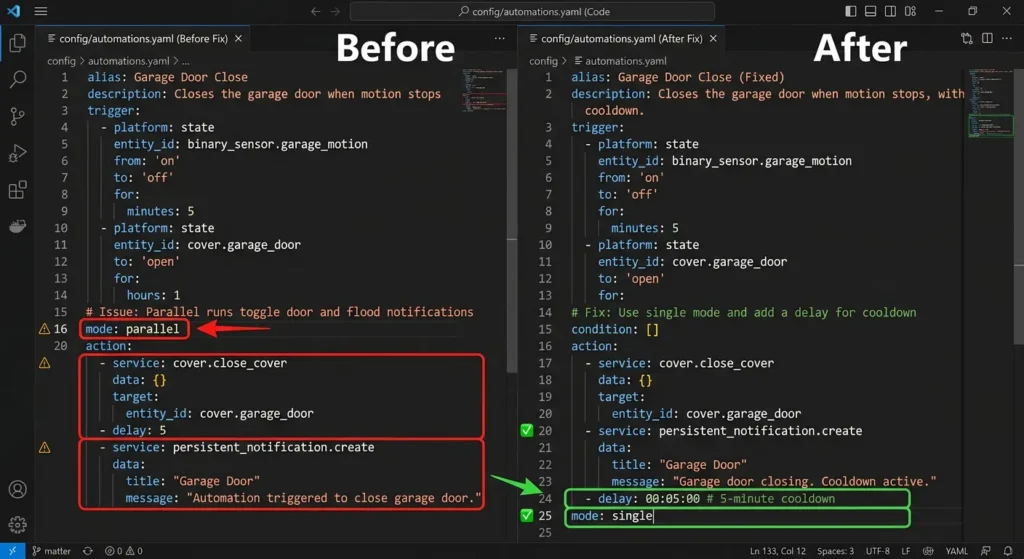
I had a garage door automation in Home Assistant. The trigger was a Zigbee button — press once to open, press again to close. I set it to parallel mode because I thought, “What if I press it twice quickly? I want both presses registered.”
Big mistake.
What happened: I’d press the button, the automation would trigger (confirmed in logs), but the garage door wouldn’t move. Sometimes it would open and immediately close. Other times, nothing at all.
After three nights of debugging, I discovered:
- The button was sending two Zigbee messages per press (a known firmware issue)
- Parallel mode was launching two instances per button press
- Both instances sent a “toggle” command to the garage door controller
- Toggle + Toggle = nothing happens (open then immediately close, or the commands cancel out)
My solution:
YAMLautomation:
  alias: "Garage Door Button"
  mode: single  # Only process one press at a time
  trigger:
    - platform: state
      entity_id: sensor.garage_button_action
      to: "single"
  action:
    - service: cover.toggle
      target:
        entity_id: cover.garage_door
    - delay: "00:00:03"  # Ignore additional presses for 3 seconds
Switching to single mode with a 3-second cooldown delay solved it instantly. The garage door has worked flawlessly for over 8 months now.
Advanced Solutions for Complex Parallel Automations
If you’ve determined that you genuinely need parallel mode, here are advanced techniques to make it work reliably:
Technique 1: Instance-Aware Actions
Pass a unique identifier with each instance so actions don’t conflict:
YAMLautomation:
  mode: parallel
  max: 10
  trigger:
    - platform: event
      event_type: custom_event
  action:
    - variables:
        instance_id: "{{ now().timestamp() | int }}_{{ range(1000,9999) | random }}"
    - service: system_log.write
      data:
        message: "Instance {{ instance_id }} started"
    # ... rest of actions using instance_id for tracking
Technique 2: Mutex (Mutual Exclusion) Pattern
Use an input boolean as a lock to prevent simultaneous device access:
YAMLaction:
  - wait_template: "{{ is_state('input_boolean.device_lock', 'off') }}"
    timeout: "00:00:30"
  - service: input_boolean.turn_on
    target:
      entity_id: input_boolean.device_lock
  - service: light.turn_on
    target:
      entity_id: light.critical_light
  - delay: "00:00:01"
  - service: input_boolean.turn_off
    target:
      entity_id: input_boolean.device_lock
Technique 3: Command Deduplication
Check if the device is already in the desired state before sending commands:
YAMLaction:
  - condition: state
    entity_id: light.kitchen
    state: "off"  # Only proceed if light is currently off
  - service: light.turn_on
    target:
      entity_id: light.kitchen
Frequently Asked Questions (FAQ)
Why does my automation show as “triggered” in the logs but nothing happens?
In parallel mode, the trigger fires successfully, but the actions can fail silently due to race conditions, API rate limits, or resource conflicts. Check the full automation trace (not just the trigger log) to see where the execution stops. Enable continue_on_error: true and add logging to identify the exact failure point.
Is parallel mode safe for all types of automations?
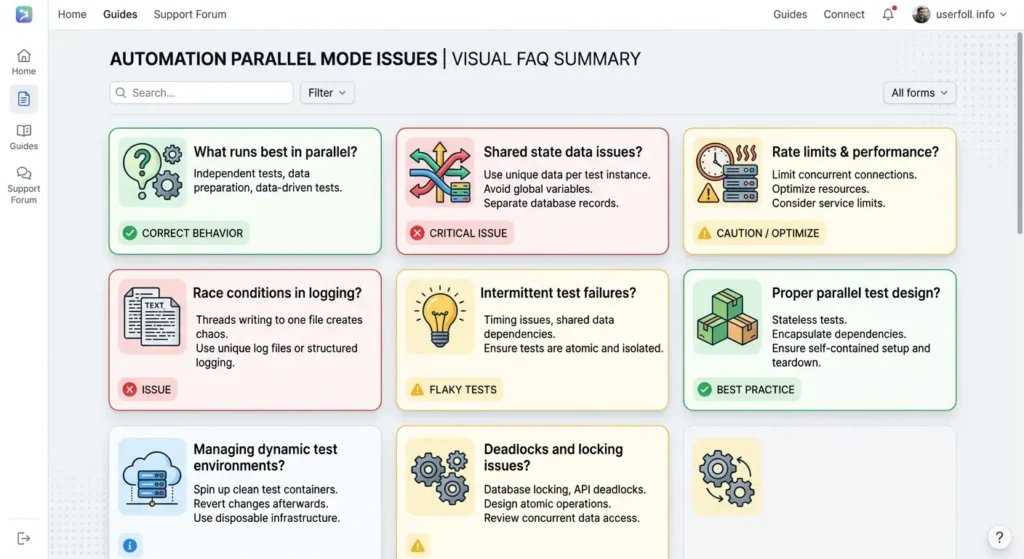
No. Parallel mode is not recommended for automations that control physical devices with limited command throughput (Z-Wave, some Zigbee devices), automations using shared variables, or automations with long-running actions. It works best for independent, stateless operations like sending unique notifications or processing separate data payloads.
How do I know if my device supports concurrent commands?
Check the device manufacturer’s documentation or API reference for rate limits. As a general rule: WiFi devices usually handle concurrency better than Z-Wave (which is strictly sequential). Zigbee falls somewhere in between. Cloud APIs almost always have documented rate limits.
What’s the difference between parallel mode failing and my automation being disabled?
When parallel mode fails, the automation appears to run (you’ll see it in trigger logs), but actions don’t complete. When an automation is disabled, it won’t trigger at all. Check your automation’s enabled/disabled status in your platform’s settings.
Can I mix modes within a single automation?
Not directly. However, you can achieve a similar effect by having your automation call scripts with different modes. For example, your automation runs in parallel mode but calls a script that runs in queued mode for the actual device commands.
How many parallel instances are too many?
There’s no universal answer, but as a practical guideline: if you’re controlling physical devices, keep it under 3-5 instances. For API-only operations, you might go up to 10-20, depending on the API’s rate limits. Always set the max: parameter to prevent runaway instances.
Does this problem affect cloud-based automations too?
Absolutely. Cloud platforms like Make, Zapier, and IFTTT all face similar issues with parallel execution. API rate limits are usually the primary culprit in cloud environments. Always implement error handling and retry logic for cloud-based parallel automations.
Final Thoughts: Getting Parallel Mode Right
Parallel mode is a powerful feature, but it’s not a default choice. Think of it like driving in the fast lane — it’s great when the road is clear, but dangerous when there’s traffic.
Here’s your quick action plan:
- Verify you actually need parallel mode (most automations don’t)
- Set a maximum instance limit (
max: 5or lower) - Add error handling to every action
- Include delays between device commands
- Verify action results after execution
- Log everything during debugging
- Test with single mode first to confirm the automation logic works
If you follow these principles, you’ll have reliable automations that trigger and execute — every single time.
Useful External Resources: