

Table of Contents
- Introduction: The Frustrating Reality of Presence Detection
- What Is Presence Detection and Why Does It Matter?
- How Smartphone Trackers Work for Presence Detection
- Common Reasons Presence Detection Fails with Multiple Trackers
- Real-World Scenarios: When Everything Goes Wrong
- The Technical Conflicts Behind Multi-Tracker Failures
- Step-by-Step Guide to Fix Presence Detection Issues
- Best Practices for Reliable Multi-Device Presence Detection
- Recommended Tools and Integrations That Actually Work
- My Personal Experience: Lessons Learned the Hard Way
- FAQ: Presence Detection with Multiple Smartphone Trackers
- Final Thoughts
Introduction: The Frustrating Reality of Presence Detection
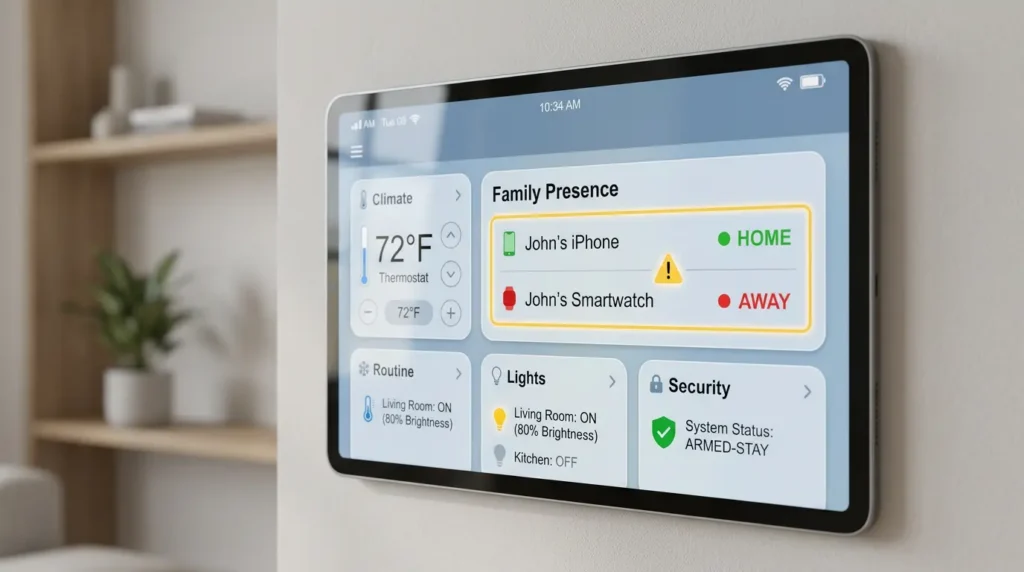
Let me paint you a picture. You’ve spent an entire weekend setting up your smart home. The lights are automated, the thermostat adjusts itself, and your security system arms when you leave. Everything works perfectly until it doesn’t.
You walk through your front door after a long day at work, and nothing happens. The lights stay off. The alarm doesn’t disarm. Your smart home thinks you’re still away, even though you’re standing right in the living room. Or worse the opposite happens: you leave for work, but your home still thinks someone is inside because one tracker says “home” while another says “away.”
If this sounds familiar, you’re not alone. presence detection fail multiple smartphone trackers is one of the most common and frustrating problems in home automation. I’ve been there myself, and I’ve spent countless hours troubleshooting, testing, and finally finding solutions that actually work.
In this article, I’m going to break down exactly why this happens, what causes the conflicts, and most importantly how to fix it once and for all. Whether you’re using Home Assistant, SmartThings, Hubitat, or any other platform, the principles here will save you hours of headaches.
What Is Presence Detection and Why Does It Matter?
Before we dive into the problems, let’s make sure we’re on the same page about what presence detection actually is.
Presence detection is the ability of your smart home system to know whether someone is home or away. It’s the foundation of some of the most important automations you can create:
- Security: Automatically arming your alarm when everyone leaves
- Energy savings: Turning off HVAC, lights, and appliances when no one is home
- Convenience: Unlocking doors, turning on lights, and adjusting the thermostat when you arrive
- Safety: Triggering alerts if unexpected presence is detected
Why Multiple Trackers?
Most households have more than one person, and each person typically carries a smartphone. To accurately determine if “anyone is home,” your smart home system needs to track multiple devices simultaneously. This is where things get complicated.
The system needs to answer one deceptively simple question: “Is at least one person home?”
Sounds easy, right? In practice, it’s anything but.
How Smartphone Trackers Work for Presence Detection
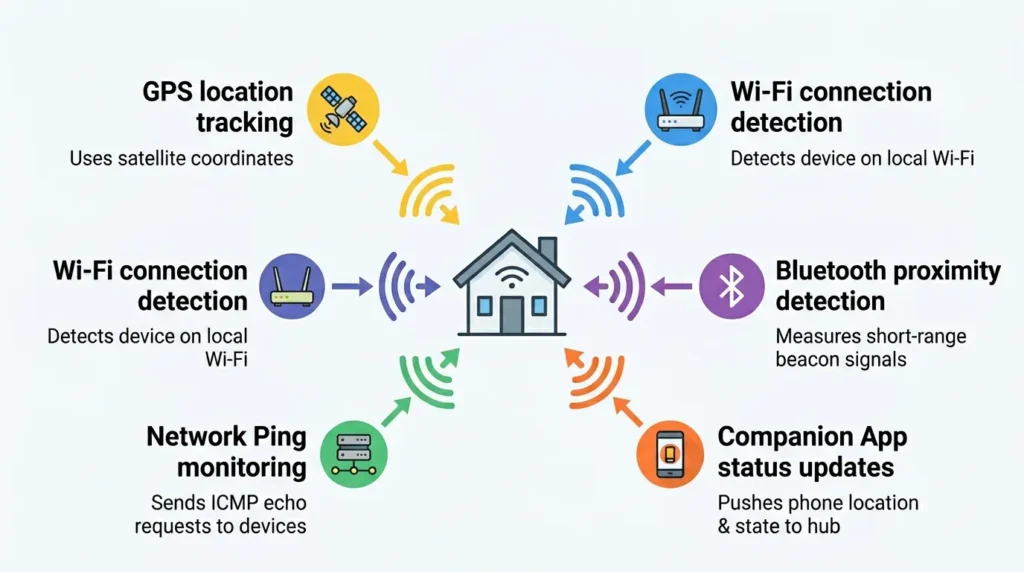
To understand why failures happen, you need to understand the different methods smartphone trackers use to determine your location.
GPS-Based Tracking
Your phone uses GPS satellites to determine its position. Smart home apps create a geofence a virtual boundary around your home and report whether your phone is inside or outside that boundary.
Pros: Works outdoors, reasonable accuracy
Cons: Poor indoor accuracy, significant battery drain, can be slow to update
Wi-Fi-Based Tracking
Your smart home system monitors whether your phone is connected to your home Wi-Fi network. If it’s connected, you’re home. If it disconnects, you’re away.
Pros: Very reliable when connected, no battery drain on the phone
Cons: Phones disconnect from Wi-Fi to save battery, reconnection can be slow
Bluetooth-Based Tracking
Using Bluetooth beacons or your phone’s Bluetooth signal, the system detects your proximity to specific locations in your home.
Pros: Good for room-level detection, relatively low power
Cons: Limited range, interference issues, inconsistent across devices
Network Ping / ARP Monitoring
Your router or a network monitoring tool regularly pings your phone’s IP address to check if it’s on the network.
Pros: Simple, doesn’t require an app
Cons: Phones go into deep sleep and stop responding to pings
Companion App Reporting
Apps like Home Assistant Companion, SmartThings, or Life360 actively report your phone’s location to the smart home hub.
Pros: Most feature-rich, combines multiple methods
Cons: Depends on app running in background, OS restrictions can kill reporting
Common Reasons Presence Detection Fails with Multiple Trackers
Now we get to the heart of the matter. Here are the most common reasons your presence detection breaks down when you’re using multiple smartphone trackers.
1. Conflicting States Between Trackers
This is the number one problem. When you use multiple tracking methods for the same person, they don’t always agree.
Example: Your Wi-Fi tracker says you’re home (your phone is connected), but your GPS tracker says you’re away (GPS drifted while you were indoors). Your automation doesn’t know which one to trust.
2. Different Update Intervals
Each tracker updates at its own pace:
- GPS might update every 30 seconds to 5 minutes
- Wi-Fi detection might check every 60 seconds
- Network ping might run every 30 seconds
- Companion app might report on significant location changes only
These timing differences create windows of disagreement where trackers show different states.
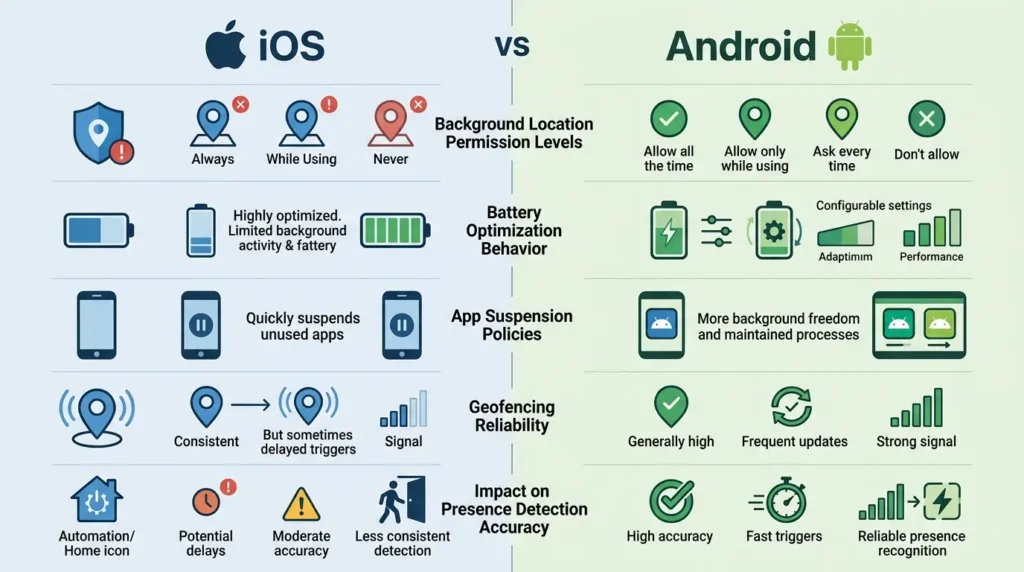
3. Smartphone Power Saving Features
Modern smartphones are aggressive about saving battery. Both Android and iOS will:
- Kill background apps
- Disconnect from Wi-Fi during sleep
- Reduce GPS polling frequency
- Delay network responses
- Batch location updates
This means your trackers get stale data, leading to false “away” readings.
4. The “Last One Out” Problem
Consider a household with two people. Person A leaves for work. The system correctly marks Person A as “away.” Person B is still home, so the house stays in “home” mode. So far, so good.
But what if Person B’s tracker glitches and briefly reports “away” due to a Wi-Fi disconnection? For a few seconds, the system thinks everyone is away and triggers “away” automations arming the alarm, turning off the HVAC, and locking all doors even though Person B is sitting on the couch.
5. The “First One Home” Problem
Person A arrives home. Their GPS tracker detects the geofence entry and reports “home.” But the Wi-Fi tracker hasn’t connected yet, and the network ping hasn’t detected the phone. If your automation requires all trackers to agree before triggering “home” mode, there’s a frustrating delay — or it never triggers at all.
6. Network Infrastructure Issues
- Mesh Wi-Fi systems can cause phones to briefly disconnect when roaming between nodes
- Router firmware updates can reset DHCP leases
- IP address changes can make network-based tracking lose the device
- Guest networks vs. main networks can cause detection failures
7. Platform-Specific OS Restrictions
iOS is particularly aggressive about limiting background location access. After iOS 13, apps must explicitly request “Always Allow” location permission, and Apple periodically reminds users to revoke it. Many users unknowingly downgrade permissions to “While Using the App,” which destroys presence detection reliability.
Android 10+ introduced similar restrictions, and manufacturers like Samsung, Xiaomi, and Huawei add their own battery optimization layers that can kill background apps.
Real-World Scenarios: When Everything Goes Wrong
Let me share some scenarios that real smart home users encounter every day. These aren’t hypothetical they come from community forums, Reddit discussions, and my own experience.
Scenario 1: The Phantom Departure
Setup: A family of four using Home Assistant with the companion app and router-based device tracking.
What happened: At 2:37 AM, the father’s phone disconnected from Wi-Fi (Android’s adaptive Wi-Fi feature). The router tracker marked him as “away.” The companion app hadn’t reported a location update in 3 hours (phone was in deep sleep). Home Assistant’s presence logic concluded the father had left. Since the mother’s phone also happened to disconnect from Wi-Fi at 2:41 AM (same adaptive feature), the system thought everyone was away for approximately 90 seconds.
Result: The security system armed at 2:41 AM. The thermostat switched to “away” mode, dropping the temperature to 60°F. The father woke up cold at 4 AM, confused and frustrated.
Scenario 2: The Arrival That Never Registered
Setup: A couple using SmartThings with Life360 integration and Wi-Fi presence sensor.
What happened: The wife arrived home. Life360 detected her entering the geofence and reported “home.” However, her phone didn’t automatically connect to Wi-Fi because she had recently changed the Wi-Fi password and forgot to update it on her phone. The SmartThings presence logic was configured to require both Life360 AND Wi-Fi connection to confirm “home” status.
Result: She stood at a locked door in the rain for 10 minutes before manually unlocking it. The “welcome home” automation never fired.
Scenario 3: The GPS Drift Ghost
Setup: A single person using Home Assistant with GPS-based tracking only, geofence set to 100 meters.
What happened: While sleeping, his phone’s GPS drifted outside the geofence boundary (a known issue in buildings with poor satellite visibility). The system marked him as “away,” triggered departure automations, then GPS corrected itself and marked him as “home,” triggering arrival automations. This cycle repeated 4 times during the night.
Result: Lights flashed on and off, the security system sent multiple arm/disarm notifications, and the smart lock locked and unlocked repeatedly. His neighbors probably thought the house was haunted.
The Technical Conflicts Behind Multi-Tracker Failures
Let’s go deeper into the technical reasons why running multiple trackers creates conflicts.
State Machine Confusion
Most smart home platforms treat presence as a simple binary state: home or away. When you have multiple trackers, you need logic to combine them into a single state. The three common approaches are:
| Approach | Logic | Problem |
|---|---|---|
| ANY tracker says home | If ANY tracker reports “home,” person is home | Too sensitive GPS drift alone can keep you “home” |
| ALL trackers agree | ALL trackers must agree on the state | Too strict one broken tracker blocks everything |
| Majority vote | Most trackers must agree | Better, but still fails with even numbers of trackers |
None of these simple approaches work reliably on their own.
Race Conditions
When two trackers update simultaneously with conflicting information, the order in which the smart home platform processes them matters. This creates race conditions the final state depends on which update arrives last, which is essentially random.
Hysteresis Problems
Hysteresis means the system should resist rapid state changes. Without it, a brief Wi-Fi disconnection triggers a full “away” response. Most default tracker configurations have little or no hysteresis built in.
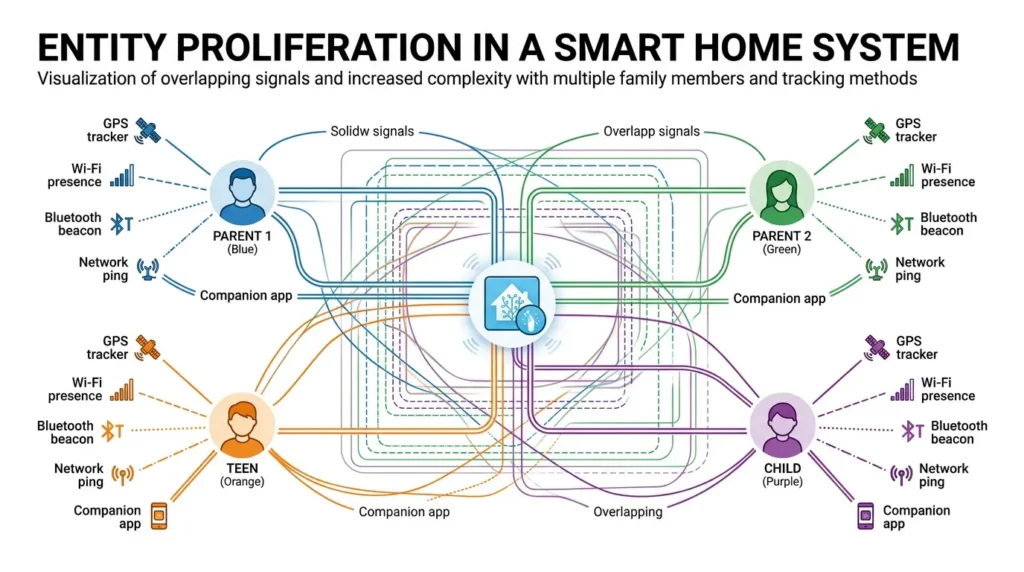
Entity Proliferation
With multiple people and multiple tracking methods, the number of entities multiplies quickly:
- 4 family members × 3 tracking methods = 12 tracker entities
- Each needs to be monitored, combined, and maintained
- Any single entity misbehaving can corrupt the entire system
Step-by-Step Guide to Fix Presence Detection Issues
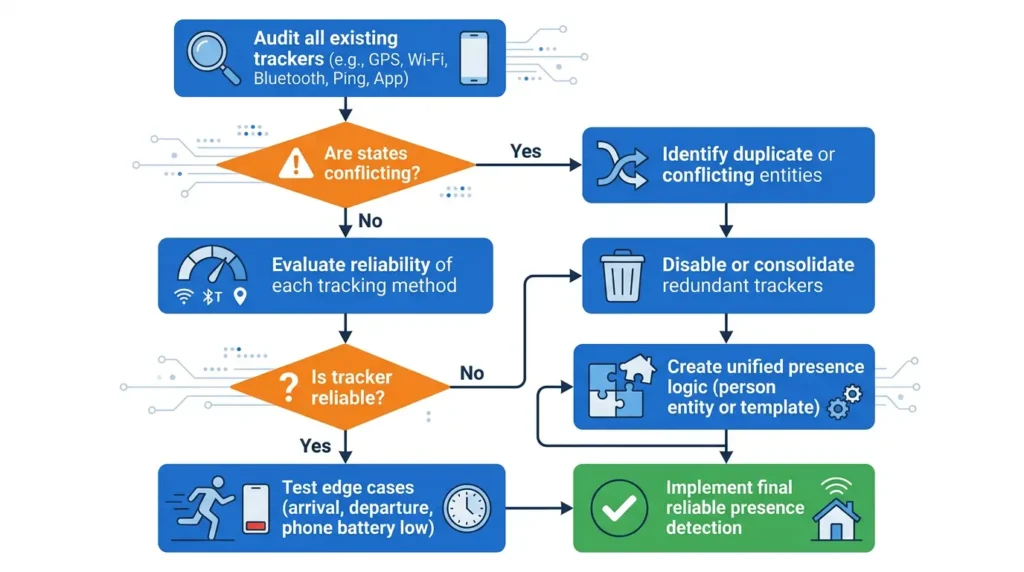
Here’s the systematic approach I recommend for fixing presence detection with multiple smartphone trackers. This works for Home Assistant, but the principles apply to any platform.
Step 1: Audit Your Current Trackers
Before changing anything, document what you currently have:
- List every tracker entity for each person
- Note the tracking method each uses (GPS, Wi-Fi, Bluetooth, etc.)
- Check the update frequency of each tracker
- Monitor them for 48 hours and note any false readings
Create a simple spreadsheet:
| Person | Tracker | Method | Update Freq. | False Away (48h) | False Home (48h) |
|---|---|---|---|---|---|
| Dad | HA Companion | GPS | ~1 min | 3 | 0 |
| Dad | Router | Wi-Fi | 30 sec | 7 | 1 |
| Mom | Life360 | GPS | ~3 min | 1 | 0 |
| Mom | nmap | Ping | 60 sec | 12 | 0 |
Step 2: Eliminate Unreliable Trackers
Based on your audit, remove any tracker that:
- Has more than 5 false readings in 48 hours
- Updates too infrequently (more than 5 minutes)
- Requires manual intervention to stay working
Less is more. Two reliable trackers beat five unreliable ones every time.
Step 3: Implement a Bayesian or Priority-Based Sensor
Instead of simple AND/OR logic, create a priority-based presence sensor. Here’s the concept:
YAML# Home Assistant Example: Priority-based presence
template:
  - binary_sensor:
      - name: "Dad Home"
        state: >
          {% set companion = is_state('device_tracker.dad_phone', 'home') %}
          {% set wifi = is_state('device_tracker.dad_wifi', 'home') %}
          {% set ble = is_state('device_tracker.dad_ble', 'home') %}

          {# If ANY tracker says home, person is home #}
          {# But for AWAY, ALL trackers must agree #}
          {{ companion or wifi or ble }}
        delay_off: "00:05:00"  # 5-minute delay before marking away
The key insight: Make it easy to be “home” (any tracker) but hard to be “away” (all trackers must agree, plus a time delay).
Step 4: Add Hysteresis (Delay) for “Away” State
Never immediately mark someone as “away.” Add a delay:
- Minimum recommended: 3 minutes
- Recommended: 5–10 minutes
- For critical automations (security): 10–15 minutes
This single change eliminates most false “away” events caused by Wi-Fi disconnections, GPS drift, and phone deep sleep.
Step 5: Configure Your Phone Properly
For iOS:
- Go to Settings → Privacy & Security → Location Services
- Find your smart home app → Set to “Always”
- Enable “Precise Location”
- Go to Settings → General → Background App Refresh → Enable for your smart home app
- Never force-close the smart home app from the app switcher
For Android:
- Go to Settings → Apps → Your smart home app → Permissions → Location → “Allow all the time”
- Go to Settings → Apps → Your smart home app → Battery → “Unrestricted”
- Disable battery optimization for the app
- For Samsung: Disable “Put unused apps to sleep” or add exceptions
- For Xiaomi: Enable “Autostart” for the app
Step 6: Optimize Your Network
- Assign static IP addresses (or DHCP reservations) to all tracked phones
- Disable “randomized MAC address” for your home Wi-Fi on each phone
- iOS: Settings → Wi-Fi → (your network) → Private Wi-Fi Address → Off
- Android: Settings → Wi-Fi → (your network) → Privacy → Use device MAC
- If using mesh Wi-Fi, enable fast roaming (802.11r) if available
- Set a consistent DHCP lease time (at least 24 hours)
Step 7: Create a Household Level Presence Sensor
After creating reliable per-person sensors, combine them:
YAMLtemplate:
  - binary_sensor:
      - name: "Anyone Home"
        state: >
          {{ is_state('binary_sensor.dad_home', 'on')
             or is_state('binary_sensor.mom_home', 'on')
             or is_state('binary_sensor.kid1_home', 'on')
             or is_state('binary_sensor.kid2_home', 'on') }}
        delay_off: "00:10:00"  # Extra 10-min delay before house is "empty"
Step 8: Test Extensively Before Enabling Critical Automations
- Run your new presence detection in monitoring mode for at least one week
- Log every state change with timestamps
- Compare against reality (were you actually home/away?)
- Only after zero false readings in a week should you connect it to security automations
Best Practices for Reliable Multi-Device Presence Detection
Based on years of community experience and my own testing, here are the golden rules:
The Asymmetric Approach (Most Important Rule)
Arriving home should be FAST and EASY to detect. Leaving home should be SLOW and HARD to confirm.
This means:
- To mark “home”: Any single tracker reporting “home” is enough
- To mark “away”: All trackers must agree, AND a time delay must pass
This asymmetry dramatically reduces false events in both directions.
Use Complementary Tracking Methods
Don’t use two GPS trackers they’ll have the same weaknesses. Instead, combine different methods:
| Best Combination | Why It Works |
|---|---|
| GPS + Wi-Fi | GPS catches outdoor arrival, Wi-Fi confirms indoor presence |
| Companion App + Router Detection | App provides GPS geofence, router catches Wi-Fi connection |
| BLE + Wi-Fi | BLE provides room-level, Wi-Fi provides home-level |
Don’t Track Devices That Don’t Leave
If a family member rarely leaves home (young children, elderly parents), consider using a simple override switch instead of tracking their phone. One fewer variable means fewer failures.
Monitor and Alert on Tracker Failures
Set up alerts for when a tracker hasn’t updated in an unusual amount of time:
YAMLautomation:
  - alias: "Alert: Dad tracker stale"
    trigger:
      - platform: state
        entity_id: device_tracker.dad_phone
        for: "01:00:00"  # No update for 1 hour
    action:
      - service: notify.mobile_app
        data:
          message: "Dad's phone tracker hasn't updated in 1 hour. Check app."
Keep Geofences Appropriately Sized
- Too small (< 100m): Frequent GPS drift causes false departures
- Too large (> 500m): Slow detection, might trigger while at a nearby store
- Sweet spot: 150–250 meters radius for most suburban homes
Recommended Tools and Integrations That Actually Work
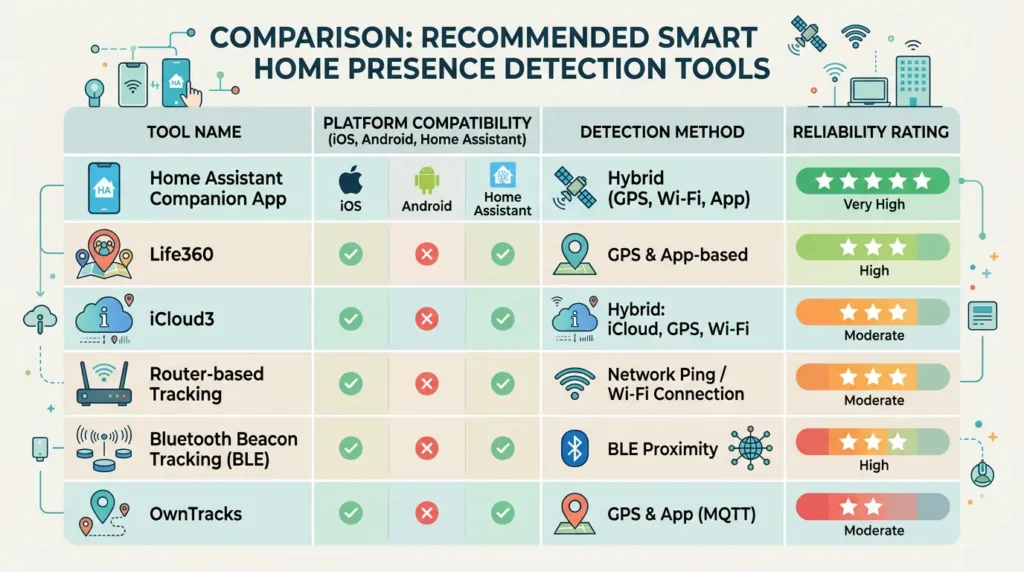
For Home Assistant Users
- Home Assistant Companion App Best all-in-one tracker (Documentation)
- Monitor by Andrew J Freyer BLE-based presence detection using Raspberry Pi
- ESPresense ESP32-based room-level BLE tracking (ESPresense.com)
- Unifi Integration If you use Unifi networking, excellent Wi-Fi detection
- Bayesian Binary Sensor Built-in HA component for combining multiple trackers (HA Documentation)
For SmartThings Users
- SmartThings Presence Sensor Built-in phone tracking
- Life360 Integration Popular GPS-based family tracker
- Wi-Fi Presence Sensor Various community solutions available
For Hubitat Users
- Hubitat Mobile App Built-in presence detection
- Combined Presence Community app that merges multiple trackers
- iPhone Wi-Fi Presence Sensor For Apple device tracking
Universal Solutions
- Life360 — Cross-platform family location sharing (life360.com)
- OwnTracks — Privacy-focused, self-hosted location tracking (owntracks.org)
- Tile / AirTag — Bluetooth trackers as a backup presence indicator
My Personal Experience: Lessons Learned the Hard Way
I want to share my own journey with presence detection because I think it illustrates the learning curve most people go through.
Phase 1: Naive Optimism (Week 1)
I set up Home Assistant Companion app tracking for myself and my wife. Created simple automations: leave → arm alarm, arrive → disarm alarm. Worked great for the first two days.
Then it happened. My wife’s iPhone stopped reporting location updates because iOS killed the companion app after she force-closed it once. The system thought she was away while she was cooking dinner. The alarm armed. Motion sensor triggered. We got a siren blast that scared the cat into hiding under the bed for three hours.
Phase 2: Over-Engineering (Weeks 2–4)
I added every tracker I could find: router-based tracking, nmap ping scanning, Bluetooth monitoring, two different GPS services. For each person, I had five different tracker entities.
The result? More confusion, not less. The trackers constantly disagreed. My automations fired erratically. I spent more time debugging than enjoying my smart home.
Phase 3: Simplification and Asymmetry (Month 2)
I stripped it back to two trackers per person: the HA Companion app and router-based Wi-Fi detection. I implemented the asymmetric approach easy to mark “home,” hard to mark “away” with a 10-minute delay before any departure automations.
I also disabled MAC address randomization on all our phones and assigned static IPs.
The Result
It’s been 8 months with zero false departures and zero false arrivals. The system works so reliably that I forget it’s there which is exactly how smart home automation should feel.
The lesson: simplicity and smart logic beat complexity every time.
FAQ: Presence Detection with Multiple Smartphone Trackers
Q1: What is the most reliable method for smartphone presence detection?
A: A combination of the Home Assistant Companion App (or equivalent) for GPS geofencing and Wi-Fi/router-based detection for confirming you’re actually in the house. Using two complementary methods with asymmetric logic provides the best reliability.
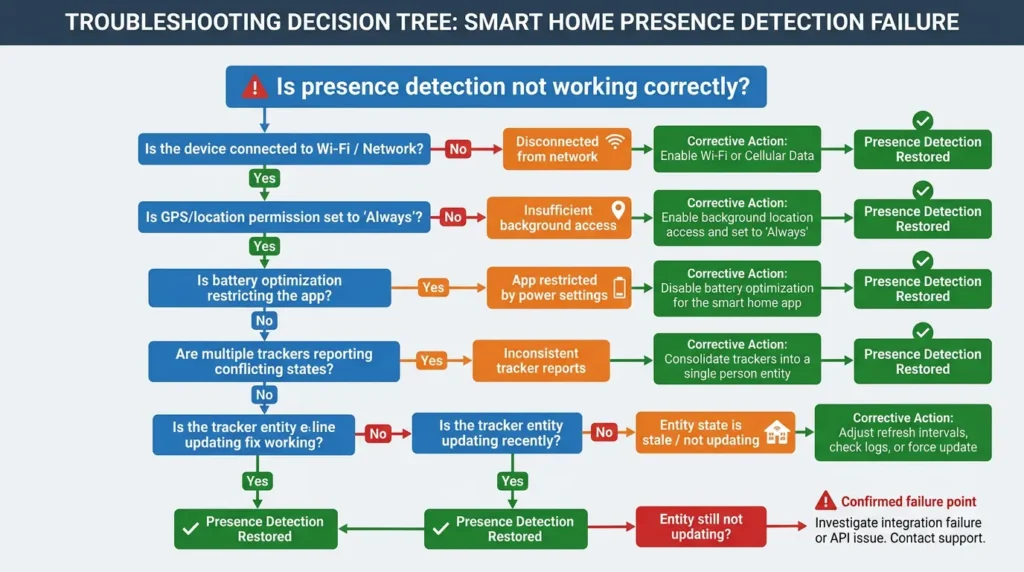
Q2: Why does my phone keep showing as “away” when I’m at home?
A: The most common causes are: your phone disconnecting from Wi-Fi during sleep mode, battery optimization killing your tracking app, GPS drift inside buildings, or MAC address randomization preventing your router from recognizing your phone. Follow Step 5 and Step 6 in our guide above to fix these issues.
Q3: How big should my geofence be for presence detection?
A: For most homes, a 150–250 meter radius works best. Smaller than 100 meters leads to GPS drift issues, while larger than 500 meters causes slow or inaccurate detection. If you live in an apartment building in a dense urban area, err toward 200–300 meters due to GPS signal bounce from buildings.
Q4: Does presence detection drain my phone battery?
A: Modern companion apps are optimized to minimize battery impact. GPS-based tracking typically uses 1–3% battery per day. Wi-Fi-based detection uses essentially no additional battery. The key is to use your smart home companion app’s built-in location reporting rather than running multiple separate tracking apps.
Q5: Can I use presence detection without GPS?
A: Yes. Wi-Fi-based detection (router monitoring), Bluetooth beacons (like ESPresense), and network ping scanning all work without GPS. However, they only detect you once you’re already home and connected they can’t detect you approaching home for early trigger automations like pre-heating.
Q6: Why does presence detection work for one family member but not another?
A: This is almost always a phone settings issue. Different phones have different default battery optimization settings. iPhones and Android phones from Samsung, Xiaomi, and Huawei are particularly aggressive. Check that each family member’s phone has location set to “Always Allow,” battery optimization disabled for the tracking app, and MAC address randomization turned off for your home Wi-Fi.
Q7: What is the Bayesian sensor in Home Assistant, and should I use it?
A: The Bayesian sensor combines multiple binary observations using probability theory to produce a single, more reliable state. It’s excellent for presence detection because you can assign different confidence levels to different trackers. It’s more complex to set up but provides the most statistically robust results.
Q8: How do I handle guests in my presence detection system?
A: Don’t track guests’ phones. Instead, use a guest mode toggle a simple switch in your smart home UI that indicates guests are present. This overrides your departure automations so the system stays in “home” mode even if all tracked family members leave. You can also use motion sensors as a secondary “someone is here” indicator.
Q9: Will a VPN on my phone affect presence detection?
A: A VPN generally doesn’t affect GPS-based tracking, but it can interfere with Wi-Fi-based and network ping-based detection. Some VPNs route all traffic through external servers, making your phone invisible to local network scans. If you use a VPN, ensure it’s configured to allow local network access, or rely on GPS-based tracking as your primary method.
Q10: How often should my presence trackers update?
A: For a good balance of accuracy and battery life: GPS should update on significant location changes plus every 1–3 minutes when in motion. Wi-Fi/network detection should scan every 30–60 seconds. Bluetooth presence should update every 5–10 seconds for room-level detection.
Final Thoughts
Presence detection with multiple smartphone trackers doesn’t have to be a nightmare. The failures almost always come from the same handful of issues: conflicting tracker states, phone power-saving features, network configuration problems, and overly simplistic automation logic.
The solution isn’t to add more trackers it’s to use fewer, better-configured trackers with smart combination logic. Remember the golden rule: make it easy to detect arrival, hard to confirm departure. Add appropriate delays. Configure your phones correctly. And always test before connecting to critical automations.
Your smart home should make life easier, not add stress. With the approach outlined in this article, you can build a presence detection system that just works quietly, reliably, and invisibly.
If you’re still struggling after implementing these steps, the Home Assistant Community Forums and r/homeautomation subreddit are excellent places to get help from people who’ve solved the same problems.
Now go fix your presence detection and finally enjoy the smart home you built.