Table of Contents
- Introduction
- What Happens Behind the Scenes When You Rename Your SSID
- How Smart Home Automations Depend on Your Network SSID
- Common Platforms Affected by SSID Renaming
- Real Scenarios: When a Simple Name Change Breaks Everything
- Step by Step Guide to Fix Automations After Renaming Your SSID
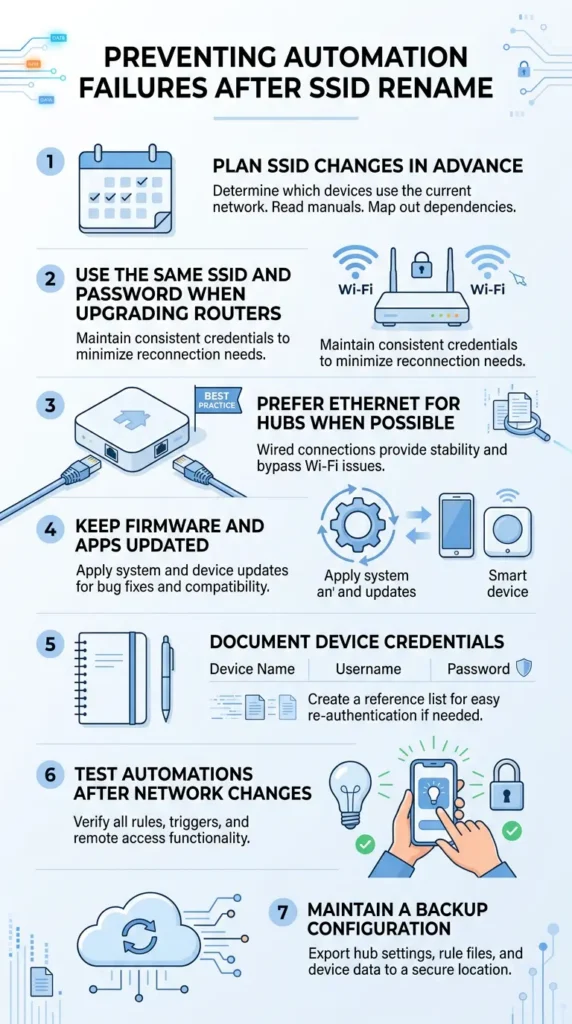
- How to Rename Your SSID Without Breaking Automations
- Devices Most Vulnerable to SSID Changes
- Expert Tips to Future Proof Your Smart Home Network
- Real User Experiences and Lessons Learned
- Frequently Asked Questions (FAQ)
- Final Thoughts
Introduction
You just wanted a cleaner Wi-Fi name. Maybe you replaced “NETGEAR_5G_EXT” with something like “MyHomeNetwork” because it looked better and made more sense. A small, harmless change, right?
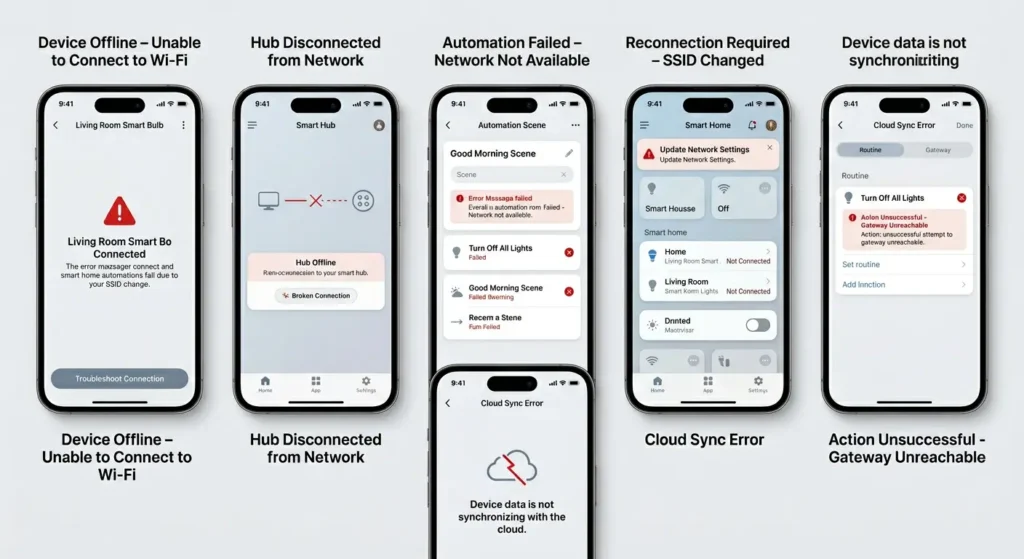
Then you walked into the kitchen and said, “Hey Google, turn on the lights.” Nothing happened. You opened your SmartThings app. Half your devices showed offline. Your scheduled automations that used to run perfectly every morning just stopped working without a single warning.
I have been there. And after spending years working with smart home setups and network configurations, I can tell you this is one of the most common and most frustrating issues people face. The good news is that it is completely fixable, and more importantly, it is preventable.
In this guide, I will explain exactly why automations fail after renaming network ssid, which platforms and devices are most affected, and how to fix everything step by step without losing your automation rules.
What Happens Behind the Scenes When You Rename Your SSID
To understand why a simple name change causes such chaos, you need to know how your devices and your network actually communicate.
Your SSID Is More Than Just a Name
Your SSID (Service Set Identifier) is the broadcast name your router uses to identify itself. Every device that connects to your network stores this name along with the password in its memory. When a device powers on, it scans for known SSIDs and connects automatically to the one it recognizes.
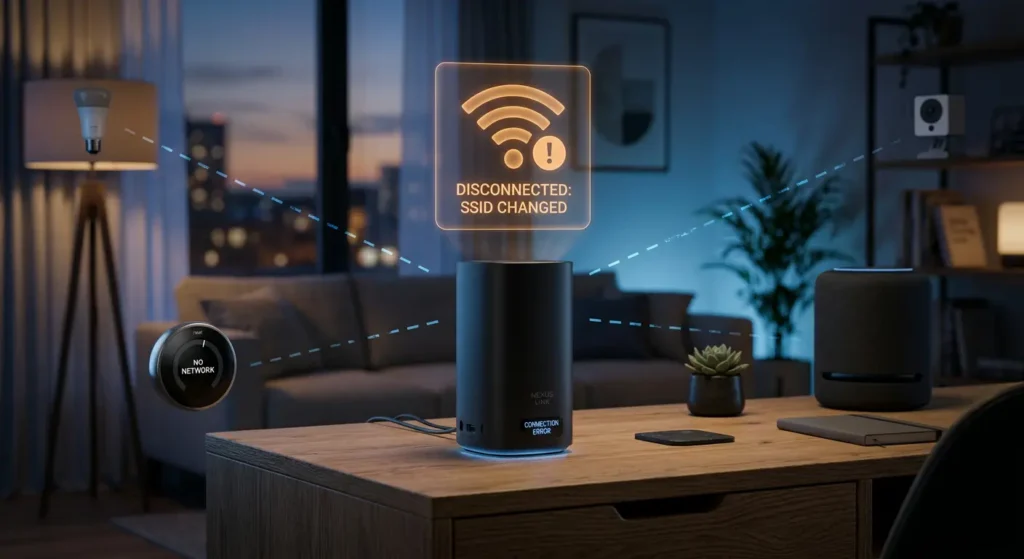
When you rename your SSID, your router starts broadcasting a completely new identity. From your devices’ perspective, the old network has disappeared and a brand new, unknown network has appeared. Even though the router is the same physical hardware, the devices do not see it that way.
The Chain Reaction
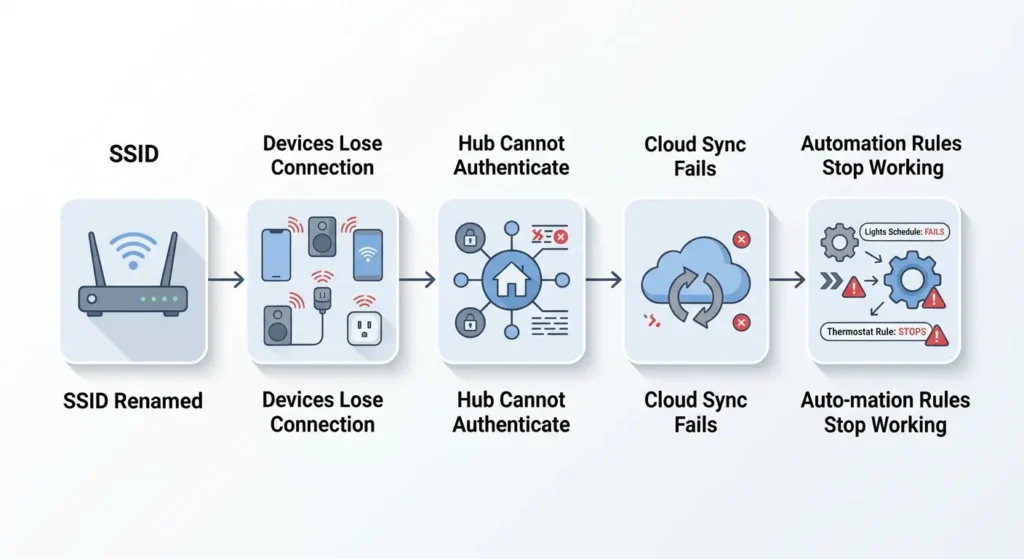
Here is what happens in sequence:
- The router broadcasts the new SSID
- Connected devices lose their connection because the stored SSID no longer matches
- Devices that cannot auto-discover networks stay offline
- Smart home hubs lose communication with child devices
- Cloud-based automations lose their device endpoints
- Location-based triggers tied to the old SSID stop firing
- Scheduled automations that depend on device availability fail silently
This chain reaction is why a two-second name change can take hours to fix.
How Smart Home Automations Depend on Your Network SSID
Most people assume automations only care about the devices themselves. But in reality, multiple layers of your automation system reference your network identity.
Network-Based Triggers
Many automation platforms use your Wi-Fi network as a location anchor. For example, Apple HomeKit uses your iPhone’s connection to your home Wi-Fi to determine whether you are “home” or “away.” Google Home does the same thing. If the SSID changes, these platforms cannot confirm your location, so arrival and departure automations simply stop working.
Device Communication Paths
Smart devices communicate through your local network. When a hub like Samsung SmartThings or Hubitat sends a command to a smart plug, it routes through your network using the device’s IP address and network identity. A new SSID means devices need to re-establish their network presence, and until they do, they are invisible to the hub.
Cloud Sync Dependencies
Platforms like Amazon Alexa and Google Home sync device states through the cloud. When your devices go offline due to the SSID change, the cloud servers mark them as unavailable. Automations that depend on these devices get skipped or fail entirely.
DHCP and IP Address Reassignment
Renaming your SSID often triggers a DHCP reset. Devices that reconnect may receive new IP addresses. If any automation or integration references a static IP (common with cameras, NAS devices, or custom integrations), those references break immediately.
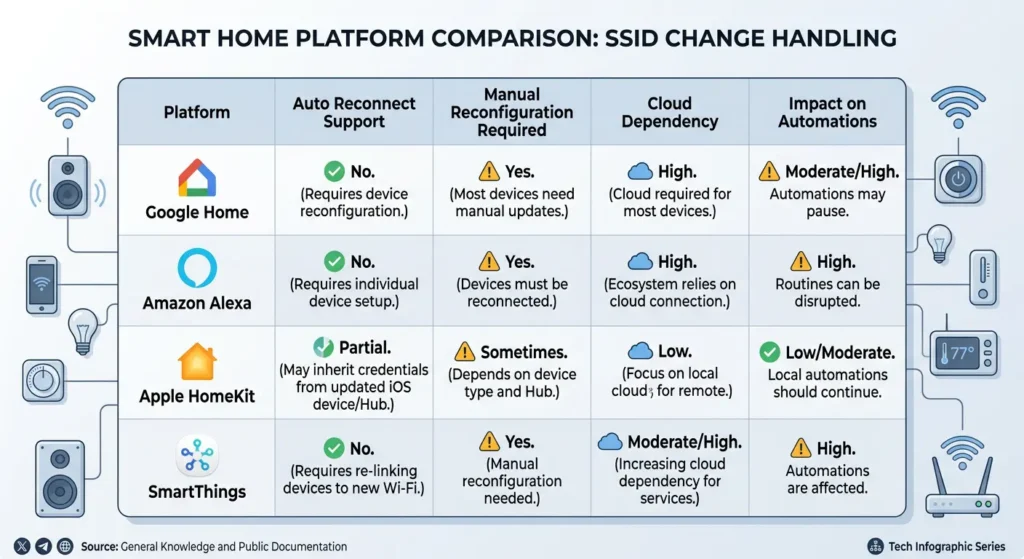
Common Platforms Affected by SSID Renaming
Not all platforms handle SSID changes the same way. Here is a breakdown of how the most popular smart home ecosystems react.
Apple HomeKit
HomeKit relies heavily on your home hub (Apple TV, HomePod, or iPad) being connected to your home network. When the SSID changes, the home hub disconnects. All HomeKit accessories that use Wi-Fi also disconnect. Bluetooth accessories may continue to work if they are in range of the home hub, but Wi-Fi-dependent automations fail completely.
Additionally, HomeKit uses your iPhone’s Wi-Fi connection to determine your geofence status. If you connect to the new SSID on your phone but your home hub is still offline, the system enters a broken state where it thinks you are home but cannot control anything.
Google Home
Google Home devices bind to a specific Wi-Fi network during setup. When you rename the SSID, every Google Home speaker, Nest display, and Chromecast needs to be reconfigured individually. Routines that involve these devices will fail until each one is reconnected.
Google Home also uses Wi-Fi network identity for the “Home” and “Away” presence detection used in Nest thermostats and security systems.
Amazon Alexa
Alexa devices need to be reconnected to the new SSID through the Alexa app. The good news is that Alexa routines are stored in the cloud, so once devices are reconnected, routines usually resume without needing to be recreated. However, any routine that triggers a device which stays offline will continue to fail.
Samsung SmartThings
SmartThings hubs connect via Ethernet or Wi-Fi. If your hub uses Wi-Fi, it needs to be reconnected. Zigbee and Z-Wave devices connected through the hub typically remain paired since they communicate with the hub directly, not through Wi-Fi. However, any Wi-Fi-based SmartThings device will need reconfiguration.
Home Assistant
Home Assistant is generally more resilient if it connects via Ethernet. However, Wi-Fi-based integrations, MQTT brokers, and any device referenced by hostname or IP address may need updating. Custom automations referencing network conditions will also need adjustment.
Real Scenarios: When a Simple Name Change Breaks Everything
Scenario 1: The Morning Routine That Stopped Working
David had a Google Home routine that turned on his kitchen lights at 6:30 AM, started his coffee maker through a smart plug, and played the morning news on his Nest Hub. After changing his SSID from the default “Linksys_2.4G” to “DavidsHome,” everything broke. The Nest Hub went offline, the smart plug lost connection, and the routine just silently failed every morning for three days before he realized what happened.
Scenario 2: The Security System Gap
Maria used SmartThings automations to arm her security cameras and lock her smart locks when everyone left the house. Her presence detection was tied to her phone’s Wi-Fi connection. After her husband renamed the network, the system could no longer detect when the family was home or away. For an entire week, the security automations were not running, and she had no idea.
Scenario 3: The Home Office Disaster
Tom worked from home and used Alexa routines to manage his office lighting, air conditioning, and focus music throughout the day. He upgraded his router and set a new SSID. His Alexa devices reconnected after he manually updated them, but his smart thermostat and two smart bulbs from a lesser-known brand refused to connect to the new network without a full factory reset. He lost all his custom scenes and had to rebuild them from scratch.
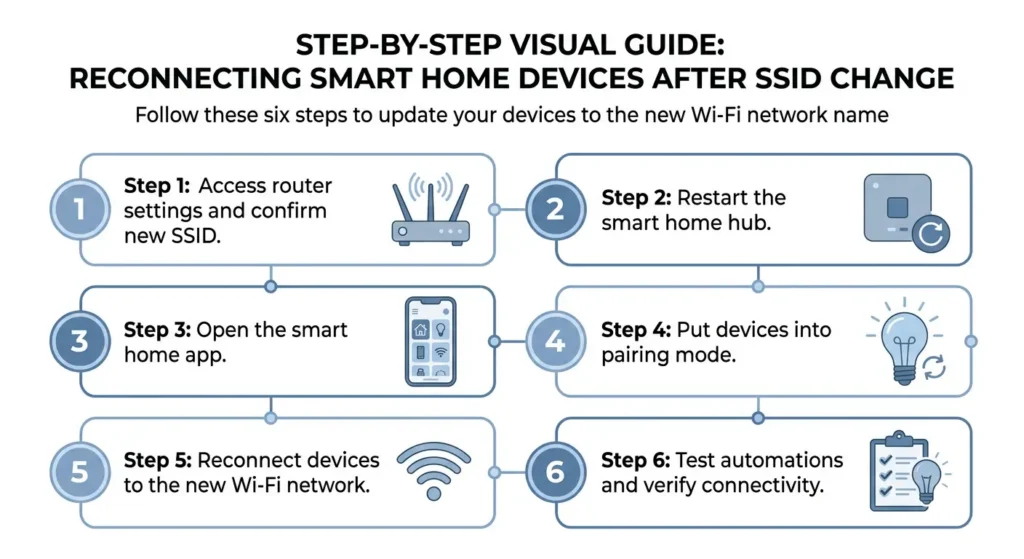
Step by Step Guide to Fix Automations After Renaming Your SSID
If you have already renamed your SSID and your automations are broken, follow these steps to restore everything.
Step 1: Document What Is Broken
Before you start fixing things, open each automation platform and note which devices show as offline or unavailable. This gives you a checklist to work through systematically instead of chasing random issues.
Step 2: Reconnect Your Hubs First
Always start with your central hubs, including your SmartThings hub, Apple TV, HomePod, or any device that acts as a bridge for other devices. These need to be online before child devices can communicate properly.
For Google Home devices, open the Google Home app, select the device, go to Settings, then Wi-Fi, and choose “Forget This Network.” Then set up the device again on the new SSID.
For Alexa devices, open the Alexa app, go to Devices, select the device, and update the Wi-Fi network.
Step 3: Reconnect Individual Wi-Fi Devices
Work through your checklist device by device. Most smart plugs, bulbs, and sensors need to be reconnected through their respective apps. Some may require a factory reset if they cannot detect the new network.
Priority order for reconnecting:
- Central hubs and bridges
- Smart speakers and displays
- Smart plugs and switches
- Smart bulbs
- Sensors and cameras
- Less critical accessories
Step 4: Verify IP Addresses
If you use any static IP configurations or have devices referenced by IP in custom integrations, check that all IP addresses are still correct. Log into your router’s admin panel and review the DHCP client list.
Step 5: Test Each Automation Individually
Do not assume that reconnecting devices automatically restores automations. Open each automation platform, go through every routine and automation, and trigger them manually to verify they work. Pay special attention to:
- Time-based automations
- Presence-based automations
- Device-triggered automations
- Multi-step routines
Step 6: Reconfigure Location and Presence Services
For platforms that use Wi-Fi for presence detection (HomeKit, Google Home, SmartThings), make sure your phone is connected to the new SSID and that the platform recognizes it as your “home” network. You may need to update the home address or re-enable location permissions.
How to Rename Your SSID Without Breaking Automations
If you have not renamed your SSID yet but plan to, follow this approach to minimize disruption.
Method 1: The Gradual Migration
- Create the new SSID as a secondary network on your router (most modern routers support multiple SSIDs)
- Move devices one at a time to the new SSID
- Test automations after each batch of devices is migrated
- Disable the old SSID once all devices are successfully on the new network
This method takes more time but virtually eliminates the risk of broken automations.
Method 2: The Planned Cutover
- Export or screenshot all your automations before making any changes
- Make a list of every connected device with its current network settings
- Rename the SSID during a low-impact time (like midday on a weekend)
- Immediately reconnect all devices following the priority order mentioned above
- Test everything before considering the migration complete
Method 3: Keep the Same SSID
If your only goal is to upgrade your router or change your internet provider, you can set the new router to use the exact same SSID and password as the old one. In most cases, devices will connect automatically without any disruption to automations.
This is actually the recommended approach by most smart home experts whenever you replace network equipment.
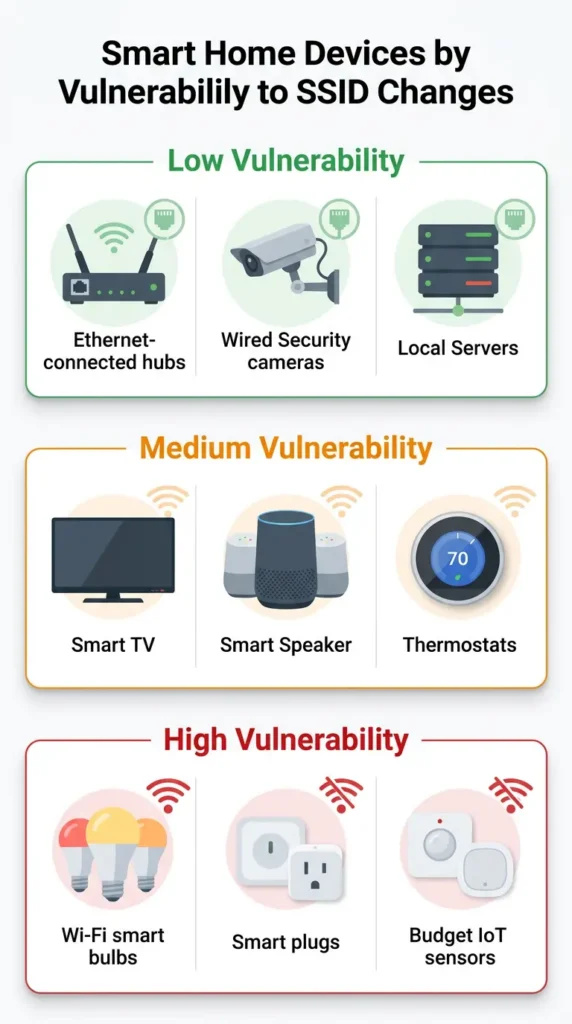
Devices Most Vulnerable to SSID Changes
Some devices handle SSID changes gracefully, while others become completely unusable until manually reconfigured.
High Vulnerability
- Budget smart plugs and bulbs (Tuya-based devices, no-name brands): These often require a full factory reset and re-setup from scratch
- Smart cameras (especially those from Wyze, Blink, Ring): Camera setups are often complex and time-consuming to redo
- Smart doorbells: Similar to cameras, with the added inconvenience of physical installation
- IoT sensors: Temperature, humidity, and door/window sensors often lack screens or buttons for easy reconfiguration
Medium Vulnerability
- Google Home and Nest devices: Need manual reconfiguration but retain cloud-stored routines
- Alexa Echo devices: Relatively easy to reconnect through the app
- Smart TVs: Need Wi-Fi reconfiguration but retain installed apps and settings
Low Vulnerability
- Zigbee and Z-Wave devices: These connect to their hub, not directly to Wi-Fi, so they are unaffected by SSID changes
- Bluetooth devices: Independent of Wi-Fi SSID
- Ethernet-connected hubs: SmartThings or Home Assistant on Ethernet remain connected regardless of SSID changes
Expert Tips to Future Proof Your Smart Home Network
After helping dozens of people recover from SSID-related automation failures, here are the practices I recommend to avoid this problem entirely.
Choose Your SSID Name Carefully From the Start
Pick a permanent, meaningful SSID name when you first set up your network. Avoid using router brand defaults like “ASUS_5G” or “xfinitywifi” because you will inevitably want to change them later. Choose something unique, simple, and something you will be happy with long term.
Use a Dedicated IoT Network
Create a separate SSID specifically for your smart home devices. Keep your personal devices on your main network. This way, if you ever need to rename your personal network, your IoT devices and automations remain untouched.
Many modern routers, including those from TP-Link, Asus, and Netgear, support guest networks or multiple SSIDs that work perfectly for this purpose.
Maintain a Device Inventory
Keep a spreadsheet or document listing every smart device in your home along with its connection type (Wi-Fi, Zigbee, Z-Wave, Bluetooth), the app used to manage it, and any special configuration notes. This inventory becomes invaluable when you need to reconnect everything.
Prefer Hub-Based Protocols When Possible
When buying new smart home devices, prefer those that use Zigbee, Z-Wave, or Thread instead of Wi-Fi. These protocols connect to a hub rather than directly to your router, making them immune to SSID changes. The Matter standard is also moving in this direction, which is great news for smart home reliability.
Back Up Your Automations Regularly
Platforms like Home Assistant allow you to back up your entire configuration including automations. For cloud-based platforms like Google Home or Alexa, take screenshots of your routines periodically. This ensures you can rebuild quickly if anything goes wrong.
Real User Experiences and Lessons Learned
Experience 1: The Reddit Recovery
A user on r/smarthome shared that after renaming their SSID, they lost connectivity to 23 smart devices across three different ecosystems. It took them an entire weekend to reconnect everything. Their biggest lesson was discovering that four of their budget smart bulbs could not be reconnected at all without a factory reset, which meant removing them from their smart home app and losing all associated automations and scenes. They now keep a dedicated IoT network that they never rename.
Experience 2: The Professional Installer’s Advice
A professional smart home installer I spoke with told me that SSID changes are the number one cause of service calls that are not related to hardware failure. He now includes a “Network Change Protocol” document with every installation, instructing homeowners to contact him before making any network changes. His recommendation is always to keep the same SSID and password when changing routers.
Experience 3: The HomeKit Headache
An Apple HomeKit user reported that after changing their SSID, their HomePod mini disconnected and could not be re-added to their home without a full reset. This removed it as a home hub, which then made all their HomeKit automations inaccessible remotely. It took three hours of troubleshooting to get everything back to normal, including re-inviting family members to the home and reconfiguring shared access.
Frequently Asked Questions (FAQ)
Will changing my Wi-Fi password also break automations?
Yes. Changing your Wi-Fi password has a similar effect to changing your SSID. Devices that stored the old password will fail to connect, causing automations to break. The recovery process is the same as described in this guide.
Can I change my SSID back to the old name to fix everything?
In most cases, yes. If you revert your SSID to the original name and keep the same password, most devices will automatically reconnect within a few minutes. This is often the fastest fix if you realize the problem quickly.
Do mesh Wi-Fi systems handle SSID changes better?
Mesh systems like Google Nest WiFi, Eero, and Orbi manage SSID changes across all nodes simultaneously, which prevents split-network issues. However, your smart devices still need to reconnect to the new SSID, so the fundamental problem remains the same.
Will my Zigbee or Z-Wave devices be affected?
No. Zigbee and Z-Wave devices communicate with their hub using their own radio protocols, completely independent of your Wi-Fi network. Only the hub itself (if it uses Wi-Fi) needs to be reconnected.
Does renaming the SSID affect my smart home app accounts?
No. Your accounts with Google Home, Alexa, SmartThings, and other platforms are cloud-based and tied to your login credentials, not your SSID. However, the devices linked to those accounts will appear offline until reconnected.
How long does it take to fix everything after an SSID change?
It depends on how many devices you have. For a typical home with 10 to 20 smart devices, expect to spend 1 to 3 hours reconnecting everything and testing automations. Larger setups with 50 or more devices can take a full day.
Can I automate the reconnection process?
Unfortunately, no. Each device needs to be individually reconnected to the new network, usually through its dedicated app. There is no universal tool that can push a new SSID to all smart devices simultaneously.
Is it better to use the 2.4GHz or 5GHz band for smart home devices?
Most smart home devices only support 2.4GHz Wi-Fi. When setting up your SSID, make sure you have a 2.4GHz network available. If your router uses a combined SSID for both bands (band steering), some IoT devices may have trouble connecting. In that case, creating a separate 2.4GHz SSID for smart devices is recommended. You can learn more about this from Google Nest WiFi support.
Final Thoughts
Renaming your network SSID seems like one of the simplest things you can do with your router. But in a connected home where dozens of devices, automations, and cloud services depend on that network identity, it can trigger a cascade of failures that takes hours to resolve.
The key takeaway from this entire guide is simple: your SSID is not just a label. It is the foundation that holds your smart home together. Treat it with the same care you would treat any critical piece of infrastructure.
If you are planning to rename your SSID, use the gradual migration method. If you have already renamed it and everything is broken, follow the step by step recovery process. And going forward, invest in hub-based protocols like Zigbee and Z-Wave that do not depend on your Wi-Fi SSID at all.
Your smart home should make your life easier, not harder. With the right planning, a network change does not have to mean starting over from scratch.