

Introduction
There’s a particular kind of frustration that only smart home enthusiasts understand. You put in the effort, maybe a full evening or more, building the perfect automation in Home Assistant. Your lights respond to sunset like clockwork, the thermostat knows when you’ve left the house, and every motion sensor fires without a hitch. Life feels automated in the best way possible. Then you do something that seems completely harmless you rename a device entity. Perhaps you wanted a tidier naming convention or just a label that made more sense. And just like that, everything falls apart.
I know this feeling personally. The first time it happened to me, I sat in front of my dashboard for nearly two hours, clicking through logs and scratching my head. Nothing made sense. There were no clear errors, no warning messages just an automation that quietly stopped responding as if it never existed.
If you’ve landed on this page, you’re probably facing the exact same problem where blueprint automations fail after renaming device entities in Home Assistant. Trust me, you’re far from the only one, and the good news is that there’s a logical reason behind it and a straightforward way to fix it.
In this guide, I’ll explain what actually happens behind the scenes when you rename an entity, why Home Assistant loses track of your blueprint references, and how you can restore everything step by step without rebuilding your automations from the ground up.
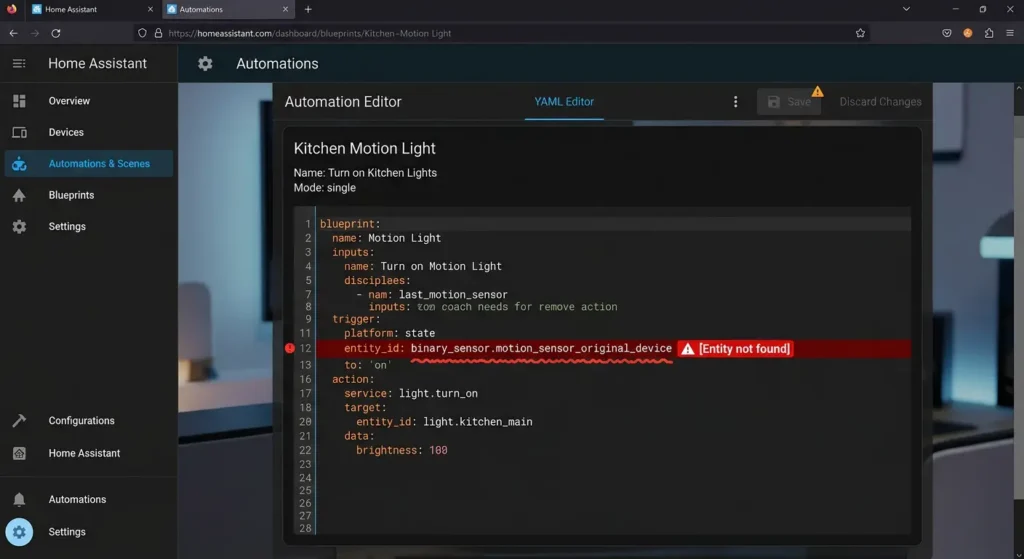
What Are Blueprint Automations in Home Assistant?
Understanding Blueprints
Blueprints in Home Assistant are pre-built automation templates that allow you to create automations without writing YAML from scratch. They were introduced to simplify the automation creation process, especially for users who aren’t comfortable with coding.
Think of a blueprint as a recipe. You choose the recipe (the blueprint), fill in your specific ingredients (your devices, entities, and conditions), and the automation is ready to go.
How Blueprints Reference Entities
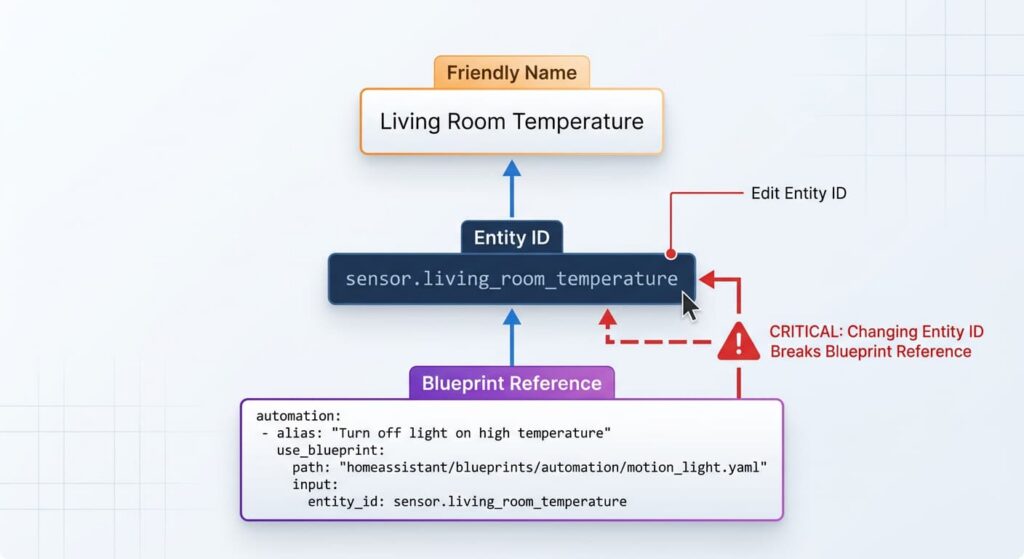
Here’s where it gets critical. When you configure a blueprint automation, you select specific entities like light.living room lamp or binary sensor.front door motion. The blueprint stores these references internally using the entity ID, not the friendly name you see in the UI.
This distinction is the root cause of the problem we’re discussing today.
Why Renaming Device Entities Breaks Blueprint Automations
The Core Problem: Entity ID vs. Friendly Name
Home Assistant differentiates between two things:
- Entity ID: The technical identifier (e.g.,
sensor.temperatur kitchen) - Friendly Name: The display name you see in the dashboard (e.g., “Kitchen Temperature Sensor”)
When you rename an entity through the UI, depending on how you rename it, you might be changing:
- Only the friendly name This is safe. Blueprints won’t break.
- The actual entity ID This will break any automation, blueprint, or script that references the old entity ID.
The problem is that many users don’t realize they’re changing the entity ID when they think they’re just renaming a device. And Home Assistant, in some versions and UI flows, makes it easy to accidentally change the entity ID alongside the friendly name.
What Happens Internally When You Rename
Let me paint the picture with a real scenario:
- You have a motion sensor with entity ID:
binary sensor.hallway motion - You created a blueprint automation that triggers lights when this sensor detects motion
- The blueprint YAML internally stores:
entity id: binary sensor.hallway motion - You rename the entity to
binary sensor.upstairs hallway motion - The blueprint still looks for
binary sensor.hallway motion - That entity no longer exists → Automation fails silently
Why Blueprints Are More Vulnerable Than Regular Automations
Here’s something most guides won’t tell you. Regular automations created directly in YAML or through the UI are slightly easier to debug when entity references break. You can open the automation editor, see the red warning about missing entities, and fix it.
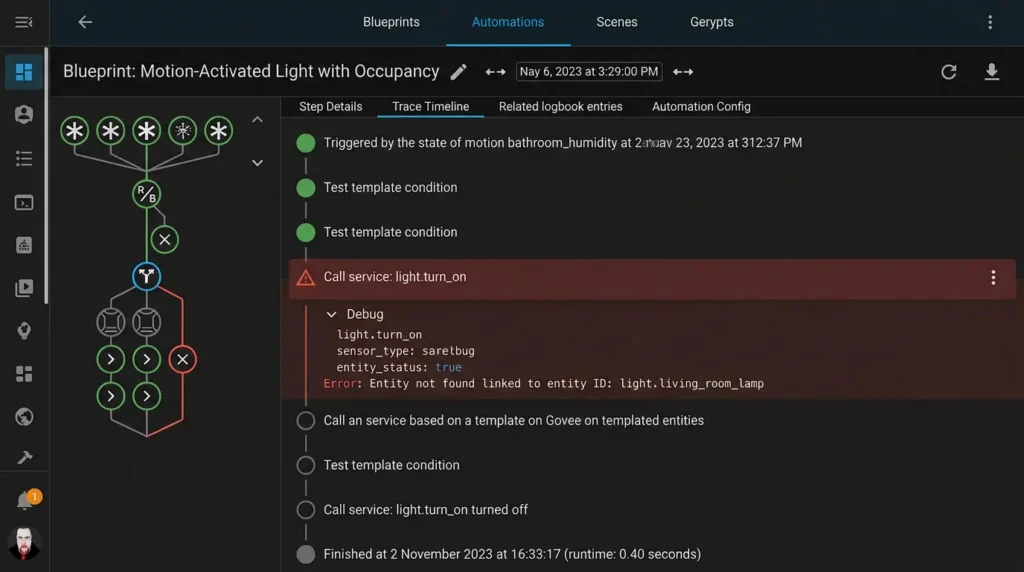
But blueprints add an abstraction layer. The entity reference is passed as an input parameter to the blueprint template. When the referenced entity no longer exists:
- The blueprint may not show an obvious error in the UI
- The automation might appear “active” but never triggers
- Trace logs might show the automation was never even evaluated
- Some blueprints fail completely while others partially work (if they reference multiple entities and only one was renamed)
This silent failure is what makes the problem so maddening.
Real World Scenarios Where This Happens
Scenario 1: Cleaning Up Entity Names After a New Integration
Mark’s experience:
“I integrated my Zigbee devices through ZHA, and all my entities had ugly names like
light.0x00158d000xxxxxx. I renamed them all to friendly names, changing both the entity IDs and display names. Every single blueprint I had set up motion lights, door alerts, temperature monitoring all stopped working. I didn’t connect the dots for three days.”
Scenario 2: Replacing a Device With the Same Model
Sarah’s experience:
“My Aqara temperature sensor died, so I bought the exact same model. When I added it, Home Assistant created a new entity with
2appended. I deleted the old entity and renamed the new one to match. But my climate blueprint still referenced the original entity path, which was now gone from the registry entirely.”
Scenario 3: Migrating From One Integration to Another
David’s experience:
“I switched from MQTT to Zigbee2MQTT for my devices. All entity IDs changed from
switch.sonoff xxxxxtoswitch.zigbee2mqtt xxxxx. I had 15 blueprint automations. All 15 broke.”
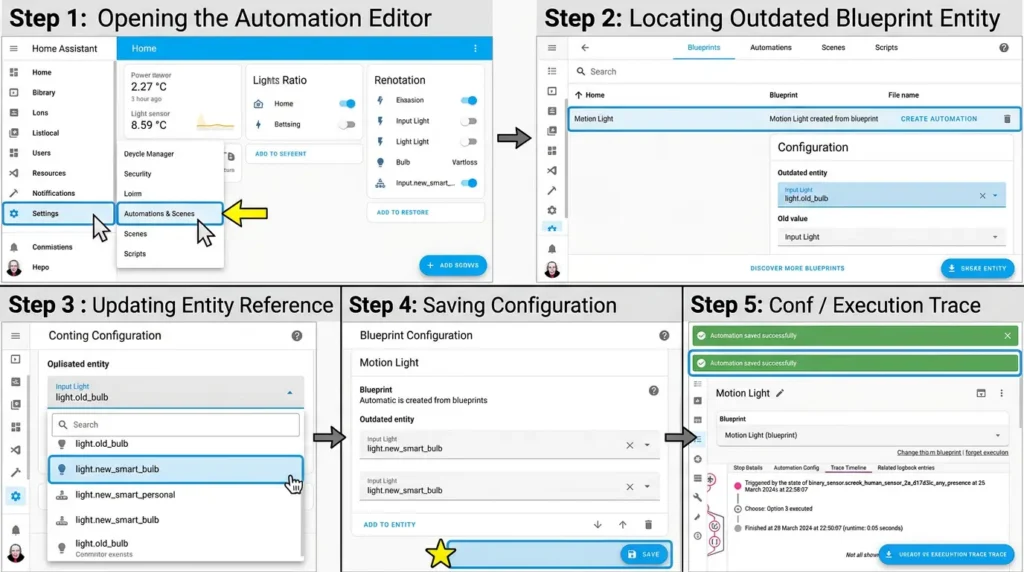
How to Fix Blueprint Automations After Renaming Entities
Step 1: Identify Which Entities Were Renamed
First, you need to know what changed. Go to:
Settings → Devices & Services → Entities
Look for any entities you recently renamed. Pay attention to the Entity ID column, not just the name column.
If you’re not sure what the old entity ID was, check your Home Assistant logs:
Settings → System → Logs
Look for warnings like:
textEntity not found: binary sensor.old entity name
Step 2: Check Your Blueprint Automation Configuration
Go to:
Settings → Automations & Scenes → Automations
Find the broken blueprint automation and click on it. In the configuration panel, look at the input fields. If an entity field shows as empty, red, or displays an unknown entity ID, that’s your broken reference.
Step 3: Update the Entity Reference
Click on the problematic entity field and select the new entity (with the updated entity ID). Save the automation.
Step 4: Alternatively, Revert the Entity ID
If you’d prefer not to edit every automation, you can change the entity ID back to its original value:
- Go to Settings → Devices & Services → Entities
- Find the renamed entity
- Click on it → Click the gear icon
- Change the Entity ID back to the original
- Click Update
Your blueprint automations should immediately start working again.
Step 5: Test the Automation
After making changes:
- Go to the automation
- Click the three dots menu → Run automation (for testing)
- Or trigger it naturally and check the Traces tab to verify execution
How to Prevent This Problem in the Future
Tip 1: Rename Entities Immediately After Adding Devices
The best practice is to rename your entities before creating any automations or blueprints. Set up a naming convention and apply it from day one.
A good naming convention:
text[domain].[location] [device_type] [specific function]
Examples:
light.bedroom ceiling mainsensor.kitchen temperature aqarabinary sensor.front door contact
Tip 2: Change Only the Friendly Name, Not the Entity ID
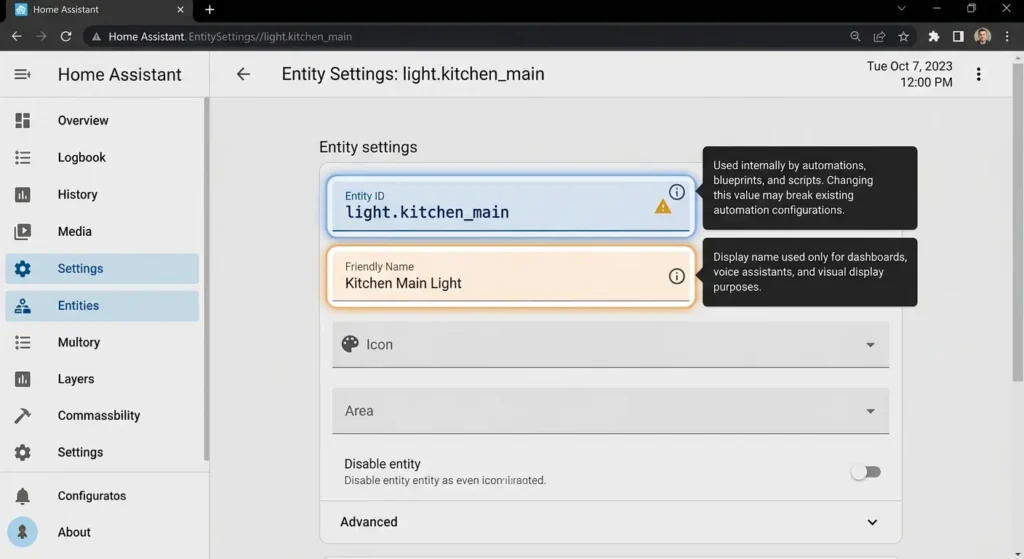
When you want to rename something for display purposes, only change the friendly name. Leave the entity ID as is. The friendly name is what appears on your dashboards and in Google Home/Alexa.
To change only the friendly name:
- Go to the entity settings
- Modify the Name field (this is the friendly name)
- Do NOT modify the Entity ID field
- Click Update
Tip 3: Use Entity ID References in Documentation
Keep a simple spreadsheet or note that maps your entity IDs to their purposes. This becomes invaluable when troubleshooting.
| Entity ID | Device | Location | Used In |
|---|---|---|---|
binary sensor.hallway motion | Aqara P1 | Hallway | Motion light blueprint |
light.living room lamp | IKEA Tradfri | Living Room | Sunset automation |
Tip 4: Use Home Assistant Labels and Areas
Instead of renaming entities, use Areas and Labels (introduced in recent HA versions) to organize your devices. This keeps your entity IDs stable while improving organization.
Tip 5: Check Automations Before Renaming
Before changing any entity ID, use the Developer Tools → States page to search for the entity ID across your configuration. You can also search your .yaml files if you use file-based configuration.
Understanding Entity Registry: The Technical Deep Dive
How Home Assistant’s Entity Registry Works
Home Assistant maintains an entity registry a database that maps entity IDs to their underlying device integrations. When you rename an entity ID:
- The old entity ID is removed from the registry
- A new entry is created with the new entity ID
- All references in automations, scripts, scenes, and blueprints that used the old ID become orphaned
Home Assistant does not automatically update references across your configuration. This is a deliberate design choice automatically changing references could introduce unpredictable behavior in complex setups.
Why Doesn’t Home Assistant Auto-Update References?
This is a common question in the Home Assistant Community Forums. The development team has discussed this multiple times. The main reasons are:
- Safety: Auto-updating could cause unintended automation behavior
- Complexity: Entity IDs can be referenced in YAML files, templates, custom integrations, and Node-RED flows tracking all references is extremely difficult
- Performance: Scanning all configurations on every rename would add significant overhead
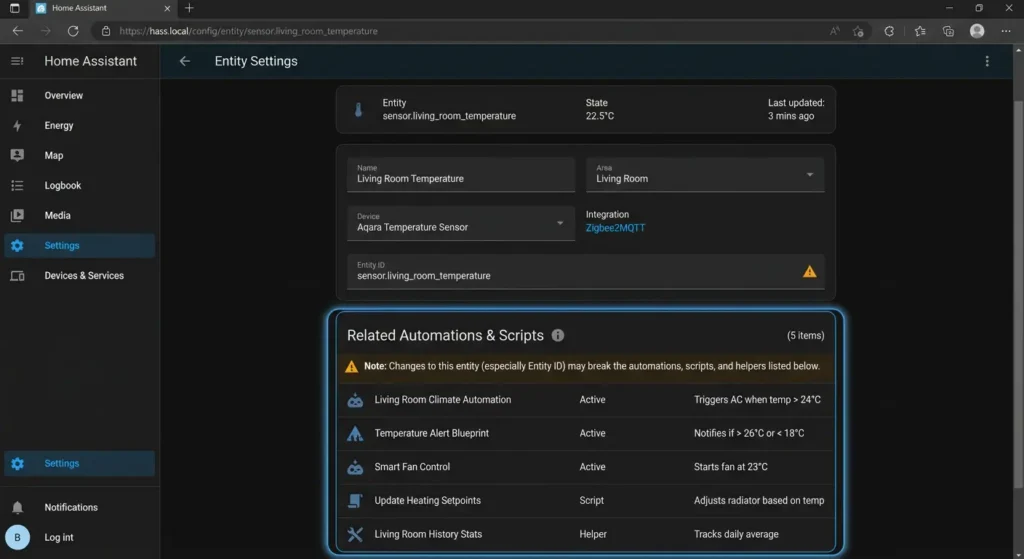
However, as of recent versions, Home Assistant does show a warning when you rename an entity ID that’s referenced in automations. Pay attention to these warnings they’re trying to save you from this exact problem.
Advanced Troubleshooting: When the Basic Fix Doesn’t Work
Problem: Blueprint Shows No Errors But Still Doesn’t Trigger
Possible causes:
- The entity exists but the device was removed and re-added
- The entity ID matches but the unique ID has changed (common when replacing hardware)
- The blueprint uses
device idinstead ofentity idinternally
Solution:
Some blueprints reference device IDs (a unique internal identifier), not entity IDs. Even if the entity ID is correct, a changed device ID will break things. To check:
- Open the automation in YAML mode (click the three dots → Edit in YAML)
- Look for
device id:references - Find the correct device ID: Go to Settings → Devices, click the device, and check the URL the device ID is in the URL
Problem: Multiple Automations Broke Simultaneously
If you renamed entities in bulk, you might need a systematic approach:
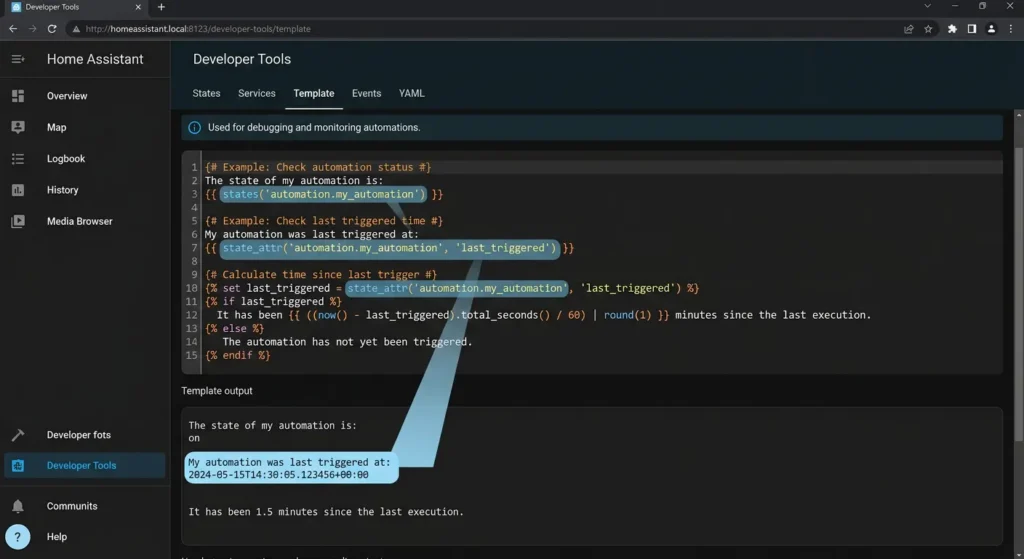
YAML# Check all automations for broken references
# Go to Developer Tools → Templates and paste:
{% for automation in states.automation %}
  {{ automation.entity id }}: {{ automation.attributes.last triggered }}
{% endfor %}
Automations that haven’t triggered recently (or show None for last triggered) are likely broken.
Problem: Blueprint Was Imported and Can’t Be Edited
If the blueprint itself has hardcoded entity references (rare but possible with custom blueprints):
- Go to Settings → Automations & Scenes → Blueprints
- Find the blueprint
- Click the three dots → Re-import blueprint (if it’s from a URL)
- Or manually edit the blueprint file in
/config/blueprints/automation/
Best Practices for Managing Entities and Blueprints
Create a Naming Convention From Day One
Here’s the convention I use personally, and it has saved me countless hours:
Format: domain.area_devicetype_function
Examples:
light.office desk_lampsensor.bathroom humiditybinary sensor.garage door contactswitch.kitchen coffee maker
Document Your Blueprint Automations
For each blueprint automation, keep a record of:
- Blueprint name and source
- All entity inputs
- All device inputs
- Any template conditions
- Date created
- Last verified working date
Use Version Control for Your Configuration
If you’re using YAML-based configuration, consider using Git to track changes:
Bashcd /config
git init
git add .
git commit -m "Initial configuration backup"
This way, if something breaks after entity renaming, you can easily see what changed and revert if needed.
For more information on backing up your Home Assistant configuration, check the official Home Assistant documentation on backups.
External Resources
Here are some helpful resources for further reading on this topic:
- Home Assistant Official Documentation — Automations
- Home Assistant Blueprints Exchange
- Home Assistant Entity Registry Documentation
- Reddit r/homeassistant — Common Automation Issues
- Home Assistant Blueprint Documentation
Frequently Asked Questions (FAQ)
Does renaming the friendly name of an entity break blueprints?
No. Changing only the friendly name (display name) does not affect blueprint automations. Blueprints reference the entity ID, not the friendly name. You can freely change friendly names without any risk.
Can I rename an entity ID and have Home Assistant automatically update all automations?
Currently, no. Home Assistant does not automatically propagate entity ID changes to automations, scripts, or blueprints. You must manually update each reference. However, newer versions do warn you if the entity is used somewhere before you rename it.
How do I find which automations use a specific entity?
Go to Settings → Devices & Services → Entities, find the entity, and click on it. In newer HA versions, you’ll see a “Related” section that shows automations, scripts, and scenes using that entity.
Will deleting and recreating a blueprint automation fix the issue?
Yes, but it’s unnecessary. You can simply edit the existing automation and re-select the correct entity. Deleting and recreating means you’ll lose your automation traces and any customizations.
Does this problem also affect Node-RED automations?
Yes. Node-RED flows that reference Home Assistant entity IDs will also break if those entity IDs are changed. The same principle applies the reference becomes orphaned.
What’s the difference between entity ID and device ID in blueprints?
- Entity ID: Identifies a specific entity (e.g.,
light.bedroom lamp) - Device ID: Identifies the physical device, which may have multiple entities. It’s a long hexadecimal string stored internally.
Some blueprints use device IDs, others use entity IDs, and some use both. Check the blueprint’s YAML to understand which references it uses.
Can I use automations instead of blueprints to avoid this issue?
The same issue exists with regular automations. However, regular automations are slightly easier to troubleshoot because the entity references are directly visible in the automation editor, whereas blueprints add an abstraction layer.
Conclusion
Blueprint automations failing after renaming device entities is one of the most common and most frustrating issues in Home Assistant. The root cause is simple: blueprints store entity IDs as references, and renaming the entity ID orphans those references.
The fix is straightforward: either update the entity reference in your blueprint automation or revert the entity ID to its original value. Going forward, adopt a solid naming convention early, rename only friendly names when possible, and always check for dependent automations before changing entity IDs.
I hope this guide saved you the hours of troubleshooting that I went through when I first encountered this issue. Smart home automation should be fun, not frustrating and understanding how entity references work under the hood makes a world of difference.
If this article helped you, bookmark it for future reference. And if you’re planning a big entity renaming session, come back here first. Your future self will thank you.