

You set up your Zigbee 3.0 network, everything was stable, and your sensors ran for months without a problem. Then you added a Matter bridge to Home Assistant—maybe enabled Thread on your SkyConnect, added a Matter hub, or installed the Matter integration—and suddenly your Zigbee sensors start randomly going offline.
You’re not imagining it. Adding Matter/Thread support can destabilize a previously stable Zigbee network, but usually not for the reason people think. It’s rarely “Matter vs Zigbee” as a protocol war; it’s almost always radio interference, overloaded hardware, or a weakened mesh that was just on the edge and finally tipped over.
In this guide, I’ll walk you through:
- The most common reasons Zigbee 3.0 sensors drop offline after adding a Matter bridge
- How to systematically diagnose the root cause
- Practical fixes you can apply right now
- Real-world examples from setups similar to yours
- FAQs about running Zigbee and Matter together in Home Assistant
I’ll also leave clear placeholders where you can add images to visually explain key points.
TL;DR – The Short Version
If your Zigbee 3.0 sensors started dropping offline right after adding a Matter bridge to Home Assistant, it’s usually one or more of these:
- Zigbee and Thread sharing the same radio (multi-PAN) and overloading it
- Common with Home Assistant SkyConnect / Yellow when you enable both Zigbee and Thread on the same stick.
- Fix: use separate radios for Zigbee and Thread/Matter, or temporarily disable Thread.
- Extra 2.4 GHz radio noise from the new Matter hub or router
- Wi‑Fi, Thread, BLE and Zigbee all shouting in the same band.
- Fix: move devices physically apart and choose better channels for Wi-Fi and Zigbee.
- Your Home Assistant host or USB bus is now overloaded
- Matter integration + logging + additional traffic = CPU / I/O spikes → Zigbee timeouts.
- Fix: reduce load, use a powered USB hub, avoid plugging radios next to each other.
- Zigbee mesh was marginal, and Matter changes pushed it over the edge
- Battery sensors on weak links now fall off the network.
- Fix: add more Zigbee routers (smart plugs, wired bulbs) and improve placement.
- Firmware / integration bugs after updating for Matter support
- HA core, ZHA, or Zigbee2MQTT updated at the same time you turned on Matter.
- Fix: update everything to the latest stable, or roll back the Zigbee integration if needed.
If you do nothing else, start with this:
Put your Zigbee radio on a USB extension cable 1–2 meters away from your router/Matter hub, pick a clean Zigbee channel, and avoid running Zigbee + Thread on the same stick if reliability matters.
What Actually Changed When You “Added a Matter Bridge”?
Before we dig into fixes, you need to know what changed technically. Usually it’s one of these scenarios:
Scenario A: You Enabled Thread/Matter on the Same Radio as Zigbee (Multi-PAN)
- Example: Home Assistant SkyConnect, Home Assistant Yellow, or a multi-protocol stick.
- The same physical 2.4 GHz radio now runs Zigbee and Thread (for Matter) at the same time.
- The radio time-slices between networks; under load, Zigbee packets can be delayed or dropped.
Scenario B: You Added a Separate Matter Bridge / Hub
- Example: Philips Hue Bridge (as Matter), Aqara Hub M2/M3, IKEA Dirigera, Google Nest Hub, Apple TV 4K, etc.
- That device usually contains:
- A strong 2.4 GHz Wi‑Fi radio, and/or
- A Thread border router (also 2.4 GHz), and often
- Its own Zigbee radio internally.
- All of that now lives close to your Zigbee coordinator or Wi‑Fi router.
Scenario C: You Updated Home Assistant and Integrations for Matter Support
- You upgraded:
- Home Assistant Core
- ZHA or Zigbee2MQTT
- Add-ons or OS
- New code paths, more logging, and sometimes regressions or bugs.
In all three cases, what changed is radio behavior and system load—and that’s where the Zigbee dropouts come from.
How Zigbee, Thread, Wi‑Fi and Matter Share the Same Air
Zigbee and Thread both run on IEEE 802.15.4 in the 2.4 GHz band. Wi‑Fi 2.4 GHz, Bluetooth, and many other devices also use this band.
- Zigbee: channels 11–26 (roughly 2405–2480 MHz)
- Thread: uses the same type of channels as Zigbee (also 11–26)
- Wi‑Fi 2.4 GHz: channels 1–13 (2412–2472 MHz) with wide overlap
- BLE / Bluetooth: hops all over the 2.4 GHz band
So when you add a Matter bridge or Thread border router, you’re almost always adding:
- More 2.4 GHz RF energy right next to your Zigbee network
- Possibly another 802.15.4 network (Thread) on overlapping channels
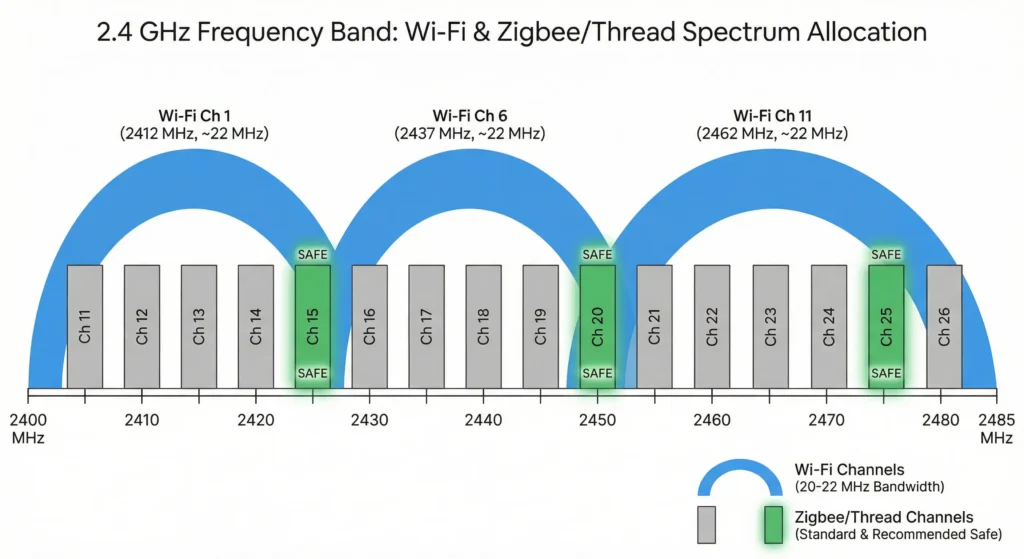
This doesn’t mean Matter and Zigbee are “incompatible”; it just means you now have more traffic in the same air, and you need to manage it.
Main Reasons Zigbee 3.0 Sensors Drop Offline After Adding Matter
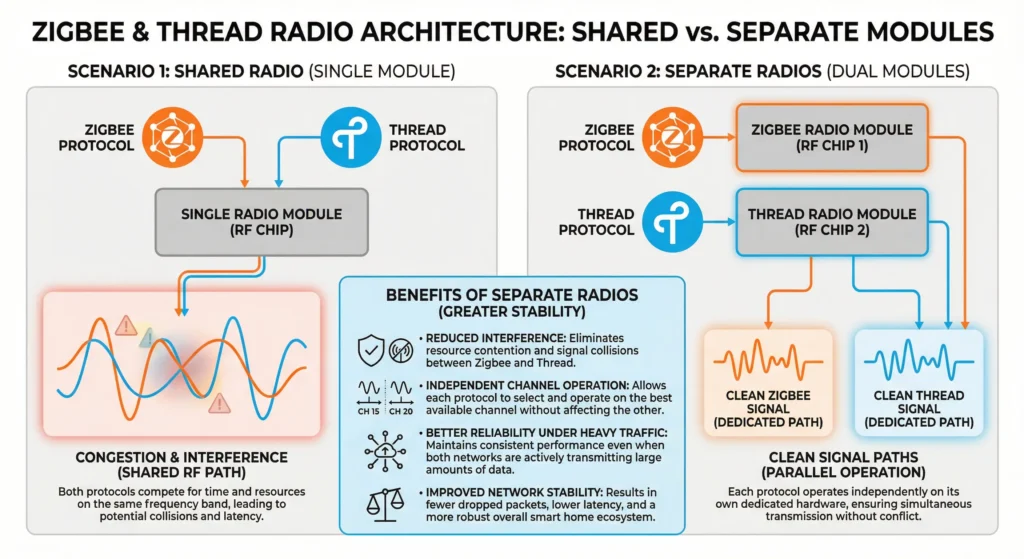
1. Zigbee and Thread Sharing the Same Radio (Multi-PAN Issues)
When it happens
- You’re using:
- Home Assistant SkyConnect,
- Home Assistant Yellow, or
- A multi-protocol USB stick
- You enabled Thread (for Matter) while already running Zigbee on the same hardware.
What goes wrong
- The radio must switch rapidly between the Zigbee PAN and the Thread PAN.
- Under more traffic (Matter devices, Thread routing, etc.), Zigbee packets:
- Get delayed
- Time out
- Miss keep-alive windows
- Battery Zigbee devices (sensors, buttons) are especially sensitive and may look “offline” or fail to report.
How to fix it
- Prefer dedicated radios:
- Use one stick for Zigbee only (e.g., Sonoff ZBDongle-P or -E, ConBee II, etc.).
- Use a separate device for Thread/Matter, such as:
- SkyConnect in Thread-only mode
- A Nest Hub / Apple TV / Thread-capable router
- If you must run multi-PAN on one stick:
- Keep Matter device count low.
- Avoid high-frequency Matter updates.
- Expect some reliability trade-offs.
2. Extra 2.4 GHz Noise from the Matter Bridge or Hub
When it happens
- You added:
- A new Wi‑Fi 2.4 GHz access point
- A Matter/Thread border router
- A hub with its own Zigbee radio
- It’s placed very close to:
- Your existing Zigbee coordinator (USB stick/hub)
- Your main Wi‑Fi router
What goes wrong
- Multiple strong 2.4 GHz transmitters in a small area:
- Desensitize the Zigbee receiver (RF front-end overload).
- Increase collisions and retransmits.
- Devices at the edge of coverage, or behind walls, lose packets more often and go offline.
How to fix it
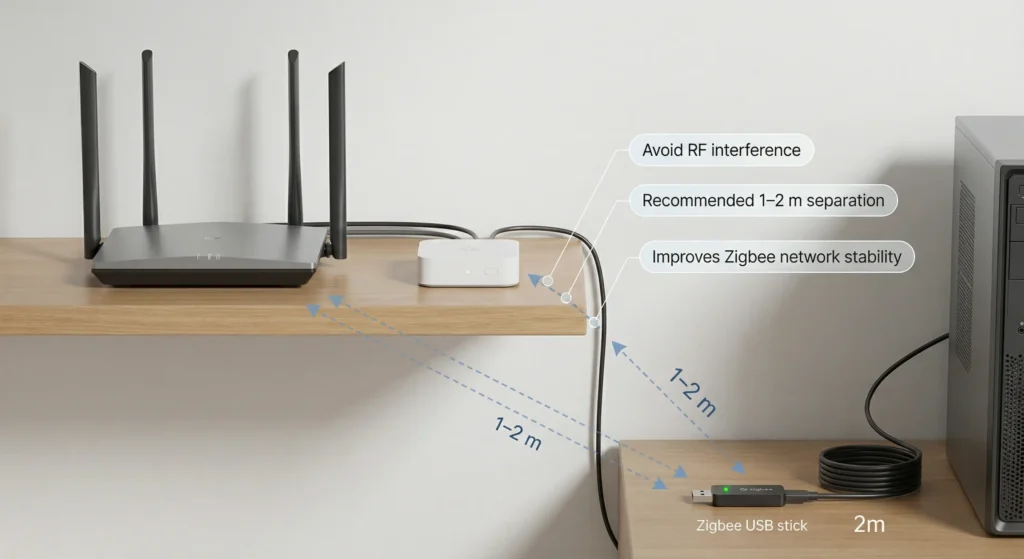
- Physically separate radios
- Put your Zigbee USB stick on a 1–2 m USB extension cable.
- Move it away from:
- Wi‑Fi router
- Matter hub
- PC / NUC / Pi metal case
- Elevate the Zigbee coordinator
- Place it higher up and in open air.
- Avoid being directly behind a TV, PC, or thick wall.
3. Overloaded Home Assistant Host or USB Bus
When it happens
- You’re running Home Assistant on:
- Raspberry Pi 3/4
- Low-power NUC
- Old PC
- You enabled Matter and saw:
- More CPU usage
- More I/O and logging
- More network traffic
What goes wrong
- Zigbee coordinator is usually a USB serial device.
- If CPU or I/O is saturated:
- Serial communication can become delayed.
- Zigbee packets are lost or time out.
- USB ports can be:
- Underpowered (especially on Pi)
- Sharing bandwidth with SSDs and other high-load devices.
How to fix it
- Check resource usage
- In Home Assistant:
- Settings → System → Hardware → Three dots → System information
- Or SSH and run htop or top to watch CPU / load.
- In Home Assistant:
- Move radios off busy or weak USB ports
- Use a powered USB hub for the Zigbee stick.
- Avoid plugging into:
- Front panel ports on some cases
- Shared USB 3.0 ports next to SSDs
- Reduce load
- Disable unused integrations or very chatty logging.
- Limit very frequent automations or debug logging while troubleshooting.
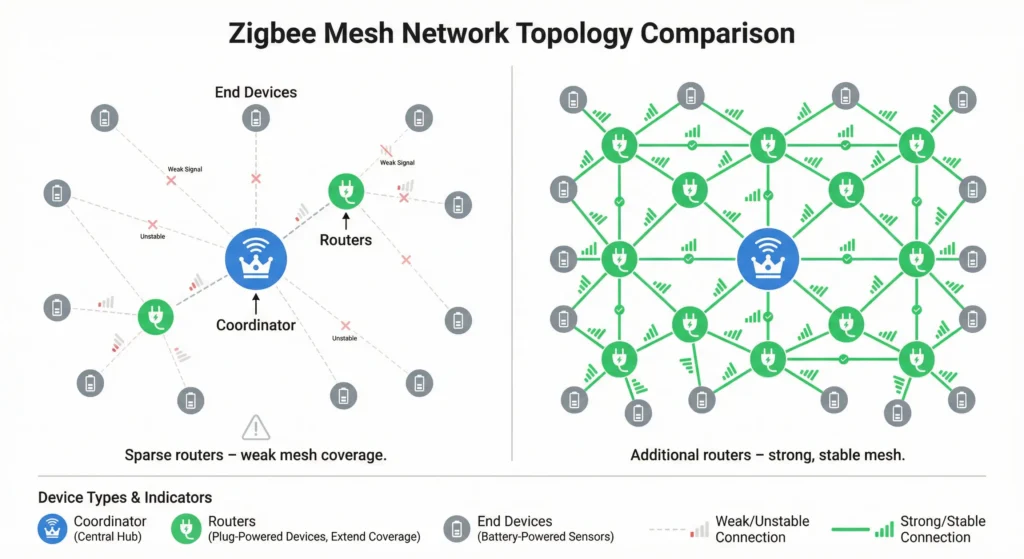
4. A Marginal Zigbee Mesh That Finally Broke
Sometimes, the Zigbee network is already “barely okay,” and adding more RF noise or load from Matter simply exposes the weakness.
Signs your mesh is marginal
- Many battery sensors are:
- Far away from the coordinator
- Behind multiple thick walls or metal doors
- You have few or no Zigbee routers (mains-powered devices that repeat):
- No smart plugs
- Only a few wired bulbs
- Mostly battery devices
Why adding Matter can break it
- A small drop in signal quality (more noise, or a slight move of the coordinator) can:
- Break borderline links
- Cause routers to change parents
- Make end devices detach and stay offline
How to fix it
- Add more Zigbee routers
- Smart plugs (IKEA, Sonoff, Aqara, etc. with routing capability)
- Wired Zigbee bulbs (if they are known to be good routers)
- Place them:
- In hallways
- Near doorways
- Between coordinator and distant rooms
- Reposition key devices
- Move the coordinator to a more central location.
- Avoid putting battery sensors inside metal cabinets or very low to the floor.
5. Zigbee Firmware or Integration Bugs After Updating for Matter
When it happens
- You updated:
- Home Assistant Core
- ZHA or Zigbee2MQTT
- Zigbee coordinator firmware
- You did this around the same time you added Matter support.
What goes wrong
- Newer Zigbee stacks can introduce:
- Route discovery changes
- Sleep/wake handling bugs
- Problems with certain chipsets (e.g., some EZSP or TI stacks)
How to fix it
- Update to the latest stable versions
- Home Assistant Core
- ZHA / Zigbee2MQTT add-on
- Coordinator firmware (following official docs)
- Check the release notes
- Look for known issues with:
- Your specific USB stick model
- Your sensor brands (Aqara, Sonoff, IKEA, etc.)
- Look for known issues with:
- Roll back if necessary
- If a specific update is identified as the problem, temporarily revert to a known-stable version while waiting for a fix.
6. Sleepy Battery Devices Misbehaving After Network Changes
When it happens
- Issue is mostly with:
- Contact sensors
- Motion sensors
- Buttons / remotes
- Powered devices (plugs, bulbs) stay online.
What goes wrong
- Many battery devices:
- Sleep most of the time
- Wake briefly to send updates or check in
- After network changes (new channels, new parent routers, coordinator reset), they:
- Don’t correctly rejoin
- Or keep trying to talk to an old parent
How to fix it
- Wake and re-pair affected devices
- Trigger them (open/close, press button) while in Add device mode in ZHA/Zigbee2MQTT.
- Check and replace batteries
- Low voltage can make rejoining unstable.
- Leave the network stable for a while
- Avoid changing channel or coordinator repeatedly; let sleepy devices settle on parents.
Step-by-Step Checklist to Diagnose and Fix the Problem
Follow these steps in order; they build on each other and avoid random trial-and-error.
Step 1 – Identify Your Exact Setup
Ask yourself:
- Are you using:
- Home Assistant SkyConnect or Yellow?
- A Sonoff, ConBee, or other dedicated Zigbee stick?
- Did you enable Thread / multi-PAN on the same stick?
- Did you add a separate Matter hub (Hue, Aqara, Nest, Apple TV, etc.)?
- Did you update Home Assistant / ZHA / Zigbee2MQTT at the same time?
Write down your hardware and what changed; it helps narrow the likely causes.
Step 2 – Check Home Assistant Logs for Zigbee Errors
- Go to Settings → System → Logs.
- Also check:
- Settings → Devices & Services → Your Zigbee integration (ZHA or Zigbee2MQTT) → Configure → Logs / Debug.
- Look for patterns:
- No response to command
- Device became unavailable
- EZSP reset or serial connection errors
- Zigbee network offline messages
These messages tell you whether it’s a radio / link issue or a coordinator / software issue.
Step 3 – Inspect Your Zigbee Mesh Quality
If you use ZHA:
- Go to Settings → Devices & Services → ZHA → Configure → Visualisation.
- Look for:
- Long, weak connections with low LQI (Link Quality Indicator).
- Devices with no routers between them and the coordinator.
If you use Zigbee2MQTT:
- Open the Zigbee2MQTT web UI.
- Click on Map.
- Look at signal strengths and routing paths.
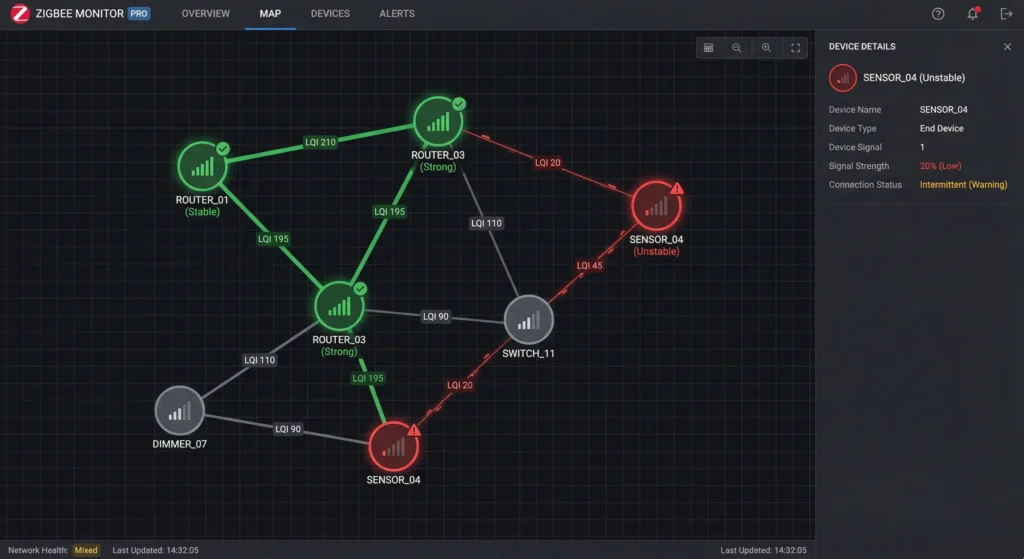
This shows whether offline devices were already weakly connected before Matter.
Step 4 – Physically Separate Zigbee and Matter/Wi‑Fi Radios
- Plug your Zigbee stick into a USB extension cable (1–2 m).
- Move it:
- Away from top of the router
- Away from the Matter hub
- Away from metal enclosures
- Keep at least:
- 50 cm between any two 2.4 GHz antennas at minimum
- 1–2 m is ideal if you have the space and cable length
Test stability for 24–48 hours after doing this. Many setups become stable with this single change.
Step 5 – Optimize Wi‑Fi and Zigbee Channels
If you can access your router’s Wi‑Fi settings:
- Set 2.4 GHz Wi‑Fi to use a single channel, usually 1, 6, or 11.
- Use a Wi‑Fi analyzer app (on Android, for example) to see which channel is least crowded.
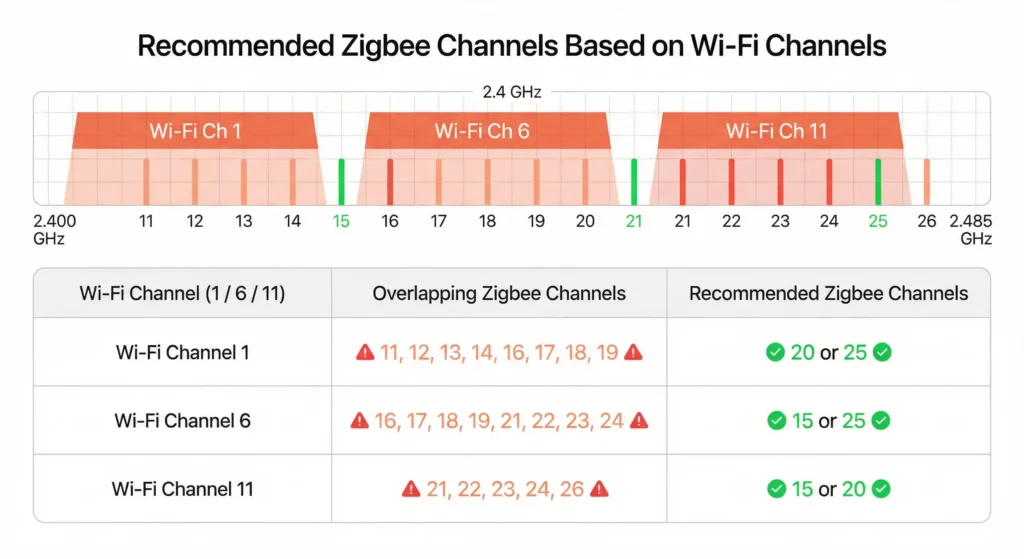
Then choose a Zigbee channel that avoids the strongest Wi‑Fi channel:
- If Wi‑Fi uses channel 1, use Zigbee 15, 20 or 25.
- If Wi‑Fi uses channel 6, use Zigbee 20 or 25.
- If Wi‑Fi uses channel 11, use Zigbee 15 or 20.
Note: Changing Zigbee channel is disruptive; most devices will need to rejoin. Do it only once you’re reasonably sure interference is a problem.
Step 6 – Add or Reposition Zigbee Routers
- Add at least a few good-quality Zigbee routers:
- Smart plugs from reputable brands
- Known-stable routers (check community recommendations for your integration)
- Place them:
- About every 5–10 meters between coordinator and far devices
- Near concrete or brick walls where signals must pass
- After adding routers, give the mesh a few hours (or a day) to rebuild routes.
Step 7 – Check Host Resources and USB Health
- Monitor CPU / RAM / load:
- In HA: Settings → System → Hardware → System information
- Or via SSH using htop.
- If load is consistently high:
- Reduce logging
- Stop heavy add-ons temporarily (e.g., media servers, database-heavy tools).
- Use a powered USB hub if:
- You have multiple USB devices (SSD, sticks, etc.).
- You’re on a Raspberry Pi or small SBC.
Step 8 – Update Firmware and Integrations
- Update:
- Home Assistant Core to the latest stable
- ZHA or Zigbee2MQTT add-on
- Check if your coordinator has a recommended firmware version:
- Follow official docs for your specific dongle (e.g., Sonoff, SkyConnect, ConBee).
- For problematic devices, see if OTA (over-the-air) firmware updates are available via your integration.
Step 9 – If Using Multi-PAN (Zigbee + Thread on One Stick), Consider Splitting
If you’re on SkyConnect/Yellow or any multi-protocol stick:
- Decide which is more critical right now:
- Rock solid Zigbee? Use the stick for Zigbee only, offload Thread/Matter to another border router.
- Experimental Matter? Keep both, but accept some Zigbee instability.
- Long-term best practice:
- One dedicated Zigbee radio
- One dedicated Thread/Matter border router
Step 10 – Monitor for 48 Hours
After changes, give your network time:
- Watch:
- How often sensors go offline
- Latency of automations triggered by Zigbee devices
- Check logs again after a day or two.
If dropouts continue, revisit:
- Radio placement
- Channel choice
- Multi-PAN vs dedicated radios
Real-World Examples
Example 1 – SkyConnect Multi-PAN Causing Aqara Sensor Dropouts
Ahmed has:
- Home Assistant on a Raspberry Pi 4
- A SkyConnect dongle
- 25+ Zigbee 3.0 sensors (mostly Aqara)
Everything was stable until he enabled Thread on the SkyConnect to test some Matter plugs. Within a day:
- Several door sensors started showing as “unavailable” in Home Assistant.
- Automations triggered by those sensors failed randomly.
What fixed it:
- Ahmed bought a dedicated Zigbee USB stick (Sonoff ZBDongle-P).
- He moved all Zigbee devices to the new stick (ZHA).
- He left SkyConnect running Thread only, for Matter devices.
- He put both sticks on short USB extension cables.
Result: Zigbee sensors stayed online for weeks, and Matter devices also worked reliably.
Example 2 – New Matter Hub Next to Router Killing Zigbee Range
Sara added an Aqara Matter-compatible hub near her Wi‑Fi router and Home Assistant machine. Her ConBee II stick was plugged directly into the NUC’s back port, about 20 cm from the router and the Aqara hub.
After a few hours:
- Zigbee sensors on the far side of the house started dropping offline.
- Some came back intermittently; others stayed unavailable.
What fixed it:
- She moved the ConBee II onto a 2 m USB extension and placed it in the center of the house, away from the router and Aqara hub.
- She added two Zigbee smart plugs as routers in the hallway and upstairs.
Result: Zigbee coverage improved, and offline issues disappeared, even with the Matter hub still active.
Best Practices When Running Zigbee and Matter Together
- Use separate radios for Zigbee and Thread/Matter when possible.
- Keep physical separation between:
- Zigbee coordinator
- Wi‑Fi routers
- Matter hubs / border routers
- Use USB extension cables for Zigbee sticks—don’t leave them buried behind metal cases.
- Carefully choose Wi‑Fi and Zigbee channels to reduce overlap.
- Build a strong Zigbee mesh with plenty of routers, not just battery sensors.
- Avoid making major network changes repeatedly; let Zigbee devices stabilize.
- Keep firmware and Home Assistant up to date, but be cautious jumping onto experimental branches if stability is your priority.
FAQ – Zigbee 3.0, Matter Bridges, and Home Assistant
1. Does Matter actually interfere with Zigbee?
Not at the protocol level, but the radios behind Matter (Thread, Wi‑Fi) use the same 2.4 GHz band as Zigbee, which can cause interference if not managed well. It’s usually a radio placement and channel choice issue, not a protocol conflict.
2. Is it safe to run Zigbee and Thread on the same USB stick (multi-PAN)?
It can work, but:
- The radio is time-shared between Zigbee and Thread.
- Under load (many Matter/Thread devices), you can see:
- Increased latency
- More packet loss
- Sleeping Zigbee devices dropping offline
For reliability, dedicated radios are strongly recommended.
3. How far should my Zigbee coordinator be from my router and Matter hub?
Aim for:
- At least 50 cm distance as an absolute minimum
- 1–2 meters is much better, ideally using a USB extension cable
Avoid placing the Zigbee stick directly on top of or behind:
- Wi‑Fi router
- Matter hub
- Metallic PC cases or TVs
4. Which Zigbee channel should I use with a Matter bridge?
Depends on your Wi‑Fi setup:
- If Wi‑Fi is on channel 1 → Zigbee 15, 20, or 25
- If Wi‑Fi is on channel 6 → Zigbee 20 or 25
- If Wi‑Fi is on channel 11 → Zigbee 15 or 20
You also want to avoid the Thread channel if you know it, but not all devices expose that. Focus on escaping the busiest Wi‑Fi channel first.
5. My Zigbee device shows as “offline” but still triggers automations. Why?
Many integrations mark a device as “unavailable” if it:
- Hasn’t checked in for a while
- Missed several polls or pings
But if the device is event-based (like a button or contact sensor), it may still send events when triggered, and those will work. The “offline” state just means the last status update or poll failed.
6. How many Zigbee devices can one coordinator handle?
Rough rules of thumb:
- Many coordinators handle 40–60 direct children comfortably.
- With good routers, networks of 100–200 devices (and more) are possible.
However:
- The more devices, the more important:
- Good routing topology
- Clean RF environment
- Sufficient system resources become.
7. Should I use ZHA or Zigbee2MQTT with Matter?
Both can work well with Matter in Home Assistant. Choice often comes down to:
- ZHA:
- Built directly into Home Assistant
- Simpler setup
- Zigbee2MQTT:
- More detailed device control
- Very broad device support
Matter itself is a separate integration. The main concern is radio hardware and placement, not which Zigbee integration you pick.
8. Will switching to 5 GHz or Wi‑Fi 6E help Zigbee?
Yes, it can help indirectly:
- Moving as many clients as possible to 5 GHz or 6 GHz (Wi‑Fi 6E):
- Reduces contention on 2.4 GHz
- Leaves more “space” for Zigbee and Thread
- Keep 2.4 GHz mainly for:
- Legacy devices
- IoT that can’t use 5 GHz
9. Do I need a separate hub just for Matter?
Not necessarily:
- Many Matter devices work fine with:
- A dedicated Thread border router (Nest Hub, Apple TV, etc.)
- Or multi-protocol dongles (with caveats above)
- If you’re seeing Zigbee instability, adding a separate Thread/Matter hub and using your current stick for Zigbee only is often a clean solution.
10. How often should Zigbee 3.0 sensors check in?
It varies by device and manufacturer, but common patterns:
- Battery sensors:
- Check in every few minutes to a few hours with heartbeat/status
- Immediately send updates when state changes (door opens, motion detected)
- Routers (powered devices):
- Stay online and route constantly
A sensor not checking in for many hours or days may be offline—or just sleeping deeply and misconfigured. Logs and network maps will tell you more.
If you work through the steps above—especially separating radios, optimizing channels, strengthening the Zigbee mesh, and avoiding multi-PAN overload—you can usually restore a rock-solid Zigbee 3.0 network, even with a Matter bridge fully integrated into Home Assistant.