

Table of Contents
- Introduction: A Frustrating Smart Home Mystery
- Understanding the Zigbee and Wi-Fi Frequency Overlap
- What Exactly Happens When You Enable Guest Wi-Fi
- Real World Scenario: How I Discovered the Problem
- The Science Behind 2.4 GHz Channel Interference
- Step by Step Guide to Fix Zigbee Disruption Caused by Guest Wi-Fi
- How to Choose the Right Wi-Fi Channel to Avoid Zigbee Conflicts
- Router Settings That Protect Your Zigbee Network
- Best Practices for Running Guest Wi-Fi and Zigbee Together
- Real User Experiences and Lessons Learned
- Tools to Diagnose Wi-Fi and Zigbee Interference
- FAQ: Guest Wi-Fi and Zigbee Gateway Issues
- Final Thoughts
Introduction: A Frustrating Smart Home Mystery
Imagine spending weeks carefully building your smart home from the ground up. Your Zigbee lights respond in a heartbeat. Your motion sensors operate with flawless precision. Your smart locks communicate with the gateway without a single interruption. Everything runs exactly the way it should, until one evening when a friend stops by, and you decide to activate your guest Wi-Fi network so they can browse the internet without gaining access to your primary network.
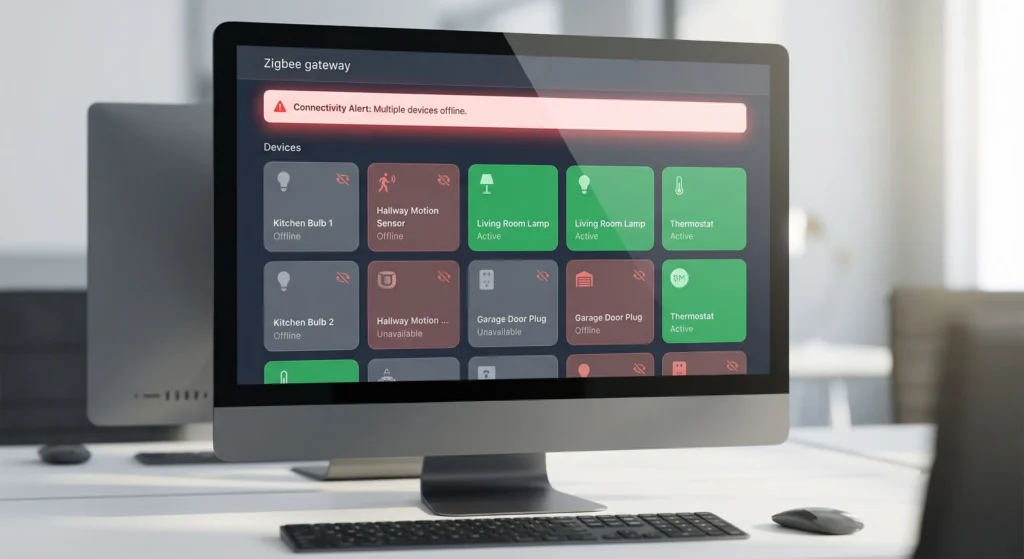
Within just a few minutes, things start going wrong. Your Zigbee devices begin falling offline one after another. The gateway loses its connection to sensors. Lights refuse to respond to any command. You stand there completely puzzled, wondering what happened, even though you never touched a single setting in your smart home configuration.
If this scenario sounds all too familiar, rest assured you are not alone. This is one of the most widespread yet frequently overlooked issues in smart home environments. The real question is: how exactly can guest Wi-Fi disrupt Zigbee gateway connectivity so suddenly and without warning? The answer lies deep in radio frequency physics, and once you truly understand the root cause, the solution turns out to be far simpler than you might expect.
In this article, I will break down the exact science behind this problem, share real-world experiences from users who dealt with the very same situation, and provide you with practical, field-tested solutions that have been proven to work.
Understanding the Zigbee and Wi-Fi Frequency Overlap
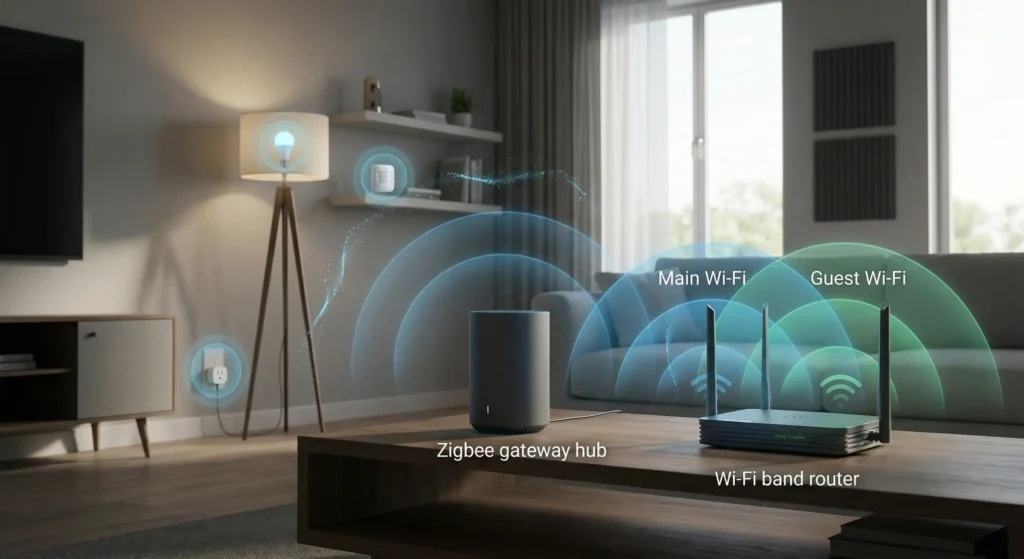
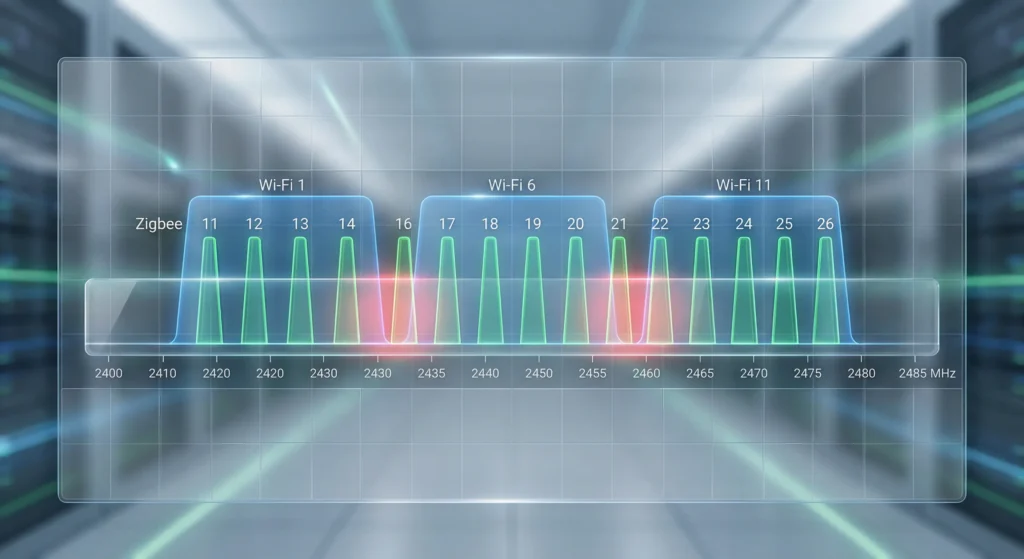
To understand why guest Wi-Fi causes problems for Zigbee, you first need to know one critical fact: both Zigbee and Wi-Fi operate on the 2.4 GHz frequency band.
Zigbee uses channels 11 through 26 in the 2.4 GHz spectrum. Wi-Fi also operates on channels 1 through 13 in many regions, with channels 1, 6, and 11 being the most commonly used non-overlapping channels.
Here is where the problem gets real. Zigbee channel 25, for example, overlaps directly with Wi-Fi channel 11. Zigbee channels 15 and 16 overlap with Wi-Fi channel 1. When your router broadcasts on a Wi-Fi channel that shares the same frequency space as your Zigbee channel, the two signals compete for the same airspace.
Under normal conditions with just your primary Wi-Fi network, your Zigbee gateway may handle this competition reasonably well. But when you add a guest network, you are essentially doubling the Wi-Fi traffic on that same frequency, creating a much noisier environment for your Zigbee devices.
Why Zigbee Is More Vulnerable Than You Think
Zigbee is a low power protocol. It was designed to use minimal energy so that battery powered sensors and devices could last for months or even years. This low power design means Zigbee signals are inherently weaker than Wi-Fi signals. When a high power Wi-Fi transmission floods the same frequency space, the Zigbee signal gets drowned out like someone whispering in a room full of people shouting.
What Exactly Happens When You Enable Guest Wi-Fi
When you activate the guest Wi-Fi feature on your router, several things happen simultaneously that affect your Zigbee network.
Additional SSID Broadcasting
Your router starts broadcasting an additional SSID. This means more beacon frames are being sent out regularly. These beacon frames occupy airtime on the 2.4 GHz band, increasing the overall noise level.
Increased Channel Utilization
Even if no one connects to the guest network immediately, the router is still actively transmitting management frames. Once someone does connect, the data traffic adds even more congestion to the channel.
Potential Channel Width Changes
Some routers automatically adjust channel width settings when guest mode is enabled. A router might switch from a 20 MHz channel width to 40 MHz to accommodate more users, which spreads the Wi-Fi signal across a wider portion of the 2.4 GHz spectrum and overlaps with more Zigbee channels.
Power Level Adjustments
Certain router models increase their transmission power when guest networks are activated to ensure broader coverage for visitors. This amplified signal further overwhelms nearby Zigbee devices.
Real World Scenario: How I Discovered the Problem
Let me share a real experience that perfectly illustrates this issue.
A smart home enthusiast named Mark had been running a Zigbee network with over 30 devices, including Philips Hue bulbs, Aqara motion sensors, and Sonoff door sensors, all connected through a Sonoff Zigbee Bridge Pro. His setup worked flawlessly for over six months.
One weekend, Mark hosted a small gathering and enabled his router’s guest Wi-Fi so his visitors could connect without sharing his main password. Within 30 minutes, his Zigbee motion sensors stopped triggering automations. Two of his smart bulbs became unresponsive. His door sensor reported as “unavailable” in Home Assistant.
Mark initially blamed the Zigbee gateway. He restarted it. He re-paired devices. Nothing worked consistently. It was only after his guests left and he disabled the guest network that everything returned to normal.
After researching the issue, Mark discovered that his router’s guest network was broadcasting on Wi-Fi channel 6, which directly overlapped with his Zigbee network operating on channel 20. The additional RF noise from the guest network was enough to push the interference past the threshold his Zigbee devices could handle.
The Science Behind 2.4 GHz Channel Interference
Let me break down the technical relationship between Wi-Fi and Zigbee channels so you can see exactly where conflicts occur.
Channel Mapping Table
| Wi-Fi Channel | Wi-Fi Frequency Range | Overlapping Zigbee Channels |
|---|---|---|
| Channel 1 | 2.401 to 2.423 GHz | Zigbee 11, 12, 13, 14, 15 |
| Channel 6 | 2.426 to 2.448 GHz | Zigbee 16, 17, 18, 19, 20 |
| Channel 11 | 2.451 to 2.473 GHz | Zigbee 21, 22, 23, 24, 25 |
The Safest Zigbee Channel
Based on this mapping, Zigbee channel 25 or channel 26 is often recommended as the safest option because channel 26 sits at the very edge of the 2.4 GHz spectrum (2.480 GHz) and has minimal overlap with standard Wi-Fi channels. However, not all Zigbee devices support channel 26, so channel 25 is frequently the most practical choice.
Why Guest Wi-Fi Makes It Worse
Your primary Wi-Fi network already creates some level of interference. Your Zigbee network learns to cope with it through retransmissions and adaptive behavior. But adding a guest network is like adding a second loud speaker in the same room. The cumulative noise crosses a tipping point, and Zigbee communications start failing consistently rather than occasionally.
Step by Step Guide to Fix Zigbee Disruption Caused by Guest Wi-Fi
Here are practical, tested solutions you can implement right now to resolve this issue.
Step 1: Identify Your Current Wi-Fi and Zigbee Channels
Before making any changes, you need to know what channels both networks are using.
For Wi-Fi, log into your router’s admin panel (usually at 192.168.1.1 or 192.168.0.1) and check the wireless settings. Note the channel your 2.4 GHz network is using.
For Zigbee, open your Zigbee gateway’s management interface. In platforms like Zigbee2MQTT, you can find the channel in the settings section. In the Philips Hue app, go to Settings then Hue Bridge then Channel.
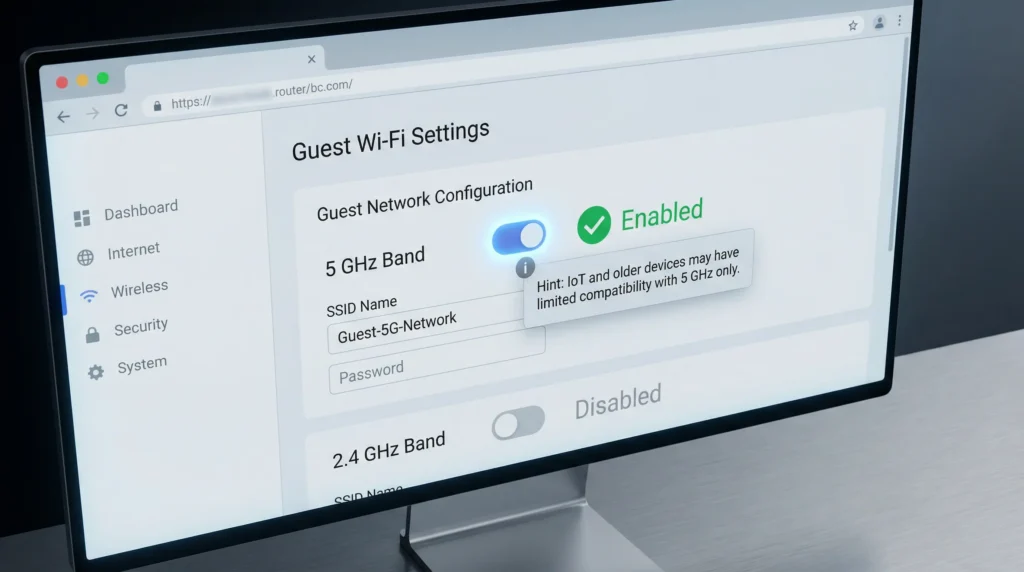
Step 2: Move Your Guest Wi-Fi to the 5 GHz Band Only
This is the quickest and most effective fix. Most modern routers allow you to configure the guest network to broadcast only on the 5 GHz band. Since Zigbee operates exclusively on 2.4 GHz, a 5 GHz guest network will not cause any interference whatsoever.
To do this, access your router settings and look for the guest network configuration. Disable the 2.4 GHz guest SSID and keep only the 5 GHz version active.
Step 3: Change Your Wi-Fi Channel to Avoid Zigbee Overlap
If you must keep the guest network on 2.4 GHz, change your Wi-Fi channel to one that does not overlap with your Zigbee channel. Refer to the mapping table above and select a combination that creates maximum separation.
For example, if your Zigbee network runs on channel 25, set your Wi-Fi to channel 1. If your Zigbee runs on channel 15, set your Wi-Fi to channel 11.
Step 4: Change Your Zigbee Channel
If changing the Wi-Fi channel is not practical, you can change the Zigbee channel instead. Be aware that changing the Zigbee channel usually requires re-pairing all your Zigbee devices, so plan accordingly.
Move your Zigbee network to channel 25 or 26 for the least interference from Wi-Fi.
Step 5: Physically Separate the Router and Zigbee Gateway
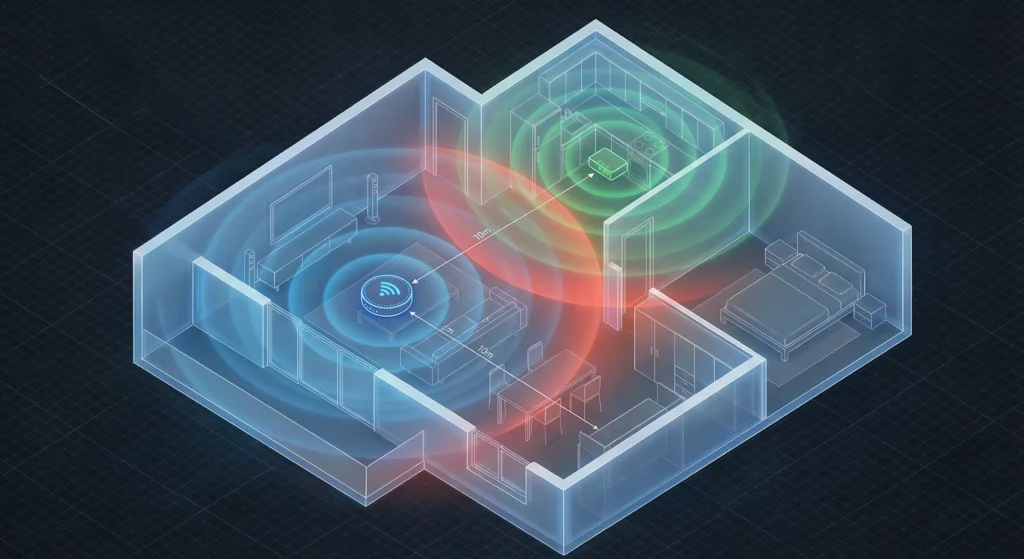
Place your Zigbee gateway at least 2 to 3 meters away from your Wi-Fi router. Physical distance reduces the direct impact of RF interference. Avoid placing them on the same shelf or desk.
Step 6: Reduce Router Transmission Power for Guest Network
Many enterprise and prosumer routers allow you to adjust the transmission power for individual SSIDs. Lower the guest network’s power to the minimum level that still provides adequate coverage for your visitors.
How to Choose the Right Wi-Fi Channel to Avoid Zigbee Conflicts
Choosing the right channel combination is essential for long term stability. Here is a decision framework that works.
If Your Zigbee Is on Channel 25 or 26
Set your Wi-Fi (both main and guest) to channel 1. This creates the maximum frequency separation between the two technologies.
If Your Zigbee Is on Channel 11 or 12
Set your Wi-Fi to channel 11. This keeps Wi-Fi at the upper end of the spectrum while your Zigbee stays at the lower end.
If You Cannot Change Either Channel
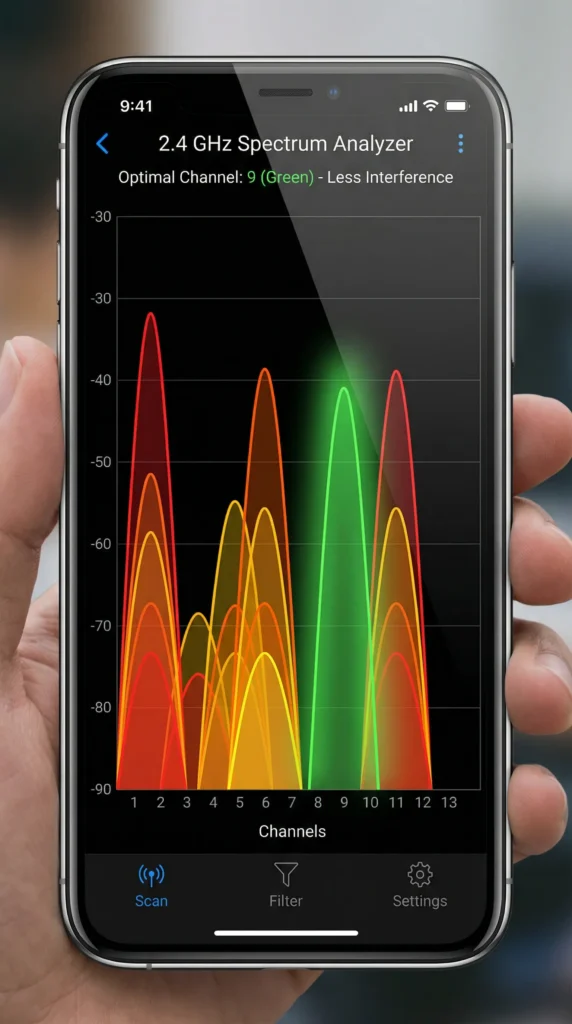
Use a Wi-Fi analyzer app to find the least congested channel in your environment. Apps like WiFi Analyzer for Android or NetSpot for Windows and Mac can show you real time channel congestion data.
The Golden Rule
The best combination for most homes is Wi-Fi on channel 1 and Zigbee on channel 25. This setup provides the greatest frequency gap and works reliably even with guest networks active.
Router Settings That Protect Your Zigbee Network
Beyond channel selection, several router settings can help minimize Zigbee disruption.
Disable 2.4 GHz Band for Guest Network
As mentioned earlier, this is the most effective setting change. Force your guest network to use 5 GHz exclusively.
Use 20 MHz Channel Width on 2.4 GHz
Avoid using 40 MHz channel width on the 2.4 GHz band. While wider channels offer faster speeds, they also occupy more spectrum and increase the likelihood of overlapping with Zigbee channels. A 20 MHz width is sufficient for typical 2.4 GHz usage.
Enable Band Steering
If your router supports band steering, enable it. This feature automatically pushes capable devices to the 5 GHz band, reducing traffic on the 2.4 GHz band and lowering interference with Zigbee.
Disable Airtime Fairness on 2.4 GHz
Some routers have an Airtime Fairness feature that increases management frame transmission on the 2.4 GHz band. Disabling this can reduce unnecessary RF noise.
Set a Client Limit on Guest Network
Limit the number of devices that can connect to your guest network. Fewer connected devices mean less 2.4 GHz traffic and less interference potential.
Best Practices for Running Guest Wi-Fi and Zigbee Together
You do not have to choose between guest Wi-Fi and a reliable Zigbee network. Follow these best practices to run both harmoniously.
1. Always separate frequencies. Keep Zigbee and Wi-Fi on non-overlapping channels. Treat this as a mandatory configuration step, not an optional optimization.
2. Position your gateway strategically. Place your Zigbee coordinator in a central location, away from the router, microwave ovens, baby monitors, and other 2.4 GHz devices.
3. Build a strong Zigbee mesh. Add Zigbee router devices (like smart plugs that stay powered on) throughout your home. A stronger mesh network is more resilient to occasional interference.
4. Monitor your network regularly. Check your Zigbee network’s link quality indicators periodically. If you notice declining signal quality, investigate whether new Wi-Fi networks or devices have been added to your environment.
5. Update firmware consistently. Keep both your Wi-Fi router and Zigbee gateway firmware updated. Manufacturers frequently release updates that improve interference handling and channel management.
6. Schedule guest Wi-Fi. If you only need guest Wi-Fi occasionally, set up a schedule so it automatically turns off when not needed. This eliminates unnecessary interference during most hours.
Real User Experiences and Lessons Learned
Experience 1: The Aqara Hub and Netgear Orbi Conflict
A user on the Home Assistant community forums reported that their Aqara M2 hub lost connection with 15 sensors every time the Netgear Orbi’s guest network was activated. The Orbi was using Wi-Fi channel 6, and the Aqara hub defaulted to Zigbee channel 20, which falls directly in the overlap zone.
The solution was straightforward. The user switched the Orbi’s 2.4 GHz to channel 1 and moved the Aqara hub to Zigbee channel 25. The problem never returned, even with the guest network running continuously.
Experience 2: The SmartThings Hub and TP-Link Router Issue
Another user discovered that their SmartThings hub became unreliable whenever guests connected to their TP-Link Archer router’s guest network. The root cause was that the TP-Link router automatically increased transmission power when the guest SSID was enabled.
The fix involved manually setting the router’s 2.4 GHz transmission power to medium instead of high and enabling band steering to push guest devices to 5 GHz.
Experience 3: The Zigbee2MQTT and UniFi Setup
A more advanced user running Zigbee2MQTT with a Sonoff Zigbee 3.0 USB Dongle Plus noticed packet loss spikes correlating exactly with guest network activation on their UniFi Dream Machine. After analyzing the Zigbee network map, they found that edge devices (those farthest from the coordinator) were most affected because their already weak signals were most susceptible to additional interference.
Adding two Zigbee router devices (IKEA Tradfri smart plugs) near the affected sensors completely resolved the issue by strengthening the mesh and providing alternative communication paths.
Tools to Diagnose Wi-Fi and Zigbee Interference
Having the right diagnostic tools makes troubleshooting much faster.
Free Tools
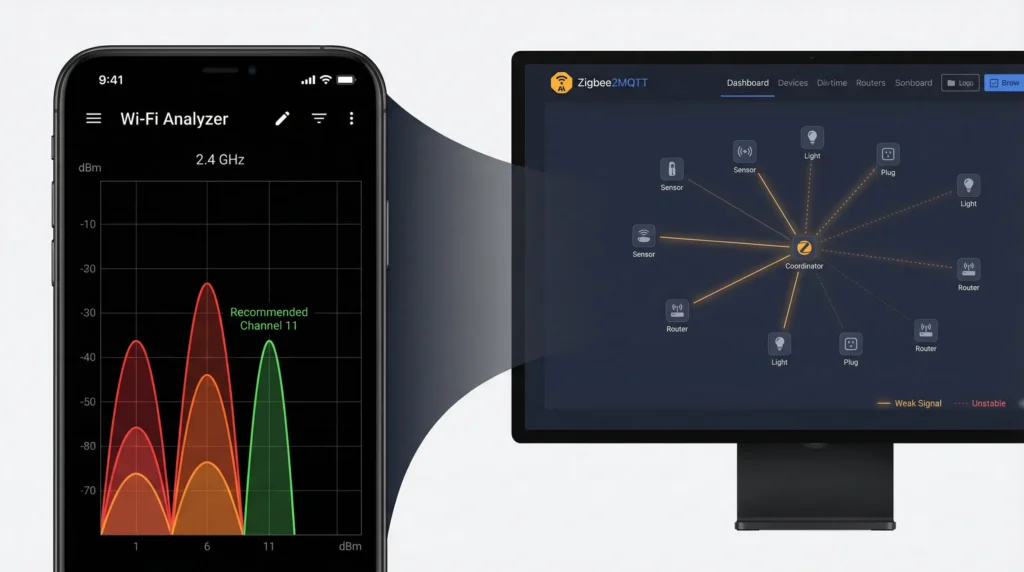
WiFi Analyzer (Android) helps you see which Wi-Fi channels are in use around your home and how congested they are. Available on Google Play Store.
Zigbee2MQTT Network Map provides a visual representation of your Zigbee network, showing link quality between devices. Built into Zigbee2MQTT.
NetSpot (Windows/Mac) offers detailed Wi-Fi analysis including signal strength heat maps. The free version covers basic channel analysis.
Advanced Tools
Ubiquiti WiFiman provides detailed RF environment scanning and is particularly useful if you run Ubiquiti network equipment.
deCONZ by Dresden Elektronik includes Zigbee network visualization tools that show channel quality and interference levels.
Wireshark with Zigbee Sniffer allows packet level analysis of Zigbee communications for advanced troubleshooting.
FAQ: Guest Wi-Fi and Zigbee Gateway Issues
Does guest Wi-Fi always interfere with Zigbee?
Not always. Interference depends on the specific Wi-Fi and Zigbee channels being used, the physical distance between the router and gateway, and the overall RF environment. If your channels are well separated, you may never experience this issue.
Can I use both guest Wi-Fi and Zigbee at the same time?
Absolutely. The key is proper channel planning. Set your Wi-Fi and Zigbee on non-overlapping channels, and both can coexist without problems. Many households run both simultaneously with zero issues.
Will switching to a Zigbee 3.0 device solve this problem?
Zigbee 3.0 devices have improved interference handling compared to older versions, but they still operate on 2.4 GHz and remain susceptible to strong Wi-Fi interference. Proper channel planning is still necessary.
Does 5 GHz Wi-Fi interfere with Zigbee?
No. Zigbee operates exclusively on 2.4 GHz. The 5 GHz band is completely separate and does not cause any interference with Zigbee devices.
How do I know if Wi-Fi is causing my Zigbee issues?
The clearest indicator is timing. If your Zigbee problems started when you enabled guest Wi-Fi or added a new Wi-Fi network, interference is the likely cause. You can confirm by temporarily disabling the guest network and observing whether Zigbee stability improves.
Will a Zigbee USB dongle with an extension cable help?
Yes. Using a USB extension cable (at least 1 meter) to move your Zigbee coordinator away from your computer and router reduces direct interference and is a widely recommended practice.
Can other devices cause similar Zigbee interference?
Yes. Bluetooth devices, microwave ovens, baby monitors, wireless cameras, and cordless phones can all operate on or near the 2.4 GHz band and cause similar disruption to Zigbee networks.
How many Zigbee router devices do I need for a stable mesh?
A general recommendation is one Zigbee router device for every 5 to 7 end devices, or one per room. More router devices create a stronger, more resilient mesh that can better withstand interference.
Final Thoughts
The disruption of Zigbee gateway connectivity when turning on guest Wi-Fi is not a bug in your equipment. It is a predictable consequence of two wireless technologies sharing the same frequency space. The 2.4 GHz band is crowded, and every additional signal source you add increases the chance of conflicts.
The good news is that this problem is entirely solvable. By understanding the channel overlap between Wi-Fi and Zigbee, making informed decisions about channel assignments, and following the practical steps outlined in this guide, you can run your guest Wi-Fi and Zigbee smart home devices side by side without any disruption.
Start with the easiest fix: move your guest Wi-Fi to 5 GHz only. If that is not possible, adjust your channels so Wi-Fi and Zigbee are as far apart as possible in the frequency spectrum. Strengthen your Zigbee mesh with router devices. Keep your equipment physically separated.
Your smart home should work for you, not against you. A few minutes of proper configuration today can save you hours of troubleshooting tomorrow.