Table of Contents
- Introduction
- What Are Home Assistant Cloud Callbacks?
- How Firewalls Interact with Home Assistant
- Common Reasons Your Firewall Blocks Cloud Callbacks
- Real Scenario: When Google Home Stops Responding
- Step by Step: How to Fix Firewall Blocking Home Assistant Cloud
- Firewall Settings for Popular Routers and Security Tools
- Safe Practices: What You Should Never Do
- Real User Experiences
- FAQ
- Final Thoughts
Introduction
You have spent hours configuring your smart home setup. Everything runs smoothly over your local network. But the moment you try to control your lights through Google Assistant or Alexa while you are away, nothing responds. You dig into the logs and discover the real problem: your firewall block Home Assistant cloud callbacks from reaching your system.
I completely understand how maddening this can be. I have worked with Home Assistant for years, and this ranks among the most common issues that frustrate users. The good news is that it is nearly always fixable once you grasp what is really going on behind the scenes.
In this guide, I will explain exactly why your firewall blocks these cloud callbacks, what role they actually play in your smart home ecosystem, and how to resolve the issue safely without putting your network security at risk. No unnecessary exposure. No opening random ports to the outside world. Just straightforward, practical solutions that deliver real results.
What Are Home Assistant Cloud Callbacks?
Before we dive into the fix, let me explain what cloud callbacks actually are. This understanding will save you from making wrong assumptions.
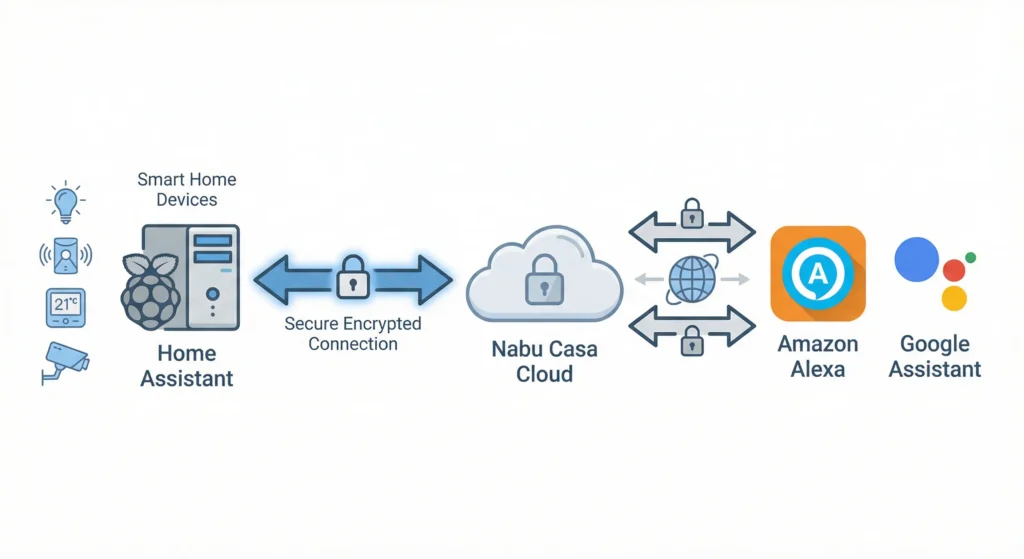
Home Assistant Cloud, powered by Nabu Casa, acts as a bridge between your local Home Assistant instance and external services like Google Home, Amazon Alexa, and Apple HomeKit. When you ask Google to turn off your bedroom lights, the request follows this path:
- Your voice command reaches Google servers
- Google sends the request to Nabu Casa cloud servers
- Nabu Casa sends a “callback” to your local Home Assistant instance
- Home Assistant executes the command locally
- A confirmation travels back through the same chain
The callback is that incoming message from Nabu Casa to your Home Assistant. Your firewall sees this incoming connection and, depending on its configuration, might treat it as an unwanted intrusion.
Why Callbacks Are Different from Regular Traffic
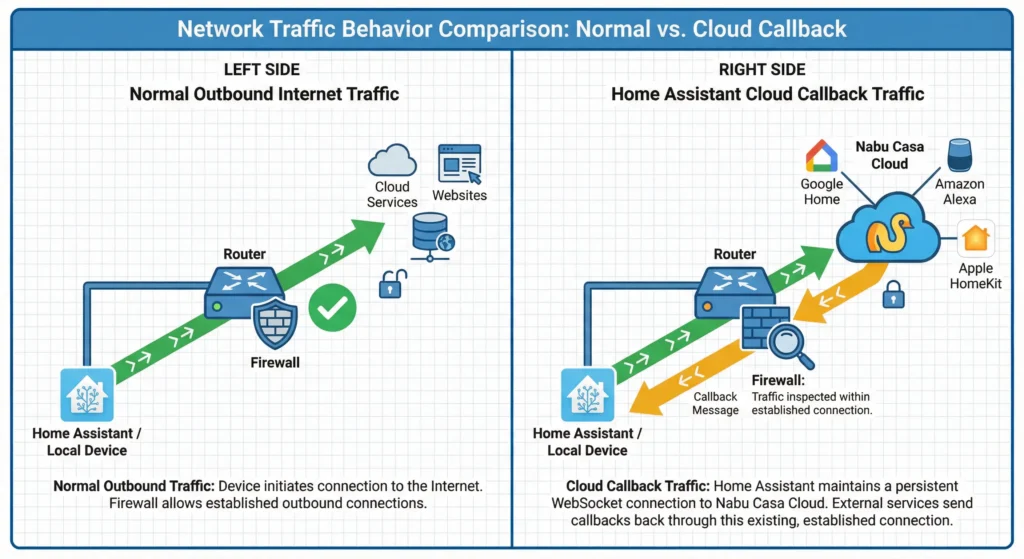
Regular outbound traffic from your network is usually allowed by default. You browse the web, stream videos, and download files without issues. But callbacks involve an external server initiating communication with a device inside your network, and that is exactly what firewalls are designed to scrutinize.
The key detail here is that Home Assistant Cloud uses a persistent WebSocket connection. Your Home Assistant instance reaches out to the Nabu Casa servers first, establishing an outbound connection. Callbacks then travel through this already established connection. So technically, your firewall should not block them, but sometimes it does anyway.
Scene layout: split the image into two sections for comparison.
LEFT SIDE — Normal Outbound Internet Traffic
- Show a home network with a router and firewall
- A device labeled “Home Assistant / Local Device”
- Arrow going outward through the firewall to the Internet
- Destination icons like websites or cloud services
- Label: “Normal Outbound Traffic”
- Indicate that the firewall allows the connection
- Simple green checkmark near the firewall
RIGHT SIDE — Home Assistant Cloud Callback Traffic
- Show Home Assistant connecting to “Nabu Casa Cloud” with a persistent WebSocket connection
- From Nabu Casa cloud show a callback message traveling back through the same connection
- Show the firewall inspecting the traffic
- Label elements: “Home Assistant”, “Nabu Casa Cloud”, “Firewall”, “Callback”
- Illustrate the callback traveling through the already established connection
- Include icons for Google Home, Amazon Alexa, Apple HomeKit connected to the cloud
Design style:
modern flat vector infographic, clean network architecture diagram, minimalistic icons, clear labeled arrows, cybersecurity style illustration
Color scheme:
blue and grey for infrastructure, green for allowed traffic, orange or yellow for inspected callback traffic
Background:
clean white or light grid background similar to technical documentation diagrams
Additional details:
high resolution”
include lock/security icons
clear directional arrows
balanced layout
professional IT documentation style
How Firewalls Interact with Home Assistant
To fix this problem, you need a basic understanding of how your firewall evaluates traffic related to Home Assistant.
Stateful Packet Inspection
Most modern firewalls use stateful packet inspection (SPI). This means they track active connections and allow return traffic for connections that were initiated from inside your network. Since Home Assistant opens the WebSocket connection to Nabu Casa first, the return traffic should be allowed.
However, some firewalls have aggressive timeout settings. If the WebSocket connection appears idle for too long, the firewall drops it from its connection table. When a callback arrives after the connection has been dropped, the firewall sees it as unsolicited incoming traffic and blocks it.
Deep Packet Inspection (DPI)
Some advanced firewalls and security appliances perform deep packet inspection. They examine the actual content of network packets, not just the headers. If the DPI engine does not recognize the WebSocket protocol or flags encrypted traffic it cannot inspect, it may block the connection entirely.
DNS Filtering and Security Suites
Third party security solutions like Pi-hole, pfSense with pfBlockerNG, or enterprise grade firewalls sometimes block the domains that Nabu Casa uses for cloud communication. This is not intentional blocking of Home Assistant specifically. It happens because these tools use broad blocklists that may include cloud relay services.
Common Reasons Your Firewall Blocks Cloud Callbacks
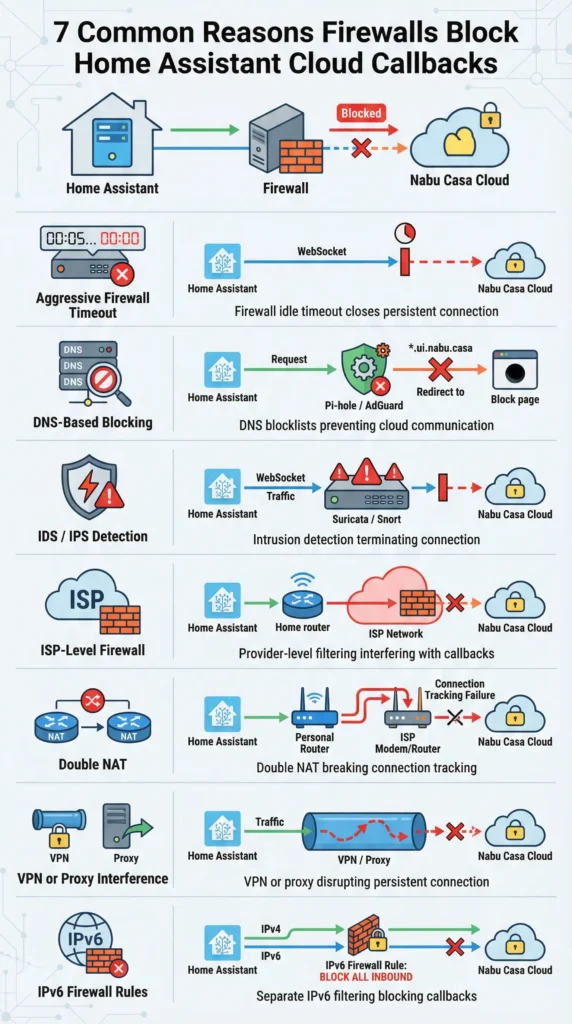
Based on years of troubleshooting and community discussions, here are the most frequent causes I have seen:
1. Aggressive Firewall Timeout Settings
Your router or firewall drops idle connections after a set period, typically 60 to 300 seconds. Since WebSocket connections can be quiet between commands, the firewall terminates them.
2. DNS Based Blocking
Services like Pi-hole or AdGuard Home may block Nabu Casa domains if they appear on certain blocklists. The domains used include variations of *.ui.nabu.casa and related cloud endpoints.
3. Intrusion Detection or Prevention Systems (IDS/IPS)
If you run Suricata, Snort, or similar IDS/IPS tools on your network, they might flag the persistent WebSocket connection as suspicious behavior and terminate it.
4. ISP Level Firewalls
Some internet service providers apply their own firewall rules, especially on business connections or in certain regions. These can interfere with WebSocket connections.
5. Double NAT Issues
If your network has two routers performing NAT (for example, an ISP modem/router combo plus your own router), the connection tracking can break down, causing callbacks to fail.
6. VPN or Proxy Interference
Running a VPN on your network or routing Home Assistant traffic through a proxy can disrupt the persistent connection needed for cloud callbacks.
7. IPv6 Firewall Rules
Many routers have separate firewall rules for IPv6 traffic. If Home Assistant attempts to use IPv6 for cloud communication and your IPv6 firewall is overly restrictive, callbacks will fail.
Real Scenario: When Google Home Stops Responding
Let me share a situation I encountered that perfectly illustrates this problem.
A user named Mark (shared with permission from a community forum) had a fully functional Home Assistant setup with Nabu Casa. Google Home worked flawlessly for three weeks. Then he installed pfSense as his new router/firewall to improve network security.
After the switch, Google Home commands started failing intermittently. Sometimes they worked. Sometimes Google responded with “Sorry, I could not reach Home Assistant.” The local dashboard worked perfectly. Remote access through Nabu Casa’s web interface worked too, but voice assistant callbacks were unreliable.
What Was Happening
pfSense’s default state table timeout for TCP connections was set to 24 hours, which was fine. But the “adaptive” timeout feature was enabled, which dynamically reduces timeouts when the state table gets crowded. During peak usage times (evening, when the family was streaming, gaming, and browsing), the adaptive timeout kicked in and aggressively pruned what it considered idle connections, including the WebSocket connection to Nabu Casa.
How He Fixed It
Mark adjusted the adaptive timeout thresholds in pfSense under System > Advanced > Firewall & NAT. He increased the “Adaptive start” value and disabled the aggressive pruning. He also created a specific firewall rule for his Home Assistant server’s IP address with a longer state timeout. Problem solved permanently.
This is exactly the kind of subtle issue that can drive you crazy if you do not know where to look.
Step by Step: How to Fix Firewall Blocking Home Assistant Cloud
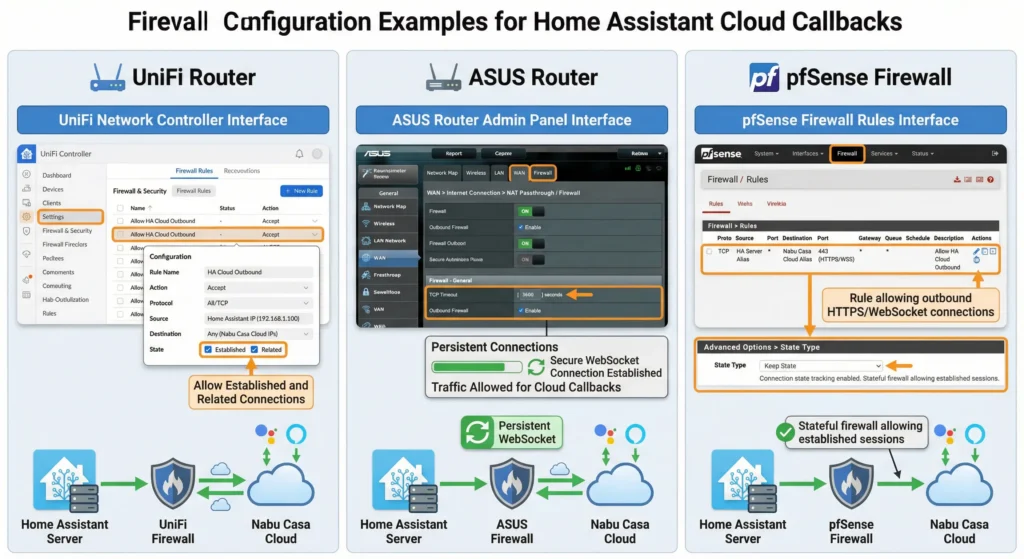
Here is a systematic approach to diagnose and fix this issue. Follow these steps in order, as each one builds on the previous.
Step 1: Verify the Problem Is Actually Firewall Related
Before changing firewall settings, confirm that the firewall is the actual cause.
Check Home Assistant Logs:
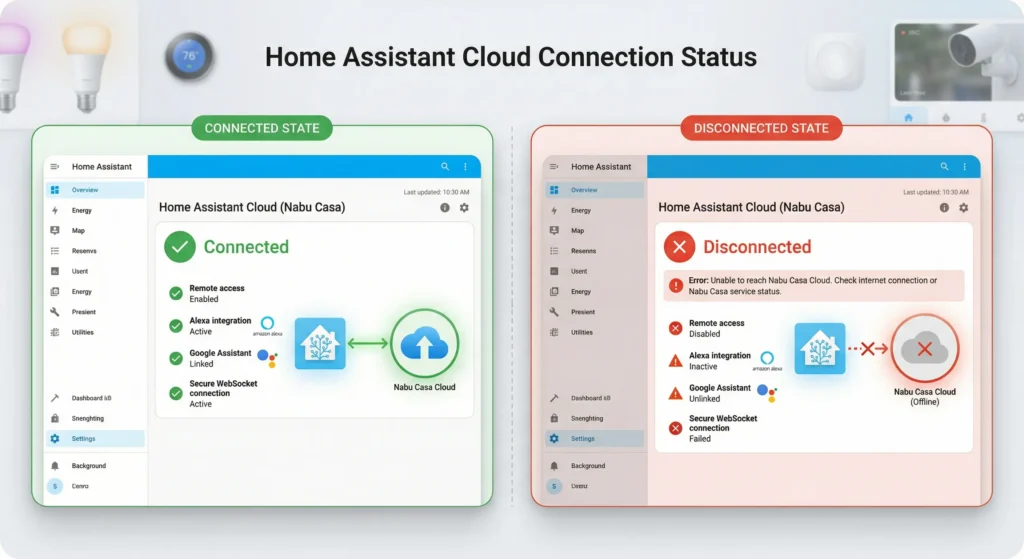
Go to Settings > System > Logs in your Home Assistant dashboard. Look for entries containing “cloud” or “nabucasa.” Common error messages include:
"Cloud connection closed""Unable to connect to cloud""Websocket connection failed"
Test with Firewall Temporarily Disabled:
If your router allows it, temporarily disable the firewall (for just a few minutes, while monitoring your network) and test cloud callbacks. If they work with the firewall off, you have confirmed the cause.
Check Nabu Casa Status:
Visit the Nabu Casa status page to make sure the service itself is not experiencing downtime.
Step 2: Whitelist Nabu Casa Domains
Add these domains to your firewall’s whitelist or allowed list:
*.ui.nabu.casa*.nabucasa.comcloud.nabucasa.comcognito-idp.us-east-1.amazonaws.com(used for authentication)*.amazonaws.com(Nabu Casa uses AWS infrastructure)
If you use Pi-hole or AdGuard Home, add these domains to your whitelist. In Pi-hole, go to Group Management > Domains and add them as whitelisted entries.
Step 3: Adjust Connection Timeout Settings
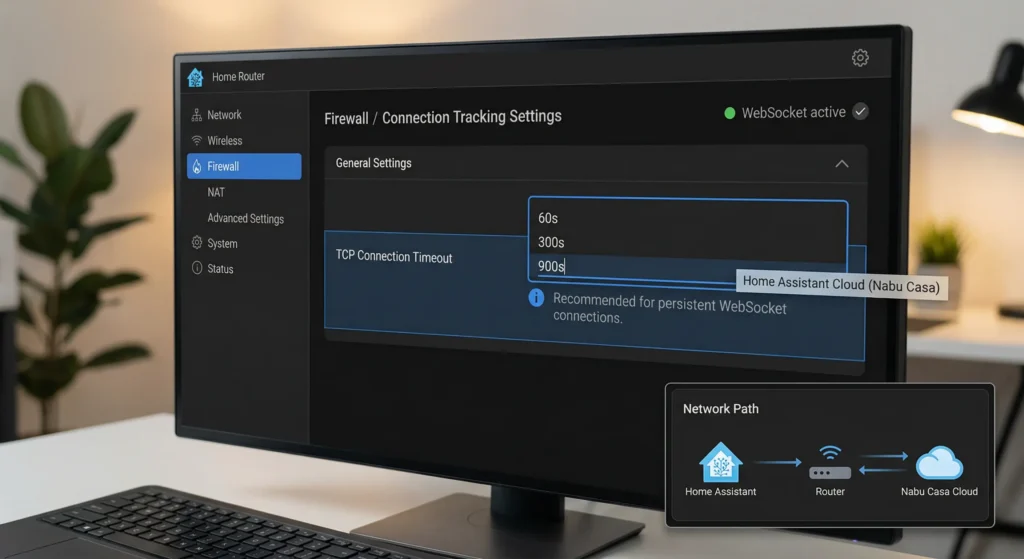
This is the most common fix. Increase your firewall’s TCP connection timeout, especially for established connections.
For most consumer routers:
Look for settings labeled “TCP timeout,” “connection timeout,” or “session timeout” in your router’s advanced settings. Set it to at least 3600 seconds (1 hour).
For pfSense:
Navigate to System > Advanced > Firewall & NAT. Find the “Firewall Maximum States” section and adjust the “TCP Established” timeout. Consider setting it to 86400 seconds (24 hours).
For OPNsense:
Go to Firewall > Settings > Advanced and adjust the timeout values similarly.
Step 4: Create a Dedicated Firewall Rule for Home Assistant
Instead of broadly changing firewall settings, create a specific rule for your Home Assistant server.
- Assign a static IP address to your Home Assistant device (for example, 192.168.1.50)
- Create a firewall rule that allows all outbound traffic from this IP address
- Set the state timeout for this rule to a high value
- Ensure the rule has higher priority than generic blocking rules
This approach keeps your network security tight while giving Home Assistant the freedom it needs for cloud communication.
Step 5: Disable IDS/IPS Exceptions for Home Assistant Traffic
If you run an IDS/IPS system, add an exception (sometimes called a “suppress rule” or “passlist entry”) for traffic between your Home Assistant IP and Nabu Casa servers.
In Suricata on pfSense:
- Go to Services > Suricata > Suppress
- Add a suppress entry for your Home Assistant server’s IP
- Apply the changes
Step 6: Check for Double NAT
To test for double NAT, check your WAN IP address in your router settings and compare it with your public IP (visit whatismyip.com). If they are different, you have double NAT.
Solutions for double NAT:
- Put your ISP modem/router in bridge mode
- Set up your ISP device’s DMZ to point to your personal router
- Contact your ISP to disable their router functionality
Step 7: Verify WebSocket Support
Some firewalls or proxy devices do not handle WebSocket upgrades properly. Ensure that:
- Your firewall supports WebSocket connections
- HTTP/HTTPS inspection is not breaking the WebSocket handshake
- If using a reverse proxy, WebSocket support is enabled
Firewall Settings for Popular Routers and Security Tools
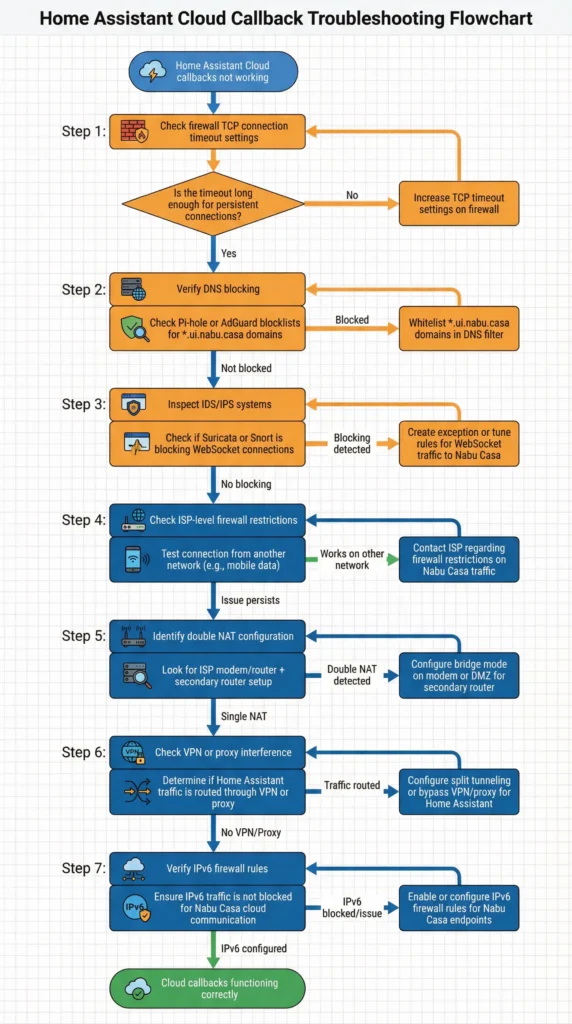
Here are specific instructions for the most commonly used devices:
Ubiquiti UniFi (UDM / USG)
UniFi devices have built in threat management (IDS/IPS) that can interfere with Home Assistant callbacks.
- Go to Settings > Security > Internet Threat Management
- If enabled, check the detection/prevention sensitivity level
- Lower the sensitivity or add your Home Assistant IP to the internal exclusion list
- Under Settings > Routing & Firewall, ensure no LAN Out rules are blocking your Home Assistant device
ASUS Routers (with AiProtection)
ASUS routers use Trend Micro’s AiProtection, which can block WebSocket connections.
- Go to AiProtection > Network Protection
- Check “Malicious Sites Blocking” and “Two Way IPS”
- If callbacks fail, try temporarily disabling Two Way IPS to test
- Add your Home Assistant’s IP to the exception list if available
Netgate pfSense
- Navigate to Firewall > Rules > LAN
- Create a new rule: Action = Pass, Source = Home Assistant IP, Destination = Any
- Under Advanced Options for this rule, set State Timeout to 86400
- Move this rule above any blocking rules
- If using pfBlockerNG, whitelist Nabu Casa domains under DNSBL > Whitelist
Pi-hole
- Open Pi-hole admin at
http://pi.hole/admin - Go to Domains (or Group Management > Domains in newer versions)
- Add
nabucasa.comandui.nabu.casaas whitelisted domains - Use regex whitelist if needed:
(.*\.)?nabucasa\.com$
For detailed Pi-hole configuration, check the Pi-hole documentation.
Safe Practices: What You Should Never Do
While fixing this issue, some solutions you might find online are risky. Here is what to avoid:
Never Disable Your Firewall Entirely
Some forum posts suggest turning off the firewall completely. This exposes every device on your network to the internet. Never do this as a permanent solution.
Never Forward Random Ports
Home Assistant Cloud through Nabu Casa does not require any port forwarding. If someone tells you to forward ports 443 or 8123 to your Home Assistant device for cloud callbacks, that advice is wrong and potentially dangerous.
Never Expose Home Assistant Directly to the Internet Without Protection
If you bypass Nabu Casa and expose your Home Assistant instance directly (through port forwarding or a DMZ), make sure you use HTTPS with a valid certificate and strong authentication. But honestly, Nabu Casa exists specifically so you do not have to do this.
Do Not Whitelist All Traffic Blindly
When creating firewall exceptions, be specific. Whitelist only the required domains and your Home Assistant’s specific IP address. Broad exceptions defeat the purpose of having a firewall.
Real User Experiences
These are experiences shared by real Home Assistant users in community forums and discussions. They illustrate different variations of this problem and their solutions.
Experience 1: The Mysterious Evening Failures
A user on the Home Assistant Community Forum reported that cloud callbacks worked perfectly during the day but failed every evening between 7 PM and 11 PM. After weeks of troubleshooting, he discovered his ASUS router’s adaptive QoS was deprioritizing WebSocket traffic during peak bandwidth usage. Disabling adaptive QoS for his Home Assistant device’s IP fixed the issue.
Experience 2: Pi-hole and Nabu Casa Conflict
Another user spent three days troubleshooting failed callbacks before realizing her Pi-hole installation was blocking cognito-idp.us-east-1.amazonaws.com, which Nabu Casa uses for authentication. The domain appeared on a third party blocklist she had added. Whitelisting this single domain restored full functionality.
Experience 3: Corporate Network Nightmares
A user running Home Assistant in a home office connected to a corporate VPN experienced callback failures only when the VPN was active. The corporate firewall’s DPI was inspecting and breaking the WebSocket connection. His solution was to configure split tunneling on the VPN, excluding his Home Assistant device’s traffic from the VPN tunnel.
FAQ
Does Home Assistant Cloud require port forwarding?
No. Home Assistant Cloud through Nabu Casa does not require any port forwarding. The connection is initiated outbound from your Home Assistant instance to Nabu Casa servers using a WebSocket connection. This means your firewall only needs to allow outbound HTTPS traffic on port 443, which is allowed by default on most networks.
Which ports does Nabu Casa use?
Nabu Casa primarily uses port 443 (HTTPS) for all communication, including WebSocket connections. No additional ports need to be opened. The connection is encrypted using TLS, making it look like standard HTTPS traffic to your firewall.
Can my ISP block Home Assistant cloud callbacks?
Yes, although it is rare. Some ISPs use deep packet inspection or aggressive traffic management that can interfere with long lived WebSocket connections. If you suspect ISP interference, try connecting through a VPN or contact your ISP to ask about WebSocket or persistent connection policies.
Will a VPN fix firewall callback issues?
It depends. A VPN can bypass local firewall restrictions, but it also adds complexity. If your firewall is the problem, it is better to fix the firewall settings directly rather than adding another layer of networking that could create new issues.
How do I know if my firewall is blocking callbacks specifically?
Check your Home Assistant logs for cloud connection errors. You can also use your firewall’s logging feature to look for blocked connections from your Home Assistant device’s IP address. Most firewalls have a “blocked traffic” or “security log” section that will show you exactly what is being blocked and why.
Does this issue affect local Home Assistant control?
No. Local control through your home network is completely unaffected by firewall rules for cloud callbacks. If your Home Assistant dashboard works on your local network and you can control devices locally, the firewall is only blocking the cloud relay component.
Is Nabu Casa the only way to use Google Home with Home Assistant?
No, but it is by far the easiest and safest method. Alternatives include exposing your Home Assistant instance directly to the internet (which requires proper security configuration) or using manual cloud integrations. Nabu Casa simplifies the process and supports Home Assistant development financially. Learn more at the official Home Assistant Cloud documentation.
Can antivirus software on my computer block callbacks?
Your personal computer’s antivirus does not directly affect Home Assistant cloud callbacks, since Home Assistant runs on its own device (Raspberry Pi, NUC, virtual machine, etc.). However, if you run network wide security software on your router or a dedicated device, that can definitely interfere.
Final Thoughts
Firewall blocking Home Assistant cloud callbacks is one of those problems that feels overwhelming at first but usually has a straightforward solution. In most cases, it comes down to one of three things: your firewall is dropping idle WebSocket connections, a DNS filtering tool is blocking Nabu Casa domains, or an IDS/IPS system is flagging the traffic as suspicious.
Start with the simplest fixes first. Check your DNS filtering whitelist, adjust your connection timeouts, and create a specific firewall rule for your Home Assistant device. These three steps solve the problem for the vast majority of users.
Remember that you should never sacrifice network security for convenience. Every fix I have shared in this guide maintains your firewall’s protective role while giving Home Assistant the specific access it needs. Your smart home should be smart and secure.
If you have tried everything in this guide and still face issues, the Home Assistant Community Forum and the Home Assistant Discord server are excellent resources where experienced users can help you troubleshoot your specific setup.
Your smart home is worth the effort. And once you get those cloud callbacks working reliably, you will wonder why you ever stressed about it.