

Table of Contents
- Introduction: A Frustrating Smart Home Nightmare
- What Actually Happens When You Replace Your ISP Modem
- Understanding How Matter Devices Connect to Your Network
- Top Reasons Matter Devices Fail After Modem Replacement
- Real Scenario: How One Modem Swap Broke an Entire Smart Home
- Step by Step Guide to Fix Matter Devices After Modem Replacement
- How to Prevent Matter Device Failures During Future Modem Changes
- Which Matter Devices Are Most Affected
- When a Factory Reset Is Your Only Option
- Real User Experiences and Lessons Learned
- FAQ
- Final Thoughts
Introduction: A Frustrating Smart Home Nightmare
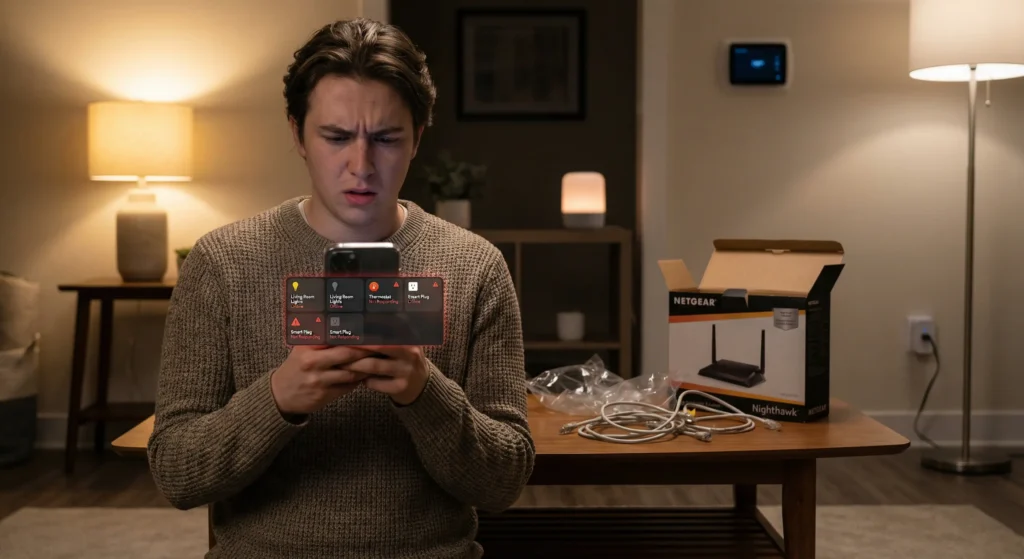
You come home after a routine ISP modem replacement, expecting everything to work as usual. But instead, your smart lights refuse to respond. Your smart thermostat goes offline. Your door lock stops communicating with your phone. Every single Matter device in your home has suddenly become a useless piece of plastic.
If this sounds familiar, you are definitely not alone. Thousands of smart home users face this exact problem every year, and most of them have no idea why it happens or how to fix it without losing their automations, scenes, and device configurations.
I have spent years helping people troubleshoot smart home issues, and modem replacement is consistently one of the top reasons people lose control of their Matter devices. The good news is that this problem is completely fixable, and more importantly, completely preventable.
In this guide, I will walk you through exactly why your Matter devices fail after an ISP modem replacement, give you clear steps to restore everything, and show you how to protect your setup from future disruptions.
What Actually Happens When You Replace Your ISP Modem
Before jumping into solutions, it is important to understand what changes when your ISP replaces or upgrades your modem. This is the root of the entire problem.
Your Network Identity Changes
Every modem broadcasts a Wi-Fi network with specific identifiers. The two most critical ones are:
- SSID (Network Name): The name you see when connecting to Wi-Fi
- BSSID (MAC Address): A unique hardware identifier that devices use internally
- Network encryption keys and security protocols
When your ISP swaps out your modem, even if the technician sets up the same Wi-Fi name and password, the underlying hardware identifiers change completely. Your Matter devices were paired to the old network’s unique fingerprint, not just the name and password you see on your screen.
IP Address Structure May Shift
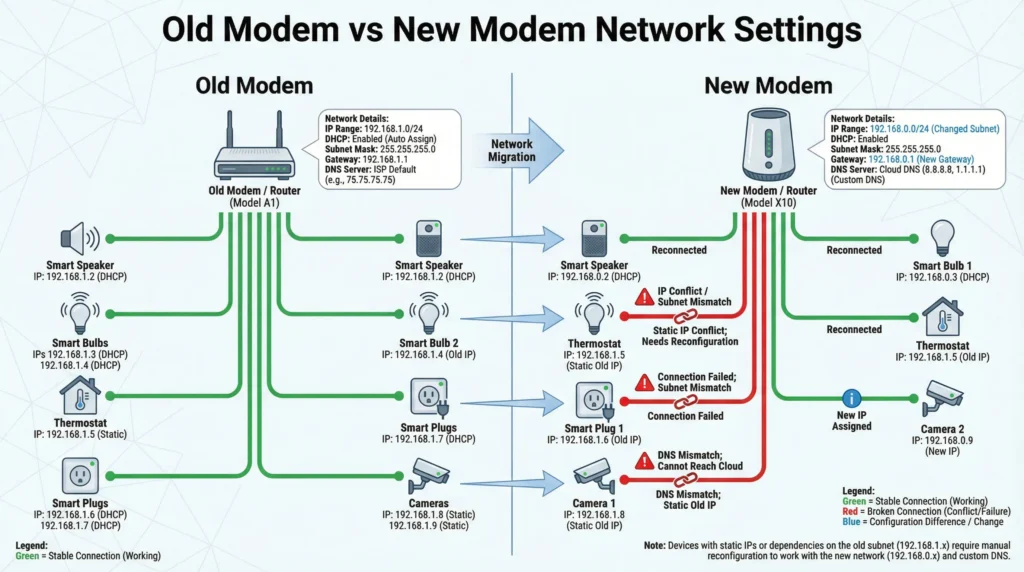
New modems often use different default IP ranges. Your old modem might have used 192.168.1.x while the new one defaults to 192.168.0.x. This seemingly small change breaks the communication path between your hub, controller, and Matter devices.
mDNS and Network Discovery Break
Matter relies heavily on mDNS (Multicast DNS) for device discovery. When the network infrastructure changes, the mDNS records that your devices registered with become invalid. Your controller literally cannot find your devices anymore, even though they might still be connected to Wi-Fi.
Understanding How Matter Devices Connect to Your Network
To truly fix this problem, you need to understand how Matter works under the hood.
The Matter Fabric Concept
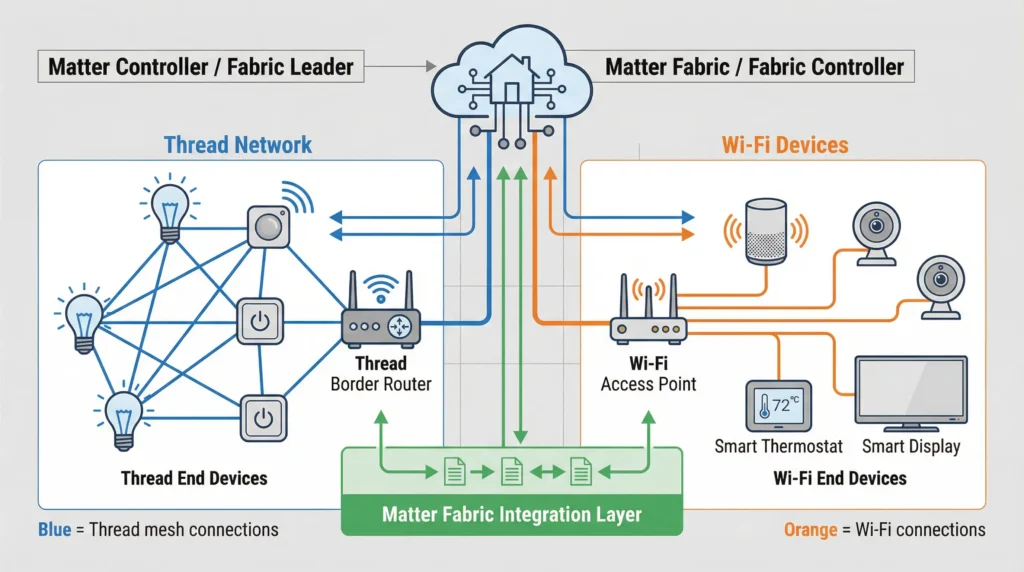
Matter does not simply connect devices to Wi-Fi like a laptop or phone does. Instead, it creates what is called a fabric, which is essentially a secure network overlay that sits on top of your home network. When you commission a Matter device, several things happen:
- The device receives a unique Node ID within the fabric
- Security credentials are exchanged between the device and your controller
- The device registers its network location using your current router’s infrastructure
- Operational certificates are generated and stored
When your modem changes, step 3 breaks immediately. The network location information becomes outdated, and your controller loses the path to reach each device.
Thread vs Wi-Fi Matter Devices
Matter devices connect using two primary protocols:
Wi-Fi based Matter devices are directly affected because they connect to your modem’s Wi-Fi signal. A modem change means their Wi-Fi connection drops entirely.
Thread based Matter devices connect through a Thread Border Router (like a HomePod Mini or Google Nest Hub). These are slightly more resilient because they do not connect directly to your Wi-Fi. However, if your Thread Border Router loses its connection to the new modem, all Thread devices go offline too.
Top Reasons Matter Devices Fail After Modem Replacement
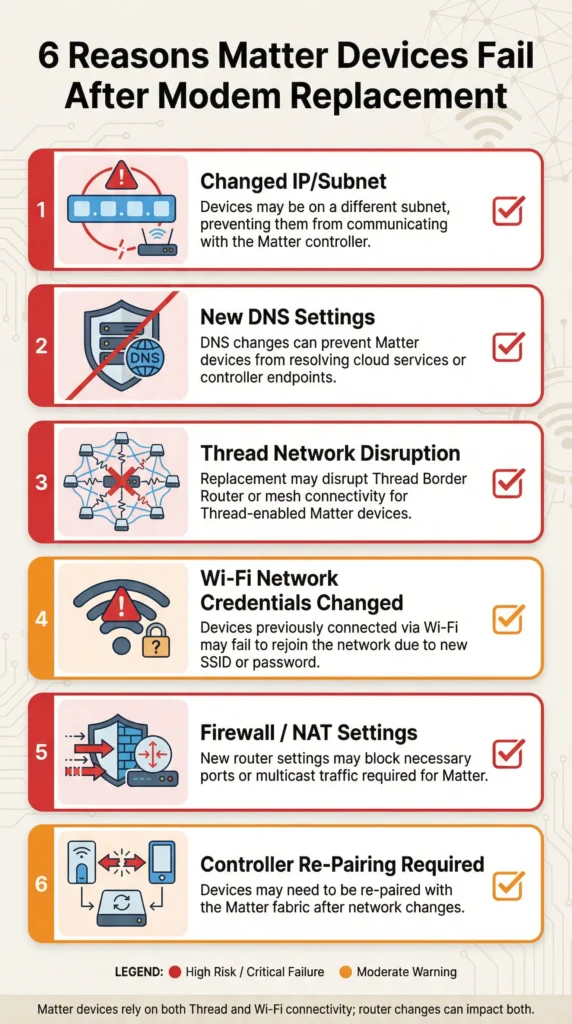
Here are the specific technical reasons your Matter devices stop working, ranked from most common to least common.
1. Different BSSID Despite Same SSID
This is the number one culprit. Even when the ISP technician copies your exact Wi-Fi name and password to the new modem, the BSSID changes. Some Matter devices validate connections using both the SSID and BSSID. When the BSSID does not match what was stored during commissioning, the device refuses to connect or connects but cannot communicate properly.
2. Changed Subnet or IP Range
If your old modem used 192.168.1.0/24 and the new modem defaults to 10.0.0.0/24 or 192.168.0.0/24, your Matter controller has cached the old IP addresses of all devices. Even after devices obtain new IPs via DHCP, the controller does not know where to find them.
3. IPv6 Configuration Differences
Matter relies on IPv6 for communication, especially for Thread devices. Different modems handle IPv6 differently. Some enable it by default, others disable it, and some use different prefix delegation settings. If the new modem handles IPv6 differently than the old one, Matter communication breaks at a fundamental level.
4. mDNS Blocking or Filtering
Some newer ISP modems come with built-in security features that inadvertently block mDNS traffic. Since Matter uses mDNS for device discovery and communication, this effectively silences all your Matter devices.
5. Network Isolation Features Enabled by Default
Many modern ISP modems ship with “AP Isolation” or “Client Isolation” turned on by default. This security feature prevents devices on the same Wi-Fi network from communicating with each other, which completely destroys Matter functionality.
6. Different Wi-Fi Channels and Band Steering
The new modem might default to different Wi-Fi channels or use aggressive band steering that pushes devices between 2.4GHz and 5GHz. Many Matter devices only work on 2.4GHz, and if the modem keeps steering them to 5GHz, connections fail.
Real Scenario: How One Modem Swap Broke an Entire Smart Home
Let me share a real situation that perfectly illustrates this problem.
Mark, a smart home enthusiast from Texas, had built an impressive setup over two years. He had 23 Matter devices including smart locks, lights, a thermostat, motion sensors, and smart plugs. Everything ran through an Apple HomePod Mini as his primary controller, with a Google Nest Hub as a secondary controller.
One Tuesday morning, his ISP showed up for a scheduled modem upgrade. The technician was professional, set the same Wi-Fi name and password, confirmed internet was working on Mark’s laptop, and left.
Within minutes, Mark noticed his Apple Home app showed every single device as “Not Responding.” His Google Home app had the same problem. His automations stopped running. His smart lock would not respond, which meant he could not remotely let in his dog walker.
Here is what Mark tried initially (and why it did not work):
Attempt 1: Restarting the HomePod Mini. Result: Devices still offline. The HomePod reconnected to Wi-Fi but could not rediscover Matter devices.
Attempt 2: Power cycling all Matter devices. Result: Devices came back online briefly then dropped again. They were connecting to Wi-Fi but the Matter fabric communication was broken.
Attempt 3: Restarting the new modem. Result: No change. The fundamental network identity mismatch remained.
What finally worked for Mark was a systematic approach that I will outline in the next section. He managed to recover 19 of his 23 devices without factory resets. The remaining 4 required re-commissioning from scratch.
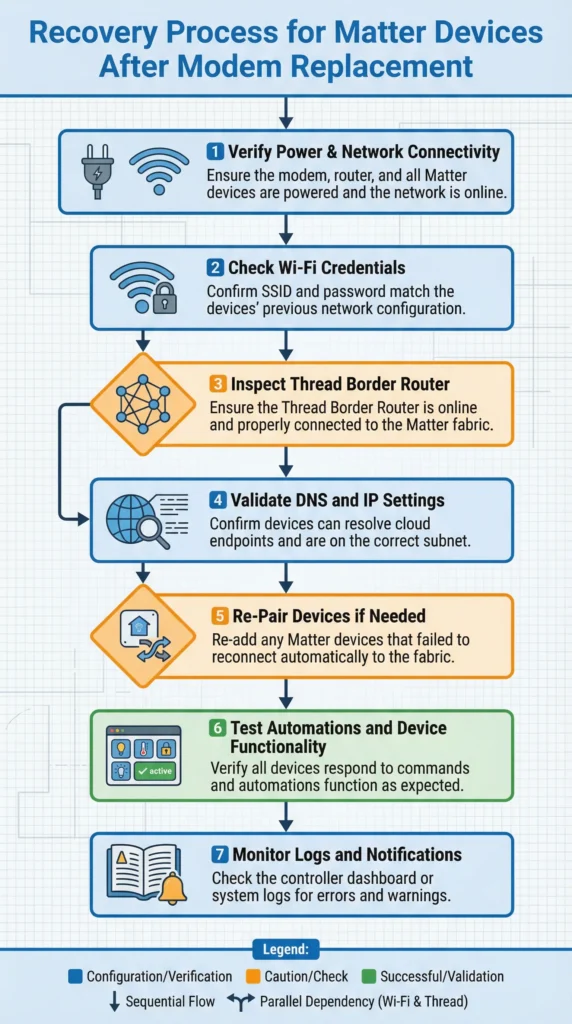
Step by Step Guide to Fix Matter Devices After Modem Replacement
Follow these steps in order. Do not skip ahead, because each step builds on the previous one.
Step 1: Match Your Old Network Settings Exactly
Log into your new modem’s admin panel (usually at 192.168.0.1 or 192.168.1.1) and configure these settings to match your old modem:
- Set the exact same SSID (case sensitive)
- Set the exact same Wi-Fi password
- Match the security protocol (WPA2, WPA3, or WPA2/WPA3 mixed)
- Set the same IP range (subnet) your old modem used
- Match the DHCP range if possible
Step 2: Enable IPv6
Navigate to your modem’s network settings and ensure IPv6 is fully enabled. Look for settings labeled “IPv6 Passthrough,” “Native IPv6,” or “DHCPv6.” Matter requires IPv6 to function properly.
Step 3: Disable Network Isolation
Find the setting called “AP Isolation,” “Client Isolation,” or “Device Isolation” and turn it off. This setting is sometimes buried under Advanced Wireless Settings or Security Settings.
Step 4: Ensure mDNS Is Not Blocked
Check your modem’s firewall settings. Look for multicast filtering options and make sure mDNS (port 5353) is allowed. Some modems label this as “Bonjour” or “Multicast DNS.”
Step 5: Set the Correct Wi-Fi Channel and Band
- Set 2.4GHz to a fixed channel (1, 6, or 11 are best)
- Disable band steering if your Matter devices are 2.4GHz only
- Consider disabling the 5GHz network temporarily during recovery
Step 6: Restart Everything in the Correct Order
This order matters:
- Turn off the modem for 30 seconds, then turn it back on
- Wait 3 minutes for the modem to fully boot
- Restart your Matter controller (HomePod, Google Nest, Echo, SmartThings hub)
- Wait 5 minutes for the controller to reconnect and stabilize
- Power cycle each Matter device one at a time, waiting 60 seconds between each
Step 7: Force Network Rediscovery
On your controller app:
- Apple Home: Close the app completely, wait 30 seconds, reopen it
- Google Home: Go to Settings, then Devices, and pull down to refresh
- Amazon Alexa: Go to Devices, tap Discover, and wait
- Samsung SmartThings: Open the app and check device status
Step 8: Re-commission Stubborn Devices
If specific devices still will not respond after steps 1 through 7:
- Remove the device from your controller app
- Factory reset the device (check manufacturer instructions)
- Re-add the device using the Matter setup code (QR code or numeric code)
- Reassign it to the correct room and automations
How to Prevent Matter Device Failures During Future Modem Changes
Prevention is always easier than recovery. Here is how to protect your smart home before the next modem change.
Use a Separate Router Behind Your ISP Modem
This is the single best thing you can do. Buy a quality router like the TP-Link Archer AX73, ASUS RT-AX86U, or Google Nest Wi-Fi Pro and put your ISP modem in bridge mode. All your devices connect to your personal router, not the ISP modem. When the ISP replaces the modem, you simply plug your router into the new modem, and nothing changes from your devices’ perspective.
Document Your Network Settings
Before any modem change, write down:
- SSID and password
- IP range and subnet mask
- DHCP range
- DNS settings
- Any custom firewall rules
- IPv6 configuration
- Wi-Fi channels being used
Keep Matter Setup Codes
Store the QR codes and numeric setup codes for every Matter device. Take photos of them and save them in a dedicated folder. If you ever need to re-commission a device, you will need these codes, and they are often printed on the device or its packaging.
Create a Network Map
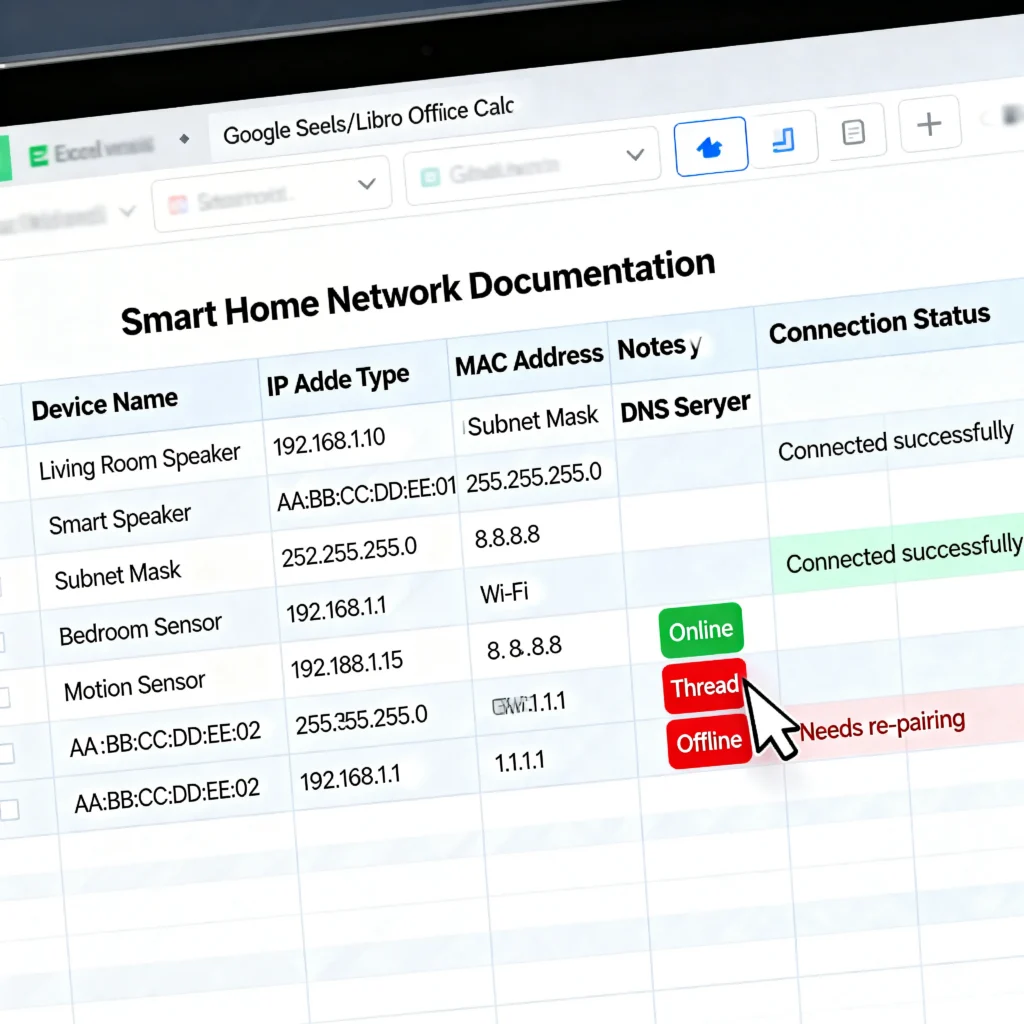
Maintain a simple spreadsheet with:
- Device name
- Device type (Wi-Fi or Thread)
- MAC address
- Static IP (if assigned)
- Room assignment
- Associated automations
Request Bridge Mode Before Modem Swap
If you already use your own router, call your ISP before the scheduled modem change and ask them to configure the new modem in bridge mode. This saves you the hassle of configuring it yourself after the swap.
Which Matter Devices Are Most Affected
Not all Matter devices react the same way to a modem change. Here is what I have observed across hundreds of cases.
Most Vulnerable (High Failure Rate)
- Wi-Fi based smart plugs and switches (like TP-Link Tapo, Meross): These connect directly to Wi-Fi and have limited recovery capabilities
- Smart bulbs (like Nanoleaf Essentials over Wi-Fi): Often require full re-commissioning
- Budget Matter devices: Cheaper devices tend to have less robust reconnection logic
Moderately Vulnerable
- Smart thermostats (like Ecobee): Usually recover after a power cycle if network settings match
- Smart speakers acting as controllers (HomePod Mini, Nest Hub): Need manual restart but typically reconnect
Most Resilient
- Thread based devices with battery backup (like Eve Motion, Eve Door): Thread mesh can self-heal once the Border Router reconnects
- Devices behind a dedicated hub (like Philips Hue with Hue Bridge): The bridge handles reconnection, and downstream devices are unaffected
When a Factory Reset Is Your Only Option
Sometimes, despite your best efforts, certain devices simply will not reconnect. Here is how to know when it is time for a factory reset and how to do it efficiently.
Signs You Need a Factory Reset
- The device does not appear in your controller app even after re-scanning
- The device shows as “offline” for more than 24 hours after network restoration
- The device LED indicates it is in an error state
- The device connected to Wi-Fi (you can see it in your router’s client list) but will not respond to Matter commands
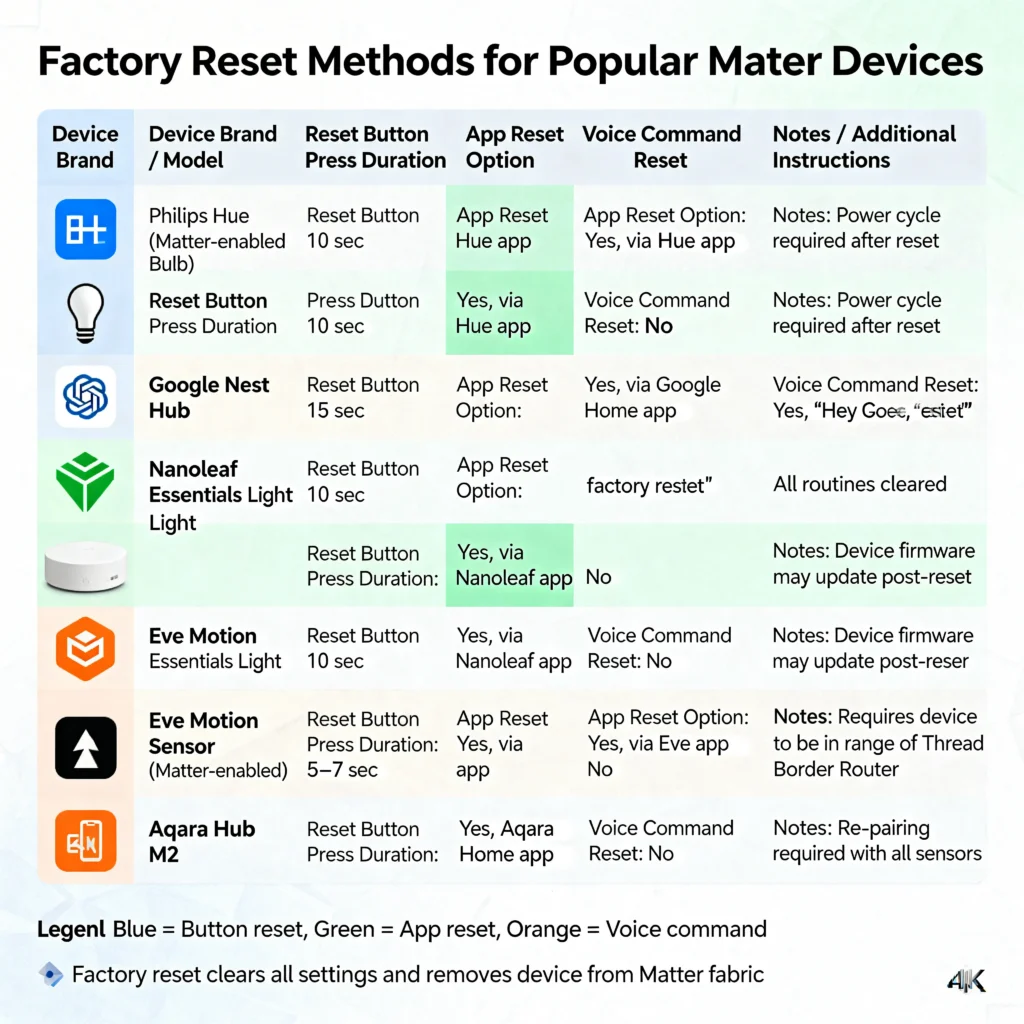
How to Factory Reset Common Matter Devices
Eve devices: Hold the reset button for 10 seconds until the LED flashes rapidly
Nanoleaf: Hold the power button for 15 seconds, then release when the light flashes
Meross: Press and hold the button for 5 seconds until the LED blinks fast
TP-Link Tapo: Press and hold the button for 10 seconds
Always check the manufacturer’s website for exact instructions, as procedures vary by model.
After Factory Reset
- Make sure your network is fully configured and stable first
- Add the device to your Matter controller using the original setup code
- Assign the device to the correct room
- Rebuild any automations that included this device
- Test the device thoroughly before moving to the next one
Real User Experiences and Lessons Learned
Sarah’s Thread Network Recovery
Sarah from Chicago had 15 Thread based Matter devices connected through two HomePod Minis. After her ISP replaced her modem, all Thread devices went offline. The fix was surprisingly simple: she restarted both HomePod Minis after confirming the new modem’s Wi-Fi settings matched the old ones. Within 20 minutes, the Thread mesh rebuilt itself and all 15 devices came back online without any factory resets.
Lesson: Thread devices are more resilient than Wi-Fi Matter devices because they only need the Border Router to reconnect.
James’s Separate Router Strategy
James from Seattle learned the hard way after losing all his Matter devices during a modem swap in 2023. He bought an ASUS router, put his ISP modem in bridge mode, and connected everything to his personal router. When his ISP upgraded his modem again in 2024, zero devices went offline. The transition was completely seamless.
Lesson: A personal router behind your ISP modem is the ultimate protection against this problem.
Linda’s Documentation Saved Her Setup
Linda maintained a detailed spreadsheet of all 30 of her smart home devices, including MAC addresses, static IPs, and setup codes. When her modem was replaced, she was able to configure the new modem to match her old settings within 15 minutes. Only 3 devices needed re-commissioning, and she had the setup codes ready.
Lesson: Documentation takes 30 minutes upfront but saves hours of troubleshooting later.
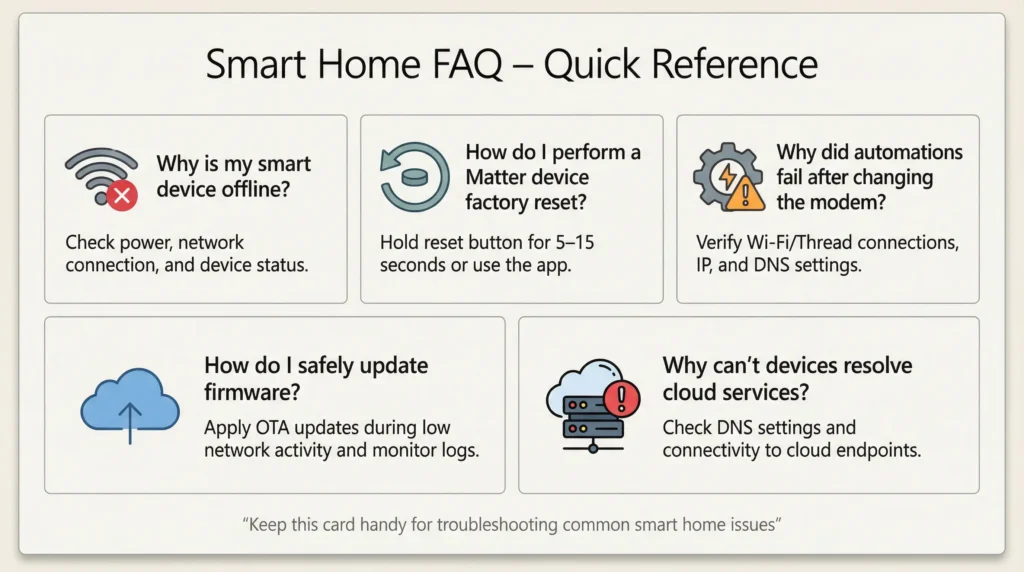
Frequently Asked Questions
Will changing my Wi-Fi password alone cause Matter devices to fail?
Yes. If you change your Wi-Fi password on the same modem, Wi-Fi based Matter devices will lose connection because they stored the old password during commissioning. Thread devices will not be affected as long as their Border Router still has connection.
Can I use my old modem as a router after the ISP replaces it?
In most cases, no. ISP modems are usually leased and must be returned. However, you can purchase your own router and use it behind the new ISP modem in bridge mode, which gives you the same protection.
Do all Matter devices need to be factory reset after modem replacement?
No. If you correctly match the new modem’s network settings to the old one and follow the restart sequence outlined in this guide, many devices will recover on their own. Factory reset is a last resort for stubborn devices.
Why do my Matter devices work with Bluetooth but not remotely after modem change?
This happens because Matter uses Bluetooth only during initial commissioning. After setup, all communication happens over your home network (Wi-Fi or Thread). If the network configuration changed, remote and local network control breaks even though Bluetooth still works.
Will a mesh Wi-Fi system prevent this problem?
A mesh Wi-Fi system helps if you own the mesh system (like Google Nest Wi-Fi, Eero, or TP-Link Deco) and place the ISP modem in bridge mode. If the ISP replaces the modem, your mesh system’s settings remain unchanged, protecting all connected devices.
How long should I wait before troubleshooting after a modem replacement?
Give your network at least 15 to 20 minutes to fully stabilize after a modem replacement. Some devices need time to renegotiate their connections. If devices are still offline after 30 minutes, begin the troubleshooting steps in this guide.
Does Matter have a built-in recovery mechanism for network changes?
The Matter protocol does include some resilience features, but they were designed for minor network interruptions, not complete hardware changes. A full modem replacement exceeds what the built-in recovery can handle in most cases.
Should I contact my ISP about this problem?
Your ISP can help with modem configuration like enabling bridge mode, disabling AP isolation, or enabling IPv6. However, they typically cannot help with Matter device troubleshooting. That responsibility falls on your smart home platform (Apple, Google, Amazon, Samsung).
Final Thoughts
Losing control of your entire smart home because of a simple modem swap is incredibly frustrating, but it is also one of the most preventable problems in the smart home world. The core issue comes down to the fact that Matter devices are deeply tied to your network’s identity, and when that identity changes, the trust relationship breaks.
The most effective long term solution is to use your own router behind your ISP modem. This creates a stable network layer that never changes, regardless of what your ISP does with their equipment. If that is not an option right now, documenting your network settings and keeping your Matter setup codes organized will save you significant time and stress during your next modem change.
Smart home technology is getting better every year, and future versions of Matter may handle network transitions more gracefully. Until then, the strategies in this guide will keep your smart home running smoothly through any modem replacement.
Useful External Resources: