

Table of Contents
- Introduction: When a Simple Update Breaks Everything
- What Is Zigbee OTA Firmware Update?
- Why Do Zigbee OTA Updates Cause Automation Failures?
- Real World Scenarios: How Firmware Updates Break Smart Homes
- Common Symptoms After a Failed Zigbee OTA Update
- Step by Step Guide to Prevent Zigbee OTA Update Failures
- How to Recover Your Automations After a Bad Firmware Update
- Best Practices for Safe Zigbee OTA Firmware Updates
- Zigbee OTA Updates on Popular Platforms: Known Issues
- Real User Experiences with Zigbee OTA Failures
- FAQ: Zigbee OTA Firmware Updates and Automation Failures
- Final Thoughts
Introduction: When a Simple Update Breaks Everything
You wake up one morning and realize your smart lights did not turn off automatically last night. Your motion sensors are unresponsive. The thermostat schedule you carefully built over weeks is completely ignoring your routines. You check your hub, and everything looks fine on the surface. Then you notice it: a firmware update was pushed to your Zigbee devices overnight.
If this sounds familiar, you are not alone. Thousands of smart home users have experienced the frustrating reality of Zigbee OTA firmware updates silently destroying their automations. I have spent over a decade working with IoT ecosystems, and I can tell you that this problem is more common than most people think. The worst part? It often happens without any warning, and the troubleshooting process can feel like searching for a needle in a haystack.
In this comprehensive guide, I will explain exactly why Zigbee OTA firmware updates automation failures, share real scenarios from actual users, and walk you through proven solutions to prevent and fix these issues. Whether you are running Home Assistant, SmartThings, Hubitat, or any other Zigbee compatible platform, this article will give you the clarity and confidence to handle firmware updates without losing your automations.
What Is Zigbee OTA Firmware Update?
Before diving into the problems, let us make sure we understand what Zigbee OTA actually means.
Understanding OTA (Over The Air) Updates
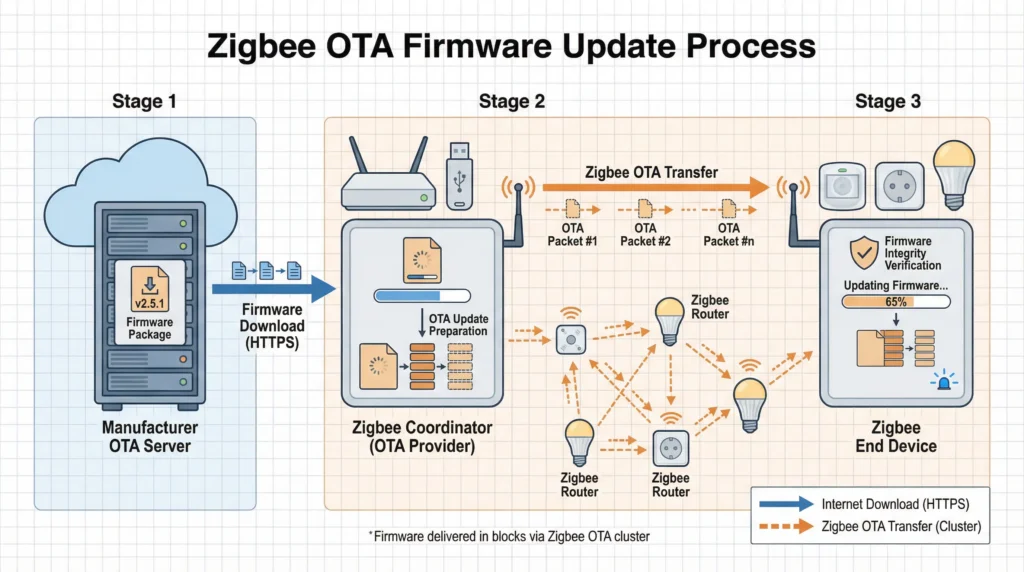
OTA stands for Over The Air. It is a method that allows device manufacturers to push software updates directly to your Zigbee devices without requiring you to physically connect them to a computer. These updates travel through your Zigbee mesh network, typically initiated by your hub or coordinator.
How Zigbee OTA Updates Work
The process follows a specific sequence:
- The manufacturer releases a new firmware image
- Your Zigbee coordinator or hub checks for available updates
- The update file is transferred in small blocks to the target device
- The device validates the firmware image
- The device reboots with the new firmware
- The device re-registers on the Zigbee network
This sounds smooth in theory. But in practice, each of these steps introduces potential failure points that can cascade into automation breakdowns.
Why Manufacturers Push OTA Updates
Manufacturers release firmware updates for several reasons:
- Fixing security vulnerabilities
- Improving device performance and battery life
- Adding new features or Zigbee cluster support
- Fixing bugs reported by users
- Ensuring compliance with updated Zigbee standards
While the intentions are good, the execution often creates unexpected side effects.
Why Do Zigbee OTA Updates Cause Automation Failures?
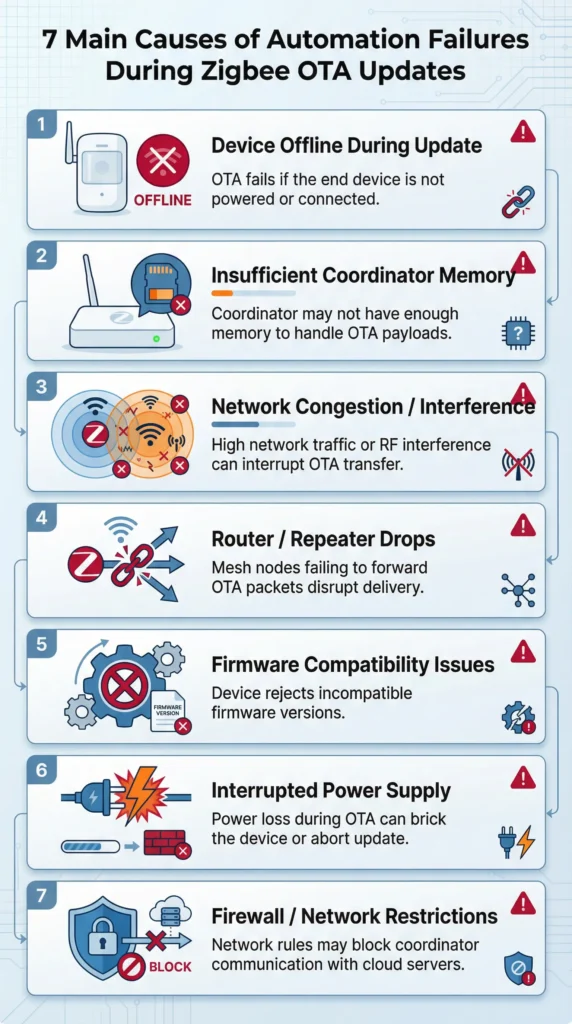
This is the core question, and the answer involves multiple technical and practical factors. Let me break them down clearly.
1. Device Endpoint Changes After Update
One of the most common causes of post-update automation failures is endpoint reassignment. Every Zigbee device exposes one or more endpoints, which are like channels that your hub communicates with. When firmware updates change the endpoint configuration, your hub loses track of which endpoint does what.
For example, a smart plug that previously reported power consumption on Endpoint 2 might move that function to Endpoint 3 after a firmware update. Your automation still points to Endpoint 2, which now either does not exist or serves a different purpose.
2. Cluster ID Modifications
Zigbee devices communicate through clusters, which are standardized groups of attributes and commands. A firmware update might add, remove, or modify cluster support. If your automation relies on a specific cluster command that the updated firmware handles differently, the automation will fail silently.
3. Device Re-pairing Requirements
Some firmware updates are significant enough that the device essentially presents itself as a new device to the network. This means your hub may no longer recognize it under its original network address. All automations tied to that device identity break instantly.
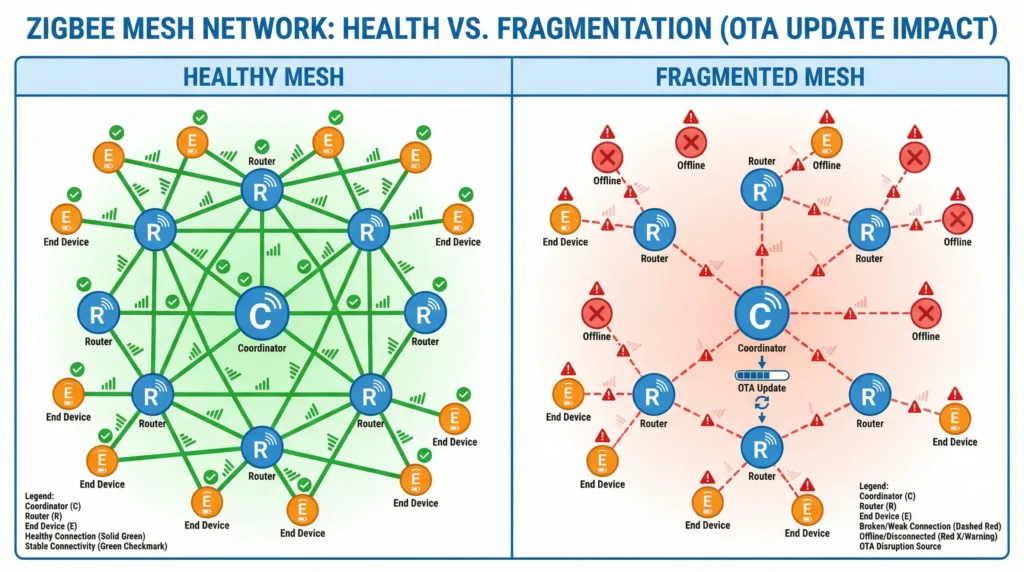
4. Mesh Network Disruption During Update
Zigbee devices form a mesh network where routers (typically mains-powered devices) relay messages for other devices. When a router device receives a firmware update:
- It goes offline temporarily during the reboot
- Other devices that relied on it for routing lose their path
- The mesh network must rebuild its routing tables
- During this rebuilding period, commands may not reach their destinations
If multiple devices update simultaneously, the mesh can become severely fragmented.
5. Attribute Reporting Configuration Reset
Many automations depend on attribute reporting, where a device periodically sends status updates to the hub. Firmware updates frequently reset these reporting configurations to factory defaults. A temperature sensor that was reporting every 30 seconds might switch to reporting every 5 minutes, making your time-sensitive automations unreliable.
6. Timing and Sequence Changes
Firmware updates can alter how quickly a device responds to commands or how it processes sequences of commands. Automations that worked with the old timing may fail because the new firmware processes commands at a different speed or in a different order.
7. Zigbee Protocol Version Incompatibilities
Some firmware updates move devices to a newer Zigbee protocol revision. If your coordinator is running an older version of the Zigbee stack, compatibility issues can emerge. The device and coordinator may struggle to negotiate communication parameters.
Real World Scenarios: How Firmware Updates Break Smart Homes
Let me share some real scenarios that illustrate exactly how these failures play out in everyday smart homes.
Scenario 1: The IKEA TRADFRI Light Bulb Disaster
A user running Home Assistant with a ConBee II coordinator had 15 IKEA TRADFRI bulbs throughout their home. IKEA pushed a firmware update that changed how the bulbs reported their color temperature capabilities. After the update, all automations involving color temperature transitions stopped working. The bulbs still turned on and off, but any automation that included a color temperature command would silently fail.
The fix required removing each bulb from the Zigbee network, factory resetting them, re-pairing them, and rebuilding every automation from scratch. This took the user an entire weekend.
Scenario 2: The Aqara Motion Sensor Timing Issue
An Aqara motion sensor received a firmware update through a Zigbee2MQTT setup. Before the update, the sensor had a configurable occupancy timeout. After the update, the minimum timeout changed from 5 seconds to 30 seconds. Every automation that depended on quick motion detection and response (like hallway lights turning on and off quickly) became sluggish and unreliable.
Scenario 3: The Sonoff Zigbee Plug Network Collapse
A user had six Sonoff Zigbee smart plugs acting as routers in their mesh network. When all six received OTA updates simultaneously, they all rebooted within minutes of each other. This caused every battery-powered sensor in the house to lose its route to the coordinator. For the next 48 hours, automations triggered randomly or not at all while the mesh slowly rebuilt itself.
Common Symptoms After a Failed Zigbee OTA Update
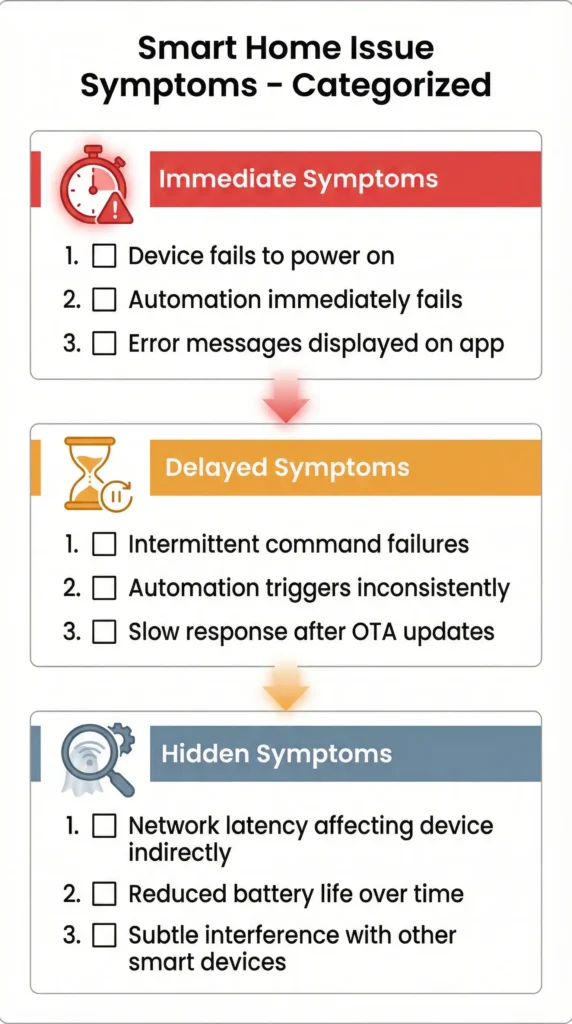
Knowing what to look for can save you hours of troubleshooting. Here are the telltale signs that a firmware update has impacted your automations.
Immediate Symptoms
- Devices show as “unavailable” or “offline” in your hub
- Automations trigger but devices do not respond
- Devices respond to manual commands but ignore automation triggers
- Battery-powered devices stop reporting sensor data
- Devices appear with new identifiers in your Zigbee network map
Delayed Symptoms
- Automations work intermittently rather than consistently
- Response times become noticeably longer
- Devices randomly drop off the network and rejoin
- Zigbee network map shows orphaned devices
- Increased message failures in your coordinator logs
Hidden Symptoms
- Attribute reporting intervals change without notification
- Device capabilities list changes silently
- Binding table entries get cleared
- Group membership is lost
- Scene configurations reset to defaults
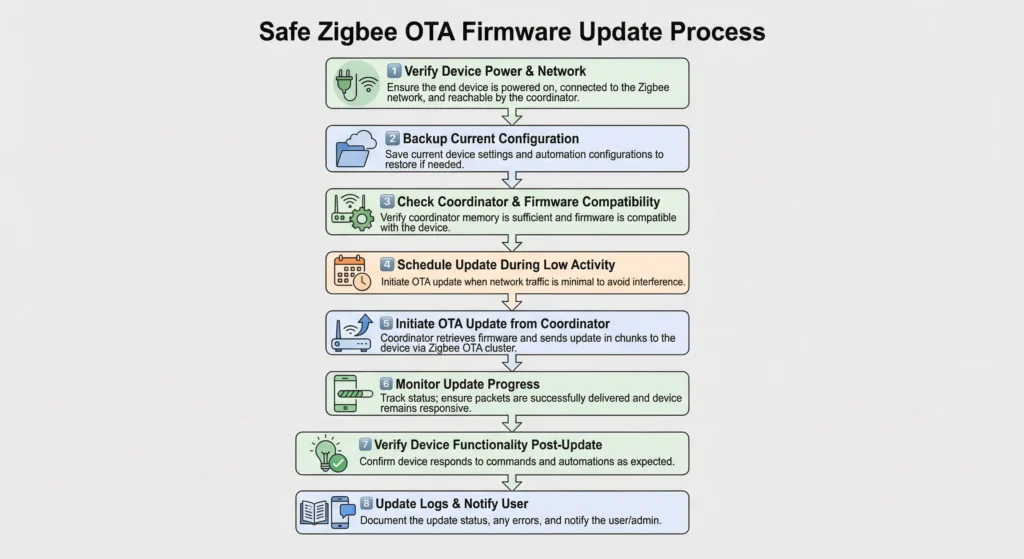
Step by Step Guide to Prevent Zigbee OTA Update Failures
Prevention is always better than recovery. Follow these steps to protect your automations from firmware update disasters.
Step 1: Disable Automatic OTA Updates
The single most important step you can take is disabling automatic firmware updates on your Zigbee coordinator or hub.
In Zigbee2MQTT:
Open your configuration.yaml and add:
YAMLota:
  disable_automatic_update_check: true
In ZHA (Home Assistant):
Navigate to Settings then Devices & Services then Zigbee Home Automation. OTA updates are manual by default in ZHA, but always verify this in your configuration.
In SmartThings:
Unfortunately, SmartThings does not offer granular control over Zigbee OTA updates. Consider reaching out to Samsung support or monitoring the community forums for workarounds.
Step 2: Create a Full Backup Before Any Update
Before manually triggering any firmware update:
- Export your automation configurations
- Back up your entire hub configuration
- Document the current firmware version of each device
- Screenshot your Zigbee network map
- Record the current attribute reporting settings for critical devices
Step 3: Update One Device at a Time
Never update multiple devices simultaneously. Update one device, wait at least 24 hours, verify all automations involving that device still work, and only then proceed to the next device.
Step 4: Start with Non-Critical Devices
If you have duplicate devices or devices that are not part of critical automations, update those first. This gives you a preview of how the new firmware behaves without risking your most important automations.
Step 5: Monitor Your Zigbee Mesh Health
After each update, check your Zigbee network map to ensure:
- The updated device has rejoined properly
- Routing tables are intact
- Neighboring devices still show healthy link quality
- No orphaned devices have appeared
Step 6: Test Every Related Automation
After updating a device, manually trigger every automation that involves that device. Do not assume that because one automation works, they all will. Different automations may use different clusters or attributes.
Step 7: Check Attribute Reporting Configuration
After the update, verify that the device is still reporting attributes at the intervals you configured. If they have reset to defaults, reconfigure them before considering the update complete.
How to Recover Your Automations After a Bad Firmware Update
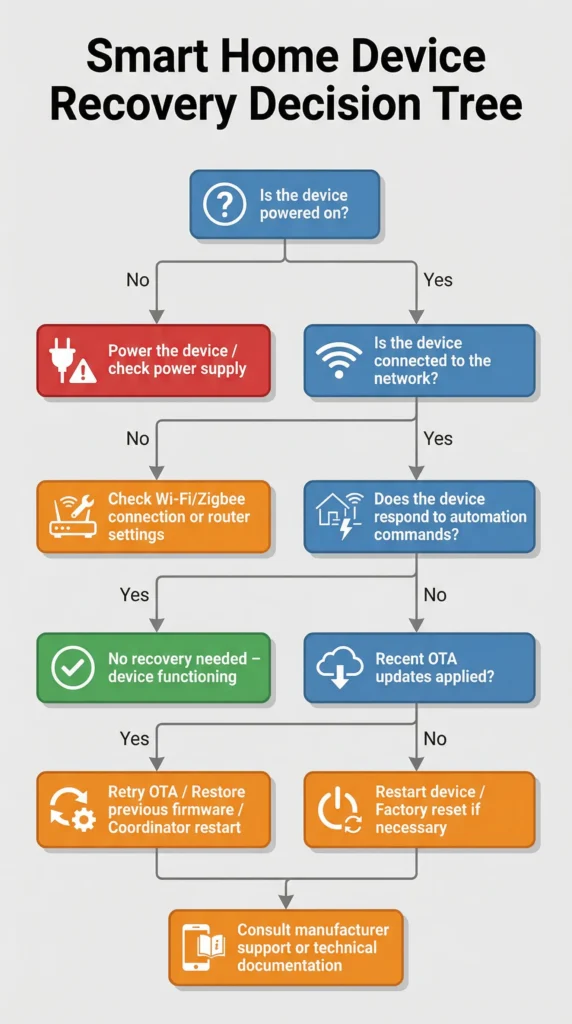
If the damage is already done, here is how to get your smart home back on track.
Recovery Method 1: Re-interview the Device
Most Zigbee platforms allow you to re-interview a device, which forces the coordinator to rediscover the device capabilities without removing it from the network.
In Zigbee2MQTT:
Go to the device page and click “Reconfigure.” This will re-read the device clusters and endpoints.
In ZHA:
Navigate to the device page, click the three-dot menu, and select “Reconfigure device.”
This often resolves issues caused by changed endpoints or clusters without requiring you to rebuild automations.
Recovery Method 2: Force Remove and Re-pair
If re-interviewing does not work:
- Note down all automations involving the device
- Force remove the device from your Zigbee network
- Factory reset the device (check manufacturer instructions)
- Re-pair the device with your coordinator
- Reconfigure attribute reporting settings
- Update all automations with the new device entity
Recovery Method 3: Restore from Backup
If multiple devices are affected and the situation is too complex to fix device by device:
- Restore your hub to the backup you created before the update
- Block OTA updates to prevent the same firmware from being pushed again
- Gradually re-enable updates only for devices you are ready to update manually
Recovery Method 4: Rollback Firmware (Advanced)
Some devices support firmware rollback, though this is rare in the Zigbee world. If the manufacturer provides older firmware files, you can sometimes flash them manually:
- IKEA TRADFRI devices can be downgraded using specific tools
- Some Sonoff devices support firmware rollback through their app
- Custom firmware options like Koenkk firmware for certain devices offer more control
Important warning: Only attempt firmware rollback if you are confident in your technical abilities. Flashing incorrect firmware can permanently brick your device.
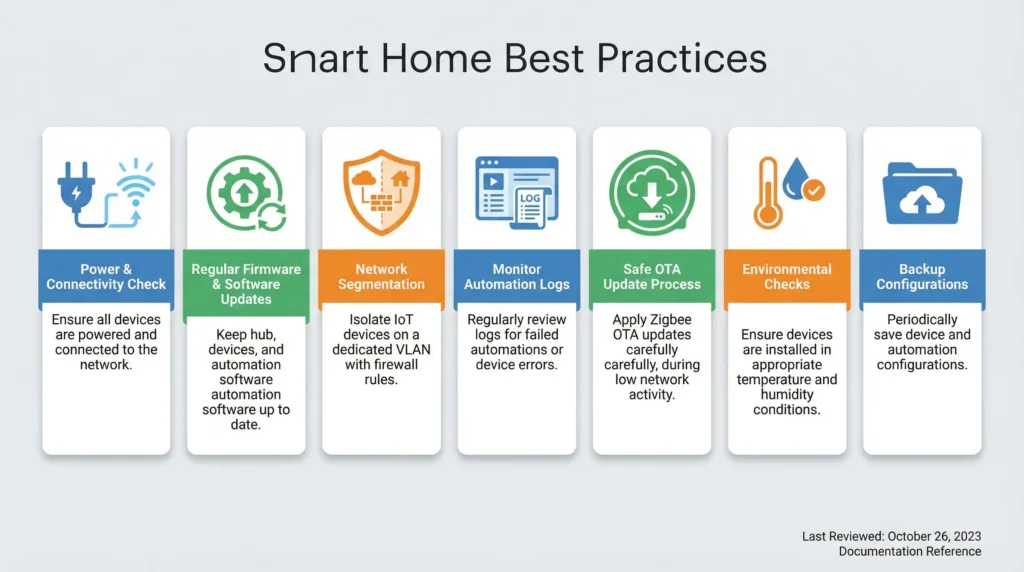
Best Practices for Safe Zigbee OTA Firmware Updates
Based on years of experience managing Zigbee networks, here are the best practices I recommend.
Maintain a Device Inventory
Keep a spreadsheet or document that tracks:
| Device Name | Model | Current Firmware | Last Update Date | Critical Automations | Notes |
|---|---|---|---|---|---|
| Kitchen Light | IKEA E27 | 2.3.093 | 2024-11-15 | Morning routine, Dinner scene | Color temp automation |
| Front Door Sensor | Aqara MCCGQ11LM | 0.0.0_0030 | 2024-10-20 | Security alert, Welcome home | Battery 78% |
| Living Room Plug | Sonoff S31 | 2.0.0_0030 | 2024-12-01 | TV automation, Energy monitor | Acts as router |
Read Firmware Changelogs Before Updating
Always check what changed in the new firmware before applying it. Manufacturer release notes, community forums, and GitHub repositories often contain valuable information about potential breaking changes.
Useful resources for checking changelogs:
- Zigbee2MQTT Supported Devices for device compatibility notes
- Zigbee OTA Repository on GitHub for firmware files and version information
- Home Assistant Community Forums for user reported issues
Schedule Updates During Low Activity Periods
If you must update devices, do it during times when your automations are least critical. Avoid updating during:
- Nighttime (when security automations are most important)
- Extreme weather (when thermostat automations are critical)
- Vacation periods (when you cannot physically troubleshoot)
Build Automation Resilience
Design your automations to be more resilient to device changes:
- Use device groups instead of individual device targeting where possible
- Implement fallback conditions in critical automations
- Create notification automations that alert you when devices become unavailable
- Use availability checks before executing automation actions
Keep Your Coordinator Firmware Updated
While being cautious about end device firmware, you should keep your Zigbee coordinator firmware reasonably current. Coordinator updates often include improved compatibility with newer device firmware versions.
Popular coordinator firmware sources:
- Z-Stack firmware for CC2652 coordinators
- ConBee/RaspBee firmware from Dresden Elektronik
- EFR32 based coordinator firmware
Zigbee OTA Updates on Popular Platforms: Known Issues
Different smart home platforms handle Zigbee OTA updates differently, and each has its own set of known issues.
Home Assistant with ZHA
ZHA generally handles OTA updates conservatively. Updates are typically manual, which is good for control. However, known issues include:
- Device entities sometimes duplicate after firmware updates
- Quirks (custom device handlers) may not match the new firmware behavior
- The ZHA device page may show outdated capabilities until you reconfigure
Home Assistant with Zigbee2MQTT
Zigbee2MQTT offers the most granular control over OTA updates. You can:
- Check for available updates without installing them
- Update devices individually
- Monitor the update progress in real time
- Disable automatic update checks entirely
Known issues include:
- Some devices require a manual power cycle after OTA update completion
- The converter file may need updating to match new firmware capabilities
- Large firmware files can cause timeout errors on slower coordinators
Samsung SmartThings
SmartThings is the most aggressive platform regarding OTA updates. The hub often pushes updates automatically without user consent. Known issues include:
- No way to prevent certain manufacturer updates
- Device handlers may break after firmware changes
- Limited visibility into what firmware version was applied
- Recovery options are limited compared to open source platforms
Hubitat Elevation
Hubitat provides moderate control over Zigbee OTA updates. Known issues include:
- Some device drivers do not properly handle post-update capability changes
- The platform may not detect that a device needs reconfiguration after an update
- Community drivers may lag behind firmware changes
[📸 Image Placeholder: Comparison table showing OTA update control features across Home Assistant ZHA, Zigbee2MQTT, SmartThings, and Hubitat]
Alt text: Platform comparison table showing Zigbee OTA firmware update management features across popular smart home platforms
Real User Experiences with Zigbee OTA Failures
These accounts come from community forums and direct conversations with smart home enthusiasts who have dealt with Zigbee OTA update failures firsthand.
Experience 1: “My Entire Security System Went Down”
Mark from the Home Assistant community shared:
“I had 8 Aqara door and window sensors as part of my security automation. One night, three of them received firmware updates through my ConBee II. The next morning, my wife left for work and the security alarm did not arm. Those three sensors had changed their reporting intervals and two of them had actually dropped off the mesh entirely. It took me two days to figure out what happened because there was no notification that updates had been applied.”
Experience 2: “Gradual Degradation Nobody Noticed”
Sarah, a Hubitat user, described a more subtle problem:
“Our Zigbee motion sensors started updating one by one over two weeks. Each update slightly changed the sensitivity and reporting behavior. Our hallway lights started staying on too long, then not turning on at all sometimes. We blamed the bulbs, the hub, even the WiFi, before we realized it was the sensor firmware updates causing the issue. The changes were so gradual that we did not connect them to the updates.”
Experience 3: “The Holiday Disaster”
James, a SmartThings user, shared this cautionary tale:
“We left for a two-week holiday. SmartThings pushed updates to several of our Zigbee devices while we were away. Our automated lighting schedule stopped working on day three, so our house sat dark for 11 days. We realized this made our home look unoccupied, which defeated the entire purpose of having smart lighting for security while traveling.”
These experiences highlight why proactive management of Zigbee OTA updates is essential for any serious smart home setup.
[📸 Image Placeholder: Quote cards featuring the three user experiences with relevant icons]
Alt text: Three user experience quote cards describing real Zigbee OTA firmware update failures affecting home security lighting and automation
FAQ: Zigbee OTA Firmware Updates and Automation Failures
Can I completely block all Zigbee OTA firmware updates?
Yes, on most platforms you can disable OTA updates entirely. In Zigbee2MQTT, set disable_automatic_update_check: true in your configuration. In ZHA, updates are manual by default. However, on platforms like SmartThings, your control is more limited.
Will skipping firmware updates cause security risks?
There is a potential security risk in running outdated firmware, but for most home users, the risk of automation failures from untested updates is more immediate. A balanced approach is to wait a few weeks after a firmware release, check community feedback, and then update manually.
How do I know if a firmware update caused my automation failure?
Check your hub logs for OTA update entries around the time your automations started failing. In Zigbee2MQTT, look for log entries containing “OTA” or “update.” In ZHA, check the Home Assistant logs filtered by the ZHA integration. Also compare the current firmware version of your devices against your records.
Do all Zigbee devices support OTA updates?
No. Many budget Zigbee devices and some older models do not support OTA updates. Ironically, these devices often provide the most stable automation experience because their firmware never changes unexpectedly.
Can a firmware update brick my Zigbee device?
While rare, it is possible. A power interruption during a firmware update or a corrupted firmware image can render a device non-functional. Most modern Zigbee devices have a bootloader that can recover from failed updates, but this is not guaranteed for all devices.
How long does a Zigbee OTA update typically take?
Update times vary significantly based on firmware size and mesh network conditions. A typical Zigbee OTA update takes anywhere from 5 minutes to over an hour. During this time, the device may be partially or fully unresponsive.
Should I update my Zigbee coordinator firmware regularly?
Yes, coordinator firmware updates are generally safer and more important than end device updates. They often improve network stability, add support for newer device firmware, and fix communication issues. Just make sure to back up your network configuration before updating the coordinator.
What happens to Zigbee device groups after a firmware update?
Firmware updates can reset the group membership table on a device. If your automations use Zigbee groups for synchronized control (like turning on all living room lights simultaneously), you may need to re-add the updated device to its groups.
Can I rollback a Zigbee firmware update?
Rollback support depends on the device manufacturer and model. Most consumer Zigbee devices do not officially support firmware rollback. Some devices with custom firmware support (like certain Tuya based devices) can be downgraded using third party tools, but this carries risk.
Do Zigbee 3.0 devices handle OTA updates better than older versions?
Zigbee 3.0 includes improved OTA update specifications with better error handling and validation. However, the quality of the implementation still depends heavily on the device manufacturer. A well-implemented Zigbee HA 1.2 device can handle updates more gracefully than a poorly implemented Zigbee 3.0 device.
Final Thoughts
Zigbee OTA firmware updates are a double-edged sword. They bring improvements and security fixes, but they also carry real risks for your automation setup. The key takeaway from this guide is simple: never let firmware updates happen without your knowledge and control.
Take the time to disable automatic updates, maintain backups, update devices one at a time, and always test your automations after any firmware change. These steps might seem time-consuming, but they are nothing compared to the hours you will spend troubleshooting a broken smart home.
Your smart home should make your life easier, not harder. By understanding why Zigbee OTA updates cause failures and implementing the prevention strategies outlined in this guide, you can enjoy the benefits of firmware improvements without sacrificing the reliability of your automations.
If you found this guide helpful, consider bookmarking it for future reference. Firmware updates will keep coming, and having a solid game plan will save you countless headaches down the road.
[📸 Image Placeholder: Summary infographic combining key takeaways from the entire article]
Alt text: Complete summary infographic of Zigbee OTA firmware update best practices prevention steps and recovery methods for smart home automation